What's inside
- Key Takeaways
- Quick Picks
- How Did We Choose Cards for Editing Work?
- The Six Cards in Detail
- Photo Work and Video Work Do Not Ask the Same Things
- How Are AI Features Changing What an Editing GPU Has to Do?
- What Should a Creator Check in Their Software Before Choosing?
- The Creator Lineup at a Glance
- Colour Work: Outputs, Monitors and the Chain Between Them
- Setting Up the Card for Editing: Drivers and Application Choices
- Where Do Creator Builds Usually Go Wrong?
- Final Recommendation
- Frequently Asked Questions
- Related Guides
As an Amazon Associate I earn from qualifying purchases. This post may contain affiliate links at no extra cost to you.
gizmoverdict.com is reader-supported. When you buy through links on our site, we may earn an affiliate commission.
Where to buy: Each card in this guide was verified against this site’s product pool on 26 November 2026, and the specifications quoted in its review — memory, interface, outputs, cooler design — are taken from that listing rather than from the GPU maker’s general literature. Creator cards sell in lower volumes than gaming flagships, so a specific design can drift in and out of stock; if the exact card you want is unavailable, another pick here built on the same GPU is a far safer substitute than a gaming card chosen by badge alone.
The best graphics cards for photo and video editing answer a different set of questions from their gaming siblings. A photographer’s GPU accelerates Lightroom and Photoshop previews, AI-driven masking and noise reduction, and the smooth scrubbing of large catalogues; a video editor’s GPU carries timeline effects, colour grading in DaVinci Resolve, hardware encoding for delivery, and the rendering of high-resolution footage that may be 4K today and 6K or 8K tomorrow. Memory capacity sits at the centre of both workloads, because a photo catalogue’s previews and a timeline’s frames live in VRAM while you work on them, and the moment the buffer overflows, the machine’s graceful speed turns into swapping and stutter.
This guide’s six cards were chosen to span the realistic creator market: two ASUS ProArt flagships designed and tuned for studio work, an AMD value alternative with a candid note about software ecosystems, a last-generation card whose price now undercuts its ability, and two RTX 5070 Ti designs that approach long rendering sessions from opposite philosophies — one styled for clean workstations, one cooled for endurance. Every card here carries 16GB of memory except the last-generation pick at 12GB, and that near-uniformity is deliberate: for editing work in this period, capacity is the floor, and the interesting decisions happen above it.
A note on drivers and intent runs through the reviews. Creator-focused lines such as ProArt are built around stability, quieter cooling and display outputs chosen for studio monitors, including the USB Type-C connection named in one listing below. Gaming-branded cards can edit perfectly well — two picks here prove it — but the creator designs earn their place by treating the workstation, not the arena, as home. Read each review against your own software first and your ambitions second; in editing, the application you open every day is the benchmark that matters.
Key Takeaways
- Five of the six cards here carry 16GB of memory; for photo and video work that capacity, more than raw gaming speed, decides how large a project feels comfortable.
- ASUS’s ProArt RTX 5080 is the flagship creator pick, with Blackwell architecture and DLSS 4 named in its listing.
- The ProArt RTX 5070 Ti adds a USB Type-C display output and a 2.5-slot design aimed at studio workstations.
- The Radeon RX 9070 XT offers 16GB at a value position, with an honest caveat: tools built exclusively around NVIDIA’s CUDA will not use it.
- MSI’s RTX 4070 Super Ventus is the last-generation value route, with 12GB of GDDR6X and a triple-fan cooler.
- Between the two gaming-branded 5070 Ti cards, choose the AERO for a clean workstation look and the Gaming Trio for cooling headroom during long renders.
Quick Picks
| Pick | Badge | Why it earns its place |
|---|---|---|
| ASUS ProArt GeForce RTX 5080 16GB | Creator flagship | Blackwell power in a ProArt design built for studios, with 16GB of GDDR7 for heavy timelines. |
| ASUS ProArt GeForce RTX 5070 Ti 16GB | Studio step-down | 16GB, a USB Type-C output and a 2.5-slot footprint for workstations that also need to stay quiet. |
| ASUS Prime Radeon RX 9070 XT 16GB | AMD value creator | 16GB of GDDR6 and strong raster performance for editors whose software is not CUDA-bound. |
| MSI GeForce RTX 4070 Super Ventus 3X OC | Last-gen value | 12GB of GDDR6X and a triple-fan cooler at a previous-generation position in the range. |
| GIGABYTE GeForce RTX 5070 Ti AERO OC 16G | Clean-design creator | A 16GB 5070 Ti in a restrained AERO design that suits visible workstations. |
| MSI GeForce RTX 5070 Ti Gaming Trio OC | Render-endurance pick | The same 5070 Ti tier with a gaming-grade cooler built to hold up through overnight exports. |
How Did We Choose Cards for Editing Work?
The selection began with the verified pool: every card below was matched to a live listing, and its review uses only the specifications that listing states. From that pool, cards were shortlisted on the criteria editing actually imposes. Memory capacity came first, which is why the list is dominated by 16GB designs. Display outputs came second — a creator card must drive high-resolution, colour-critical monitors without adapter gymnastics, and outputs such as the ProArt 5070 Ti’s USB Type-C, named in its listing, speak directly to modern studio displays and portable monitors. Cooler behaviour came third, judged for sustained, quiet operation rather than peak gaming clocks, because an export that runs for two hours beside your chair is an acoustic experience as much as a computational one.
Software ecosystem was the fourth filter, and it is the one this guide refuses to fudge. NVIDIA’s CUDA platform underpins acceleration in a wide range of creative applications, and some tools use it exclusively; AMD’s cards are powerful and increasingly well supported, but a buyer whose pipeline is CUDA-only gains nothing from Radeon hardware however strong its specification reads. The RX 9070 XT’s review states its position plainly so that DaVinci Resolve and OpenCL-friendly users can buy it with confidence while CUDA-bound users pass it by with thanks.
Finally, the list was balanced across generations and intentions: current creator flagships for studios, a current AMD alternative for the ecosystem-flexible, a discounted last-generation card for budget builds, and two current gaming-branded designs for the many editors whose machines also game. Editing is not one workload, and a guide that pretended otherwise would mislead photographers with video advice and videographers with stills advice in equal measure.
One criterion was applied silently throughout and deserves to be made explicit: every card here had to be a defensible purchase with the buyer’s own money, at the position it occupies, for the workload its review describes. That sounds obvious, yet it excludes a real category of guide-filler — the card included because its badge is famous, the flagship listed to lend glamour to a list its readers will never buy from. This guide has flagships, but they are here because studios exist that invoice their capability back monthly, and each review says which buyer that is. If a pick’s natural owner cannot be named in one sentence, the pick does not belong in a creator’s guide, and none of the six below fails that test.
The Six Cards in Detail
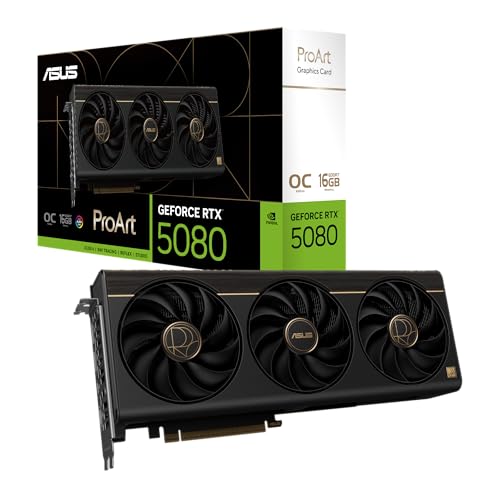
ASUS ProArt GeForce RTX 5080 16GB — Creator flagship
The ProArt RTX 5080 is ASUS’s creator line built on the strongest GPU in this guide, and its listing identifies the essentials: an OC Edition card with 16GB of GDDR7 memory, NVIDIA Blackwell architecture and DLSS 4. The ProArt treatment matters beyond the badge. These cards are styled for studios rather than gaming dens — restrained shrouds that sit comfortably in a client-facing workspace — and they are tuned with the assumption that the machine’s working day is measured in timelines rendered and catalogues culled, not in matches played. For a professional whose computer is also their storefront, that design intent is a feature with a client attached to it.
The workload case is straightforward. Sixteen gigabytes of fast memory holds large DaVinci Resolve timelines, multilayer Photoshop documents and Lightroom catalogues with room to spare, while the Blackwell GPU’s acceleration shortens the AI-driven tasks — subject masking, denoise, upscaling — that have moved from novelties to daily tools in both photo and video pipelines. Hardware encoding for delivery formats keeps exports moving without surrendering the CPU, which matters in a studio where the same machine must remain usable while yesterday’s project renders in the background.
Photographers sometimes ask whether a flagship is wasted on stills, and the honest answer is: increasingly, no. Modern photo workflows lean on GPU acceleration for preview generation, AI culling assistance and batch denoise across hundreds of frames from a wedding or a sports assignment, and those batch jobs scale with GPU power in a way that single-image editing never did. A studio processing volume will feel this card’s strength weekly; a hobbyist editing a dozen frames a month will not, and should read the 5070 Ti reviews below with a clearer conscience.
The cautions are the flagship cautions, translated to studio terms. The card wants a power supply with real headroom and a case with genuine airflow, and its price buys capability that only a heavy pipeline will invoice back. Studios should also plan the monitor chain alongside it: a flagship GPU feeding an ageing, drifting display is money spent at the wrong end of the image, and the colour-critical panel deserves a place in the same budget conversation.
There is a further studio consideration that rarely appears in gaming coverage: consistency across a team. A studio running two or three seats benefits from standardising on one flagship card, because colour pipelines, render times and troubleshooting all become predictable when every desk behaves identically. The ProArt 5080 is the natural standard-bearer for that pattern in this guide — the card the lead editor’s machine sets as the reference the others are compared against. Solo operators gain a simpler version of the same benefit: one card, known deeply, whose behaviour in every application they own stops being a variable in the working day.
- Memory fitted: 16GB GDDR7
- Architecture: NVIDIA Blackwell
- Feature named in listing: DLSS 4
- Line: ASUS ProArt creator series
- Edition: OC Edition
Strengths
- The strongest GPU and joint-largest memory in this guide, in a design made for studios.
- Blackwell acceleration shortens AI-heavy photo and video tasks that now dominate pipelines.
- ProArt styling suits client-facing workspaces where gaming aesthetics would jar.
Trade-offs
- Flagship cost needs a professional workload to justify itself.
- Power and cooling demands require a workstation built with headroom.
- Light photo editors will never invoice back its capability.
Best for: professional studios running heavy photo volume, high-resolution video timelines, or both on one machine. Not suited for: occasional editors whose software time is measured in hours a month, where the ProArt 5070 Ti delivers the same daily experience for less.

ASUS ProArt GeForce RTX 5070 Ti 16GB — Studio step-down
One tier down, the ProArt RTX 5070 Ti is arguably the guide’s most complete creator card for a single-monitor studio. Its listing confirms 16GB of GDDR7, a PCIe 5.0 interface, HDMI/DP 2.1 outputs and — the detail that separates it from gaming siblings — a USB Type-C display output, all in a 2.5-slot design. That Type-C port is a working tool in a modern studio: it drives portable field monitors, docks neatly with USB-C displays, and simplifies the cable reality of a desk that hosts both a workstation and a laptop across the week.
The 2.5-slot footprint deserves equal emphasis. Creator workstations are often compact or acoustically treated rather than cavernous gaming towers, and a card that delivers the full 16GB Ti tier inside a moderate slot width fits those machines without a case transplant. Cooling on ProArt designs is tuned for sustained, civilised operation; during a long export the goal is a machine you can hold a phone call beside, and that tuning philosophy, more than any single specification, is what the ProArt premium purchases.
Performance positioning is easy to state honestly. The GPU sits a step below the 5080, which shows in the heaviest renders and the largest AI batch jobs, and disappears almost entirely from ordinary editing: timeline scrubbing, colour work, preview generation and export of typical projects feel equivalent in daily use. Studios should therefore buy this card by default and the flagship by exception — when the exception is a pipeline measured in daily 8K timelines or thousand-frame batches, it announces itself clearly enough that no guide needs to guess at it.
Driver and support considerations round out the creator case. ProArt cards are positioned by ASUS for content creation first, and buyers building a business machine value a product line whose documentation, utilities and design assumptions all point at their workload. None of that changes a benchmark; all of it changes ownership, which for a working studio is the longer and more expensive of the two experiences to get wrong.
Field and hybrid workers should notice what the Type-C output makes possible beyond the desk. A portable USB-C monitor, powered and driven from a compact workstation or used alongside it at a location edit, turns this card into the centre of a kit that travels: tethered shooting review for a photographer, same-day selects for a videographer, client previews without a laptop bottleneck. Cards are usually judged at the desk they will never leave, but the ProArt Ti’s output set quietly serves the days the work leaves the building, and for location-heavy practices that flexibility can be the deciding specification in this entire guide.
- Memory fitted: 16GB GDDR7
- Display outputs: HDMI/DP 2.1 plus USB Type-C
- Chassis footprint: 2.5-slot design
- Host interface: PCIe 5.0
- Line: ASUS ProArt creator series, OC Edition
Strengths
- USB Type-C display output is a genuine studio convenience the gaming cards lack.
- Full 16GB Ti tier inside a moderate 2.5-slot footprint.
- Creator-tuned cooling keeps long exports acoustically civilised.
Trade-offs
- A step below the flagship in the heaviest render and batch workloads.
- ProArt positioning carries a premium over gaming-branded equivalents.
- The Type-C advantage is wasted on desks with no USB-C display in the chain.
Best for: professional and semi-professional editors building a quiet, single-workstation studio around 16GB. Not suited for: studios whose daily work is maximum-resolution timelines at volume, where the ProArt 5080’s extra muscle earns its keep.

ASUS Prime Radeon RX 9070 XT 16GB — AMD value creator
The Radeon RX 9070 XT enters this guide as the value disruption: ASUS’s Prime design with 16GB of GDDR6 memory, a PCIe 5.0 interface, HDMI/DP 2.1 outputs and a 2.5-slot axial-fan cooler. On specification alone it stands beside the NVIDIA Ti cards — same capacity, current interface, modern outputs — and its raster performance is a strength in applications that accelerate through standard graphics APIs. For editors whose software stack is built on those APIs, this card delivers the guide’s 16GB experience at its most accessible position.
The caveat must be stated with the same prominence as the praise, because it decides real purchases. Some creative tools are built exclusively around NVIDIA’s CUDA platform, and on those tools a Radeon card contributes little or nothing regardless of its hardware quality. DaVinci Resolve, much of the Adobe suite’s GPU acceleration and many OpenCL- or Vulkan-friendly pipelines use AMD hardware well; a CUDA-only plug-in chain does not. The buyer’s homework is therefore specific and short: list the three applications and plug-ins you cannot work without, check each one’s acceleration requirements, and let that list — not a benchmark — admit or exclude this card.
For photographers, the AMD case is often stronger than for videographers. Lightroom and Photoshop acceleration leans heavily on standard graphics paths where the 9070 XT’s memory and raster strength apply directly, and 16GB holds large catalogues and layered documents comfortably. A photo-led studio that dabbles in video through Resolve can buy this card with a clear conscience and a clear understanding, which is more than can be said for many purchases made on badge loyalty in either direction.
ASUS’s Prime execution suits the card’s role: a 2.5-slot design with axial fans, restrained styling that works in a studio, and no gaming theatrics. It is the same design language as the Prime card in our gaming guide, pointed at a different desk. Buyers who clear the software check will find this the easiest recommendation in the list to defend to their own accountant; buyers who fail it should not let the value tempt them into a card their pipeline cannot use.
One more angle deserves airtime before the verdict, because it decides real studios: plug-in archaeology. Every long-lived editing machine accumulates small tools — a beloved noise reducer, a film-emulation pack, a title designer bought years ago — and those are precisely the components most likely to carry a CUDA dependency nobody remembers until a new card ignores them. The software check this review prescribes should therefore dig one level below the headline applications, into the plug-in folders where the dependencies hide. Ten minutes of archaeology before purchase is the whole cost of certainty; discovering the dependency afterwards costs a return, a reinstall, or a quietly abandoned favourite tool.
- Memory fitted: 16GB GDDR6
- Chassis footprint: 2.5-slot, axial-fan design
- Host interface: PCIe 5.0
- Display outputs: HDMI/DP 2.1
- Line: ASUS Prime series, OC Edition
Strengths
- 16GB of memory at the guide’s most accessible position for that capacity.
- Strong raster performance for applications accelerating through standard APIs.
- Restrained Prime design fits studio desks as well as gaming ones.
Trade-offs
- CUDA-only tools and plug-ins cannot use it; the software check is mandatory homework.
- GDDR6 rather than GDDR7 memory, a step behind the NVIDIA Ti cards on paper.
- Some niche creative plug-ins validate on NVIDIA first and AMD later, if at all.
Best for: photo-led studios and Resolve-based editors whose software stack is confirmed AMD-friendly. Not suited for: pipelines anchored to CUDA-only applications, where any NVIDIA pick in this guide is the correct spend regardless of this card’s value.

MSI GeForce RTX 4070 Super Ventus 3X OC — Last-gen value
Every creator guide benefits from one card that asks less money for yesterday’s excellence, and here it is MSI’s RTX 4070 Super Ventus 3X OC: 12GB of GDDR6X memory on a 192-bit bus, a PCI Express Gen 4 interface, three DisplayPort outputs among its connections, and a triple-fan Ventus cooler. The RTX 4070 Super was a strong creator card in its generation — CUDA acceleration, mature drivers, capable hardware encoding — and none of that competence evaporated when its successor launched. What changed is its position in the range, and buyers shopping value rather than novelty inherit the benefit.
The 12GB buffer is the figure to plan around, and for many editing workloads it remains sufficient: 4K timelines of ordinary complexity, photo work at any realistic scale, and motion graphics that do not stack effects extravagantly. Where 12GB binds is in the heaviest modern video work — high-resolution timelines layered with noise reduction and effects — and editors whose projects live there should step up to the 16GB cards rather than save money into a wall they will hit monthly. Judged inside its envelope, though, this card’s price-to-capability ratio is the quiet bargain of the list.
MSI’s Ventus line is the company’s essential, no-frills series, and the 3X triple-fan variant gives this card cooling headroom that suits long exports. The styling is utilitarian and the feature list is honest; studios buying a second machine, a render assistant or a backup workstation will find that profile exactly right. A previous-generation card in a support role does not need to impress anyone — it needs to work every day, and the Ventus brief is written in that order.
One generational note belongs in any honest review of a last-gen pick: interface and feature support age gracefully here — PCIe Gen 4 costs nothing practical in a workstation — but buyers should expect the card’s driver runway and resale relevance to run a generation shorter than the current cards’. For a machine with a defined three-to-four-year plan, that is no objection at all; for a flagship workstation intended to serve twice that span, the current ProArt cards justify their premium on time alone.
The second-workstation pattern deserves one more paragraph, because it is where this card most often lands in professional hands. A studio’s main machine takes the flagship; the assistant’s desk, the ingest station, the machine that renders proxies overnight — those roles need CUDA competence, adequate memory and indifference to fashion, and they punish overspending because the budget line repeats per seat. The Ventus 3X fills those chairs without complaint. Buyers building their first and only workstation should weigh the 16GB cards more heavily, but buyers furnishing a room will recognise this card as the line item that makes the room affordable.
- Memory fitted: 12GB GDDR6X on a 192-bit bus
- Host interface: PCI Express Gen 4
- Cooling arrangement: triple-fan Ventus 3X design
- Display outputs: three DisplayPort connections named in listing
- Edition: factory overclocked OC model
Strengths
- Full CUDA creator capability at a previous-generation position in the range.
- Triple-fan cooling suits sustained export workloads.
- GDDR6X memory keeps bandwidth respectable despite the smaller buffer.
Trade-offs
- 12GB binds in the heaviest high-resolution, effects-layered timelines.
- A generation older, with the shorter driver and resale runway that implies.
- Ventus styling is strictly utilitarian for client-facing desks.
Best for: budget-conscious editors, second workstations and 4K projects of ordinary complexity. Not suited for: editors whose timelines stack high-resolution footage with heavy effects, who should buy 16GB now rather than apologise to a render queue later.

GIGABYTE GeForce RTX 5070 Ti AERO OC 16G — Clean-design creator
GIGABYTE’s AERO line exists for builders who believe a workstation should look like one, and the RTX 5070 Ti AERO OC brings that design language to the 16GB tier: its listing confirms 16GB of GDDR7 on a 256-bit bus, a PCIe 5.0 interface and the WINDFORCE cooling system beneath a clean, light-toned shroud. AERO cards are styled for visible machines — the studio desk clients see, the creator setup that appears in its owner’s own videos — and in those settings the design is not vanity but part of the product being sold to the room.
Beneath the styling sits the same tier of hardware as the other 5070 Ti cards in this guide, with the same creator implications: 16GB for serious timelines, CUDA acceleration across the creative suite landscape, and current outputs for colour-critical monitors. An editor choosing the AERO over the ProArt Ti is trading the USB Type-C output and creator-line positioning for design preference and, often, availability; an editor choosing it over the Gaming Trio below is trading some cooling emphasis for the same. None of those trades is irrational, and the guide’s job is to name them rather than to pretend one card wins a category it was never contesting.
WINDFORCE is GIGABYTE’s long-running cooling family, and in this class of card it provides competent, sustained performance for export workloads. Studio owners should still attend to case airflow — a light-coloured shroud in a sealed case runs exactly as hot as a dark one — but as delivered, the AERO is a composed card for a composed desk, and its acoustic behaviour under ordinary editing loads suits rooms where recording happens near the machine.
The AERO also suits a particular kind of buyer this guide wants to acknowledge: the creator whose machine is furniture. A workstation on a desk in a small studio, a streaming corner, a photography shopfront — in those places the computer is seen by clients and collaborators daily, and a card that looks intentional rather than aggressive quietly supports the professional image its owner is selling. Hardware writers underrate that consideration; clients never do.
Creators who record themselves working — the tutorial makers, streamers and educators now common in both photo and video trades — should register a benefit that pure editors can ignore: this card’s design photographs well under studio lighting and reads as professional equipment in frame, while its cooler stays composed enough that a microphone in the same room is not negotiating with fan noise for the recording. The AERO’s virtues compound in that workflow in a way no benchmark expresses, and buyers whose desk is also their set should let that compounding influence them without embarrassment.
- Memory fitted: 16GB GDDR7 on a 256-bit bus
- Cooling system: WINDFORCE design
- Host interface: PCIe 5.0
- Design language: AERO clean workstation styling
- Edition: factory overclocked OC model
Strengths
- Full 16GB Ti capability in the guide’s cleanest workstation design.
- WINDFORCE cooling handles sustained editing and export loads competently.
- Styling suits visible, client-facing and on-camera workstations.
Trade-offs
- No USB Type-C display output, where the ProArt Ti offers one.
- Design-led positioning may cost more than plainer cards on the same tier.
- Light shroud shows dust sooner in less-than-pristine studios.
Best for: creators whose workstation is visible to clients or cameras, wanting full 16GB Ti capability. Not suited for: desks that need the ProArt’s USB Type-C display connection as part of the monitor chain.

MSI GeForce RTX 5070 Ti Gaming Trio OC — Render-endurance pick
The Gaming Trio shares its silicon tier with the AERO — 16GB of GDDR7 at 28 Gbps on a 256-bit bus, PCIe 5 interface, a stated boost of 2572 MHz and HDMI 2.1b among its outputs — and differs where this review will concentrate: cooling philosophy. MSI’s Gaming Trio line is built around a substantial triple-fan cooler designed to hold performance through sustained loads without acoustic drama. In a gaming context that means long matches; in the editing context of this guide it means the overnight export, the batch render queued at midnight, the timeline that renders while the studio sleeps. Those are the loads where cooler headroom converts directly into finished work by morning.
Long renders are a distinct discipline from timeline editing, and they punish marginal cooling slowly and completely: a card that throttles in hour three delivers its project in hour nine instead of hour seven, and the delay is discovered at the worst possible moment. A cooler built with margin, in a case with honest airflow, is insurance priced into the hardware. Studios that render in-house at volume — wedding filmmakers in season, product photographers batch-processing campaigns — should weight this card’s endurance brief above cosmetic considerations entirely.
The gaming lineage brings secondary benefits worth noting without exaggeration. The card’s outputs and feature set are current-generation, its stated boost figure is published for comparison, and its resale relevance benefits from the gaming market’s size when the studio eventually rotates hardware. Against that, the Gaming Trio’s size and styling belong to the gaming world: it is a large card with an assertive design, and compact or client-facing workstations should check both dimensions and taste before choosing it over the ProArt or AERO alternatives.
Set against the AERO directly, since the two share a tier and a guide: buy the AERO for the desk people see, buy the Trio for the renders nobody watches. Both statements are compliments. The editor who knows which of those machines they own has already made the decision; this review’s remaining job is to confirm that the silicon underneath either choice will not be the reason a deadline is missed.
Power planning belongs in this review because render endurance is partly an electrical question. A workstation that exports overnight should sit behind a supply with headroom and, ideally, a small uninterruptible power supply that lets a render survive a flicker rather than die at 94 percent — a scenario every busy studio has met exactly once and never forgotten. The Gaming Trio’s sustained loads are precisely the loads worth protecting that way. None of this is exotic; it is the ordinary infrastructure of a machine trusted with deadlines, and this card, more than any other in the guide, is bought to be trusted with them.
- Memory fitted: 16GB GDDR7 at 28 Gbps
- Memory bus: 256-bit
- Stated boost clock: 2572 MHz
- Display outputs: HDMI 2.1b among them
- Cooling arrangement: Gaming Trio triple-fan design
Strengths
- Cooling headroom built for the sustained loads that renders impose.
- Published boost figure and full 16GB, 256-bit memory configuration.
- Current-generation outputs and features with strong resale relevance.
Trade-offs
- Large, gaming-styled design suits compact or client-facing desks poorly.
- No creator-line extras such as the ProArt’s USB Type-C output.
- Its endurance advantage is invisible to editors who never render long.
Best for: editors and studios whose machines render for hours at a time, overnight or between sessions. Not suited for: small or showcase workstations where the ProArt Ti’s footprint or the AERO’s design fits the room better.
Photo Work and Video Work Do Not Ask the Same Things
It is worth separating the two halves of this guide’s title, because their GPU appetites differ. Photo editing rewards memory capacity and quick acceleration of discrete operations — previews, masks, denoise — in bursts, and even the 12GB card here serves it handsomely at any realistic catalogue size. Video editing rewards the same capacity plus sustained throughput: timeline effects, colour pipelines and exports hold the GPU at load for minutes or hours, which is where cooler design and memory bandwidth start to invoice. A photographer can therefore shop this list from the value end with confidence, while a videographer’s centre of gravity sits with the 16GB cards and, for render-heavy practices, with the endurance-oriented picks.
Hybrid shooters — now the majority of working creators — should budget for their video ambitions rather than their photo needs, because video is the workload that binds first and complains loudest. The reassuring news is that every 16GB card in this guide covers both halves of a hybrid practice without apology, which is precisely why the list is built around that capacity.
There is a second, quieter difference between the crafts: how they experience slowness. A photographer meets GPU limits as waiting — a preview that resolves late, a batch that finishes after the break instead of during it. A videographer meets them as interruption — a timeline that drops frames mid-scrub, a colour decision that cannot be judged in motion, an export that monopolises the machine through a client’s visit. Interruption costs more than waiting in a working studio, which is why video-led practices should weight sustained performance and cooling — the Gaming Trio’s brief, the ProArt line’s tuning — more heavily than a burst benchmark ever suggests, and why photo-led practices can shop this list with a lighter heart and a smaller invoice.
Storage behaviour differs too, and it leaks into GPU decisions through the cache. Photo catalogues sip storage compared with video projects, whose render and cache files can grow to hundreds of gigabytes on a single production. An editor whose GPU budget consumes the money set aside for fast local storage has optimised the wrong component, because a timeline starved of cache space stutters regardless of the card beneath it. The balanced workstation — card, cache drive, system memory — is a theme this guide returns to deliberately: in editing, the chain really is only as strong as its least-funded link.
How Are AI Features Changing What an Editing GPU Has to Do?
The centre of gravity in creative software has shifted under these cards’ feet, and the shift favours exactly the specification this guide keeps returning to: memory. AI denoise, AI masking, generative fill, automatic transcription, scene detection and smart reframing all run on the GPU, and several of them hold large intermediate data in VRAM while they work. A card that was adequate for the timeline of three years ago can be inadequate for the same timeline processed by this year’s tools, not because the footage changed but because the operations did. That is the practical engine behind the 16GB consensus in this list: AI features consume headroom first and ask questions later.
Photographers feel the change as batch economics. Denoising a thousand wedding frames, culling a sports take with AI assistance, upscaling selects for large prints — these are throughput jobs whose duration scales with GPU capability, and they increasingly define whether a studio can offer same-week delivery in peak season. The ProArt 5080’s case rests substantially on this arithmetic; the 5070 Ti cards cover it for smaller volumes; and the 12GB Ventus handles it in smaller batches with more patience. None of those is a wrong answer, but each studio should locate its own batch sizes on that scale before choosing, because the right card is the one whose batch time fits the business’s promises.
Videographers meet the same shift inside the timeline, where AI-assisted colour, audio cleanup and effects previews compete with the footage itself for the card’s attention. The practical advice is unglamorous: when a project grows sluggish, watch memory utilisation before blaming the GPU’s speed, because the cure for a memory-bound timeline is capacity — a higher pick in this guide — while the cure for a compute-bound one is patience or proxies. Knowing which wall you are facing is the difference between an upgrade that works and an expensive coincidence.
What Should a Creator Check in Their Software Before Choosing?
Three checks, done once, prevent nearly every regret this category produces. First, open your main applications’ GPU acceleration settings and note what they actually use today; a surprising number of editors run partly on CPU without knowing it, and a new card’s benefit depends on those settings being found and enabled after installation. Second, list your plug-ins and confirm their acceleration requirements against the card family you are considering — the exercise that decides the AMD question in this guide and occasionally disqualifies a bargain for reasons no specification sheet mentions. Third, check your delivery formats against the card’s hardware encoding support if exports dominate your week, because a codec your card accelerates in hardware is time returned to you on every single project.
After the card arrives, repeat the first check in reverse: enable the acceleration you paid for, set the application to use the new GPU where it offers a choice, and run one familiar project before judging anything. Familiar work is the only honest benchmark a creator owns — a timeline whose every effect you know, a catalogue whose previews you can time by feel. If the new card does not visibly change that project, the setting, not the silicon, is the first suspect, and it usually confesses within minutes.
The Creator Lineup at a Glance
| Card | Memory | Defining trait | Natural owner |
|---|---|---|---|
| ASUS ProArt RTX 5080 | 16GB GDDR7 | Flagship Blackwell power | High-volume studios |
| ASUS ProArt RTX 5070 Ti | 16GB GDDR7 | USB Type-C output, 2.5-slot | Single-workstation professionals |
| ASUS Prime RX 9070 XT | 16GB GDDR6 | AMD value, CUDA caveat | Photo-led, ecosystem-flexible editors |
| MSI RTX 4070 Super Ventus | 12GB GDDR6X | Last-generation value | Budget and second workstations |
| GIGABYTE RTX 5070 Ti AERO | 16GB GDDR7 | Clean workstation design | Visible, client-facing desks |
| MSI RTX 5070 Ti Gaming Trio | 16GB GDDR7 | Cooling for long renders | Render-heavy practices |
Colour Work: Outputs, Monitors and the Chain Between Them
A creator’s GPU is one link in a colour chain, and the chain metaphor should be taken literally: camera file, application colour management, GPU output, cable, monitor panel, calibration profile. The cards in this guide handle their link with current outputs — HDMI and DisplayPort 2.1 across the range, USB Type-C on the ProArt Ti — which support the high resolutions and refresh arrangements of modern colour-critical displays without adapters in the path. Every adapter removed from a colour chain is a variable removed, and studios standardising a desk should prefer the direct connection whenever the monitor offers it.
Calibration is the discipline that makes the chain trustworthy, and it belongs in a GPU guide because the card is where the calibration profile is applied. A hardware-calibrated monitor with its profile loaded, driven by any card in this list, will out-deliver a flagship card feeding an uncalibrated panel for every colour decision a client pays for. Budget conversations in studios should therefore sequence honestly: card and monitor as a pair, calibration as the small recurring cost that keeps the pair honest, and everything else after. Buyers tempted to fund the ProArt 5080 by deferring the monitor are funding the wrong end of the image.
Multi-monitor arrangements add one more consideration. Editors commonly run a programme monitor, a scopes or preview display and a client screen, and output count plus resolution headroom decide whether one card serves all three. The listings here name generous output sets — three DisplayPorts on the last-generation MSI among them — but the buyer’s own monitor inventory should be counted against the chosen card’s outputs before ordering, because the time to discover a missing port is in the planning document, not behind the desk with a client arriving.
Setting Up the Card for Editing: Drivers and Application Choices
Installation for a creator machine follows the same physical steps as any build, then diverges at the software. Choose the driver branch your applications validate against where a choice is offered, install cleanly rather than over a gaming configuration you are abandoning, and then walk each application in turn: confirm the new GPU is selected for acceleration, confirm hardware encoding is enabled where you deliver, and set preview and render caches to your fastest local drive rather than accepting a default on a slow one. Those twenty minutes of configuration routinely return more visible speed than a tier of hardware, because they remove the bottlenecks the new card was never going to fix by itself.
Then prove the setup with real work before the next deadline leans on it. Export a known project and time it against your memory of the old machine; scrub the timeline that used to stutter; batch a folder of raw files through the denoise you run weekly. A workstation earns trust by demonstration, and a card installed on a quiet afternoon and verified against familiar work will never be the suspect when a deadline tightens — which, in a studio, is the deepest form of performance there is.
Where Do Creator Builds Usually Go Wrong?
The most expensive mistake is pairing a strong card with an uncalibrated or drifting monitor and then blaming the GPU for colour that was never its fault; the card renders what the pipeline tells it, and the display is the pipeline’s final author. The second is buying memory by optimism — assuming a 12GB card will stretch to tomorrow’s 8K timeline because it handles today’s 4K one — when the history of footage resolution runs in one direction only. The third is ignoring the software check on the AMD side: the RX 9070 XT is a fine card that becomes a poor purchase the day it meets a CUDA-only plug-in its owner forgot they owned.
A quieter mistake is neglecting storage and system memory while funding the GPU. Editing pipelines move enormous files, and a flagship card fed by a nearly full, slow drive will wait like any other component. Balance the workstation: the GPU in this guide, fast local storage for active projects, and enough system RAM that the application is never the thing swapping. Studios feel that balance daily; benchmark charts never mention it at all.
Final Recommendation
For the working creator building one machine to do everything, the ProArt GeForce RTX 5070 Ti is this guide’s centre of gravity: 16GB of memory, a studio-friendly footprint, the USB Type-C output modern desks quietly depend on, and cooling tuned for the room you work in rather than the arena you play in. Studios with volume should step up to the ProArt 5080 without ceremony, render-heavy practices should take the Gaming Trio’s endurance seriously, and photographers whose software clears the AMD check will find the RX 9070 XT the smartest money in the list. The 4070 Super Ventus remains the honest budget answer, and the AERO the beautiful one. Buy the card your software demands and your timelines deserve — in editing, the right GPU is the one you stop thinking about, because the work has your full attention instead. If you are still hesitating between the two ProArt cards, let your calendar decide: count the days in a typical month when a faster render or a bigger batch would change what you can promise a client. If those days number in double figures, the flagship is a business tool and should be bought like one; if they can be counted on one hand, the Ti is the professional choice and the difference belongs in the monitor fund, where your clients will quite literally see it.
Frequently Asked Questions
How much VRAM does video editing actually need?
For 4K timelines of ordinary complexity, 12GB remains workable, which is why the 4070 Super holds its place here. For layered effects, noise reduction, high-resolution sources or 6K and 8K ambitions, 16GB is the comfortable floor and the reason five of these six cards carry it. Memory is consumed by frames in flight, so resolution multiplies demand faster than intuition suggests; buy for the footage you expect next year, not the footage on today’s drive.
Does the graphics card matter for photo editing, or is it all CPU?
Modern photo software has moved decisively onto the GPU for preview rendering, AI masking, denoise and batch operations, so the card matters daily — most noticeably in catalogue browsing smoothness and in batch jobs across hundreds of frames. Single, simple edits still lean on the CPU, which is why a balanced workstation beats a lopsided one, but the era of the irrelevant editing GPU is over.
Why does this guide include an AMD card with a warning attached?
Because the warning is the value. The RX 9070 XT’s hardware is strong and its price position is attractive, but creative software is an ecosystem decision: CUDA-only tools cannot use it, and a guide that hid that fact behind a benchmark would fail its readers. Editors whose stacks are AMD-friendly get an excellent card; the warning exists so that everyone else discovers the incompatibility here rather than at a deadline.
ProArt or gaming-branded: does the line actually matter?
The silicon tiers overlap, so the differences are in the details this guide has flagged: outputs such as USB Type-C, cooler tuning for quiet sustained work, physical footprint and styling for professional rooms. If none of those details touches your desk, a gaming-branded card on the same tier — the AERO and Gaming Trio here are exactly that — edits identically. If one of them does, the creator line earns its premium in daily use rather than in benchmarks.
Is a gaming card a mistake for a serious editing workstation?
No, and this guide’s own list is the evidence: two of its six picks are gaming-branded designs chosen deliberately for creator strengths — the AERO for its workstation design language, the Gaming Trio for render endurance. The mistake is not buying a gaming card; it is buying any card without checking the creator specifics that matter to your desk, namely memory capacity, the outputs your monitors need, cooler behaviour under sustained load and physical fit. A gaming card that clears those checks edits exactly as well as its silicon promises. A creator-branded card bought without them can still disappoint, which is why this guide reviews details rather than badges.
What else should be upgraded alongside the card?
Fast local storage for active projects and adequate system memory repay their cost in every session, and a colour-accurate, calibrated monitor is the upgrade clients actually see. Power supply headroom should be confirmed before installation, particularly with the flagship. The GPU is the headline of an editing workstation, but the supporting cast decides whether the headline performs.
Related Guides
One last thought for the undecided: the used market for creator cards is active, and last generation’s flagships circulate through it at tempting prices. Buy there only with a returns window and a seller whose history you can read, because a card that has rendered through two mining-adjacent years is a different object from the same model retired gently from a studio. The 4070 Super in this guide occupies the safer version of that territory — previous-generation capability through a current, warrantied listing — and for most buyers that safety is worth more than the deeper gamble’s discount.
Creators speccing the rest of the workstation may also want our guide to the best NVIDIA gaming graphics cards for the wider current range, our roundup of the best Gen 4 SSDs for project storage that keeps up with these cards, and our picks for the best external SSDs for shuttling footage between studio and location.
Related guides
- Best 4K UHD HDR HDMI Extenders: 4K60, Long-Run and 4K120 Kits Compared
- Best 25–35 Inch Monitors With Lowest Display Lag: An Honest Ranking Without Invented Numbers
- Best Enterprise SATA SSDs: Endurance Classes, Power-Loss Protection and Fleet Sense
- Best Color Product Label Printers: Six Desktop Machines for Short-Run Product Labels


