What's inside
- Key Takeaways
- Quick Picks
- How Did We Choose These Trading Laptops?
- How Many Monitors Should a Trading Setup Actually Run?
- How Do the Six Trading Laptops Compare?
- What Else Belongs in a Reliable Trading Setup Besides the Laptop?
- How Should a Trader Set Up a New Laptop Before the First Live Session?
- Which Pick Suits Which Trading Style?
- How Should a Trader Think About Security Beyond the Laptop Itself?
- What Does Trading From the Road Actually Demand of a Laptop?
- How Do You Set Up the Desk So a Six-Hour Session Stays Sharp?
- Should a Serious Trader Keep a Backup Laptop?
- How Do You Read Your Own Platform’s Demands Before Choosing?
- Why Do Noise and Heat Belong in a Trading Guide at All?
- What Are the Common Mistakes When Buying a Laptop for Day Trading?
- Final Recommendation
- Frequently Asked Questions
- Related Guides
As an Amazon Associate I earn from qualifying purchases. This post may contain affiliate links at no extra cost to you.
gizmoverdict.com is reader-supported. When you buy through links on our site, we may earn an affiliate commission.
Where to buy: Each laptop below links to the verified Amazon listing for the configuration described, and traders should buy the configuration named rather than a cheaper sibling sharing the model badge. In this category more than most, the port selection and memory figure inside the listing title are the purchase: they decide how many external monitors the machine will drive at your desk and how many charting windows it will hold open at the open.
A day trader’s laptop is judged by a standard no benchmark measures: it must never be the reason a trade was missed. The workload itself is peculiar. It is not heavy in the way video rendering is heavy; it is wide. A trading platform, several charts updating in real time, a news feed, a browser full of research, a spreadsheet tracking positions, and a communications channel — all open at once, all day, with the whole arrangement expected to respond instantly at the two moments the market gets violent, which are precisely the moments every other trader’s machine is also straining. The best laptops for day traders are built for width, stability and screens, in that order.
Screens dominate because charts are a space business. A single 14-inch panel can run a platform competently, but serious trading spreads across external monitors, and the laptop’s real job at a desk is driving them — cleanly, at full resolution, over as few cables as possible. That is why this guide weighs Thunderbolt and USB-C display output so heavily, why one pick is a 17-inch machine for traders who work without external monitors, and why every section states its machine’s desk story as carefully as its processor. A trading laptop is the engine of a small command centre, and it should be bought like one.
Stability is the second axis, and it explains the business-class flavour of this list. Four of the six picks come from corporate lines — ThinkPad, EliteBook, Latitude and their XPS cousin — because those lines are engineered and supported for people whose income stops when the machine does: durable chassis, mature drivers, security hardware for financial accounts, and support options that treat a failure as an emergency rather than a hobby problem. A trading day lost to a laptop fault costs more than any specification upgrade in this guide, and the selections price that risk honestly.
Key Takeaways
- Buy for external monitors first: Thunderbolt-class output and a dock turn any of these laptops into a multi-screen trading desk.
- Four picks are business-class machines chosen for stability, security and support rather than raw speed.
- The LG gram 17 is the exception in shape — a 17-inch screen for traders who work with no external monitors at all.
- The MacBook Pro 14 is fast and superbly built, but key trading platforms are Windows-first; its section states the macOS limits plainly.
- Memory splits the list: the 32GB picks hold the widest chart layouts without strain; the 16GB picks suit platform-plus-browser trading.
- Every pick is a machine you can also travel with, because many traders work from more than one desk across a year.
Quick Picks
| Pick | Badge | Why it is here |
|---|---|---|
| Lenovo ThinkPad X1 Carbon Gen 12 | Best all-round trading laptop | A featherweight business flagship with 32GB of memory and the port selection a trading desk asks for. |
| HP EliteBook 840 G11 | Best for security-conscious traders | Enterprise security and two Thunderbolt 4 ports in a 14-inch machine built for financial work. |
| LG gram 17 | Best single-screen trading setup | A 17-inch WQXGA display in an ultralight body — many charts, no external monitor required. |
| Dell Latitude 7450 | Best corporate-standard choice | An aluminium business laptop with Thunderbolt 4 and the support ecosystem trading desks standardise on. |
| Dell XPS 14 Premium | Best display for chart reading | A 3.2K OLED panel for the desk’s centre screen, with Thunderbolt output for the monitors around it. |
| Apple MacBook Pro 14 (M4 Pro) | Best hardware, with a software warning | Outstanding speed and screen — bought knowing which trading platforms run natively on macOS and which do not. |
How Did We Choose These Trading Laptops?
The filter began with the desk: each candidate needed modern Thunderbolt or USB-C display output capable of running external monitors at full resolution, because a trading laptop that cannot grow a second and third screen is a trading laptop with a ceiling built in. It continued with memory and platform fit — the configurations listed here run from 16GB to 32GB, matched in each section to the width of trading setup they honestly support — and with build and support, where business-class lines earned their dominance of this list for the reasons the introduction gave.
Two picks arrive from other guides in this batch, and they are framed here on the trading axis rather than repeated. The Dell XPS 14 Premium appears for its role as the centre screen and monitor hub of a desk. The MacBook Pro 14 appears because its hardware tempts traders constantly, and a responsible guide owes those traders the platform truth in full: which parts of the trading software world are at home on macOS, which arrive through web platforms, and which require Windows outright. Both sections are written for the trading reader specifically, not copied from their other appearances.
What we excluded matters too. Gaming laptops, despite their power, were passed over: their screens, noise, battery behaviour and support are tuned for a different life, and their graphics muscle is wasted on charting software. Ultra-budget machines were passed over for the opposite reason — a trading laptop is business infrastructure, and its price should be compared with the cost of one bad morning, not with the price of a family notebook.
How Many Monitors Should a Trading Setup Actually Run?
Two external monitors plus the laptop’s own screen is the arrangement most full-time traders converge on, and it is worth understanding why the number settles there. One external screen holds the main charting layout at a size where patterns are legible across the room; the second holds the platform’s order entry, watchlists and news; the laptop’s own panel carries communications, research and the spreadsheet. A fourth screen adds less than the third did, and a single-screen setup subtracts more than beginners expect, because every window swap during a fast move is attention spent on the interface instead of the market.
Every pick in this guide can anchor that arrangement through a Thunderbolt or USB-C dock, which is the purchase to make alongside the laptop rather than after it. Buy the dock once, wire the desk once, and the daily ritual becomes a single cable: sit down, connect, and the whole command centre wakes. Traders who work from two locations should duplicate the dock rather than carry it; the second dock pays for itself the first morning it saves a setup scramble in front of a moving market.
The exception proves the rule in the LG gram 17 below. A trader who works from a single location without room or appetite for external monitors — a small apartment desk, a travelling setup, a second home — can run a genuinely wide layout on one 17-inch panel, and that machine exists in this guide for exactly that reader.

Lenovo ThinkPad X1 Carbon Gen 12 — Best all-round trading laptop
The X1 Carbon has spent a decade as the laptop executives and analysts carry, and its Gen 12 configuration listed here — a Core Ultra 7 155U on Intel’s Evo platform, 32GB of memory, a 512GB SSD and a 14-inch WUXGA touchscreen — translates directly into trading virtues. The 32GB figure leads: a full trading stack of platform, charts, browser research, news and spreadsheets sits comfortably inside it without the machine swapping memory at the worst moment of the day. The Carbon’s featherweight chassis then makes the same machine the one you carry to the second desk, the trip, the co-working space, without the shoulder tax of a workstation.
ThinkPad ownership carries two quieter trading advantages. The keyboard is the best in this guide for the trader’s other constant activity — typing orders, notes and messages quickly and accurately, all day — and the line’s business support and durability record suit a machine that cannot be allowed to fail casually. Ports and wireless are business-complete, so the dock ritual described above is a single cable and no ceremony. For a trader who wants one machine that is equally right at the home command centre and in a hotel room before the open, this is the guide’s default recommendation, and it also anchors our law school guide for the same keyboard-and-durability reasons read through a student’s day.
Its honest limits are a trader’s version of the usual ones. Integrated graphics are irrelevant here — charting does not need a gaming GPU — but the 512GB drive asks traders who archive years of data and recordings to keep an external archive habit, and the premium for the Carbon badge is real money compared with the Latitude below. What the premium buys is the combination: the lightest full-strength business machine in this guide, with the memory figure traders should want most.
- Processor: Intel Core Ultra 7 155U, Evo platform as listed
- Memory and storage: 32GB, 512GB SSD
- Display: 14-inch WUXGA touchscreen
- Operating system: Windows 11 Professional as listed
- Design: ultralight carbon business chassis, model 21KC00A7US as listed
Strengths
- 32GB of memory holds the widest trading stacks without strain.
- The best keyboard in the guide for a typing-heavy trading day.
- Travels at a weight that makes the second-desk pattern painless.
Trade-offs
- 512GB asks archivists to keep external storage in the routine.
- The Carbon premium buys lightness and finish, not extra charting speed.
- No discrete graphics, which traders do not need but hybrid gamer-traders may miss.
Best for: full-time traders who split their week between a multi-monitor desk and working away. Not suited for: traders who want the largest possible built-in screen and never travel — that is the LG gram’s seat.

HP EliteBook 840 G11 — Best for security-conscious traders
A trading laptop holds the keys to brokerage accounts, banking sessions and two-factor everything, and the EliteBook line is HP’s answer to buyers who think about that fact professionally. The listed configuration runs an Ultra 7-165H with 16GB of memory and a 512GB SSD behind a 14-inch WUXGA touch display, with two Thunderbolt 4 ports stated in the title — the desk connection that matters most in this guide — plus Wi-Fi 6E and a backlit keyboard. The enterprise security positioning is the headline a trader should read twice: this is a machine designed for organisations that audit their hardware, sold to an individual whose accounts deserve the same seriousness.
The 16GB memory figure defines its honest trading envelope. A platform with a sensible chart layout, a browser, news and a spreadsheet runs well within it; the widest multi-platform stacks — two trading platforms, a dozen live charts, screen recording of the session — belong on the 32GB picks. Within its envelope the EliteBook is a deeply reassuring machine: business build, business support channels, and a port selection that docks into a two-monitor desk without adapters or improvisation.
Traders employed by firms, or trading within structures that impose hardware standards, will find the EliteBook the easiest pick here to justify to an IT department, because it is the kind of machine IT departments issue themselves. Self-directed traders get the same benefit one step removed: a laptop whose security and support story was written for finance-adjacent work from the start.
- Processor: Intel Ultra 7-165H as listed
- Memory and storage: 16GB, 512GB SSD
- Display: 14-inch WUXGA IPS touch
- Connections: two Thunderbolt 4 ports, Wi-Fi 6E as listed
- Operating system: Windows 11 Pro as listed
Strengths
- Enterprise security positioning suits a machine holding financial accounts.
- Two Thunderbolt 4 ports make the multi-monitor desk straightforward.
- Business support channels treat downtime as the emergency it is.
Trade-offs
- 16GB caps the widest multi-platform stacks; heavy stackers should take a 32GB pick.
- The IPS panel is a work tool, not a visual showcase.
- Corporate styling will not win a design award at the co-working space.
Best for: traders who rank account security and support above all, including those inside firm structures. Not suited for: traders running two platforms and a recording rig simultaneously, who need the 32GB machines.

LG gram 17 — Best single-screen trading setup
Every other pick in this guide assumes external monitors will do the spreading. The LG gram 17 refuses the assumption. Its listing describes a 17-inch touchscreen at WQXGA resolution — a genuinely large canvas — in LG’s ultralight gram body, powered by an Intel Ultra 7 258V with 32GB of RAM and a 1TB SSD. Spread a platform across that panel and the layout breathes: the main chart at full size, watchlists and order panels beside it, news below, all legible at once without a single external screen, a dock, or a desk deep enough to hold them.
The gram line’s defining trick is that the size does not arrive with the usual weight penalty; the 17-inch machine remains an ultralight-class laptop that can be carried between rooms and homes without ceremony. That makes it the trading pick for a particular and common geography: the apartment desk, the second home, the rented room, the trader who works at a kitchen table and clears it away at night. Where the X1 Carbon plus dock builds a command centre, the gram 17 is a command centre that folds into a bag.
Its limits follow from the same design. One screen, however large, is still one screen for the trader who has tasted three; the laptop’s own panel becomes the ceiling of the layout. And while its ports support external monitors when a desk eventually allows them, buyers planning a multi-monitor build from day one should start with the business picks and their dock ecosystems. The gram is the answer to a spatial question, and for the traders asking that question, nothing else in this guide comes close.
- Processor: Intel Ultra 7 258V with Intel Arc graphics as listed
- Memory and storage: 32GB RAM, 1TB SSD
- Display: 17-inch WQXGA touchscreen as listed
- Wireless: Wi-Fi 7 as listed
- Operating system: Windows 11 Pro as listed, Copilot+ PC class
Strengths
- A full trading layout on one screen, with no dock or external monitor.
- 32GB and a terabyte give the wide layout a specification to match.
- Ultralight gram design keeps a 17-inch machine genuinely portable.
Trade-offs
- One panel remains one panel for traders accustomed to three.
- The big screen asks for a bigger bag and a deeper table.
- Less of a corporate support story than the ThinkPad, EliteBook or Latitude.
Best for: traders working without external monitors — small desks, second homes, travelling setups. Not suited for: traders building a permanent three-screen desk, who should dock a business pick instead.

Dell Latitude 7450 — Best corporate-standard choice
The Latitude 7450 is the pick for traders who think like an IT department, whether or not they have one. The listing describes an aluminium-bodied business laptop with an Intel Ultra 7 165H, 16GB of DDR5 memory and a 512GB SSD, a 14-inch FHD+ display, Thunderbolt 4, an infrared webcam and Wi-Fi 7, running Windows 11 Pro. Read that specification as a trader: the Thunderbolt port anchors the dock and its monitors, the infrared camera makes signing into financial accounts fast and secure at the start of every session, and the Latitude badge brings Dell’s business support machinery behind a machine whose failure would otherwise be a personal emergency.
Like the EliteBook, its 16GB defines the honest envelope — a platform, charts, browser and records run comfortably; the very widest stacks belong on the 32GB picks — and like the EliteBook, what it sells beyond specification is institutional reassurance. Latitudes are deployed by the thousand in finance and enterprise, which means drivers are mature, docks are standardised, and a replacement or repair follows a well-worn path. A trader standardising a small team’s hardware, or simply wanting their own setup to behave like a firm’s, will find this the most straightforward machine in the guide to own for five years.
The display is the deliberate compromise: a workmanlike FHD+ panel rather than a showcase screen. At the desk it hardly matters, because the external monitors carry the charts; on the road it is perfectly serviceable and kinder to battery than a flagship panel. Buyers who trade primarily from the laptop’s own screen should weigh the gram 17 or the XPS 14 more heavily.
- Processor: Intel Ultra 7 165H, 16-core as listed
- Memory and storage: 16GB DDR5, 512GB SSD
- Display: 14-inch FHD+ panel
- Connections and sign-in: Thunderbolt 4, infrared webcam, Wi-Fi 7 as listed
- Build: aluminium business chassis, Windows 11 Pro
Strengths
- Business support and standardisation are the strongest here alongside the ThinkPad.
- Infrared sign-in speeds the start of every trading session securely.
- Thunderbolt 4 docking keeps the multi-monitor ritual to one cable.
Trade-offs
- 16GB limits the widest stacks, as with the EliteBook.
- The FHD+ panel is functional rather than beautiful.
- Chosen for institutions, it looks like it — plainly.
Best for: traders who want corporate-grade support and a standardised, dock-based desk. Not suited for: single-screen traders, for whom the screen is the product and the gram 17 exists.
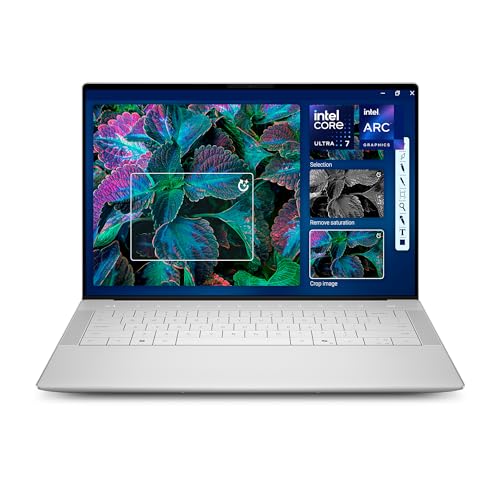
Dell XPS 14 Premium — Best display for chart reading
The XPS 14 Premium earns its seat in this guide on a trading-specific argument, distinct from its appearances elsewhere on this site. A trader’s centre screen is the most-read surface in their working life — the chart watched for hours, where a trend line’s slope and a candle’s shape carry money — and this machine’s 14.5-inch 3.2K OLED touch panel, with its 48–120Hz variable refresh as listed, is the finest centre screen here. Charts render with a clarity that makes long sessions less tiring, the variable refresh keeps fast market moments fluid on the panel, and when the laptop leaves the desk it remains a superb standalone machine with an Intel Core Ultra 7 255H, 32GB of memory and a 1TB SSD inside.
Its desk role is the second half of the argument. The XPS drives its external monitors over Thunderbolt-class connections, so the same one-cable dock ritual applies: the OLED becomes the centre of a three-screen arrangement, flanked by larger but lesser panels for order entry and news. A trader building a desk around one excellent screen and two adequate ones — a common and sensible allocation — will find this machine designed for exactly that hierarchy.
The cautions are the ones this model always carries, restated for traders. The port selection leans entirely on USB-C, so the dock is not optional equipment but part of the purchase. And a premium consumer-flagship support story is a step below the business lines’ — a trader for whom support is the first priority should take the X1 Carbon or the Latitude and accept their plainer screens. The XPS is for the trader whose eyes are the priority and whose desk is already modern.
- Processor: Intel Core Ultra 7 255H with Intel Arc graphics
- Memory and storage: 32GB, 1TB SSD
- Display: 14.5-inch 3.2K OLED touch, 48–120Hz variable refresh as listed
- Desk role: Thunderbolt-class output for external trading monitors
- Sign-in: fingerprint reader as listed
Strengths
- The finest chart-reading screen in the guide, at the centre of the desk.
- 32GB and a terabyte support the widest stacks in this list.
- Doubles as a premium travel machine when the desk is left behind.
Trade-offs
- A dock is a mandatory companion purchase for a monitor desk.
- Support is consumer-flagship grade, below the business lines.
- The OLED’s talents are wasted if your charts live entirely on external panels.
Best for: chart-focused traders building a desk around one excellent centre screen. Not suited for: support-first buyers, or desks where the laptop screen is never actually watched.

Apple MacBook Pro 14 (M4 Pro) — Best hardware, with a software warning
No honest trading guide can omit this machine, because traders keep asking about it — and no honest one can recommend it without the warning that fills this section. The hardware case is superb and easily stated: the listed M4 Pro configuration, with its 12-core CPU and 16-core GPU, 24GB of unified memory and 512GB SSD behind a 14.2-inch Liquid Retina XDR display, is fast, quiet, beautifully built and excellent at driving external monitors, which is why it also appears in our programming guide. As a physical object for a trading desk, it is arguably the finest laptop here.
The warning is software, and it is structural rather than incidental. The professional trading platform world is Windows-first: several of the most widely used charting and execution platforms are Windows applications, and their macOS presence ranges from a native version with a reduced feature set, to a web platform that covers most but not all workflows, to workarounds involving virtualisation that add a layer between the trader and the market at exactly the moments when layers are least welcome. Browser-based platforms and broker web interfaces, by contrast, run perfectly well on macOS, and a trader whose entire stack is web-based loses nothing by choosing this machine.
So the decision is an audit, not an argument. List your platform, your charting tools, your news and scanning software, and any automation you run; check each one for a native macOS version you would actually accept. If the audit passes — increasingly common as platforms invest in web versions — the MacBook Pro 14 is a magnificent trading laptop. If one indispensable tool fails the audit, no quantity of hardware excellence repairs it, and the Windows picks above are your guide. We include the machine, and the warning, in that order and with that weight.
- Chip: Apple M4 Pro, 12-core CPU and 16-core GPU as listed
- Memory and storage: 24GB unified memory, 512GB SSD
- Display: 14.2-inch Liquid Retina XDR
- Platform: macOS — audit your trading software before buying
- Desk role: strong external monitor support for its class
Strengths
- The finest hardware package in the guide, full stop.
- Quiet, cool running suits long sessions and shared rooms.
- Web-based trading stacks run on it without compromise.
Trade-offs
- Major trading platforms are Windows-first; some have reduced or no native macOS versions.
- Virtualisation workarounds add friction at the worst possible moments.
- 512GB is the listed storage; heavy archivists need an external plan.
Best for: traders whose platform stack is web-based or confirmed native on macOS after a personal audit. Not suited for: traders bound to a Windows-only platform — for them this machine is a beautiful mistake.
How Do the Six Trading Laptops Compare?
| Pick | Memory | Screen | Desk story | Defining virtue |
|---|---|---|---|---|
| ThinkPad X1 Carbon Gen 12 | 32GB | 14-inch WUXGA touch | Docks to multi-monitor desk, travels light | Balance of everything |
| HP EliteBook 840 G11 | 16GB | 14-inch WUXGA IPS touch | Two Thunderbolt 4 ports | Security and support |
| LG gram 17 | 32GB | 17-inch WQXGA touch | Needs no external monitors | Single-screen width |
| Dell Latitude 7450 | 16GB | 14-inch FHD+ | Thunderbolt 4 dock standard | Corporate standardisation |
| Dell XPS 14 Premium | 32GB | 14.5-inch 3.2K OLED touch | Centre screen of a monitor array | Chart-reading quality |
| MacBook Pro 14 (M4 Pro) | 24GB unified | 14.2-inch Liquid Retina XDR | Strong monitor output, macOS audit required | Hardware excellence |
Two patterns organise the table. The 32GB machines — Lenovo, LG and the XPS — are the wide-stack picks, for traders whose screens multiply. The business-support machines — Lenovo again, HP and the Latitude — are the stability picks, for traders whose first fear is a dead laptop rather than a slow one. The MacBook stands apart on a software question that only the individual trader’s platform list can answer.
What Else Belongs in a Reliable Trading Setup Besides the Laptop?
The laptop is the engine, but reliability is a system. The first supporting purchase is the dock, already argued for above, because it converts the desk into a one-cable ritual and removes the daily plugging and unplugging that wears ports and patience alike. The second is an uninterruptible power supply for the desk — not to trade through a long outage, but to survive the flickers and brownouts that corrupt a session at the worst moment, and to shut down gracefully when the power genuinely goes. The third is a second internet path: a phone hotspot plan understood and tested before it is needed, because a trader whose connection dies with the building’s router has built a single point of failure into the exact centre of their income.
Backup discipline completes the system. The trading journal, the platform layouts, the watchlists and the records that tax and memory both demand should live in at least two places, one of them not in the same room as the laptop. None of this is expensive relative to a single bad morning, and all of it is cheaper bought calmly in advance than improvised during a volatile open with a dead screen. The business-class laptops in this guide were chosen to be the reliable centre of such a system; the system itself is the buyer’s half of the bargain.
How Should a Trader Set Up a New Laptop Before the First Live Session?
Migrate on a weekend, never on a market morning. Install the platform and every supporting tool, sign in to every account while the old machine is still beside you for the inevitable two-factor prompts, and rebuild your chart layouts rather than assuming a settings file survived the journey intact. Then paper-trade or simply observe a full session on the new machine with the old one powered and within reach. That rehearsal session is where the missing indicator, the forgotten alert sound and the unsaved layout announce themselves at zero cost.
Configure the machine’s behaviour for market hours while you are at it. Disable automatic restarts and schedule updates outside trading time, set the power plan to keep the machine fully awake while plugged in, and confirm the dock wakes every monitor in the right arrangement after sleep. A trading laptop that applies an update at the open or wakes with its screens shuffled is not unreliable hardware — it is unconfigured hardware, and the distinction is entirely within the owner’s power during that first weekend.
Which Pick Suits Which Trading Style?
The scalper and the fast intraday trader live in seconds, and their laptop priorities follow: instant responsiveness when the platform is asked for anything, a keyboard and trackpad that never interpose themselves between intention and order, and a desk arrangement rehearsed to the point of invisibility. The X1 Carbon’s keyboard and 32GB headroom serve that style directly, as does the XPS 14’s fluid centre screen for traders who read tape and short-interval charts all day. For this style, the rehearsal discipline in the setup section matters as much as the hardware — a scalper’s machine should be boring in every respect except its responsiveness.
The swing trader and the part-time trader live in a different rhythm: research-heavy evenings, orders placed deliberately, positions monitored rather than fought over. Their priorities tilt toward screen quality for research, battery and portability for working from wherever the evening happens, and value retained across a longer ownership. The gram 17’s wide single screen suits the research pattern beautifully, and the EliteBook or Latitude serve the trader who wants the machine to double as a firm-grade work laptop for a day job’s hours. The options and multi-leg trader, whose platform layouts are the widest in retail trading — chains, Greeks, risk graphs, several underlyings at once — should read the memory column of the comparison table as their whole decision: 32GB, and the widest screen arrangement their space allows.
Newer traders should resist one specific temptation this guide can see coming: buying the flagship everything on day one. The honest sequence is a solid pick from this list, one external monitor, and a paper-trading season in which the real specification gaps of your own style reveal themselves. The second monitor, the better dock and the upgraded machine all make more sense bought against experience than against imagination, and every pick here is strong enough to remain the right machine after that season ends.
How Should a Trader Think About Security Beyond the Laptop Itself?
The laptop choices in this guide carry security hardware and business-grade protections, but the trader’s own habits decide most of the real risk. Brokerage and banking accounts deserve unique passwords in a password manager and hardware-backed or app-based two-factor authentication, with the laptop’s own sign-in — fingerprint on the XPS and ThinkPad class machines, infrared face sign-in on the Latitude — treated as the first lock rather than the only one. Full-disk encryption should be on from the first day, because a stolen trading laptop is a financial event, not merely a hardware loss, and encryption is the difference between reporting a theft and reporting a breach.
Public networks deserve a trader’s particular suspicion. The hotel and café Wi-Fi that serve a travelling trader are fine for research and unacceptable, in a careful trader’s routine, for account access without a reputable VPN in between. Keep the platform sessions on connections you trust, keep the machine’s software updated outside market hours, and keep a written record — stored away from the laptop — of account recovery routes. None of this is advanced tradecraft; it is the ordinary hygiene of a person whose laptop is, functionally, a vault with a screen.
What Does Trading From the Road Actually Demand of a Laptop?
The travelling trader’s setup compresses everything this guide has discussed into a bag. The machine must carry its own screen argument, because external monitors may not exist at the destination; it must run a full session on battery or a single charger; and it must connect through whatever network the road provides without drama. That compression is why the travel-capable picks here — the X1 Carbon for the dock-to-desk traveller who rebuilds the station at each end, the gram 17 for the trader who wants the wide layout to survive the journey intact, the MacBook Pro for the web-stack trader who values its unplugged stamina — are all machines that make no apology for being laptops first.
Two road habits protect the trading itself. Arrive and rehearse: connect, open the platform, confirm the layout and the connection quality before the session that matters, because the road’s surprises — a captive portal, a shuffled display arrangement, a forgotten cable — are all cheap to fix an hour early and expensive at the open. And carry the fallback in the bag: the hotspot-enabled phone, the charger, the one cable your dock-free setup depends on. The traders who work well from the road are not the ones with the most exotic hardware; they are the ones whose routine assumes the road will test it, and has already answered.
How Do You Set Up the Desk So a Six-Hour Session Stays Sharp?
A trader’s body is part of the trading system, and the desk arrangement either protects the attention the market is buying or taxes it quietly all session. The external monitors should sit at eye level with the main chart directly ahead, because a day spent looking down into a laptop screen is a day of accumulating neck strain that presents itself, dishonestly, as fatigue with the market. The laptop’s own screen works best raised beside them on a stand, open as the third display rather than closed and wasted, with an external keyboard and mouse carrying the input work — which is also why the built-in keyboard’s quality matters most on the road, and the dock’s single cable matters most at the desk.
Light deserves the same deliberation as the monitors. A screen facing a window fights the daylight all day, and a dark room with a blazing panel tires the eyes by contrast; the OLED centre screen of the XPS pick and the large gram panel both reward a room lit evenly and moderately. Breaks are the final component, and they are a hardware-adjacent discipline: a setup that saves its state instantly and wakes in one cable-connected second makes stepping away between trades painless, while a setup that takes minutes to reassemble quietly discourages the breaks that keep a trader’s judgement fresh into the close.
Should a Serious Trader Keep a Backup Laptop?
Eventually, yes — and the economics are kinder than they first appear. The backup does not need to be a second flagship; it needs to run the platform, the browser and the records at a competent level on the worst morning of the year. The natural way to acquire one is the replacement cycle described in the questions below: when the main machine is replaced on schedule, the retired machine — wiped of nothing, kept updated, its platform installed and signed in — becomes the backup, at zero additional purchase cost. A trader who follows that cycle owns redundancy as a by-product of ordinary renewal.
Until that cycle produces a spare, the honest minimum is a rehearsed contingency: the platform’s mobile application signed in and understood, the broker’s phone dealing route written down, and the journal and layouts backed up somewhere reachable from any machine. A contingency that exists only in the trader’s imagination will be discovered, during the emergency, to have gaps — the two-factor prompt sent to the dead laptop being the classic. Rehearse the bad morning once, on a quiet day, and the backup question answers itself at whatever level your trading can genuinely not afford to lose.
How Do You Read Your Own Platform’s Demands Before Choosing?
Every trading platform publishes system requirements, and almost no trader reads them against the machine they actually run. Do the exercise properly once and it will steer this purchase better than any review: open your platform on your current setup at your busiest remembered moment, look at how much memory the whole stack is using, and count your open windows honestly. If the total sits comfortably under 16GB with room to spare, the EliteBook and Latitude configurations in this guide will serve you without strain. If it presses against that figure — or if your style is visibly growing toward more charts, more platforms, a recording of every session — the 32GB machines are not an indulgence but the correct reading of your own data.
Screen habits deserve the same audit. Count the monitors you actually use, note whether the laptop’s own panel is a working surface or a closed lid in your current setup, and be honest about whether that pattern will change. A trader whose laptop lives closed under a desk gains nothing from the XPS’s OLED or the gram’s 17 inches and should weight ports, memory and support instead; a trader whose panel is a genuine third screen gains from those displays daily. This guide has arranged its six picks so that each audit outcome names a machine — the exercise is simply to run the audit before the purchase rather than recognising your pattern in a section after it.
Finally, price the whole station, not the laptop. Laptop, dock, one or two monitors, a stand, an external keyboard and mouse, the backup drive and the power protection together form the true cost of the setup this guide describes, and a trader who budgets for the system buys it once, calmly, in the right order. A trader who budgets only for the laptop buys the rest in fragments, usually during the first month, usually in a hurry. The machines above were chosen to be worth building that system around; the system is what turns a good laptop into a trading desk.
Why Do Noise and Heat Belong in a Trading Guide at All?
Because the trading room is a listening room. A trader spends the session half-watching and half-hearing — alerts, news audio, a squawk or a call in the background — and a laptop whose fan rises and falls with every chart refresh inserts a small, constant competitor into that soundscape. The business machines in this guide run their ordinary trading loads at modest noise levels, and the MacBook Pro is quieter still, which is a genuine if unglamorous part of their case. Heat follows the same logic onto the desk itself: a machine that vents a day’s worth of warm air across the keyboard hand is a machine its owner touches with slightly less patience by the close, and patience, in this profession, is a measurable asset.
None of this outranks reliability, memory or monitors, and this guide has not pretended otherwise. It is the tiebreaker layer — the set of qualities that decide between two machines which the specification audit has already declared equal, and the layer traders mention most often a year after purchase, when the benchmarks are forgotten and the daily texture of the machine is the whole of their opinion of it.
What Are the Common Mistakes When Buying a Laptop for Day Trading?
Buying a gaming laptop for its specifications is the most common detour: the graphics power goes unused by charting software while the noise, heat, weight and gaming-tuned screen all tax the trading day. The second mistake is the opposite economy — a budget laptop whose 8GB or strained 16GB configuration collapses under a full platform stack during a volatile hour, which is the most expensive possible moment to discover the saving. The third is ignoring the desk: buying the laptop first and the dock and monitors as an afterthought, then spending the first month in adapter chaos.
Platform blindness is the fourth mistake, and it is why the MacBook section of this guide is written the way it is: falling for hardware before auditing software. The fifth is neglecting the support question until the first failure, when the difference between a business line’s next-day machinery and a consumer return queue stops being abstract. Every one of these mistakes is visible in advance from the buyer’s chair, which is another way of saying this guide has now named them all in front of you.
Final Recommendation
Most traders should buy the ThinkPad X1 Carbon Gen 12: 32GB of memory for the widest stacks, the best keyboard in the guide for a typing-heavy day, business support behind it, and a chassis light enough to make the second desk a reality rather than a theory. Traders whose first priority is institutional security and support should take the EliteBook 840 G11 or the Latitude 7450 according to their preferred ecosystem, accepting the 16GB envelope with eyes open. Traders without room for external monitors should take the LG gram 17 and enjoy a full layout on one remarkable screen, and chart purists building a desk around a centre display should take the XPS 14 Premium with its dock budgeted alongside. The MacBook Pro 14 remains the finest hardware here for the trader whose software audit passes on macOS — and only for that trader. Buy the machine that will still be boringly reliable on your worst morning of the year, because in this category boring is not a criticism; boring is the entire point.
Frequently Asked Questions
Do day traders need a powerful graphics card?
No. Charting and trading platforms are not GPU-hungry in the way games or video software are, and every pick in this guide handles multi-chart layouts on its integrated or standard graphics. Money that would buy a gaming GPU serves a trader better spent on memory, a dock and external monitors — the components a trading day actually consumes.
How much RAM does a trading laptop need?
A single platform with a moderate chart layout, a browser and records runs within 16GB, which is the EliteBook and Latitude configuration here. Traders running wider stacks — multiple platforms, many live charts, screen recording, research and communications together — should buy the 32GB picks: the X1 Carbon, the gram 17 or the XPS 14. Judge by the width of your own open windows at the busiest hour you remember.
Can I trade properly on a Mac?
Yes, if your stack is web-based or confirmed to run natively on macOS — many broker platforms are now browser-delivered and work beautifully on the MacBook Pro in this guide. The caution is for traders bound to Windows-first desktop platforms, whose macOS options may be reduced, web-only or dependent on virtualisation. Audit your exact tools before buying; the MacBook section above explains how to think about the answer.
Is a laptop enough, or do I need a desktop for trading?
A laptop from this guide, docked to external monitors, is a complete trading station for the overwhelming majority of day traders, with the decisive advantage that the station can travel. Desktops retain an edge in sustained multi-monitor extremes and serviceability, but the modern business laptop’s combination of power, ports and support has closed most of the practical gap. Buy the laptop and the dock before concluding you need the tower.
What internet setup should accompany the laptop?
The fastest wired connection available to you, used wired — through the dock’s Ethernet where possible — rather than over Wi-Fi, plus a tested fallback such as a phone hotspot for outages. Latency and stability matter more to a trader than headline download speed, and a wired dock connection delivers both. Test the fallback on a quiet day, not during the outage it exists for.
How long should a trading laptop be kept?
Plan on three to five years, and replace on your schedule rather than the machine’s failure schedule. A trading laptop is income infrastructure; the professional pattern is to migrate to the new machine while the old one still works, keep the old one as the backup for a season, and never let a hardware failure choose your replacement date in the middle of a volatile week.
Does screen size or screen quality matter more for charts?
Size first, because a chart’s information has to fit before it can be beautiful: enough screen area — from the gram 17’s panel or from external monitors — to hold your layout without window-swapping is the foundation. Quality second, and it is a real second: the XPS 14’s OLED makes long chart-watching sessions more comfortable and fine lines more legible, which matters across a six-hour day. The mistake is buying either alone — a huge dim panel or a gorgeous small one — when the desk-based picks in this guide let the monitors supply the size and the laptop supply the quality.
Should I buy the laptop or the monitors first?
The laptop, because its ports and graphics decide how many monitors, at what resolution, the desk can ever run. Choose the machine from this guide against your platform audit, confirm its dock and display outputs cover the monitor count you plan, and then buy monitors to that plan. Reversing the order risks owning excellent screens that a lesser laptop can only drive at reduced resolution — a mismatch that is entirely avoidable with one specification check at the laptop stage.
Is it worth paying for on-site or next-day support?
For a trader whose laptop is their income, usually yes, and the business lines in this guide are where those options live. Price the upgrade against one lost session rather than against the laptop’s cost: a single morning locked out of the market during a volatile week can exceed several years of support premiums. Traders with a rehearsed backup machine can reasonably decline, because their redundancy is already bought. Traders without one are choosing, whether they frame it that way or not, between paying for support in advance and paying for downtime in arrears.
What is the single most underrated trading accessory?
The second charger, and it is not close. One lives at the desk, wired into the dock; the other lives in the bag, permanently. The arrangement sounds trivial until the first morning a trader arrives at a second location, opens the bag, and finds the charger still plugged in at home — a small domestic failure with a market-sized cost. Buy the spare when you buy the laptop, from the same order if possible, and let it be the cheapest reliability purchase in the entire setup.
Related Guides
Traders building out the wider desk may also want the best laptops for programming and web development if automation and scripting are part of the workflow, the best laptops with OLED display for a deeper examination of chart screens, and the best laptops for law school, where the X1 Carbon and EliteBook reappear in a very different working life.
Related guides
- Best 1440p 165Hz Monitors: One Native 165Hz Pick, Three 180Hz Upgrades, an Overclock Headline and a 160Hz Ultrawide
- Best 13×19 Professional Printers
- Best 3rd Party MacBook Chargers: 96W-Class Alternatives, the 100W Cable Rule, and the Apple Benchmark
- Best Built PC: Six Prebuilt Gaming PCs Judged on Parts, Power and Upgrades



[…] refining the rest of the desk can compare screens in depth in the best laptops with OLED display, find the developer-grade machines in the best laptops for programming and web development, and […]