What's inside
- Where to buy
- Key Takeaways
- Quick Picks: Six Monochrome Machines, Five True All-in-Ones and One Honest Printer
- How Did We Choose These Monochrome All-in-Ones?
- Which Monochrome Laser All-in-One Fits Your Paperwork?
- What Does Duplex Scanning Actually Save You?
- How Should You Think About Toner Without Seeing Prices?
- Where Should a Shared Office Machine Actually Live?
- How Do You Set Up a Monochrome All-in-One for a Whole Household?
- What Does a Sensible First-Year Supply Plan Look Like?
- How Should You Scan Paperwork So the Files Stay Useful?
- How Do You Handle the Week the Paperwork Peaks?
- What Should You Check in the Machine’s Second Year?
- How Do You Decide Between One Fast Machine and Two Modest Ones?
- How Do You Retire a Mono Laser Well When Its Replacement Arrives?
- What Does Good Paperwork Hygiene Look Like a Year From Now?
- How Do the Six Compare Side by Side?
- What Mistakes Do Monochrome Laser Buyers Keep Making?
- Final Recommendation
- Frequently Asked Questions
- Related Guides
As an Amazon Associate I earn from qualifying purchases. This post may contain affiliate links at no extra cost to you.
gizmoverdict.com is reader-supported. When you buy through links on our site, we may earn an affiliate commission.
Where to buy
Anyone shopping for the best aio monochrome laser printers usually has a paper problem, not a technology problem: contracts to sign and scan back, school forms that arrive as PDFs and leave as signed sheets, invoices, boarding passes, tax documents. Colour never enters the conversation. What matters is a machine that prints crisp black text quickly, scans both sides of a stack without babysitting, copies an ID card without a phone camera involved, and then sits quietly for a fortnight without its ink drying into an expensive regret. That is exactly the territory monochrome laser all-in-ones own, and it is why this guide stays strictly black-and-white.
Five of the six picks below are true all-in-ones that print, scan and copy, drawn from Brother, Canon and HP lines whose listings we verified. The sixth pick needs an honest flag before anything else: the Canon imageCLASS LBP122dw is a print-only machine. It cannot scan or copy, and we have not dressed it up as an all-in-one anywhere in this guide. It earns its place for a narrow, real reason — some desks genuinely never scan, because a phone handles the twice-a-year form and a dedicated scanner lives down the hall — and for those desks a smaller, simpler printer is the smarter buy. Everywhere else, buy the scanner.
Toner economics run through every judgement that follows. A monochrome laser asks you to think in cartridges that last for thousands of pages rather than weeks, in duplex printing that quietly halves paper consumption, and in a drum and fuser built for document volume rather than photo gloss. None of these machines will print a decent photograph, none of them wants to, and the buying mistake this category punishes most reliably is expecting one box to be both an office document engine and a family photo lab. Keep the jobs separate and a mono laser will serve for years with almost no attention.
Where you buy matters less than what you check before paying, because every machine in this guide is sold through channels ranging from the manufacturers’ own stores to marketplace sellers of varying seriousness. Buy from a seller who states the model number exactly as it appears in our profiles, who ships the machine in its original packaging with the starter toner installed or included as the maker intends, and whose returns policy survives a change of mind in the first month. Check the listing’s own words for the functions you are counting on — scan, copy, fax, feeder — rather than trusting a headline written by someone who may never have seen the box.
Key Takeaways
- Five picks here genuinely print, scan and copy; the Canon LBP122dw is print-only and is labelled that way wherever it appears.
- Duplex scanning matters more than duplex printing for paperwork-heavy homes — single-pass two-sided scanning on the Canon MF465dw II and Brother MFC-L2900DW XL removes the slowest chore in the category.
- Fax survives on four of the six picks, which matters for medical, legal and property paperwork far more than spec sheets admit.
- Toner yield, not headline speed, decides what a mono laser costs across three years of ownership.
- If your household prints colour even monthly, stop here — a monochrome machine will frustrate you no matter how good it is.
Quick Picks: Six Monochrome Machines, Five True All-in-Ones and One Honest Printer
| Pick | Badge | Why it earns its place |
|---|---|---|
| Brother DCP-L2640DW | Compact All-in-One Baseline | Print, scan, copy and duplex in the smallest true all-in-one footprint here — the sensible default desk machine. |
| Brother MFC-L2820DW | Fax and Feeder Step-Up | Adds fax and a document feeder to the compact Brother formula for desks whose paperwork arrives in stacks. |
| Brother MFC-L2900DW XL | Toner-Generous Flagship Brother | Duplex copying and scanning plus a large included toner supply for offices that resent reordering cartridges. |
| Canon imageCLASS MF465dw II | Fastest Scanner in the Room | A 42 ppm-class engine with single-pass two-sided scanning and expandable paper capacity for shared offices. |
| HP LaserJet Pro MFP 3101fdw | The HP Ecosystem Choice | Print, copy, scan and fax with fast black-and-white output for offices already invested in HP workflows. |
| Canon imageCLASS LBP122dw | Print-Only — No Scanner, Honestly Labelled | A 30 ppm-class print-only Canon for desks that truly never scan — included with its limitation stated plainly. |
How Did We Choose These Monochrome All-in-Ones?
We started from a simple definition and refused to bend it: an all-in-one must print, scan and copy from one box. Models were checked against their verified listings for exactly those functions, plus the supporting cast that decides daily satisfaction — automatic two-sided printing, an automatic document feeder for multi-page scans, wireless that stays connected, and a paper path that does not jam on the one morning a contract is due. Anything that could not demonstrate the core trio stayed out of the all-in-one slots, which is why the print-only Canon appears in this guide wearing its limitation openly rather than borrowing a title it has not earned.
Speed claims were treated as seasoning, not substance. A rating in the 42 ppm class, like the Canon MF465dw II carries, tells you the engine is built for shared office duty; it does not tell you how the first page feels at 7 a.m. or how a thirty-page scan behaves. We weighted feeder quality, duplex scanning architecture and toner capacity ahead of raw page rates, because those are the traits owners actually live with. Finally, we kept three brands in the frame so the guide reflects real shelf choice: Brother for compact value and generous included toner on its XL model, Canon for scanning speed and expandable paper handling, HP for buyers whose other office gear already speaks HP’s language.
Which Monochrome Laser All-in-One Fits Your Paperwork?
Read the six profiles as six answers to six different paperwork lives. The compact Brother suits a single desk; the XL Brother suits a desk that hates ordering toner; the two Canons suit scanning volume at different generations and budgets; the HP suits a small office standardised on its ecosystem; and the little print-only Canon suits the rare desk that truly never scans. Match the profile to the pile of paper you actually process in a month, not the pile you imagine processing in a heroic future month.

Brother DCP-L2640DW — Compact All-in-One Baseline
The DCP-L2640DW is the machine we would hand to someone who said only this: my desk is small, my paperwork is ordinary, and I never want to think about my printer again. It prints, scans and copies, it prints on both sides automatically, and it connects wirelessly without demanding a permanent USB tether to one computer. In a home office that footprint discipline matters more than any single specification, because the printer shares its surface with laptops, notebooks and the mug that migrates across the desk all day.
Brother’s compact mono line has a particular personality: unglamorous, tolerant of intermittent use, and cheap to feed relative to ink-based rivals. The flatbed handles the odd book page, form or passport copy, while everyday printing stays quick and dry to the touch. Households moving up from a wheezing inkjet usually feel the difference in the first week — pages arrive fast, text survives a highlighter, and a quiet month between print jobs costs nothing in clogged nozzles or dried cartridges.
A third consideration is who else uses it. Because it lacks fax and the deeper office trimmings of its MFC siblings, the DCP is best understood as a personal or two-person machine. A family sharing it across a hallway will be happy; a five-person office running client paperwork through it all day should step up to the feeder-and-fax models below. Knowing that boundary is not a criticism of the machine — it is the reason the machine is priced and sized the way it is.
Ownership details decide whether the baseline stays lovable. The DCP’s starter toner will carry a household through its first season, and the moment to learn the cartridge code is installation day, not the morning a school project is due. Photograph the cartridge label, save it in the same phone album as the warranty receipt, and the first reorder becomes a two-minute errand. Brother’s compact mono machines also reward a particular placement: on a surface that does not wobble, with the rear paper path unobstructed, because duplex printing sends each sheet on a return journey that resents being blocked by a wall or a stack of books leaning where the page needs to travel.
- Functions: print, scan and copy in one compact body
- Paper handling: automatic two-sided printing as standard
- Connectivity: wireless networking plus mobile printing support
- Feeding: flatbed scanning for books, IDs and single sheets
Strengths
- Smallest genuine all-in-one in this line-up
- Duplex printing included rather than sold as an upgrade
- Brother toner ecosystem is widely stocked and familiar
Trade-offs
- No fax for offices that still send them
- Flatbed-only scanning slows multi-page documents
- Modest paper capacity for shared-office volume
Best for: a single-desk home office whose paperwork is steady, ordinary and entirely black-and-white.
Not suited for: an office that scans fifty-page client files weekly — the feeder-equipped picks below exist for exactly that load.

Brother MFC-L2820DW — Fax and Feeder Step-Up
Everything the DCP-L2640DW does, the MFC-L2820DW does with two additions that change its working life: an automatic document feeder and a fax. The feeder sounds like a spec-sheet garnish until the first time a twelve-page signed agreement needs scanning before a deadline; then it becomes the whole product. Load the stack, press start, and make coffee while the machine works through pages that a flatbed would have demanded you flip one by one.
Fax is the feature reviewers love to declare dead and offices keep quietly using. Clinics, law practices, estate agents and school administrators still exchange signed documents by fax because the other end of the line insists on it. If that sentence describes even one afternoon of your month, a machine with fax built in saves the separate subscription service or the borrowed machine down the corridor. If it describes no afternoon ever, save the difference and take the DCP above — Brother sells both precisely because both lives exist.
The MFC-L2820DW keeps the family’s compact footprint and wireless habits, so it still fits the desk that the bigger Canons would crowd. Think of it as the paperwork-complete version of the baseline: same calm toner economics, same duplex printing, but ready for the days when the paperwork arrives as a pile rather than a page.
The feeder on this model changes how a desk handles the post. A practical ritual worth adopting: keep a small tray beside the machine labelled by destination — scan to email, scan to file, copy for the folder — because feeder machines process paper faster than people decide about it, and the tray system keeps the output sorted at the speed the machine produces it. The fax line deserves one decision at setup: whether the machine shares a line with a phone or stands alone, and whether incoming faxes should also land as files somewhere. Ten minutes of configuration on day one prevents the archaeological dig through a fax memory that offices otherwise perform twice a year.
- Functions: print, scan, copy and fax in one unit
- Feeder: automatic document feeder for multi-page originals
- Paper handling: automatic two-sided printing
- Connectivity: wireless with mobile printing support
Strengths
- Feeder turns long scans into a load-and-leave task
- Built-in fax covers legacy paperwork channels
- Still compact enough for a home-office desk
Trade-offs
- Scanning through the feeder is one-sided per pass
- Shares the family’s modest paper tray
- Fax hardware is wasted money if you never fax
Best for: a home-based professional whose clients, clinic or school still move signed paper by fax and feeder alike.
Not suited for: a purely digital household that has not sent a fax in years — that money buys nothing on this model.

Brother MFC-L2900DW XL — Toner-Generous Flagship Brother
The XL in this model’s name is a promise about the box contents: a substantially larger supply of toner included from day one, rated by Brother for up to 4,200 pages before the first replacement conversation. For a small office, that changes the emotional shape of ownership. The printer arrives, gets installed, and then simply works through its first season or two of invoices, statements and correspondence without anyone pricing cartridges or approving a supply order.
Beyond the toner, the MFC-L2900DW XL is the most complete Brother here: print, scan, copy and fax, with duplex behaviour extending into copying and scanning rather than printing alone. Two-sided originals — the double-sided form, the stapled statement — stop being a manual flipping exercise. In an office where an administrator processes other people’s paperwork, that is the difference between a five-minute task and a twenty-minute one, repeated weekly.
It is also the largest commitment to the Brother way in this guide, and worth buying deliberately. Offices that already keep Brother toner on the shelf will slot it in effortlessly. Offices starting fresh should compare its scanning workflow against the Canon MF465dw II below, which counters with single-pass two-sided scanning and expandable paper capacity at a bigger physical size.
The XL bundle changes purchasing psychology in a way worth naming: with thousands of pages in the box, nobody rations printing. Drafts get printed for annotation, long documents get proofed on paper, and the machine earns its desk by being used the way paper is meant to be used. Offices migrating from a cartridge inkjet often describe the first XL season as the moment printing stopped being a budget conversation. Guard one risk in return — when the first replacement finally approaches, it arrives as a surprise precisely because it was postponed so long. Note the expected replacement season in the office calendar on installation day, while the included yield is still a number everyone remembers.
- Functions: print, scan, copy and fax
- Included supply: high-volume toner bundle rated up to 4,200 pages
- Duplex: two-sided print, copy and scan support
- Connectivity: wireless networking with mobile printing
Strengths
- Included toner defers the first supply order for a long season
- Duplex scanning and copying handle two-sided originals gracefully
- Complete function set leaves no paperwork task outsourced
Trade-offs
- XL bundle raises the upfront commitment versus siblings
- Bigger appetite for desk space than the DCP
- Still monochrome in a world of colour letterheads
Best for: a small office administrator who measures a printer by how rarely it asks for anything.
Not suited for: a light user printing twenty pages a month — the generous toner bundle would outlast your patience for the hardware.
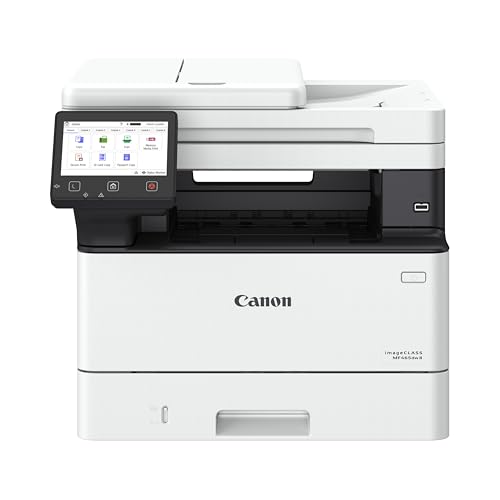
Canon imageCLASS MF465dw II — Fastest Scanner in the Room
The MF465dw II is the pick for offices where scanning, not printing, is the bottleneck. Its document feeder scans both sides of a page in a single pass, which sounds like a technicality until you watch a double-sided contract move through without the reverse-and-rescan dance slower feeders perform. In a shared office digitising incoming paper — signed forms, delivery notes, identity documents — that architecture is the product; the fast print engine is almost a bonus.
Canon rates this generation in the 42 ppm class, and pairs the speed with expandable paper capacity, the trait that separates a personal printer from a departmental one. Add trays as volume grows instead of replacing the machine. The full function set — print, copy, scan and fax — arrives in a body that expects to be shared over a network by several people, with the build weight to match. Measure your desk or credenza before ordering; this is not a perch-on-a-shelf machine.
Against the Brother XL above, the Canon trades included-toner generosity for throughput and scanning architecture. Neither answer is wrong; they are answers to different questions. If your pain is ordering supplies, buy the Brother. If your pain is the queue of paper waiting to become PDFs, buy this Canon and let its feeder earn the desk space every single morning.
A machine of this class rewards a named owner inside the office. Someone should hold the small portfolio of its care: clearing the rare jam, knowing which tray holds letterhead, ordering the cartridge before the warning rather than after it, and teaching new staff the single-pass scanner’s one rule — originals go in straight, staples come out first. Canon’s expandable paper path makes that ownership pleasant, because the machine grows by trays instead of by replacement. Offices that assign this role get departmental behaviour from the MF465dw II for years; offices that leave it to everyone collectively discover that everyone assumed someone else had ordered toner.
- Functions: print, copy, scan and fax
- Engine class: rated up to 42 ppm
- Scanning: single-pass two-sided document feeding
- Paper: expandable capacity for growing offices
Strengths
- Single-pass duplex scanning is the fastest paperwork route here
- Expandable trays grow with office volume
- Print speed suits shared, multi-user duty
Trade-offs
- Largest footprint among the six picks
- Office-grade feature set is surplus for a solo desk
- Toner bundle less generous than the Brother XL
Best for: a shared office digitising double-sided paperwork every day, where scanning minutes compound into hours.
Not suited for: a bedroom desk — its size, weight and talents all belong in a working office, not beside a bed.

HP LaserJet Pro MFP 3101fdw — The HP Ecosystem Choice
Some offices do not choose printers model by model; they inherit an ecosystem. If your laptops, supplies shelf and IT habits already run on HP, the LaserJet Pro MFP 3101fdw is the monochrome all-in-one that slots into that world without translation. It covers print, copy, scan and fax, prints black-and-white quickly, and connects wirelessly in the way HP’s current Pro line standardises across its range.
HP positions this machine at the small-team end of its LaserJet family: fast first pages, a feeder for multi-page scanning, and management habits familiar to anyone who has administered HP gear before. For a two-to-six-person office replacing an older LaserJet, familiarity is a genuine feature — menus, drivers and supply ordering all behave the way the office already expects, and nobody relearns a control panel during a busy week.
The honest counterweight is that brand comfort, not a standout specification, is the argument here. Brother counters with included toner value, Canon with scanning architecture. Buy the HP because your office runs HP and the coherence is worth money to you — a perfectly respectable reason — rather than because any single number on its sheet beats the field.
HP’s management software is where this machine’s office life is actually lived, and administrators should spend their first session inside it rather than at the control panel. Set the scan destinations while the team is small — the shared folder, the bookkeeper’s email, the archive drive — because a feeder scanner whose destinations are configured becomes the office’s memory, while one left at defaults becomes a machine people walk paper away from. The same session should settle who receives supply alerts. HP shops already know this discipline from their other machines, which is, once again, the entire argument for this pick: it asks an HP office to learn nothing new.
- Functions: print, copy, scan and fax
- Output: fast black-and-white laser printing
- Connectivity: wireless printing for shared small teams
- Role: small-office all-in-one in the LaserJet Pro line
Strengths
- Slots cleanly into HP-managed offices and supply shelves
- Full function set including fax and feeder scanning
- Fast output tuned for small-team document flow
Trade-offs
- No single specification leads this six-machine field
- Ecosystem extras assume you want HP’s way of working
- Colour-free like every pick in this guide
Best for: a small team replacing an older LaserJet, where shared habits and supplies already point one direction.
Not suited for: a first-time buyer with no brand ties — compare the Brother XL’s toner bundle before defaulting to a logo.

Canon imageCLASS LBP122dw — Print-Only — No Scanner, Honestly Labelled
Let us be completely direct, because this pick breaks the guide’s own title: the LBP122dw cannot scan and cannot copy. It is a printer, full stop — a wireless monochrome laser rated in the 30 ppm class with automatic two-sided printing, in a body smaller than anything else here. We include it because a real and sizeable group of buyers searches for an all-in-one out of habit while living a print-only life, and for that group the honest recommendation is a cheaper, smaller machine that does the one job superbly.
Who is actually in that group? The student whose university library provides scanners. The writer whose paperwork is entirely born-digital and printed only for annotation. The second desk in a home that already owns a scanner elsewhere. For those desks, paying for a flatbed and feeder that will be opened twice a year is its own kind of waste, and the LBP122dw’s simplicity — fewer moving parts, smaller footprint, lower commitment — is a feature rather than a compromise.
The risk is self-deception. The first time a signed form must go back by email, a print-only owner is photographing pages with a phone and apologising for the quality. If there is any realistic chance your year includes scanning other people’s paper, buy any of the five true all-in-ones above and ignore this pick entirely. It is here for the certain, not the hopeful.
Living with a print-only machine well means organising the scanning it cannot do before the need arrives. Keep a phone scanning app installed and practised — not downloaded in a panic — and know which library, office or household member owns a scanner within borrowing distance. Owners who make that small arrangement report that the LBP122dw’s simplicity stays a pleasure for years; owners who skip it meet the one urgent form that converts simplicity into regret. Also give the little Canon the network courtesy its wireless expects: a stable place on the home network with a reserved address if your router offers one, so every laptop in the house finds it at the same place after every restart.
- Functions: print only — no scan, no copy, no fax
- Engine class: rated up to 30 ppm
- Paper handling: automatic two-sided printing
- Connectivity: wireless with mobile-ready printing
Strengths
- Smallest and simplest machine in this entire guide
- Duplex printing keeps paper use honest
- Canon laser text quality in a minimal body
Trade-offs
- Cannot scan or copy under any circumstances
- No feeder, no flatbed, no exceptions later
- A wrong guess here means buying a second device
Best for: the demonstrably print-only desk — student, writer, or second workstation — that can prove scanning never happens.
Not suited for: anyone who signs paper forms, full stop: every other pick in this guide scans, and your life clearly requires one that does.
What Does Duplex Scanning Actually Save You?
Duplex printing gets the headlines because paper savings are easy to picture, but duplex scanning is where office hours hide. A single-pass feeder, like the Canon MF465dw II carries, reads both faces of a sheet in one journey through the machine. A reversing feeder reads one face, pulls the sheet back, and reads the other — slower, noisier, and harder on fragile originals. A flatbed-only machine like the little Brother DCP asks you to perform that dance by hand, page by page, which is charming for three pages and corrosive for thirty.
Estimate your real scanning life before paying for any of this. Count the multi-page documents you scanned last month and multiply by twelve. If the answer is a handful, the flatbed baseline is genuinely sufficient and the money saved is real. If the answer runs to dozens of contracts, statements or case files, feeder quality is the single specification that will decide whether you like your printer in year two. Features you use weekly deserve budget; features you use annually deserve a library visit instead.
How Should You Think About Toner Without Seeing Prices?
This guide prints no prices, so the toner conversation has to happen in structure rather than numbers. Three structural facts decide running cost. First, yield class: cartridges for these machines are sold in standard and high-yield versions, and the high-yield route nearly always lowers cost per page for anyone printing monthly. Second, included supply: the Brother MFC-L2900DW XL’s bundle, rated up to 4,200 pages, postpones your first purchase decision so far into ownership that the machine feels supply-free for its first season. Third, the drum question: some designs fold the drum into the cartridge, others keep it separate, and either can be sensible — what matters is knowing which your machine does before the first replacement cycle surprises you.
Duplex printing quietly belongs in this conversation too. Halving paper consumption on long documents saves more money across three years than most buyers expect, and it costs nothing once the habit is set as a driver default. Set two-sided as the default on day one, for every user on the network, and let single-sided become the deliberate exception for final signed copies.
Where Should a Shared Office Machine Actually Live?
Placement advice rarely appears in printer reviews, which is strange, because placement decides whether a shared machine gets used or circumvented. Put the all-in-one where paperwork converges — near the person who processes incoming documents, within sight of the desk that signs things — rather than exiled to a spare room where every scan becomes an expedition. Wireless networking makes that freedom possible; the machine no longer needs to huddle beside one blessed computer.
While placing it, settle the unglamorous details. The feeder needs clearance above it, the paper path needs room behind it on some models, and the toner shelf should live in the same room so a mid-job empty cartridge is a two-minute interruption rather than a delivery wait. Offices that photograph their supply shelf monthly, odd as it sounds, never run dry at deadline time. The best printer administration is mostly this: boring, visual, and done before it is urgent.
How Do You Set Up a Monochrome All-in-One for a Whole Household?
Begin with the network, because every later frustration is a network frustration wearing a disguise. Place the printer where the Wi-Fi signal is strong — the same room as the router or one wall away — and connect it before moving it to its final desk, confirming that a phone, a laptop and a Chromebook-class device can each send a page. Households fail at this step more than any other, usually by exiling the printer to a far bedroom and then blaming the machine for a signal problem the house created.
Next, teach the machine its destinations. Configure scan-to-email or scan-to-folder for each adult in the house while everyone is present to receive test messages, and print one page from every device that will ever use it. That half hour of ceremony buys years of silence. Finally, agree the household defaults together: duplex on, quality at the everyday setting, and the paper tray loaded with the stock everyone actually uses. A printer configured as a family, in one sitting, behaves like infrastructure; a printer configured by one person in a hurry behaves like that person’s hobby, and the family routes around it with phone photographs and complaints.
What Does a Sensible First-Year Supply Plan Look Like?
Year one of mono laser ownership has a rhythm worth planning in advance. The starter cartridge covers the early months; the first full cartridge should be ordered when the starter is installed, not when it fades, because a spare on the shelf converts every future empty warning from an emergency into an errand. Keep exactly one spare. Two spares tie up money in a cartridge the machine may outlive stylistically; zero spares guarantee the empty warning lands on deadline day, because in this category it always does.
Paper belongs in the same plan. Buy it by the box if storage allows, keep it in the room with the printer rather than a damp garage, and keep one ream of heavier stock for the documents that represent the household or the business — certificates, final contracts, the letter that must feel like it means it. Drum life is the year’s quiet background item: know whether your machine’s drum travels inside the cartridge or lives separately, and write its expected horizon on the same calendar note as the toner plan. None of this is exciting, and that is the point — a document machine’s supply plan should be the least exciting system in the building.
How Should You Scan Paperwork So the Files Stay Useful?
A scan is only as good as its future findability, and feeder machines make it easy to produce hundreds of uselessly named PDFs in an afternoon. Adopt a naming habit before the first big scanning session: date first, then the document’s owner or sender, then its subject, in a pattern every person in the household or office follows identically. Scan contracts and identity documents at a resolution that keeps small print legible, letters and routine forms at the everyday setting, and let photographs of paper — taken on phones in hallways — be the emergency method rather than the archive standard.
Decide where scans live with the same care. One folder tree, backed up wherever the household’s other important files are backed up, beats five clever locations remembered by one person. Test the system quarterly by finding a document from three months ago without asking its creator. If the test fails, fix the naming, not the people — systems that depend on memory fail exactly when the memory is on holiday, which is when the tax office always writes.
How Do You Handle the Week the Paperwork Peaks?
Every office and paperwork household has a peak season — tax time, enrolment, the contract renewal month — and a monochrome all-in-one earns its reputation there rather than in the quiet weeks. Prepare for the peak the way the machine would want: a full paper tray and a spare beside it, the toner level checked a fortnight before rather than discovered during, and the feeder’s rollers given the maker’s recommended wipe while the machine is still unhurried. Peaks punish deferred maintenance with compound interest.
During the peak itself, batch the work by type rather than by arrival. Scanning sessions, copying sessions and printing sessions each run faster than a day that alternates between them, because the machine — and the human — stops reconfiguring between jobs. Keep a staging tray for originals awaiting scanning and a second for finished work, and the peak becomes a production line instead of a pile. Offices that adopt this rhythm often find their existing machine was sufficient all along; the bottleneck was choreography, and choreography is free.
What Should You Check in the Machine’s Second Year?
Year two is when a good mono laser either becomes furniture-grade reliable or starts its slow negotiation toward replacement, and the difference is a short list of attentions. The paper path accumulates dust that shows up as faint marks; the maker’s cleaning routine, run on a quiet afternoon, removes most of it. The feeder’s pickup rollers glaze with age and begin the occasional double-feed; a wipe restores them more often than owners expect. Firmware, unglamorous as it sounds, deserves one check a year, because manufacturers quietly fix the network quirks that households blame on their routers.
Year two is also the honest moment to re-run the original buying question. Has the paperwork changed — more scanning, a fax that never arrived, a second desk that now needs its own machine? The six profiles in this guide describe a family of answers, and a household whose life has moved from the DCP’s tier to the Canon’s has not made a mistake; it has received new information. Machines this durable make tier changes painless, because the old one retires to the second desk instead of the skip.
How Do You Decide Between One Fast Machine and Two Modest Ones?
Growing households and offices eventually ask whether a second, smaller all-in-one beats one flagship, and the answer lives in geography rather than specifications. Two modest machines — a DCP-class unit at each of two desks — end the walk-to-the-printer tax that a single shared machine imposes, and they provide redundancy no flagship can: when one is mid-job or mid-cartridge-change, the other still prints. The costs are duplicated supplies and two machines to administer, which is why the arrangement suits two fixed desks and frustrates one mobile worker.
The single flagship wins when the paperwork itself is centralised — one administrator, one intake point, one archive — because its feeder and scanning speed compound at a single station. Read your own building honestly: if the paper converges, buy depth at the convergence point; if the people are scattered, buy presence at the desks. Either way, stay inside one brand family if you can, so the cartridges, drivers and habits learned at one machine transfer to the other without translation.
How Do You Retire a Mono Laser Well When Its Replacement Arrives?
A durable all-in-one rarely dies; it is succeeded. Retire the old machine deliberately and it keeps serving the household’s story. Wipe its memory properly — address books, stored scans and fax logs are personal data wearing an appliance’s disguise — using the maker’s reset procedure, and remove it from the home network’s device list so its ghost stops appearing in print dialogs. A machine cleared this way can be donated, sold or handed to a student with a clean conscience and a clean memory.
The successor inherits more than the desk. It inherits the supply shelf, the naming habits for scans, the defaults the household agreed, and the cartridge code written inside the cupboard door — which should be updated on installation day, in the same handwriting, as a small ceremony of continuity. Households that retire machines this way describe upgrading as uneventful, and uneventful is the highest achievement available in the entire subject of office equipment.
What Does Good Paperwork Hygiene Look Like a Year From Now?
A year after installation, the sign of a well-chosen monochrome all-in-one is that nobody in the building can remember a printing problem. The scans live in one findable tree, the toner spare sits in its known place, the feeder eats stacks without theatre, and new paperwork is absorbed by routines set in the first month. That invisibility is not luck; it is the compound interest of the small decisions this guide has scattered through its sections, each trivial alone and decisive together.
If a problem does surface in that year, it will almost certainly be a known character — a glazed roller, a network change nobody told the printer about, a cartridge ordered late by a calendar that slipped. Each has a remedy already described in these pages, which is the quiet advantage of machines this mature: their failures are a short, familiar list, and a household or office that has read the list once is never truly ambushed by it.
How Do the Six Compare Side by Side?
Five all-in-ones and one printer walk into this table, and the honest column to read first is Role. Speed classes cluster closely enough that function, feeder design and included toner separate these machines far more than any page rate does.
| Pick | Role | Defining trait |
|---|---|---|
| Brother DCP-L2640DW | Compact all-in-one | Print, scan, copy and duplex in the smallest body here |
| Brother MFC-L2820DW | Feeder and fax all-in-one | Adds ADF scanning and fax to the compact Brother base |
| Brother MFC-L2900DW XL | High-supply all-in-one | Duplex copy and scan with up to 4,200 pages of included toner |
| Canon imageCLASS MF465dw II | High-throughput all-in-one | 42 ppm class with single-pass two-sided scanning |
| HP LaserJet Pro MFP 3101fdw | Ecosystem all-in-one | Full LaserJet Pro function set for HP-standardised offices |
| Canon imageCLASS LBP122dw | Print-only outlier | 30 ppm-class duplex printing; no scanner fitted |
What Mistakes Do Monochrome Laser Buyers Keep Making?
Buying the print-only machine on a hopeful guess tops the list, and this guide has flagged it repeatedly for a reason: scanning needs arrive unannounced, wearing deadlines. A close second is ignoring the feeder. Buyers compare print speeds that differ by seconds across a month while overlooking scanning architectures that differ by hours across a year. If your paperwork life involves other people’s documents, the feeder is the product.
A third recurring error is treating toner as an afterthought — choosing the machine with the smallest shelf commitment and then feeding it standard-yield cartridges forever. Run the structural comparison before purchase: included pages, high-yield availability, and whether the drum travels with the cartridge. Finally, households buy monochrome lasers and then feel betrayed by grey, muddy photo prints. That betrayal was scheduled at purchase. A mono laser is a document instrument; if photographs matter to your family, budget for a separate photo-capable machine and let each device do the work it was built for.
One more quiet error deserves its own paragraph: placing the machine where its feeder cannot open or its output tray empties onto a cluttered surface, then concluding the printer is awkward. All-in-ones are furniture as much as electronics. Measure the space with the lid raised and the feeder loaded before the box is opened, and give the machine the same respect a desk chair gets — it will be touched every working day, and small ergonomic insults compound into a household’s settled dislike of a perfectly good printer.
Final Recommendation
Start from the feeder, not the logo. If your scanning is flatbed-rare, the Brother DCP-L2640DW is the calm baseline and the MFC-L2820DW adds fax and a feeder for a little more commitment. If supplies are your pain, the MFC-L2900DW XL’s included toner is the most soothing specification in this guide. If scanning volume is your pain, the Canon MF465dw II’s single-pass duplex feeder answers it directly, while HP’s 3101fdw keeps HP-standardised offices coherent. The LBP122dw remains exactly what it says on its badge — a fine printer for desks that can prove they never scan.
Whichever machine lands on the desk, set duplex as the default, order the high-yield cartridge before the starter supply runs out, and scan one test contract in the first week to learn the feeder’s moods while the return window is still open. A monochrome laser bought with clear eyes becomes the least interesting appliance in the office — and for paperwork, uninteresting is the highest praise there is, because the right machine disappears into the working week and leaves only finished documents behind.
One last practical word. Whichever of the six lands in your home or office, keep its box for the first month and its receipt for the first year, run the full test — print, scan, copy, duplex, one fax if fitted — in the first week, and write the cartridge code on the inside of the supply cupboard door. Those four small acts convert a purchase into a system, and systems are what paperwork runs on when nobody is thinking about printers at all.
And if the choice still feels difficult after all these pages, simplify it to the question the category finally asks: where does your paperwork hurt — in the scanning, in the supplies, or in the sharing? Each of the six profiles above is the answer to one of those hurts, stated in hardware. Name the hurt honestly, and the machine names itself.
Paperwork is the tax every household and office pays in time; the right monochrome machine is simply the fairest collector of it.
Frequently Asked Questions
Can a monochrome laser all-in-one scan in colour?
Yes — the scanner and the printer are separate talents. These machines print only in black, but their scanners capture colour originals into colour files perfectly well. A colour photograph scanned on a mono all-in-one becomes a proper colour PDF or JPEG; it simply cannot come back out of the same machine as a colour print.
Do I still need fax in a world of email?
Most households do not, and should not pay for it. Some professions still run on it — healthcare referrals, legal filings, property paperwork and certain government processes continue to move by fax because the receiving institution demands it. Count your own last year honestly: if fax appeared even quarterly, built-in fax earns its shelf space.
What is the difference between duplex printing and duplex scanning?
Duplex printing puts ink on both sides of the paper automatically. Duplex scanning reads both sides of an original without you flipping it. They are independent features with independent value: printing saves paper, scanning saves time. Paperwork-heavy buyers should chase scanning first, which is why the feeder designs feature so heavily in this guide.
How long does laser toner last if I print rarely?
Toner is a dry powder, and that is laser printing’s great advantage for intermittent users: it does not dry out, clog or expire the way liquid ink does in a quiet month. A cartridge installed today will print happily after a season of neglect. Households that print in bursts separated by weeks are precisely the users monochrome lasers serve best.
Can these machines print from phones and Chromebooks?
The wireless models here support mobile printing from phones and tablets, and that is how most households will send the majority of their pages. Set the printer up on the same network as the devices, run one test page from each phone in the house during the first week, and you will never think about drivers again.
Should a small office buy one big machine or two smaller ones?
One well-chosen all-in-one usually wins on supplies simplicity and desk space, and the Canon MF465dw II shows how far a single shared machine can stretch. Two smaller machines earn their keep only when geography demands it — two floors, two rooms, two queues that would otherwise collide at deadline time.
How noisy are monochrome laser all-in-ones in a home office?
Laser printing is a short, purposeful sound — a fan, a paper journey, a finished page — measured in seconds per job rather than the long grinding conversations of older machines. Scanning through a feeder adds a softer mechanical rhythm. In a home office the practical answer is placement: a machine on a solid surface in the room’s corner is background texture, while the same machine on a hollow shelf beside a bedroom wall becomes a household topic. All six picks here are home-office appropriate by the standards of their class.
Can I print envelopes and labels on these machines?
Yes, through the manual or multi-purpose feed where a model provides one, and envelopes are a standard office task for this class. The disciplines are small ones: load a few at a time, use envelopes rated for laser heat, and run a plain-paper test of the layout before committing the good stock. Sheets of labels must be laser-rated as well — inkjet label adhesive and a hot fuser are a combination that ends with a service call, and every owner’s manual in this category says so in the tones of experience.
Are monochrome laser printers safe and economical to leave on standby?
Modern laser all-in-ones sleep at very low power and wake on a job’s arrival, which is the state their makers design them to live in. Leaving the machine in its sleep state keeps it reachable for every device on the network and lets its own maintenance routines run as intended. Switching off at the wall saves a whisper of electricity and costs the household a printer that must be visited before it can be used — a trade most offices and homes, once tried, quietly reverse.
What is an automatic document feeder actually rated for?
Feeders carry a recommended daily and monthly scanning volume, and the rating matters less as a limit than as a character reference: a feeder built for occasional stacks behaves differently across five years than one built for daily intake. Match the feeder’s intended duty to your real scanning diary — the count you made when choosing between flatbed and feeder — and the mechanism will age gracefully instead of becoming the machine’s first complaint.
Related Guides
Guides that pair naturally with a monochrome document machine: best color duplex laser printers for offices that outgrow black-and-white best refillable ink tank printers for colour on a budget best label printers for the shipping corner of a small business
Related guides
- Best 1440p 165Hz Monitors: One Native 165Hz Pick, Three 180Hz Upgrades, an Overclock Headline and a 160Hz Ultrawide
- Best 13×19 Professional Printers
- Best 3rd Party MacBook Chargers: 96W-Class Alternatives, the 100W Cable Rule, and the Apple Benchmark
- Best Built PC: Six Prebuilt Gaming PCs Judged on Parts, Power and Upgrades



[…] for the desk these travellers return to: best label printers small business for the shipping bench at base best aio monochrome laser printers for office paperwork best refillable ink tank printers for […]