What's inside
- Key Takeaways
- Quick Picks
- How Did We Choose These Picks?
- What Does a 4K Timeline Actually Demand From a Laptop?
- How Do the Six Picks Compare Side by Side?
- How Should Editors Think About Colour on These Panels?
- What Mistakes Do Editors Make When Buying a 4K Laptop?
- How Should You Set Up an Editing Laptop for Its First Production?
- How Do Codecs Change Which of These Machines You Should Buy?
- What Does a Professional Delivery Week Look Like on These Machines?
- How Should a Small Studio Choose Between These Picks for a Team?
- How Should Editors Choose Between Power and Portability in This Class?
- What Should You Check in the First Week of Ownership?
- How Does Laptop Editing Fit a Wider Post-Production Workflow?
- A Brief Note on Working With a Colourist or a Client Monitor
- How Should You Archive a Finished Production From These Machines?
- A Closing Note on Monitors, Companions to Every Pick Here
- Final Recommendation
- Frequently Asked Questions
- Related Guides
As an Amazon Associate I earn from qualifying purchases. This post may contain affiliate links at no extra cost to you.
gizmoverdict.com is reader-supported. When you buy through links on our site, we may earn an affiliate commission.
Where to buy: Each linked editing machine below leads to its current Amazon listing. Configurations within a single model name vary enormously in graphics card and storage, so verify the exact build on the listing page, particularly where two versions of one model both appear in this guide.
Start with the geographic fact of this category: the best 4k laptops for video editing are 16-inch laptops now, essentially without exception. The 15.6-inch 4K class retired years ago, as our companion guide to that format explains in detail, and the industry’s colour-critical energy moved up an inch. Every pick below is a 16-inch-class machine with a genuine 3840 by 2160 panel, and that uniformity is a feature of the modern market rather than a failure of this shortlist. Editors get a larger timeline, a bigger grading canvas, and panels the manufacturers actually compete on.
Video editing loads a laptop in a sequence that cheap machines get backwards. The timeline comes first: scrubbing 4K footage, stacking colour corrections, titles, and effects, and hearing audio stay in sync while you work. The export comes second: a sustained, maximum-effort computation that tests cooling honesty for as long as the timeline is long. The screen presides over both, because an editor who cannot trust the panel cannot trust the grade, and the grade is the product. This guide therefore judges its picks in that order: editing feel, export composure, colour trust, and only then the conveniences.
The six machines divide by ecosystem and by graphics ambition. Apple’s MacBook Pro 16 represents the silicon-efficiency school, with hardware acceleration for the codecs editors actually shoot. The Windows field offers two ASUS ProArt P16 configurations that differ chiefly in graphics card and storage, and three Dell machines from the XPS and Premium lines whose names require careful reading, a service this guide performs explicitly. Two pairs of near-siblings in one shortlist is unusual, and it is honest: these are the configurations the market actually lists, and telling them apart is half the value of a guide.
A promise about numbers before the names appear. This article does not quote export times, because an export time divorced from codec, effects stack, and timeline length is fiction wearing a lab coat. What we describe instead is the hardware profile behind editing performance, graphics tier, memory, storage speed and capacity, sustained cooling behaviour in qualitative terms, and the colour credentials stated for each panel. Editors can map those profiles onto their own timelines with more accuracy than any borrowed benchmark could offer.
Key Takeaways
- The modern 4K editing class is 16-inch across the board; every pick here carries a true 3840 by 2160 panel, most of them OLED with wide colour coverage.
- Two ProArt P16 builds appear: the RTX 5070 model with 2 terabytes of storage and the RTX 5090 model with a 120Hz panel and 4 terabytes; the difference is graphics ambition and archive room, not identity.
- Three Dell machines span the XPS 16 Premium in 4TB and 2TB storage builds with RTX 5060 graphics, and the Premium 16 with an RTX 5050 and 1 terabyte; read the storage and GPU lines to tell them apart.
- Thirty-two gigabytes of memory is the Windows field’s standard here, the ProArt pair carries 64, and the MacBook Pro’s 24 gigabytes of unified memory serves its own architecture’s logic.
- Colour trust comes from the panel, and OLED’s contrast plus wide gamut coverage is why this class converged on the technology for grading work.
Quick Picks
| Pick | Badge | Why it earns its place |
|---|---|---|
| ASUS ProArt P16 with RTX 5070 | Best Windows editing balance | A 4K OLED touch screen, 64 gigabytes of memory, and 2 terabytes of storage behind a strong RTX 5070 suit serious timelines without flagship excess. |
| ASUS ProArt P16 with RTX 5090 | Maximum Windows performance | The same creator chassis at full stretch: RTX 5090 graphics, a 120Hz 4K OLED, 64 gigabytes of memory, and 4 terabytes for effects-heavy productions. |
| Apple MacBook Pro 16 with M5 Pro | Best for codec-driven workflows | Apple’s 18-core CPU and 20-core GPU configuration with a Liquid Retina XDR display serves editors whose cameras and codecs live in Apple’s acceleration story. |
| Dell XPS 16 Premium, 4TB build | Best archive-rich Dell | An Ultra 9 285H, RTX 5060 graphics, and a cavernous 4 terabytes behind a 120Hz 4K OLED for editors who keep whole productions on board. |
| Dell XPS 16 Premium, 2TB build | The same flagship, leaner storage | Identical Ultra 9 and RTX 5060 core with 2 terabytes, for editors whose archives live on studio storage rather than in the laptop. |
| Dell Premium 16 | Best entry to Dell’s 4K line | An Ultra 7 255H with RTX 5050 graphics, 32 gigabytes of memory, and the same 4K OLED touch concept at the line’s most accessible configuration. |
How Did We Choose These Picks?
The panel gate came first and admitted no exceptions: a true 3840 by 2160 display, with the colour behaviour grading demands. OLED dominates the survivors because its contrast and wide coverage suit colour work, and Apple’s XDR panel qualifies through its own calibration discipline. Machines with QHD+ screens, however excellent for other work, were excluded from a guide with 4K in its title; editors deserve guides that respect their own headlines.
Editing hardware formed the second gate. We required graphics hardware with genuine acceleration for modern codecs and effects, system memory of at least 24 gigabytes with a strong preference for 32 and above, and storage fast and capacious enough for 4K media, which consumes space at a rate that surprises every new editor exactly once. The terabyte became the minimum unit of conversation; the multi-terabyte builds in this list exist because productions, not preferences, demanded them.
Sustained behaviour formed the third gate, assessed qualitatively: chassis designed to work hard for the length of a feature timeline’s export without collapsing into throttled mediocrity. All six picks come from creator or flagship lines whose cooling briefs assume professional loads. Finally, we separated the near-sibling configurations rather than merging them, because an editor choosing between 2 and 4 terabytes, or between an RTX 5070 and an RTX 5090, is making a real production decision that a guide should illuminate rather than hide.
What Does a 4K Timeline Actually Demand From a Laptop?
Scrubbing is the first demand, and it is a storage and codec story before it is a processor story. A 4K timeline asks the machine to decode compressed footage continuously, often several streams at once during transitions and multicam work, while applying colour and effects in real time. Hardware codec acceleration, present across these picks in their respective ecosystems, is what separates a timeline that feels like butter from one that feels like gravel. Editors shooting in demanding long-GOP codecs feel this most; editors working with intraframe formats feel it in storage speed instead. Either way, the timeline is where a laptop confesses.
Effects and colour form the second demand, and they move the load onto the graphics card and memory together. A node-based grade with noise reduction, a title sequence with motion blur, a stabilised clip: each effect claims GPU resources and frame buffers, and stacking them multiplies the claim. Memory capacity decides how much of the timeline stays cached for instant playback, which is why the memory tiers across this shortlist, thirty-two gigabytes as the norm and sixty-four at the ProArt level, should be read as production equipment rather than as decoration. An editor who has watched a render-preview bar crawl across a complex timeline understands memory pricing instantly.
The export is the third demand, and it is a marathon run at full effort. Sustained cooling, honest power delivery, and a graphics card that holds its pace decide whether the export finishes during a coffee or during a commute. This guide refuses to print comparative export times, but it can say truthfully that every chassis here was designed by people who expect exports, and that the flagship graphics tiers exist for editors whose effects stacks make exports the bottleneck of their working week.
Storage weaves through all three demands. Media arrives faster than it leaves, proxies and optimised media multiply it, and archives accumulate across productions. The spread of storage in this guide, from 1 to 4 terabytes, is therefore not a luxury ladder but a workflow question: editors who archive to studio storage buy the smaller builds happily, while editors who carry their catalogue buy capacity the way they buy insurance, before the day it is needed.
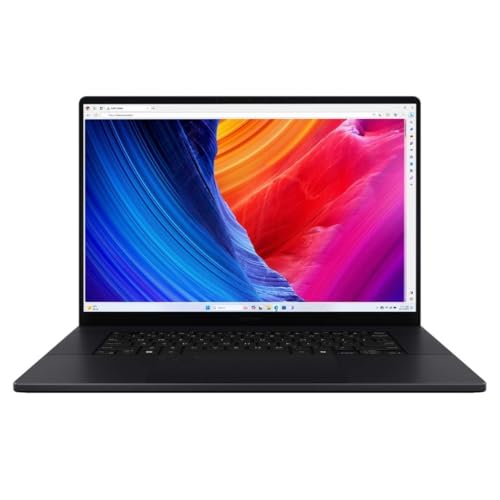
ASUS ProArt P16 with RTX 5070 — Best Windows editing balance
This ProArt P16 configuration is the Windows editing machine we would hand to a working editor first, because its specification reads like a list of answers to an editor’s actual complaints. The 16-inch 4K OLED touch panel provides the grading canvas: deep OLED contrast for shadow judgement, wide colour for confident correction, and touch for the annotation and review gestures that client sessions invite. Behind it, the HIDevolution build pairs a Ryzen AI 9 HX 370 with an RTX 5070, 64 gigabytes of LPDDR5X memory, and 2 terabytes of PCIe storage. Each figure addresses a known timeline pain: graphics for effects and acceleration, memory for caching and multitasking, storage for media that arrives by the hundredweight.
Sixty-four gigabytes deserves its emphasis in an editing context. An editor’s real working set is never just the editing application: it is the editor plus a compositing tool, a browser of stock and reference, audio software, and the last export playing for review. At 64 gigabytes that ensemble stops negotiating for room, and complex timelines keep their previews cached instead of recomputing them at every nudge. The RTX 5070, meanwhile, is the tier where effects stacks and accelerated exports feel professionally brisk without the flagship premium its sibling below demands.
Because this is a configured build, the listing’s specification lines are the authority, and buyers should confirm them as carefully as a rental quote. Within those lines stands the most balanced Windows editor in this guide: the machine for timelines that are heavy, grades that are serious, and budgets that still answer to a business.
- Panel: 4K OLED touch at 16 inches
- Memory: 64GB LPDDR5X
- Storage: 2TB PCIe SSD
- Graphics: NVIDIA GeForce RTX 5070
- Chip and system: AMD Ryzen AI 9 HX 370, Windows 11 Pro
Strengths
- Sixty-four gigabytes of memory keeps complex timelines and the surrounding application ensemble fluid.
- The 4K OLED touch panel serves grading, review, and client annotation in one surface.
- Two terabytes of fast storage matches the appetite of 4K media on active productions.
Trade-offs
- The RTX 5090 sibling outruns it where effects stacks are extreme.
- Configured builds reward buyers who verify every specification line at purchase.
- Flagship-adjacent pricing applies even in this balanced trim.
Best for: professional Windows editors with heavy timelines who want balance rather than extremes. Not suited for: hobbyist editors, or productions whose effects loads demand the flagship tier.

Apple MacBook Pro 16 with M5 Pro — Best for codec-driven workflows
The MacBook Pro 16 enters this guide through a different door: not raw graphics tiers, but the integrated logic of Apple’s silicon for the codecs editors actually shoot. This configuration carries the M5 Pro with an 18-core CPU and a 20-core GPU, 24 gigabytes of unified memory, and a terabyte of storage, behind a 16.2-inch Liquid Retina XDR display. For editors whose cameras record in Apple’s accelerated formats and whose software is Final Cut Pro or a Mac-first Premiere or Resolve setup, the machine’s appeal is the absence of friction: footage decodes through dedicated hardware, timelines stay responsive, and exports proceed with an efficiency that the specification sheet understates.
The XDR display is the grading argument. It is not OLED, and in a guide full of OLED it does not need to apologise: its brightness discipline, contrast handling, and colour management make it a reference surface that colourists trust, and its slightly larger 16.2-inch canvas gives timelines room. Unified memory requires a mental adjustment for Windows migrants: the 24 gigabytes serve processor and graphics together in an architecture designed around that sharing, and in practice this configuration handles professional 4K timelines with the composure its reputation suggests. Editors with enormous effects stacks should still think hard about headroom, as they should on any platform.
Space Black finish, Wi-Fi 7, and the MacBook line’s build quality complete a machine whose value is coherence: hardware, operating system, and codec acceleration designed as one product. Editors invested in Apple’s ecosystem will find it the natural anchor of this guide; editors whose plugins, storage, or collaborators live on Windows should weigh the ProArt pair with equal seriousness.
- Display: 16.2-inch Liquid Retina XDR
- Processor: Apple M5 Pro, 18-core CPU and 20-core GPU
- Memory: 24GB unified memory
- Storage: 1TB SSD
- Extras: Wi-Fi 7, Space Black
Strengths
- Hardware codec acceleration makes supported camera formats feel effortless on the timeline.
- The XDR panel is a trusted reference for grading without an external monitor.
- Unified architecture delivers professional 4K editing with notable efficiency and quiet.
Trade-offs
- The terabyte of storage is the smallest here alongside the Premium 16; media-heavy editors will live on external drives.
- Memory is fixed at purchase, so headroom decisions are permanent.
- Windows-specific plugins or pipelines are simply not this machine’s country.
Best for: editors in Apple’s software and codec ecosystem who grade on the laptop itself. Not suited for: Windows-pipeline editors, or archivists who need multiple internal terabytes.

Dell XPS 16 Premium, 4TB build — Best archive-rich Dell
Dell’s XPS 16 Premium in this configuration is the maximal expression of the line: an Intel Core Ultra 9 285H at the processor’s flagship tier, RTX 5060 graphics, 32 gigabytes of memory, and a remarkable 4 terabytes of internal storage, all behind a 16.3-inch 4K OLED touch panel at 120Hz. That storage figure is the headline an editor should read twice. Four terabytes inside the laptop changes working habits: current productions, recent archives, stock libraries, and exports coexist without the daily triage that smaller drives impose, and the machine becomes a studio that happens to fold.
The 120Hz OLED deserves its own sentence in an editing guide, because refresh rate is a timeline virtue as well as a gaming one: scrubbing and playback feel smoother, interface motion is calmer, and long grading sessions are gentler on the eyes that pay the bills. RTX 5060 graphics place this build in the strong professional tier for effects and acceleration, a step below the ProArt flagship but entirely credible for demanding 4K work, and the Ultra 9 processor keeps the non-graphics workload, encoding stages, application responsiveness, background renders, at flagship pace.
Three Thunderbolt 4 ports, a 1080p IR webcam, fingerprint reader, backlit keyboard, and Windows 11 Pro complete a specification aimed at professionals who bill by the production. The buyer for this build is specific: an editor whose catalogue travels with them and whose archive is a working asset rather than a storage problem. For that editor, no other Dell in this guide, and few laptops anywhere, answer as completely.
- Display: 16.3-inch 4K OLED touch, 120Hz
- Processor: Intel Core Ultra 9 285H
- Graphics: NVIDIA GeForce RTX 5060
- Memory: 32GB
- Storage: 4TB, 3x Thunderbolt 4, Windows 11 Pro
Strengths
- Four terabytes of internal storage transforms the laptop into a travelling production archive.
- The 120Hz 4K OLED makes scrubbing and grading sessions smoother and calmer.
- Ultra 9 processing with RTX 5060 graphics covers demanding timelines and effects.
Trade-offs
- The storage flagship carries the line’s flagship expectations in price class.
- RTX 5060 sits below the ProArt pair’s graphics tiers for extreme effects work.
- Editors with studio archives pay for capacity they will never fill.
Best for: editors who carry whole productions and recent archives inside the machine. Not suited for: editors with network or studio storage, or effects specialists needing flagship graphics.
ASUS ProArt P16 with RTX 5090 — Maximum Windows performance
Every lineup has a configuration that exists to answer the question “what if we simply did everything,” and in this guide it is the second ProArt P16. The HIDevolution build pairs the same Ryzen AI 9 HX 370 and 64 gigabytes of memory as its sibling with the flagship RTX 5090, a 4K OLED touch panel now running at 120Hz, and 4 terabytes of PCIe storage. Distinguish the two ProArts by exactly those levers: graphics tier, panel refresh, and archive capacity. This is the one for editors whose timelines carry heavy effects, noise reduction, and compositing as routine ingredients rather than occasional garnish.
The RTX 5090’s value in editing is specific, not mystical. GPU-accelerated effects, AI-assisted tools such as transcription-driven editing and smart reframing in modern software, and export acceleration all draw from the same well, and the flagship fills it deepest. The 120Hz panel keeps the interface at the smoothness the XPS line also offers, which matters across ten-hour grading days. Four terabytes means the machine ingests a production’s media without negotiating with an external drive at the door.
Flagship terms apply with flagship clarity: this is the guide’s maximum Windows commitment in cost class, thermal ambition, and capability alike, and it justifies itself only where the workload is genuinely flagship-shaped. Editors whose timelines are cuts, colour, and titles will never find its ceiling, and should buy its sibling with a clear conscience. Editors who know their effects stacks by name will recognise their machine.
- Display: 16-inch 4K OLED touch, 120Hz
- Processor: AMD Ryzen AI 9 HX 370
- Graphics: NVIDIA GeForce RTX 5090
- Memory: 64GB LPDDR5X
- Storage: 4TB PCIe SSD, Windows 11 Pro
Strengths
- Flagship RTX 5090 graphics serve the heaviest effects and acceleration workloads here.
- A 120Hz 4K OLED pairs grading colour with interface smoothness.
- Sixty-four gigabytes of memory and 4 terabytes of storage remove the usual ceilings together.
Trade-offs
- The maximum specification is surplus for cuts-and-colour editing styles.
- Configured-build diligence applies: verify every line of the listing at purchase.
- Cost class is the guide’s highest on the Windows side.
Best for: effects-heavy editors and small post houses needing one machine at full stretch. Not suited for: straightforward editing workloads, or buyers who prefer factory-standard configurations.

Dell Premium 16 — Best entry to Dell’s 4K line
The Premium 16 is Dell’s reorganised flagship line, the XPS inheritance under a new name, and this configuration is its sensible entry point for editors: an Intel Core Ultra 7 255H, RTX 5050 graphics, 32 gigabytes of LPDDR5X memory, and a terabyte of storage behind a 16.3-inch 4K OLED touchscreen. The panel is the thing to notice first, because Dell did not reserve the good screen for the expensive trims: the same 4K OLED touch concept that anchors the line appears here, which means an editor entering at this configuration grades on the real canvas from day one.
The RTX 5050 defines the build’s working envelope honestly. It is the entry graphics tier of its generation, entirely capable of 4K timeline work, hardware acceleration, and moderate effects, and equally clearly a step below the RTX 5060 builds above it for effects-dense timelines. The Ultra 7 255H keeps general editing responsiveness at a professional standard, and 32 gigabytes of memory matches the class norm. Fingerprint sign-in and Windows 11 Pro mark the machine’s business-creator positioning.
For an editor whose productions are real but not extreme, interviews, events, branded content, documentary work at sensible scales, the Premium 16 offers the line’s screen and ecosystem without paying for ceilings they will not touch. It is also the natural Dell for editors who archive externally by habit, since its terabyte assumes that discipline from the start.
- Display: 16.3-inch 4K OLED touch
- Processor: Intel Core Ultra 7 255H
- Graphics: NVIDIA GeForce RTX 5050
- Memory: 32GB LPDDR5X
- Storage: 1TB M.2 SSD, fingerprint reader, Windows 11 Pro
Strengths
- The line’s genuine 4K OLED touch panel arrives without flagship configuration pricing logic.
- Thirty-two gigabytes of memory matches the professional class standard.
- Ultra 7 performance keeps everyday editing brisk and composed.
Trade-offs
- RTX 5050 graphics set the lowest effects ceiling among the Dell picks.
- One terabyte requires an external archive habit for media-heavy work.
- The panel lacks the 120Hz smoothness of the XPS Premium builds.
Best for: working editors entering Dell’s 4K OLED line with real but moderate effects needs. Not suited for: effects-dense productions, or editors who archive internally.

Dell XPS 16 Premium, 2TB build — The same flagship, leaner storage
This second XPS 16 Premium listing shares its sibling’s entire core, Ultra 9 285H processor, RTX 5060 graphics, 32 gigabytes of memory, 16.3-inch 4K OLED touch panel at 120Hz, and halves the internal storage to 2 terabytes. Keeping both builds in this guide is a deliberate editorial act: the difference between them is a genuine workflow decision, and collapsing them into one entry would hide it. Two terabytes is a great deal of storage by any historical standard, enough for several active productions with disciplined archiving, and it suits editors whose finished work migrates to studio or network storage as a matter of routine.
Everything praised in the 4TB review applies here with that single asterisk: the 120Hz OLED’s calm interface, the flagship processor’s responsiveness, the RTX 5060’s credible effects tier, the triple Thunderbolt 4 docking story, and the Windows 11 Pro business finish. The machine an editor experiences day to day is identical; only the archive horizon differs, arriving sooner and requiring the external-drive ritual a little earlier in each production cycle.
The rational way to choose between the siblings is to audit your last year of work. Measure the media you actually kept on the laptop, not the media you shot, and buy the build that holds that figure with a production’s worth of headroom. Editors who discover their kept media is modest will find this 2TB build the smarter allocation of the same flagship idea; editors who discover the opposite now know why the 4TB build exists and what it is for.
- Display: 16.3-inch 4K OLED touch, 120Hz
- Processor: Intel Core Ultra 9 285H
- Graphics: NVIDIA GeForce RTX 5060
- Memory: 32GB
- Storage: 2TB, 3x Thunderbolt 4, Windows 11 Pro
Strengths
- The full XPS 16 Premium experience, flagship processor, graphics, and 120Hz OLED intact.
- Two terabytes still holds several active productions with ordinary archiving discipline.
- A smarter allocation for editors whose archives live on studio storage.
Trade-offs
- Archive-heavy editors will meet the storage ceiling a production or two sooner.
- Effects ambition remains capped by the RTX 5060 tier, as with its sibling.
- The saving versus the 4TB build only matters if the capacity truly goes unused.
Best for: flagship-seeking editors with external or network archives already in place. Not suited for: editors who keep their whole catalogue inside the laptop.
How Do the Six Picks Compare Side by Side?
| Model | Graphics | Memory | Storage |
|---|---|---|---|
| ProArt P16 (RTX 5090) | GeForce RTX 5090 | 64GB | 4TB |
| ProArt P16 (RTX 5070) | GeForce RTX 5070 | 64GB | 2TB |
| XPS 16 Premium (4TB) | GeForce RTX 5060 | 32GB | 4TB |
| XPS 16 Premium (2TB) | GeForce RTX 5060 | 32GB | 2TB |
| Dell Premium 16 | GeForce RTX 5050 | 32GB | 1TB |
| MacBook Pro 16 M5 Pro | Apple 20-core GPU | 24GB unified | 1TB |
Two decisions organise the table. The first is ecosystem: the MacBook Pro stands apart on Apple’s architecture and codec story, and editors should settle that question by software before comparing figures. The second is which ceiling you expect to meet first, graphics, memory, or storage, because each Windows pick raises a different one. The ProArt 5090 raises all three at flagship cost; the Dells let you buy storage and screen while accepting a mid-tier graphics ceiling; the ProArt 5070 splits the difference with the most memory in the field.
How Should Editors Think About Colour on These Panels?
A grading panel earns trust in three currencies: coverage, contrast, and consistency. Coverage asks whether the display can show the colour space you deliver in, and the OLED panels here are specified with wide gamut behaviour suited to the DCI-P3-flavoured world of modern production, while Apple’s XDR manages its own highly disciplined pipeline. Contrast asks whether shadow detail survives, and OLED’s per-pixel blacks are why the technology conquered this class: a dark scene graded on OLED reveals the noise and crush that lesser panels hide until a client’s television exposes them.
Consistency is the quiet currency, and it is managed by habit as much as by hardware. Grade at a consistent brightness in a consistent room, because your eyes adapt to both. Check finished work on a second surface, a television or a phone, before delivery, not because the laptop panel lied but because audiences do not watch on grading panels. Use the operating system’s colour management properly and keep software colour settings matched to your delivery space. The panels in this guide are good enough that the remaining colour errors in most productions will be workflow errors, and workflow errors, happily, are free to fix.
Touch, present on the Windows picks, earns a nuanced verdict for editors. It is genuinely useful in review and annotation, marginal during precision timeline work, and irrelevant during exports. Buy these machines for their panels’ colour and their hardware’s composure; let touch be a pleasant extra rather than a deciding argument, and it will never disappoint you.
What Mistakes Do Editors Make When Buying a 4K Laptop?
The first mistake is shopping by export fantasy: choosing a machine for a benchmark scenario rather than for the timeline hours that dominate real editing. A laptop lives or dies by scrubbing feel, preview caching, and panel trust, and editors who optimise for the final render alone often buy past their actual bottleneck. The second mistake is underbuying storage in a 4K world. Media volumes at this resolution punish optimism within a single production, and the multi-terabyte builds in this guide exist because editors learned that lesson at commercial rates.
The third mistake is confusing sibling configurations, and this guide’s duplicated names are the warning made flesh: an XPS 16 Premium is not one machine but a family whose storage spans a factor of two, and a ProArt P16’s graphics span two tiers. Reading the configuration lines is not pedantry; it is the purchase. The fourth mistake is ignoring the codec question, buying hardware acceleration for formats you never shoot while your actual camera codec leans entirely on the processor. Know your footage, and the shortlist organises itself.
How Should You Set Up an Editing Laptop for Its First Production?
Before the first timeline, organise storage as a system: media on the fastest volume, cache and scratch locations set deliberately inside your editing application, exports in dated folders, and a backup that copies the project and its media, not merely the finished files. Import a completed past project and re-export a short section, so your settings, colour pipeline, and delivery presets are proven on known material while nothing is at stake. Calibrate your working brightness, set your monitoring habits, and confirm that what the panel shows matches what your delivery screen shows.
Then stress the machine the way a production will: a multicam sequence if you shoot one, your heaviest typical effects stack, a long export left to run while you work on something else. Note where the machine warms, where fans settle, and whether the timeline stays honest under combined load. Every pick in this guide should pass that rehearsal with composure; the rehearsal’s purpose is to teach you your specific machine’s manners before a client teaches you under deadline. Productions forgive many things, but a laptop whose behaviour is still a surprise in delivery week is not one of them.
How Do Codecs Change Which of These Machines You Should Buy?
Editors talk about 4K as though it were one workload, but the camera’s codec quietly rewrites the hardware bill. Long-GOP formats, the highly compressed H.264 and H.265 variants most cameras record, squeeze enormous pictures into small files by describing differences between frames, and the laptop pays for that economy at playback: every scrub asks the decoder to reconstruct frames from their neighbours at speed. Hardware acceleration for these codecs, present across this guide’s ecosystems in different implementations, is therefore not a luxury feature but the difference between a timeline that flows and one that stutters through its own footage. Editors should identify their camera’s exact recording format before shopping, because it predicts their daily experience more faithfully than any processor name.
Intraframe and intermediate formats invert the bargain. ProRes, DNx, and the optimised media editors generate from difficult sources store each frame more completely, which makes decoding easy and storage ravenous. A machine editing intermediates lives or dies by drive speed and capacity, and suddenly the storage column of our comparison table is the performance column. This is also why proxy workflows remain the professional’s quiet superpower: editing lightweight stand-ins and relinking to originals for export lets almost any machine here cut almost any footage, at the price of an ingest ritual and the storage to hold both versions.
RAW video sits at the demanding summit, asking the graphics card to debayer and process sensor data in real time before colour work even begins. Editors whose cameras shoot RAW as a matter of course should read the graphics tiers of this guide as their primary axis and treat the flagship ProArt configuration as the natural starting point, while editors in compressed formats can safely let screen, memory, and storage lead. The codec question, asked early, prevents the most expensive mismatch in this category: a magnificent machine optimised for a workload its owner never runs.
What Does a Professional Delivery Week Look Like on These Machines?
Delivery week is when an editing laptop’s specification stops being a list and becomes a schedule. The picture locks, the grade gets its final pass, sound arrives from the mix, and exports multiply: the master, the client review file, the captioned version, the vertical cutdown, the archive. Each export is a sustained full-effort run, and the machine that holds its composure through the fifth one, fans steady, pace unflagging, is the machine whose cooling design this guide kept describing in qualitative terms. Editors learn to stage the week around the machine’s honesty: overnight masters, daytime review files, and a laptop left breathing on a clear desk rather than smothered under scripts.
Colour trust peaks in importance during the same week, because the grade approved on the laptop is the grade the client receives. The OLED and XDR panels here were chosen for exactly this passage of work, and the habits around them matter as much as the hardware: consistent room light, consistent brightness, and a final check on an ordinary television or phone before the master leaves. The editors who suffer least in delivery week are rarely those with the largest graphics card; they are those whose panel never surprised them and whose storage never filled at midnight, which is a sentence about the 4 and 2 terabyte builds as much as about any processor.
Backup discipline completes the week’s portrait. A delivery exists in at least two places or it does not fully exist, and the project’s media, not merely its exports, is what must survive a failure. These laptops hold productions comfortably, and that comfort tempts owners into treating the internal drive as the archive of record. Resist the temptation with the same energy you would resist an unlabelled drive in a studio fridge: mirror nightly, archive at picture lock, and let the laptop be the workshop rather than the vault.
How Should a Small Studio Choose Between These Picks for a Team?
A studio buying three or five editing laptops faces the fleet version of every question in this guide, plus one individuals never meet: interchangeability. Identical machines mean identical colour behaviour across suites, docks and chargers that wander freely, and a spare that absorbs a failure without re-plumbing anyone’s workflow. That logic favours committing to one line, and within this guide the natural fleet candidates are the ProArt pair for capability-led studios and the XPS Premium builds for studios whose producers value the archive capacity and the business support story. Mixing tiers inside a fleet is defensible when the seats genuinely differ, a finishing seat at flagship specification, ingest and logging seats at the Premium 16’s level, but every variation should be a decision rather than an accident of purchasing order.
Colour consistency deserves the studio’s particular paranoia, because two editors grading the same programme on visibly different panels will manufacture rework out of thin air. Buying the same model in the same period narrows panel variance to its minimum, and a shared calibration routine, matched brightness, matched viewing conditions, keeps the fleet honest as it ages. The MacBook Pro’s XDR discipline makes it a tempting fleet anchor for Mac-based post houses for exactly this reason, quite apart from its codec story.
Finally, studios should buy the support and warranty conversation as deliberately as the hardware. A machine down in delivery week costs a production day, and the difference between consumer and professional support channels is measured in those days. The picks here span configured builds, consumer flagships, and business lines, and a studio’s choice among them should weigh the failure week, not merely the specification sheet. Individuals can gamble on their own luck; a studio’s luck is a line item, and it should be purchased accordingly.
How Should Editors Choose Between Power and Portability in This Class?
Sixteen-inch creator laptops occupy a deliberate middle territory: large enough for a grading canvas and a serious cooling system, small enough to remain a laptop rather than a relocation project. Within that territory, the picks divide by temperament. The flagship ProArt and the XPS Premium builds assume the machine works mainly at desks and travels between them, extracting maximum capability from the size. The Premium 16 and the MacBook Pro tilt toward the editor whose working week includes trains, cafés, and client sofas, accepting a measure less ceiling for a machine that invites being opened anywhere. Neither temperament is the professional one; both are, in different diaries.
The practical test is to reconstruct last month honestly. Count the days the laptop left the building, the hours it ran on battery, and the sessions where an export’s pace genuinely governed a deadline. Editors whose month was desk-bound should buy capability without apology, because unused portability is weight saved for journeys never taken. Editors whose month was itinerant should protect the habits that make them productive on the move, battery composure, a screen that handles varied light, a chassis that tolerates bags, even at the price of a graphics tier. The specification sheet cannot make this judgement; the calendar already has.
Whichever temperament wins, resist the final inch of overbuying. The editor who purchases the flagship to feel safe, then edits interviews on it for three years, has converted money into reassurance at a poor exchange rate. The editor who purchases for the work they actually do, with one tier of headroom for the work they are growing into, owns a machine that feels correctly sized every day it serves. This guide’s six picks were arranged so that both temperaments and several growth rates can find that correct size without leaving the class.
What Should You Check in the First Week of Ownership?
Week one with an editing laptop is a commissioning process, and professionals treat it as one. Begin with colour: display a familiar, well-graded piece of your own work and compare it against the screen you trusted before, learning this panel’s character while the returns window makes the knowledge actionable. Continue with load: build a timeline that resembles your real work, apply your habitual effects stack, and export a section, watching not for a number to quote but for the machine’s manners, fan behaviour, warmth, and whether the interface stays honest while the export runs behind it. Connect the full desk, drives, second screen, audio, and confirm the whole arrangement assembles in one gesture.
Then do the paperwork that future-you will bless: register the machine, file the configuration record, set the backup running, and save one known-good export as a reference for the machine’s whole life. Every pick in this guide should pass this week with composure; the week’s purpose is not suspicion but knowledge, because an editor who knows their machine’s behaviour in calm conditions can trust it in delivery week, and trust, in post-production, is a schedule feature as real as any graphics card.
How Does Laptop Editing Fit a Wider Post-Production Workflow?
Few editors work alone inside one application any longer, and the laptop’s real job is to be the reliable centre of a small federation: the editing programme, the audio tools that sweeten dialogue and lay music, the graphics software that builds titles and lower thirds, the delivery utilities that caption, transcode, and check files before a client ever sees them. Memory and storage in this guide were specified with that federation in mind, because the machine that edits beautifully and then collapses when the captioning tool opens has failed at the workflow level regardless of its timeline manners. When you test a pick in its first week, test the federation, not merely the editor: the full stack open together, files moving between applications, an export running while notes are written. That is the workload you actually bought the machine to carry.
Collaboration adds the final layer. Review links, shared project formats, and cloud-synced media mean the laptop is also a communications terminal in a distributed post house, and its webcam, microphones, and wireless behaviour, unglamorous lines in every specification here, decide whether client sessions feel professional. The picks divide subtly on this layer, business-leaning Dells with their IR cameras and fingerprint readers against creator-purposed machines, and editors whose weeks are full of remote reviews should let that layer vote. Post-production is a team sport played through screens; buy the machine that makes your screen the calm one in every call.
A Brief Note on Working With a Colourist or a Client Monitor
Many editors deliver into a chain that ends on screens they will never see, and the laptop panel’s job in that chain is to be the known quantity. When a colourist or a client reviews your export and describes a problem, a trustworthy panel lets you locate the disagreement in the chain, their display, the export settings, the viewing room, rather than in your own judgement. Keep one reference export whose look you know completely, revisit it after any software or driver change, and treat any drift as a workflow event to be understood before the next delivery. The machines in this guide give you panels worth building that discipline around; the discipline itself, as always in post-production, is the part no purchase can supply.
How Should You Archive a Finished Production From These Machines?
Archiving is the unglamorous discipline that decides whether a finished film remains an asset or becomes an anecdote, and 4K productions make the discipline non-optional because their media volumes punish casual habits within a single project. The professional pattern is a two-copy rule applied at picture lock: the complete project, media, project files, graphics, audio, and the exported masters, copied to two separate destinations, at least one of them not in the same building as the laptop, with a plain-text record of what the archive contains and which software versions created it. Editors who follow the pattern can reopen a production years later for a recut, a festival version, or a client’s sequel, and the reopening feels like archaeology with a map rather than without one.
The laptop’s role in that pattern is to be the workshop that empties itself on schedule. The multi-terabyte builds in this guide postpone the emptying, they do not abolish it, and the editors who thrive across many productions are those who treat internal storage as a current-affairs desk: this production and the previous one at most, everything older living in the archive where it belongs. Storage anxiety, the midnight deletion of renders to make room for tomorrow’s ingest, is a workflow failure disguised as a hardware shortage, and it is entirely preventable by the archive habit. Buy the capacity your active work needs, archive like a professional, and the machine’s drive will never again appear in your dreams during delivery week.
A Closing Note on Monitors, Companions to Every Pick Here
Almost every editor who buys from this guide will eventually pair the laptop with a larger desk display, and the pairing deserves a principle rather than an afterthought: the external monitor should extend the laptop’s colour story, not contradict it. Choose a desk panel whose coverage and behaviour sit comfortably beside the OLED or XDR screen in the lid, calibrate both to the same working brightness, and decide which of the two is the reference when they disagree, because in a two-screen setup one of them must be. The laptop remains the machine you trust in the field and the reference you carry into client rooms; the desk display is the cinema. Editors who settle that hierarchy in advance grade faster and argue with their own setup less, which, across a career of delivery weeks, is worth more than any single specification argued over in these pages.
Final Recommendation
Settle the ecosystem first: editors inside Apple’s codec and software world should take the MacBook Pro 16 and enjoy its coherence. Windows editors should then choose their ceiling. The ProArt P16 with RTX 5070 is the balanced professional default, its 5090 sibling the effects-heavy maximum, and Dell’s line lets you prioritise the archive, with the XPS 16 Premium pair splitting on storage and the Premium 16 offering the same 4K OLED idea at the gentlest configuration. Whichever you choose, you are buying a true 4K panel in the size the industry now builds them, and a machine whose timeline manners will shape your working days for years.
Frequently Asked Questions
Why are all the 4K editing laptops 16 inches now?
Panel production consolidated at 16 inches in 16:10 shapes, and the 15.6-inch 4K class was discontinued by every major maker. The larger canvas suits timelines and grading, and the modern 4K OLED panels live at this size. Our companion guide covers the retired 15-inch format and its surviving flagships for buyers attached to it.
How much storage does a 4K editor really need?
More than intuition suggests. A single production’s media, proxies, and exports can claim hundreds of gigabytes, and archives multiply across projects. One terabyte is workable only with external archiving discipline; two is comfortable for active productions; the 4-terabyte builds suit editors who keep their catalogue in the machine.
What separates the two ProArt P16 configurations?
Graphics tier, panel refresh, and storage. The RTX 5070 build carries 2 terabytes; the RTX 5090 build adds a 120Hz panel and 4 terabytes. Both share the Ryzen AI 9 HX 370 and 64 gigabytes of memory. Effects-heavy editors feel the graphics difference; everyone feels the storage difference eventually.
How do I tell the Dell models apart?
By line, graphics, and storage in that order. The Premium 16 is the entry configuration with an RTX 5050 and 1 terabyte. The XPS 16 Premium pair share an Ultra 9 and RTX 5060 and differ only in storage, 4 terabytes versus 2. The comparison table in this guide lays the three side by side.
Is 32 gigabytes of memory enough for 4K editing?
For most professional 4K timelines, yes, especially with disciplined application habits. Editors running heavy effects, compositing alongside the editor, or very long timelines will feel the ProArt pair’s 64 gigabytes as a genuine working difference. The MacBook Pro’s unified memory follows its own architecture’s logic and should be judged by workflow tests rather than by the raw figure.
Should I care about the touchscreen for editing?
Mildly. Touch helps in review, annotation, and client sessions, and none of the precision timeline work depends on it. Treat it as a bonus on the Windows picks rather than a reason to choose one, and judge the panels on colour, contrast, and refresh instead.
Related Guides
Related decisions live in our guides to best 4k 15 inch laptops for the retired smaller format, best 3d animation laptops for render-led machines, and best 4k laptops under 800 for an honest look at the budget end of 4K.
Related guides
- Best 1440p 165Hz Monitors: One Native 165Hz Pick, Three 180Hz Upgrades, an Overclock Headline and a 160Hz Ultrawide
- Best 13×19 Professional Printers
- Best 3rd Party MacBook Chargers: 96W-Class Alternatives, the 100W Cable Rule, and the Apple Benchmark
- Best Built PC: Six Prebuilt Gaming PCs Judged on Parts, Power and Upgrades



[…] wider landscape is covered in best 4k 15 inch laptops for the retired format in depth, best 4k laptops for video editing for the current 16-inch class, and best 2d animation laptops for colour-led machines in a […]