What's inside
- Key Takeaways
- Quick Picks
- How Did We Choose These Picks?
- Why Do VRAM and Cooling Decide Everything in 3D Animation?
- How Do the Six Picks Compare Side by Side?
- Should You Render on the Laptop or Send Work Elsewhere?
- What Mistakes Do Buyers Make in This Class?
- How Should You Test a 3D Laptop Against Your Own Scenes?
- How Do the Major 3D Programs Load These Machines Differently?
- How Should You Plan Memory, Storage, and Backup as a System?
- How Should You Arrange the Desk Around a Render Laptop?
- What Should Freelancers Tell Clients About Their Machine?
- How Long Should a 3D Animation Laptop Last, and What Kills It Early?
- How Should You Budget the Rest of the Animation Station?
- A Short Word on Resale and Succession
- One Last Distinction: Animation Laptops Versus Gaming Laptops
- Final Recommendation
- Frequently Asked Questions
- Related Guides
As an Amazon Associate I earn from qualifying purchases. This post may contain affiliate links at no extra cost to you.
gizmoverdict.com is reader-supported. When you buy through links on our site, we may earn an affiliate commission.
Where to buy: Each linked workstation below leads to its current Amazon listing. Graphics memory, system memory, and storage differ sharply between configurations sold under one model name, so read the listing’s own configuration lines carefully before ordering rather than trusting the family badge.
The best 3d animation laptops are bought on two specifications that gaming guides treat as footnotes: how much memory sits on the graphics card, and whether the cooling system can hold its performance through a render that lasts all night. Animating in Blender, Maya, Houdini, or Cinema 4D alternates between two very different loads. While you pose, key, and scrub, the machine is a viewport instrument that rewards responsive graphics and a strong processor. When you render, it becomes a furnace that must sustain its output for hours without quietly throttling itself into mediocrity. A laptop that wins the first five minutes and fades by minute forty is a bad animation laptop wearing a good costume.
Graphics memory, VRAM, is the hard ceiling nobody can negotiate with. A scene whose textures, geometry, and render buffers fit inside the card’s memory renders at full speed; a scene that spills over falls back to slower paths or fails outright, and no setting massage fully rescues it. That is why this guide names the VRAM figure for every pick where the listing states it, why the workstation cards with 8 and 16 gigabytes earn serious attention despite smaller headline glamour, and why the 64-gigabyte system memory in one pick matters: large scenes stage their assets in RAM before the GPU ever sees them.
The six machines below divide into two tribes, and understanding the tribes matters more than memorising the models. The workstation tribe, represented by HP’s ZBook Studio and Dell’s Precision, carries NVIDIA’s professional RTX Ada cards, drivers certified for the major studio applications, and support structures aimed at people whose income depends on the machine. The GeForce tribe, the MSI pair, the Razer Blade, and the ASUS ProArt, carries gaming-derived cards with more raw render speed per pound spent, aimed at independent animators and small studios who accept consumer support in exchange for performance. Neither tribe is the correct one; they answer different working lives.
A note on honesty before the names: we do not quote render times in this guide, because a render time without the exact scene, engine settings, and resolution is a number invented for decoration. What we can tell you truthfully is which machines hold the hardware profiles that experienced animators ask for, where each one’s ceiling sits, and which compromises each design makes in cooling, memory, screen, or support. The final choice between them should be made against your own scenes, and the closing sections explain how to test exactly that.
Key Takeaways
- VRAM is the ceiling that decides which scenes render at all; the picks here range from workstation cards with 8 and 16 gigabytes to flagship GeForce hardware, and your scene complexity should pick the tier.
- Sustained cooling matters more than burst speed for animation, because renders run for hours and throttled machines quietly stretch every deadline.
- The ZBook Studio and Precision 5690 carry professional RTX Ada graphics with certified drivers; the other four carry GeForce cards that trade certification for raw pace.
- The Razer Blade 16 in this guide is the 2025 flagship with an RTX 5090 and a Ryzen AI 9 HX 370, a previous-generation machine whose performance remains formidable and whose listing should be read as exactly that.
- Sixty-four gigabytes of system memory in the ProArt P16 is not decoration; large productions stage heavy assets in RAM before the graphics card takes over.
Quick Picks
| Pick | Badge | Why it earns its place |
|---|---|---|
| Dell Precision 5690 | Best for studio production | An RTX Ada 5000 with 16 gigabytes of graphics memory, a 4K-class OLED touch panel, and workstation support make it the serious production anchor here. |
| Razer Blade 16 (2025) | Most raw render power | The 2025 flagship pairs an RTX 5090 with a QHD+ 240Hz OLED screen and 2 terabytes of storage for animators who render locally and render often. |
| ASUS ProArt P16 (HIDevolution) | Best screen and memory combination | A 4K OLED touch display, an RTX 5070, and 64 gigabytes of memory suit animators whose scenes are as heavy as their colour standards. |
| HP ZBook Studio G11 | Best certified all-rounder | The RTX 2000 Ada workstation card, 32 gigabytes of memory, and HP’s mobile workstation build cover Maya and Blender pipelines with certified calm. |
| MSI Stealth 16 AI+ | Best portable GeForce option | An RTX 5070 Ti and a 240Hz QHD+ OLED panel in a comparatively travel-friendly 16-inch body for animators who work between sites. |
| MSI Creator A16 AI+ | Best entry into serious 3D | An RTX 4060 with 32 gigabytes of memory and a 240Hz QHD+ screen gives students and independents a real production machine without flagship pricing logic. |
How Did We Choose These Picks?
We began with the render queue rather than the showroom. Animation departments and independent artists told the same story in different words: the laptop is judged at 2 a.m. by whether the render finished, not at noon by how the viewport felt. So our first filter was graphics memory and the cooling reputation of the chassis, our second was system memory of at least 32 gigabytes, and our third was storage large enough to hold active productions without constant archiving. Machines that failed the first filter were excluded however attractive their screens or keyboards, because a beautiful laptop that cannot finish your scene is a paperweight with good industrial design.
Certification formed the second axis of selection. Autodesk, Blender’s ecosystem, and the major render engines all behave predictably on consumer GeForce drivers for most artists, most of the time. But studios running Maya, Houdini, or SolidWorks-adjacent pipelines at commercial scale value the tested driver branches that ship with professional RTX Ada cards, and they value a support line that treats a dead workstation as an emergency. We therefore included two genuine mobile workstations, not as decoration, but because for a segment of this audience they are the only responsible recommendation.
We also insisted on screens that respect the work. Animation is judged in motion and in colour, and every pick here carries either a high-refresh QHD+ panel or an OLED display with serious colour credentials. A render you cannot evaluate honestly on the machine that made it will be evaluated by someone else, on their screen, in a review meeting you would rather enjoy.
Finally, every configuration below was checked against its verified listing, with model years stated where they matter. The Blade 16 here is the 2025 generation, and we say so in its review rather than dressing it as current. Where a seller’s configuration bundles unusually large memory or storage, as with the ProArt P16, we describe the listing as it stands.
Why Do VRAM and Cooling Decide Everything in 3D Animation?
Picture a production scene: a character rig with subdivision surfaces, several texture sets painted at high resolution, hair or fur simulation caches, an environment with instanced vegetation, and volumetric atmosphere for the final pass. Each element claims graphics memory when the render starts. While the total fits, the GPU works at its designed pace. The moment the total exceeds the card’s memory, the renderer must shuffle data across the bus, split the job, or stop. Animators learn their card’s ceiling the way drivers learn a car’s fuel range, and they design scenes around it, splitting passes and economising textures. Buying more VRAM is buying creative freedom in the most literal sense available in this market.
Cooling writes the second half of the story. A laptop GPU’s advertised speed is a sprint figure; rendering is a marathon run at full effort. Chassis with generous vapour chambers, well-ducted fans, and honest wattage sustain their pace through a night render, while thin machines tuned for quiet showroom behaviour step down and stretch the job. This is why the workstations and the larger GeForce machines dominate this guide: their bodies are built around sustained load, and their designers expect them to be worked hard for years. When you compare two laptops with the same graphics card, the one with the better cooling story is usually the faster animation machine by morning.
System memory and storage complete the picture quietly. Scenes stage in RAM, simulation caches write to disk, and a render farm of one still needs somewhere to put image sequences that grow by the gigabyte. Thirty-two gigabytes of RAM and a terabyte of storage form the sensible floor for this class; the picks that exceed those figures are buying their owners time, which in production is the only currency that never devalues.

MSI Creator A16 AI+ — Best entry into serious 3D
Every animator in this guide’s audience started somewhere, and for many the honest starting point is a machine that renders real scenes without demanding a flagship budget. The Creator A16 AI+ fills that role with unusual completeness. Its GeForce RTX 4060 is the entry card of the modern render-capable generation, and paired with 32 gigabytes of LPDDR5x memory, double what many rivals at its level provide, it handles learning scenes, short films, and freelance work of moderate complexity without the constant memory anxiety that poisons a student’s second year. The Ryzen AI 9-365 processor keeps viewports responsive while you pose and key, which is where a beginner spends most of their hours and forms most of their habits.
The display supports the learning process properly. A 16-inch QHD+ panel at 240Hz gives timeline playback and viewport orbiting a smoothness that makes motion easier to judge, and motion judgement is the core skill of the craft. Animators checking arcs, spacing, and follow-through on a high-refresh screen catch timing errors that a sluggish panel hides, so the screen is a teaching instrument as much as a viewing surface. The terabyte of NVMe storage holds a student’s growing library of scenes, caches, and rendered sequences with room to spare through a degree or a first year of client work.
The ceiling is real and should be named. Complex production scenes with heavy textures and simulation will test the RTX 4060’s memory before they test anything else, and the professional path past that ceiling runs through the workstations and flagships elsewhere in this guide. But a first serious machine should teach the craft, finish coursework renders overnight, and survive being carried to classes and studios, and on those terms the Creator A16 is the most balanced doorway into 3D animation in this roundup.
- Display: 16-inch QHD+, 240Hz
- Processor: AMD Ryzen AI 9-365
- Graphics: NVIDIA GeForce RTX 4060
- Memory: 32GB LPDDR5x
- Storage: 1TB NVMe SSD, Wi-Fi 7, Windows 11 Home
Strengths
- Thirty-two gigabytes of memory at this level removes the most common beginner bottleneck before it can form.
- The 240Hz QHD+ panel makes motion study and viewport work feel precise during long learning sessions.
- A terabyte of storage covers coursework, caches, and finished sequences without early archiving chores.
Trade-offs
- The RTX 4060’s graphics memory sets a clear ceiling for texture-heavy production scenes.
- It is a 2024 design, so its platform lacks the newest refinements found in the current-generation picks.
- Consumer support replaces the workstation service structures that studios rely on.
Best for: students and independent animators buying their first machine that must genuinely render, not merely preview. Not suited for: production artists whose scenes already strain high-memory workstation cards.

HP ZBook Studio G11 — Best certified all-rounder
The ZBook Studio G11 is what a studio IT department buys when an animator needs a laptop and the studio intends to keep working while it is serviced, upgraded, and supported like infrastructure. Its NVIDIA RTX 2000 Ada is a professional card with 8 gigabytes of graphics memory, and the distinction that matters is not raw pace but behaviour: certified drivers for the major content-creation applications, tested against the exact software versions studios deploy. In Maya, in Blender’s professional ecosystem, and in mixed pipelines where a scene passes through several departments’ tools, that predictability is worth real money, because the cost of a driver mystery during a delivery week dwarfs any benchmark gap.
The rest of the configuration reads like a checklist written by someone who has supported animators before. An Intel Ultra 7 155H processor, 32 gigabytes of DDR5 memory, and a terabyte of storage form the balanced core. The 16-inch FHD+ display is the one specification that invites debate: it is a good professional panel, but it is not the OLED showcase found on the ProArt or the Precision, and animators for whom final colour judgement happens on the laptop itself should weigh that carefully. For animators whose colour decisions happen on a calibrated desk monitor, the ZBook’s panel is entirely fit for purpose and its resolution is kinder to battery and scaling.
Two Thunderbolt 4 ports, Wi-Fi 7, an IR webcam, and Windows 11 Pro complete a machine designed for managed professional life. It will not win a beauty contest against the Blade, and it is not meant to. It is meant to be issued, trusted, and still rendering three productions from now, and for freelance animators who sell reliability to clients, that identity is precisely the product.
- Display: 16-inch FHD+
- Processor: Intel Core Ultra 7 155H
- Graphics: NVIDIA RTX 2000 Ada, 8GB
- Memory: 32GB DDR5
- Storage: 1TB SSD, 2x Thunderbolt 4, Wi-Fi 7, Windows 11 Pro
Strengths
- Certified professional drivers remove a whole category of software surprises from studio pipelines.
- The configuration is balanced for production: memory, storage, and connectivity all match the graphics tier.
- HP’s mobile workstation build and support suit animators whose machine is a business asset.
Trade-offs
- The FHD+ panel trails the OLED picks for on-laptop colour judgement and sheer viewing pleasure.
- Eight gigabytes of graphics memory is a working ceiling that heavy scenes will eventually meet.
- GeForce rivals deliver more raw render pace for the same general outlay.
Best for: studio animators and reliability-selling freelancers working in certified application pipelines. Not suited for: colour-critical solo artists who judge finals on the laptop screen, or buyers chasing maximum render speed per pound.

Razer Blade 16 (2025) — Most raw render power
Let the year be stated as plainly in the review as it is in the badge: this is the 2025 Blade 16, the previous generation of Razer’s flagship, and it appears in this guide because its hardware remains more powerful than most current machines an animator can buy. The configuration pairs an AMD Ryzen AI 9 HX 370 with an NVIDIA GeForce RTX 5090, the flagship GeForce card of its generation, backed by 32 gigabytes of DDR5 memory and a full 2 terabytes of storage. For an independent animator who renders locally, that combination changes working habits: scenes that once queued overnight become afternoon jobs, and iteration, the heartbeat of good animation, speeds up everywhere it touches.
The screen matches the ambition. A QHD+ OLED panel at 240Hz gives the Blade the motion clarity animators need for timing work and the colour depth they need for lighting passes, in one display. Razer’s unibody construction gives the machine a density and finish that make it the one pick here that feels like an object of desire as well as a tool, and in freelance life, where the laptop appears in client meetings, that polish is not worthless. The Chroma RGB keyboard and Copilot+ branding are the gaming heritage showing through; ignore or enjoy them according to taste.
The honest cautions are thermal and generational. A flagship card in a thin chassis is a negotiation between power and heat that Razer manages well but cannot repeal, so sustained renders will run the fans with conviction and the machine rewards a clear desk and open vents. And because this is the 2025 model, buyers should compare its listing terms carefully against current machines, understanding they are purchasing formidable performance from the previous cycle rather than the newest platform. For animators whose bottleneck is render time itself, that trade is often the smartest money in this guide.
- Display: 16-inch QHD+ OLED, 240Hz
- Processor: AMD Ryzen AI 9 HX 370
- Graphics: NVIDIA GeForce RTX 5090
- Memory: 32GB DDR5
- Storage: 2TB, Windows 11, model year 2025
Strengths
- Flagship GeForce performance turns local rendering from an overnight queue into a working-hours tool.
- The QHD+ 240Hz OLED serves timing work and lighting judgement equally well.
- Two terabytes of internal storage keeps active productions and caches on the machine.
Trade-offs
- It is the 2025 generation; platform refinements from the newest cycle are not part of the purchase.
- Sustained flagship rendering in a slim body means assertive fan behaviour under load.
- No certified workstation driver path for studios that require one.
Best for: independent animators and small studios whose schedules are governed by local render times. Not suited for: certified-pipeline studios, or buyers who prioritise the newest platform over outright pace.
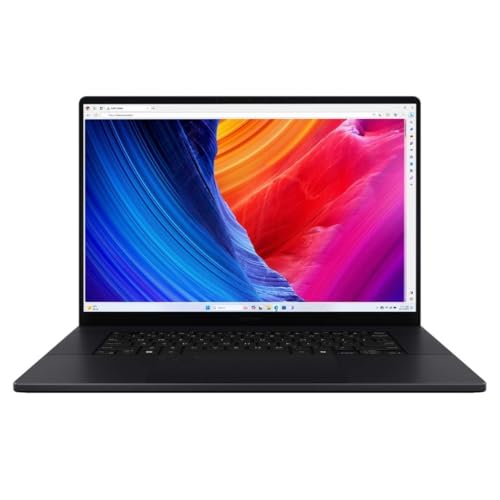
ASUS ProArt P16 (HIDevolution, RTX 5070) — Best screen and memory combination
The ProArt P16 exists for the animator who refuses to choose between a reference screen and a serious render engine, and this HIDevolution configuration leans into that identity hard. The display is a 16-inch 4K OLED touch panel, the kind of screen on which a lighting artist can judge a dusk scene and trust the judgement. Behind it sits a Ryzen AI 9 HX 370 driving an NVIDIA GeForce RTX 5070, and the figure that separates this listing from ordinary creator laptops is memory: 64 gigabytes of LPDDR5X, paired with 2 terabytes of PCIe storage. Heavy scenes stage in RAM, simulation caches sprawl on disk, and the machine simply absorbs production habits that would strangle lesser configurations.
That memory figure deserves its paragraph because animators underestimate it until a scene teaches them otherwise. Viewport work with several high-resolution assets open, a browser of reference, a compositing application holding the last render, and the operating system all draw from the same pool. At 32 gigabytes the pool is adequate; at 64 it stops being a topic of thought, and creative attention returns to the work. The RTX 5070 renders at a pace that suits professional independent work, and while the RTX 5090 Blade outruns it in raw throughput, the P16 counters with the better screen for judgement and double the system memory for scene weight.
Because this is a configured HIDevolution build, buyers should read the listing’s exact specification lines with care and keep the paperwork; configured machines reward owners who know precisely what they bought. The touch layer on the OLED adds annotation and review gestures that some artists love during dailies. Taken as a whole, this is the pick for the animator whose scenes are heavy, whose colour standards are uncompromising, and who wants one machine to carry a production from first pose to final grade.
- Display: 16-inch 4K OLED touch
- Processor: AMD Ryzen AI 9 HX 370
- Graphics: NVIDIA GeForce RTX 5070
- Memory: 64GB LPDDR5X
- Storage: 2TB PCIe SSD, Windows 11 Pro
Strengths
- Sixty-four gigabytes of memory is the largest pool in this guide and transforms how heavy scenes can be staged.
- The 4K OLED touch panel is a genuine reference surface for lighting and grading decisions.
- Two terabytes of fast storage matches the memory ambition for caches and image sequences.
Trade-offs
- The RTX 5070 yields raw render pace to the flagship Blade configuration.
- As a configured build, exact specification checking at purchase is part of the deal.
- No certified workstation drivers for pipeline environments that mandate them.
Best for: independent professionals and small teams with heavy scenes and uncompromising colour standards. Not suited for: buyers who need certified drivers, or animators whose scenes are light enough that the memory is wasted.

Dell Precision 5690 — Best for studio production
If the ZBook is the studio’s sensible issuance, the Precision 5690 is the studio’s statement of intent. Its NVIDIA RTX Ada 5000 carries 16 gigabytes of graphics memory, the largest VRAM figure in this guide, and that number rewrites what a laptop animator can attempt: texture-rich environments, dense geometry, and ambitious lighting setups that would force lesser cards into compromises can be staged and rendered on the machine itself. Certified professional drivers carry the same pipeline predictability as the ZBook’s, aimed at the same commercial software, and Dell’s workstation programme wraps the hardware in the support expectations of a production business.
The display answers the one criticism levelled at its HP rival. The Precision’s 16-inch OLED touch panel gives colour-critical animators a screen worthy of final judgements, so the workstation tribe’s representative here does not ask its owner to outsource colour trust to a desk monitor. The configuration in this listing pairs the flagship card with a Core Ultra 7-165H processor, 32 gigabytes of memory, and 2 terabytes of NVMe storage, a combination with no obvious weak joint. HDMI and USB-C connectivity plus Wi-Fi 7 cover studio docking and location work without adapters becoming a hobby.
Weight, cost class, and seriousness are the counterweights. This is a machine bought by productions, priced and built accordingly, and its talents are wasted on light scenes. But for the animator whose laptop is the render department, the Precision 5690 is the most complete professional instrument in this guide: the most graphics memory, a reference-grade screen, certified behaviour, and storage that respects the size of real productions.
- Display: 16-inch OLED touch
- Processor: Intel Core Ultra 7-165H
- Graphics: NVIDIA RTX Ada 5000, 16GB
- Memory: 32GB
- Storage: 2TB NVMe SSD, Wi-Fi 7, Windows 11 Pro
Strengths
- Sixteen gigabytes of workstation graphics memory is the highest ceiling here for scene complexity.
- The OLED touch display lets a workstation owner judge colour on the machine itself with confidence.
- Certified drivers and Dell’s workstation support fit commercial delivery schedules.
Trade-offs
- It sits in the cost class of production equipment, far beyond student or hobby budgets.
- Its capabilities are surplus for animators whose scenes stay light and stylised.
- Thirty-two gigabytes of system memory, while ample, is half the ProArt P16 configuration’s pool.
Best for: production professionals and studios needing maximum VRAM, certified drivers, and a reference screen in one laptop. Not suited for: students, hobbyists, or anyone whose scenes would never test an 8-gigabyte card.
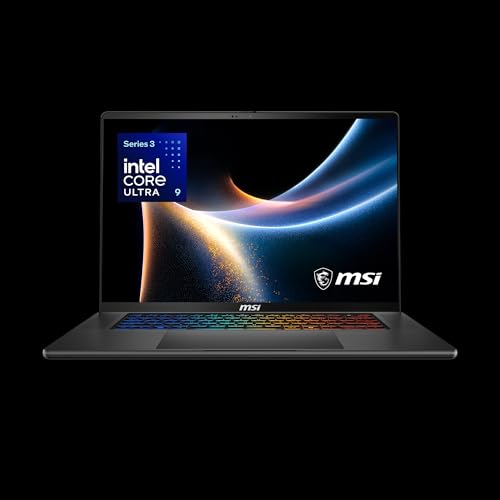
MSI Stealth 16 AI+ — Best portable GeForce option
The Stealth 16 AI+ is the answer for the animator whose studio is wherever the current contract is. Its GeForce RTX 5070 Ti sits one tier below the flagship class, delivering render performance that independent productions will feel as generous, while the chassis keeps the travelling proportions that the Blade and the workstations only approximate. A Core Ultra 9 386H processor and 32 gigabytes of DDR5 memory keep viewports fluid during posing and keyframing sessions in client offices, co-working spaces, and the occasional airport lounge render check.
The 16-inch QHD+ OLED panel at 240Hz is the specification that elevates this from a competent travel machine to a genuine animation instrument. OLED colour for lighting judgement, high refresh for timing judgement, and enough resolution to keep dense interfaces legible: the three screen virtues of this craft arrive together. The terabyte of storage is the configuration’s modest figure, and travelling animators will pair it with a fast external drive for archives, which is standard practice in this working pattern anyway.
Wi-Fi 7 keeps large file transfers to studio storage brisk when the day ends. Judged against its siblings, the Stealth concedes raw pace to the Blade’s flagship card and certified calm to the workstations, and in exchange it offers the most portable complete package in the guide. Animators who bill by the project and work from several postcodes a month will recognise their machine immediately.
- Display: 16-inch QHD+ OLED, 240Hz
- Processor: Intel Core Ultra 9 386H
- Graphics: NVIDIA GeForce RTX 5070 Ti
- Memory: 32GB DDR5
- Storage: 1TB NVMe SSD, Wi-Fi 7, Windows 11 Home
Strengths
- RTX 5070 Ti performance in a body that genuinely travels between studios and client sites.
- The 240Hz QHD+ OLED covers colour and motion judgement in a single excellent panel.
- A current-generation platform with Wi-Fi 7 suits multi-year professional use.
Trade-offs
- One terabyte of storage will push travelling animators toward external drives quickly.
- Raw render pace sits below the flagship Blade and the 16-gigabyte Precision for the heaviest scenes.
- Consumer positioning means no certified driver programme.
Best for: freelance and contract animators who move between sites and need real render power that travels. Not suited for: studio-issued certified environments, or archivists who keep entire productions on the internal drive.
How Do the Six Picks Compare Side by Side?
| Model | Graphics and VRAM | Memory and storage | Tribe and role |
|---|---|---|---|
| Dell Precision 5690 | RTX Ada 5000, 16GB | 32GB, 2TB | Workstation; maximum scene ceiling |
| Razer Blade 16 (2025) | GeForce RTX 5090 | 32GB, 2TB | GeForce flagship; fastest local renders |
| ASUS ProArt P16 | GeForce RTX 5070 | 64GB, 2TB | Creator; heaviest staging and best screen |
| HP ZBook Studio G11 | RTX 2000 Ada, 8GB | 32GB, 1TB | Workstation; certified all-rounder |
| MSI Stealth 16 AI+ | GeForce RTX 5070 Ti | 32GB, 1TB | GeForce; portable professional |
| MSI Creator A16 AI+ | GeForce RTX 4060 | 32GB, 1TB | GeForce; serious entry point |
The table’s most important column is the first one, because graphics memory predicts which of your scenes finish without compromise. Read down it with your heaviest current production in mind, then check the tribe column against your software environment: certified pipelines point one way, independent speed points the other. Everything else in the table is refinement; those two decisions are the purchase.
Should You Render on the Laptop or Send Work Elsewhere?
Every animator eventually faces the arithmetic of the render queue. A personal laptop rendering overnight is free in cash terms and expensive in flexibility: the machine is occupied, the fans are audible, and a failed frame discovered at dawn costs a day. Render services and studio farms invert the bargain, charging money to return your machine and your evening to you. The laptops in this guide shift that arithmetic toward local rendering further than previous generations could, because their graphics memory and sustained performance handle scenes that once demanded a farm by default.
A practical hybrid suits most independents. Use the laptop for look-development renders, short tests, and overnight finals on short-form work, where iteration speed matters more than absolute throughput. Send long-form finals, the multi-minute sequences with volumetrics and fur, to a service during delivery weeks, and keep the laptop free for the fixes that inevitably follow the client’s screening. The machine you buy should therefore be judged on the renders you will actually keep in-house, which for most animators means strong VRAM and honest cooling rather than the absolute flagship tier.
Whichever route a shot takes, keep the project structured for both: assets in predictable folders, caches you can regenerate, and textures archived with the scene. A laptop chosen well and a project organised well together remove most of the terror from delivery week, and neither half of that sentence works alone.
What Mistakes Do Buyers Make in This Class?
The classic error is buying the sprint and ignoring the marathon: choosing a thin machine with a famous graphics name, then discovering across a month of night renders that its sustained pace belongs to a cheaper card. The second error is shopping by processor generation while ignoring graphics memory, ending with a scene that cannot load its own textures. The third is assuming certification is marketing. In a certified pipeline, the tested driver is the difference between a studio that renders and a studio that troubleshoots, and animators employed by such pipelines should let their pipeline choose their tribe.
A quieter mistake is underbuying storage. Image sequences, simulation caches, and texture libraries grow faster than project files suggest, and a full drive during delivery week is a self-inflicted emergency. The final mistake is generational confusion: reading a previous-year flagship’s listing as though it were the current model. This guide flags the Blade’s year wherever it appears; apply the same scepticism to every listing you meet elsewhere.
How Should You Test a 3D Laptop Against Your Own Scenes?
Bring your heaviest finished scene, the one that made your old machine complain, and load it on day one. Orbit the viewport at production subdivision levels, scrub the most complex shot, and start the render that used to run overnight. You are not timing it for a review; you are learning whether the ceiling moved far enough. A machine that swallows your worst historical scene whole will handle the next production, because scene complexity grows by ambition, not by accident, and you now know the size of your headroom.
Then test the working day rather than the benchmark. Pose and key for two hours and notice the viewport’s manners. Leave a render running through a meeting and check the machine’s noise and heat when you return. Connect your drawing tablet, your backup drive, and your second screen, and confirm the desk becomes a studio in one gesture. Test the support path too: register the machine, save the paperwork, and know which phone number owns a breakdown before a breakdown owns your schedule.
Finally, render one finished shot to completion and compare it against the same shot from your old machine at identical settings. Pixel-identical output at a calmer pace is a successful purchase; any difference in the image is a settings or driver question to resolve inside the returns window, while resolution is still cheap.
How Do the Major 3D Programs Load These Machines Differently?
Blender is the democratic instrument of modern 3D animation, and its two render engines explain this whole guide in miniature. Eevee, the real-time engine, lives in the viewport world of responsiveness and moderate memory, and almost every pick here runs it beautifully. Cycles, the path-tracing engine used for final images, is the furnace: it loads the graphics card completely, claims VRAM for geometry, textures, and acceleration structures, and holds that load for as long as the frame queue lasts. A Blender artist should therefore buy for Cycles and enjoy Eevee, weighting graphics memory and cooling above every other line in the specification.
Maya’s centre of gravity sits slightly differently. Viewport 2.0 rewards a responsive graphics card and a strong processor during animation, while final rendering often leaves the laptop entirely for Arnold on a farm, or stays local for smaller productions. Maya artists in studio pipelines also inherit the certification question in its purest form, because the application, its plugins, and the studio’s exact version matrix are tested as a system. That is the working life the ZBook and Precision were built for, and freelancers outside that matrix can safely enjoy GeForce pace instead.
Houdini adds simulation to the conversation, and simulation rewrites the memory discussion. Cloth, fluid, smoke, and destruction caches are written to disk and staged through RAM at scales that dwarf ordinary scene files, and the artist’s patience is spent waiting on calculations that reward processor cores and memory bandwidth together. Houdini artists should read the ProArt’s 64 gigabytes and the Precision’s storage and VRAM as speaking directly to them, and should treat disk space for caches as a production budget of its own.
Cinema 4D and its Redshift ecosystem lean toward the graphics card with unusual directness, since Redshift was designed as a GPU renderer from the start. Motion designers, who form a large share of Cinema 4D’s user base, also work to broadcast deadlines where the render is tonight rather than this week, which elevates sustained cooling from a comfort feature to a scheduling guarantee. The GeForce picks serve this audience naturally, and the flagship Blade configuration in particular matches the motion-design pattern of heavy local rendering under time pressure.
Unreal Engine deserves an honourable paragraph because an increasing share of animation, especially virtual production and real-time filmmaking, now finishes there. Engine work rewards graphics memory for large environments, fast storage for enormous asset libraries, and a screen that can judge lighting in real time. Animators whose pipeline ends in Unreal should weight this guide’s VRAM column even more heavily than a Cycles artist, and should consider the Precision’s 16 gigabytes and the Blade’s flagship card as their natural shortlist.
How Should You Plan Memory, Storage, and Backup as a System?
A 3D laptop is not a purchase; it is the centre of a small production system, and the system fails at its weakest habit. Storage planning comes first because 3D assets are uniquely expansionist: a single production can hold scene files, texture libraries, simulation caches, rendered sequences in several versions, and the compositing project that marries them. The 2-terabyte picks postpone the reckoning; the 1-terabyte picks demand a fast external drive and an archiving rhythm from the first month. Either way, the rule is identical: active work lives on the internal drive, finished work migrates off it on a schedule, and nothing important exists in exactly one place.
Backup for animators has a specific shape, because the irreplaceable files are not the renders, which can be regenerated, but the scenes, rigs, and textures that regeneration requires. A working system keeps the laptop’s production folder mirrored to an external drive nightly and to a cloud or offsite location weekly, and it tests a restore before the first deadline rather than after the first disaster. Version discipline inside the scene files themselves, dated saves at meaningful milestones, completes the protection, because corruption discovered late is only survivable when yesterday’s file still exists.
Memory planning is simpler and mostly happens at purchase, since several picks here carry memory that cannot be upgraded later. The honest method is to open your current heaviest project, watch the machine’s memory usage at its peak, and buy the tier that doubles that figure. Animators who skip this measurement and buy by optimism repeat the purchase within two years; animators who measure once tend to keep their machines through several productions, which is why the 32 and 64 gigabyte configurations in this guide are framed as production decisions rather than luxury options.
How Should You Arrange the Desk Around a Render Laptop?
A laptop that renders overnight is a small appliance as much as a computer, and its surroundings decide how well it works. Airflow comes first: the intake vents on these machines live underneath or along the rear edge, and a laptop rendering on a bed, a rug, or a stack of papers is a laptop suffocating politely. A simple stand that lifts the rear and leaves the underside breathing is the cheapest performance accessory in this entire guide, and a desk with clear space behind the exhaust keeps hot air from recycling into the intakes. Animators who render in bedrooms learn the second lesson quickly, which is acoustic: a machine at full render is audible, and positioning it behind a monitor, inside an open shelf unit, or simply across the room changes a night’s sleep more than any specification does.
Power discipline follows. Renders should run on mains power with the battery charge behaviour set sensibly in the manufacturer’s tools, because a power cut at hour six of a seven-hour render is a story every animator tells exactly once. A modest uninterruptible supply under the desk converts that story into a non-event for short outages and gives long ones a graceful shutdown. Cable routing matters for the same reason: the lead that a chair wheel finds will eventually be found, usually during the most expensive render of the month.
Storage and peripherals complete the working nest. The external drive that holds archives should live connected and idle rather than in a drawer, because backups that require a ritual happen rarely, while backups that require nothing happen nightly. A second monitor, even an inexpensive one, transforms animation work by giving the viewport the laptop’s whole panel while references, scripts, and render queues live elsewhere. None of this furniture appears in a specification table, and all of it decides whether the specification you bought delivers its promise across a production year.
What Should Freelancers Tell Clients About Their Machine?
Professional presentation is an underrated part of this purchase. Clients commissioning animation rarely ask about hardware directly, but they absorb confidence from the way an animator talks about process: delivery formats, revision handling, backup habits, and what happens if a machine fails mid-production. Owning a workstation-class laptop, or being able to describe a GeForce flagship and a disciplined backup routine in one calm sentence, answers the failure question before it is asked. Studios issuing ZBooks and Precisions understand this instinctively; the machine is partly a capability and partly a credential.
The practical core of the answer is redundancy, and it can be built at any tier in this guide. Project files mirrored nightly, a render path that could move to a service in an emergency, and paperwork, licences, configuration records, kept with the project rather than in memory: those habits let a freelancer promise continuity honestly. Animators shopping this guide for client work should therefore weigh not only which machine renders their scenes, but which ownership story they can tell around it. The Precision and ZBook tell a support story; the Blade and ProArt tell a capability story; the Creator and Stealth tell a value story with the same habits available to all. Choose the machine whose story matches the clients you intend to win, and then make the story true with the backup discipline described earlier.
How Long Should a 3D Animation Laptop Last, and What Kills It Early?
A professional animation laptop should be planned as a four-to-five-year instrument, and the picks here were chosen with that horizon in mind: memory tiers that software growth will not embarrass quickly, storage that productions can grow into, and chassis from lines built for service rather than for a single product cycle. What shortens that life is rarely the processor. It is heat history, renders run for years in dusty rooms with clogged vents; battery neglect, a machine kept at full charge on a hot desk until its untethered life collapses; and storage chaos, where a drive kept permanently at the edge of full degrades both performance and the owner’s temper. The maintenance that protects the investment is unglamorous and almost free: vents cleaned, renders given airflow, archives migrated on schedule, and the manufacturer’s battery care settings actually enabled.
Software drift sets the other boundary. Each year’s applications assume slightly more memory, slightly newer graphics features, and slightly faster storage, and the headroom figures in this guide, 32 gigabytes as the floor, 64 at the top, VRAM measured in production terms, are the shock absorbers for that drift. An animator who buys at the ceiling of their current scenes will meet the boundary in year two; an animator who buys a tier above it meets the boundary in year five, usually at the moment the machine has already paid for its successor. That arithmetic, more than any single specification, is the financial soul of this category, and it is why the guide keeps returning to ceilings rather than to speeds.
How Should You Budget the Rest of the Animation Station?
The laptop is the largest single purchase in an animation setup, and treating it as the only purchase is how budgets quietly fail. A render-capable external drive, a backup drive that actually gets used, a drawing tablet or pen display where the chosen laptop requires one, and the software subscriptions that make the hardware employable all belong in the same spreadsheet as the machine itself. Animators who plan the station as a system tend to choose a slightly less glamorous laptop and a complete working environment; animators who plan only the laptop tend to own a magnificent computer surrounded by improvisations. The picks in this guide were specified to leave that system affordable at several levels, from the Creator A16’s complete student station to a Precision-centred professional desk whose peripherals were bought across a career. Price the whole desk, then choose the machine that lets the desk exist.
A Short Word on Resale and Succession
Professional laptops in this class hold a second life that buyers should factor calmly. Workstations and flagship creator machines pass into second careers, junior seats, render nodes, household service, with a grace that budget machines rarely manage, because their memory and screens remain desirable after their processors stop being fashionable. Buying a tier above today’s needs therefore buys two things at once: headroom for this production and usefulness in the next role. When the successor eventually arrives, the machine in this guide that served a first production honestly will serve a lesser one for years, and the animator who planned that graduation from the start will have extracted the full value of every specification argued over in these pages.
One Last Distinction: Animation Laptops Versus Gaming Laptops
Readers cross-shopping gaming guides will notice overlapping hardware and divergent advice, and the divergence is the lesson. Gaming rewards peak frame rates in bursts and treats fan noise as atmosphere; animation rewards sustained throughput, graphics memory, and a screen that tells the truth about colour at hour nine. A gaming flagship can be a fine animation machine, as two picks here prove, but it earns that status by satisfying animation’s criteria, not gaming’s. Buy by the criteria of the work you will actually open on Monday morning, and the badges will arrange themselves.
Final Recommendation
Choose by ceiling and by tribe. Studios and production professionals should start with the Precision 5690 for its 16 gigabytes of graphics memory and certified behaviour, with the ZBook Studio as the calmer all-round issuance. Independent animators should weigh the Blade 16’s flagship pace, clearly labelled as the 2025 generation, against the ProArt P16’s unmatched memory and screen, and travelling freelancers should take the Stealth 16 seriously as the complete portable compromise. Students entering the craft honestly will be served for years by the Creator A16. The right machine is the one whose ceiling your next production cannot see.
Frequently Asked Questions
How much VRAM do I need for 3D animation?
It depends on scene weight rather than on job title. Learning scenes and stylised short-form work run well on the entry tier represented here. Texture-rich, simulation-heavy production scenes reward the largest graphics memory you can justify, which in this guide means the Precision’s 16-gigabyte workstation card. When in doubt, inventory your heaviest current scene and buy headroom above it.
What is the difference between RTX Ada workstation cards and GeForce cards?
Both come from NVIDIA, but they serve different contracts. The Ada workstation cards in the ZBook and Precision ship with drivers certified and tested for major professional applications, and they are sold with workstation support expectations. GeForce cards prioritise raw performance and serve independent animators superbly. Studios in certified pipelines buy the first; independents chasing pace usually buy the second.
Is the Razer Blade 16 here an old model?
It is the 2025 generation, and we label it that way deliberately. Its RTX 5090 configuration remains extremely powerful, in several respects beyond current mid-range machines, but buyers should understand they are purchasing the previous cycle’s flagship and compare warranty and listing terms accordingly.
Why does one pick have 64 gigabytes of RAM?
Because large productions stage assets in system memory before the graphics card renders them, and compositing applications hold previous frames in the same pool. The ProArt P16’s 64 gigabytes removes memory as a planning constraint for heavy independent work. Lighter pipelines will not feel the difference, which is why the other picks sit at a still-generous 32.
Can these laptops replace a render farm?
For short-form work, tests, and many independent finals, increasingly yes. For long-form delivery with heavy volumetrics and simulation, a farm or service still wins on throughput and frees the laptop for revisions. Most professionals run a hybrid, and these machines make the local half of that hybrid stronger than it has ever been.
What should I verify on the listing before ordering?
The exact graphics card and its memory, the system memory, and the storage, in the configuration lines of the listing itself. Model families span wide ranges, configured builds like the ProArt vary by seller preparation, and the Blade’s model year should be confirmed as 2025. Keep the listing details with your production paperwork.
Related Guides
Neighbouring decisions are covered in our guides to best 3d modeling laptops for viewport-first work, best 2d animation laptops for drawing-led pipelines, and best 4k laptops for video editing for the compositing and finishing stage. The budget end of the same resolution hunt is covered in the best 4k laptops under 800, with its limits stated plainly.
Related guides
- Best Direct Thermal Printers: Shipping-Label Machines and Professional Label Systems
- Best 4K UHD HDR HDMI Extenders: 4K60, Long-Run and 4K120 Kits Compared
- Best 25–35 Inch Monitors With Lowest Display Lag: An Honest Ranking Without Invented Numbers
- Best Enterprise SATA SSDs: Endurance Classes, Power-Loss Protection and Fleet Sense


