What's inside
- Key Takeaways
- Quick Picks: The Best Laptops Under $200 at a Glance
- How We Chose These Picks
- What Can a Laptop Under $200 Honestly Do?
- The Six Laptops Under $200, Reviewed in Detail
- How Do the Best Laptops Under $200 Compare Side by Side?
- Windows or ChromeOS — Which Struggles Less on 4GB of Hardware?
- How Do You Shop the Renewed Channel at This Price Without Getting Burned?
- What Are the Most Common Mistakes When Buying a Laptop This Cheap?
- How Do You Set Up a Cheap Laptop So It Feels Faster Than It Is?
- Buying for a Child, a Student or an Older Relative — How Does the Answer Change?
- How Do You Live with 32 or 64 Gigabytes of Storage?
- When Should You Not Buy in This Tier at All?
- What Accessories Are Worth Buying for a Laptop This Cheap?
- How Do Warranties and Returns Work Differently at This Price?
- What Does the First Month of Ownership Teach You?
- How Does a Cheap Laptop Fit Alongside a Phone and a Tablet You Already Own?
- Is a Cheap Laptop a Sensible Gift?
- What Should You Do on the Day the Machine Arrives?
- Final Recommendation
- Frequently Asked Questions
- Related Guides
As an Amazon Associate I earn from qualifying purchases. This post may contain affiliate links at no extra cost to you.
gizmoverdict.com is reader-supported. When you buy through links on our site, we may earn an affiliate commission.
Where to buy: each laptop below links to its Amazon listing, where you can check price on Amazon, confirm the condition of the exact unit being sold, and read the storage and memory figures in the title one final time before ordering.
The best laptops under $200 require this guide to begin with a confession rather than a celebration: at this ceiling, you are not buying a small version of a normal laptop. You are buying a different species of machine — 4GB of memory, eMMC storage measured in tens of gigabytes, HD screens, and processors chosen for thrift — that does a short list of jobs well and everything else slowly or not at all. Written honestly, that is not a condemnation. For web browsing, online classes, email, documents in the cloud, video streaming and light writing, these machines are genuinely sufficient, and for many households they are the difference between having a computer and not having one. Written dishonestly, as a list of bargains too good to question, this guide would betray exactly the readers who can least afford a mistake.
So the framing here is qualitative and blunt. Every linked pick in this guide carries 4GB of RAM and either 32GB or 64GB of built-in eMMC storage, sometimes supplemented by a bundled memory card that sellers count toward a larger headline figure — a practice the reviews call out wherever it appears. Screens are HD, not Full HD. The Windows machines run in Microsoft’s restricted S mode out of the box. None of this is hidden in the listings; it is simply easy to skim past, and this guide’s job is to make sure you do not.
Five linked machines earned places: two HP Stream Windows laptops at 11.6 and 14 inches, two HP Chromebook 14 configurations, and Lenovo’s little Chromebook Duet detachable. A sixth pick, Lenovo’s 100e Chromebook, is covered as a prose-only entry because its common listings are renewed units — and the renewed channel itself gets a full, fair hearing in this guide, because at this price ceiling it is a legitimate way to buy, provided you read condition and warranty terms like a lawyer. What this guide will never do is link you to a renewed listing dressed as a new machine.
Key Takeaways
- Every machine in this guide has 4GB of RAM: enough for a handful of browser tabs and one task in focus, not for multitasking marathons.
- Built-in storage is 32GB or 64GB of eMMC; where a listing advertises 128GB, the extra is a bundled memory card, not internal storage.
- The HP Stream 14 is the only linked Windows machine with 64GB built in — the least cramped Windows option at this ceiling.
- The two HP Chromebook 14 picks trade Windows for ChromeOS’s lighter demands, which suit 4GB hardware noticeably better.
- Lenovo’s Chromebook Duet is the only detachable here, with the sharpest screen in the guide — a 10.1-inch WUXGA panel.
- The renewed market is this tier’s shadow king: often better hardware for the money, but only with condition and returns read carefully — and never linked from this guide.
Quick Picks: The Best Laptops Under $200 at a Glance
| Pick | Badge | Why it made the cut |
|---|---|---|
| HP Stream 14 | Best Windows Option | The roomiest Windows machine here: 14-inch HD screen, 64GB of eMMC and fast charging for a light daily workload. |
| HP Chromebook 14 (N4120, hub bundle) | Best Chromebook Bundle | A quad-core Celeron, 64GB built in plus a bundled card, and a 7-in-1 USB-C hub in the box conversation. |
| HP Chromebook 14 (N4120) | Best for Students Online | The same honest Chromebook formula aimed at students and light business use, with card-expanded storage. |
| Lenovo Chromebook Duet | Best Screen and Portability | A detachable 10.1-inch WUXGA tablet-laptop with the crispest display in this entire guide. |
| HP Stream 11 | Best Ultra-Portable Windows | The smallest, simplest Windows machine here for writing, browsing and classes on the move. |
| Lenovo 100e Chromebook | Best Renewed-Channel Prospect (Prose-Only) | A rugged school favourite whose listings are predominantly renewed — worth hunting, never linked blind. |
How We Chose These Picks
The first filter was integrity of the listing itself. At this price ceiling, Amazon fills with machines whose titles inflate storage by counting bundled cards, whose condition is renewed without the word appearing where a skimming reader would see it, and whose specifications belong to a different configuration than the one in the cart. We linked only listings whose core claims — processor, memory, built-in storage, operating system — could be read plainly from the title, and we describe the card-bundling practice openly in the reviews so you can spot it in any listing, ours or anyone’s.
The second filter was fitness for the tier’s real work. A sub-$200 laptop will be asked to browse, stream, join classes and calls, write documents and handle email — and all five linked picks do those things within the patience limits their hardware sets. We excluded machines that failed even that brief on paper, and we kept both operating systems represented because the Windows-versus-ChromeOS decision is the most consequential one at this ceiling: Windows brings familiar applications and S mode’s restrictions, ChromeOS brings speed and simplicity on identical hardware.
The third judgement was about expectations. Each review states its machine’s ceiling in plain language — how many tabs, what kind of work, where the walls are — because the readers of this guide are disproportionately buying for children, students, elderly relatives and tight household budgets, audiences ill-served by hype. A cheap laptop bought with clear eyes is a tool; the same laptop bought on inflated promises is a disappointment with a receipt.
What Can a Laptop Under $200 Honestly Do?
It can be a student’s school day: a browser full of learning platforms, documents written in the cloud, video classes attended, homework submitted. It can be a household’s second computer: email, banking, shopping, recipes, video calls with family, the evening’s streaming. It can be a writer’s distraction-free drafting machine, a traveller’s disposable-feeling companion whose loss would sting rather than devastate, a child’s first computer whose limitations are practically a safety feature. These are real jobs, done by millions of these machines every day, and a guide that sneers at them would be sneering at their owners.
It cannot be a multitasker’s command centre. Four gigabytes of memory means the machine thinks about one thing at a time, with a small entourage of browser tabs; open a video call, a large spreadsheet and twenty tabs together and you will meet the ceiling as a physical sensation. It cannot store a life: 32GB or 64GB of eMMC is an operating system, a modest set of applications and a working folder, with the cloud carrying everything else. It cannot game beyond browser and casual titles, edit video beyond the trivial, or run demanding desktop software with any grace. And its HD screen will show text and video perfectly serviceably while reminding a user accustomed to Full HD that resolution was one of the things the price bought out.
The art of buying in this tier is matching the machine to the short list. If the intended work is on the honest list above, these laptops are not compromises — they are correct tools at a startling price. If the intended work is on the second list, no review’s enthusiasm can save the purchase, and the kindest advice in this guide is to save longer or shop the renewed channel with the care the later section teaches.
The Six Laptops Under $200, Reviewed in Detail

HP Stream 14 — Best Windows Option
The Stream 14 is the least compromised Windows machine in this guide, and the word “least” is chosen with care. The listing specifies a 14-inch HD display, an Intel Celeron processor, 4GB of memory and 64GB of eMMC storage, with fast charging, an HDMI port and a battery the listing describes as lasting up to 11 hours, alongside an Office 365 inclusion. That 64GB figure is the review’s headline: it doubles the smaller Stream’s built-in storage, and at this tier storage is destiny — 64GB holds Windows, its updates, a browser, an office suite and a working folder without the weekly eviction notices a 32GB machine issues.
Set the experience honestly. The Celeron and 4GB of memory will browse, write, stream and attend calls at a pace best described as calm; the machine rewards one-task focus and punishes tab sprawl. eMMC storage is the slow kind — applications open when they open — and Windows in S mode, the Stream line’s usual configuration, restricts installations to the Microsoft Store until a user deliberately switches out, a step that cannot be reversed and should be taken knowingly. The HD panel at 14 inches is the size most adults will find workable for documents, trading the smaller Stream’s portability for a keyboard and screen a grown-up can use all evening.
Who is it for? The household that needs a real Windows computer for forms, school portals, office documents and the occasional programme that only exists on Windows — and needs it at this ceiling. The fast charging is a small mercy with daily value, the HDMI port lets the little machine drive a television or monitor for presentations and films, and the whole package asks only that its owner respect its limits. Respected, it will serve; asked to be a family command centre, it will file its objections in lag.
- Display: 14-inch HD
- Processor: Intel Celeron
- Memory and storage: 4GB RAM, 64GB eMMC
- Extras: fast charge, HDMI, Office 365 inclusion per listing
Strengths
- 64GB of built-in storage is the roomiest Windows allowance in this guide.
- 14-inch size suits adult hands and eyes better than the 11.6-inch picks.
- HDMI and fast charging are practical features beyond the tier’s basics.
Trade-offs
- 4GB of RAM enforces a one-task-at-a-time working style.
- eMMC storage is slow by any modern standard.
- HD resolution and S mode’s restrictions are the price of admission.
Best for: households needing a genuine Windows machine at the lowest ceiling. Not suited for: multitaskers, gamers or anyone storing large local libraries.

HP Chromebook 14 (N4120, Hub Bundle) — Best Chromebook Bundle
This Chromebook 14 configuration makes its case with arithmetic and accessories. The listing specifies an Intel Celeron N4120 — a quad-core chip, a meaningful step above the dual-core Celerons that haunt this tier — 4GB of RAM, a 14-inch HD display, and storage described as 128GB composed of 64GB built in plus a 64GB memory card, with a 7-in-1 USB-C hub in the bundle. Read that storage line the way this guide teaches: the machine’s internal storage is 64GB, and the card is a useful supplement for downloads and media, not a doubling of the machine’s brain. Sellers across this tier use the same arithmetic; this listing at least shows its working.
ChromeOS is the other half of the argument, and on 4GB hardware it is a powerful one. The operating system is light where Windows is heavy, updates itself without ceremony, wakes instantly and resists the malware ecology that preys on cheap Windows machines and their less technical owners. For the browsing, documents, classes and streaming that define this tier’s work, a Chromebook on modest silicon routinely feels quicker than a Windows machine on identical specifications — not because the hardware differs, but because the demands placed on it do.
The bundled hub deserves its mention: Chromebooks are port-frugal, and a 7-in-1 USB-C hub restores the connections — external storage, a monitor, peripherals — that school and home life periodically demand. As a complete purchase for a student or a home user, this configuration is the guide’s most rounded Chromebook proposition: honest storage with a useful supplement, a quad-core chip, and the connections problem answered in the box. Its ceilings remain the tier’s ceilings — 4GB of memory and an HD screen — but within them, it is thoroughly thought through.
- Display: 14-inch HD
- Processor: Intel Celeron N4120 (quad-core)
- Memory and storage: 4GB RAM, 64GB built in + 64GB card per listing
- Bundle: 7-in-1 USB-C hub included per listing
Strengths
- Quad-core N4120 is a real step above dual-core chips at this tier.
- Bundled hub solves the Chromebook port shortage on day one.
- ChromeOS makes 4GB of hardware feel responsive in daily work.
Trade-offs
- Headline storage counts a memory card; internal storage is 64GB.
- 4GB of RAM still caps tab counts and multitasking.
- No path to Windows desktop applications.
Best for: students and home users wanting the most complete Chromebook bundle here. Not suited for: anyone whose essential software is a Windows programme.

HP Chromebook 14 (N4120) — Best for Students Online
The second HP Chromebook 14 in this guide is a near-relative of the first — the same Celeron N4120 quad-core processor, the same 4GB of RAM, the same 14-inch HD display, and storage again described as 128GB from 64GB of eMMC plus a bundled flash card — positioned by its listing for students and business users. Two such similar machines in one guide might look like padding; in truth they illustrate the tier’s reality, where the same honest hardware is sold in slightly different bundles and the buyer’s job is to compare the extras and the day’s terms rather than imaginary performance gaps. There is no meaningful speed difference between these two Chromebooks, and this review will not invent one.
What can be said distinctly is about the role. A Chromebook aimed at students and light business lives or dies by the school day and the working day it can absorb: learning platforms in the browser, documents in Google Workspace, video calls for classes and meetings, and the administrative web in between. The N4120’s four cores keep that mixture moving more gracefully than the dual-core chips elsewhere in the tier, and ChromeOS’s user profiles make the machine safely shareable — a parent can hand it to a child under a separate account without handing over their own digital life.
Choose between the two HP Chromebooks by the bundle and the listing’s current terms: the hub in the configuration above is a tangible difference for desk use, while this configuration’s student-and-business positioning may come with its own inclusions worth comparing. Either way, you are buying the same calm, cloud-centred computer — and at this ceiling, calm is a feature. The machine will not run Windows software, will not store a film library internally, and will not multitask like a flagship; it will start every morning ready, updated and quick enough, which is what its owners actually ask of it.
- Display: 14-inch HD
- Processor: Intel Celeron N4120
- Memory and storage: 4GB RAM, 64GB eMMC + bundled card per listing
- Positioning: students and light business use
Strengths
- Quad-core processor keeps school and office web work moving.
- ChromeOS profiles make the machine safe to share in a household.
- Proven Chromebook formula with no surprises in either direction.
Trade-offs
- Nearly identical to the hub-bundle configuration; compare extras, not speed.
- Storage headline again includes a card rather than internal space.
- HD screen and 4GB of memory set the usual tier ceilings.
Best for: students and light business users who want ChromeOS simplicity. Not suited for: buyers needing Windows applications or heavy multitasking.

Lenovo Chromebook Duet — Best Screen and Portability
The original Chromebook Duet is the connoisseur’s choice in this guide, and its distinction is a screen that embarrasses machines costing several times more: a 10.1-inch WUXGA display at 1920 x 1200, in a detachable 2-in-1 body, running ChromeOS on a MediaTek Helio P60T with 4GB of LPDDR4X memory and 64GB of storage. Every other pick here settles for HD; the Duet’s panel is genuinely sharp, which transforms reading, web pages and video on a device this small. As a detachable, it is also two devices — a tablet for the sofa and train, a tiny laptop when its keyboard cover comes along — in the most portable package in this guide.
That portability is the point and the limit in one. A 10.1-inch screen is a reading and browsing delight and a typing compromise; the keyboard is sized for portability rather than for essays, though generations of students have written both on Duets. The Helio P60T and 4GB of memory serve ChromeOS’s light diet adequately — a focused set of tabs, Android apps, streamed everything — and the machine’s fanless calm suits its tablet life. Battery-friendly ARM silicon and ChromeOS’s economy make it the pick most likely to survive a day away from a charger, though as ever, manufacturer endurance claims describe gentle conditions rather than your busiest day.
Buy the Duet if your under-$200 computer is fundamentally a reading, browsing and media device that sometimes types; buy a 14-inch pick if it is fundamentally a typing device that sometimes reads. That single distinction, honestly applied, decides between this machine and the HPs more reliably than any specification. For travellers, commuters and sofa-based readers, the Duet’s sharp little screen and detachable manners make it the most charming computer in this guide — charm being a legitimate feature in a device you will hold every day.
- Display: 10.1-inch WUXGA (1920 x 1200) touch
- Processor: MediaTek Helio P60T
- Memory and storage: 4GB LPDDR4X RAM, 64GB storage
- Format: detachable 2-in-1 Chromebook; confirm keyboard inclusion on the listing
Strengths
- WUXGA resolution is the sharpest screen in this guide by a wide margin.
- Detachable form doubles as tablet and mini-laptop in one tiny package.
- Efficient ARM platform suits all-day, away-from-charger use.
Trade-offs
- 10.1-inch size crowds typing and split-screen work.
- Performance is tuned for light duties, not demanding multitasking.
- Keyboard inclusion should be confirmed on the specific listing.
Best for: readers, travellers and media-first users wanting maximum portability. Not suited for: anyone writing long documents as their primary work.
HP Stream 11 — Best Ultra-Portable Windows
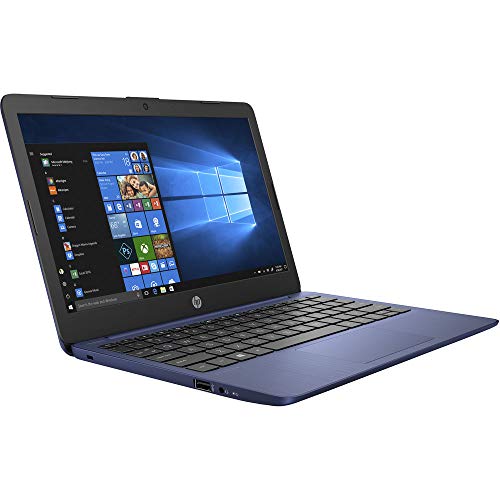
The Stream 11 is the smallest Windows promise in this guide: an 11.6-inch HD laptop with an Intel Celeron N4000, 4GB of RAM and 32GB of eMMC storage, running Windows 10 Home in S Mode with an Office 365 Personal inclusion for the first year per the listing. Every figure there deserves a pause. The N4000 is a dual-core chip — a step below the Chromebook picks’ quad-core N4120 — and 32GB is the tightest storage in this guide, of which Windows itself will claim a substantial share before its owner saves a single document. This machine is in the guide because it is a genuine, new Windows laptop at the ceiling, and because for the right owner its smallness is the entire point.
That owner is specific: the writer who wants a cheap, light machine for drafts and email that can be carried everywhere and worried about nowhere; the student whose school life is browser-based but whose household is a Windows household; the traveller who needs a real Windows environment for specific forms and portals in the smallest possible bag. For them, the Stream 11’s virtues are real — it is a complete Windows computer that vanishes into a tote, sips power, and asks almost nothing of its owner’s budget or attention.
Everyone else should hear the warning plainly: 32GB of storage on Windows is a discipline, not a specification. Updates need room, applications need room, and the owner will become familiar with storage settings in a way that owners of larger drives never are. Cloud storage is not optional with this machine; it is the design. Bought with that understanding — as the ultra-portable Windows outpost of a cloud-centred life — the Stream 11 is a legitimate tool. Bought as a family’s only computer, it will be outgrown before the first school term ends.
- Display: 11.6-inch HD
- Processor: Intel Celeron N4000
- Memory and storage: 4GB RAM, 32GB eMMC
- Software: Windows 10 Home in S Mode, Office 365 Personal for 1 year per listing
Strengths
- The most portable genuine Windows machine in this guide.
- Office 365 inclusion covers a first year of documents and email.
- Simple, light and unintimidating for first-time computer owners.
Trade-offs
- 32GB of storage demands constant cloud discipline on Windows.
- Dual-core N4000 is the slowest processor in this guide.
- S Mode restricts software installation until deliberately switched out.
Best for: writers, travellers and light users needing tiny, real Windows. Not suited for: a household’s only computer or any storage-hungry work.
Lenovo 100e Chromebook — Best Renewed-Channel Prospect (Prose-Only)
The Lenovo 100e Chromebook is the school-issued legend of this tier: a rugged little ChromeOS laptop built to survive backpacks, drops and the educational system, beloved by districts precisely because it is cheap, manageable and hard to kill. It belongs in this guide on merit. It is not linked in this guide because the listings through which it commonly sells are predominantly renewed units — returned school and business stock, refurbished to varying standards — and this guide does not attach its recommendations to listings whose condition its readers cannot verify from a title alone. That is a policy about links, not a judgement about the machine or the channel.
Indeed, the 100e is the perfect doorway into the renewed conversation this tier demands. A renewed 100e from a reputable seller, with its condition grade stated, its battery health considered and a returns window that lets you test it, can be a smarter purchase than a new machine with weaker bones — school-grade durability is a real specification, and it survives refurbishment better than consumer gloss does. The same purchase made carelessly — no grade, no returns, a seller with no history — is how the renewed channel earns its scary stories. The machine is identical in both transactions; the diligence is the difference.
So consider the 100e this guide’s homework assignment. If its rugged, simple proposition appeals — and for a child’s first laptop or a household spare, it should — shop it through the renewed rules in the section below: read the condition, check the seller, confirm the returns, and inspect the machine like a sceptic when it arrives. Do that, and the 100e may be the best-value computer in this entire article. Skip it, and buy one of the linked five with this guide’s blessing instead.
- Display: 11.6-inch class Chromebook (school configuration)
- Platform: ChromeOS, education-grade rugged design
- Availability: predominantly renewed listings — prose-only in this guide
- Buying route: reputable renewed sellers with stated condition and returns
Strengths
- Rugged school-grade construction shrugs off household and backpack life.
- ChromeOS simplicity suits children and spare-computer duty perfectly.
- Renewed pricing can undercut new machines with weaker designs.
Trade-offs
- Common listings are renewed, so condition varies unit by unit.
- Battery wear on ex-school stock must be considered before buying.
- No link is offered here — the purchase requires your own diligence.
Best for: careful shoppers wanting a rugged first laptop via the renewed channel. Not suited for: buyers who want a new machine with a standard warranty experience.
How Do the Best Laptops Under $200 Compare Side by Side?
| Model | Display | Processor | RAM / Built-in storage | Platform |
|---|---|---|---|---|
| HP Stream 14 | 14″ HD | Intel Celeron | 4GB / 64GB eMMC | Windows |
| HP Chromebook 14 (hub bundle) | 14″ HD | Celeron N4120 quad-core | 4GB / 64GB + card | ChromeOS |
| HP Chromebook 14 | 14″ HD | Celeron N4120 | 4GB / 64GB eMMC + card | ChromeOS |
| Lenovo Chromebook Duet | 10.1″ WUXGA touch | MediaTek Helio P60T | 4GB / 64GB | ChromeOS detachable |
| HP Stream 11 | 11.6″ HD | Celeron N4000 | 4GB / 32GB eMMC | Windows S mode |
| Lenovo 100e Chromebook | 11.6″ class | Varies by unit | Typically 4GB / modest eMMC | ChromeOS, renewed channel |
Read the storage column with this guide’s lesson in mind: built-in storage is the honest figure, and card supplements — however the listings headline them — are accessories, not architecture. The other pattern is the processor split: the Chromebooks’ quad-core N4120 and the Duet’s efficient ARM chip serve their light operating systems well, while the Windows machines ask more of humbler silicon, which is why the Stream 14’s extra storage matters so much to its ranking.
Windows or ChromeOS — Which Struggles Less on 4GB of Hardware?
ChromeOS, and it is not close. ChromeOS was designed for exactly this hardware class: it boots fast, updates in the background, runs its whole world through a browser and light Android apps, and treats 4GB of memory as a design assumption rather than a hardship. A Chromebook at this ceiling routinely feels like a machine from a higher tier during the browsing, documents and classes that make up its day. Windows is a full desktop operating system carrying decades of capability, and on 4GB with eMMC storage that capability arrives with weight: updates that need room and time, background processes that compete for memory, and a general pace that rewards patience.
Windows still wins the only argument that can override all that: software. If the buyer needs a specific Windows application, a school or employer portal that demands it, or simply the familiar desktop their confidence lives on, the Streams are the correct purchase and their compromises are the price of admission. The decision procedure is therefore simple and should be followed in order. List the jobs. If every job has a web or Android answer, buy ChromeOS and enjoy the speed. If even one essential job is Windows-only, buy the Stream 14 for its storage, or the Stream 11 only if portability outranks everything.
How Do You Shop the Renewed Channel at This Price Without Getting Burned?
At the under-$200 ceiling, renewed is not a fringe channel; it is where much of the tier’s best hardware actually lives, because a refurbished business or school machine often has a better keyboard, a sturdier chassis and a more honest specification than a new consumer machine at the same money. This guide links none of it — renewed condition cannot be verified from a listing title alone — but it teaches the channel gladly, because refusing to discuss it would abandon readers to shop it untaught.
The rules are five. First, buy only where the condition is graded in writing — words like “renewed”, “refurbished” and their grade tiers should appear in the listing itself, and a listing that hides its condition is disqualified. Second, buy from sellers with a history and a returns window long enough for you to test the machine properly; the returns policy is the real warranty at this tier. Third, interrogate the battery: ask or read what is promised about battery health, because a worn battery is the most common renewed disappointment and the least visible in photographs. Fourth, on arrival, test everything in the first days — every key, every port, the webcam, the charger, a full charge cycle — while returning is still a click rather than an argument. Fifth, reset the machine completely before entrusting it with accounts, as you would with any second-hand computer. Follow those five, and the renewed channel is a legitimate, often superior way to buy at this ceiling; the 100e above is waiting there for exactly such a shopper.
What Are the Most Common Mistakes When Buying a Laptop This Cheap?
Believing the storage headline is the first: a machine advertised with a large storage figure that quietly includes a memory card has 64GB of real storage and a card, and buyers who do not read the breakdown plan their files around a fiction. The second mistake is buying Windows for a multitasker: 4GB is 4GB, and no optimism about a familiar operating system changes what twenty tabs do to it. Third, shoppers ignore S mode until the moment they try to install a programme from outside the Microsoft Store; know what it is and whether you will switch out of it before the machine arrives.
Fourth, buyers in this tier skip the condition check entirely — ordering the cheapest listing of a model without noticing it is renewed, then feeling deceived by a fact that was printed in the listing all along. Fifth, they buy for the wrong person: a capable little Chromebook rejected by a grandparent who needed the familiar Windows desktop, or a struggling Windows machine bought for a child whose entire school life was in Google Workspace. At this ceiling more than any other, the right cheap laptop beats the wrong one by a distance no benchmark measures.
How Do You Set Up a Cheap Laptop So It Feels Faster Than It Is?
Setup is where this tier is won or lost, because a 4GB machine has no spare capacity to waste on clutter. Begin by removing what you will never use: trial software, duplicate browsers, widgets and startup programmes all tax a small machine out of proportion to their size. Choose one browser and keep its tab habit disciplined — a bookmark bar and a reading list will hold everything your open tabs were holding, without the memory bill. Turn on the cloud sync that suits your platform early, while the folders are still small, so that storage management becomes a setting rather than a monthly emergency.
Then adopt the working rhythm these machines reward. Keep one main task in focus and a small supporting cast — the document and the reference page, the class and the notes — rather than a parliament of windows. Close the video call before opening the giant spreadsheet. Let updates run overnight instead of negotiating with them at 9 a.m. Owners who work this way routinely report that a humble Stream or Chromebook feels perfectly adequate; owners who treat a 4GB machine like a flagship report that it feels broken. The hardware is identical. The choreography is the difference, and it costs nothing.
Buying for a Child, a Student or an Older Relative — How Does the Answer Change?
For a child, buy the platform their school uses, because homework friction is the enemy and compatibility is kindness: that usually means a Chromebook, and the linked HP configurations or a carefully shopped renewed 100e are the natural answers. Add a case before you add anything else; the drop is coming, and the only question is whether it lands in a sleeve. For a student beyond the school years, ask what their courses actually run — browser-based study points to ChromeOS again, while any course demanding specific Windows software settles the matter for a Stream or for saving toward a higher tier.
For an older relative, the calculus is about confidence rather than capability. If their digital life is email, photographs, video calls and the web, a Chromebook’s simplicity is a genuine gift: it cannot be broken by a stray installation, it updates itself, and family tech support becomes a conversation instead of a rescue mission. If their confidence is invested in the familiar Windows desktop — its icons, its Office, its ways — honour that investment with the Stream 14 and set it up for them completely before handing it over. The wrong platform, however capable, becomes a machine that lives in a drawer; the right one becomes a window they open every day.
How Do You Live with 32 or 64 Gigabytes of Storage?
By treating local storage as a desk rather than a warehouse. The operating system and your applications live on the desk permanently. The current project, the current term’s documents and a modest offline media selection visit the desk. Everything else — the photo archive, the film library, the years of accumulated files — lives in the cloud warehouse, one click away and costing the machine nothing. Both platforms in this guide are built for exactly this arrangement: ChromeOS assumes it from birth, and Windows offers the same pattern through OneDrive’s on-demand files, which show everything and store only what you open.
The bundled memory cards in the Chromebook listings find their honest role here too: a card is a fine home for downloads, music and films for a journey — data that is bulky, replaceable and unneeded by the operating system. What a card should never be asked to be is the machine’s memory or its dignity; it is a shelf, not a room. Owners who internalise the desk-and-warehouse picture stop experiencing 64GB as a limitation within a fortnight. Owners who fight it spend the machine’s life deleting things in a panic, usually the night before a deadline.
When Should You Not Buy in This Tier at All?
When the work is already known to exceed it. A buyer who will edit video weekly, run a small business’s accounting and inventory on the machine, study a subject with demanding software, or simply keep forty tabs open as a way of life should not be talked into this ceiling by any guide’s enthusiasm, including this one’s. The honest alternatives are to save toward the next tier — where memory doubles and storage becomes a real SSD — or to shop the renewed channel for a sturdier ex-business machine with the diligence taught above. Both paths cost more patience than money, and both beat the false economy of a new machine that will be resented by Christmas.
There is one more non-buyer: the household that already owns a working computer and is shopping from restlessness. At this tier, a second cheap laptop adds a maintenance object more than a capability. The exceptions — a child’s first machine, a dedicated writing or travel device, a spare for a home office — are real, and they are exactly the buyers this guide was written for. Everyone else has this article’s permission to close the tab and keep their money.
What Accessories Are Worth Buying for a Laptop This Cheap?
Very few, and the discipline matters: accessories for a sub-$200 laptop should protect the purchase, not rival it. A padded sleeve or a simple case earns its place immediately, because these machines live in backpacks and kitchen-table traffic, and a cracked screen costs a meaningful fraction of the computer. A wireless mouse is the second legitimate purchase for anyone working at a table for hours — the trackpads in this tier are serviceable rather than delightful. A memory card, if your machine lacks the bundled one, is the third: cheap, honest bulk for downloads and media. That is the list. Docks, premium bags and elaborate peripherals belong to machines whose value justifies them; dressing a budget laptop in expensive accessories is how a bargain quietly stops being one.
One non-accessory deserves the money instead: a cloud storage plan, if the free tier of your chosen platform is genuinely too small for the household’s photographs and documents. Storage is the constraint these machines feel daily, and relieving it at the warehouse end — the cloud — helps more than any gadget attached to the machine itself.
How Do Warranties and Returns Work Differently at This Price?
They matter more, not less. A fault in an expensive laptop is an inconvenience absorbed by a service network; a fault in a household’s only, cheapest computer is a crisis with no slack in it. Buy from listings with clear returns terms, keep the packaging until the machine has survived its first fortnight, and in that fortnight deliberately exercise everything — keyboard, ports, webcam, microphone, charger, a full battery cycle, the Wi-Fi in the far room. Cheap laptops fail early or serve long, as a rule, so the first two weeks are a diagnostic window to use on purpose rather than a honeymoon to drift through. The renewed rules from earlier apply with equal force to new machines at this tier: test like a sceptic while returning is still easy, then relax and let the little machine get on with its honest work.
What Does the First Month of Ownership Teach You?
The first month sorts owners into two schools. The first school discovers, usually within a week, the machine’s natural rhythm: which tasks fly, which crawl, how many tabs constitute a crowd, where the files should live. These owners stop thinking about the specification entirely, because the computer has become transparent — a window onto classes, documents and people rather than an object of attention. The second school spends the month re-litigating the purchase, testing the machine against work it was never bought for, and finding it guilty daily. The difference between the schools is rarely the machine, since both often own the same model; it is whether the buyer’s expectations were set by an honest account of the tier — which is the entire reason this guide reads the way it does.
There is a practical ritual that helps new owners join the first school: in the first week, deliberately perform each of the machine’s intended jobs once, end to end — attend a call, write and file a document, stream a film, do the banking, print something — and note any job that strains. A strain discovered in week one can be solved with a setting, a habit or, in the worst case, a return. The same strain discovered in month three becomes folklore about how cheap laptops are useless, which says more about the discovery process than about the laptop.
How Does a Cheap Laptop Fit Alongside a Phone and a Tablet You Already Own?
Most households shopping this tier already own screens, and the laptop’s job is to cover what those screens do badly. Phones are miserable at long documents, school portals with desktop-shaped forms, multi-window research and anything involving a proper keyboard; tablets improve the reading and watching while keeping the typing compromise. A sub-$200 laptop earns its shelf by being the household’s keyboard-and-browser station: the machine for the form that must be filled properly, the essay that must be written, the video call that deserves a stable screen at eye level. Judged as a complement rather than a replacement, even the humblest Stream stops competing with the phone in your pocket and starts completing it.
That framing also disciplines the purchase. If the household’s gap is genuinely typing and portals, the 14-inch picks serve it best. If the gap is a reading-and-media screen with occasional typing, the Duet’s detachable form covers it while doubling as the tablet you may not need to buy. Buying the laptop to fill a named gap, rather than to satisfy a general sense that a computer-shaped object is missing, is how this tier produces satisfied owners.
Is a Cheap Laptop a Sensible Gift?
It can be the most useful gift in the family, provided the giver does the setup work that turns a budget machine from a puzzle into a present. A laptop given to a child, a student or a parent should arrive configured: accounts created, school or email signed in, the video-call application tested with an actual call, the cloud folder waiting, and — for Windows machines — the S mode question already decided and explained. Given raw, the same laptop transfers its setup burden to the person least equipped to carry it, and budget machines punish fumbling more than flagships do. Given prepared, it is received as what it truly is: not a cheap computer, but a working connection to school, family and the world, at a price that lets generosity happen at all. That, in the end, is the social fact underneath this entire tier of computing, and the reason it deserves an honest guide rather than a dismissive one.
What Should You Do on the Day the Machine Arrives?
Resist the urge to simply hand it over or dive in. Charge it fully, connect it to your Wi-Fi, and let it take every update it offers before a single account is created — on a small drive, updates applied in order are updates that do not collide later. Then create the owner’s account, sign into the one browser and the cloud service the household has chosen, and install only the applications named in the plan you made while reading this guide. Test the webcam and microphone with a real call to a real person. Open the school portal, the bank, the email — the actual destinations — and bookmark them. Finally, write the passwords down somewhere the household keeps its important papers, because the most common support emergency in this tier is not a hardware fault at all; it is a forgotten sign-in on a machine with no administrator to rescue it.
Final Recommendation
Choose by operating system first. Households that need real Windows should take the Stream 14 for its 64GB of breathing room, reserving the Stream 11 for travellers and writers who prize smallness above all. Everyone whose work lives in a browser — which is most people shopping at this ceiling, whether they know it yet or not — should take a Chromebook: the hub-bundle HP for the most complete desk setup, its sibling for straightforward student duty, or the Duet for readers and travellers who want the best screen and the smallest bag footprint. And if your heart settles on the rugged little 100e, shop it renewed with the five rules above and this guide’s respect. A laptop under $200 bought with clear eyes about 4GB, eMMC and HD is not a sad purchase; it is one of the best-value tools in all of computing.
Frequently Asked Questions
Can a laptop under $200 run Microsoft Office?
Yes, within limits. The Windows picks run Office applications and commonly include an Office 365 subscription period per their listings, and the Chromebooks run the web versions of Word, Excel and PowerPoint or Google Workspace equivalents. Heavy spreadsheets and large documents will test 4GB of memory on any of them, so keep other applications closed while the big file is open and save your work more often than pride suggests.
Is 4GB of RAM really enough in 2026?
Enough for this tier’s honest work — browsing with a modest set of tabs, documents, email, classes and streaming — and not enough for sprawling multitasking. ChromeOS stretches 4GB furthest; Windows asks the most of it. Buyers who know they keep dozens of tabs open should save for a higher tier rather than hope, because memory cannot be added to these machines later and the habit will not shrink to fit the hardware.
What is eMMC storage, and why does it matter?
eMMC is the inexpensive flash storage used in phones and budget devices. It works, but it is markedly slower than the SSDs in pricier laptops, so applications open and files copy at a calmer pace. Its capacities here — 32GB or 64GB built in — also make cloud storage a necessity rather than a preference. The practical consequence is patience at predictable moments: the first launch of an application after boot, the copying of a large file, the applying of a system update — each takes longer than an SSD owner expects, and none of them indicates that anything is wrong.
Should I buy a renewed laptop instead of a new one at this price?
Often it is the smarter purchase — business and school machines are sturdier than new consumer models — provided you follow the discipline in this guide: written condition grade, reputable seller, a real returns window, battery expectations checked, and full testing on arrival. This guide discusses the channel but links only new listings, so the renewed decision is one you make with the rules in hand rather than with a recommendation doing the diligence for you.
Can these laptops handle online classes and video calls?
Yes — that is squarely within their design brief. Browser-based classes, video calls and school platforms are the daily work of the Chromebook picks especially, and the Windows Streams handle them too, provided you keep other demands modest during the call itself. A wired or near-router Wi-Fi position helps more than any setting: at this tier, a weak signal is often mistaken for a slow computer, and moving two rooms closer to the router has rescued more online classes than any upgrade.
How long will a laptop under $200 last?
Physically, years of light use; practically, its limits are present from day one rather than arriving with age, so a machine matched honestly to light work can serve a long time. ChromeOS models also carry published update horizons worth checking by model before purchase. The component to treat kindly is the battery: these machines are often charged opportunistically and run to empty, and gentler habits — charging before the last sliver, unplugging during long desk sessions where the platform offers a conservation setting — will stretch the years before the battery becomes the machine’s defining limitation.
Related Guides
Budgets stretch further with a little more room, so if you can step up a tier, our guide to the best 14 inch laptops under 500 shows what the next ceiling buys. Families choosing a machine for school should also read about the best laptops for college students, where portability and battery join the calculation, and anyone set on the smallest screens can compare the best 11.6 inch laptops for the full picture of the compact class.


