What's inside
- Key Takeaways
- Quick Picks: The Best Laptops for Drawing at a Glance
- How We Chose These Picks
- What Makes a Laptop Genuinely Good for Drawing?
- The Six Drawing Laptops, Reviewed in Detail
- How Do the Best Laptops for Drawing Compare Side by Side?
- Which Drawing Applications Should Decide Your Choice of Machine?
- How Should You Set Up a New Drawing Laptop in Its First Week?
- What Are the Most Common Mistakes When Buying a Laptop for Drawing?
- How Do You Judge a Pen Without a Specification Sheet?
- What Drawing Postures Do These Machines Actually Support?
- How Long Will a Drawing Laptop Stay at the Top of Its Game?
- Which Accessories Complete a Drawing Laptop Rather Than Decorate It?
- How Do Drawing Laptops Handle Colour Work Beyond the Screen?
- Should Students Buy for the Artist They Are or the Artist They Hope to Become?
- What Does a Working Artist’s Bag Tell You About These Machines?
- Is a Drawing Laptop Also a Good Laptop for Everything Else?
- Final Recommendation
- Frequently Asked Questions
- Related Guides
As an Amazon Associate I earn from qualifying purchases. This post may contain affiliate links at no extra cost to you.
gizmoverdict.com is reader-supported. When you buy through links on our site, we may earn an affiliate commission.
Where to buy: every laptop in this guide links to its Amazon listing, where you can check price on Amazon and — before anything else — confirm the pen situation for that exact listing: whether a stylus is bundled, which pen model the machine supports, and whether the pen is a separate purchase.
The best laptops for drawing are decided by a component most laptop reviews treat as an accessory footnote: the pen. A drawing laptop is not simply a laptop with a touchscreen. It is a machine whose screen must register a stylus accurately at the edges as well as the centre, whose display must show colour faithfully enough that the work you approve on it survives contact with a client’s screen or a printer, and whose hinge or detachable design must put the panel flat, angled or detached in whatever posture your hand prefers. Get any one of those wrong and you own a good laptop that happens to accept pen input. Get them right and you own a sketchbook that also runs your entire business.
This guide’s six picks divide by ambition. At the top, ASUS’s ProArt PX13 is a genuine creator instrument built around a Ryzen AI Max+ processor and a 2.8K OLED panel, and Microsoft’s Surface Pro (2026) in its Snapdragon X2 Elite OLED configuration is the detachable that illustrators have adopted as a portable studio. Samsung’s Galaxy Book5 Pro 360 answers with the largest canvas here, a 16-inch 3K AMOLED in a folding convertible. Lenovo’s Yoga 7i and HP’s Omnibook Ultra Flip bring OLED drawing surfaces down to 14-inch all-rounders, and Lenovo’s little Duet 5 Chromebook closes the list as the sketching machine for students and hobbyists whose art lives in web and Android apps.
One discipline governs everything below: this guide does not print pen pressure figures or stylus technology claims that the listings themselves do not state. Pen specifications are a swamp of marketing numbers, and a figure copied from the wrong model’s page would mislead exactly the readers who care most. Instead, each review tells you what the listing does establish — the panel, the processor, the memory, the form — and instructs you precisely what to verify about the pen before ordering. That is less convenient than a tidy spec table, and considerably more honest.
Key Takeaways
- The ASUS ProArt PX13 is the serious illustrator’s pick: Ryzen AI Max+ 388 power, 32GB of memory and a 13.3-inch 2.8K OLED built for layered artwork.
- The Surface Pro (2026) with Snapdragon X2 Elite and an OLED display is the most portable drawing studio here — a tablet first, with 1TB of storage for real libraries.
- Samsung’s Galaxy Book5 Pro 360 offers the biggest drawing canvas in the guide, a 16-inch 3K AMOLED that folds flat for desk work.
- Lenovo’s Yoga 7i configuration here uses an Ultra 7 355 with 24GB of RAM — a different, stronger specification than the Ultra 5 version in our convertible guide.
- HP’s Omnibook Ultra Flip pairs a 3K OLED touchscreen with 32GB of RAM and 1TB of storage in a 14-inch Copilot+ convertible.
- Never assume a pen is in the box: across this entire category, stylus inclusion varies by listing, and the pen you need may be a separate purchase.
Quick Picks: The Best Laptops for Drawing at a Glance
| Pick | Badge | Why it made the cut |
|---|---|---|
| ASUS ProArt PX13 | Best for Serious Illustrators | A creator-first convertible with Ryzen AI Max+ muscle, 32GB of memory and a 2.8K OLED made for demanding layered files. |
| Microsoft Surface Pro (2026), X2 Elite OLED | Best Portable Drawing Studio | The detachable form at its best: OLED screen, Snapdragon X2 Elite and 1TB of storage in a tablet you can draw on anywhere. |
| Samsung Galaxy Book5 Pro 360 | Best Large Canvas | A 16-inch 3K AMOLED convertible with 32GB of RAM for artists who find 13-inch screens a negotiation. |
| Lenovo Yoga 7i (Ultra 7 355) | Best 14-Inch All-Rounder | WUXGA OLED touch, 24GB of RAM and a fingerprint reader in the Yoga that splits life between drawing and documents. |
| HP Omnibook Ultra Flip | Best Premium 14-Inch OLED | A 3K OLED touchscreen, 32GB of memory and twin Thunderbolt 4 ports for a drawing desk that docks properly. |
| Lenovo IP Duet 5 Chromebook | Best Budget Sketchbook | A 13.3-inch touch Chromebook for sketching, notes and art apps at the gentlest commitment in this guide. |
How We Chose These Picks
We selected for drawing first and laptop second. That ordering eliminated most convertibles on the market, because a touchscreen that merely accepts a pen is not a drawing surface. Each pick needed a display worth drawing on — OLED or AMOLED panels dominate this list for a reason, since their contrast and colour behaviour flatter both finished art and works in progress — and a form factor that gets the screen into drawing posture: folding flat, detaching entirely, or tenting on a desk. Memory mattered more than in most laptop guides, because layered illustration files are among the most RAM-hungry documents in ordinary creative life, and four of the six picks carry 24GB or more.
We also enforced a truth-in-labelling rule that shaped the whole guide. Where a listing’s title does not state pen technology or pressure sensitivity, the review does not invent it. Drawing hardware attracts inflated claims like no other category, and the reader best served is the one told exactly which questions the listing answers and which ones require a check of the manufacturer’s pen page. Every review below therefore ends its pen discussion with a verification instruction rather than a borrowed number.
Finally, we kept one deliberately humble machine on the list. Not every drawing laptop buyer is a professional: students sketching lecture diagrams, hobbyists learning digital art in a browser app and travellers keeping a visual diary need a machine that invites daily sketching without demanding a professional budget or a professional software stack. The Duet 5 Chromebook holds that place, clearly labelled with its limits, because a guide that only serves professionals would fail the majority of people who search for drawing laptops.
What Makes a Laptop Genuinely Good for Drawing?
Three things, in descending order of how often buyers forget them. First, the pen experience itself: how the stylus tracks at slow speeds, whether lines stay where your hand puts them at the panel’s edges, and whether the pen is an instrument designed for the machine or a generic capacitive stick. This is precisely the information listings state least reliably, which is why this guide insists you confirm the supported pen model for your exact machine — the difference between a matched active pen and a passive stylus is the difference between drawing and finger-painting with extra steps.
Second, the display as a colour instrument. The OLED and AMOLED panels in this guide earn their place because drawing is judging colour as you lay it down: shadow detail that a cheap LCD crushes into black, gradients that band on a mediocre panel, and reds that shift between screen and print all corrupt decisions made mid-drawing. A high resolution matters too, but in a specific way — at 13 inches, 2.8K keeps a fine brush line crisp when you zoom to detail work, which is where illustrators actually live. Third, the posture: a convertible that folds flat, a detachable that sheds its keyboard, a hinge that holds a shallow drawing angle without wobbling. Your wrist will vote on this daily, long after the specification sheet is forgotten.
Performance sits fourth, and mostly as a floor rather than a race. Sketching and painting applications are kind to processors and greedy with memory; a machine with generous RAM and a modern chip will feel fast at drawing for years. Where power does matter is the professional’s wider pipeline — the same machine exporting large files, running a reference browser, a call and a painting application simultaneously — and that is the workload the PX13’s specification is built for.
The Six Drawing Laptops, Reviewed in Detail

ASUS ProArt PX13 — Best for Serious Illustrators
The ProArt PX13 is what happens when a manufacturer builds a convertible around the drawing first and the laptop second. The listing describes a 13.3-inch OLED 2.8K touchscreen in a 2-in-1 body, powered by a Ryzen AI Max+ 388 processor with 32GB of LPDDR5X memory and SSD storage options running through 512GB, 1TB and 2TB configurations. That memory figure is the one professionals will circle: layered illustration and photo-composite files grow by the gigabyte, and 32GB is the threshold where a painting application stops negotiating with the operating system for room and simply works. The Ryzen AI Max+ platform brings serious integrated graphics muscle as well, which matters when the same machine must push filters, transformations and large-canvas brushes without stutter.
The 13.3-inch size is a deliberate professional choice rather than a limitation. It is the sketchbook format — large enough for detailed work with palettes docked, small enough to ride in any bag and to hold in one arm while standing at a location. The OLED panel’s contrast gives ink work and night scenes their true appearance, and the 2.8K resolution means the zoomed-in detail work where commissions are won does not dissolve into pixels. As a convertible, the PX13 folds into tablet posture for pure drawing and back into a laptop for the correspondence, invoicing and file management that surround the art — the unglamorous half of a creative career that pure tablets handle badly.
On the pen, this guide follows its own rule: the listing title does not state the stylus specification, so verify the exact pen bundled or supported for this configuration on the listing and ASUS’s ProArt pages before ordering. ProArt machines are built for pen work as a core purpose, but the professional habit is to confirm the instrument in writing rather than trust a product line’s reputation. Do that check, and the PX13 is the easiest recommendation in this guide to defend: it is the only pick designed from the silicon outward for the person who draws for a living.
- Display: 13.3-inch OLED 2.8K touchscreen
- Processor: Ryzen AI Max+ 388
- Memory and storage: 32GB LPDDR5X; SSD configurations listed at 512GB / 1TB / 2TB
- Format: creator convertible 2-in-1; confirm pen inclusion and model on the listing
Strengths
- 32GB of memory handles the layered files that make lesser machines hesitate.
- Ryzen AI Max+ platform gives the strongest creative headroom in this guide.
- 2.8K OLED at sketchbook size is the panel illustrators actually ask for.
Trade-offs
- Professional specification is wasted on casual sketching and note-taking.
- Pen details must be verified per listing rather than assumed from the ProArt badge.
- Compact 13.3-inch canvas will feel tight to artists raised on large desktop tablets.
Best for: professional illustrators and designers who draw daily and bill for it. Not suited for: buyers who only annotate documents and sign PDFs.

Microsoft Surface Pro (2026), Snapdragon X2 Elite OLED — Best Portable Drawing Studio
Distinguish this machine carefully from the Surface Pros in our detachable guide: those are Snapdragon X2 Plus configurations with standard touchscreens, while this listing specifies a Snapdragon X2 Elite processor, an OLED touchscreen display, 16GB of RAM and a full 1TB of storage. That combination — the stronger chip, the OLED panel, the terabyte — is precisely the configuration an illustrator would specify, and it transforms the Surface Pro from a business detachable into the most credible portable drawing studio in this guide. The tablet is the drawing surface, undiluted: no hinge, no keyboard half, just a propped or hand-held OLED slate running full Windows creative applications.
Drawing posture is where the detachable form earns its keep for artists. Propped on its kickstand at a shallow angle, the Surface mimics a drafting table; held flat, it is a sketchbook; detached entirely, it goes to the sofa, the train or the life-drawing class without negotiation. The Snapdragon platform’s efficiency suits that life, because a drawing session in a café should not begin with a hunt for a power outlet. The 1TB of storage quietly matters as much as the chip: art libraries, reference folders and years of layered files are the cargo that makes smaller drives a weekly chore.
The pen conversation is the purchase’s centre of gravity. Surface’s pen ecosystem is one of the most established in the industry, but the pen is typically a separate purchase from the tablet, and the listing title does not state pen specifications — so confirm which pen this configuration pairs with, whether any bundle includes it, and budget accordingly before ordering. Likewise confirm the keyboard cover if you plan to type on the machine, since it is also usually separate. Buyers who walk in expecting a tablet, a pen and a keyboard in one box will be disappointed; buyers who budget the three pieces deliberately get the most refined drawing detachable Microsoft makes.
- Display: 13-inch OLED touchscreen
- Processor: Snapdragon X2 Elite
- Memory and storage: 16GB RAM, 1TB SSD
- Format: detachable tablet; pen and keyboard typically separate purchases
Strengths
- OLED panel and X2 Elite chip make this the illustrator’s Surface configuration.
- 1TB of storage carries a genuine working art library without external drives.
- Detachable form offers drawing postures no hinged convertible can match.
Trade-offs
- Pen and keyboard costs sit outside the tablet purchase and add up quickly.
- 16GB of RAM is ample for drawing but below the PX13’s professional ceiling.
- Windows on ARM still requires a compatibility check for niche creative plug-ins.
Best for: illustrators who draw away from a desk and want full Windows applications. Not suited for: buyers expecting a complete pen-and-keyboard kit in a single box.

Samsung Galaxy Book5 Pro 360 — Best Large Canvas
Some artists experience a 13-inch screen the way tall people experience economy seats: survivable, and a constant low-grade negotiation. The Galaxy Book5 Pro 360 is their machine. The listing describes a 16-inch convertible with a 3K AMOLED touchscreen, an Intel Core Ultra 7 258V processor, 32GB of RAM and 1TB of storage, running Windows 11 Pro. Sixteen inches of AMOLED is a drawing surface with room for the artwork and the interface at once — canvas in the middle, layers and palettes at the sides, reference in a corner — and the 3K resolution keeps that sprawling workspace sharp rather than merely large.
The 360-degree hinge defines its working style. Folded flat on a desk, it is a drawing board; tented, it presents; in laptop mode, the specification — 32GB of memory, a terabyte of storage, a Pro operating system — runs a serious creative business. Samsung’s AMOLED panels are the company’s signature craft, and for drawing their virtues are specific: blacks that make night scenes honest, colour that holds its saturation at working brightness, and touch response tuned by a company that also builds pen-centric tablets and phones. Artists already inside Samsung’s ecosystem will find the machine’s habits familiar in the best way.
Pen verification follows this guide’s standing rule: the listing title does not state the stylus specification, so confirm the supported pen and whether one is included before ordering. Samsung’s pen heritage is deep, but heritage is not a box contents list. Also weigh the honest cost of the canvas: a 16-inch convertible is a desk-and-bag machine, not a hold-it-one-handed sketchbook, and artists who draw standing, travelling or curled in a chair should look at the 13-inch picks instead. For studio-anchored artists, though, this is the guide’s most generous drawing surface, and generosity of canvas is a quality of life feature that never appears in benchmarks.
- Display: 16-inch 3K AMOLED touchscreen
- Processor: Intel Core Ultra 7 258V
- Memory and storage: 32GB RAM, 1TB SSD
- Format: 360-degree convertible, Windows 11 Pro; verify pen inclusion on the listing
Strengths
- The largest, sharpest drawing canvas in this guide at 16 inches and 3K.
- 32GB of RAM and 1TB of storage match the PX13’s professional working set.
- AMOLED panel quality is Samsung’s home turf and shows in colour work.
Trade-offs
- Size and convertible build make it a desk machine more than a hand-held one.
- Pen inclusion and model must be confirmed on the listing before purchase.
- Artists who draw mostly in transit will feel the weight of the big canvas.
Best for: studio-based artists and designers who want maximum drawing room. Not suited for: sketchers who work standing, travelling or away from desks.

Lenovo Yoga 7i (Ultra 7 355, 24GB) — Best 14-Inch All-Rounder
Read this specification twice, because it is easy to confuse with a sibling: the Yoga 7i in this guide is the configuration with an Intel Ultra 7 355 processor, 24GB of RAM and a 512GB SSD behind a 14-inch WUXGA OLED touchscreen — not the Ultra 5, 16GB version that anchors our general convertible coverage. That distinction is the review in miniature. The stronger chip and the extra memory lift this Yoga from a pleasant all-rounder into a machine that can hold a painting application, a browser of references and a video call in the same hour without complaint, while the OLED panel keeps it honest as a drawing surface rather than a touchscreen laptop with artistic aspirations.
Fourteen inches is the diplomat’s size: big enough that drawing does not feel like working through a window, small enough that the machine still travels without a dedicated expedition. The Yoga hinge folds the screen flat for desk drawing, tents it for presenting work, and returns to a conventional laptop for the writing and administration that fill the rest of a creative week. The fingerprint reader and backlit keyboard named in the listing are small features with daily weight — the reader because creative professionals unlock their machines constantly, the backlight because drawing sessions do not respect daylight.
The 512GB drive is the configuration’s one modest figure, and artists with large libraries should plan cloud or external storage accordingly. On the pen, apply the guide’s rule without exception: the listing title does not state stylus details, so confirm the supported Yoga pen and its inclusion status before ordering. With that check done, this Yoga 7i is the pick for the artist who draws seriously but not exclusively — the illustrator with a day job’s worth of documents, the designer whose week is half canvas and half correspondence.
- Display: 14-inch WUXGA OLED touchscreen
- Processor: Intel Ultra 7 355
- Memory and storage: 24GB RAM, 512GB SSD
- Format: Yoga convertible with fingerprint reader and backlit keyboard; verify pen on listing
Strengths
- 24GB of RAM is a thoughtful middle tier that drawing applications genuinely feel.
- Ultra 7 355 specification separates it clearly from lesser Yoga configurations.
- OLED panel at 14 inches balances canvas size against everyday portability.
Trade-offs
- 512GB of storage will ask large art libraries to live partly elsewhere.
- Pen support details require verification; do not assume a stylus is bundled.
- WUXGA resolution is sharp but a step below the 2.8K and 3K panels above.
Best for: artists who split their week between drawing and conventional laptop work. Not suited for: professionals whose layered files demand the PX13’s ceiling.
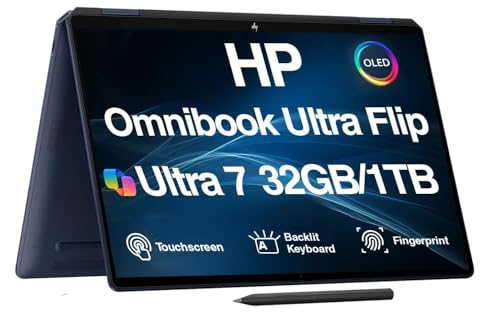
HP Omnibook Ultra Flip — Best Premium 14-Inch OLED
HP’s Omnibook Ultra Flip is the connoisseur’s 14-inch convertible in this guide: a 3K OLED touchscreen, an Intel Ultra 7 processor, 32GB of RAM and 1TB of storage, two Thunderbolt 4 ports, a backlit keyboard and a fingerprint reader, in a Copilot+ PC convertible body. The 3K resolution is its drawing credential — noticeably finer than the Yoga’s WUXGA at the same size class, which shows up exactly where artists look: the edge of a zoomed line, the texture of a digital brush at small sizes, the legibility of a crowded canvas at arm’s length. Paired with OLED contrast, it makes this the most refined drawing display among the hinged 14-inch machines here.
The supporting specification reads like a professional checklist rather than a consumer one. Thirty-two gigabytes of memory matches the PX13 and the big Samsung; the terabyte matches their storage; and the twin Thunderbolt 4 ports mean the machine docks into a serious desk — external monitor, drawing peripherals, fast storage — through proper high-bandwidth connections rather than a compromise hub. For an artist whose convertible is also the studio’s main computer, that docking competence is not a luxury. It is the difference between a machine that visits the desk and a machine that runs it.
As ever in this guide, the pen is a verification, not an assumption: the listing title does not state stylus specifications, so confirm the supported HP pen and whether one is included before you order. Also note the positioning honestly — this is a premium configuration, and buyers whose drawing is occasional will extract more value from the Yoga above. Buyers who draw daily at 14 inches, dock at a real desk, and want the sharpest panel in the size class have found their machine.
- Display: 14-inch 3K OLED touchscreen
- Processor: Intel Core Ultra 7
- Memory and storage: 32GB RAM, 1TB SSD
- Format: Copilot+ convertible, 2x Thunderbolt 4, fingerprint reader; verify pen on listing
Strengths
- 3K OLED is the sharpest 14-inch drawing surface in this guide.
- 32GB of RAM and 1TB of storage give it a professional working set.
- Dual Thunderbolt 4 ports make it a credible studio-desk hub machine.
Trade-offs
- Premium positioning is poor value for occasional or casual drawing.
- Pen model and inclusion must be confirmed on the listing first.
- Its refinements are wasted on buyers who draw in short, simple sessions.
Best for: daily artists at 14 inches who dock into a proper desk setup. Not suited for: casual sketchers or anyone buying primarily for documents.

Lenovo IP Duet 5 (13Q7C6) — Best Budget Sketchbook
Every guide needs its honest floor, and the Duet 5 Chromebook is this one’s: a 13.3-inch touchscreen detachable running ChromeOS on a Snapdragon 7c processor, with 4GB of RAM and 128GB of eMMC storage. Nobody should mistake it for the professional instruments above, and this review will not pretend otherwise. What it offers instead is a large, pleasant touchscreen in a simple, low-maintenance machine, at the gentlest level of commitment in the guide — and for a real population of drawing buyers, that is exactly the correct product.
Who is that population? The student whose lectures are annotated diagrams and whose sketching happens in a browser-based art tool. The hobbyist learning digital drawing in an Android app, discovering whether the medium suits them before spending professional money. The traveller keeping a visual diary, for whom a light detachable that sips power and syncs everything to the cloud beats a powerful machine left at home out of caution. For all of them, ChromeOS is a feature rather than a limitation: the machine updates itself, starts instantly, and never asks its owner to become a system administrator.
The limits deserve the same clarity as the virtues. Four gigabytes of memory means one drawing app and a modest entourage of tabs, not a production pipeline. Desktop illustration software does not run here; web and Android applications are the whole catalogue, so check that your preferred app exists in one of those forms. And the pen, following this guide’s rule, is a listing check: confirm stylus support and inclusion for this exact model before ordering, because a drawing purchase without a confirmed pen is a hope rather than a plan. Within those fences, the Duet 5 is a charming sketchbook that costs less than the pen-and-keyboard kits of the machines above it.
- Display: 13.3-inch touchscreen
- Processor: Snapdragon 7c
- Memory and storage: 4GB RAM, 128GB eMMC
- Format: ChromeOS detachable; confirm stylus support on the listing
Strengths
- A genuinely large touchscreen for sketching at the guide’s lowest commitment.
- 128GB of storage is generous by Chromebook detachable standards.
- ChromeOS simplicity suits students and first-time digital artists perfectly.
Trade-offs
- No access to desktop illustration applications — web and Android apps only.
- 4GB of RAM limits the machine to one focused task at a time.
- Pen support must be verified; it is not a professional drawing instrument.
Best for: students, hobbyists and travelling sketchers learning the medium. Not suited for: anyone producing client artwork or running desktop creative software.
How Do the Best Laptops for Drawing Compare Side by Side?
| Model | Display | Processor | RAM / Storage | Form |
|---|---|---|---|---|
| ASUS ProArt PX13 | 13.3″ OLED 2.8K touch | Ryzen AI Max+ 388 | 32GB / up to 2TB listed | Convertible |
| Surface Pro (2026) X2 Elite | 13″ OLED touch | Snapdragon X2 Elite | 16GB / 1TB | Detachable |
| Samsung Galaxy Book5 Pro 360 | 16″ 3K AMOLED touch | Core Ultra 7 258V | 32GB / 1TB | Convertible |
| Lenovo Yoga 7i | 14″ WUXGA OLED touch | Ultra 7 355 | 24GB / 512GB | Convertible |
| HP Omnibook Ultra Flip | 14″ 3K OLED touch | Core Ultra 7 | 32GB / 1TB | Convertible |
| Lenovo IP Duet 5 | 13.3″ touch | Snapdragon 7c | 4GB / 128GB eMMC | Detachable Chromebook |
The table’s story is how thoroughly OLED has won this category: five of six picks draw on OLED or AMOLED panels, because contrast and colour fidelity are not luxuries in a drawing tool. The second story is memory: the professional tier clusters at 32GB, the all-rounders at 16–24GB, and the Chromebook stands alone at 4GB as a deliberate light-duty outlier. Choose your tier by the size of your files and the seriousness of your deadlines, and the table narrows itself to one or two names.
Which Drawing Applications Should Decide Your Choice of Machine?
Let your software shortlist veto machines before your heart does. If your work depends on full desktop illustration and photo applications, the Windows picks are your field and the Duet 5 is out, however charming its price. If your practice is built on a particular professional suite, check its current support for Windows on ARM before choosing the Surface Pro, because plug-in ecosystems migrate at their own pace. If you draw in browser-based tools or Android apps — an increasingly respectable professional stack for concept work, storyboards and social illustration — then even the Chromebook becomes a legitimate instrument, and the money saved can fund the pen, the case and a year of software subscriptions.
File habits matter as much as application names. Artists who work in many-layered, high-resolution canvases should treat 32GB of memory as their floor and look at the PX13, the Samsung or the HP. Artists whose work is line art, comics at moderate resolution or annotated design mock-ups will find 16–24GB entirely comfortable. And everyone should think about where files live: the 1TB machines forgive a chaotic downloads folder, while the 512GB Yoga asks for a tidier artist. None of these judgements appear on a specification sheet, and all of them decide satisfaction a year from now.
How Should You Set Up a New Drawing Laptop in Its First Week?
Begin with the pen, not the software. Pair it, open a blank canvas, and draw slow diagonal lines corner to corner: you are checking tracking honesty at the edges, where drawing surfaces confess their sins. Draw at the shallow angles you actually use, rest your palm as you naturally do, and adjust the application’s palm rejection and pen settings now, while your standards are fresh. Then calibrate your eye to the panel: open work you know well — a finished piece whose colours you trust — and confirm the OLED shows it as you remember, adjusting brightness to your working room rather than to showroom levels.
Next, build the desk. If your machine will dock, set the dock, external monitor and backup drive up in the first week, because a drawing laptop whose files are not backed up is a portfolio waiting for a bad day. Establish the boring rituals early: where finished work is exported, where layered masters are archived, which folder syncs to the cloud. Finally, spend one session drawing something unimportant at full length — a study, a copy, a doodle with ambitions — to learn the machine’s posture in your hands and on your desk. Artists bond with tools through use, and a first week spent drawing rather than configuring is the fastest route to a machine that feels like yours.
What Are the Most Common Mistakes When Buying a Laptop for Drawing?
The classic mistake is buying the touchscreen and forgetting the pen: ordering a convertible whose listing never promised a stylus, then discovering that the supported pen is a separate purchase — or worse, that the model on the desk supports only basic capacitive input. The second mistake is the mirror image: paying professional money for a 32GB creator machine to do hobbyist sketching that a Chromebook would have handled happily, and feeling the waste every time the machine boots. Match the tier to the practice, honestly, in both directions.
Third, buyers chase screen size without considering posture: a 16-inch canvas is glorious on a desk and miserable in an airline seat, while a 13-inch detachable draws anywhere and crowds a detailed canvas. Fourth, they ignore the software veto — the essential application that does not run on the chosen platform, discovered after the return window closes. And fifth, they treat pen specifications found on random pages as gospel for their exact configuration. Pen support varies by model and region; the only trustworthy sources are the listing for the machine in your cart and the manufacturer’s page for that precise model.
How Do You Judge a Pen Without a Specification Sheet?
Since this guide refuses to borrow pen numbers the listings do not state, it owes you a better instrument: a field test you can run in the first days of ownership, while returns are still painless. Draw the slowest straight line you can manage, corner to corner, and watch whether it stays straight and unbroken; wobble at slow speeds is the flaw that ruins inking. Sign your name at natural size in each corner of the screen, because signatures expose edge tracking mercilessly. Shade a gradient with light, even strokes and look for steps or dropouts. Rest your palm and draw beneath it, since palm rejection failures announce themselves immediately and never improve with patience.
Then judge the pen as an object. Does its weight suit long sessions or does it feel like a twig? Does it live somewhere sensible — magnetically attached, garaged in the body, or loose in your bag inventing new places to hide? A pen that is annoying to store gets left behind, and a drawing laptop whose pen is at home is a laptop. These judgements sound humble beside specification tables, but they are the ones artists actually live with, and no pressure figure on any listing predicts a single one of them. Run the tests, trust your hand, and send back any machine whose pen fails them — the category is competitive enough that you never have to settle.
What Drawing Postures Do These Machines Actually Support?
Posture is the silent specification of drawing hardware. The convertible picks — PX13, Samsung, Yoga, HP — fold their screens flat against a desk, tent them for presenting, or hold a shallow easel angle on their hinges, and each posture suits a different kind of work: flat for long inking sessions where your forearm rests on the table, easel for painting with the machine close and vertical, tent for showing a client without handing over the device. Hinge stiffness matters more than hinge marketing; a screen that creeps under your hand’s pressure will teach you to draw timidly, which is a terrible thing for a tool to teach.
The detachable picks answer with freedom instead of stiffness. The Surface Pro’s kickstand holds drafting angles on any table, and the bare tablet goes where hinges cannot: on your knees, on a drawing board, propped against a bag at a life-drawing class. The Duet 5 shares that freedom at a fraction of the commitment, which is why students love it for field sketching. Neither form is superior in the abstract — the studio artist with one beloved desk posture should buy the sturdiest convertible, while the artist whose studio is wherever they are should buy the machine that sheds its keyboard and disappears into a tote. Your calendar knows which artist you are; consult it before the specification sheet.
Ergonomics deserves one blunt paragraph. Drawing hunched over a flat screen for six hours will injure a wrist or a neck on any machine in this guide, because the machine cannot fix your furniture. A simple stand that raises the panel, a chair at the right height and breaks taken like you mean them will do more for a long drawing career than any upgrade on this page. Buy the laptop for its screen and pen; buy the desk setup for your body; confuse the two budgets and both suffer.
How Long Will a Drawing Laptop Stay at the Top of Its Game?
Drawing is merciful to hardware longevity, because brushes and canvases grow more slowly than game engines. A machine with 32GB of memory and a modern processor — the PX13, the Samsung, the HP — should draw professionally for many years, limited eventually by software requirements creep rather than by the pen or panel, which do not age in any way that matters. The mid-tier picks age similarly gracefully for the work they target. The Chromebook’s horizon is set by ChromeOS’s update schedule for its model and by the modesty of its memory, and it should be bought as a several-year learning instrument rather than a decade-long companion.
The component that does wear is the one you touch: pen nibs are consumables, and any serious artist should keep spares from the first month rather than discovering nib wear mid-deadline. Screens accumulate micro-scratches from stylus work over years, which a protector trades for a slight change in pen feel — a trade many illustrators accept and some refuse on principle. Batteries, sealed in every machine here, set the final horizon; the efficient platforms in this guide slow that countdown, and a drawing laptop mostly used docked or near power will hold its charge long after a road warrior’s machine has faded. Buy memory generously, keep nibs in a drawer, and the drawing laptop you choose today can plausibly be the one your portfolio grows up on.
Which Accessories Complete a Drawing Laptop Rather Than Decorate It?
Three accessories earn their money on a drawing machine, and the rest are decoration. First, spare pen nibs and the correct replacement pen, bought before you need them: a worn nib discovered on deadline day is a small tragedy that a tiny early purchase prevents. Second, a stand or case that sets the panel at your drawing angle and protects the screen in transit, because the display is both the most expensive component and the one your hand touches all day. Third, boring and essential, a backup drive or a cloud plan with room for layered masters — the files that represent hundreds of hours and cannot be redrawn from memory. A drawing laptop without a backup habit is a portfolio stored in a single point of failure.
Beyond those three, buy slowly. A matte screen protector changes pen feel in ways artists either love or hate, so try one cheaply before committing. A shortcut remote or a small keypad can transform a professional’s left hand, but only after your workflow has settled enough to know which shortcuts you actually reach for. Gloves that reduce palm friction are a personal preference, not a requirement. The discipline is to let your drawing practice nominate accessories over months of real work, rather than furnishing a fantasy studio on the day the laptop arrives.
How Do Drawing Laptops Handle Colour Work Beyond the Screen?
A drawing laptop’s screen is where colour decisions are made, but not where they end: the same file will be judged on client monitors, phones and occasionally in print. The OLED and AMOLED picks in this guide show colour vividly, which is a joy and a responsibility — a panel that flatters saturation can tempt an artist into work that looks muted on an ordinary screen. Experienced illustrators build a checking ritual: view finished pieces on a phone and, when possible, a plain office monitor before delivery, and keep working brightness consistent so yesterday’s judgement matches today’s. None of that requires calibration hardware or laboratory procedure; it requires the humility to remember that your beautiful screen is the best display your work will ever meet.
Print raises the stakes once more, because inks and papers render a narrower world than any OLED. Artists who sell prints learn to proof early and cheaply — a single test print of a work in progress teaches more than a month of on-screen fretting — and to keep saturated experiments within what their printer has already proven it can hold. The laptops here, with their high-resolution, wide-ranging panels, give you the information to make those judgements; the judgements themselves remain gloriously human, which is rather the point of drawing on a computer instead of merely computing.
Should Students Buy for the Artist They Are or the Artist They Hope to Become?
Buy mostly for the artist you are, with one deliberate exception. The student drowning in coursework today needs a machine that survives lectures, annotates readings and sketches without fuss — the Duet 5 or the Yoga 7i’s balanced configuration — because a professional instrument bought too early often becomes an expensive guilt object while its owner is still learning whether they draw daily at all. Skills compound faster than hardware depreciates: a year of daily sketching on a humble Chromebook produces an artist; a year of occasional sketching on a flagship produces a receipt.
The exception is the student already producing commissioned or portfolio-grade work, whose files have outgrown modest machines in measurable ways — canvases that stutter, exports that crawl, storage that fills mid-project. That student’s bottleneck is real, and the PX13 or the Surface Pro configuration stops being an indulgence and becomes tuition in tool form. The test is evidence: if your current machine has failed your work in specific, repeatable ways, upgrade with confidence. If it has merely failed to match your ambitions, let the ambitions earn the upgrade first.
What Does a Working Artist’s Bag Tell You About These Machines?
Look inside the bags of artists who draw for a living and a pattern emerges that no benchmark captures: the machine inside is rarely the most powerful one its owner could afford, but it is always the one that has never cost them a deadline. Reliability shows up as unglamorous virtues — a pen that pairs instantly every morning, a hinge or kickstand that has survived three years of daily folding, a battery that behaves the same in month thirty as in month three, a screen whose colours have not drifted away from the work produced on it. The picks in this guide were chosen with that bag in mind. The PX13’s memory, the Surface’s mature pen ecosystem, the Samsung’s honest panel, the Yoga’s balanced specification, the HP’s docking manners and even the Duet’s simplicity are all, in their different price bands, bets on the same quality: a tool that stays out of the artist’s way.
That is also why this guide keeps returning to verification rather than superlatives. A working artist does not need the drawing laptop with the longest feature list; they need the one whose pen is confirmed, whose storage fits their library, whose posture fits their desk and whose software runs their applications. Everything else is decoration on a decision that is, at heart, about trust between a hand and a screen.
Is a Drawing Laptop Also a Good Laptop for Everything Else?
Almost always, and sometimes embarrassingly so. The qualities that make a machine draw well — an excellent screen, generous memory, a hinge or kickstand that invites use in odd places — are the same qualities that make documents pleasanter to write, films better to watch and video calls kinder to your face’s owner. The creator picks here double as formidable general machines, and even the modest Duet covers the web-shaped majority of home computing. The honest exceptions are gaming, where none of these machines aims, and heavy video production, where a dedicated workstation earns its bulk. For everyone else, buying the drawing laptop is not a niche indulgence; it is a way of ensuring that the screen you stare at for everything is the best one you could justify.
Final Recommendation
Professionals should start and probably finish with the ProArt PX13, the one machine here designed for drawing as a livelihood. Artists who draw everywhere should take the Surface Pro in its X2 Elite OLED configuration and budget its pen as part of the same decision. Studio artists craving room should choose the Samsung’s 16-inch AMOLED, balanced all-rounders the Yoga 7i’s stronger configuration or the Omnibook Ultra Flip’s sharper screen, and students or new digital artists should begin on the Duet 5 and upgrade when their files — not their ambitions — demand it. Whatever you choose, confirm the pen before you confirm the order, because in this category the smallest component in the box is the one the entire purchase is about.
Frequently Asked Questions
Do these laptops come with a pen included?
Sometimes, and it varies by model, configuration and listing — which is why every review in this guide instructs you to check the specific listing’s contents and the manufacturer’s pen page for the exact model. Never infer inclusion from a product line’s reputation or from photographs showing a pen beside the machine, however prominently the pen features in them or in the marketing around them.
How much RAM does a drawing laptop really need?
Sketching, line art and moderate canvases run happily on 16GB. Layered, high-resolution professional files justify 24–32GB, which is why the creator-tier picks here carry those figures. The Chromebook’s 4GB suits web and Android art apps for learning and light work, not production pipelines. A practical test: open your largest existing working file on your current machine alongside the applications you normally keep running, and watch how much memory the system reports in use; the figure you see, with a little headroom added for next year’s files, is a far better guide to your next laptop than any generic recommendation, including this one.
Is OLED actually better for drawing than a good LCD?
For most artists, yes: OLED and AMOLED panels deliver the contrast and shadow detail that make dark scenes and subtle gradients judgeable while you work, and their colour behaviour flatters finished art. The trade-offs are vigilance about static interface elements over years of use and, on some panels, higher cost — a fair exchange for a tool whose entire job is showing you colour truthfully.
Can I draw professionally on a Chromebook?
You can draw seriously in web and Android applications, and for storyboards, concept sketches and social illustration that stack is genuinely capable. What you cannot do is run the full desktop creative suites, so professionals whose clients and pipelines depend on those applications should choose a Windows pick from this guide instead.
Detachable or convertible — which is better for drawing?
Detachables like the Surface Pro offer the purest drawing object: a light slate you can hold, prop or pass around. Convertibles like the PX13 and Galaxy Book5 Pro 360 offer a sturdier desk presence, built-in keyboards and often stronger specifications. Artists who draw in many places lean detachable; artists who draw at one desk lean convertible. If you remain torn, choose by your second-most-common activity: the machine that handles your writing, calls and file work with the least friction will be the one still in daily use when a drawing project’s novelty has faded.
What should I check first when my drawing laptop arrives?
Pen tracking at the screen’s edges with slow diagonal strokes, palm behaviour while you draw at natural angles, and the panel’s rendering of a finished piece whose colours you know. Surface any problem in the first days, while exchanges are simple, rather than adapting yourself to a fault. It is also worth spending one early session drawing at the exact desk, chair and lighting you will use for real work, because a machine that delights on the sofa but fights your actual workstation has told you something important while a remedy is still easy — a stand, a different posture, or in the worst case a different model from this guide whose form suits your room better.
Related Guides
Drawing machines sit inside the wider two-in-one family. For the folding machines judged as all-purpose laptops rather than art tools, see the best 2 and 1 laptops; for the tablet-first branch of the family, read about the best detachable laptops; and if your creative work leans toward screens chosen purely for size and clarity, the best 14 inch convertible laptops is the natural next stop. Photographers who draw on the same machine will also care about the best 13 inch laptops with hdmi and sd card reader for the ingest side.
Related guides
- Best Direct Thermal Printers: Shipping-Label Machines and Professional Label Systems
- Best 4K UHD HDR HDMI Extenders: 4K60, Long-Run and 4K120 Kits Compared
- Best 25–35 Inch Monitors With Lowest Display Lag: An Honest Ranking Without Invented Numbers
- Best Enterprise SATA SSDs: Endurance Classes, Power-Loss Protection and Fleet Sense



[…] 2 and 1 laptops, step down in size with the best 13 inch laptops, and explore pen-first machines in the best laptops for drawing. Anyone whose camera cards matter as much as the hinge should read the best 13 inch laptops with […]