What's inside
- Key Takeaways
- Quick Picks
- How These Picks Were Chosen
- The State of Ports on 13-Inch Laptops, Without Spin
- Why Did Manufacturers Remove the Ports You Need?
- Building the Desk Setup: Docks, Cables and One-Cable Mornings
- Comparison Table
- The Photographer’s Ingest, Step by Step
- How Do You Verify a Laptop’s Port List Before Buying?
- Full-Size SD, microSD and Readers: What Is the Realistic Target?
- Reading a Port List Like an Engineer
- Teachers, Trainers and the Rooms They Work In
- HDMI Versions and Presenting Without Anxiety
- The OmniBook Aero Footnote, and What It Teaches
- Wireless Transfer: The Third Option Nobody Mentions
- Common Mistakes
- Costing the Whole System, Honestly
- Final Recommendation
- Field Kit: What a Photographer Should Actually Carry
- How This Guide’s Approach Protects You Elsewhere
- FAQ
- What If a Built-In Slot Truly Is Non-Negotiable?
- A Note on Hubs, Heat and Honest Expectations
- Students and Hybrid Workers: The Quiet Majority of This Search
- One Last Check: The Two-Minute Listing Audit
- Related Guides
As an Amazon Associate I earn from qualifying purchases. This post may contain affiliate links at no extra cost to you.
gizmoverdict.com is reader-supported. When you buy through links on our site, we may earn an affiliate commission.
Where to buy: The laptops below are linked to their current Amazon listings. For this guide more than any other, open the listing’s full specification and port list before ordering, because the ports you need are exactly the details that vary between configurations.
Searching for the best 13 inch laptops with HDMI and SD card slots teaches an uncomfortable truth about modern laptop design, and this guide exists to teach it honestly rather than to pretend the search is simple. The full-size SD card slot has nearly vanished from 13-inch laptops, and native HDMI ports have thinned out alongside it, as manufacturers chase ever slimmer chassis built around USB-C. We will not claim that any model in this guide carries a specific port unless its listing states it, because a ports guide that guesses at ports is worse than useless — it sends photographers and presenters to buy machines that cannot do the job they were bought for. Instead, this guide does three useful things: it presents the strongest 13-inch machines worth building around, it explains what connectivity each class of machine realistically offers, and it teaches you to verify the exact port list on any listing before money moves.
The realistic destination for most readers is a combination: a good 13-inch laptop, whatever card reading it genuinely offers — which in this size class usually means microSD where anything is offered at all — and a USB-C hub that restores HDMI output and a card reader in one small accessory. That is not a failure of the search. It is how the entire industry now works, and the hub discussed as a pick in this guide is arguably its most practically important entry. The two Dell XPS 13 configurations linked here must also be kept distinct: the Ultra 7 9350 from our main 13-inch guide, and a separate Business AI configuration with a 2.5K touchscreen and a lighter memory and storage specification. Same name, different machines, different buyers.
Who still genuinely needs these ports? Photographers and videographers moving files from camera cards, presenters who walk into rooms with unknown displays, teachers and trainers whose projectors predate USB-C, and anyone whose workflow involves swapping cards between devices daily. If that is you, read the verification sections as carefully as the reviews. If it is not you — if HDMI and SD were a vague just-in-case on your list — the main 13-inch guide’s recommendations stand, and a hub in a drawer covers the just-in-case at a fraction of the cost of distorting the laptop choice itself.
Key Takeaways
- Full-size SD slots are nearly extinct at 13 inches; do not assume any model has one — verify the port list on the exact listing.
- Where card reading exists in this class, it is usually microSD; camera users with full-size SD cards should plan on a reader or hub.
- A USB-C hub with HDMI and a card reader is the practical, honest solution for most modern thin laptops.
- The two XPS 13 configurations here are different machines: the Ultra 7 9350 and the Business AI 2.5K touch model with 8GB of memory.
- The Surface Laptop in this guide is prose-only: it offers USB-A convenience but no SD slot, per the pool’s framing.
Quick Picks
- Best legacy-friendly starting point: HP Pavilion 13 — the older mainstream design in this guide; verify its exact port list on the listing for your workflow.
- Best flagship to build around: Dell XPS 13 9350 — Ultra 7 power with Thunderbolt, the strongest base for a hub-based setup.
- Best Apple route: MacBook Air 13 with M5 — plan on a hub for HDMI and card reading; the machine itself is the class leader.
- Best high-resolution variant: Dell XPS 13 Business AI — a 2.5K touchscreen configuration, distinct from the 9350, with 8GB and 512GB.
- Best USB-A convenience: Microsoft Surface Laptop 13.8 — discussed without a link here; it has USB-A but no SD slot.
- Best practical fix: A USB-C hub or dock with HDMI and an SD reader — the prose-only pick that solves the problem outright.
How These Picks Were Chosen
The selection rule for this guide differs from every other in the batch, so it deserves a plain statement. We did not select laptops by claiming they possess the ports in the title, because the verified listing data available to us does not state full port lists for these models, and inventing port claims would betray the reader this guide most serves. Instead we selected the strongest current 13-inch machines a ports-conscious buyer should consider, verified as clean listings through the site’s product data, and we framed each one honestly: what its platform implies for connectivity, what must be checked on its listing, and how the hub solution completes it. Two attractive models — the Surface Laptop in its ports context and the HP OmniBook 7 Aero 13 — are handled without links for the reasons their entries explain.
That approach may feel unusual, but it is the only honest one available, and it mirrors how experienced buyers actually shop this requirement: choose the laptop on its merits, audit its ports from primary sources, and close any gap with a hub chosen for the job. The analysis sections teach that audit step by step.
The State of Ports on 13-Inch Laptops, Without Spin
A decade ago, a mainstream 13-inch laptop carried HDMI, multiple USB-A ports and a full-size SD slot as a matter of course. The ports disappeared for connected reasons: chassis grew thinner than an HDMI socket is tall, USB-C promised one connector for power, data and displays, and manufacturers discovered that most buyers, most of the time, connect nothing but a charger. The photographers, presenters and card-swappers who remained were too small a constituency to defend the slots in design meetings, and so the slots left — first the full-size SD, then HDMI on the thinnest models, until the modern flagship’s sides carry two or three USB-C ports and a headphone jack.
The consequences are unevenly distributed. A writer loses nothing. A photographer loses the simplest step in their workflow — card out of camera, card into laptop — and gains a reader to carry, lose and forget. A presenter loses certainty, arriving at rooms whose displays expect HDMI and hoping the venue’s adapter drawer is stocked. This guide’s position is that the industry trade was rational and the minority need is still real, so the minority should shop with a plan: verify what the machine offers, and budget the hub as part of the laptop, not as an afterthought.
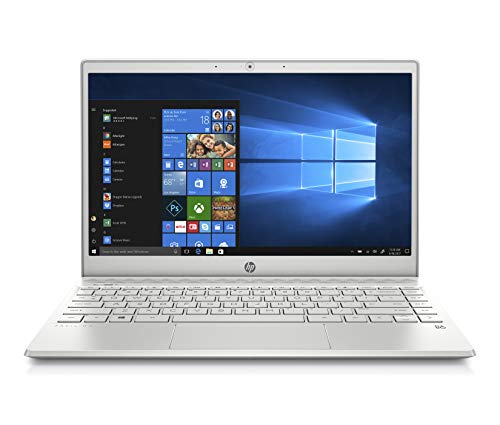
HP Pavilion 13 — Best Legacy-Friendly Starting Point
Badge: Best legacy-friendly starting point
The HP Pavilion 13-inch Light and Thin Laptop appears in this guide for the same reason it appears in our main 13-inch roundup — an Intel Core i5-8265U, 8GB of SDRAM and a 256GB solid-state drive in a slim mainstream chassis — but it is framed here through the ports lens. Designs of the Pavilion’s generation were built before the industry’s most aggressive port removal, when mainstream laptops were still expected to connect to the world’s existing equipment without intermediaries. That heritage makes this class of machine the natural first place a ports-first buyer looks, and it makes the verification discipline this guide teaches especially rewarding: open the listing, read its stated connectivity in full, and confirm each port your workflow requires is actually present on the configuration offered.
We state the discipline rather than the conclusion deliberately. Configurations and regional variants of long-running mainstream lines differ, and the only port list that matters is the one attached to the exact unit you will receive. What can be said without reservation is the Pavilion’s overall proposition: a known brand’s mainstream machine covering everyday computing at a value rung, now evaluated by a buyer whose first question is connectivity rather than speed. If its listed ports meet your needs natively, it is the simplest purchase in this guide; if they do not, its value still makes it a sensible base for the hub route.
Strengths
- Mainstream design from the generation that prioritized connectivity.
- Everyday specification covers documents, browsing and media.
- Value positioning leaves budget room for a quality hub.
Trade-offs
- Verify the exact port list on the listing before relying on it.
- Older Core i5 generation with modest future headroom.
- 8GB of memory is a floor for a primary machine.
Spec box: Display 13-inch class · Processor Intel Core i5-8265U · Memory 8GB SDRAM · Storage 256GB SSD · Configuration 13-an0010nr Mineral · Ports: confirm full list on listing.
Best for: Ports-first buyers who will verify connectivity before ordering. Not suited for: Anyone unwilling to check a specification sheet.

Dell XPS 13 9350 — Best Flagship to Build Around
Badge: Best flagship to build around
The Dell XPS 13 9350 is the strongest machine in this guide — a 13.4-inch FHD+ laptop with an Intel Core Ultra 7-256V, 16GB of DDR5 memory, a 1TB NVMe SSD, Intel Arc Graphics, Wi-Fi 7 and Thunderbolt connectivity named in its title — and its role here is to be the premium base of a hub-based workflow. Thunderbolt is the key word in that specification for ports shoppers: a Thunderbolt port is the most capable connection on any laptop in this guide, able to drive external displays, high-speed storage and a full docking station through a single cable. A machine built around Thunderbolt does not lack connectivity so much as outsource it, and with the right dock the XPS offers more simultaneous connections than any legacy-port laptop ever did.
That framing should not be used to excuse a buyer from checking. If your workflow requires a native HDMI socket or a card slot on the machine itself — because you present in unknown rooms without your kit, or ingest cards in the field — the XPS’s answer is the hub in your bag, and you should decide whether that answer suits your habits before buying. For desk-based photographers and hybrid workers, by contrast, the docked XPS is arguably the best setup in this guide: one cable at the desk, everything connected, and a featherweight machine on the road.
Strengths
- Thunderbolt connectivity anchors a powerful dock setup.
- 1TB of storage swallows photo libraries between ingests.
- Ultra 7 performance with 16GB of memory for editing work.
Trade-offs
- Native legacy ports are not the design’s priority; plan a hub.
- Several XPS 13 variants exist; confirm this 9350 configuration.
- Premium rung of this guide’s pricing ladder.
Spec box: Panel 13.4-inch FHD+ · Chip Intel Core Ultra 7-256V · RAM 16GB DDR5 · Drive 1TB NVMe SSD · Intel Arc graphics · Radios Wi-Fi 7 and Bluetooth, plus Thunderbolt.
Best for: Desk-based creators building a one-cable dock workflow. Not suited for: Field workers who refuse to carry a hub.

Apple 2026 MacBook Air 13 with M5 — Best Apple Route
Badge: Best Apple route
The Apple 2026 MacBook Air 13-inch Laptop with M5 chip — 13.6-inch Liquid Retina Display, 16GB of unified memory, 512GB SSD and a 12MP Center Stage camera — is the finest all-round laptop in this guide and the one whose connectivity philosophy is most uncompromising. Apple’s thin machines have been USB-C-only for years, and the Air continues that discipline: displays, storage and card readers all arrive through adapters, hubs or wireless transfer. Photographers inside Apple’s ecosystem have largely made their peace with this, building ingest around a reader that lives in the camera bag, and in exchange they get the Air’s silence, battery character and display quality.
Our advice to a ports-driven Mac buyer is to cost the whole system honestly: the Air plus a good hub with HDMI and a card reader is the actual purchase, and it should be compared against Windows alternatives on that total basis. Judged that way the Air still competes strongly, because the hub is bought once and serves for the machine’s whole life. What we will not do is soften the fact itself: if a native card slot on the machine is a non-negotiable requirement, no current MacBook satisfies it, and a guide that implied otherwise would be wasting your time and money.
Strengths
- The class’s most complete laptop for creative mainstream work.
- 16GB and 512GB as linked, with an excellent display for photo judgement.
- A mature hub ecosystem built around its USB-C ports.
Trade-offs
- HDMI and card reading require a hub or adapter, without exception.
- Fixed memory and storage at purchase.
- Total system cost must include the hub to compare fairly.
Spec box: Panel 13.6-inch Liquid Retina · Chip Apple M5 · Unified memory 16GB · SSD 512GB · 12MP Center Stage camera · System macOS.
Best for: Apple-ecosystem creators who accept the hub as part of the kit. Not suited for: Anyone for whom a built-in card slot is non-negotiable.

Dell XPS 13 Business AI — Best High-Resolution Variant
Badge: Best high-resolution variant
The Dell XPS 13 Business AI Laptop must be introduced by what it is not: it is not the XPS 13 9350 reviewed above. This configuration carries a 13.4-inch 2.5K touchscreen display, an Intel Core 5 320 (Series 3) processor, 8GB of LPDDR5X RAM and a 512GB SSD, in an ultra-thin business-oriented build. The screen is its headline — 2.5K resolution with touch, a visibly richer panel than the 9350’s FHD+ for readers and image work — while the memory figure is its honest limitation, sitting at the floor we accept for a primary machine rather than the 16GB comfort of its sibling.
For the ports shopper, this variant shares the XPS family’s modern connectivity philosophy: verify the exact port list on its listing, and expect a hub to complete any HDMI or card requirement. Its natural buyer is the business user who values the display and the touch layer, works in documents and calls rather than heavy local media, and docks at a desk where a hub lives permanently. That buyer gets a beautiful machine. A photographer choosing between the two XPS configurations for ingest-heavy work should generally take the 9350’s memory and storage and add the hub, letting the Business AI serve the audience it was specified for.
Strengths
- 2.5K touchscreen display, the richest panel in this guide.
- Business-oriented XPS build in an ultra-thin chassis.
- 512GB SSD covers a document-centred workload well.
Trade-offs
- 8GB of memory limits heavy multitasking and editing headroom.
- Distinct from the 9350; do not confuse the two listings.
- Ports require the same listing verification as every modern XPS.
Spec box: Display 13.4-inch 2.5K touchscreen · Processor Intel Core 5 320 (Series 3) · Memory 8GB LPDDR5X · Storage 512GB SSD · Class ultra-thin business laptop.
Best for: Business users prioritizing a high-resolution touch display. Not suited for: Ingest-heavy photo work needing memory and storage headroom.
Microsoft Surface Laptop 13.8 — Best USB-A Convenience
Badge: Best USB-A convenience
The Microsoft Surface Laptop (2024) — the 13.8-inch touchscreen Copilot+ PC with a Snapdragon X Elite, 16GB of RAM and a 256GB SSD from our main guide — appears in this ports-focused guide without a link, for a specific and instructive reason: in this context its honest summary is that it offers USB-A convenience but no SD card slot. That combination is worth stating plainly because it captures the modern pattern in miniature. The USB-A port survives on the Surface as a courtesy to the world’s existing peripherals, sparing owners an adapter for a mouse receiver or a thumb drive, while card reading — the feature this guide’s title promises to investigate — is absent, as it is on nearly every thin machine of its generation.
Readers who love the Surface’s touch experience and efficiency should buy it through the main 13-inch guide’s framing, with a hub planned for card and display duties. Readers whose card workflow is daily and non-negotiable should treat the Surface as they treat the Air: a fine machine that answers this particular requirement with an accessory. Either way, the entry exists so that nobody buys this laptop believing a slot is hiding somewhere in its specification.
Strengths
- USB-A convenience for existing peripherals.
- Excellent touchscreen and Snapdragon efficiency.
- 16GB of memory gives it proper working headroom.
Trade-offs
- No SD card slot; card work requires a reader or hub.
- Discussed without a link in this ports-focused guide.
- Snapdragon software compatibility check still applies.
Spec box: Display 13.8-inch touchscreen · Processor Snapdragon X Elite, 12 core · Memory 16GB · Storage 256GB SSD · Ports note: USB-A present, no SD slot.
Best for: Touch-focused users who will add a hub for cards. Not suited for: Anyone expecting built-in card reading.
USB-C Hub or Dock With HDMI and SD Reader — Best Practical Fix
Badge: Best practical fix
The final pick in this guide is not a laptop, and including it is the most honest editorial decision in the batch. A USB-C hub or dock carrying an HDMI output and an SD card reader solves, completely and immediately, the problem this entire guide is about — for every laptop linked here and for the one you already own. Desk docks stay plugged into your monitor, storage and network, turning a thin laptop into a one-cable workstation; travel hubs live in the camera bag and weigh almost nothing. When choosing one, match the HDMI specification to your display’s needs, confirm the card reader accepts the card formats your cameras actually use, and prefer a hub with power pass-through so the laptop charges while everything is connected.
Two cautions keep the solution honest. Cheap unbranded hubs are the false economy of this category — flaky display handshakes and slow card transfers waste more time than they save money — so buy from a reputable maker and keep the receipt. And a hub is a thing that can be forgotten: field photographers should keep a dedicated reader in the camera bag rather than relying on the desk dock travelling with them. With those habits in place, the hub stops being a compromise and becomes what it actually is in 2026 — the standard way laptops connect to the world.
Strengths
- Restores HDMI and card reading to any USB-C laptop at once.
- One purchase serves the laptop’s whole working life.
- Dock form turns a thin laptop into a one-cable desk setup.
Trade-offs
- An accessory to carry, charge around and potentially forget.
- Quality varies widely; reputable makers matter here.
- Must match HDMI and card formats to your actual equipment.
Spec box: Type USB-C hub or dock · Must include HDMI output and SD card reader · Prefer power pass-through charging · Choose formats matched to your cameras and displays.
Best for: Every laptop buyer in this guide, as part of the system. Not suited for: Nobody — the only question is which hub, not whether.
Why Did Manufacturers Remove the Ports You Need?
Understanding the removal helps you shop without bitterness, because the logic was not aimed at you. Every millimetre of chassis thickness is contested by battery, cooling and screen engineering, and a full-size SD slot is a large, mostly empty hole that a designer must defend in every review meeting against a bigger battery. USB-C’s arrival gave the industry its excuse and its solution in one: a single small connector that could, with the right electronics, do everything the removed ports did. The market then voted with its wallets for thinness, year after year, and each year’s sales figures taught manufacturers that ports were not what sold laptops. The minority who needed them — creators, presenters, field workers — were real but outnumbered, and minorities in hardware design get accessories instead of architecture. That is the honest history, and it points at the honest response: stop waiting for the slots to return to thin 13-inch machines, because the sales data gives manufacturers no reason to bring them back, and build the workflow this guide describes.
There are exceptions at the industry’s edges — larger creator laptops and business machines retain richer port sets, and the guides to 15 and 16-inch classes in this batch cover machines where native HDMI remains common. If ports truly dominate your decision above size and weight, those classes are your natural home, and choosing a bigger machine for its sockets is a legitimate trade that thousands of photographers make knowingly.
Building the Desk Setup: Docks, Cables and One-Cable Mornings
The docked desk is where the modern ports story turns from apology into advantage. A Thunderbolt or USB-C dock left permanently connected to your monitor, external storage, wired network and card reader reduces the daily ritual to a single cable: sit down, plug in, and the thin laptop becomes a workstation with every peripheral live. Compare that with the legacy laptop’s morning of three or four separate connections and the hub route stops looking like a workaround. When specifying a dock, match its display output to your monitor, ensure it supplies enough power to charge your laptop under load, and confirm its card reader covers your formats. Cable quality matters at these speeds; the short cable supplied with a good dock is part of the product, not packaging.
Photographers should add one refinement: ingest to the laptop’s internal drive first, then let backups copy to external storage in the background, rather than editing directly from the card or a slow external disk. The internal SSDs in the XPS configurations and the Air are the fastest storage in the chain, and a workflow built around them feels responsive regardless of which reader delivered the files.
Comparison Table
| Model | Display | Processor | Memory | Storage | Ports stance |
|---|---|---|---|---|---|
| HP Pavilion 13 | 13″ class | Core i5-8265U | 8GB | 256GB SSD | Verify full list on listing |
| Dell XPS 13 9350 | 13.4″ FHD+ | Core Ultra 7-256V | 16GB DDR5 | 1TB NVMe SSD | Thunderbolt; hub completes |
| MacBook Air 13 M5 | 13.6″ Liquid Retina | Apple M5 | 16GB | 512GB SSD | USB-C only; hub required |
| Dell XPS 13 Business AI | 13.4″ 2.5K touch | Core 5 320 | 8GB LPDDR5X | 512GB SSD | Verify list; hub completes |
| Surface Laptop 13.8 | 13.8″ touch | Snapdragon X Elite | 16GB | 256GB SSD | USB-A yes; no SD slot |
| USB-C hub or dock | — | — | — | — | HDMI + SD reader by design |
The Photographer’s Ingest, Step by Step
Since photographers are this guide’s core readers, here is the workflow the picks support, in the order it actually happens. The shoot ends and the card leaves the camera. At the desk, the card enters the dock’s reader or the standalone reader attached to the laptop, and the files copy to the internal SSD — the XPS 9350’s terabyte drive and the Air’s half-terabyte both swallow a day’s shooting without housekeeping. The editing application works from that internal copy at full speed while a backup routine mirrors the folder to external storage in the background. The card is not formatted until the backup confirms, which is the discipline that separates professionals from gamblers regardless of equipment. On the road, the same flow shrinks to the travel reader and the laptop alone, with the backup deferred to the hotel’s hub or the homecoming dock. Notice that no step in this workflow asks the laptop to contain a slot — the slot’s absence changed where the reader lives, not whether the work flows, and for many photographers the standalone reader is faster than the built-in slots they remember with more nostalgia than accuracy.
How Do You Verify a Laptop’s Port List Before Buying?
Follow a fixed routine and this requirement stops being a gamble. First, find the manufacturer’s own specification page for the exact model number — not the marketing overview, which describes a line, but the technical sheet, which describes a configuration. Second, compare it against the marketplace listing’s specification section, and treat any disagreement as a stop sign until resolved. Third, look at photographs of the machine’s left and right edges in reviews or the listing gallery, counting the openings yourself; a slot you can see is a slot that exists. Fourth, beware configuration drift: a model reviewed with one port set may be sold in another region or year with a different one, which is why the check must attach to the exact unit being purchased. This routine takes ten minutes and is the difference between a ports guide helping you and a ports headline misleading you.
Full-Size SD, microSD and Readers: What Is the Realistic Target?
Camera cards come in two physical sizes that matter here, and confusing them wastes money. Full-size SD remains the standard in most dedicated cameras, while microSD dominates drones, action cameras and phones. Laptop slots, where they survive at all in this size class, are far more often microSD than full-size — useful for the drone owner, insufficient for the camera photographer without an adapter or reader. The realistic target for a working photographer is therefore rarely a laptop slot at all: it is a fast, reliable reader, either standalone in the camera bag or built into the hub on the desk. Readers also outlive laptops, transfer at full card speed, and can be replaced cheaply when card standards move. Judge any laptop’s built-in card provision as a convenience bonus, build your workflow on a reader, and the near-extinction of the slot stops being a crisis and becomes a footnote.
Reading a Port List Like an Engineer
When you do open a specification sheet, read it with an engineer’s suspicion of adjectives and respect for nouns. The nouns are the connectors themselves — how many USB-C ports, whether any carry Thunderbolt or full DisplayPort capability, whether a USB-A survives, whether a card reader is listed and in which format. Adjectives like versatile, comprehensive and pro-grade connectivity tell you nothing and are often pasted across an entire line of machines with different actual fittings. Pay attention to what charging shares: on a two-port machine, one port is occupied by the charger whenever you are plugged in, which is why a hub with power pass-through matters so much in practice — it returns the borrowed port. Note also the headphone jack, humble and universal, which presenters still use to feed room audio systems. A port list read this way takes two minutes and converts marketing into information.
Apply the same reading to the hub you buy. Its specification should state the HDMI output’s capability, the card formats supported, the power it can pass through and the data speeds of its USB ports, in numbers. A hub listing that cannot state these things plainly is telling you, in its own way, everything you need to know about the product.
Teachers, Trainers and the Rooms They Work In
One audience deserves direct address because their port needs are the least optional in this guide: people who teach. A teacher’s laptop meets a different projector, interactive whiteboard or classroom display every term, often every week, in rooms whose technology spans two decades. Wireless casting helps where the infrastructure is modern and managed, but the teacher who relies on it entirely will eventually stand in front of thirty students with a screen that will not connect. The professional answer is boring and total: a laptop chosen on teaching merits, a tested hub and cable in the bag, and a standing habit of arriving three minutes early to connect while the room is empty. School-issued machines often retain richer ports for exactly this reason, and teachers buying personally should weight the Pavilion-style mainstream designs and the hub discipline accordingly rather than chasing the thinnest chassis in the staff room.
HDMI Versions and Presenting Without Anxiety
For presenters, the practical questions are simpler than the version numbers suggest. Any modern HDMI connection — native or through a decent hub — will drive the projectors and meeting-room screens you will actually meet, at the resolutions those screens actually have. The anxiety to eliminate is not version anxiety but kit anxiety: carry your own hub or adapter, arrive with the cable your laptop needs rather than hoping the room provides it, and test with the venue display before the audience sits down when the stakes are high. Teachers and trainers who present daily in the same room can go further and leave a dock or cable installed permanently, converting the problem into infrastructure. The laptop choice matters less than these habits; the presenters who never have port trouble are the ones who stopped expecting rooms to adapt to them.
The OmniBook Aero Footnote, and What It Teaches
The HP OmniBook 7 Aero 13 appears in this guide only in this note and in our selection explanation, and its story reinforces the guide’s theme from a different angle. It is a current ultralight that ports-conscious travellers might reasonably shortlist, yet its present Amazon listings are renewed — so a buyer following headlines could end up with a used machine while believing they had bought new, quite apart from any port question. We exclude it from linked picks for that reason. The lesson generalizes: in a category where specifications are hard to verify and configurations multiply, the discipline of reading the actual listing — condition, configuration, ports — is the single skill that protects the buyer, and it protects against more kinds of disappointment than any individual product choice.
Wireless Transfer: The Third Option Nobody Mentions
Between the slot and the reader sits a third path that suits some workflows: moving files without any physical connection. Modern cameras offer Wi-Fi transfer to a laptop or phone, cloud services sync photographs automatically, and AirDrop or its Windows equivalents move files between your own devices effortlessly. For a handful of images — the day’s selects, a quick client preview — wireless is genuinely convenient and requires nothing in the bag at all. Its limits are volume and reliability: a full card from a day’s shooting transfers slowly and drains camera batteries, and venue Wi-Fi is a variable nobody controls. Treat wireless as the right tool for small, urgent transfers and the reader as the tool for bulk ingest, and the two together cover nearly every situation a photographer meets.
Presenters have a wireless analogue in casting to modern meeting-room displays, which is spreading through offices and classrooms. Where it exists and works, it dissolves the HDMI question entirely. Where it does not — older rooms, guest networks, locked-down systems — the cable in your bag remains the universal answer, which is why this guide keeps returning to the humble discipline of carrying your own connection.
Common Mistakes
- Assuming a 13-inch laptop has an SD slot because its predecessor did.
- Trusting a headline or a review of a different configuration for the port list.
- Confusing the two XPS 13 configurations and buying the wrong one.
- Buying a full-size SD workflow around a laptop that offers, at best, microSD.
- Skimping on an unbranded hub and losing work to flaky connections.
- Rejecting an excellent laptop over ports instead of costing the hub into the system.
Costing the Whole System, Honestly
Fair comparisons in this category are system comparisons. The thin flagship plus a quality hub should be priced against the older mainstream machine that may need no hub, and against the larger laptop whose native ports come with extra weight carried every day. When the arithmetic is done openly, the hub route usually wins for travellers and the native route for the desk-bound, but the answer is personal because the carrying is personal. What is never correct is comparing a bare flagship’s price against a fully equipped alternative and calling the difference savings. This guide has tried to model the honest arithmetic throughout: every machine presented with its connectivity reality attached, every accessory need priced into the recommendation, and no port claimed that the evidence did not support. If the article has a single sentence worth remembering, it is that the listing — not the headline, not the search term, not even this guide — is the final authority on what a laptop contains, and ten minutes with it is the best-spent time in the whole purchase.
Final Recommendation
Decide first whether your port need is daily or occasional. Daily card work belongs on a reader-based workflow wrapped around the best laptop — the XPS 13 9350 for Windows creators, the MacBook Air for Apple’s — with a quality hub bought as part of the same decision. Occasional presenting needs nothing more than a travel hub in the bag of whichever pick suits you, including the value Pavilion after its port list is verified. What no reader should do is buy a 13-inch laptop on the assumption that a slot or socket is present because the headline wished it so; check the list, buy the hub, and the ports problem is finished.
Field Kit: What a Photographer Should Actually Carry
Translate this guide into a bag and it looks like this. The laptop — whichever pick you chose — travels in a padded sleeve. A compact reader matched to your card formats lives permanently in the camera bag, not the laptop bag, because the moment of need arrives where the cameras are. A short, quality USB-C cable joins it, plus the camera’s own cable as a direct-transfer fallback for the day the reader is forgotten. At the hotel or the desk, the hub handles the monitor and the backup drive. That kit weighs almost nothing, costs less than the price difference between the laptops in this guide, and has quietly been the professional standard since the slots disappeared. Photographers who adopt it stop experiencing port anxiety entirely, which is the true destination of this entire article: not a laptop with the right holes, but a workflow in which the holes no longer matter.
Students and presenters can scale the same idea down: one travel hub, kept in the bag that always travels, tested once at home before it is ever needed in anger. The testing step is the one people skip and the one that matters, because a hub’s compatibility with your specific laptop and display should be discovered at your desk, not in front of an audience.
How This Guide’s Approach Protects You Elsewhere
The verification habit taught here transfers to every technology purchase, because the pattern that created this guide’s problem — a headline promising a feature the fine print qualifies — is the industry’s favourite pattern. Storage advertised in one unit and delivered in another, refresh rates that apply to one configuration of a line, battery figures measured in laboratories: all of them yield to the same ten-minute routine of reading the exact specification of the exact item. We would rather publish a ports guide that admits what it cannot verify than one that fills the gap with confident invention, and we hope the method outlasts the models. The laptops will change next year. The discipline will not need to.
FAQ
Do any 13-inch laptops still have full-size SD slots? Very few, and none that we will assert without a listing that states it. Treat any such claim — including in other publications — as a prompt to verify the exact model’s specification before believing it.
Is microSD as good as a full-size SD slot? Only if your devices use microSD. Camera owners with full-size cards gain nothing from a microSD slot without an adapter, and a proper reader is usually faster and more reliable than adapting.
Why do some listings show ports that reviews say are missing? Because listings aggregate a model line, and photographs or specification blocks sometimes come from a different configuration or model year. That is precisely why this guide tells you to verify against the manufacturer’s sheet for the exact model number and to count ports in photographs of the actual variant.
Are docks and hubs the same thing? They are cousins. A travel hub is small, bus-powered or pass-through, and built for a bag. A desk dock is larger, usually has its own power supply, and is built to stay connected to your monitor and peripherals permanently. Both can carry HDMI and card readers; choose by where the work happens.
Will a USB-C hub slow down my card transfers? A quality hub transfers at speeds that satisfy working photographers. Unbranded hubs are where slow, flaky transfers live, which is why this guide insists on reputable makers for the one accessory your workflow depends on.
What is the difference between the two XPS 13 models here? The 9350 pairs an Intel Core Ultra 7 with 16GB of memory, a 1TB SSD and an FHD+ display. The Business AI configuration pairs a Core 5 320 with 8GB, a 512GB SSD and a 2.5K touchscreen. They are different machines for different buyers.
Does the Surface Laptop have an SD slot? No. It offers USB-A convenience, which this guide credits honestly, but card reading requires a reader or hub, and we discuss it without a link in this ports-focused context for exactly that clarity.
I only present twice a year. Do I need any of this? You need a travel hub and five minutes of testing at home before each trip. That minimal kit covers the occasional presenter completely, and it costs less than the taxi to a venue where your slides would not display.
My camera uses CompactFlash or XQD cards. Does that change anything? Yes — those formats never appeared in mainstream laptop slots, so their users have always lived the reader life this guide describes. Match your reader or hub to your actual card formats when buying, and the rest of the advice stands unchanged.
Can a hub damage my laptop or cards? A reputable hub used as directed is safe standard equipment. The risks in this category come from the cheapest unbranded accessories; buy quality once and the hub becomes invisible infrastructure.
What If a Built-In Slot Truly Is Non-Negotiable?
A small number of readers will finish this guide still needing the slot on the machine itself — perhaps they ingest in places where accessories get lost, or their organisation’s rules complicate peripherals, or they simply refuse on principle. For them the honest directions are these. Look one size up, where creator and business lines still fit richer connectivity and where this batch’s larger-laptop guides apply. Look at business-class machines, whose corporate buyers still demand docks, ports and serviceability and whose designs answer accordingly. Or look at the previous generation of a mainstream line through the renewed channel, buying knowingly with the condition discipline from our other guides. What we cannot do is point at a current thin 13-inch flagship and pretend the slot is there. A guide’s job is to shorten your search, and sometimes the shortest honest answer is that the product you imagined is not the product the market currently makes.
For everyone else — the overwhelming majority who arrived here with a just-in-case list — the relief available in this guide is real: buy the laptop you actually want from the main list, spend a little of the savings on a good hub, and never think about this page again.
A Note on Hubs, Heat and Honest Expectations
One practical footnote completes the hub picture. Hubs that pass power through while driving a display and reading a card are doing real electrical work, and warmth during heavy use is normal rather than alarming — what matters is that a quality unit manages it without dropping connections. If a hub disconnects your monitor when a card is inserted, or drops transfers mid-copy, it is failing at its only job and should be replaced under its warranty rather than tolerated; workflow accessories must be boring to be good. Keep firmware and laptop drivers current where the maker offers updates, since display handshakes are a living standard that improves over time. And keep one spare cable in the kit: cables, not electronics, are the component that actually fails in the field, usually by being left in the previous room. With those expectations set, the accessory at the centre of this guide becomes what it should be — infrastructure you forget, attached to laptops you chose for better reasons than their holes.
Students and Hybrid Workers: The Quiet Majority of This Search
Search data for this topic is full of people who are neither photographers nor presenters, and their need deserves naming: students moving files between university systems, hybrid workers whose offices issue docks of one brand and monitors of another, and home users with a printer, a drive and a television that all predate USB-C. For this majority the answer is the gentlest version of this guide’s advice. Any pick here, plus one decent hub bought once, covers every connection their week contains, and the hub will likely outlast the laptop it was bought for. The mistake to avoid is the opposite distortion — rejecting the laptop that suits your life because a twice-a-year connection needs an adapter, or buying an older, heavier machine solely for sockets that a small accessory replaces. Ports are a solvable detail of a laptop purchase. The screen you read, the keyboard you type on and the battery that carries your day are not solvable afterwards, and they are where this class’s money should go.
One Last Check: The Two-Minute Listing Audit
Before any purchase from this guide, run the audit this article has been building toward, in order, without skipping. One: confirm the configuration — processor, memory, storage — matches the pick you think you are buying, because variant drift is this class’s first trap. Two: read the condition line, because the renewed channel shadows every popular model here and must only ever be entered knowingly. Three: find the port list on the manufacturer’s specification for the exact model and compare it against the listing, treating disagreement as a question to resolve rather than a detail to wave past. Four: price the system — laptop plus the hub your workflow needs — against the alternatives one final time. A buyer who runs those four checks will never be surprised by anything this category contains, and a buyer who skips them is relying on headlines in the one category where headlines are least reliable. The audit is short, the machines are good, and the workflow on the other side of a correct purchase is genuinely pleasant — which is why this most cautionary guide in the batch can still end as an encouraging one. The laptops are the best the size has ever offered; only the shopping requires care, and care, unlike a card slot, is something every buyer can supply for themselves, free of charge, in any quantity, starting with the listing already open in front of them.
And a genuinely final word for the reader who arrived frustrated: the frustration is understandable, because the search engines keep promising a category the industry has quietly retired. Let this guide retire the search itself. The laptop-plus-hub system is not a consolation prize; it is the current professional standard, used daily by photographers and presenters whose work cannot afford failure. Joining that standard deliberately, with the right machine and the right accessory chosen together, is a better outcome than any amount of additional searching for a slot that is not coming back. Buy once, verify once, and let the equipment disappear into the work it was bought to support — the review meeting, the classroom, the wedding gallery — where it always belonged. If this guide changed your plan from hunting a mythical slot to building a small, tested kit around a laptop you genuinely like, it has done the job its more conventional siblings cannot: it told you the truth early enough for the truth to save you money, a returned parcel, and a presentation rescued by a cable you almost did not pack on a wet Tuesday morning in a borrowed room. That is the whole argument, and it is enough: verify the listing, carry the connection, and choose the laptop itself for the work, the screen and the years — the things no accessory can retrofit later. Ports can be added on a Tuesday; a cramped keyboard and a dim screen are yours for the life of the machine, which is why the order of priorities in this guide runs laptop first, connection second, and nostalgia for vanished slots a distant and honourable third. Readers who internalize that ordering will shop this entire category faster and better than readers with twice the budget and none of the method behind them, in this category and in every other one where a headline promises what only a specification can confirm. Check the sheet, trust the sheet, and let the marketing say whatever it likes, in this guide’s subject and beyond it.
Related Guides
Start from the full class view in the best 13 inch laptops, compare the folding alternative in the best 2 and 1 laptops, and if card-heavy creative work is your life, read the best laptops for video editing for machines built around media workflows.


