What's inside
- Key Takeaways
- Quick Picks: 8TB External Desktop Drives at a Glance
- How Did We Shortlist These 8TB Desktop Drives?
- Why Do All of These Drives Need a Wall Socket?
- What Should You Check Before an 8TB Drive Arrives?
- How Do the Six 8TB Desktop Drives Compare Side by Side?
- How Should You Set Up an 8TB Backup Drive So It Actually Protects You?
- What Mistakes Do Buyers of Big Desktop Drives Make?
- What Does Moving Eight Terabytes Actually Feel Like?
- Can One of These Drives Hold a Media Library or Game Collection?
- Western Digital or Seagate: Does the Ecosystem Matter at This Size?
- When Is 8TB the Wrong Size Entirely?
- How Do You Verify You Received the Drive You Actually Ordered?
- Final Recommendation
- Frequently Asked Questions
- Related Guides
As an Amazon Associate I earn from qualifying purchases. This post may contain affiliate links at no extra cost to you.
gizmoverdict.com is reader-supported. When you buy through links on our site, we may earn an affiliate commission.
Where to buy: the four linked drives below lead to their Amazon listings, where you can check the current price on Amazon and confirm the connector type and model code in the title before ordering. Two further drives — Western Digital’s My Book and SanDisk Professional’s G-DRIVE — are discussed in prose only, so look them up by name at your retailer of choice.
The best 8tb external hard drives occupy a particular shelf in the storage world: the desk-bound shelf. Every drive in this guide is a 3.5-inch desktop unit that plugs into the wall as well as into your computer, and that single fact organises everything else about them. They are not for bags or gloveboxes. They are for the backup that lives beside the monitor, the media library that feeds the television, the archive that a photographer fills one wedding season at a time. In exchange for staying put, they deliver the most terabytes a single consumer drive can hold at this end of the range, at a cost per terabyte that portable drives cannot approach — stated qualitatively, because that relationship holds across the whole class even as individual prices move around.
Eight terabytes has become the natural resting point of this category for a few converging reasons. It is large enough that a household’s entire digital footprint — decades of photos, the documents, the phone backups, a serious film and music library — fits with room to spare for versioned backups that keep yesterday’s copy alongside today’s. It is small enough that the drive inside remains a mainstream, well-understood unit rather than an exotic flagship. And it sits at the capacity where the backup maths turns kind: a full mirror of an 8TB working life is one drive, one cable, one scheduled job, instead of a small fleet of portables to rotate and label and lose track of.
What separates the six drives below is not the platters — at this size the internal mechanisms are close cousins across brands — but everything wrapped around them: the connector generation, the enclosure’s manners, the software story, and whether the maker bundles any rescue when the worst day arrives. Two of the picks are the same Seagate Expansion line in two different connector generations, which sounds like a duplication until you realise it is the most common real-world confusion in this category, and worth a row of its own. Read the badges as placements: the drive that anchors a desk, the drive that anchors a studio, the drive that asks the least of you.
Key Takeaways
- Every drive here is a mains-powered desktop unit: budget a wall socket and a permanent spot, because none of them travel.
- Seagate’s Expansion line appears twice in different connector generations — an older USB 3.0 Micro-B design and a newer USB-C one — and the cable in the box is the detail to verify.
- Western Digital’s Elements Desktop is the plainest drive in the guide and proud of it: no software layer, no encryption, nothing between you and the storage.
- The Seagate One Touch desktop model adds Rescue recovery services to the proposition, which matters when the drive holds the only archive.
- My Book and G-DRIVE are covered without links: one for its hardware encryption story, the other as the creator-grade benchmark of build and warranty intent.
- An 8TB backup drive is one layer of a plan; pair it with a second copy somewhere else before calling anything protected.
Quick Picks: 8TB External Desktop Drives at a Glance
| Pick | Badge | Why it made the cut |
|---|---|---|
| Western Digital 8TB Elements Desktop | Best No-Fuss Backup Drive | The category’s plain wrapper done right: plug in, format once, and let your backup software do the thinking. |
| Seagate 8TB Expansion Desktop (USB 3.0) | Best Established All-Rounder | The long-running Expansion formula with drag-and-drop simplicity and automatic recognition on Windows and Mac. |
| Seagate 8TB Expansion Desktop (USB-C generation) | Best for Modern USB-C Desks | The newer Expansion generation with a Micro-B to USB-C arrangement aimed at current laptops and docks. |
| Seagate One Touch 8TB Desktop | Best With a Safety Net | A USB-C desktop drive that carries Seagate’s Rescue recovery services for the archive you cannot recreate. |
| WD My Book 8TB | Best for Built-In Encryption | Western Digital’s dressed-up desktop line with password protection and hardware encryption; covered in prose because its listing rotates. |
| SanDisk Professional G-DRIVE 8TB | Best Creator-Grade Build | An aluminium professional desktop drive aimed at studio desks; the premium reference point of this guide, in prose only. |
How Did We Shortlist These 8TB Desktop Drives?
The category was filtered on three honest criteria. First, the drive had to be a genuine single-unit 8TB desktop external — no dual-bay enclosures wearing an 8TB badge by combining smaller drives, because those are a different product with different failure behaviour. Second, the internal mechanism had to come from the maker’s mainstream high-capacity lines, the sort of drive whose behaviour in continuous backup duty is well documented by years of owners rather than promised by a launch page. Third, the proposition around the drive had to be legible: a buyer should be able to say, in one sentence, what they are getting beyond the terabytes.
A note on what was deliberately left out: portable 8TB drives exist at the edges of the market, thick 2.5-inch units and bus-powered experiments, but they compromise the two things this category is for — capacity value and set-and-forget permanence — so this guide stays with the mains-powered desktop class where the size makes sense. Readers whose 8TB genuinely must travel should treat that as a different purchase with different trade-offs, not as a variant of this one.
That third filter is what produced the shape of this guide. The plain drives earn their rows by subtracting everything optional. The One Touch earns its row by adding recovery services. The two prose-only entries mark the category’s other poles — encryption as a headline feature, and professional build as a headline feature — and leaving either out would have made the guide quieter about real choices buyers face. Prices were deliberately not a filter: this class is defined by a qualitative value position, and the guide’s job is to match temperaments to desks, not to freeze a number that will drift by next month.
Why Do All of These Drives Need a Wall Socket?
Because of the platters inside. The 3.5-inch mechanisms that make 8TB affordable draw more power at spin-up and through sustained writes than a USB port is specified to deliver, so every desktop external in this class ships with its own power adapter. Owners occasionally resent the extra brick until they consider what it buys: a drive that never browns out mid-write because a hub got busy, and sustained transfer behaviour that does not depend on which port the cable found. Treat the adapter as part of the product when you plan the desk — a socket, a cable route, and a spot where the drive’s modest warmth can escape.
The staying-put nature cuts the other way too. A desktop drive that lives in one place, never rattling around in a bag, generally leads a mechanically gentler life than a portable, and its larger enclosure sheds heat with less fuss. What it cannot survive is being treated as portable anyway: shuttling a powered-down 3.5-inch drive between home and office in a tote is how archives meet accidents. If your workflow genuinely moves, the honest answer is a portable drive for transport and one of these as the home anchor it syncs to — a pairing this guide will return to in the mistakes section, because so many buyers try to make one drive be both.
What Should You Check Before an 8TB Drive Arrives?
Filesystem first. These drives typically arrive formatted for one ecosystem or ready to be claimed by either, and an 8TB volume makes the choice consequential: format it for the machines it will actually serve, because reformatting later means evacuating eight terabytes to somewhere. Cross-platform households should decide deliberately — a shared filesystem format, or a backup application that handles the translation — rather than discovering the limitation during the first big restore. Second, backup software: decide the tool before the drive lands, whether that is the operating system’s built-in history and imaging features or a third-party application with versioning, and schedule the job for hours the computer is awake and idle.
Third, the unglamorous physical audit. Measure the shelf or desk corner with the adapter’s bulk in mind, confirm a free socket that is not on a switched strip someone turns off at night, and think about the cable length between computer and drive if a dock sits between them. Owners of laptops that live on USB-C docks should note which of these drives speak USB-C natively and which arrive with the older Micro-B arrangement and an adapter story. None of this is difficult, but all of it is easier before the box is open and the backup is already overdue.

Western Digital 8TB Elements Desktop — Best No-Fuss Backup Drive
The Elements Desktop is Western Digital’s argument that a backup drive should be judged by how completely it disappears. There is no software suite waiting to install itself, no encryption layer asking for a password before the drive will talk, no dashboard. You plug in power and USB, the volume appears, and whatever backup tool you already trust writes to it. For the large population of owners who use their operating system’s built-in backup — the set-and-forget majority — that absence of ceremony is not a missing feature. It is the feature.
Its enclosure follows the same philosophy: a simple upright book-style shell, a single activity light, ventilation that assumes the drive will sit in the open on a desk rather than inside a cabinet. Sustained behaviour is the quiet strength here; long initial backups that run for hours are this drive’s home terrain, and it handles them with the steadiness of a mainstream 3.5-inch mechanism doing the one job it was specified for. Choose the Elements when your backup discipline already exists and you simply need somewhere capacious and uncomplaining for it to land. Choose something else in this guide when you want the drive itself to bring part of the discipline — encryption, recovery services, or a connector matched to a newer desk.
One ownership detail worth knowing: because there is no vendor software layer, there is also nothing to go stale. Owners who ran an Elements through two computer replacements will tell you the drive simply reappeared on each new machine, asked for a fresh backup job, and carried on — no account, no licence check, no utility demanding an update before it would mount. In a category where bundled software ages faster than hardware, that plainness compounds into a genuine longevity advantage, and it is a large part of why this unglamorous box keeps being the recommendation experienced people give their families.
- Capacity and class: 8TB desktop external, 3.5-inch mechanism, mains powered
- Connection: USB 3.0, per the listing title
- Software posture: deliberately plain, no bundled backup suite required
- Placement: upright desktop footprint for a permanent desk position
Strengths
- Nothing between the operating system and the storage, so any backup tool works exactly as documented.
- A long-running, well-understood model line whose behaviour in backup duty is thoroughly owner-tested.
- Simple enclosure and setup make it the easiest recommendation for less technical households.
Trade-offs
- No hardware encryption; anyone with physical access and a cable can read an unprotected volume.
- No bundled recovery services, so a failed unit is a restore-from-your-other-copy event.
- The older USB connector generation means USB-C-only laptops need an adapter or a different pick.
Best for: households and home offices that already have a backup routine and want a capacious, invisible place for it to write. Not suited for: anyone needing built-in encryption, or a drive that will regularly move between locations.
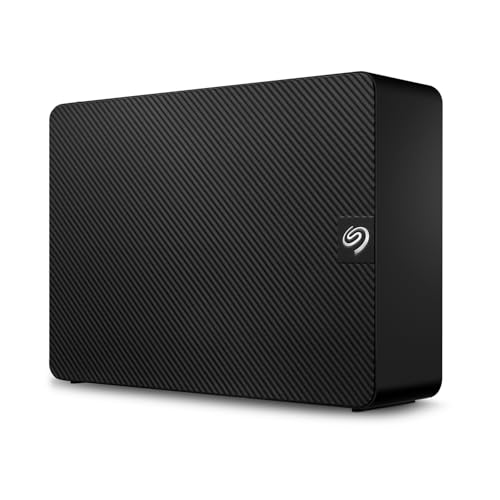
Seagate 8TB Expansion Desktop (USB 3.0) — Best Established All-Rounder
Seagate’s Expansion line is the other great plain-wrapper tradition in desktop storage, and this USB 3.0 generation — model family STKP8000400 — is its most widely owned form. The pitch is drag-and-drop simplicity: the drive auto-detects on Windows and Mac, presents itself as a big honest volume, and asks nothing further. Where the Elements leans into Western Digital’s ecosystem familiarity, the Expansion leans into ubiquity; it is the drive that turns up in offices, studios and family homes because it was the obvious shelf choice for years, and its behaviour across that installed base is the opposite of mysterious.
In daily service the two plain drives are more alike than their brand loyalists admit, and this guide will not manufacture a winner between them on transfer behaviour — both are capped by their spinning mechanisms and both are entirely adequate for backup and media duty. The Expansion’s case for itself rests on availability, on Seagate’s tooling for drive management if you choose to use it, and on the Rescue framing that appears in parts of the Expansion line’s listings over time — check the current listing text for what is bundled with this model today, because Seagate adjusts those inclusions. Buy it as the established all-rounder it is, and it will bore you reliably for years, which is the highest praise a backup drive can earn.
Its longevity in the market carries one more practical benefit: familiarity among the people who will help you. The Expansion is the drive that appears in office cupboards and family studies everywhere, so if a relative or a local technician ever needs to understand your backup setup at short notice, there is nothing exotic to explain. The cable is standard, the behaviour is standard, the drive’s one job is standard. Categories of technology have a way of punishing novelty at the worst moments, and backup storage is the last place anyone should be an early adopter. This model’s entire argument is that it has already been adopted, thoroughly, by everyone.
- Capacity and class: 8TB desktop external, 3.5-inch mechanism, mains powered
- Connection: USB 3.0, per the listing title
- Setup style: plug-and-play recognition on Windows and Mac, drag-and-drop positioning
- Model family: STKP8000400 Expansion desktop generation
Strengths
- The most familiar ownership experience in the category, with years of real-world backup duty behind the line.
- Genuinely simple setup that non-technical owners complete without instructions.
- Broad retail availability makes replacing or matching a unit straightforward.
Trade-offs
- The USB 3.0 Micro-B connector is the fragile-feeling older standard and dates the design.
- No encryption story at this tier of the line.
- Bundled extras vary by listing period, so the current page, not habit, decides what is included.
Best for: buyers who want the category’s most travelled road — a simple, capacious desktop drive with no learning curve. Not suited for: USB-C-only setups unwilling to use an adapter, or anyone wanting encryption built in.
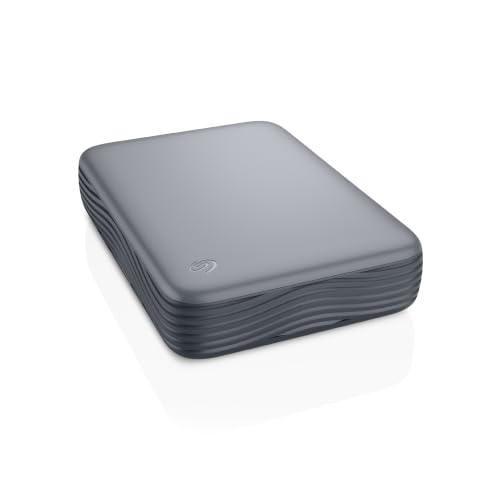
Seagate 8TB Expansion Desktop (USB-C generation) — Best for Modern USB-C Desks
This is the same Expansion idea reissued for the desks people actually have now. The newer generation — the STNP8000400 family — arrives with a Micro-B to USB-C cable arrangement, which sounds like a footnote and is, in practice, the difference between a drive that plugs straight into a current laptop or dock and a drive that starts its life with an adapter hunt. Seagate describes this generation as its new line of high-capacity desktop storage for backup and archive work, and the positioning is accurate: the terabytes and the temperament are familiar, while the connectivity has been brought up to the present tense.
Why give it a separate row instead of folding it into the older Expansion’s review? Because connector confusion is the number one way buyers in this category end up with a drive that does not match their desk, and the two generations sit side by side in search results wearing nearly identical names. If your computer is a recent laptop, if everything on your desk already speaks USB-C, this is the Expansion to buy, full stop. If your machine is an older desktop with plentiful USB-A ports, the earlier generation serves identically and either will do. What you should not do is order whichever appears first and discover the cable question at unboxing, with the backup already a week overdue.
There is a small future-proofing argument in this generation’s favour as well. Desks are converging on USB-C at a pace that will not reverse: the next laptop, the next dock, the next monitor with a built-in hub all assume it. A backup drive bought today will likely serve five years, outliving at least one computer, and the generation that speaks the newer connector natively is the one that will not need an adapter conversation at every hardware change along the way. Adapters work, but each one is a small point of failure and a large point of annoyance at exactly the moment — a restore, under time pressure — when annoyance costs most. Buying the connector your next machine will want is the cheapest foresight in this entire guide.
- Capacity and class: 8TB desktop external, 3.5-inch mechanism, mains powered
- Connection: Micro-B to USB-C cable arrangement, per the listing title
- Positioning: Seagate’s newer generation of Expansion desktop storage for backup and archive
- Model family: STNP8000400
Strengths
- Plugs directly into modern USB-C laptops and docks without adapters.
- Same proven Expansion formula, so behaviour and expectations carry over from the established line.
- The right default for new desk setups being built around current hardware.
Trade-offs
- The drive-end connector remains Micro-B, so the cable is still a specific one to keep track of.
- Older USB-A desktops may need the reverse adapter, swapping one generation’s inconvenience for another’s.
- Still a plain drive underneath: no encryption, and recovery inclusions depend on the current listing.
Best for: anyone whose desk has already moved to USB-C and who wants the Expansion formula without adapter friction. Not suited for: buyers who specifically want the older generation’s exact cable setup, or who need encryption at the drive level.

Seagate One Touch 8TB Desktop — Best With a Safety Net
The One Touch desktop drive is Seagate’s answer to a specific anxiety: the archive that exists exactly once. Its hardware story is current-generation — a desktop HDD with USB-C compatibility across Windows and macOS — but its defining inclusion is the Rescue recovery service attached to the line. If the drive fails in a way that strands data, Rescue is Seagate’s professional recovery programme, and having it bundled converts a catastrophe with a search engine into a procedure with a case number. Recovery is never a promise that data comes back; it is a materially better worst day, and for the drive holding a family’s only photo archive or a creator’s project history, that difference is worth real money.
Position it honestly against the plain drives above. Day to day, the One Touch behaves like what it is: a capacious desktop external for backup and archive duty, no faster in any way you would feel, no quieter in any way worth measuring. You are not buying performance. You are buying the combination of modern connectivity and a recovery path, and the purchase makes the most sense precisely when the data’s value is personal and irreplaceable rather than large and re-downloadable. A media library ripped from discs you still own does not need Rescue. The only scan of a grandfather’s letters does. Match the safety net to the cargo, and this pick’s premium explains itself.
A word about how the recovery inclusion should be used, because owners misunderstand it in both directions. It is not a reason to skip the second copy — a recovery service works on a failed drive over days or weeks, with outcomes that depend on the failure, while a second copy restores you the same afternoon with certainty. Nor is it a gimmick: for the drive that dies holding the only scan of a family’s paper history, a professional laboratory attempt is worth infinitely more than a shrug. File the Rescue entitlement details with the drive’s serial number when it arrives, while both are in front of you. The owners who benefit from bundled services are the ones who registered them before they needed them.
- Capacity and class: 8TB desktop external HDD, mains powered
- Connection: USB-C compatible with most Windows and macOS machines, per the listing title
- Defining inclusion: Rescue data recovery services bundled with the drive
- Role: archive and backup duty where the contents are irreplaceable
Strengths
- Bundled recovery services give a failed archive drive a professional second chance.
- Current-generation USB-C connectivity suits modern desks without adapters.
- The One Touch line’s presentation and finish sit a step above the plain-wrapper drives.
Trade-offs
- You pay for a safety net you may never use; re-creatable data does not justify it.
- Recovery is a service with timelines, not an instant restore — a second copy still beats it.
- Like every pick here, it is desk-bound and mains-powered, not a travel drive.
Best for: archivists of the irreplaceable — family historians, photographers, creators whose project files exist once. Not suited for: buyers storing only re-downloadable media, who should take a plainer drive and spend the difference on a second copy.
WD My Book 8TB — Best for Built-In Encryption
Where the Elements subtracts, the My Book adds. Western Digital’s dressed desktop line brings password protection backed by hardware encryption, bundled backup software for owners who want the drive to supply the routine as well as the room, and a finish intended to be seen on a desk rather than tolerated beside one. The encryption is the substantive point: lock the drive, and its contents stay sealed even if the enclosure is opened and the mechanism read elsewhere, which is a genuinely different security posture from the plain drives in this guide and the reason some buyers should choose this line deliberately.
It is covered in prose because its headline listing rotates; search the name, and verify two things on the listing you land on — that the capacity is the 8TB unit and that the encryption and password features are present on that variant, since the My Book name also covers larger multi-drive relatives with different behaviour. The honest caution that travels with hardware encryption everywhere: a forgotten password means a permanently sealed drive, by design. Owners who enable it should keep the credential somewhere as durable as the archive itself. For a home office holding client files or financial records on a desk others can walk past, that trade — convenience surrendered for real confidentiality — is often exactly right.
The bundled backup software deserves a fair sentence too. Owners who already run a chosen backup application will ignore it, and that is fine; it exists for the household that has no routine at all, for whom the drive supplying a guided, scheduled backup out of the box is the difference between protection this week and protection eventually. Judge the My Book as a package — enclosure, encryption, software, capacity — because that integration, not any single specification, is what its buyers are actually purchasing. Priced against assembling the same result from a plain drive and separate tools, the package frequently makes more sense than its specification sheet suggests.
- Capacity and class: 8TB desktop external, mains powered
- Defining feature: password protection with hardware encryption
- Software: bundled backup tools for owners who want the drive to supply the routine
- Availability note: covered prose-only; verify capacity and features on the current listing
Strengths
- Hardware-level encryption protects data against physical access in a way plain drives cannot.
- Bundled software gives less technical owners a complete routine out of the box.
- A more presentable enclosure for desks where the drive is visible all day.
Trade-offs
- A lost password locks the archive permanently; the security has no back door, including for you.
- More software layers mean more to keep updated than the plug-and-forget plain drives.
- Listing rotation makes variant-checking the buyer’s job at purchase time.
Best for: home offices and shared spaces where the backup holds sensitive files and the desk is not private. Not suited for: owners who know they will forget a password, or who want the simplest possible drive.
SanDisk Professional G-DRIVE 8TB — Best Creator-Grade Build
Every category has the product the professionals buy without discussing it, and in desktop externals that is the G-DRIVE line, now under SanDisk Professional. The 8TB desktop model is built around an enterprise-leaning mechanism in a stackable aluminium enclosure that doubles as a heat sink, with the fit and finish of studio equipment rather than consumer plastic. Photographers and video editors park these beside their monitors for years of project storage, and the line’s reputation rests on that unglamorous longevity plus support pitched at people whose drive failure is a business event.
Why prose-only here? Because it plays a different position from the other five: it is the premium reference, the drive you buy when the archive is your livelihood and the enclosure will live in a working studio, and its listings and configurations deserve a deliberate visit rather than a pinned link in a roundup. Judge it on its own terms if your work qualifies — sustained project writes, a desk that clients see, a preference for metal that runs cool — and judge the plainer drives above as the right answer if it does not. There is no shame in the plain answer; most desks need capacity and reliability, not a studio credential. But for the reader whose 8TB holds billable history, this is the name the guide would be incomplete without.
Studio owners also value a trait no specification captures: the G-DRIVE’s enclosure is designed to stack and to sit in a row of its siblings without cooking them, because professional archives grow by accretion — this year’s drive beside last year’s, all spinning, all reachable. A consumer enclosure tolerates that arrangement; the aluminium professional shell is designed for it, shedding the combined warmth through its own body. If your archive plan is visibly heading toward a shelf of drives rather than a single box, starting with the line built for the shelf saves a mid-course change of ecosystem later.
- Capacity and class: 8TB professional desktop external, mains powered
- Enclosure: aluminium, stackable, designed to shed heat
- Audience: photographers, video editors and studios storing project archives
- Availability note: covered prose-only as the category’s premium reference point
Strengths
- Build quality and thermal design a clear class above the consumer enclosures here.
- A professional support posture aimed at buyers whose data is their income.
- Studio-appropriate appearance for desks that clients and collaborators see.
Trade-offs
- The premium is substantial relative to plain drives of the same capacity.
- For pure backup duty, its advantages are mostly invisible in daily use.
- Still desk-bound and mains-powered; professional does not mean portable.
Best for: working creators archiving client projects on a studio desk. Not suited for: household backup on a budget, where the plain drives deliver the same terabytes for far less.
How Do the Six 8TB Desktop Drives Compare Side by Side?
| Drive | Connector story | Software and security | Defining trait |
|---|---|---|---|
| WD Elements Desktop 8TB | USB 3.0 | Deliberately none | The invisible backup target |
| Seagate Expansion 8TB (USB 3.0) | USB 3.0 Micro-B | Plain, drag-and-drop | The established all-rounder |
| Seagate Expansion 8TB (USB-C gen) | Micro-B to USB-C | Plain, drag-and-drop | The modern-desk Expansion |
| Seagate One Touch 8TB | USB-C | Rescue recovery services | The safety-net archive drive |
| WD My Book 8TB | Varies by variant | Hardware encryption, bundled backup | The security-conscious WD |
| SanDisk Professional G-DRIVE 8TB | Professional-grade connectivity | Studio-oriented support | The creator-grade build |
Notice what the table does not contain: a speed column with invented numbers. These drives share a class of mechanism and a class of interface, and their real-world transfer behaviour clusters tightly enough that connector fit, bundled services and security posture are the honest axes of choice. If two rows look equally suited to you, they probably are, and the tiebreak is whichever ecosystem — Western Digital’s plainness, Seagate’s recovery story — you would rather deal with on a bad day.
How Should You Set Up an 8TB Backup Drive So It Actually Protects You?
Protection is a schedule, not a purchase. Connect the drive, format it for your machines, and before copying anything by hand, configure the backup tool: the operating system’s built-in history or imaging on Windows or Mac, or a third-party application if you want versioning with finer control. Set the job to run daily at an hour the computer is reliably on, and include everything you would grieve — documents, photos, the folders applications hide their data in — rather than only the folders you remember. Then do the step almost everyone skips: restore something. Pick a file, delete a copy of it somewhere safe, and bring it back from the backup. A backup that has never been test-restored is a hope, not a system.
After the first week, check the job’s log once and confirm the drive is not silently failing to complete — the classic causes are a computer that sleeps through the scheduled hour and a power strip that someone switches off. Then think about the second copy. The durable rule of thumb in data care is three copies, two kinds of storage, one elsewhere; an 8TB desktop drive covers the local copy beautifully and the elsewhere copy not at all. Pair it with a cloud tier for the truly irreplaceable subset, or a second drive kept at another address and rotated monthly. The drive in this guide is the anchor of that arrangement, sized so the anchor never becomes the constraint.
What Mistakes Do Buyers of Big Desktop Drives Make?
The first is treating one drive as a backup strategy. Eight terabytes of your only copies is eight terabytes of exposure to one failure, one theft, one spilled drink. The second is buying the portable fantasy in a desktop product: owners who regularly carry a mains-powered 3.5-inch drive between places eventually drop it, and spinning disks remember drops. The third is connector roulette — ordering by capacity and brand while ignoring which cable generation is in the box, then blaming the drive for an adapter problem that the title stated plainly.
Two more deserve air. Buyers often format first and think later, discovering months on that the filesystem they accepted by default fights their second computer or their backup application; the time to decide is at setup, not at migration. And many owners park the drive inside a closed cabinet or atop a warm amplifier, cooking a mechanism that expected open air. These drives are furniture with a job: give them air, a socket that stays live, and a schedule, and they repay the courtesy with years of silence.
Finally, the labelling failure — mundane, universal, and entirely avoidable. An unlabelled 8TB drive becomes, within a year, a mystery box: is this the current backup, the old backup, the media library, or the one that clicked strangely in March? A strip of tape and a date on the enclosure, plus the serial recorded in your notes, ends the mystery permanently. When the day comes to replace or rotate the drive, the label is what separates an orderly migration from an afternoon of mounting volumes and guessing. The biggest drives hold the most history; they deserve the clearest names.
What Does Moving Eight Terabytes Actually Feel Like?
Buyers deserve an honest picture of pace, stated the way this guide states everything: without invented benchmark numbers. A desktop hard drive of this class moves large files at the speed its spinning platters allow, which for big sequential transfers — films, disk images, backup sets — is a comfortable, watch-it-progress pace that fills an evening rather than a week. The first full backup of a well-used computer is an overnight job. Subsequent incremental backups, which move only what changed, finish in minutes and are the transfers you will actually experience week to week. This is why the initial fill should be planned rather than resented: connect the drive on a Friday evening, start the job, and wake to a protected computer.
Where these drives feel slow is not in bulk but in scatter. Thousands of tiny files — a photo library’s sidecar files, a code tree, a mail archive — move at the pace of the drive’s seeking, and no enclosure or connector in this guide changes that physics. Owners who work directly from an external drive with small-file workloads will feel it; owners who use the drive as a backup and archive target, its designed role, will not. Keep active projects on internal storage, let the 8TB unit hold the copies and the cold archive, and the relationship stays harmonious. Ask it to be a working drive for scattered data and you have bought the wrong tool in a very capacious size.
Can One of These Drives Hold a Media Library or Game Collection?
Yes, and for many households that is the second job that justifies the size. A ripped film and television library, a lossless music collection, or a retro game archive all share the same profile: large files, read far more often than written, tolerant of hard-drive pace because playback needs only a trickle of the drive’s sequential ability. Connected to a media PC, a smart television with USB playback, or a home server, an 8TB desktop drive becomes the quiet vault behind the screen, and its always-plugged-in nature — the thing that disqualifies it from travel — is exactly what a living-room setup wants.
Modern game libraries are the more conditional case. Current consoles and PCs increasingly expect SSD pace for new titles, and loading a demanding recent game from a spinning drive ranges from slow to unsupported depending on the platform. The sensible division of labour, which many players already practise, is to keep the handful of games in active rotation on internal SSD storage and park the rest of the library — the finished campaigns, the older titles, the someday replays — on the big external drive, moving games back as wanted. Used that way, 8TB of inexpensive depth relieves the expensive fast storage beautifully. Used as the primary drive for current releases, it will disappoint in ways no enclosure can fix.
Western Digital or Seagate: Does the Ecosystem Matter at This Size?
At the level of the spinning mechanism, the honest answer is less than brand folklore suggests: both makers’ mainstream 3.5-inch drives have long service histories in exactly this duty, and either will bore you reliably. Where the ecosystems genuinely diverge is everything after the purchase. Western Digital splits its personality across lines — the bare Elements, the encrypted and software-carrying My Book — and its drive-management utilities follow that split. Seagate leans on its Toolkit software for owners who want it and on the Rescue recovery brand as its signature reassurance, surfacing in the One Touch line here. Neither software suite is compulsory; both drives in their plain forms work with no vendor software at all, which is how many experienced owners run them.
So choose the ecosystem by your bad-day preference. If the failure you imagine is a dead drive and lost archive, Seagate’s recovery story speaks to it. If the failure you imagine is a stranger with access to your desk, Western Digital’s encryption line speaks to that instead. If neither scenario dominates, the decision collapses back to connector, availability and which enclosure’s looks you can stand beside your monitor for five years — and that is a legitimate way to decide, because you will be looking at it for roughly that long.
When Is 8TB the Wrong Size Entirely?
Sometimes the correct advice is to leave the category. If your total digital footprint is a laptop’s worth of documents and a phone’s worth of photos, an 8TB desktop anchor is capacity theatre: a smaller portable, properly scheduled, protects you with less desk commitment and no power brick. Conversely, if you shoot video professionally and a single project consumes terabytes, one 8TB drive is a fortnight’s working room, and your real answer is a multi-bay NAS or a rotation of drives with an off-site member — a system, not a purchase. The 8TB desktop drive shines in the broad middle: households and small studios whose data is measured in terabytes, growing steadily, and currently protected by habit rather than by hardware.
There is also a timing version of the question. Buy the 8TB anchor when your current arrangement starts producing warning signs — the old backup drive reporting itself full, the photo library split across two portables nobody can tell apart, the external that only gets connected when someone remembers. Those are the symptoms of a backup culture failing for lack of a fixed home. A drive that is always connected, always powered and capacious enough to forgive a year of growth removes every excuse the schedule used to hide behind. That, more than the number on the box, is what this size is for.
How Do You Verify You Received the Drive You Actually Ordered?
Big desktop drives are a category where the box deserves thirty seconds of scepticism, because model families span many capacities under one name and marketplace listings occasionally blur them. When the drive arrives, match the capacity and model code on the packaging against the listing title before breaking seals — STKP and STNP prefixes distinguish the Expansion generations discussed here, and Western Digital’s lines separate Elements from My Book by name and feature list. Once connected, let the computer report the volume’s size; an 8TB drive presents as somewhat less than the headline figure in the operating system’s accounting, because makers and systems count bytes differently. That gap is normal arithmetic, not a short measure, and every owner meets it once.
Then run the maker’s own diagnostic utility over the drive — both brands publish one — and let it complete a full check before the first real backup lands. A drive that fails its own maker’s screening in week one goes back without debate, and a drive that passes has earned its place on the desk. Note the serial number in the same document where you keep the household’s other warranty details. These small rituals take less time than the first backup itself, and they convert the riskiest week of the drive’s life into a supervised audition.
Final Recommendation
Start with the plain truth of the category: for a straightforward home backup anchor, the WD Elements Desktop 8TB and the Seagate Expansion are equally honourable defaults, and you should choose between them by connector — the Expansion’s newer USB-C generation for a modern laptop desk, either older model for a traditional desktop — rather than by brand folklore. Step to the One Touch when the archive is irreplaceable and a bundled recovery path buys real peace, to the My Book when other people can touch your desk and the files are sensitive, and to the G-DRIVE when the terabytes hold your livelihood and the enclosure belongs in a studio. Whichever name ends up beside your monitor, wire it into a schedule the week it arrives and test a restore before you trust it — because the best 8TB drive is never the one with the finest enclosure, it is the one quietly holding a second copy of everything on the day the first copy fails, and that outcome is decided by your setup far more than by your shopping — so buy a good drive, certainly, but spend the following hour on the schedule, the test restore and the label, because that hour is where the protection actually lives.
Frequently Asked Questions
Is 8TB too much for a home backup drive?
Rarely, once versioning enters the picture. A backup that keeps several generations of your files grows well beyond the size of the data itself, and households consistently underestimate photo and video accumulation. An 8TB target lets the schedule run for years without pruning history, which is when backups quietly start failing.
Can I use one of these as a portable drive occasionally?
You can carry it, but you should not build a habit of it. These are 3.5-inch mechanisms in desktop enclosures with separate power bricks; they are heavier, more fragile in transit and slower to set up than true portables. Occasional careful transport between two fixed desks is fine. Daily commuting is a portable drive’s job.
What is the real difference between the two Seagate Expansion listings?
Connector generation. The established model uses USB 3.0 with the older Micro-B arrangement; the newer generation ships with a Micro-B to USB-C cable aimed at current machines. Capacity, purpose and general behaviour are the Expansion formula in both cases, so choose by the ports on your desk.
Does hardware encryption on the My Book slow the drive down?
Hardware encryption is handled by the drive’s own electronics rather than your computer’s processor, so the practical effect on backup behaviour is negligible for this class of drive. The real cost is procedural, not computational: the password becomes a single point of failure for access, and it must be kept as carefully as the data.
How long will an 8TB desktop drive last in backup duty?
Years of service are the design intent, and backup duty — scheduled writes, long idle periods, a fixed position — is among the gentlest lives a drive can lead. Any individual unit can still fail without warning, which is why the guide insists on a second copy elsewhere rather than faith in any single mechanism.
Why does my computer show less than 8TB of space?
Because drive makers count a terabyte as a trillion bytes while operating systems count in binary units, and at this capacity the two accountings visibly diverge. Every 8TB drive from every maker shows the same effect, so compare drives by their headline class, not by the formatted figure, and do not treat the difference as missing capacity.
Should I leave the drive plugged in and powered all the time?
For a scheduled backup anchor, yes: the job cannot run against a drive that is switched off, and modern desktop drives manage their idle power sensibly. Put it on a socket that stays live, let the backup software wake it on schedule, and check the completion log occasionally — monthly is often enough once the routine has proven itself, and the habit takes less than a minute once the first successful restore has shown you exactly where the log lives and what a healthy entry looks like.
Related Guides
Round out the storage picture with best 6tb nas hard drives if your backup target is growing into a network enclosure, best 4 tb portable hard drives for the drive that actually travels, and best 10tb external hard drives when eight terabytes stops being enough.
Related guides
- Best 1440p 165Hz Monitors: One Native 165Hz Pick, Three 180Hz Upgrades, an Overclock Headline and a 160Hz Ultrawide
- Best 13×19 Professional Printers
- Best 3rd Party MacBook Chargers: 96W-Class Alternatives, the 100W Cable Rule, and the Apple Benchmark
- Best Built PC: Six Prebuilt Gaming PCs Judged on Parts, Power and Upgrades


