What's inside
- Where to buy
- Key Takeaways
- Quick Picks
- What did we look for in a 2TB portable drive?
- The picks in detail: best 2 tb portable hard drives reviewed
- Comparison table
- Which questions decide a 2TB portable drive?
- How do you make a portable drive last?
- What mistakes do buyers make at this capacity?
- Portable drive or cloud storage: which one actually protects you?
- What should you know about cables, ports and adapters?
- What do you do when a portable drive starts misbehaving?
- Three households, three different right answers
- What do warranties and rescue services actually promise?
- What does two terabytes actually hold?
- Final Recommendation
- Frequently Asked Questions
- Related Guides
As an Amazon Associate I earn from qualifying purchases. This post may contain affiliate links at no extra cost to you.
gizmoverdict.com is reader-supported. When you buy through links on our site, we may earn an affiliate commission.
Where to buy
Five picks below link to Amazon US listings we verified for this guide. The sixth — a portable SSD included as a measuring stick — is prose only, because at this capacity the honest question is whether to buy a hard drive at all.
Two terabytes in a pocket-sized box remains the most contested ground in portable storage, and the best 2 tb portable hard drives earn that attention: the capacity holds a full laptop backup with history, a serious photo library, or a respectable game collection, while the hardware still runs entirely from the laptop’s USB port — no power brick, no desk, no ceremony. Every drive in this guide is a slim 2.5-inch mechanism in a shell not much bigger than a phone, and every one of them is limited by the same physics: a portable hard drive moves big files at roughly a hundred megabytes per second in the real world, sometimes a little more on a fresh sequential copy, and no badge on any box changes that. What separates the five hard drives here is everything around the platter — encryption, backup software, build, warranty habits and price tier — plus one interloper that exists to ask whether the platter should be there at all.
One more thing this capacity teaches: 2TB is where backup stops being theoretical for most people. A one-terabyte drive fills with a single computer’s history and starts forcing deletions; two terabytes holds the history and lets it age, which is when backups begin paying their real dividend — the document as it stood before the bad edit, the photo folder before the enthusiastic cull. The picks below are judged partly on that standard: not merely whether they hold your data today, but whether they will still be holding its past next year.
The field divides cleanly into two philosophies. On one side stand the plain drives: WD’s Elements Portable, Toshiba’s Canvio Basics and Seagate’s Portable line, which do nothing but store, cost the least, and ask you to bring your own backup habits. On the other stand the managed drives, WD’s My Passport chief among them and Toshiba’s Canvio Advance beside it, which add password protection, backup software and a bit more polish for people whose drive will carry the only copy of something sensitive through airports and coffee shops. Neither philosophy is wrong; they answer different fears. This guide keeps both in view, and then, in the final prose pick, holds up the Samsung T7 portable SSD as the mirror: smaller, far faster, far tougher, and priced like it knows it.
Key Takeaways
- WD’s My Passport 2TB is the pick when the drive will carry sensitive files: password protection with hardware encryption and backup software that defends the copies themselves, not just the capacity they occupy.
- The WD Elements Portable 2TB is the value plain drive — no software, no setup, the lowest-friction way to add two terabytes to a bag.
- Seagate’s 2TB Portable matches the plain-drive formula and sweetens it with an Adobe Creative Cloud trial for buyers already headed that way.
- Toshiba’s Canvio Basics 2TB is the quiet budget alternative that undercuts the big two while keeping the same plug-and-play manners.
- The Canvio Advance 2TB adds backup software, password protection and colour choices — the managed-drive option outside the WD ecosystem, in a textured shell you can identify across a drawer full of black rectangles.
- Samsung’s T7 SSD, covered in prose, is the honest alternative: if your 2TB will be worked from daily rather than backed up to, skip the spinning disk entirely and buy solid-state instead.
Quick Picks
| Pick | Badge | Why it is here |
|---|---|---|
| WD 2TB My Passport | Best Protected Portable | Hardware encryption, password protection and proper backup software in the classic slim Passport shell. |
| Seagate 2TB Portable | Best Simple All-Rounder | Drag-and-drop storage for Windows and Mac with a bundled Adobe trial, from the other big name in the class. |
| WD 2TB Elements Portable | Best Plain Value | The software-free Elements formula at 2TB: plug in, copy, unplug, nothing to configure ever. |
| Toshiba Canvio Basics 2TB | Best Budget Pick | A no-frills drive that routinely undercuts the headline brands while doing the same essential job. |
| Toshiba Canvio Advance 2TB | Best Managed Alternative | Backup software and password protection in a textured, coloured shell for buyers who want features without WD. |
| Samsung T7 Portable SSD | The SSD Reality Check — Prose | Not a hard drive at all: included in prose because at 2TB it is the comparison every buyer should make before paying. |
What did we look for in a 2TB portable drive?
Capacity is the entry ticket, not the contest. All five hard drives here hold two terabytes on a bus-powered 2.5-inch mechanism, all connect over USB, and all deliver the class’s characteristic transfer behaviour: quick enough for backups and media, leisurely compared with any SSD. So the judging moved to the layer where these drives genuinely differ. First, protection — because a portable drive is by definition the storage most likely to be lost, stolen or left in a taxi, and hardware encryption turns that disaster into a mere replacement cost. Second, the backup software, judged not by feature lists but by whether a normal person will actually set it up and whether it keeps history rather than a single fragile mirror. Third, the physical object: shell rigidity, cable quality, how the drive feels after a year of bag life. Fourth, the maker’s warranty and rescue provisions, which vary more than buyers expect at this price.
We also kept a discipline about speed claims. Portable hard drives live under a mechanical ceiling, and the differences between these five in a long copy are small enough to vanish behind cable quality and the host machine’s ports. Anyone whose purchasing decision hinges on transfer speed should not be choosing between these drives at all — they should be reading the T7’s prose section and reconsidering the category. That honesty is built into the guide’s structure on purpose.
The picks in detail: best 2 tb portable hard drives reviewed

WD 2TB My Passport — Best Protected Portable
The My Passport is the drive this category is measured against, and at 2TB it is easy to see why. The shell is slim and pocketable with the line’s familiar two-tone design, but the substance is in what WD layers over the mechanism: password protection backed by 256-bit AES hardware encryption, and backup software that keeps scheduled copies with a measure of defence against ransomware tampering. Taken together, those two features answer the portable drive’s two great anxieties — that it will be lost with your life on it, and that the backup it carries will quietly stop being trustworthy. Set the password, schedule the backup, and the Passport becomes the rare gadget that actively reduces the number of things you have to remember to do.
Daily life with it is unremarkable in the best way. It runs from the port’s power, wakes quickly, and the included cable is the short, bag-friendly length this class standardised on. The encryption deserves one clear warning, repeated from every WD guide ever written because it remains true: the password is absolute. Forget it and the data is cryptographically gone, which is precisely the protection working as designed. Keep the password in your password manager like every other secret that matters. For consultants carrying client files, students whose thesis lives on the drive, or anyone whose laptop bag is effectively their office, the My Passport is the pick that treats a portable drive’s risks as the main event rather than fine print.
- Capacity: 2TB, 2.5-inch portable mechanism, bus-powered
- Connection: USB 3.2 Gen 1 (listed as USB 3.1/USB 3.0 compatible), cable included
- Security: password protection with 256-bit AES hardware encryption
- Software: WD backup software with ransomware-defence features
- Compatibility: Windows ready out of the box; reformat for Mac use
Strengths
- Real hardware encryption means a lost drive is an expense, not a data breach.
- The backup software maintains itself once scheduled, including protection against tampered copies.
- Slim, light and genuinely pocketable — the bag footprint of a phone, not a brick.
Trade-offs
- The password has no recovery path; the protection and the peril are the same feature.
- Full value requires installing WD’s software rather than treating it as a bare volume.
- Mac owners face a reformat and a less native software experience than Windows users.
Best for: professionals and students whose portable drive carries work that must not leak and must not be lost. Not suited for: buyers who want a bare volume for a games console or media player and would never touch the software layer.

Seagate 2TB Portable — Best Simple All-Rounder
Seagate’s Portable line is the drag-and-drop answer from the other side of the industry’s duopoly, and its appeal is its refusal to complicate anything. There is no encryption suite to configure and no account to create: the drive mounts, you copy, it unmounts. Seagate formats and presents it as an everyday drive for both Windows and Mac households, and throws in a trial of Adobe’s Creative Cloud photography offering, which is either a genuine bonus or ignorable packaging depending on whether photo editing was already in your plans. Underneath, it is the same class of slim 2.5-inch hardware as its rivals, with the same mechanical manners on long copies.
Where the Seagate earns its keep in this guide is as the temperament pick. Some buyers have been burned by a maker’s software before, or share the drive between a work Windows machine and a home Mac and want the fewest possible moving parts, or simply prefer Seagate’s warranty and rescue-service ecosystem from past experience. For them this drive’s plainness is the product. The honest cost of that plainness sits in the trade-offs: nothing on this drive protects its contents if it disappears from a bag, so it suits itself to media libraries, game storage and backup duties where your operating system’s own tools run the schedule — roles where the drive is a vessel, and a perfectly good one.
- Capacity: 2TB, 2.5-inch portable mechanism, bus-powered
- Connection: USB 3.0, cable included
- Software: none required; Adobe Creative Cloud trial included
- Compatibility: presented for Windows and macOS everyday use
- Cover: one-year Rescue data recovery services on this listing
Strengths
- Zero-configuration ownership — the drive is fully itself the moment it mounts.
- Equally comfortable in Windows and Mac households without a software allegiance.
- The included Rescue cover softens the worst day a portable drive can have.
Trade-offs
- No password protection or encryption; a lost drive’s contents are readable by its finder.
- Backup discipline must come from your operating system or a third-party tool.
- The Adobe trial is only a bonus if photography software was already on your list.
Best for: mixed-platform households and media-library carriers who want the big-name plain drive. Not suited for: anyone transporting confidential files, who should be looking at the My Passport or the Canvio Advance instead.

WD 2TB Elements Portable — Best Plain Value
The Elements Portable is what happens when a manufacturer strips a drive down to the mechanism, a shell and a cable, and prices the result accordingly. It is consistently among the least expensive ways to put two terabytes in a bag, and it achieves that by omitting everything the My Passport brags about: no encryption, no backup suite, no software of any kind. What remains is not a lesser drive but a more honest one for a specific buyer — the person whose backup system already exists in their operating system or their habits, who needs a big empty vessel for a photo library, a Steam overflow, or a rotating backup target, and who experiences bundled software as a tax rather than a feature.
Its manners in daily use are the class standard: bus-powered, quick to mount, content to live in a laptop sleeve or a desk drawer. Two ownership notes matter more than any specification. First, because there is no encryption, treat the Elements as you would a paper notebook — fine for media and copies, wrong for the only version of anything sensitive. Second, because it is so often bought as a backup target, remember that a backup drive stored permanently beside the laptop it backs up shares that laptop’s risks; the Elements’ low price is precisely what makes buying two, and keeping one elsewhere, a sane strategy rather than an extravagance.
- Capacity: 2TB, 2.5-inch portable mechanism, bus-powered
- Connection: USB 3.2 Gen 1 / USB 3.0, cable included
- Software: none — use your OS backup tools
- Compatibility: Windows ready; reformat for Mac
- Form: slim matte enclosure, among the lightest in this guide
Strengths
- The price of admission is the lowest among the big-brand drives here.
- Absolutely nothing to install, update or troubleshoot — it is a volume, full stop.
- Cheap enough that a two-drive rotation, the genuinely safe backup pattern, stays affordable.
Trade-offs
- No encryption of any kind; security is entirely a matter of physical custody.
- No bundled backup software for buyers who needed the drive to nag them into a routine.
- The plain shell and basic cable feel functional rather than cherished — it is a tool, not an object.
Best for: organised buyers with an existing backup routine who need inexpensive, honest capacity. Not suited for: first-time backup buyers who need the drive itself to supply the discipline and the protection.

Toshiba Canvio Basics 2TB — Best Budget Pick
Toshiba is the third name in portable hard drives, and the Canvio Basics is its argument that the essentials do not require a premium badge. The proposition matches the Elements Portable feature for feature — a slim, bus-powered 2TB volume, no software layer, plug and play on arrival — while typically sitting a notch lower in price and wearing a matte black shell that shrugs off bag wear gracefully. For a buyer whose decision is honestly “two terabytes, reliable maker, least money,” the Canvio Basics is frequently the correct answer, and its presence in this guide keeps the two bigger brands’ value picks honest.
The ownership experience has one quirk worth naming: Toshiba’s ecosystem is quieter. There is no glossy software suite, the support pages are plainer, and the drive does not aspire to be noticed. Owners who value that invisibility — the drive as plumbing — will be content. The Basics also makes a fine console companion and media drive, the roles where its lack of encryption never enters the conversation. What it asks in return is the same bargain as every plain drive here: your own backup habits, your own custody of the hardware, and no illusions that a bargain price bought any protection beyond the mechanism itself.
- Capacity: 2TB, 2.5-inch portable mechanism, bus-powered
- Connection: USB 3.0, cable included
- Software: none — plug and play
- Form: matte black enclosure with a simple, wear-hiding finish
- Compatibility: Windows ready out of the box; reformat for Mac
Strengths
- Routinely the cheapest route to 2TB from a major storage maker.
- The matte shell hides the scuffs and fingerprints that bag life guarantees.
- No software, no accounts, no friction — the drive stays out of your way entirely.
Trade-offs
- No encryption or backup tools; it is a bare vessel like the Elements, with the same caveats.
- Toshiba’s consumer software and support ecosystem is thinner than WD’s or Seagate’s.
- Nothing about it tempts you — buyers who enjoy their gadgets may find it purely utilitarian.
Best for: budget-first buyers, console owners and anyone stocking a backup rotation cheaply. Not suited for: carriers of confidential data, or buyers who want a maker’s software to run their backup life.
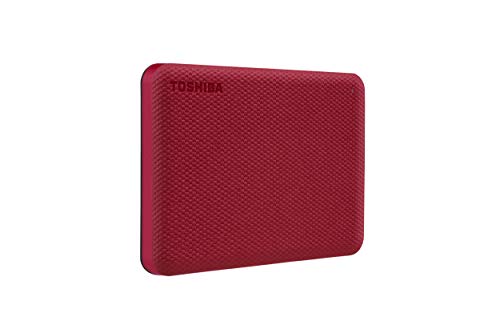
Toshiba Canvio Advance 2TB — Best Managed Alternative
The Canvio Advance is Toshiba’s answer to the My Passport, and understanding it as a deliberate alternative is the key to its place here. It adds the two things the Basics omits — backup software for scheduled copies and password protection for the contents — and wraps them in a textured shell offered in colours, the red of the verified listing among them, which matters more than it should: a drive you can identify at a glance in a drawer of black rectangles is a drive you will not accidentally format. For buyers who want the managed-drive feature set but prefer not to live inside WD’s software ecosystem, the Advance is the credible other door.
In use it splits the difference between its siblings in this guide. The backup software is functional rather than famous; the password protection covers the loss scenario adequately for personal and small-business files; and the drive itself keeps the class’s standard mechanical pace. The colour choice cuts both ways, charming on a tidy desk and conspicuous in a corporate meeting, and the textured finish earns its keep by refusing to show wear. Choose the Advance when its specific combination — features, colour, independence from the WD suite — matches your desk, and understand that you are trading the My Passport’s ransomware-aware backup polish for that combination.
- Capacity: 2TB, 2.5-inch portable mechanism, bus-powered
- Connection: USB 3.0, cable included
- Software: Toshiba backup software; password protection tool
- Form: textured enclosure in colour options (red on the verified listing)
- Compatibility: Windows ready; Mac use after reformat
Strengths
- Password protection and scheduled backups without entering WD’s ecosystem.
- The coloured, textured shell is identifiable at a glance and hides wear well.
- A genuine middle path between the bare Basics and the full My Passport package.
Trade-offs
- Its backup software is less polished and less protective than WD’s current suite.
- A bright colour is a matter of taste and setting; not every office wants a red drive.
- Password protection here is a software arrangement rather than the My Passport’s hardware encryption story.
Best for: buyers who want managed features and a drive they can spot across the room. Not suited for: those who need the strongest available encryption story for regulated or client-confidential work.
Samsung T7 Portable SSD — The SSD Reality Check (Prose Only)
This pick is not a hard drive, and it is in the guide precisely to make you pause. The Samsung T7 is a portable SSD of the same 2TB capacity, roughly the size of a stack of credit cards, with no moving parts to kill when it falls off a desk, and transfer speeds that make every hard drive in this article feel like it is moving through honey — copying a season of photos takes minutes where the spinning drives take the better part of an hour. It has its own password protection and a metal shell that doubles as a heat sink. If your 2TB drive will be a working drive — edited from, travelled with daily, plugged and unplugged a dozen times a week — the T7 is not a luxury alternative; it is the correct tool, and buying a hard drive instead is a false economy measured in your own hours.
So why does this guide still recommend five hard drives? Because for the other great use of portable storage — backup and bulk carrying — the hard drive’s arithmetic remains unbeatable: the same two terabytes for a fraction of the T7’s price, in a role where speed barely matters because backups run while you make coffee. The mature setup many buyers land on uses both: an SSD as the daily working companion, a hard drive as the cheap, capacious vault that receives the backups. We cover the T7 in prose because this is a hard-drive guide and its linked shelf belongs to hard drives — but a guide that hid the SSD comparison at 2TB, of all capacities, would be protecting its category instead of its readers.
- Capacity: 2TB solid-state, no moving parts
- Connection: USB-C, USB 3.2 Gen 2 class performance
- Security: password protection with AES 256-bit encryption
- Form: credit-card footprint metal enclosure, shock-resistant by design
- Status in this guide: prose-only — the SSD benchmark against the hard-drive shelf
Strengths
- Transfers finish in a small fraction of the time any drive above needs.
- No mechanism to destroy: drops that would kill a hard drive are a shrug for an SSD.
- Smaller and lighter than every hard drive in this guide while holding the same data.
Trade-offs
- It costs several times what the hard drives here cost for the same capacity.
- For pure backup duty, its speed advantage sits idle almost all of the time.
- It is not a hard drive — buyers specifically shopping this category for price should treat it as context, not a pick.
Best for: photographers, videographers and daily travellers who work directly from the drive. Not suited for: backup-only buyers, for whom its premium purchases speed they will never use.
Comparison table
| Drive | Type | Encryption | Backup software | Power | Choose it when |
|---|---|---|---|---|---|
| WD My Passport 2TB | Hard drive | Hardware AES, password | Yes, with ransomware defence | USB bus | The drive carries sensitive work and must protect itself |
| Seagate Portable 2TB | Hard drive | None | No — OS tools | USB bus | You want big-name plain storage for a mixed household |
| WD Elements Portable 2TB | Hard drive | None | No — OS tools | USB bus | You already have a backup routine and want the lowest fuss |
| Toshiba Canvio Basics 2TB | Hard drive | None | No — OS tools | USB bus | Budget decides, but the maker must still be a real one |
| Toshiba Canvio Advance 2TB | Hard drive | Password protection | Yes, Toshiba’s suite | USB bus | You want managed features outside the WD ecosystem |
| Samsung T7 2TB | SSD (prose) | Password, AES | No | USB bus | You will work from the drive daily and time matters |
Which questions decide a 2TB portable drive?
Will the drive be lost before it wears out?
Portable drives live dangerous lives: bags get left on trains, drives slip from pockets, and a two-terabyte box is small enough to vanish without a sound. That risk profile is why encryption is this category’s most consequential feature — more than any speed figure. If the drive will hold client work, financial records, or a photo library you would not want a stranger browsing, the My Passport’s hardware encryption or the Canvio Advance’s password protection converts a loss into an errand. If it will hold a game library and media copies, the plain drives’ lack of protection costs you nothing but re-downloading time. Answer the loss question honestly and half the table above eliminates itself.
Is 2TB the right size, or just the familiar one?
Two terabytes suits a laptop backup with version history, a working photo library, or a few dozen large games. It stops suiting you when the source material changes: shooting 4K video fills it in a season, and a household backing up three computers will find it tight within a couple of years. The discipline is to measure before buying — add up what you actually have, double it for history and growth, and see whether the answer is two terabytes or whether you are buying next year’s upgrade today at this year’s prices. Our neighbouring guides cover the 4TB and 5TB portables for exactly the readers whose arithmetic lands higher.
Why do all these drives feel the same speed?
Because underneath the badges they share a mechanism type: a 2.5-inch spinning disk reading through a head that physically moves, fed through USB. That architecture has a real-world ceiling for large sequential copies — roughly the hundred-to-hundred-and-twenty megabytes-per-second band — and every maker in this guide bumps against it. Small-file work is slower still, which is why working directly from a portable hard drive feels sluggish even when bulk copies seem fine. None of this makes these drives bad; it makes them backup and bulk devices. The reader who needs working speed already knows their section of this guide — it is the prose one about the SSD.
Does the brand on the box matter at this level?
More than the specification sheet suggests, and for reasons that have nothing to do with the mechanism. The three makers in this guide have all produced this class of drive for many years, which buys you predictable behaviour, support pages that answer real questions, warranty processes that exist in practice, and — with Seagate’s Rescue and WD’s software investment — ecosystems around the hardware. An unknown badge at a suspicious discount may use a perfectly decent mechanism, but it offers no track record to consult when something goes wrong at year two, and storage is the one category where the failure conversation matters more than the purchase conversation. Saving a small sum by leaving the established makers is the most expensive economy in this guide.
What about using one with a phone or tablet?
Modern phones and tablets with USB-C can often read a portable drive, but two cautions apply. Power is the first: a spinning drive draws more than many phones are willing to supply, and behaviour ranges from flawless to the drive clicking and refusing to mount. Filesystem is the second: a drive formatted for Windows may appear read-only or invisible to a mobile device. If phone access is a core part of your plan, test with your actual devices, keep the drive in a widely readable format, and accept that the SSD — sipping power and shockproof — is again the natural traveller. For laptop-centred use, none of this arises.
How do you make a portable drive last?
Carry it like the mechanical object it is. A hard drive’s platters and heads tolerate being off and still far better than being jolted while spinning. Unplug it, let it stop, then bag it — and give it a padded sleeve rather than letting it rattle against keys and chargers. The thirty seconds of patience at unplugging is the cheapest insurance in this entire guide.
Keep the cable honest. Most “failing drive” stories are failing cables: the short lead gets bent at the connector a thousand times, and the drive starts disconnecting mid-copy, which risks the very corruption the backup exists to prevent. Replace a suspect cable before condemning a drive, and never yank the connector sideways out of the port.
Eject properly, every time. The operating system’s eject exists because writes finish in the background after the progress bar vanishes. Pulling the cable during that window, repeatedly, is how filesystems on healthy drives become unreadable. Make ejection a reflex, the way saving a document is.
Set the protection up on the day the drive arrives. If you chose an encrypted model, the password ceremony belongs in the first hour, before the drive fills with material you would then have to move to protect. Record the password in your password manager at the same moment — not on a note, not in a file on the drive itself. Features enabled “later” have a way of remaining unenabled on the day the bag goes missing, and the whole premium of a managed drive is wasted by a setup that never happened.
Label the drive, physically and digitally. Rename the volume for its job and its owner, and put a small label on the shell with the same name and the month it entered service. Households accumulate identical black drives the way kitchens accumulate identical cables, and the day you must restore from the right one, under stress, is the day labels pay for themselves. The date matters too: a drive whose age you know is a drive you can retire on schedule rather than on suspicion.
Refresh the backup’s other half. A portable drive used as a backup target should itself be checked a few times a year: plug it in, confirm the latest backup completed, open a handful of files from different months. Drives that sit in drawers for a year and are trusted blindly are how people discover, on the worst possible day, that the copying stopped working months earlier.
What mistakes do buyers make at this capacity?
Paying for features they will never enable. The managed drives earn their premium only if the password gets set and the backup software gets scheduled. A My Passport used as a bare drag-and-drop volume is an Elements with a more expensive badge — decide which buyer you are before the checkout, not after.
Storing the backup with the machine. A portable drive that lives permanently in the laptop bag shares the bag’s fate: theft, loss and spilled coffee take both copies in one event. The drive should travel when you need it to travel and live somewhere else — a drawer at home, an office — the rest of the time.
Assuming the drive is the backup. One copy on a portable drive is not a backup of your laptop; it is a second single point of failure with a USB cable. The pattern that actually protects people is dull: computer, portable drive, and one more copy somewhere else entirely, even if that third copy is only the irreplaceable folders in cloud storage.
Judging by the box’s speed language. Interface labels describe the cable’s theoretical ceiling, not the spinning disk’s ability to feed it. Every hard drive here performs in the same real-world band, and choosing between them on interface wording alone is choosing on advertising rather than engineering.
Portable drive or cloud storage: which one actually protects you?
The two are usually presented as rivals, and for most households they are partners covering each other’s blind spots. A portable hard drive gives you two terabytes outright — no subscription, no upload wait, no dependence on a connection — and restoring a whole laptop from one takes an afternoon instead of a week of downloading. Its weakness is geography: it sits in your house, sharing your house’s risks, and it only holds what you remembered to copy. Cloud storage inverts every term of that bargain: a trickle of money forever, restores that crawl, but copies that happen continuously without your involvement and survive your house burning down. It also tops out awkwardly — two terabytes of cloud is a meaningful monthly bill, while two terabytes of portable drive is a single modest purchase.
The pattern that emerges from people who never lose data is boringly consistent: the portable drive carries the full backup, big and current, and the cloud carries the irreplaceable subset — documents, the photo library’s best years, work in progress — where its automatic, off-site nature matters most. Choosing only the drive leaves you exposed to the house-level disaster; choosing only the cloud leaves you paying rent on your own archive and dreading the restore. At 2TB the drive is cheap enough that the honest question is not drive or cloud, but which folders earn the cloud tier alongside it.
What should you know about cables, ports and adapters?
Every drive in this guide connects with a short USB cable ending, on the computer side, in the familiar rectangular USB-A plug on most listings — while the laptops many buyers own now offer only oval USB-C ports. An adapter or a replacement cable solves it for a few dollars, but buy the cable properly: a USB-C-to-Micro-B lead of decent quality, rather than a pocketful of mystery dongles, keeps the connection as reliable as the drive. Sloppy adapters are a leading cause of the disconnect-mid-copy fault that owners blame on drives, and at backup stakes a flaky connection is not a nuisance but a hazard, since an interrupted write is exactly how a good backup turns into a corrupted one.
Port speed, by contrast, barely matters here. Plugging one of these drives into a faster port does not make its spinning mechanism read any quicker, and plugging it into an older, slower USB 2.0 port — still found on televisions, older machines and some hubs — drops copies to a crawl that turns a twenty-minute backup into an overnight one. Know which of your machine’s ports are the modern ones; on many laptops they are not all equal, and the difference is measured in hours across a drive this size. A powered hub can also starve a bus-powered drive if several hungry devices share it, so for backup runs, plug the drive directly into the computer. These are dull details, and they decide more real-world outcomes than any specification printed on the boxes above.
What do you do when a portable drive starts misbehaving?
Work the cheap explanations first, in order. Change the cable — not wiggle it, change it — and try a different port, ideally on a different computer. A remarkable share of “dead drives” resurrect at this step, because cables fail silently and ports lose their manners. Listen while it runs: a healthy portable drive hums and whirs softly; a rhythmic clicking, a repeated spin-up-and-stop cycle, or total silence from a drive that used to make sound are each the mechanism reporting distress, and none of them improve with persistence.
If the drive mounts but files error or folders vanish, stop writing to it immediately — every new write risks overwriting the very data you hope to recover — and copy off what you can in order of irreplaceability, not convenience. If it does not mount at all and the contents matter beyond price, that is the moment for the maker’s support and, where the listing includes it, the rescue services mentioned in this guide; home remedies involving freezers and prayer belong to internet folklore, not to a drive holding your only copy of anything. And let the episode revise your system: whatever the outcome, the correct response to a scare is a second copy somewhere else, bought while the lesson is still vivid.
Three households, three different right answers
Consider the freelance designer whose laptop is the business. Her drive leaves the house daily, holds client work under deadline, and would be a genuine problem in a stranger’s hands. Her answer is the My Passport with its password set on day one and its backup schedule running nightly, plus a cloud folder for work in progress — the premium buys her the two failures she cannot afford: a leak and a loss. Nothing else in this guide serves her as well, and the plainer drives are not bargains to her at any price.
Consider the family archivist, digitising decades of photos and camcorder footage onto a home computer. His drive never leaves the desk drawer, its contents are copies of copies, and its job is to be the second home for a library that grows by the month. His answer is the Elements Portable or the Canvio Basics — whichever is cheaper that week — because every dollar not spent on unused encryption is a dollar toward the second drive he will buy next year for the off-site rotation. Features he will never enable are not value; capacity and a maker’s name he trusts are.
Consider the field photographer who fills cards all day and edits in hotel rooms. Her honest answer is the prose pick: the T7, because her drive is a working tool touched a dozen times a day, and the hard drives’ pace would tax every evening of a trip. She still owns one of the hard drives from this guide — it lives in her checked luggage as the trip’s backup vault, receiving a nightly copy from the SSD, cheap insurance in exactly the role spinning disks play best. Three buyers, one capacity, three correct answers: the guide’s table is a menu, and the right order depends on the life the drive will lead.
What do warranties and rescue services actually promise?
Read the warranty as two separate promises that marketing happily blurs. The first is replacement: if the drive dies within its term, the maker sends another drive. That promise is nearly universal here, and its value is the price of the hardware — real, but modest. The second promise, where it exists, is rescue: an attempt by a specialist lab to recover your data from the dead mechanism. Seagate builds a period of its Rescue service into several listings, including the Portable in this guide, and that promise is worth categorically more than replacement, because the data is the irreplaceable part. A replacement drive restores your capacity; a successful rescue restores your history.
Neither promise should change your behaviour while the drive is healthy. Warranties do not cover the drive you drop down the stairs in every case, rescue attempts do not always succeed, and a lab recovery that takes weeks is a poor substitute for a second copy that takes minutes to use. Register the drive when it arrives, keep the receipt somewhere findable, and know which of the two promises your model actually carries — then go back to the dull discipline that makes both promises unnecessary: two copies, in two places, checked a few times a year.
What does two terabytes actually hold?
Terabytes are abstract until they are translated into the things you own. Two terabytes is, in round and honest terms, several hundred thousand ordinary phone photos, or a few tens of thousands of RAW files from a serious camera. It is hundreds of hours of HD video, or a few dozen hours of 4K footage — the format makes a fifty-fold difference, which is why video shooters outgrow capacities that photographers find roomy for a decade. It is thirty to fifty modern large games, or a few hundred older ones. It is a music library so large that the limiting factor becomes your willingness to organise it. And for the backup role, the most useful translation of all: it is a typical laptop’s entire contents, four times over — which is to say, the current backup plus a deep history of earlier versions, the form in which backups actually save people.
Run your own translation before buying. The folders you care about have sizes your computer will happily report; add them, double the sum for growth and history, and look at the answer without optimism. If the result is comfortably under two terabytes, this guide is your shelf. If it lands near the line, remember that a backup drive wants headroom the way a suitcase wants it — a drive at ninety-five percent is a drive whose next backup fails at an inconvenient hour — and step up a size with a clear conscience.
Final Recommendation
Most buyers should take the WD My Passport 2TB: it is the only drive in the main field that treats loss and backup discipline as its own responsibilities, and for a portable device those are the risks that actually materialise. If your files are media and game copies rather than sensitive work, save the difference and take the Elements Portable or the Canvio Basics — the plain drives are not lesser products, they are narrower ones, and in the right role they are exactly right. The Canvio Advance stands by for readers who want the managed feature set in a different ecosystem and a shell they can spot in a drawer. And if, reading this, you have realised your drive will be worked from daily rather than backed up to, close the hard-drive question entirely and buy the SSD: two terabytes is precisely the capacity where that honest leap has become affordable, and no badge on a spinning disk will ever copy like one.
Frequently Asked Questions
Can a 2TB portable drive hold my whole laptop backup?
Almost certainly, with room for history. Most laptops ship with half a terabyte to a terabyte of internal storage, rarely full, so a 2TB external holds the current backup plus months of earlier versions — which is what you want, since the value of a backup is often the file as it was last month, not as it is today. Only media-heavy machines, with internal drives stuffed with video, outgrow 2TB quickly.
Do these drives work with games consoles?
Yes — both major console families accept USB hard drives for storing games, with the current generation restricting which titles can actually run from external mechanical storage versus merely live there. A plain drive like the Elements or Canvio Basics suits that duty well. Expect the console to reformat the drive for its own use, wiping anything on it, so dedicate the drive to the console rather than sharing it with your computer files.
How long will a portable hard drive survive?
Years of careful use is the honest answer, with the caveat that portable drives lead riskier lives than desk drives — their failures are as often from drops, cable damage and loss as from the mechanism wearing out. Treat any portable drive as a device with a finite, unpredictable life, keep its contents backed up elsewhere, and replace it at the first symptoms of strangeness rather than nursing it along.
What is the difference between the Elements and the My Passport, really?
The mechanism class and capacity are the same; everything else is the difference. The My Passport adds hardware encryption with password protection, backup software with ransomware-aware features, and a slightly more finished shell. The Elements is the bare volume at a lower price. You are not paying for storage in the gap between them — you are paying for protection and automation, which are either essential to you or worthless, depending on your habits.
Should I format the drive differently for Mac?
If the drive will live with a Mac, yes: reformatting to Apple’s filesystem gives you full compatibility with the Mac’s own backup system, which a Windows-formatted drive cannot offer. If the drive must shuttle between Mac and Windows machines, the compromise format readable by both is the practical choice, accepting that neither side’s backup software will treat it as a native. Decide based on where the drive will spend ninety percent of its life.
Why does my 2TB drive show less than 2TB free?
The same labelling arithmetic that affects every drive: makers count a terabyte as a trillion bytes, operating systems divide by a larger binary unit, and your new drive’s roughly 1.81 displayed terabytes are the full trillion-plus bytes it promised. Nothing is missing, nothing is faulty, and every brand in this guide shows the identical figure. Plan your library against the displayed number and the mystery never matters again.
Is a portable hard drive safe to carry in a checked suitcase?
It survives the trip more often than not, but checked luggage is the roughest environment a consumer device routinely meets — drops, conveyor machinery, temperature swings and the occasional inspection rummage. If the drive must fly, carry-on is kinder in every respect, and the data should exist elsewhere regardless, because the likelier checked-baggage disaster is the bag itself going missing with the drive inside it. Photographers who ship drives as backups of cards they also still hold are using the pattern correctly: the suitcase copy is the second copy, never the only one.
Can I use the same drive for backup and for carrying files around?
You can, and many people do, but understand the compromise you are accepting: every trip the drive takes is exposure the backup did not need, and every file you delete to make room while travelling is a small erosion of the backup’s completeness. The tidy arrangement is a dedicated backup drive that mostly stays home and a smaller, cheaper carrier for the files that genuinely travel. If budget forces one drive to do both, at least partition the roles mentally — a backup folder you never edit by hand, and a separate carrying folder for the transient material.
Related Guides
Need more room in the same pocketable shape? Our guides to the best 4tb portable hard drives and the best 5 terabyte hard drives cover the next sizes up, and the best 4 tb hard drives compares portable picks against their internal cousins for desktop and NAS duty.
Related guides
- Best Built PC: Six Prebuilt Gaming PCs Judged on Parts, Power and Upgrades
- Best 1440p 165Hz Monitors: One Native 165Hz Pick, Three 180Hz Upgrades, an Overclock Headline and a 160Hz Ultrawide
- Best Enterprise SATA SSDs: Endurance Classes, Power-Loss Protection and Fleet Sense
- Best 17.3 Inch Laptop Backpacks


