Our Top Picks
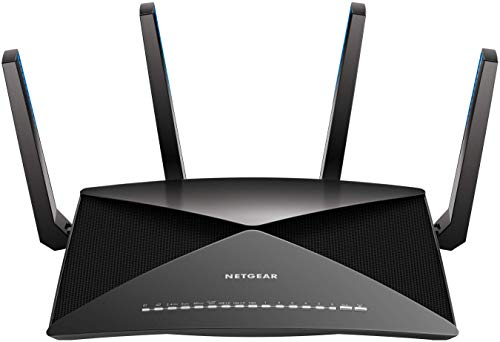 NETGEAR Nighthawk X10 AD7200 802.11ac/ad Quad-Stream WiFi RouterAD72008.81 x 6.61 x 2.91 inches9.7 poundsCheck on Amazon
 NETGEAR Nighthawk DOCSIS 3.1 Modem Router Combo CAX30Pack of 111.93 x 5.39 x 9.92 inchesCheck on Amazon


What's inside
- What Plex actually asks of a home network
- Direct play, direct stream, and transcoding: who does the work
- How much local bandwidth several 4K streams really need
- Why your internet speed is not the bottleneck at home
- Wi-Fi 6 and 6E for many simultaneous viewers
- MU-MIMO and OFDMA, translated into viewing terms
- Wired ports for the server: the least glamorous, most effective upgrade
- Mesh systems and why wired backhaul matters for Plex
- Quality of service and giving films a fair share
- Where the router, the server, and the storage should sit
- The client is often the problem: codecs, television apps, and quiet limits
- How to measure your own local network honestly
- Common mistakes Plex households make when buying a router
- Choosing the right tier for your household
- Watching away from home, and how it changes the sums
- A setup sequence that avoids the usual weekend of chaos
- Interference, neighbours, and the evening slowdown explained
- Check prices on Amazon
- Frequently asked questions
As an Amazon Associate I earn from qualifying purchases. This post may contain affiliate links at no extra cost to you.
Plex looks simple from the sofa. You press play on the television, a film stored on a computer or network drive across the house appears, and the evening begins. Underneath that calm surface, your home network is moving a large, continuous river of data from the server to the screen, and it must keep that river flowing evenly for hours, often while other people in the house are watching different films, playing games, or sitting in video calls. The router sits in the middle of all of it, which is why Plex households blame it so often — and why understanding what it actually does, and does not do, makes choosing one far easier.
This guide works through the networking side of Plex in the order problems actually occur. It explains the difference between direct play and transcoding, how much local bandwidth several high-quality streams really need, why your internet speed is mostly irrelevant inside the house, and which router features genuinely help: strong wired ports for the server, sensible wireless design for many simultaneous clients, wired backhaul for mesh systems, and placement that respects how radio waves move through real homes. It draws on official Plex documentation, published wireless standards, and manufacturer specifications, and it will also point honestly at the limits that live in your television or streaming stick rather than in the router at all.
What Plex actually asks of a home network
A Plex system has three parts. The server holds your library and organises it, running on a computer, a dedicated small machine, or a network storage device. The client is the app on a television, phone, tablet, streaming stick, or game console that asks for something to watch. Between them sits your local network, carrying the file from server to client. The router’s job in that arrangement is transportation. It does not store the film, it does not decode it, and in the most desirable mode of operation it does not transform it at all.
That transportation job sounds modest until you consider the cargo. A compressed stream from an online service is a carefully rationed trickle, engineered to survive mediocre connections. A high-quality file from your own library, especially a disc-quality remux, is a flood by comparison, with peaks well above its average rate whenever a scene becomes complex. The network must deliver not merely enough data on average but enough data at every moment, because the client keeps only a limited buffer ahead of the picture on screen. When delivery stumbles, the buffer empties and playback pauses, however impressive the average speed of the network looks on a test run at a quiet moment.
Plex also generates plenty of smaller traffic that rarely gets discussed. Library browsing pulls artwork and metadata. Several household members scanning their own libraries at once, a server indexing new additions, and a download running on a computer somewhere all share the same network. A router that handles the headline stream but manages competing traffic clumsily can still produce an evening of small irritations, which is why this guide treats the whole household’s behaviour as part of the Plex question.
Direct play, direct stream, and transcoding: who does the work
Direct play is the mode you want. The server sends the file exactly as it is stored, and the client decodes it using its own hardware. The server’s workload is light, the picture and sound arrive in their original quality, and the network carries the file at its natural rate. When people describe Plex as effortless, they are usually describing a household where direct play happens almost every time, whether they know the term or not.
Transcoding is the opposite arrangement. When the client cannot decode the stored format, or when a setting limits the rate it may receive, the server converts the media in real time: video may be re-encoded at a lower quality, audio converted to a simpler format, subtitles burned into the picture. That conversion is done by the server’s processor or graphics hardware. The router plays no part in it. A more expensive router cannot transcode faster, cannot rescue an underpowered server asked to convert several demanding streams at once, and cannot turn a struggling conversion into a smooth one. If your server is the bottleneck, money spent on networking is money spent in the wrong room.
Between the two sits direct stream, where the server repackages the media into a container the client accepts while leaving the video and audio themselves untouched. The workload stays modest and quality is preserved. The practical lesson across all three modes is consistent: the network’s responsibility is moving data at the rate the chosen mode requires. Direct play usually asks the network for the most data and the server for the least effort. Transcoding asks the server for heavy effort and the network for less data. Knowing which mode your household triggers, and why, tells you where an upgrade will actually help.
Why files trigger transcoding in the first place
Common triggers include a client that lacks support for the stored video or audio format, subtitles in a format the client can only accept burned into the image, a quality setting left at a low default in an app, and remote playback where the connection away from home genuinely cannot carry the original rate. Plex’s own documentation describes how the server reports the reason for a transcode in its dashboard, and reading that reason is the single most informative diagnostic step a Plex household can take. It separates network problems from format problems in one glance, and it prevents the classic error of replacing a router to fix a subtitle setting.
How much local bandwidth several 4K streams really need
Bandwidth figures for local streaming should be handled as ranges, because files differ enormously. A heavily compressed 4K file from a camera-friendly export may average a modest rate that almost any modern network shrugs off. A disc-quality remux of the same film can average several times that, with short peaks far higher during demanding scenes. Multiply by the number of people watching at once, add whatever else the household is doing, and the total the network must sustain becomes a serious figure — still well within a healthy modern local network, but far beyond what a weak wireless link at the far end of a house can offer.
The word sustain deserves emphasis. Streaming is not a sprint. A speed test measures a short burst under the conditions of that moment, often to a server chosen for flattery. A film asks for steady delivery for two hours, through scenes that vary, while the microwave runs, neighbours’ networks contend for the same airwaves, and someone upstairs starts a large download. Headroom is the honest answer to that variability. A network that can carry roughly twice what your busiest realistic evening demands will feel invisible. A network sized exactly to the average demand will fail precisely during the scenes everyone remembers.
Count your streams realistically rather than theatrically. Few households truly run four disc-quality films to four rooms at the same moment, but many run two, plus a tablet in the kitchen, plus background traffic. Plan for the busy evening you actually have a few times a month, with headroom above it, and you will buy the right tier of router. Plan for an imaginary cinema complex and you will overspend on wireless specifications while neglecting the wired links and placement that decide real performance.
Why your internet speed is not the bottleneck at home
Local playback does not use the internet connection in any meaningful way. The file travels from the server in your home to the client in your home, across your own network, without leaving the building. A household with a modest broadband package and a strong local network can enjoy flawless high-quality playback, while a household with the fastest fibre package in the street and a feeble router in a cupboard can buffer endlessly. The two networks — the wide connection to the world and the local web inside your walls — are different systems sharing one box, and Plex at home belongs almost entirely to the second.
This confusion persists because the same word, speed, gets used for both, and because upgrading the internet package is a single phone call while improving a local network takes thought. It also persists because online streaming services genuinely do depend on the internet link, so experience there teaches the wrong lesson for local libraries. If a film stored in the next room stutters, the fault lies somewhere between the server and the screen: the server’s own connection, the wireless link, interference, a struggling client, or a transcode the server cannot sustain. The fibre outside the house is innocent.
The exceptions are worth naming so the rule is clear. Watching your library from outside the home does use your internet connection, particularly its upload capacity, and often involves transcoding to fit that capacity. Initial metadata and artwork lookups use small amounts of internet data. Remote access configuration involves router settings such as port forwarding, which should be handled carefully and according to Plex’s official guidance. None of that changes the diagnosis for the family on the sofa: at home, think local first.
best routers for streaming and multiple devices
Wi-Fi 6 and 6E for many simultaneous viewers
Wi-Fi 6 was designed for density as much as for headline speed. Its scheduling features let a router organise transmissions to and from many clients in an orderly rotation instead of letting devices contend chaotically for airtime. In a house where one film flows to the living room, another to a bedroom, a call runs in the study, and phones and smart gadgets chatter in the background, that orderliness is the difference between a network that feels calm and one that feels haunted. Each stream gets its regular turn, and the small devices stop stealing disproportionate airtime with clumsy transmissions.
Wi-Fi 6E adds the 6 gigahertz band where regulations allow, which matters for Plex in a specific way: it is wide, comparatively empty spectrum, ideal for the short, demanding hop between a nearby client and the router or mesh node. A high-quality stream to a television in the same room as a node, carried on a clean band with little competition from neighbours, is about as good as wireless streaming gets. The limitation is range and client support. The higher band weakens faster through walls, and only newer clients can use it, so it rewards households whose key viewing devices are recent and reasonably close to a node.
Older wireless generations are not automatically disqualified. A well-placed Wi-Fi 5 router serving one or two moderate streams can perform beautifully, and plenty of households run Plex that way for years. The case for newer standards strengthens with the number of simultaneous viewers, the quality of the files, and the density of neighbouring networks competing for the older bands. Buy for the household you have and the one clearly arriving — a second viewing room, children growing into their own streams — rather than for an abstract future.
MU-MIMO and OFDMA, translated into viewing terms
MU-MIMO allows a router to communicate with several clients at the same time rather than in rapid sequence, using separate spatial streams. In viewing terms, the living room television and the bedroom tablet can each receive their film during the same interval instead of taking turns in a queue so fast you are promised not to notice it. The benefit is real when the clients support the feature and the router has streams to spare, and it grows with the number of active devices. It is not magic: the total capacity of the link is still shared, and a client with a weak signal consumes more of the router’s effort than a strong one.
OFDMA works at a different scale. It divides a wireless channel into smaller sub-units so that one transmission can carry data for several clients at once, which is particularly efficient for the small, frequent packets that modern households generate endlessly. For Plex, its contribution is indirect but valuable: by handling the background chatter of phones, speakers, and smart devices efficiently, it leaves the airwaves clearer for the large, steady flows that films require. A network’s streaming quality is often decided by how gracefully it treats everything that is not the stream.
Both features share a caveat that specification pages rarely stress. They help most when router and clients agree on them, and the slowest, oldest client on the network still has to be served somehow. A single ancient tablet streaming in a far room can occupy a surprising share of attention. This is not an argument for replacing every device. It is an argument for putting your demanding, regular viewing on capable clients, and letting the old tablet live a quieter life with lighter duties.
Wired ports for the server: the least glamorous, most effective upgrade
If this guide could issue one instruction, it would be to connect the Plex server to the router with a cable. The server is the one device that participates in every stream, often several at once. Feeding it through a wireless link means every film crosses the air twice — once from server to router, once from router to screen — doubling the wireless workload and adding a needless point of failure at the busiest position in the system. A cable removes the server from the wireless contest entirely and gives it the most stable link networking offers.
Gigabit ethernet comfortably carries several high-quality local streams at once, which is why it remains entirely adequate for most Plex households despite being an old standard. A 2.5-gigabit port earns its place when the same server also handles large file transfers, backups, or editing work across the network, when several disc-quality streams coincide with those jobs, or when the storage device and the router both support the faster link and the household genuinely moves big data around. The honest test is whether your server does more than serve films. If it does, the faster port stops being a luxury.
Count ports as carefully as you rate them. A router with four wired ports fills quickly once the server, a mesh node, a desktop, and a television or streaming box take their cables. A small unmanaged switch is an inexpensive, entirely respectable way to extend a wired network, and using one is not an admission of failure. What matters is that the heavy, fixed devices — server, storage, main television, desktop — sit on wired links where possible, reserving the wireless capacity for devices that genuinely move.
Choosing between router tiers often comes down to exactly this wired picture. Households whose server, storage, and main screen can all be cabled are asking the wireless system to do relatively light work, and a mid-range router serves them well. Households where nothing can be cabled are asking wireless to carry everything, and should spend accordingly on the wireless side instead. The right router is the one matched to your cabling reality, not the one with the longest feature list.
Mesh systems and why wired backhaul matters for Plex
Mesh systems solve the coverage problem that defeats single routers in larger, awkward, or solidly built homes: several nodes cooperate to blanket the house in one network. For Plex, coverage is not a cosmetic concern. A client at the edge of a single router’s range may connect at a small fraction of the rate available near the router, and a disc-quality stream that plays perfectly in one room can collapse in another purely because of distance and walls. Mesh, placed well, gives the far bedroom a fighting chance.
The catch is backhaul, the traffic between the nodes themselves. In a wireless-backhaul system, the nodes relay your film across the air as well as delivering it, so a stream to a distant room may cross the wireless network twice before it arrives, consuming capacity at each hop and depending on the node-to-node link being strong. Manufacturers mitigate this in various ways, including dedicated backhaul radios on some systems, but physics keeps a vote. Every wireless hop is a place for interference and distance to tax the stream.
Wired backhaul removes the tax. When nodes are connected to each other by ethernet cable, each node devotes its wireless capacity to serving nearby clients, and the journey between nodes travels at wired speed with wired reliability. For a Plex household in a larger home, this is frequently the single most valuable architectural decision available — more valuable than a higher wireless class on paper. If your home has network cabling, or a practical route for it, favour mesh systems that support wired backhaul and plan the node positions around the cable points. If cabling is impossible, place nodes so their links to each other are short and unobstructed, and accept that the farthest node’s streams have the least headroom.
Quality of service and giving films a fair share
Quality of service settings let a router prioritise some traffic over other traffic when demand exceeds capacity. Configured sensibly, they can protect a film from a household member’s enormous game download, or keep a work call intelligible while the library is busy. Modern implementations range from simple device priorities — the television matters most this evening — to adaptive systems that classify traffic automatically and adjust without manual rules.
For Plex specifically, expectations should stay measured. Most local streaming problems are capacity or signal problems, and prioritisation cannot create capacity that is not there. Where QoS earns its keep is on the boundary cases: the busy hour when everything happens at once, the upload that saturates the connection while someone watches from a relative’s house, the household where one person’s habits repeatedly collide with everyone else’s viewing. In those homes, a simple, maintained priority for the server and the main screens smooths the collisions noticeably.
Keep the configuration simple enough to remember. A long list of handcrafted rules written one frustrated evening will be forgotten, will outlive the devices it names, and will confuse whoever troubleshoots the network next. Prefer the router’s documented media or device priority features, apply them to the few devices that matter, and revisit them when the household changes. If your network has generous headroom, you may find QoS unnecessary entirely, which is the happiest outcome: prioritisation is a remedy for contention, and the best networks have little contention to remedy.
Where the router, the server, and the storage should sit
Placement is the cheapest performance available and the most commonly wasted. A router radiates most usefully from an open, central, somewhat elevated position. It performs worst in the places households instinctively hide it: inside a cabinet, behind the television, in a corner of the farthest room, beside large metal objects and aquariums and dense masonry. Every wall between router and screen taxes the signal, and some materials tax it brutally. Moving a router a few metres into the open can improve a problem room more than replacing the router outright.
The server and storage want a different logic. They should sit wherever they can be cabled to the router, run cool and undisturbed, and stay powered reliably. That is often not the living room, and it does not need to be: once the server is wired, its physical distance from the screens stops mattering, because the data travels by cable to the router and only then takes to the air for the final hop. Households tie themselves in knots trying to place the server near the television when the correct neighbour for the server is the router.
For mesh systems, place nodes roughly halfway between the main router and the area they serve, where they still enjoy a strong link back, rather than in the dead zone itself where they have nothing strong to relay. Then verify from the viewing seat, not from the doorway. Sit where people actually watch, run the library’s most demanding file at the household’s busy hour, and judge by that experience. Placement advice generalises poorly across building materials, so your own busiest-hour observation outranks any diagram, including the ones in the manufacturer’s booklet.
The client is often the problem: codecs, television apps, and quiet limits
Every Plex household eventually meets the evening where the network is healthy, the server is idle, and playback still stutters or the picture looks strangely diminished. Very often the culprit is the client. Television apps in particular vary widely in capability. The processor inside a television is chosen to sell a panel, not to decode every format in a enthusiast’s library, and the Plex app on that television inherits the television’s format support, its modest network hardware, and sometimes a wired port that is slower than its own wireless connection — a quirk documented on more than one model line.
Format support decides whether direct play is even possible. A client that cannot decode the audio format in your files forces the server to convert the audio, or the whole stream, every single time. A client that cannot handle your subtitle format forces burned-in subtitles and with them a full video transcode. None of this appears in the router’s statistics, because the router is faithfully delivering whatever the server sends. The household then shops for a faster router to solve a decoding limitation sitting inside the television, and the new router, blameless, changes nothing.
The practical remedy is to choose viewing clients as deliberately as you choose the router. A capable dedicated streaming device attached to the television frequently transforms a library’s behaviour: broader format support, a stronger network link, and an app that is maintained energetically. Before replacing networking hardware over a playback problem, check the Plex dashboard during the problem playback and read what mode is in use and why. If the answer involves transcoding, your investigation belongs with the client and the file, not with the router catalogue.
Band choice plays a quieter role in the same story. The 5 gigahertz band offers far more capacity for streaming and less range, while the 2.4 gigahertz band reaches further at much lower rates and is crowded with household gadgets. A television fixed to the slower band by habit or by a merged network name can underperform for reasons that look mysterious until someone checks which band it joined. Many households do well letting a modern router steer clients automatically, but for the main viewing devices it is worth confirming, once, that they are using the faster band when they sit within its comfortable range.
How to measure your own local network honestly
You do not need laboratory equipment to learn whether your local network is the problem. Start with the evidence Plex itself provides. During a troubled playback, open the server dashboard on another device and note the playback mode, whether a transcode is running and its stated reason, and whether the stream is described as local. That single screen divides the world of possible causes in half. A direct-play stream that still stalls points at delivery. A transcoding stream points at the server and the client that demanded the conversion.
Next, run a simple file-transfer or local throughput check between a computer wired to the router and the device or position in question, using the freely available tools that Plex’s community and documentation ecosystems commonly describe. The absolute number matters less than the comparison: the same check near the router and again from the viewing seat shows how much your walls are charging you. Repeat at a busy hour, because a network measured at dawn will lie to you about the evening. Write the figures down; memory edits them kindly.
Finally, change one variable at a time and re-observe. Cable the server if it was wireless. Move the node. Try the demanding file on a different client in the same seat. Each single change that removes the problem names the cause, and each cause has a known price to fix — most of them lower than a new router. Households that measure this way often discover their router was adequate and their layout was not, which is the cheapest happy ending in home networking.
A note on subtitles and audio settings
Two settings deserve a permanent place in your notebook because they masquerade as network faults so convincingly. Subtitle handling differs by client, and a format that one device displays natively can force another to demand a full transcode. Audio passthrough settings decide whether the client receives a rich soundtrack directly or asks the server to convert it. When a particular film stutters while others sail, compare its audio and subtitle formats against the smooth ones before suspecting the network. The pattern in the files usually confesses.
Common mistakes Plex households make when buying a router
The first mistake is shopping by internet thinking: comparing routers as though the fibre package decided local playback, then wondering why the expensive upgrade changed nothing for the library. The second is leaving the server on wireless while spending heavily on wireless specifications for the clients, doubling the airtime every film consumes. The third is hiding the new router in the same cupboard that defeated the old one, because the room looks tidier that way and the specification sheet cannot object.
The fourth mistake is ignoring the clients. A household can assemble an excellent network and still transcode nightly because the main television’s app cannot decode its files. The fifth is pursuing the highest wireless class while the home’s real constraint is a far bedroom that needed a mesh node, or a wired backhaul run, all along. The sixth is enabling every optimisation feature at once — band steering, prioritisation schemes, exotic modes — so that when something misbehaves, nobody can tell which change is responsible.
The seventh mistake is subtler: judging the new setup by a speed test instead of by the library. A router can post a glorious test figure to a nearby phone and still serve a distant television poorly. Judge by the busiest evening, the most demanding file, and the seat furthest from the router. That is the examination your household actually sits, several times a week.
Choosing the right tier for your household
A small home with a wired server, one main screen, and a second occasional stream needs reliability more than spectacle: a current dual-band router with gigabit ports, modern wireless standards, and a reputation for stable firmware will serve it for years. Spend the savings on cabling the server properly and, if the television’s app struggles, on a capable streaming device. That combination outperforms a flagship router feeding a weak client through a cupboard door.
A busy family home with several simultaneous viewers, a large library of high-quality files, and devices spread across floors should think in systems: a mesh setup with wired backhaul where achievable, a wired server connection with a faster port if the server doubles as household storage, and enough nodes that each viewing room sits comfortably inside coverage. The budget belongs in architecture — nodes, cables, placement — at least as much as in the headline wireless class.
A household building toward a serious media room, with a dedicated server, network storage, and several wired endpoints, can justify a router with faster wired ports and more processing headroom, provided the rest of the chain matches: switch, storage, and clients that can use the capacity. Networking rewards balance and punishes the single extravagant link. Before any purchase, list your server’s connection, your main clients and their format support, your rooms and their distances, and your busiest realistic evening. The right tier is the one that answers that list, and it is usually obvious once the list exists.
Watching away from home, and how it changes the sums
Everything so far has concerned the household on its own network, but Plex libraries travel. A parent in a hotel, a student in a new flat, or the family themselves on holiday may all reach the server across the internet, and that journey obeys different rules. Now the home internet connection’s upload capacity becomes the ceiling, because the server must send the film out of the house at least as fast as the viewer receives it. For a disc-quality file, that ceiling is often far below the file’s natural rate, which is why remote sessions so commonly involve transcoding down to a size the connection can carry.
The router’s role in remote viewing is real but narrow. It must hold a stable connection, handle the forwarding arrangement described in Plex’s official remote access guidance, and avoid collapsing when a remote stream coincides with the household’s own evening. Some households give the server a fixed local address so the forwarding arrangement survives reboots and address changes; the router’s documentation explains how reservations work on each model. What the router cannot do is enlarge the upload capacity the provider sells you. If remote viewing matters greatly, judge your connection and your server’s conversion strength first, and the router a distant third.
Security deserves a sentence of its own here, because opening any path into a home network should be a deliberate act. Follow the official guidance for remote access rather than improvising broader exposure of the server or other devices, keep the server software and the router firmware updated, and use strong, unique credentials on the accounts involved. Convenience arranged carelessly has a way of invoicing a household later, and a media library is not worth that invoice.
A setup sequence that avoids the usual weekend of chaos
When the new router arrives, resist the urge to change everything about the Plex household in one afternoon. Begin with the physical layer: place the router or the main mesh node in its intended open, central position, cable the server and storage to it, and connect the main television or its streaming device by cable if the room allows. Power everything in order, let the router settle, and only then begin joining wireless clients, starting with the viewing devices and leaving the smart gadgets for last.
Next, establish names and certainty. Give the server a stable local address through the router’s reservation feature so every client can always find it at the same place. Confirm each main client has joined the band and the node you expected. Open the library, choose the most demanding file you own, and play it in the main seat while watching the server dashboard: you are looking for direct play, a local connection, and a calm server. If that examination passes at a quiet hour, repeat it during the household’s genuinely busy hour before declaring victory, because the busy hour is the only examination that counts.
Then tune sparingly. If a download habit collides with viewing, apply the router’s simple device priority to the server and the main screen and observe for a week. If a far room struggles, adjust the node position before adjusting any setting, because placement fixes are permanent while setting fixes often trade one oddity for another. Write down what you changed and when. A short note in the server folder — router model, node positions, which devices are cabled, the date of the last check — will save a future household member, possibly a tired future you, from repeating this entire investigation from a blank start.
Keeping the system healthy across the year
Plex households drift. Libraries grow into larger files, children acquire their own viewing habits, a new console arrives with its own app and its own format quirks, and a firmware update quietly alters a network name or a steering behaviour. A light annual rhythm keeps the drift visible: confirm the server is still wired and addressed as recorded, glance at which clients transcode and why, check that the far room still passes the demanding-file examination, and retire or relocate any gadget that has become the network’s slowest regular burden. None of this requires new hardware. It requires only that the household occasionally looks at the system it depends on every evening, with the same mild attention it gives the car or the boiler.
There is a particular pleasure in a mature Plex setup that deserves naming, because it explains why households invest this effort at all. The library becomes a family institution: the film a parent loved at sixteen, queued for a teenager who pretends reluctance and stays to the end; the series everyone watches separately and discusses at breakfast; the concert recording that only exists because someone in the house cared enough to keep it well. The network’s triumph is to disappear beneath those moments entirely. Every cable run, every node nudged a metre to the left, every subtitle setting understood at last is in service of that disappearance — and when the room goes quiet and the opening scene lands without a single spinning circle, the infrastructure has done the finest work infrastructure can do, which is to be forgotten.
Interference, neighbours, and the evening slowdown explained
Many households notice a pattern that feels personal: the library behaves all day and falters after dinner. Nothing in the home changed at seven in the evening, but everything around it did. Neighbouring networks wake as families return, streaming, gaming, and calling all at once on the same handful of channels. Wireless spectrum in the older bands is a shared commons, and in dense housing the evening commons gets crowded. Your router cannot evict the neighbours, but its channel selection — automatic on most modern models, and worth leaving automatic unless you have evidence to the contrary — exists precisely to keep finding the least contested space as conditions shift.
Interference also lives inside the home, in sources nobody suspects because they are not networks at all. Microwave ovens leak energy into the 2.4 gigahertz band while they run, which is one reason a stream to a kitchen tablet can hiccup in exact sympathy with reheated soup. Older cordless devices, baby monitors, and poorly shielded cabling have all been documented troublemakers in support literature. The diagnostic habit that cuts through suspicion is correlation: note what else was happening at the moment of the stumble, twice or three times, and patterns emerge that no specification sheet could have predicted for your particular walls and appliances.
Construction deserves its own respect in this discussion. Foil-backed insulation, metal studwork, underfloor heating mats, large mirrors, and reinforced concrete each tax wireless signals in their own way, and two homes with identical floor plans on paper can behave like different species. This is why experienced installers talk about surveying rather than assuming, and why your own demanding-file examination, run from the actual viewing seat, outranks every generalisation in this guide. The map is not the territory; the armchair is the territory.
When one room will simply not cooperate
Occasionally a single room defeats every wireless remedy: the garden studio, the converted attic, the basement den behind two structural walls. Recognising that room early is a kindness to your budget. The honest solutions are wired ones — a network cable run, or powerline or coaxial adapters where the home’s wiring suits them, feeding either the client directly or a small node placed inside the stubborn room. Each alternative has its own variability and deserves the same busy-hour examination before being trusted. What does not help is a succession of ever more powerful routers installed in the same distant cupboard, each shouting into the same walls. Some problems are geography, and geography is answered by moving the road, not by enlarging the voice.
There is a budget lesson folded into that room. Households often spend in the order they notice problems — router first, then another router, then a premium mesh kit — when a modest router plus one deliberate wired run to the problem room would have cost less and performed better. Before any purchase, stand in your hardest room with your library’s hardest file in mind and decide how its data will travel. If the answer is a cable or a node inside the room, plan and price that answer. If the answer is hope, expect the room to keep its opinion.
A final word belongs to patience in diagnosis, because Plex problems love company. A household changes the router, the television app updates itself the same week, and a subtitle setting rides along with a library reorganisation — then credits or blames whichever change it noticed. The remedy is the discipline described earlier: one change, one observation, a written note. It feels slow on the first evening and miraculously fast by the third, because each settled question stays settled. Networks reward households that keep records and punish households that keep guesses, and the difference compounds across every film night that follows.
It is worth pausing on the difference between a network that tests well and a network that watches well, because conflating the two sends more money astray than any other misunderstanding in this subject. A test moves data briefly, in one direction, between two cooperative endpoints, usually with nothing else happening. A film night moves data for hours, in a pattern set by the file, while the household behaves like a household. Routers are marketed on the first kind of measurement because it produces a single heroic number. Households live in the second kind. When you read any specification, translate it mentally into the second world: not how fast, once, nearby, alone — but how steadily, for hours, at distance, in company. The models that serve Plex best are rarely the ones with the most heroic number. They are the ones whose design — ports, radios, scheduling, firmware steadiness — respects the length and company of a real evening.
Firmware steadiness deserves its sentence expanded, because it is the specification nobody can print in a table. A router whose software is updated regularly, whose manufacturer publishes intelligible release notes, and whose settings survive updates without drama will serve a media household better across five years than a marginally faster rival abandoned by its maker after launch season. Plex itself evolves, clients evolve, and the network underneath them must be maintained to keep the whole arrangement coherent. Before buying, spend ten minutes on the manufacturer’s support pages for the exact model: note the rhythm of recent updates and the clarity of the documentation for wired backhaul, address reservation, and port behaviour. That quiet research predicts your future weekends with uncomfortable accuracy.
And keep the whole endeavour in proportion. The aim was never a network worthy of a data centre; it was a family pressing play with confidence. Most households reach that confidence with a wired server, a sensibly placed modern router or a modest mesh pair, clients that can decode the library they are fed, and one evening of honest measurement from the armchair. Everything beyond that is refinement, to be added when a specific, observed problem asks for it by name. Buy for observed problems, in the order they actually limit you, and the system will grow in the shape of your household rather than in the shape of a catalogue — which is, in the end, the only shape that ever fits.
One small habit ties all of these threads together, and it costs nothing: keep a single page of notes for the media system, and update it whenever anything changes. Record the router model and where it sits, which node serves which room, the server’s reserved address, which devices are cabled, which clients direct play the library and which one still converts audio and why, and the date of the last busy-hour check. When a problem appears months later, that page turns a foggy recollection into a starting point, and it lets any adult in the household begin the investigation rather than waiting for the one person who set everything up. Systems that are written down get repaired; systems held in one memory get replaced, usually at the price of a new router that was never the problem. Your library took years to gather and deserves the modest paperwork that keeps it one press of a button away.
Keep that page somewhere the household can find it on a difficult evening — pinned inside the cupboard where the router pointedly no longer lives, or saved alongside the library itself — because a note that cannot be found at the moment of need is only a diary, and this system deserves working documents.
Check prices on Amazon
Live listings for the shortlist in this guide are pulled from Amazon below, so prices and availability are always current at the moment you look.




Frequently asked questions
Will a faster internet package improve Plex at home?
For local playback, essentially no. Films stored in your home travel across your local network only. A faster package helps when you watch your library from outside the home, and for the household’s other internet uses, but buffering on the sofa is a local problem with local causes.
Should the Plex server be wired or wireless?
Wired, whenever it is physically possible. The server takes part in every stream, and cabling it removes the busiest device from wireless contention and stops every film from crossing the air twice. This single change resolves a large share of household playback complaints.
How do I know if transcoding is my real problem?
Open the Plex server dashboard while the problem film is playing. It reports the playback mode and, for transcodes, the reason. If a conversion is running because of a format, subtitle, or quality setting, the remedy lies with the client, the file, or the setting — the router cannot convert media and a new one will not change that screen.
Is mesh or a single powerful router better for Plex?
It depends on the home’s size and construction. A single router placed centrally serves compact homes well. Spread-out or solidly built homes usually do better with mesh, especially with wired backhaul, because the far viewing seat needs a strong nearby node more than it needs a distant router shouting louder.
Do I need a 2.5-gigabit port for Plex?
Most households do not. Gigabit carries several high-quality local streams at once. The faster port earns its cost when the server also moves large files, backups, or work data around the network, or when many demanding streams regularly coincide with those jobs.
When a guide like this one helps you sort the network from the noise, a small share of what you spend can return to support it: this article contains affiliate links, and following one may earn a commission that goes toward the research and writing behind the guide, at no added cost to you and with no effect on the advice to cable your server before you cable anything else. May your next film night be remembered for the ending on the screen — the one the director planned, arriving frame after frame across a network nobody in the room had to think about once.