What's inside
- Key Takeaways
- Quick Picks
- How Did We Choose These Picks?
- What Does a Projection Mapping Rig Actually Ask of a Graphics Card?
- How Do the Six Stack Up for a Mapping Rig?
- How Do You Plan Outputs, Cables and Adapters for a Mapping Rig?
- Which Software Considerations Should Shape the Card Choice?
- What Mistakes Do Buyers Make When Choosing a Mapping Card?
- When Does One Card Stop Being Enough?
- How Do Permanent Installations and Touring Rigs Choose Differently?
- What Should a First-Time Mapping Buyer Budget Beyond the Card?
- How Do You Configure a Multi-Projector Canvas, Step by Step?
- What Resolution and Refresh Rate Do Projectors Actually Ask For?
- How Do the Three Makers’ Professional Ecosystems Differ?
- Final Recommendation
- Frequently Asked Questions
- Related Guides
As an Amazon Associate I earn from qualifying purchases. This post may contain affiliate links at no extra cost to you.
gizmoverdict.com is reader-supported. When you buy through links on our site, we may earn an affiliate commission.
Where to buy: All six cards below are drawn from this site’s verified product pool, and each links to its listing. They are professional multi-display cards first and foremost — the class of hardware that projection mapping rigs are actually built on.
Projection mapping breaks the assumptions of ordinary graphics card shopping, which is why the best graphics cards with multiple outputs for projection mapping are not gaming cards with extra ports but professional cards designed around a different job entirely. A mapping rig drives several projectors at once — two, four, six or more — and asks them to behave as one continuous canvas: edges blended where beams overlap, geometry warped so an image poured over a building facade, a stage set or a museum wall lands correctly on every uneven surface. The graphics card’s role in that system is not raw speed. It is output count, output consistency, synchronisation behaviour, and drivers that let software address many displays as a single, reliable surface, night after night, in front of an audience that notices a flicker.
That is why this list is drawn from the professional shelves: a Matrox card that states six outputs in its very name, NVIDIA’s Quadro and NVS lineage, its modern RTX A-series successor, and AMD’s Radeon Pro workstation line. These cards trade gaming frame rates for the things mapping actually consumes — many display outputs from one slot, professional drivers with multi-display management tools, frame-lock and synchronisation ecosystems on the lines that support them, and board designs built for continuous duty in media servers and installation PCs. A gaming card can improvise a two-projector show; a six-projector facade is where the professional class stops being a luxury and becomes the tool.
Read the picks against your projector count and your software. Media-server and mapping applications differ in how they want outputs organised — some want one large spanned surface, some address each projector independently and do the blending themselves — and the card families below serve those models differently. Matrox built its reputation on many-output cards and their management software. NVIDIA’s professional stack centres on its display management and synchronisation ecosystem. AMD’s Radeon Pro line offers strong multi-display value with workstation drivers. The right choice is the one whose outputs, drivers and physical format match the rig you are actually building, and this guide will keep returning to that match rather than to any abstract ranking.
Key Takeaways
- Projection mapping buys outputs, consistency and professional drivers — not gaming frame rates — and this list is drawn entirely from professional card families.
- The Matrox C680 is the output-count headline: a single card stating six outputs, built for multi-projector canvases.
- NVIDIA’s professional lines (NVS, Quadro, RTX A-series) bring the display-management and synchronisation ecosystem many media servers are built around.
- AMD’s Radeon Pro W5700 is the performance-leaning pick for rigs that also render or preview heavy content on the same machine.
- Confirm each card’s exact output types and counts from the maker’s specification, and plan cables and adapters as part of the purchase.
- Single-slot and low-profile professional cards exist for compact media servers — the RTX A400 is this list’s example.
Quick Picks
| Pick | Badge | Why it is here |
|---|---|---|
| Matrox Graphics C680-E2GBF | Most outputs, one card | A full-height PCIe x16 card stating six outputs in its name, from the maker that built its name on multi-display rigs. |
| PNY NVIDIA NVS 510 | Display-wall veteran | The NVS line’s multi-display specialist, supplied with DisplayPort accessories, for dependable many-screen driving. |
| NVIDIA Quadro P1000 | Proven mapping workhorse | A 4GB GDDR5 professional board from the Quadro line that media servers have relied on for years. |
| PNY NVIDIA RTX A400 | Compact modern pro | A 4GB GDDR6 professional card in single-slot, low-profile form for small media-server cases. |
| AMD Radeon Pro W5700 | Most workstation muscle | Radeon Pro workstation power for rigs that render previews and drive the show from the same machine. |
| PNY NVIDIA T1000 | Modern small-form pro | The T-series professional card for compact multi-display installations and control-room style rigs. |
How Did We Choose These Picks?
We chose from professional families only, and the reason is the job’s failure mode. A mapping installation fails publicly — a projector dropping out of a blend during a show, a spanned surface tearing because a consumer driver reorganised the displays after a reboot. Professional cards exist to make those failures rare: their drivers are validated for multi-display stability, their makers publish exact output configurations, and their management software treats many displays as one designed surface. Within that class we ranked by output ambition first — the C680’s six stated outputs lead the list — then by the balance of rendering capability, physical format and generation, so that rigs of different sizes each find a deliberate pick.
One more consideration shaped the final six: the difference between a card that can drive many displays once, in a demonstration, and a card that an installer would specify for a venue. Demonstration capability is cheap; specified-for-duty capability is documented — published simultaneous-display figures, professional driver branches with long support windows, board partners who answer institutional buyers’ questions. Every pick here clears that second bar, including the veteran NVS 510, whose documentation and service history are precisely its argument. A mapping rig is infrastructure that happens to make pictures, and it should be bought with infrastructure standards. None of them is a gaming recommendation, and their memory sizes — 2GB on the Matrox per its model code, 4GB on several NVIDIA picks — would look strange in a gaming guide. In mapping, the card’s memory serves framebuffers for many displays rather than game textures, and the professional architectures are designed around exactly that accounting. Judge these cards by outputs, drivers and duty cycle, and the specifications fall into place; judge them by gaming charts and you will misunderstand every one of them.
What Does a Projection Mapping Rig Actually Ask of a Graphics Card?
Begin with the canvas arithmetic. Each projector is a display the card must drive at the projector’s native resolution, continuously, in lockstep with its neighbours. A four-projector blend is four framebuffers, four output pipelines and one shared timeline. Where beams overlap, the mapping software dims and warps the overlapping edges so the join disappears — work done partly in the application, but dependent on the card presenting all outputs as a stable, synchronised whole. Add geometry correction for curved or irregular surfaces, content playback at show frame rates, and often a preview output for the operator, and the card’s real specification emerges: many outputs, presented consistently, for hours, without renegotiating the display arrangement because it felt like it.
Synchronisation is the second ask, and it separates casual multi-display use from installation work. When several projectors show one moving image, their frames must advance together; a card or system that lets outputs drift produces visible tearing across the blend zones, the projection equivalent of a lip-sync error. Professional ecosystems address this at the driver and, on supporting lines, hardware level. The third ask is operational: installations are configured once and expected to survive power cycles, staff changes and months of unattended duty. A card whose driver remembers the display topology exactly, every boot, is worth more to an installer than a faster card that improvises.
There is also a human ask that belongs in any honest account of this category: the operator’s confidence. A mapping show is run by a person, often alone, often in the dark, in front of an audience. Hardware that behaves predictably — that presents the same topology every boot, that answers its management software the same way in month twelve as in week one — gives that operator the calm to handle the things that genuinely vary, like a substituted projector or a late content change. Professional cards are, in this sense, confidence equipment as much as display equipment, and venues that have run both kinds rarely go back.
Finally, the rig around the card matters: a media server with the storage and CPU to feed the content, cabling rated for the distances between server and projectors, and signal distribution where runs are long. The graphics card is the heart of the output stage, but this guide’s advice is to spec it as part of that system — outputs matched to projectors, formats matched to cables, and headroom left in both, because a mapping rig at its absolute limit is a rig one warm evening away from a visible problem.

Matrox Graphics C680-E2GBF — Most outputs, one card
Matrox is the name projection people say first, and the C680 is why: the listing title describes a full-height PCIe x16 graphics card with six outputs — the highest count stated by any pick in this guide — from the company that spent decades making many-display cards its entire identity. For a mapping rig, one card driving six projectors is a architectural simplification with real consequences: one driver, one framebuffer strategy, one synchronisation domain, and a media server that needs only a single suitable slot. Facades, multi-wall museum pieces and stage sets with a half-dozen beams are this card’s home territory.
The trade-offs are the honest ones of a specialist. The C680’s memory and rendering design serve display driving rather than heavy 3D content creation, so a rig that also renders complex real-time scenes on the same machine should look at the Radeon Pro pick below or pair this card’s role carefully within the system. Matrox’s ecosystem is also its own world — its display management tools are powerful and purpose-built, and an operator should expect to learn them rather than transfer habits from gaming drivers. For the pure multi-output brief, though, nothing else in this list states its case so directly: six outputs, one card, from the maker that defined the category.
- Outputs: six-output design, per the listing title
- Form factor: full-height board, PCIe x16, per the listing title
- Memory: 2GB class, per the model designation in the listing title
- Maker: Matrox, multi-display specialist
- Role: display-driving and canvas management for multi-projector rigs
Strengths
- Six outputs from a single card simplifies the whole media server’s design.
- Matrox’s management software is built specifically for many-display canvases.
- A single synchronisation domain keeps blended edges behaving as one surface.
Trade-offs
- Rendering power is modest; heavy real-time 3D content is not its brief.
- Its software ecosystem is its own discipline, with a learning curve for new operators.
- Full-height format needs a media server case with room for it.
Best for: installations driving five or six projectors from one card, where output count and canvas management lead every other concern. Not suited for: a rig whose same machine must also render demanding real-time 3D content, where the W5700’s workstation muscle is the better allocation.
PNY NVIDIA NVS 510 — Display-wall veteran
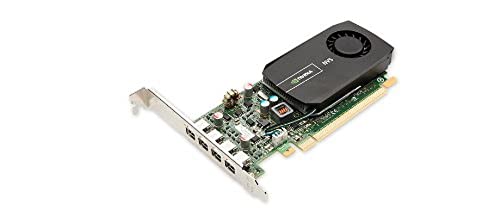
The NVS line was NVIDIA’s dedicated multi-display family — cards whose entire design brief was driving many screens dependably — and the NVS 510, supplied with DisplayPort accessories per its listing, is this guide’s representative of that lineage. Its natural home is the display wall and the multi-screen installation that behaves like one: the lobby canvas, the control environment, the exhibition wall where several outputs must present as one calm, synchronised surface for years. Mapping rigs built from proven display-wall hardware inherit that dependability, and the NVS 510’s long service record in commercial installations is its credential.
Age is its honest caveat. This is a veteran platform, and its rendering capability and memory belong to its era; a modern content-heavy show belongs on the newer picks. What it offers instead is the known-quantity argument in its purest form: professional multi-display drivers, DisplayPort-centric output design with the accessories to connect it, and a card whose behaviour in multi-screen configurations has been documented by a decade of commercial use. For a straightforward multi-projector or display-wall installation on a disciplined budget, where the content is playback and the priority is a surface that simply never misbehaves, the veteran earns its place on the list.
- Class: NVIDIA NVS multi-display professional card, per the listing title
- Supplied with: DisplayPort accessories, per the listing title
- Maker: PNY professional board
- Role: display walls and dependable multi-screen driving
- Generation: veteran platform — verify outputs and driver support for your software
Strengths
- A dedicated multi-display lineage with a long commercial service record.
- DisplayPort accessories in the box simplify the cabling start.
- Professional drivers tuned for many-screen stability above all else.
Trade-offs
- An older platform; rendering power and memory are of their era.
- Modern content-heavy shows are better served by the newer picks.
- Confirm current driver support for your mapping software before committing.
Best for: display-wall style installations and budget-disciplined multi-screen rigs playing back prepared content. Not suited for: a new high-resolution, content-heavy production, where the current-generation professional cards are the responsible choice.

NVIDIA Quadro P1000 — Proven mapping workhorse
The Quadro P1000 is the card a generation of media servers was built around, and its listing states the professional essentials plainly: a professional graphics board with 4GB of GDDR5 memory from NVIDIA’s Quadro line. In mapping terms that translates to a mature, well-documented multi-display platform whose behaviour in installation software is known territory — the drivers, the display management tools, and the card’s habits in spanned and independent-output configurations have been mapped by years of installers before you. For a venue that values a rig behaving exactly as expected on opening night, that maturity is not nostalgia; it is risk management.
The P1000’s tier is the small-to-mid installation: a few projectors, a blended wall, a control or preview display alongside. It will not pretend to the C680’s six-output ambition or the W5700’s rendering muscle, and it does not need to — most real mapping rigs in the world drive two to four projectors, and for those this class of Quadro is the proportionate tool. Confirm its exact output configuration and connector types from the board specification when planning cables, as professional boards of its era use compact connector formats that pair with the adapters in the box or specified for it. As a known quantity with professional drivers, it remains the list’s safest pair of hands.
- Class: NVIDIA Quadro professional graphics board, per the listing title
- Memory: 4GB GDDR5, per the listing title
- Role: multi-display driving for small-to-mid installations
- Drivers: NVIDIA professional driver stack with display management tools
- Outputs: confirm exact configuration and connector types from the board specification
Strengths
- A mature, thoroughly documented platform that installation software knows well.
- Professional drivers prioritise multi-display stability over gaming features.
- Proportionate tool for the two-to-four-projector rigs most venues actually run.
Trade-offs
- An older generation; rendering headroom is modest beside the W5700.
- Output count is mid-field, so large canvases belong to the Matrox pick.
- Connector and adapter planning needs care, as with most compact professional boards.
Best for: venues and installers who want a proven professional platform for a small-to-mid projector count. Not suited for: a six-projector canvas or a create-and-project workstation, which are the C680’s and W5700’s respective briefs.
PNY NVIDIA RTX A400 — Compact modern pro
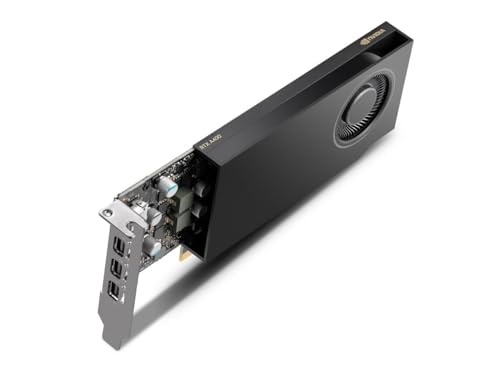
The RTX A400 answers the question compact media servers ask: how much professional multi-display capability fits in a single slot at low-profile height? PNY’s listing gives the shape of the answer — a professional card with 4GB of GDDR6 memory, single-slot and low-profile — and the generation matters as much as the size. The A-series is NVIDIA’s current professional naming, so this card brings the modern driver stack and display management of the present professional line into enclosures that the full-size picks cannot enter: slim rackmount servers, small-form-factor installation PCs, the playback box that lives inside the exhibit furniture itself.
For mapping, that format unlocks rigs the bigger cards cannot serve — a two-to-four-projector installation driven from a server the size of a paperback, a touring kit where the media PC travels in a flight case’s last spare unit of rack space. Its rendering tier is the playback tier, honestly stated: it drives displays professionally and plays content reliably, and it is not the card for building the content. GDDR6 memory and the current architecture keep its multi-display behaviour modern, and PNY’s role as NVIDIA’s professional board partner means the card arrives with the documentation and support posture installation work expects. Small, current and professional is a rare combination; this is the list’s example of it.
- Class: NVIDIA RTX professional graphics card (A-series), per the listing title
- Memory: 4GB GDDR6, per the listing title
- Form factor: single slot, low profile, per the listing title
- Maker: PNY professional board
- Role: multi-display driving in compact media servers
Strengths
- Current-generation professional drivers in a single-slot, low-profile board.
- Enables mapping rigs in enclosures no other pick here can enter.
- GDDR6 memory keeps multi-display framebuffer behaviour modern.
Trade-offs
- Playback-tier rendering; content creation belongs to the W5700’s class.
- Output count is sized for small-to-mid rigs, not six-projector canvases.
- Low-profile brackets and compact connectors need the usual cabling attention.
Best for: compact and rackmount media servers driving a small-to-mid projector count with current professional drivers. Not suited for: a large canvas or a rendering workstation, where its format’s virtues are irrelevant and its tier is outmatched.

AMD Radeon Pro W5700 — Most workstation muscle
The W5700 is the pick for the rig that does two jobs. As a Radeon Pro workstation card it carries genuine rendering and content-creation capability alongside its multi-display professional role, which suits the increasingly common installation pattern where the media server is also the machine that previews, adjusts and sometimes renders the show’s content. A design studio building a permanent installation, a theatre department that builds its media in the same room it performs it, an events company whose one powerful PC must be both workshop and stage — these are the W5700’s people, and for them a pure display-driving card would be half a tool.
Radeon Pro drivers bring AMD’s professional multi-display management to the arrangement, and the card’s workstation architecture gives it the framebuffer and compute headroom that content-heavy shows appreciate — high-resolution canvases, layered video, real-time elements mixed with playback. The practical checks are workstation checks: it is a full-size professional board, so case space and power provisioning follow its published specification, and its exact output configuration should be confirmed from AMD’s documentation for the installation’s cabling plan. Buy it when the machine’s job description includes making the pictures as well as projecting them.
- Class: AMD Radeon Pro workstation graphics card, per the listing title
- Role: multi-display professional driving plus content creation capability
- Drivers: Radeon Pro professional driver stack
- Format: full-size workstation board — verify dimensions and power from AMD’s specification
- Outputs: confirm the exact output set from AMD’s documentation for your cabling plan
Strengths
- The strongest rendering capability in this list for combined create-and-project rigs.
- Professional drivers and multi-display management from AMD’s workstation line.
- Headroom for high-resolution, layer-heavy canvases.
Trade-offs
- More card than a pure playback rig needs; display-only builds pay for unused muscle.
- Full-size workstation format and power provisioning exclude compact servers.
- Its output count should be verified against the rig’s projector count before committing.
Best for: studios and venues whose media server also creates, previews or renders the show’s content. Not suited for: a compact playback-only server, where the A400 or T1000 deliver the outputs without the workstation’s size and appetite.

PNY NVIDIA T1000 — Modern small-form pro
The T1000 occupies the professional middle ground that many real installations actually inhabit: a modern NVIDIA professional card in a compact board, aimed at multi-display work where the rig is permanent, the projector count is moderate, and the machine must disappear into the venue’s infrastructure. PNY’s T-series boards are the successors in spirit to the small Quadro cards that filled control rooms and signage servers, updated to a newer architecture and the current professional driver stack. For a mapping installation in a gallery, a house of worship, a corporate experience centre — places where the show runs daily and the operator is not a specialist — that combination of modern drivers and unglamorous reliability is the specification that matters.
Its capabilities sit deliberately between the A400 and the P1000’s generation: a contemporary professional platform with multi-display management, sized for compact systems, with rendering headroom appropriate to playback and light content duties. The buying discipline is the same as its siblings’: confirm the exact output configuration from PNY’s specification, plan the adapters and cables as part of the order, and size the projector count to the card rather than to ambition. Chosen that way, the T1000 is the list’s quiet professional — the card an installer specifies when the brief says “modern, compact, and never think about it again”.
- Class: NVIDIA T-series professional graphics card, per the listing title
- Maker: PNY professional board
- Role: compact multi-display installations and media servers
- Drivers: current NVIDIA professional driver stack
- Outputs: confirm exact configuration from PNY’s specification before cabling
Strengths
- Modern professional platform in a compact board for infrastructure-friendly installs.
- Current drivers with NVIDIA’s display management tooling.
- Well matched to daily-duty venue installations with moderate projector counts.
Trade-offs
- Rendering tier is playback-focused; heavy content creation is out of scope.
- Output ambition is mid-field beside the six-output Matrox.
- Exact outputs must be verified model by model, as with all professional boards here.
Best for: permanent venue installations with a moderate projector count in a compact server. Not suited for: maximum-output canvases or create-and-project workstations, which belong to the Matrox and Radeon Pro picks.
How Do the Six Stack Up for a Mapping Rig?
| Pick | Class | Format | Strongest suit |
|---|---|---|---|
| Matrox C680-E2GBF | Multi-output specialist | Full-height | Six stated outputs, one card |
| PNY NVIDIA NVS 510 | Multi-display veteran | Pro board with DP accessories | Display walls, dependable playback |
| NVIDIA Quadro P1000 | Professional | Compact pro board | Proven small-to-mid installations |
| PNY NVIDIA RTX A400 | Professional, current | Single-slot, low-profile | Compact modern media servers |
| AMD Radeon Pro W5700 | Workstation | Full-size | Create and project from one machine |
| PNY NVIDIA T1000 | Professional, current | Compact pro board | Daily-duty venue installs |
The organising question of the table is not “which is fastest” but “which failure are you designing against”. It is worth pausing on how completely that inverts ordinary graphics card advice, because buyers arriving from gaming guides often need a moment to recalibrate. In gaming, the card is the performance; here, the card is the plumbing — essential, exacting plumbing, on whose correctness the performance of projectors, software and content entirely depends, but plumbing nonetheless. Spend accordingly: on verified outputs, on drivers with a professional lineage, on the format your server can house, and let the frame-rate charts go unread with a clear conscience. If the fear is running out of outputs, the Matrox answers it. If the fear is a server too large for its home, the A400 answers it. If the fear is opening night itself, the proven platforms answer it. Projection mapping rewards the rig that was specified against its real risks, and every pick above is the best answer to a different one.
How Do You Plan Outputs, Cables and Adapters for a Mapping Rig?
Start from the projectors and work backwards. List each projector’s native resolution and its preferred input, then the operator or preview display, and count the total outputs the card must present — that count, plus one spare for the inevitable extra screen someone requests in rehearsal, is your real requirement. Match it against the exact output configuration of the card you are buying, taken from the maker’s specification rather than from a headline, because professional boards use compact connector formats whose adapters are part of the design: the card’s rated output count assumes the specified adapters, and the time to discover a missing one is at the planning desk, not on a ladder.
Power and cooling inside the server deserve the same planning paragraph, because multi-output duty is sustained duty. A card driving six displays through a six-hour show is working a long shift, and professional boards are built for it — but the server around them must still feed and ventilate them as their specifications require. Rackmount media servers in particular trade airflow for density, so confirm the card’s format against the chassis honestly: a full-height card in a low rack case is the mapping equivalent of the mini-ITX mistake, and it is made in exactly the same way, by reading the headline and skipping the dimensions. Projectors are rarely near the server, and long display runs need cables or extenders rated for the resolution and distance involved; a signal that is marginal at installation becomes a flicker during the show. Keep runs as short and as high-quality as the venue allows, test the full chain at the show’s actual resolution before the rig is closed up, and label everything. In installation work, the glamorous component is the card, but the component that decides whether the audience sees the show is very often a cable — plan accordingly and the professional cards in this guide will do the rest. Keep a written inventory of every run — its output, its projector, its cable type and its length — with the configuration backup, because the inventory written at installation is the document that turns a future fault from an evening of tracing into a five-minute swap.
Which Software Considerations Should Shape the Card Choice?
Mapping and media-server software is the card’s working partner, and compatibility runs in both directions. Some applications are built and validated primarily against one vendor’s professional driver stack; some exploit specific multi-display features, such as a vendor’s spanned-surface or mosaic mode, to present many projectors as one large desktop; others address outputs independently and handle blending entirely themselves, caring mostly about output count and stability. Before choosing a card, read your software’s own hardware guidance — the developers know which drivers their blending and synchronisation code trusts — and treat a card family’s absence from that guidance as information, not as a challenge.
Version discipline is the quiet companion of that choice. Mapping productions are built against a specific driver and software combination, tested until they are trustworthy, and then — wisely — frozen. Professional driver branches suit that discipline, because they move deliberately and document their changes; the installer’s rule is to update a working rig on a schedule of their own choosing, in a maintenance window, with the previous configuration backed up, and never on the afternoon of a show because an updater suggested it. The cards in this guide all live inside ecosystems that respect that rule, which is another of the unglamorous reasons they, and not faster hardware, run the world’s permanent installations. A spanned surface is simpler to author against, because the application sees one enormous canvas; independent outputs give the software finer control at the cost of more configuration. Professional driver tools from all three makers in this guide support organising outputs deliberately, and the installer’s job is to decide the model once, document it, and configure the card to match — because the configuration that survives is the one written down, and the rig that gets rebuilt from memory at midnight before a show is the rig that teaches this lesson permanently.
What Mistakes Do Buyers Make When Choosing a Mapping Card?
The first is shopping by gaming logic: choosing a fast consumer card with several ports and discovering that consumer drivers, consumer synchronisation behaviour and consumer assumptions about displays do not survive contact with a six-projector blend. The second is counting outputs from a headline instead of the specification — compact professional connectors, shared pipelines and per-card display limits mean the number that matters is the maker’s stated simultaneous-display figure for the exact model. The third is forgetting the operator: a rig with no output left for a preview or control display forces the technician to work blind or to steal a projector’s feed at the worst moment.
The fourth mistake is under-planning power and space in the server. Professional cards range from the A400’s single-slot modesty to full-size workstation boards, and a media server chosen before the card inherits whichever constraint hurts more. And the fifth is skipping the full-chain rehearsal: every output, every cable, every projector, at show resolution, before the audience exists. Mapping is a performance discipline wearing a technical costume, and its cardinal rule is that nothing is tested until it has been tested together, at full scale, in the room.
When Does One Card Stop Being Enough?
Every rig in this guide’s imagination runs from one card, and most real rigs do too, but the boundary is worth knowing. A single card stops being enough when the projector count outgrows its simultaneous-display figure, when the canvas resolution multiplies beyond what one card’s pipelines serve comfortably, or when the show’s design separates into independent surfaces that are better run as their own systems — a main facade and a lobby wall, for instance, with different content and different schedules. Beyond that boundary, installations scale by adding servers or by moving to distribution hardware that splits and extends signals, and the professional cards here remain the right output stage inside each of those servers.
The practical lesson is to buy for the show you have plus the growth you can name. A venue whose second phase is already designed — two more projectors on the side walls next year — should count those outputs today and choose the card that covers the finished rig, because replacing the output stage mid-project costs more than the difference between cards. A venue whose growth is a rumour should buy for the current show and keep the server’s second slot and the budget’s contingency in reserve. Projection programmes fail from overreach in both directions: rigs specified for imaginary futures, and rigs with no headroom for the one extra screen that every real production eventually requests.
How Do Permanent Installations and Touring Rigs Choose Differently?
A permanent installation optimises for the decade: the card is configured once, the topology is documented, and the winning traits are driver stability, a maker’s support horizon, and behaviour across ten thousand power cycles. That is the world the proven platforms in this list — the P1000’s maturity, the NVS 510’s service record, the current professional stacks in the A400 and T1000 — were built for, and it is why venues forgive an older card its modest rendering tier. The installation’s enemy is not slowness; it is surprise, and every choice in a permanent rig is a small insurance policy against it.
A touring rig optimises for the weekend: it is assembled in unfamiliar rooms, driven hard for three nights, and packed into a truck. There, physical format and resilience move up the ranking — a compact card in a shock-mounted rack case, outputs that survive repeated connection cycles, a configuration that can be rebuilt quickly when a projector is substituted at soundcheck. The A400’s single-slot modesty and the T1000’s compact professionalism suit that life, and the operator’s documentation matters even more than in a permanent install, because the person rebuilding the rig at midnight may not be the person who designed it. Same cards, different virtues — the show’s logistics decide which ones lead.
What Should a First-Time Mapping Buyer Budget Beyond the Card?
The card is the heart of the output stage, but a first mapping budget that ends at the card is a budget that ends before the show. Cables and adapters rated for the actual runs come next, and they are not the place for economy: the difference between a certified cable and a hopeful one is measured in whether the far projector flickers during the performance. Signal extension for long runs, a media server with storage fast enough to feed the content at show resolution, and the mapping software licence itself all belong in the same spreadsheet as the graphics card, because the system performs at the level of its weakest funded component.
Then come the unglamorous reserves that separate productions from anecdotes: a spare cable for every run type, a spare adapter set, a documented configuration file backed up somewhere that is not the server, and rehearsal time in the actual venue at the actual resolution. None of these appear in a graphics card listing, and all of them decide whether the card you chose gets to demonstrate why you chose it. Buy the card with the system around it in view, and the professional hardware in this guide will repay the planning every single night the beams light up.
How Do You Configure a Multi-Projector Canvas, Step by Step?
Begin with the projectors themselves, before the card is asked to do anything clever. Set each projector to its native resolution, disable any automatic keystone or scaling the projector wants to apply, and position the beams so the physical overlaps are generous and even — software blending forgives many things, but it cannot invent overlap that the rigging did not provide. Connect one projector at a time and confirm the card and driver see each new display exactly as intended; a topology built one verified step at a time never has to be debugged as a six-screen mystery.
Next, decide the canvas model with your software’s guidance in hand. If the application wants a spanned surface, use the professional driver tools to arrange the outputs into that single desktop, in the physical order the projectors occupy in the room, and write the arrangement down. If the application addresses outputs independently, resist the spanned mode entirely and let the software own the geometry. Then build the blend: overlaps calibrated in the software, brightness matched across projectors — the oldest lamp in the set sets the ceiling for all of them — and geometry warped onto the real surface with the audience’s viewpoint, not the ladder’s, as the judge.
Finish with the disciplines that make it a rig rather than a demo. Save and back up the complete configuration outside the server. Reboot the whole system and confirm the topology returns exactly as designed, because that reboot is the show’s first performance and it should happen in rehearsal. Run the full content at full resolution for longer than the show lasts. And label the cables at both ends with the output and projector they serve, in words a substitute technician can follow at midnight. A mapping rig configured this way stops being a fragile arrangement and becomes infrastructure — which is the entire ambition of the professional cards this guide is built around.
What Resolution and Refresh Rate Do Projectors Actually Ask For?
Less exotic than gamers expect, and more sustained. Installation projectors typically run at their native panel resolution — commonly 1080p or WUXGA class in venue work, higher in premium installations — at standard refresh rates, for hours without a break. The card’s burden is therefore not peak speed but multiplication: that unremarkable signal, produced four or six times simultaneously, in synchronisation, indefinitely. This is why professional cards with modest gaming credentials run the world’s facades while flagship gaming cards stay home — the specification that matters is parallel consistency, and it does not appear on a gaming box.
Content resolution planning follows from the canvas, not from any single projector. A blended canvas’s total pixel count is the sum of its projectors minus the overlaps, and the media server’s storage, playback decode and the card’s framebuffers all serve that total. Buyers speccing a first rig consistently underestimate the content side of this arithmetic — the show file that plays beautifully on a workstation monitor is a different weight of data when it is a six-projector canvas at full rate. The professional cards here are sized for that arithmetic by design; the buyer’s job is to do the sum honestly before the premiere, not during it.
How Do the Three Makers’ Professional Ecosystems Differ?
Matrox’s ecosystem is the specialist’s: a company whose software and hardware exist for multi-display canvases and little else, which shows in management tools that think in walls and surfaces rather than in individual monitors. An installer whose work is wall after wall will find that focus liberating, and the C680’s six outputs are its emblem. The learning investment is real but narrow — you learn one vendor’s way of arranging displays, and it serves every rig you build on their cards.
NVIDIA’s professional ecosystem is the establishment’s: the broadest presence in media-server software validation, display management tooling that spans the NVS, Quadro, T-series and RTX A-series generations represented in this list, and a synchronisation story that installation software has leaned on for years. Choosing within it is mostly choosing a generation and a format — veteran NVS, proven Quadro, current T and A-series — with the comfort that the software world has already made the same choice many times. AMD’s Radeon Pro ecosystem is the challenger’s: workstation cards whose rendering capability per card is the list’s strongest in the W5700, professional drivers, and multi-display management that suits studios standardising on AMD for both creation and output. None of the three is a wrong door; they open onto different workshops, and the software you run is the best guide to which workshop is yours.
Final Recommendation
Count your projectors, then choose the professional family whose outputs and drivers fit that count and your software. Take the Matrox C680 when the canvas is wide and one card should carry it; the NVS 510 when a display-wall veteran’s dependability suits a disciplined budget; the Quadro P1000 for a proven mid-size installation; the RTX A400 when the server must be small and current; the Radeon Pro W5700 when the same machine must also make the content; and the T1000 for a modern daily-duty venue rig. A projection mapping rig succeeds in the planning, long before the first beam lights the wall — and the right card is the one whose specification you verified against the show you are actually staging. Do the output arithmetic, read your software’s guidance, test the whole chain at full scale in the room, and the unglamorous professional hardware in this list will do the thing it was built to do: disappear, completely, behind the image it exists to serve — which is the highest compliment any component of a show can earn. The audience should leave talking about the building, the wall, the image that moved across a surface that should not have been able to hold it — never about the hardware, and least of all about the card. That disappearance is designed, not accidental: it is what the outputs, the drivers and the planning in this guide were all purchased to produce, one verified specification at a time, from the first output counted on paper to the last cable labelled in the dark behind the server, where every reliable installation quietly begins and ends, and where the next one will be built by whoever reads the labels.
Frequently Asked Questions
Can I use a gaming graphics card for projection mapping?
For a small experiment with one or two projectors, often yes. For a real installation, the professional cards in this guide exist because gaming cards are optimised for a different job: their drivers prioritise game performance over multi-display topology stability, and they lack the professional display-management ecosystem installers rely on. The larger and more public the show, the more the professional class earns its place.
How many outputs do I need for a four-projector blend?
At least five in practice: one per projector, plus an operator or preview display so the technician is not working blind. That arithmetic is why this guide keeps recommending a spare output in every plan, and why cards should be chosen on their simultaneous-display figure from the maker’s specification rather than on the number of physical sockets alone.
What does edge blending require from the graphics card?
Blending itself is performed by the mapping software, which warps and dims the overlapping regions between neighbouring projectors. The card’s contribution is presenting all outputs as a stable, synchronised set so the software’s calculations stay valid — consistent topology across reboots, synchronised frame presentation, and professional drivers that treat the multi-display arrangement as a designed surface rather than a coincidence.
Which pick suits a compact or rackmount media server?
The PNY NVIDIA RTX A400, whose single-slot, low-profile format and current professional drivers were designed for exactly that enclosure class. The T1000 is the alternative where a compact but not low-profile board fits. Both keep the rig’s projector count in the small-to-mid range, which matches the servers they can physically inhabit.
Do I need the same card for a display wall as for projection mapping?
The families overlap heavily, because both jobs are multi-display driving with professional drivers. The NVS 510 in this list comes directly from the display-wall world. The difference is emphasis: mapping adds synchronisation and blending demands across projectors, while walls emphasise spanned-surface management across panels. A card chosen with your specific emphasis in mind — and verified against your software’s guidance — serves either role well.
How should I verify a professional card’s output count before buying?
Read the maker’s specification for the exact model and look for the stated maximum simultaneous displays, the connector types, and any adapters the configuration assumes. Then map that against your projector list plus an operator display. If the numbers only work without the spare output, choose the next card up — installations grow, and the rehearsal-week request for one more screen is a tradition no rig escapes.
Can one PC run two separate mapping surfaces at once?
Yes, provided the card’s output count and the software’s licensing and architecture support it — two independent surfaces are simply two groups of outputs with different content timelines. The discipline is headroom: each surface consumes framebuffer, decode capacity and operator attention, and a server running two shows has no spare of any of them when something misbehaves. Many venues therefore prefer a modest server per surface, built on the compact professional cards in this guide, over one heroic machine whose bad evening darkens two rooms at once.
How long do professional cards like these stay supported?
Professional lines are supported on longer horizons than consumer cards, because their customers are institutions that standardise on a platform for years — that longevity is part of what the professional premium buys, alongside the drivers and the validation. It is also why this guide is comfortable including a veteran like the NVS 510 for playback duties while steering new content-heavy productions toward the current A-series and T-series cards: support horizons should be matched to the show’s own expected lifespan, and a five-year installation deserves a card whose drivers will age alongside it.
Related Guides
Multi-display thinking leads to a few neighbouring questions in our other roundups: the Photoshop and Premiere graphics card picks cover the content-creation side of an installation studio’s desk, our guide to graphics cards for Ryzen 7 5800X builds helps if the media server is being built around that processor, and the mini-ITX graphics card roundup suits the smallest playback enclosures.
Related guides
- Best 1440p 165Hz Monitors: One Native 165Hz Pick, Three 180Hz Upgrades, an Overclock Headline and a 160Hz Ultrawide
- Best 13×19 Professional Printers
- Best 3rd Party MacBook Chargers: 96W-Class Alternatives, the 100W Cable Rule, and the Apple Benchmark
- Best Built PC: Six Prebuilt Gaming PCs Judged on Parts, Power and Upgrades


