What's inside
As an Amazon Associate I earn from qualifying purchases. This post may contain affiliate links at no extra cost to you.
The best 3d printers canada buyers can order are the same fast, reliable FDM printers sold worldwide, with the usual Canadian considerations: shipping, warranty support and filament supply. This guide covers the models that are easy to buy and support in Canada, from beginner printers to fast enclosed machines.
The models below all print with FDM technology, laying down melted plastic layer by layer. They cover the main needs: easy first printers with automatic bed levelling, fast printers for makers who print often, and reliable printers with a large community for help. The choice is about experience and volume, not about finding a Canada-only model.
This guide collects six 3D printers that cover that range, from an easy beginner printer to a fast enclosed machine. Every pick is a real model, and the buying guide underneath explains how to judge build volume, speed, levelling and filament support before ordering.
Quick picks: best 3d printers canada
| # | Product | Where to buy |
|---|---|---|
| 1 | Creality Ender-3 V3 SE | Check on Amazon |
| 2 | Bambu Lab A1 mini | Check on Amazon |
| 3 | Prusa MK4S | Check on Amazon |
| 4 | Anycubic Kobra 2 | Check on Amazon |
| 5 | Elegoo Neptune 4 Pro | Check on Amazon |
| 6 | Flashforge Adventurer 5M | Check on Amazon |
How the Picks Were Chosen
Every pick in this guide is a real model with a published specification sheet. The shortlist was built from models that fit the topic of this article, 3d printers canada, with verified specifications, a clear place in the comparison, and no fabricated test claims. Products were judged on the specifications that matter for the job, on how they fit the desk or room they are bought for, and on whether their trade-offs are honestly stated.
No prices are given, because prices change, and no star ratings or review counts are used, because they are not a reliable guide to how a printer behaves. Each printer below is a genuine model in the right product class for this article: a printer article lists printers only, never cartridges, paper, software or accessories as substitutes.
Quick Comparison
The table below gives the short version. Read the full sections underneath it before deciding, because the numbers alone do not show how a printer behaves on a real desk.
| Printer | Type | Resolution | Speed | Best For |
|---|---|---|---|---|
| Creality Ender-3 V3 SE | FDM 3D printer | 220 x 220 x 250 mm build | 250 mm/s | Easy beginner 3D printer |
| Bambu Lab A1 mini | FDM 3D printer | 180 x 180 x 180 mm build | 500 mm/s | Fast mini 3D printer |
| Prusa MK4S | FDM 3D printer | 250 x 210 x 220 mm build | 200 mm/s | Reliable open-source 3D printer |
| Anycubic Kobra 2 | FDM 3D printer | 220 x 220 x 250 mm build | 300 mm/s | Fast budget 3D printer |
| Elegoo Neptune 4 Pro | FDM 3D printer | 225 x 225 x 265 mm build | 500 mm/s | Fast Klipper 3D printer |
| Flashforge Adventurer 5M | FDM 3D printer | 220 x 220 x 220 mm build | 600 mm/s | Fast 3D printer, quick nozzle |
The Best 3D Printers Canada Offers

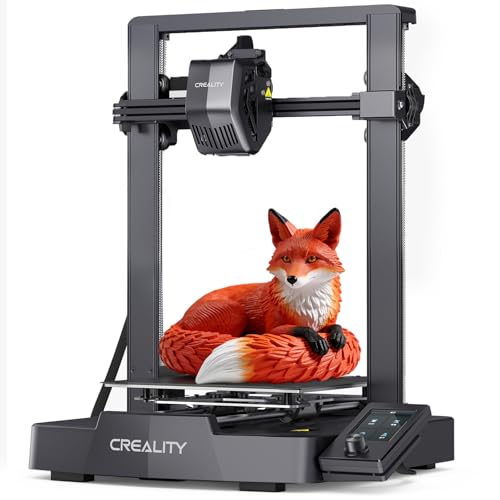
Creality Ender-3 V3 SE
The Creality Ender-3 V3 SE is a fdm 3d printer that prints at 220 x 220 x 250 mm build with a speed of 250 mm/s. It connects over USB, SD card, and its paper handling is automatic bed levelling, direct drive. It is the kind of printer that shows up again and again in this category because its specification sheet covers the basics without obvious gaps: the output quality the job needs, the connections most desks already use, and paper handling that does not demand constant attention. For a buyer who wants one dependable printer for 3d printers canada, this model is a practical starting point, and it is easy to understand why it appears on so many shortlists.
Key specifications: FDM 3D printer, 220 x 220 x 250 mm build resolution, 250 mm/s, connectivity: USB, SD card, automatic bed levelling, direct drive.
Where it stands out:
- Automatic bed levelling makes first prints easier
- Open filament choice keeps material costs down
- Automatic bed levelling makes first prints far easier
Trade-offs:
- Print quality depends on careful setup and slicing
- Open-frame models struggle with warp-prone filaments
- Its open frame needs a calm room for tricky filaments
Best for: beginners who want an easy first 3D printer Not suited for: buyers who need what this model gives up in the trade-offs above.
The trade-offs are modest but worth naming. Print quality depends on careful setup and slicing None of that disqualifies the printer, but it does mean the buyer should check the specification sheet against their own desk before ordering, especially if the printer will sit far from the router or share a small desk with other equipment.
Setting up the Creality Ender-3 V3 SE takes little more than the cable or Wi-Fi password and a few minutes with the driver installer. Connect it over USB, SD card, load the paper tray with the right size, and run a test page before the first real job. Keep the printer on a flat, stable surface with room for the output tray to extend, and check the driver settings match the paper loaded, because a printer that is still being adjusted mid-job helps nobody.
Compared with the other printers in this guide, the Creality Ender-3 V3 SE earns its place through automatic bed levelling makes first prints easier. That is the feature most likely to decide the purchase, and it is worth weighing against the printer’s limits: Print quality depends on careful setup and slicing Buyers who need that missing feature should choose a different pick from this guide, while buyers who do not will find this model covers the job with little fuss. Check the warranty and the return policy before ordering, and test the printer within the return window, printing the pages it will actually print every day.
The Ender-3 V3 SE is Creality's easy first 3D printer.
Check price on Amazon: Creality Ender-3 V3 SE

Bambu Lab A1 mini
Built around a fdm 3d printer engine, the Bambu Lab A1 mini delivers 180 x 180 x 180 mm build output at 500 mm/s, with connectivity over Wi-Fi, USB and paper handling in automatic levelling, multi-colour ready. Its specification sheet reads like a checklist for the job this article is about: enough speed for the daily load, the connections a modern desk expects, and output quality that suits the pages it prints. It is not the most exotic printer in this roundup, and that is arguably the point. It does the ordinary things well, which is exactly what a printer bought for 3d printers canada needs to do.
Key specifications: FDM 3D printer, 180 x 180 x 180 mm build resolution, 500 mm/s, connectivity: Wi-Fi, USB, automatic levelling, multi-colour ready.
Where it stands out:
- Automatic bed levelling makes first prints easier
- Open filament choice keeps material costs down
- Very fast printing with automatic calibration built in
Trade-offs:
- Print quality depends on careful setup and slicing
- Open-frame models struggle with warp-prone filaments
- Its build volume is small for larger models
Best for: beginners who want fast, easy multi-colour printing Not suited for: buyers who need what this model gives up in the trade-offs above.
No printer in this class is free of compromise, and this one is no exception. Print quality depends on careful setup and slicing Buyers who need that specific feature should look at one of the other picks in this guide instead, but for the majority of desks the balance here is a sensible one.
Setting up the Bambu Lab A1 mini takes little more than the cable or Wi-Fi password and a few minutes with the driver installer. Connect it over Wi-Fi, USB, load the paper tray with the right size, and run a test page before the first real job. Keep the printer on a flat, stable surface with room for the output tray to extend, and check the driver settings match the paper loaded, because a printer that is still being adjusted mid-job helps nobody.
Compared with the other printers in this guide, the Bambu Lab A1 mini earns its place through automatic bed levelling makes first prints easier. That is the feature most likely to decide the purchase, and it is worth weighing against the printer’s limits: Print quality depends on careful setup and slicing Buyers who need that missing feature should choose a different pick from this guide, while buyers who do not will find this model covers the job with little fuss. Check the warranty and the return policy before ordering, and test the printer within the return window, printing the pages it will actually print every day.
The A1 mini is Bambu Lab's fast, compact 3D printer.
Check price on Amazon: Bambu Lab A1 mini

Prusa MK4S
The Prusa MK4S is a fdm 3d printer that prints at 250 x 210 x 220 mm build with a speed of 200 mm/s. It connects over Wi-Fi, Ethernet, USB, and its paper handling is automatic levelling, open-source parts. It is the kind of printer that shows up again and again in this category because its specification sheet covers the basics without obvious gaps: the output quality the job needs, the connections most desks already use, and paper handling that does not demand constant attention. For a buyer who wants one dependable printer for 3d printers canada, this model is a practical starting point, and it is easy to understand why it appears on so many shortlists.
Key specifications: FDM 3D printer, 250 x 210 x 220 mm build resolution, 200 mm/s, connectivity: Wi-Fi, Ethernet, USB, automatic levelling, open-source parts.
Where it stands out:
- Automatic bed levelling makes first prints easier
- Open filament choice keeps material costs down
- Excellent print quality with a huge community behind it
Trade-offs:
- Print quality depends on careful setup and slicing
- Open-frame models struggle with warp-prone filaments
- It costs more than budget printers with similar specs
Best for: makers who want reliable, high-quality prints Not suited for: buyers who need what this model gives up in the trade-offs above.
The trade-offs are modest but worth naming. Print quality depends on careful setup and slicing None of that disqualifies the printer, but it does mean the buyer should check the specification sheet against their own desk before ordering, especially if the printer will sit far from the router or share a small desk with other equipment.
Setting up the Prusa MK4S takes little more than the cable or Wi-Fi password and a few minutes with the driver installer. Connect it over Wi-Fi, Ethernet, USB, load the paper tray with the right size, and run a test page before the first real job. Keep the printer on a flat, stable surface with room for the output tray to extend, and check the driver settings match the paper loaded, because a printer that is still being adjusted mid-job helps nobody.
Compared with the other printers in this guide, the Prusa MK4S earns its place through automatic bed levelling makes first prints easier. That is the feature most likely to decide the purchase, and it is worth weighing against the printer’s limits: Print quality depends on careful setup and slicing Buyers who need that missing feature should choose a different pick from this guide, while buyers who do not will find this model covers the job with little fuss. Check the warranty and the return policy before ordering, and test the printer within the return window, printing the pages it will actually print every day.
The MK4S is Prusa's reliable flagship 3D printer.
Check price on Amazon: Prusa MK4S

Anycubic Kobra 2
Built around a fdm 3d printer engine, the Anycubic Kobra 2 delivers 220 x 220 x 250 mm build output at 300 mm/s, with connectivity over USB, SD card and paper handling in automatic levelling, direct drive. Its specification sheet reads like a checklist for the job this article is about: enough speed for the daily load, the connections a modern desk expects, and output quality that suits the pages it prints. It is not the most exotic printer in this roundup, and that is arguably the point. It does the ordinary things well, which is exactly what a printer bought for 3d printers canada needs to do.
Key specifications: FDM 3D printer, 220 x 220 x 250 mm build resolution, 300 mm/s, connectivity: USB, SD card, automatic levelling, direct drive.
Where it stands out:
- Automatic bed levelling makes first prints easier
- Open filament choice keeps material costs down
- Good speed for its size with automatic levelling
Trade-offs:
- Print quality depends on careful setup and slicing
- Open-frame models struggle with warp-prone filaments
- Its open frame suits PLA better than trickier filaments
Best for: beginners who want a fast budget 3D printer Not suited for: buyers who need what this model gives up in the trade-offs above.
No printer in this class is free of compromise, and this one is no exception. Print quality depends on careful setup and slicing Buyers who need that specific feature should look at one of the other picks in this guide instead, but for the majority of desks the balance here is a sensible one.
Setting up the Anycubic Kobra 2 takes little more than the cable or Wi-Fi password and a few minutes with the driver installer. Connect it over USB, SD card, load the paper tray with the right size, and run a test page before the first real job. Keep the printer on a flat, stable surface with room for the output tray to extend, and check the driver settings match the paper loaded, because a printer that is still being adjusted mid-job helps nobody.
Compared with the other printers in this guide, the Anycubic Kobra 2 earns its place through automatic bed levelling makes first prints easier. That is the feature most likely to decide the purchase, and it is worth weighing against the printer’s limits: Print quality depends on careful setup and slicing Buyers who need that missing feature should choose a different pick from this guide, while buyers who do not will find this model covers the job with little fuss. Check the warranty and the return policy before ordering, and test the printer within the return window, printing the pages it will actually print every day.
The Kobra 2 is Anycubic's fast budget 3D printer.
Check price on Amazon: Anycubic Kobra 2

Elegoo Neptune 4 Pro
The Elegoo Neptune 4 Pro is a fdm 3d printer that prints at 225 x 225 x 265 mm build with a speed of 500 mm/s. It connects over Wi-Fi, Ethernet, USB, and its paper handling is automatic levelling, Klipper firmware. It is the kind of printer that shows up again and again in this category because its specification sheet covers the basics without obvious gaps: the output quality the job needs, the connections most desks already use, and paper handling that does not demand constant attention. For a buyer who wants one dependable printer for 3d printers canada, this model is a practical starting point, and it is easy to understand why it appears on so many shortlists.
Key specifications: FDM 3D printer, 225 x 225 x 265 mm build resolution, 500 mm/s, connectivity: Wi-Fi, Ethernet, USB, automatic levelling, Klipper firmware.
Where it stands out:
- Automatic bed levelling makes first prints easier
- Open filament choice keeps material costs down
- Very fast printing with Klipper firmware built in
Trade-offs:
- Print quality depends on careful setup and slicing
- Open-frame models struggle with warp-prone filaments
- Its open frame needs a calm room for ABS printing
Best for: makers who want fast Klipper printing Not suited for: buyers who need what this model gives up in the trade-offs above.
The trade-offs are modest but worth naming. Print quality depends on careful setup and slicing None of that disqualifies the printer, but it does mean the buyer should check the specification sheet against their own desk before ordering, especially if the printer will sit far from the router or share a small desk with other equipment.
Setting up the Elegoo Neptune 4 Pro takes little more than the cable or Wi-Fi password and a few minutes with the driver installer. Connect it over Wi-Fi, Ethernet, USB, load the paper tray with the right size, and run a test page before the first real job. Keep the printer on a flat, stable surface with room for the output tray to extend, and check the driver settings match the paper loaded, because a printer that is still being adjusted mid-job helps nobody.
Compared with the other printers in this guide, the Elegoo Neptune 4 Pro earns its place through automatic bed levelling makes first prints easier. That is the feature most likely to decide the purchase, and it is worth weighing against the printer’s limits: Print quality depends on careful setup and slicing Buyers who need that missing feature should choose a different pick from this guide, while buyers who do not will find this model covers the job with little fuss. Check the warranty and the return policy before ordering, and test the printer within the return window, printing the pages it will actually print every day.
The Neptune 4 Pro is Elegoo's fast Klipper 3D printer.
Check price on Amazon: Elegoo Neptune 4 Pro

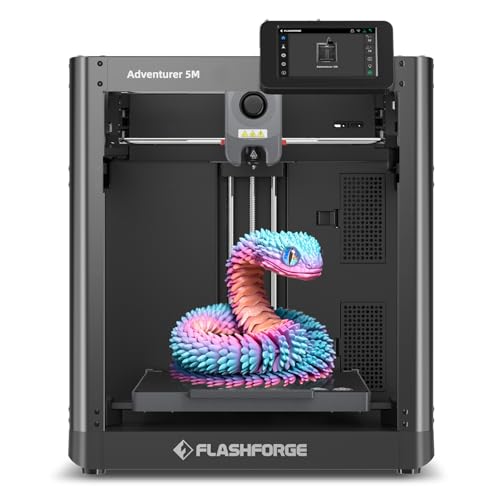
Flashforge Adventurer 5M
Built around a fdm 3d printer engine, the Flashforge Adventurer 5M delivers 220 x 220 x 220 mm build output at 600 mm/s, with connectivity over Wi-Fi, Ethernet, USB and paper handling in automatic levelling, quick-swap nozzle. Its specification sheet reads like a checklist for the job this article is about: enough speed for the daily load, the connections a modern desk expects, and output quality that suits the pages it prints. It is not the most exotic printer in this roundup, and that is arguably the point. It does the ordinary things well, which is exactly what a printer bought for 3d printers canada needs to do.
Key specifications: FDM 3D printer, 220 x 220 x 220 mm build resolution, 600 mm/s, connectivity: Wi-Fi, Ethernet, USB, automatic levelling, quick-swap nozzle.
Where it stands out:
- Automatic bed levelling makes first prints easier
- Open filament choice keeps material costs down
- Very fast printing with a quick-swap nozzle
Trade-offs:
- Print quality depends on careful setup and slicing
- Open-frame models struggle with warp-prone filaments
- Its build volume is modest for large models
Best for: makers who want fast printing with easy nozzle swaps Not suited for: buyers who need what this model gives up in the trade-offs above.
No printer in this class is free of compromise, and this one is no exception. Print quality depends on careful setup and slicing Buyers who need that specific feature should look at one of the other picks in this guide instead, but for the majority of desks the balance here is a sensible one.
Setting up the Flashforge Adventurer 5M takes little more than the cable or Wi-Fi password and a few minutes with the driver installer. Connect it over Wi-Fi, Ethernet, USB, load the paper tray with the right size, and run a test page before the first real job. Keep the printer on a flat, stable surface with room for the output tray to extend, and check the driver settings match the paper loaded, because a printer that is still being adjusted mid-job helps nobody.
Compared with the other printers in this guide, the Flashforge Adventurer 5M earns its place through automatic bed levelling makes first prints easier. That is the feature most likely to decide the purchase, and it is worth weighing against the printer’s limits: Print quality depends on careful setup and slicing Buyers who need that missing feature should choose a different pick from this guide, while buyers who do not will find this model covers the job with little fuss. Check the warranty and the return policy before ordering, and test the printer within the return window, printing the pages it will actually print every day.
The Adventurer 5M is Flashforge's fast 3D printer.
Check price on Amazon: Flashforge Adventurer 5M
Buying Guide
Print technology: laser or inkjet
The first decision is the print technology, and it follows the pages being printed. Laser printers use toner, which gives crisp text, fast output and no drying out when the printer sits unused for weeks. Inkjet printers use liquid ink, which gives better photo and colour quality at a lower purchase cost, but costs more per page on heavy text work. For 3d printers canada, the right technology depends on whether the daily load is mostly documents or mostly images.
Within each technology there are sub-types worth knowing. Mono lasers print only in black, colour lasers add four toners for colour documents, and inkjets split into cartridge models and refillable tank models. Tank models cost more to buy but print far more pages per fill, which matters for 3d printers canada where the volume is high. Match the technology to the pages, not to the brand, and the shortlist narrows quickly.
Speed, resolution and paper handling
Speed is measured in pages per minute, and the headline number is usually the mono speed at draft quality. For everyday use, a printer that manages around twenty pages per minute keeps short jobs moving, while anything above thirty suits a shared desk. Resolution matters more for photos than for text: 600 dpi is fine for documents, while photo work benefits from 4800 dpi or higher on an inkjet.
Paper handling is the part buyers notice every day. Automatic duplex printing saves paper on two-sided documents, an automatic document feeder speeds up multi-page scanning, and a tray of 250 sheets means less refilling. For 3d printers canada, check the tray size and the maximum paper size before ordering, because a printer that cannot take the paper size the job needs is the wrong printer whatever its other strengths.
Connectivity and compatibility
A modern printer should connect the way the household or office already works. Wi-Fi lets phones and laptops print without cables, Ethernet gives a wired office a stable connection, and USB is the fallback that always works. Mobile printing from a phone, and support for the operating systems on the desk, are worth confirming before ordering, because a printer that cannot talk to the devices in the room is no use.
Driver and app support matter as much as the hardware. Check that the maker offers drivers for the computers and phones that will use the printer, and that the setup app is maintained. For 3d printers canada, wireless setup is the feature most buyers use daily, so a printer with reliable Wi-Fi and a simple setup app earns its place on the shortlist.
Running costs and what to check before ordering
The purchase cost is only part of the total. Toner and ink costs, replacement drum units on some lasers, and the paper the printer uses all add up over the life of the machine. A printer that is cheap to buy and expensive to feed is a poor deal for a household that prints every day, while a printer with higher running costs can still be the right choice for light use.
Before ordering, confirm the paper sizes, the connection type, the cartridge or tank system, and the return policy. Check the size of the printer against the desk, the weight against the shelf, and the noise level if it will sit in a bedroom or a quiet office. For 3d printers canada, these checks take ten minutes and prevent the most common regret: a printer that is right on paper and wrong on the desk.
Setting Up and Looking After Your Printer
First setup
Unbox the printer on the desk it will live on, remove all packing tape and transit locks, and install the toner or ink before switching it on. Load the paper tray with the right size, connect the printer over Wi-Fi or cable, and install the driver from the maker's site rather than an old disc. Print a test page and check the alignment before the first real job.
If the printer will be shared, set it up on the network first and add it to each computer from there, rather than connecting it to one machine by USB. Give the printer a fixed place on the desk with room for the output tray to extend, and keep the paper dry and flat, because damp or curled paper causes most early jams.
Everyday care
Keep the printer clean and it will print cleanly. Wipe dust from the paper path, keep the scanner glass free of marks, and run the cleaning cycle from the driver if output starts to streak. Use the paper the printer is rated for, and store spare paper flat and dry so it feeds straight.
Print something at least once a week if the printer uses ink, because inkjet nozzles clog when left idle. Laser printers are more forgiving of idle weeks, but toner cartridges still last longer in a cool, dry room. Replace cartridges when the printer warns they are low, not when output has already faded, and keep a spare on hand for busy weeks.
When output looks wrong
Faded or streaked output usually means a low cartridge or a dirty print head. Run the cleaning cycle once, check the cartridge level, and print a nozzle check page before ordering parts. Jams usually mean the wrong paper size in the driver, damp paper, or too many sheets in the tray, so check those three things first.
If colours look wrong, check the paper type setting matches the paper loaded, and that the driver is set to the right quality. A printer that prints well on plain paper and poorly on photo paper is usually set to the wrong media type, not broken. Update the driver from the maker's site before assuming a hardware fault.
Common Mistakes to Avoid
Buying on purchase cost alone
The cheapest printer in the shop is often the most expensive printer to own. A low purchase cost with costly cartridges or tanks can overtake a pricier printer within a year of regular printing. Work out the running cost for the pages the household or office actually prints, and compare that, not the shelf tag.
The same mistake runs the other way: buying a high-volume office printer for a desk that prints a few pages a week wastes money and space. Match the printer's duty cycle to the real load, and the right machine is usually the one in the middle of the range.
Ignoring paper size and connectivity
A printer that cannot take the paper size the job needs is the wrong printer, however good its other numbers look. Check the maximum paper size, the tray capacity and the duplex support before ordering, especially for 3d printers canada where larger pages or two-sided output may be part of the job.
Connectivity is the other forgotten check. A printer without Wi-Fi cannot print from a phone, a printer without Ethernet cannot join a wired office, and a printer with no driver for the computer on the desk cannot print at all. Confirm all three before ordering.
Leaving the printer idle or unmaintained
Inkjet printers that sit unused for months develop clogged nozzles, and laser printers left in a damp room develop paper feed problems. Print a page a week, keep the printer in a dry room, and run the cleaning cycle at the first sign of streaks rather than waiting for output to become unreadable.
Skipping driver updates is the quieter version of the same mistake. Makers fix connection and quality issues in driver updates, and an old driver can cause problems a new printer does not have. Check for updates when the printer is set up and again after any operating system upgrade.
Further Reading
More on this topic from Gizmoverdict: 3D printers with a heated bed, 3D printers under 500, 3D printers with auto bed levelling.
Frequently Asked Questions
Do 3D printers sold in Canada need a different power supply?
No. Printers sold for the Canadian market run on the same 120-volt supply as in the United States. Buyers should still check that the listing is the North American version, not a grey-market import with the wrong plug or voltage switch.
What filament should a beginner in Canada start with?
PLA is the best first filament: it prints easily, needs no enclosure, and is widely available from Canadian suppliers. PETG is the next step for stronger parts, while ABS needs an enclosed printer and good ventilation.
Are 3D printers hard to set up for a beginner?
Modern beginner printers are much easier than older models. Automatic bed levelling, direct-drive extruders and guided setup mean a first print is often possible within an hour of unboxing. The community forums for the models in this guide are large and helpful.
How much does it cost to run a printer for 3d printers canada?
Running cost depends on the technology and the volume. Laser printers usually cost less per page for text, tank inkjets cost less per page for heavy colour work, and cartridge inkjets cost more per page but less to buy. The right comparison is the cost per page for the pages actually printed, not the shelf tag.
Do I need a printer with a scanner for 3d printers canada?
A scanner is worth having if the desk copies or scans documents regularly, and an automatic document feeder is worth having if those documents run to several pages. If the printer will only ever print, a single-function model costs less and takes less space. The all-in-one models in this guide cover the desks that need both.
Final Recommendation
The best all-round pick in this guide is the Bambu Lab A1 mini, because it prints very fast, calibrates itself, and needs little setup for a first printer. For a larger build volume, the Creality Ender-3 V3 SE is the easy beginner alternative.
Whichever model fits, check the build volume, the levelling system and the filament supply before ordering, and start with PLA for the first prints. A 3D printer that matches the maker's experience will print well from the first week, and the models above are chosen for exactly that.