Our Top Picks


What's inside
- What photographers actually need from a laptop
- How to choose the right laptop for your photography
- ASUS ProArt PX13 2-in-1: largest stated memory and storage
- ASUS ProArt PZ13 2-in-1: the detachable creator option
- Apple 2026 MacBook Air 13-inch with M5: the compact Apple option
- Dell XPS 14 Premium DA14250: the larger OLED touch display
- ASUS Vivobook S16 (2026): the big-screen OLED option
- Comparing the five laptops side by side
- Questions photographers ask before buying
- Check prices on Amazon
- Closing thoughts and disclosure
As an Amazon Associate I earn from qualifying purchases. This post may contain affiliate links at no extra cost to you.
Photography places specific demands on a laptop. A photographer moves large image files from a camera to a computer, reviews them closely enough to judge focus and exposure, organises them into folders or catalogues, adjusts colour and contrast, and exports finished versions for clients, printers, or online sharing. Every step leans on the display, the memory, the storage, and the connections. If any one area is weak, the workflow slows or becomes less trustworthy, even if the laptop feels fine for email and browsing.
This guide frames its subject honestly. Laptops sold for photography are, in practice, creator-class laptops. The ProArt line from ASUS is that maker’s creator range, and one listing here describes its machine directly as a Creator Laptop. The others earn their place not because their titles promise a camera-specific tool, but because the display, memory, and storage figures stated in their own titles suit photography work. A sharp screen helps you judge an image. Generous memory helps a catalogue and an editor run together. Roomy storage helps a growing library stay organised.
Our research started with the listings themselves. We checked the exact titles supplied for each model, noted only the specifications those titles state, and built every product section around those facts. Where a title does not state something, this guide does not invent it. You will not find colour-gamut percentages, benchmark scores, or port lists that a listing never mentioned. That restraint matters, because photographers often buy on a single display claim or a single port, and guessing at those details would steer readers toward decisions based on fiction.
The five laptops cover a useful spread. Two are compact 13.3-inch 2-in-1 machines from the ASUS ProArt creator range, one around an AMD Ryzen AI Max+ 395 with a large memory and storage configuration, and one around a Snapdragon X Plus in detachable form with a USB hub included. One is the Apple 2026 MacBook Air 13-inch with the M5 chip. One is the Dell XPS 14 Premium with a 14.5-inch touch OLED display. The last is a 16-inch ASUS Vivobook S16 with an OLED display, 32 GB of RAM, and a 1TB SSD.
None of these choices is right for everyone. A wedding photographer reviewing images on location has different priorities from a landscape photographer who edits at a desk for a week. A student needs a machine that handles a growing catalogue without becoming a burden in a bag. A portrait photographer may care most about a screen that makes tones easy to judge and storage that keeps client work backed up. Matching the laptop to your own pattern of shooting and editing matters more than picking whichever specification list looks longest.
A useful way to read this guide is to follow a single shoot through each machine in your mind. The cards come out of the camera, the files are imported and backed up, the shoot is culled, the keepers are edited, and the finished images are exported and delivered. At the import stage, connections and storage matter most. At the culling stage, screen clarity and responsiveness matter most. At the editing stage, display, memory, and processing all matter together. At delivery, reliable storage and simple sharing matter again. A laptop that feels strong at only one stage can still frustrate you at the others, which is why this guide keeps returning to the whole workflow rather than a single headline specification.
What photographers actually need from a laptop
Display quality comes first, because the screen is where every judgement happens. You decide whether an image is sharp, whether exposure needs lifting, whether a highlight has gone too far, and whether a colour correction looks natural, all by looking at the screen. Higher resolution gives more detail to inspect without constantly zooming, and OLED and AMOLED panels are valued in creator laptops for deep contrast and vivid colour. The listings here use 3K OLED, 2.8K AMOLED, Liquid Retina, 3.2K OLED, and WUXGA OLED displays, so display quality is a genuine point of comparison.
Memory, listed as RAM or, on the Apple machine, as unified memory, decides how comfortably a laptop handles several jobs at once. A typical session might involve a catalogue, an editor, a browser with client messages, and a backup running in the background. When memory is tight, switching between jobs feels sluggish. When it is generous, the session feels calmer. The figures here range from 16GB on two models to 32GB on two others and 64GB on the listed ProArt PX13 configuration, one of the clearest practical differences in the guide.
Storage shapes library habits. Photographers accumulate files quickly, especially when they keep originals alongside edited exports. A 512GB SSD, as stated for the MacBook Air, suits a photographer who works on current projects locally and archives finished work elsewhere. A 1TB SSD, stated for three models, gives more breathing room for an active library. A 2TB configuration, stated for the ProArt PX13, gives the most local room and suits someone who travels with a large working library. The honest question is how much of your library you need on the laptop itself, all the time.
Ports and card readers sound minor until you are in a field, a studio, or a hotel room with a full card and no easy way to move the files. Photographers transfer images constantly, through a card reader, a cable to the camera, or onward to an external drive for backup. A built-in MicroSD Reader, stated in the ProArt PX13 title, is a concrete convenience for microSD workflows. A bundled USB hub, stated in the ProArt PZ13 title, is a different answer to the same problem. For other models, whose titles do not list ports, check the current product page before you buy and plan for a reader that matches your cards.
Processing power sits behind all of this. Editing, cataloguing, preview generation, and exports draw on the processor and, in many applications, on graphics hardware. The titles name the 16-core AMD AI CPU in the ProArt PX13 with its 126 TOPS figure, the Snapdragon X Plus with 45 TOPS in the ProArt PZ13, Apple’s M5 chip built for AI, Intel’s Core Ultra 7 255H with Intel Arc Graphics in the Dell XPS 14, and AMD’s Ryzen AI 9 465 with Radeon Graphics in the Vivobook S16. This guide reports those names exactly as stated and does not rank them with invented scores.
There is also a difference between reviewing an image and finishing an image, and a good photography laptop should support both. Reviewing asks for speed, clarity, and an honest view of sharpness and exposure, often under time pressure and sometimes in poor light at a venue or on the road. Finishing asks for comfort over longer periods, room for software panels, and enough memory and storage to keep a session moving without interruption. Photographers who mostly review on the laptop and finish elsewhere can favour portability. Photographers who finish on the same machine should favour screen size and headroom. Naming which of those two jobs your laptop must do is one of the most clarifying steps in the whole purchase.
How to choose the right laptop for your photography
Start with the screen you will trust
Look at size and resolution together. A 13.3-inch or 13.6-inch display keeps a laptop compact for shoots, but editing controls, panels, and the image share a smaller space. Many photographers handle that by zooming more often or connecting an external monitor at a desk. A 14.5-inch display adds working room without becoming a large machine. A 16-inch display gives catalogues and panels room to breathe, at the cost of size. The Vivobook S16 also states a 16:10 shape, which adds vertical room for panels stacked above and below an image.
Touch deserves a deliberate decision. Touch displays and 2-in-1 designs can be useful for culling images and moving through a catalogue. Other photographers rarely touch the screen and prefer a trackpad, mouse, or graphics tablet. Neither preference is more professional. A convertible hinge or detachable keyboard only helps if you actually use the positions it offers, so buy the form that matches how you already work.
Match memory to your busiest session
Think about the heaviest realistic day, not the easiest one. If you open one image at a time and close everything else, 16GB may serve you well. If you keep a large catalogue open, edit in batches, and export while working, 32GB gives more headroom. If your work involves very large files or many layers, the 64GB configuration in the ProArt PX13 title stands apart. Memory is hard to change later on thin laptops, so choosing for your busiest session is wiser than hoping your workflow never grows.
Plan storage as a system
A laptop SSD is only one part of a storage system. Originals need a home, edited files need a home, and a separate backup should exist for work you cannot lose. With 512GB, you will archive finished projects regularly. With 1TB, archiving can be less frequent. With 2TB, the laptop can hold a substantial working archive. Keep free space in reserve, decide how folders will be organised, and settle your backup routine before the first busy shoot, not after it.
Check the transfer path for your cards
Write down the path a photograph takes from camera to archive. Which card type do you use? Do you own a reader you trust? Do you back up the same day? Then compare that list with what each listing states. The ProArt PX13 title states a MicroSD Reader. The ProArt PZ13 title states a DKZ USB Hub is included. The other titles do not describe their connections, so the product page and your existing accessories become part of the decision.
Weigh portability against desk comfort
Most photographers want a light laptop and a large screen, and those wishes pull in opposite directions. Think about where editing actually happens. If it happens while travelling or in short sessions between shoots, a 13-inch class machine keeps the kit small and is more likely to be with you when you need to deliver an image quickly. If it happens at one desk, the Dell XPS 14 or the 16-inch Vivobook S16 may repay their size every session. Charger size and whether the machine fits your bag matter too.
Choose the system your habits already use
Four of these laptops run Windows, with Windows 11 Pro stated for the ProArt PX13 and Windows 11 Home stated for the ProArt PZ13 and the Vivobook S16, while the MacBook Air brings Apple’s platform and the M5 chip. Most major photography applications exist across platforms, but plug-ins, backup tools, and familiarity with file management may not transfer as easily. Changing platforms can be a good decision, but it should be deliberate, with time allowed for moving catalogues and learning new habits.
ASUS ProArt PX13 2-in-1: largest stated memory and storage
The ASUS ProArt PX13 heads this guide because its title states the most generous memory and storage figures here and calls it a Creator Laptop directly. The listing describes a 2-in-1 with a 13.3-inch 3K OLED Touch display, a Ryzen AI Max+ 395 processor, 64GB of memory, a 2TB drive, a backlit keyboard, a MicroSD Reader, WiFi 7, Bluetooth 5.4, a webcam, and Windows 11 Pro. It also describes a 16-Core AMD AI CPU and 126 TOPS. For a photographer, a sharp OLED touch display, very large memory, and very large local storage is an easy combination to understand.
The ProArt PX13 is sold in many memory and storage configurations, so this guide presents it as one model with configuration choices, not as several products. The configuration in this listing is the 64GB and 2TB version, and that is the version this section describes. Other configurations will differ, so check that the version you buy is the one whose figures you planned around. The PX13’s appeal is that its range reaches the highest figures in this guide, not that every version carries them.
The 13.3-inch 3K OLED Touch display gives fine detail for checking focus and reviewing small adjustments, and OLED suits image work where contrast matters. The 2-in-1 design works as a conventional laptop for cataloguing and organisation, and in flexible positions for reviewing and presenting images. Turning a screen toward clients across a table is a natural way to review a selection together. With 64GB stated, this configuration suits large catalogues, layered files, and sessions where editing, exporting, browsing, and backup work overlap. With 2TB stated, a travelling photographer can keep an extensive active archive on the machine and work away from external drives for longer.
The stated MicroSD Reader deserves mention because few titles here name any card provision. If your cameras or adapter routine involve microSD media, a built-in reader removes a loose accessory from the bag. If your main cards use another format, you will still use an external reader, as with most laptops. The backlit keyboard supports dim studios and evening travel, and the webcam covers client calls. WiFi 7, Bluetooth 5.4, and Windows 11 Pro complete a professional positioning. Its compact screen will feel small for all-day desk editing without an external monitor, but on the listed configuration this is the clearest choice for maximum stated headroom in a compact creator laptop.
For a photographer building a location kit around this configuration, the appeal is consolidation. One compact machine covers import, review, editing, and client presentation, with the largest local storage in this guide reducing dependence on separate drives during a trip. That does not remove the need for a backup routine, because a single laptop should never be the only home for important work, but it does make the daily pattern simpler. Fewer separate pieces to pack, charge, and keep track of can be a genuine advantage when the photography itself is already demanding attention.
ASUS ProArt PZ13 2-in-1: the detachable creator option
The ASUS ProArt PZ13 takes a different route to creator territory. Its title describes a 13.3-inch 2.8K AMOLED Touch display, a Qualcomm Snapdragon X Plus X1P-42 processor, 16GB of memory, a 1TB drive, a detachable 2-in-1 design, a backlit keyboard, WiFi 7, Bluetooth 5.4, a webcam, Windows 11 Home, 45 TOPS, and a DKZ USB Hub included. Where the PX13 concentrates on maximum memory and storage, the PZ13 concentrates on flexibility of form, which suits photographers who divide time between reviewing, travelling, presenting, and lighter editing.
A detachable 2-in-1 works as a laptop when you need the keyboard for naming files, captions, client messages, and catalogues, and separates into a tablet-like form when the job is mainly viewing. Culling is viewing-heavy work. So is showing a client a set of images and marking favourites. Photographers who do much selection and presentation may find this form well matched to the job, while photographers whose work is almost entirely panel editing may prefer a conventional hinge.
The 2.8K AMOLED Touch screen gives fine detail in a compact format, and AMOLED is associated with strong contrast, which helps when judging images with deep shadows or bright highlights. Touch is integral here, because a detachable machine is designed to be handled directly while moving through a shoot and confirming focus. With 16GB of memory and 1TB of storage, the balance suits cataloguing, review, and editing, with generous room for an active library. Photographers whose archives live mainly on external drives may find that balance ideal for a travelling review tool.
The included DKZ USB Hub has practical weight. Photography involves readers, drives, and cables, and a hub included in the listing means expansion is part of the purchase rather than a surprise on the first shoot day. The Snapdragon X Plus platform is the other decision point. It places this machine on an Arm-based Windows platform rather than Intel or AMD, so confirm that your applications, plug-ins, and accessories are supported as you expect before committing. That is a normal compatibility check, not a warning against the machine. For mobile, review-heavy photography, the PZ13 is the most distinctive design here.
The PZ13 also suits a pattern many photographers recognise: heavy review days and lighter editing days alternating through a week. On a review day, the detachable form, touch screen, and 1TB of storage for the active library come to the front. On an editing day, the keyboard returns and the same machine becomes the organising centre for captions, folders, and client communication. A photographer whose desk work is often finished on another, larger setup may especially value that split personality, because the laptop is optimised for the mobile half of the job rather than pretending to be a full studio workstation.
Apple 2026 MacBook Air 13-inch with M5: the compact Apple option
The Apple 2026 MacBook Air 13-inch is the Apple platform choice. Its title states an M5 chip, a build described as Built for AI, a 13.6-inch Liquid Retina Display, 16GB of Unified Memory, a 512GB SSD, a 12MP Center Stage Camera, Touch ID, and Wi-Fi 7, in Midnight. The Air name carries a long association with thin, portable laptops, and photographers already using Apple’s phones, tablets, and services will find it fits daily life with little friction. This section adds no ports, measurements, or performance figures beyond the title.
The 13.6-inch Liquid Retina Display is the starting point. It is slightly larger than the two 13.3-inch screens here, and it suits a photographer who works in varied places, reviews images soon after shooting, and values a laptop that disappears into a camera bag. At a desk, many photographers pair a compact laptop with a larger external monitor for long sessions and use the built-in display for travel and quick work. That two-mode pattern is one of the most sensible setups in modern photography.
Memory and storage need the most careful weighing. The title states 16GB of Unified Memory, Apple’s term for its shared memory architecture, and a 512GB SSD, the smallest storage stated here. For a photographer with a disciplined archive, where finished projects move to external or network storage and the laptop holds current work, 512GB can be a deliberate, workable choice. For a photographer who keeps years of work locally, it will feel restrictive sooner than the 1TB and 2TB options. Your library habits decide which judgement applies.
The M5 chip is described as built for AI, and photography workflows increasingly use that kind of processing for organisation, search, and assisted adjustments in current software. This guide assigns the M5 no score. What the listing supports is simpler: Apple positions this 2026 Air around that chip, and continuity with Apple devices and services can save small amounts of time many times a week. The 12MP Center Stage Camera suits video consultations, remote client reviews, and online teaching. Touch ID gives fingerprint sign-in for a machine holding client images. Wi-Fi 7 is the stated wireless standard. The listing does not describe a card reader or touch screen, so plan your card transfer and archive path as part of the purchase.
There is a quieter advantage to a machine like this for photographers who work alone and manage their own business. Client conversations, online delivery, portfolio updates, and teaching or consultation calls all happen on the same laptop as the editing, and the stated camera, fingerprint sign-in, and current wireless standard support that wider working day without extra equipment. The Air will not suit a photographer who wants the largest local library or a stated card reader, and this guide has been clear about its storage figure, but for an Apple-based photographer with a tidy archive it covers both the creative work and the business around it in one compact package.
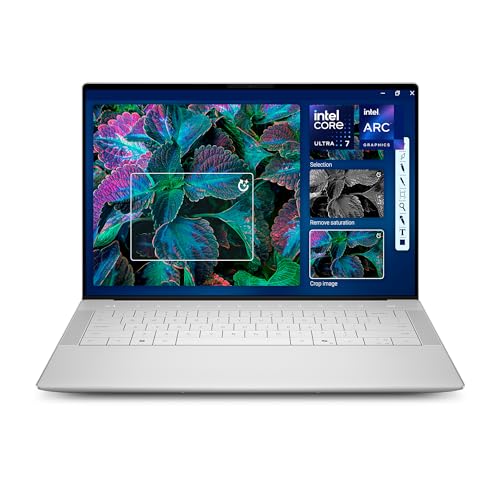
Dell XPS 14 Premium DA14250: the larger OLED touch display
The Dell XPS 14 Premium Laptop DA14250 occupies useful middle ground. Its title states a 14.5-inch Touch 3.2K OLED display with a 48-120Hz range, an Intel Core Ultra 7 255H processor, Intel Arc Graphics, 32GB of Memory, a 1TB SSD, and a backlit English keyboard with a Fingerprint Reader. That specification suits buyers who liked the 13-inch machines but wanted more screen, a strong memory figure, and a premium conventional design. For photographers who edit for long stretches on the laptop screen itself, those inches and that resolution shape every session.
At 14.5 inches with a 3.2K resolution, this is the highest resolution figure stated among the five titles, on a screen larger than the compact models and smaller than the 16-inch Vivobook. The OLED panel aligns it with the creator focus of this guide, and touch adds a direct way to move through catalogues. The stated 48-120Hz range is part of the specification, and smooth motion can make scrolling large catalogues and moving around detailed images feel fluid during long culling sessions.
With 32GB of Memory, the XPS 14 doubles the 16GB listings and suits cataloguing and editing software open together, batch work, and exports without closing everything else first. Paired with a 1TB SSD, it forms a balanced specification: enough memory for busy sessions and enough storage for a substantial active library. The Intel Core Ultra 7 255H and Intel Arc Graphics are reported as listed, without comparative scores. For photographers with established Windows software and habits, this is the most conventional premium route here: a familiar platform and a larger high-resolution touch display.
The backlit English keyboard and Fingerprint Reader cover everyday needs, from dim venues to quick sign-in on a machine holding client work. The title specifies an English layout, worth noting if you type in another layout. It does not list ports or a card reader, so verify connections on the product page and plan a reader and backup drive accordingly. Choose this model if you want one Windows laptop for both travel and main editing without stepping up to a 16-inch body. Its strength is balance at a high level.
Consider, too, how this size class behaves during a full wedding, event, or travel edit, where hundreds of similar frames must be compared and the differences between keepers can be small. The larger screen gives each frame more presence during culling, the touch display offers a direct way to move through the catalogue, and the memory figure supports keeping the whole job open rather than splitting it into artificial pieces. Photographers who deliver quickly after an event, working on the laptop in a venue, a train, or a hotel room, may find that this middle size is the one that never feels like a compromise in either direction.
ASUS Vivobook S16 (2026): the big-screen OLED option
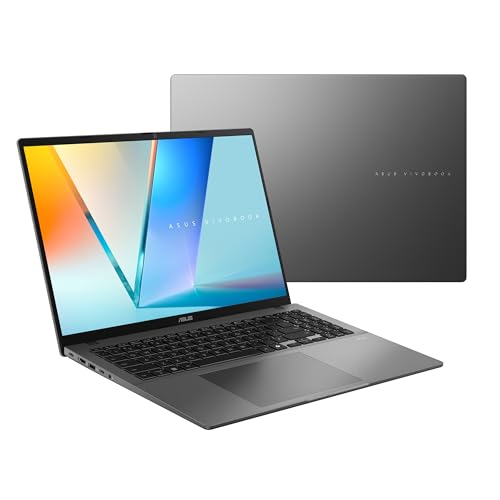
The ASUS Vivobook S16 Laptop (2026) is the largest machine here. Its title states a 16-inch 16:10 WUXGA OLED Display, a Copilot+ PC designation, an AMD Ryzen AI 9 465 Processor, Radeon Graphics, 32 GB of RAM, a 1TB SSD, WiFi 6, Windows 11 Home, a Matte Gray finish, and model identifier M3607GA-ES99. For a photographer who edits in one or two places and wants the laptop screen to do the heavy lifting, size changes how much of a catalogue you can see, how comfortably panels and images coexist, and how tiring a long session feels.
The 16:10 shape adds vertical space compared with a 16:9 screen, which helps in photography software where toolbars, panels, metadata, and filmstrips surround the image. The stated resolution is WUXGA and the panel is OLED, keeping this model in the display family that runs through most of this guide. Reviewing a shoot, comparing similar frames, and settling into detailed editing all feel more spacious here than on the compact models.
The AMD Ryzen AI 9 465 Processor, Radeon Graphics, and Copilot+ PC designation are stated as listed, and 32 GB of RAM matches the XPS 14. That combination supports a large catalogue, active editing, batch exports, and the background tools of a working day. The 1TB SSD also matches the middle group, giving room for a substantial active library while rewarding a sensible archive routine. Nothing in the core numbers asks a photographer to compromise in exchange for the big screen, which is the model’s central strength.
WiFi 6 is the stated standard here, unlike the WiFi 7 stated for the ProArt models and the MacBook Air. For most home and studio workflows, where heavy transfers often go to a connected drive, that may matter less than screen, memory, and storage, but buyers who specifically want the newest stated standard should note it. Windows 11 Home, the Matte Gray finish, and the model identifier help confirm the exact configuration. The trade-off is size: a 16-inch laptop is a bigger commitment in a bag and on small tables. Desk-centred photographers may barely notice, while daily location photographers may prefer a compact model. The title does not describe a card reader or ports, so confirm your transfer plan on the product page.
A big-screen laptop also changes how photographers share work in person. Reviewing a portfolio, a wedding selection, or a family session on a 16-inch display across a table is a different experience from passing around a compact screen, and for photographers who sell prints, albums, or additional sessions during those conversations, the presentation itself is part of the business. The same spaciousness helps with teaching, mentoring, and collaborative editing, where two people need to see panels and images at once. None of that appears in a specification list, yet it follows directly from the stated screen size that anchors this model’s listing.
Comparing the five laptops side by side
On display, the ProArt PX13 offers a 13.3-inch 3K OLED Touch screen, the ProArt PZ13 a 13.3-inch 2.8K AMOLED Touch screen, the MacBook Air a 13.6-inch Liquid Retina Display, the Dell XPS 14 a 14.5-inch Touch 3.2K OLED display with a 48-120Hz range, and the Vivobook S16 a 16-inch 16:10 WUXGA OLED display. Four state OLED or AMOLED panels, and size rises steadily across the group. Decide size first, then weigh resolution and touch within the size class that fits your life.
On memory, the listed PX13 configuration states 64GB, the XPS 14 and Vivobook S16 state 32GB, and the PZ13 and MacBook Air state 16GB. On storage, the PX13 states 2TB, the PZ13, XPS 14, and Vivobook S16 state 1TB, and the MacBook Air states 512GB. Those two ladders explain most of the practical difference here. Understanding your own position on them can narrow five laptops to two very quickly.
Form and platform divide the group again. The PX13 is a 2-in-1, the PZ13 is detachable, and the other three are conventional laptops, with touch stated for the XPS 14. Windows 11 Pro is stated for the PX13, Windows 11 Home for the PZ13 and Vivobook S16, and Apple’s platform with the M5 chip for the MacBook Air. Card provision is stated only for the PX13, with its MicroSD Reader, and the PZ13, with its included hub, so check the product page for the other three. Each model has a clean reason to be chosen: the PX13 for headroom, the PZ13 for detachable review, the MacBook Air for the Apple platform, the XPS 14 for balanced premium specifications, and the Vivobook S16 for the largest screen.
Budget-free comparisons can feel abstract, so ground them in use. Ask which machine you would want open on the desk during your longest realistic editing session, which you would want in your bag on your longest realistic travel day, and whether those are the same machine. If they are, the XPS 14 and the PX13 configuration are the natural meeting points of portability and capability in this group, from different directions. If they are not, choose the machine that serves the job you do most often, and let accessories, an external monitor, or a second device serve the other job well.
Questions photographers ask before buying
Is 16GB of memory enough for photography?
For many photographers, yes, especially for cataloguing, reviewing, and editing individual images or modest batches without several demanding applications open. Two laptops here are listed with 16GB and are legitimate choices for those workflows. The case for 32GB or more grows when sessions get busier, files get larger, or exports run alongside editing. Think about where your workflow is heading over the life of the laptop, not only where it is today.
How much storage should a photography laptop have?
Enough for your active library, current projects, applications, and a margin of free space, with finished work archived into a wider system that includes a separate backup. Here that maps to 512GB for disciplined archivers, 1TB for the broad middle, and 2TB for large local libraries. The habit matters as much as the number: a 1TB laptop with a clear archive routine is a safer home for photographs than a larger drive with no routine at all.
Does a photographer need a touch screen or a 2-in-1?
No, and many photographers still benefit from one. Touch and convertible or detachable designs help most with review, culling, presentation, and varied working positions. They help least when editing is entirely desk-based with a mouse or graphics tablet. Buy the form you will use weekly, not the form that merely looks versatile on the day of purchase.
Should I choose based on the processor name?
Use the processor as part of the picture, not as a single deciding score. The titles name the Ryzen AI Max+ 395, the Snapdragon X Plus X1P-42, the Apple M5, the Intel Core Ultra 7 255H, and the Ryzen AI 9 465, with TOPS figures stated only for the two ProArt models. Display, memory, storage, compatibility, and form will usually affect daily satisfaction more. The exception is compatibility: with a different platform, as in the Snapdragon-based PZ13, confirming support for your workflow matters more than any headline figure.
What should I check on the product page before ordering?
Check the exact configuration, because the ProArt PX13 is sold in many configurations and this guide describes the listed one. Check ports and card provision where a title does not state them. Check keyboard layout if it matters, noting the Dell title specifies English. Check finish, noting Midnight for the MacBook Air and Matte Gray for the Vivobook S16. Finally, confirm the page title matches the title you planned around.
Check prices on Amazon
Live listings for the shortlist in this guide are pulled from Amazon below, so prices and availability are always current at the moment you look.
Closing thoughts and disclosure
The best laptop for photography is the one whose display you trust, whose memory matches your busiest sessions, whose storage fits your library habits, and whose form and platform fit the life around your camera. On their stated facts, these five divide that job cleanly: the PX13 for compact headroom, the PZ13 for detachable review and presentation, the MacBook Air for the Apple platform with active archiving, the XPS 14 for a balanced larger touch display, and the Vivobook S16 for the biggest screen at a desk.
Take the product-page checks above seriously, especially configuration and connections, and set up your archive and backup routine on the first day rather than the first busy day. A laptop chosen that way becomes what photographers actually need: a reliable place to review, organise, edit, and deliver images that matter to them and to the people waiting for them.
Disclosure: this site may earn a commission from qualifying purchases made through links in this guide, as an Amazon Associate, at no additional cost to you. That support helps fund the research involved in checking listings and comparing stated specifications. It does not change the approach here, which is to report what each product title states, avoid inventing details a listing does not give, and explain the general considerations that help photographers match a laptop to their own workflow. Readers should confirm current details on the product page before deciding.
FAQ
Is 16GB of memory enough for photography?
How much storage should a photography laptop have?
Does a photographer need a touch screen or a 2-in-1?
Should I choose based on the processor name?
What should I check on the product page before ordering?
Related guides
- Best 13 Inch Business Laptops: The Honest 13–14 Inch Ultraportable Shortlist
- Best 15 Inch Lightweight Workstation Laptops
- Best 5 Windows 10 Business Laptops: Professional Machines From the Windows 10 Era, Judged for Buyers Who Still Run It
- Best 32GB RAM Laptops Non Gaming: New Business Picks and an Honest Renewed Guide