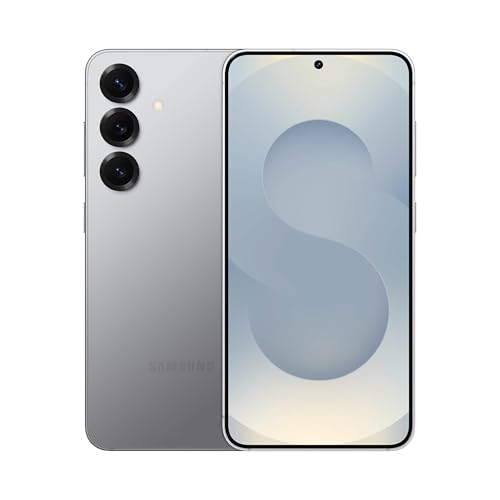
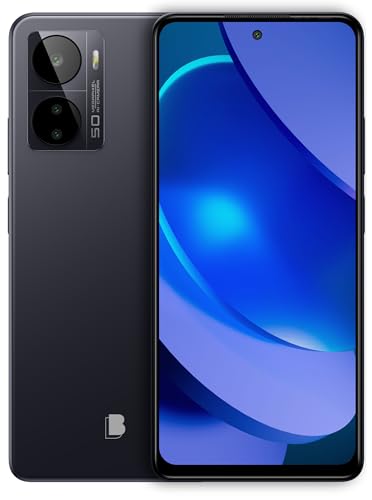
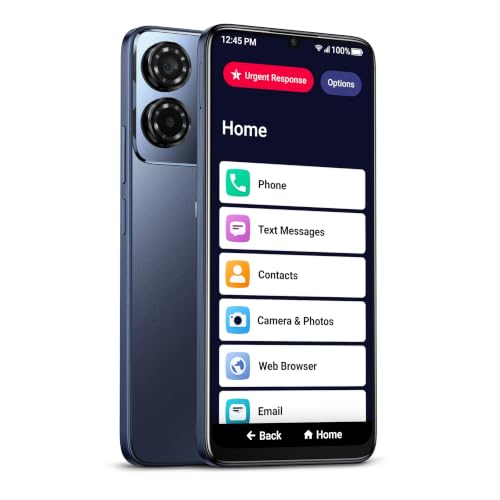
Our Top Picks
 Arthritis Wonder Pain Relief Cream4 Fl Oz (Pack of 2)1.5 x 2.4 x 6.2 inches0.3 poundsCheck on Amazon


What's inside
- How severe arthritis changes the way a phone is held and used
- Weight, width and balance: the numbers that matter most
- Physical buttons versus touch-only controls
- Touchscreen behaviour: sensitivity and touch accommodations
- Voice control as a primary way of working
- Unlocking with stiff or changed fingers: face, fingerprint and codes
- Screen size and the one-handed reach trade-off
- Stylus use when fingertips are not precise
- Charging without the fight: cables, magnets and wireless pads
- Emergency features and the effort they demand
- Cases, grips, rings and lanyards that do the holding for you
- Setup help, data transfer and the first week
- Check prices on Amazon
- A practical way to choose
As an Amazon Associate I earn from qualifying purchases. This post may contain affiliate links at no extra cost to you.
Reader support keeps this guide independent and free to read, and it shapes how we can keep covering accessibility in depth. As an Amazon Associate we earn from qualifying purchases. That support never changes the order of the advice below: for severe arthritis, the right phone is the one your hands can hold, unlock, charge and operate on a painful morning, not simply the one with the fastest processor or the sharpest camera.
A smartphone asks more of the hands than almost any other everyday object. You pick it up dozens of times a day, brace it with curled fingers while the other hand taps, pinch to zoom photographs, press small side keys, plug in a cable in poor light, and type with thumbs that may already ache before the day begins. When arthritis is mild, those actions are an annoyance. When it is severe, each one can decide whether a call gets answered, a message gets sent, or a phone stays in a drawer because using it hurts too much to bother.
This guide approaches phone choice from the hand outward. It starts with what rheumatoid arthritis and osteoarthritis actually do to grip, pinch and finger alignment, then works through weight, width, buttons, touch settings, voice control, unlocking, charging and setup help. Camera quality and performance still matter, and readers who want a simpler handset for photographs may also find our companion coverage helpful through best basic phones camera placed alongside the accessibility-first advice here. But those features only count if the basic physical conversation between hand and device is comfortable, repeatable and safe.
How severe arthritis changes the way a phone is held and used
The metacarpophalangeal joints, the large knuckles where the fingers meet the hand, are central to almost every phone task. They flex when you curl your fingers around a handset, they stabilise the device while the thumb moves, and they absorb the small corrections that stop a smooth glass back from sliding. In rheumatoid arthritis, inflammation in these joints brings swelling, warmth and pain, and over time the supporting ligaments and tendons can loosen or shift. A phone that felt ordinary five years ago can begin to feel unstable, because the joints that once held it firmly no longer close evenly or without pain.
Swelling changes more than comfort. A swollen knuckle increases the effective size of the finger while reducing how far it can bend, a frustrating combination: the hand is larger, yet less able to wrap. Rings are often removed for the same reason a phone becomes awkward, because the joint needs more room and tolerates less pressure. On a handset, that pressure concentrates at the edges of the frame and at the corner resting on the little finger. Choosing a phone with softer case edges and a less sharp frame profile therefore matters as much as headline weight.
Osteoarthritis tells a slightly different story. It most often affects the distal joints near the fingertips and the base of the thumb, producing bony enlargements, stiffness and pain during pinch. Tapping a screen uses those fingertip joints, and pinch-to-zoom loads the thumb base directly. A person with advanced thumb-base osteoarthritis may be able to hold a phone in an open palm quite happily, yet find the repeated thumb sweeps of scrolling or the squeeze of a side button genuinely painful. That is why advice for arthritis cannot stop at whether a phone is light; it has to ask which specific movement each feature demands.
Reduced pinch strength deserves particular attention. Pinch is how you lift a phone from a table by its edges, how you hold it while plugging in a cable, and how many people steady it for a photograph. When pinch force falls, people compensate by pressing the phone harder into the palm, wedging it against the body, or picking it up with two hands and a scooping motion. Flat, thin phones with flush buttons and no lip to catch a fingernail under are the hardest to lift from a hard surface. A case with a raised edge, a small kickstand loop or even a textured bumper gives the fingers purchase and turns a pinch lift into a much easier scoop and cradle.
Grip strength more broadly affects security. A weak grip does not simply mean the phone might drop; it changes behaviour. People grip harder than necessary to feel safe, and that sustained effort fatigues the forearm and aggravates joint pain, so a short task like reading a long message becomes tiring. Reducing the force needed to feel secure, through texture, shape and weight distribution, lowers that constant background effort. The goal is a phone that rests in the hand rather than one that must be clutched.
Ulnar drift, in which the fingers gradually angle toward the little-finger side of the hand, is a feature of longer-standing rheumatoid disease and it alters touch accuracy in ways spec sheets never mention. The fingertip no longer lands exactly where the eye expects it to, especially on the ring and middle fingers, and the thumb may approach the screen at an unusual angle. Small tap targets, tightly packed keyboard keys and edge gestures that demand a precise starting point become unreliable. Wider on-screen targets, generous keyboard spacing and settings that forgive slightly long or repeated touches are not cosmetic preferences for these hands; they are corrections for a changed geometry of movement.
Morning stiffness adds a time dimension. Many people with inflammatory arthritis wake with hands that need an hour or more of movement, warmth and medication before they loosen. Yet mornings are exactly when phones matter: alarms, medication reminders, messages from family, weather, news and the first check of the day. A phone that is manageable at noon may be unusable at seven in the morning. Judge every feature in this guide against the worst hour, not the best. If unlocking, silencing an alarm or answering a call requires a precise swipe or a firm button press first thing, that design will fail when it is needed most.
Flares complicate things further. A hand that copes well for weeks can become hot, swollen and weak for days, and a good phone setup anticipates that variation instead of assuming a stable ability level. Voice control configured in advance, a charging dock that needs no alignment fuss, an emergency method rehearsed while calm, and a home screen arranged with large targets all act as a reserve for flare days. Setting these up during a good period is one of the most valuable things a buyer, partner or family member can do.
Weight, width and balance: the numbers that matter most
Weight is the first figure to check, but it needs interpreting. A difference that looks trivial in a product listing becomes significant when the phone is held at arm’s length for a video call, propped during reading, or lifted repeatedly all day. Heavier handsets tend to pair large batteries and large cameras with dense glass and metal construction, and the strain shows up not in a single lift but in cumulative holding. If you regularly rest the phone on your little finger, that finger becomes a shelf carrying the whole load, and its joints will protest. Prefer the lighter model within the size you need, and be sceptical of ultra-premium builds whose extra density buys little you will use.
Balance matters alongside total weight. A top-heavy phone, usually because of a large camera module, wants to tip backwards out of an open palm and forces the fingers to grip to prevent rotation. A phone whose weight sits lower and more evenly can feel lighter than its specification suggests. In a shop, hold the phone loosely, the way you would while reading, rather than squeezing it in a demonstration grip, and notice whether it tries to roll. At home, a case that slightly thickens the lower back can improve that resting balance.
Width is often more decisive than height. A tall phone can rest along the palm while the fingers support the back, but a wide phone forces the hand to open further and the thumb to travel further across the screen. For hands with limited finger spread or thumb movement, a narrower body reduces both the stretch of holding and the reach of using. Measure your comfortable grip if you can: the span you can hold for thirty seconds without effort is a better guide than the span you can achieve for two seconds. Phones marketed as compact are not automatically better, because their screens shrink too, but width deserves at least as much attention as the display diagonal that dominates advertising.
Thickness cuts both ways. Very thin phones look elegant but give swollen fingers little to hold, and their edges can press into tender joints. A slightly thicker phone, or a case that adds a rounded profile, spreads contact over a wider area and is easier to pick up. There is a limit, of course, because excessive thickness with width becomes a handful, but most people with severe arthritis find the thinnest flagship designs the least forgiving. Rounded case corners and a matte, slightly soft material usually help more than another millimetre shaved off.
Surface texture is a safety feature. Polished glass and glossy plastic demand grip force because they offer almost no friction, especially with dry skin or after applying hand cream or emollient, which many people with arthritis and eczema-prone skin do daily. A matte back, a silicone or textured polymer case, or subtle ridges along the sides lets the same security happen with less squeeze. If a phone you otherwise like has a slippery finish, treat a grippy case as part of the purchase rather than an optional extra, and choose one whose texture runs around the edges where the fingers actually sit.
Physical buttons versus touch-only controls
Physical buttons give the fingers something definite: a location found by feel, a travel distance, and a clear moment of activation. For stiff or swollen fingers, that certainty is valuable, but only if the button itself is forgiving. A good button for arthritic hands is reasonably large, slightly raised, textured or shaped so it can be found without looking, and activates with modest force applied over a short travel. A poor button is flush with the frame, smooth, stiff, and placed where a painful thumb-base or index joint must do the pressing. When comparing phones, press the power and volume keys with the side of a finger and with a knuckle, not only with a fingertip pad, because on a bad morning those alternative contacts may be all you have.
Power buttons carry extra weight because they wake the phone, summon assistants on some models, and form part of emergency sequences. If the power key is combined with a fingerprint sensor, its size and placement decide both unlocking comfort and daily wake-up comfort. A recessed or very small combined key can be a poor choice even if the sensor technology itself is excellent. Volume keys matter for calls when hearing is difficult and for media, and a single long rocker is usually easier to locate and rock with a broad finger than two tiny separate keys that demand precise targeting.
Touch-only controls remove force but add precision demands. An on-screen button needs no pressure beyond a light contact, which is a genuine advantage for painful joints, yet it also needs the finger to land in the right place and lift cleanly, and it disappears when the screen sleeps or an app changes layout. Shutter buttons in camera apps, sliders for brightness, and small close crosses in corners are common friction points. The strongest setups combine both worlds: physical keys for power and volume, large on-screen targets for everything else, and voice or automation for the tasks that would otherwise need repeated small touches.
Edge gestures deserve caution. Swiping in from the very edge of the screen to go back, or pulling from a corner for a control panel, requires the finger to start in a narrow band and move steadily. Curved screen edges make this harder by distorting where contact registers and by inviting accidental touches from the holding hand. Flat screens with a deliberate gesture area, or a return to on-screen navigation buttons, are usually kinder. On Android, switching from gesture navigation to the three-button layout restores fixed, widely spaced targets for back, home and recent apps. On iPhones without a home button, the equivalent kindness comes from AssistiveTouch, which places a movable on-screen button that can carry home, control centre and other actions to a spot your thumb reaches easily.
Haptic feedback helps when it confirms an action without needing a hard press. A clear vibration tells you a long press registered or a key was accepted, reducing the tendency to press again or push harder. Phones differ in haptic quality, and strong, crisp motors are easier to perceive through reduced sensation or thicker skin than weak buzzes. Turn haptics on for keyboard and system interactions if you find yourself repeating taps, and check that any case does not muffle the effect so much that the confirmation disappears.
Some phones and cases offer programmable buttons or shortcuts, and these are worth seeking out. A double press that opens the camera, a long press that starts voice control, or a case button that answers a call can remove several screen interactions from a painful sequence. Keep the number of programmed actions small and consistent, though; a shortcut you cannot remember under stress is no shortcut at all. Write the chosen actions on a card kept near the charger if memory is also a concern, because the best system is the one that survives a tired evening.
Touchscreen behaviour: sensitivity and touch accommodations
Modern capacitive screens respond to the electrical properties of skin contact rather than pressure, which is good news for painful hands: a feather touch is enough, and pressing harder does nothing. Problems arise from timing and targeting instead. A touch that lingers because a stiff finger is slow to lift can be read as a long press. A tremor or an unsteady lift can register as a double tap or a small swipe. A finger that brushes the screen while repositioning can open something unintended. Touch-accommodation settings exist precisely to reshape these timings, and learning them is as important as choosing the hardware.
On iPhones, Touch Accommodations sits within the accessibility settings and offers several powerful adjustments. Hold Duration requires the finger to stay in contact for a chosen length of time before a touch counts, which prevents accidental activations from brushes and resting fingers. Ignore Repeat treats rapid repeated contacts within a set interval as a single touch, useful when a finger bounces on lift-off. Tap Assistance can use either the initial or the final location of a touch gesture, so if your finger slides slightly as it lands or lifts, you can choose the end that is more accurate for you. Taken together, these settings let the screen adapt to a hand whose contact pattern differs from the assumed quick, precise tap.
On Android phones, the naming varies by maker, but the core controls are similar. Touch and hold delay, often offered as short, medium and long, changes how long a contact must last before it counts as a long press, which stops slow lifts from summoning context menus. Interaction controls on many models include a setting to ignore repeated touches within a chosen interval, and some devices add click-after-pointer-stops style options in pointer settings. Samsung, Google and other makers place these in slightly different menus, so search the settings app for words like delay, repeat and duration rather than browsing category by category with tired hands.
Long-press delay deserves a careful balance. Set it too short and menus appear whenever a slow finger rests; set it too long and deliberate long presses, used for moving apps or selecting text, become tiring holds that a weak hand struggles to sustain. Start in the middle, live with it for a few days of ordinary use, and adjust in small steps. The right value is personal and may change between a good week and a flare, so note where the setting lives and practise reaching it, or ask a family member to learn it too.
Screen sensitivity settings, sometimes labelled for glove use or screen-protector use, increase the touch controller’s responsiveness to light or imperfect contact. Despite the name, these modes are not only for winter gloves. They can help when contact is made with the side of a finger, when skin is very dry, when a thick screen protector dulls registration, or when a light touch is all a painful joint can manage. The trade-off is a greater chance of registering palm contact or pocket touches, so pair increased sensitivity with a case that has a raised lip and with touch accommodations that filter repeats. Thin or fabric gloves with conductive fingertips remain an option outdoors, but sensitivity modes often make ordinary gloves unnecessary for a quick answer or dismissal.
Keyboard settings are part of touch comfort. Enlarging the keyboard, enabling swipe or glide typing so the finger travels instead of tapping each letter, turning on strong autocorrect and prediction, and adding a one-handed keyboard mode that compresses the layout toward one side all reduce the number of precise strikes. Voice dictation, covered in the next section, should handle long messages, but a forgiving keyboard still matters for names, addresses and corrections. Also consider disabling key pop-ups and animations if visual flicker encourages extra checking taps, and choose a keyboard theme with clear contrast so you are not leaning in and gripping harder to read it.
Voice control as a primary way of working
For severe arthritis, voice control should be treated as a main input method rather than a novelty. Every message dictated is a message not typed on painful joints, every call placed by name is a contact list not scrolled, and every timer, reminder and alarm set by voice removes a chain of small touches. The shift is partly practical and partly psychological: instead of saving voice for when typing fails, build the habit during calm moments so it is automatic when hands are at their worst.
Android’s Voice Access goes further than a voice assistant. Where an assistant handles requests like calling a person or setting a reminder, Voice Access lets you operate the interface itself by voice: scrolling, tapping labelled items, opening apps, selecting text and editing, often by speaking numbers that appear beside on-screen elements or by naming the control directly. For a person who can see the screen clearly but cannot reliably touch it, that distinction is transformative. It turns almost any app into something usable hands-free, including the awkward confirmation screens and settings pages that assistants cannot reach.
On iPhones, Voice Control offers a comparable depth. It supports navigation by item name or by numbered overlays, dictation with editing commands, and custom commands for phrases you use often. You can move through a web page, tap a button, zoom, scroll and correct text without touching the device, and you can switch between command mode and dictation mode as the task demands. Setting it to listen attentively when you are looking at the phone, where supported, reduces the need to press anything to begin.
Dictation accuracy has improved steadily and copes well with ordinary sentences in a quiet room, but it still rewards technique. Speak in complete phrases rather than word by word, keep a natural pace, hold or prop the phone so the microphone is unobstructed and a comfortable distance away, and learn the handful of punctuation commands you actually use, such as period, comma, question mark and new line. Correcting one word by voice is usually easier than retyping a sentence by hand, and selecting a suggested alternative on a large target is easier still. Names of medications, family nicknames and place names are the most common errors, so add unusual names to contacts with phonetic spellings where the system allows, and expect to spell out rare words on first use.
Privacy and setting matter when choosing how much to do by voice. Dictating a bank detail or a personal message aloud in a shared space may not be acceptable, and in those moments a stylus, a compressed one-handed keyboard or a trusted person’s help is the better tool. At home, though, most daily communication can move to voice with little loss. A phone mounted on a stand at speaking distance, rather than held, makes long dictation sessions comfortable for the neck as well as the hands, and a simple stand is one of the cheapest accessibility purchases available.
Voice routines multiply the benefit. A single phrase that starts a morning sequence, reading the calendar, announcing the weather and listing medication reminders, replaces a dozen interactions at the stiffest time of day. An evening phrase that sets alarms, turns on do-not-disturb and confirms the phone is charging gives reassurance without button presses. Build routines slowly, one at a time, and keep their trigger phrases short and distinct so they are easy to say and hard to trigger accidentally. Readers comparing larger devices for reading and media alongside voice-led phone use may find the guidance gathered at best ipad and tablets for seniors useful for the tablet side of the same daily routine.
Unlocking with stiff or changed fingers: face, fingerprint and codes
Unlocking happens more often than any other secure action, so its comfort dominates daily satisfaction. Fingerprint sensors ask for a specific finger, placed in a specific spot, with enough clean contact for the pattern to be read. Several features of arthritic hands work against that: fingers that cannot flatten fully, fingertips angled by drift, dry or worn skin, swelling that changes the print’s shape between days, and difficulty reaching a sensor on the back or under the screen while holding the phone securely. None of this makes fingerprint unlocking impossible, but it makes its reliability variable, and an unlock method that works eight times out of ten still forces a fallback several times a day.
Under-screen fingerprint sensors add a targeting problem. The sensing area is invisible, often small, and requires the finger to stay still for a moment, which is hard when the hand is tired or the phone is balanced rather than gripped. Side-mounted sensors in the power button can be better because the finger finds the button by touch and the press and the read happen together, but they inherit the button’s size and stiffness, and they favour one hand. Rear sensors suit an index finger cradling the back, yet that same finger may be among the most affected. If you prefer fingerprint unlocking, register more than one finger, including a finger from the other hand and, where the system allows, register the same finger twice at slightly different angles to widen the accepted pattern. Re-register after a major flare changes swelling, because the stored image may no longer match the settled hand.
Face unlock removes the finger from the process entirely. Proper three-dimensional face recognition, which maps depth rather than comparing a flat photograph, works with the phone held or propped at a natural viewing angle, in ordinary indoor light, and without any grip force at all. For someone whose mornings begin with stiff hands, lifting the phone, or even leaning toward it on a stand, and being admitted is a profound ease. It also helps when hands are wet, creamed or occupied holding a rail or a walker. Its limits are real: it may not work with some sunglasses or face coverings, it needs the eyes directed toward the phone on stricter settings, and it can be slower in very low light. Attention-aware settings, which require open eyes looking at the device, improve security but may frustrate users with eyelid or gaze difficulties, so adjust them thoughtfully rather than accepting defaults.
Simpler camera-only face unlock on some Android phones is faster to set up but less secure, and some banking or payment apps will not accept it, insisting on a fingerprint or code instead. That distinction matters if you rely on your phone for payments and health services. A phone whose face system is accepted by your essential apps delivers a genuinely finger-free day; one whose face unlock only opens the home screen still leaves the hardest moments untouched. Check your banking and health apps against the specific model’s biometric class before buying, or be ready to use codes for those apps while enjoying face unlock for everything else.
The humble passcode remains the safety net, and it should be chosen for arthritic usability too. A longer code typed on large keys may be easier than a short code under time pressure if the lock screen allows generous key spacing, and some systems permit alphanumeric codes that can be built from a memorable word typed slowly. Avoid setting the lockout and erase policies so aggressively that a few fumbled attempts on a stiff morning lock you out of your own phone; the inconvenience and distress of that moment far outweigh the marginal security gain for most people. Keep the code written down securely at home, because a code used rarely, thanks to biometrics, is a code easily forgotten exactly when a restart demands it.
Screen size and the one-handed reach trade-off
Bigger screens offer bigger text, bigger targets and less need to pinch to zoom, all of which help arthritic hands and ageing eyes together. A larger display lets you raise the text size and still fit a useful amount on screen, spreads keyboard keys further apart, and makes photographs and video calls more comfortable to view without holding the phone close. For readers who spend more time reading, watching and video-calling than typing, a larger phone paired with voice input can be the most comfortable combination of all, especially when the phone spends much of its life propped on a stand or table.
The costs of size are reach and hold. On a large screen, the far corner is a long thumb journey, and stretching for it shifts the grip, loosening security at the very moment of effort. Notifications and controls placed at the top require either that stretch or a second hand. One-handed modes help by shrinking the active display toward the bottom corner, and reachability gestures that pull the top of the screen down are valuable if their triggering swipe can be performed reliably. Judge a big phone by how well its one-handed tools work for you, not by the diagonal alone, and explore the middle ground covered in our size-focused coverage at best 6 5 inch smartphones if you are weighing that popular class against both smaller and larger alternatives.
Two-handed use changes the calculation. If you usually sit and hold the phone in both hands, or rest it on a cushion or table while the other hand operates it, width and reach matter less and the benefits of a large, legible screen dominate. If you often use the phone standing, carrying shopping, holding a rail or walking with an aid, one-handed security matters more and a moderate size with a grippy case is safer. Be honest about your real patterns rather than the patterns you intend, because the phone must serve the life you actually lead on an ordinary Tuesday.
Display settings can reclaim much of the large-screen benefit on a medium phone. Raising display size scaling enlarges interface elements system-wide, bold text improves letter definition, and high-contrast themes reduce the visual effort that leads to extra taps. A home screen arranged with only the essential apps, in large icons, with widgets for the next appointment and the most-called contacts, removes searching and scrolling from daily use. Folders are tidy but they add a tap and a smaller target; for severe arthritis, a slightly longer home screen of big, direct icons is usually kinder than a neat single page of folders.
Stylus use when fingertips are not precise
A stylus replaces a soft, broad, sometimes unpredictable fingertip contact with a defined point that needs very little pressure. For hands where fingertip joints are enlarged, where nails or skin condition make contact unreliable, or where drift makes placement uncertain, a stylus can restore accuracy for tapping small links, selecting text and tapping map locations. Capacitive styli with a mesh or disc tip work on any phone and are inexpensive, while phones with an active pen system add finer tips, hover preview and handwriting recognition for those who can still form letters but cannot type comfortably.
The catch is that a stylus must itself be held, and a thin pen demands the very pinch grip that hurts. Look for chunky, triangular or foam-sleeved stylus bodies, add a universal grip sleeve, or choose a pen with a built-in tether and a clip that attaches to the case so it is always where your hand expects it. A stylus kept in a drawer will not help; a stylus looped to the case, however inelegant, helps daily. Some users do better with a short, thick stylus that can be palmed rather than pinched, guiding it with the whole hand in the way one might hold a crayon.
Charging without the fight: cables, magnets and wireless pads
Charging looks trivial in advertisements and is, in practice, one of the most fiddly tasks in phone ownership. A USB-C connector is reversible, which removed the old frustration of trying a plug three ways, but it still requires aligning a small plug with a small port and pushing with enough force to seat it, often while holding the phone still with the other hand, in the low light of a bedside. For weak pinch and painful thumbs, that nightly alignment is a genuine obstacle, and ports suffer when plugs are forced at an angle by hands that cannot feel alignment well.
Magnetic charging changes the task completely. Magnetic snap-on systems, whether built into the phone’s ecosystem or added through a case with a magnetic ring, let the charger find its own position: bring it near, feel it seat, and let go. The connection confirms itself with a satisfying placement that needs no pinch force and no visual precision. Magnetic car mounts that also charge extend the same benefit to driving, removing the clamp-and-plug routine entirely. If you choose a phone and case combination, confirm that the case’s magnets align with the charger’s and that the case does not block wireless charging, because a misaligned coil charges slowly and warms the phone.
Ordinary wireless charging pads and stands help almost as much, provided alignment is forgiving. A flat pad demands that the phone be placed within a fairly small sweet spot, and a phone can be nudged off it by a careless sleeve. A stand with a ledge, or a pad with a raised guide or multiple coils, is far more tolerant: rest the phone against the ledge and charging begins, with a visible indicator to confirm. A stand also holds the phone upright for face unlock, video calls and reading notifications, so a bedside or kitchen stand often becomes the centre of an arthritis-friendly setup. Choose a stand stable enough that placing the phone does not tip it, because steadying a wobbling stand reintroduces the two-handed task you were avoiding.
Cable strategies still matter for travel and for faster charging. Keep one cable permanently plugged in at your usual chair and bedside so only the phone end is handled, choose braided cables with a chunky connector housing that gives fingers something to hold, and consider a magnetic breakaway cable whose small tip stays in the phone’s port while the cable itself snaps on and off magnetically. That last option also protects the port if the cable is tripped over, since the magnetic joint releases instead of dragging the phone to the floor. Whichever route you take, the test is simple: can you connect the phone, in the dark, with your worst hand, without looking closely? If not, change the setup, not your expectations of yourself.
Emergency features and the effort they demand
Emergency calling is the one phone task that must work under pain, panic and possibly injury, so its activation effort deserves scrutiny before purchase. Many phones trigger an emergency SOS by pressing the side button repeatedly, commonly five times, or by pressing and holding a combination of buttons. Repeated rapid presses demand speed and rhythm that stiff fingers may not deliver, while a sustained hold demands grip strength maintained for several seconds. Neither is ideal for everyone, which is why the settings matter: most platforms let you adjust whether SOS uses rapid presses or a hold, whether a countdown with an alarm sounds first, and whether the call is placed automatically or after a confirming swipe.
Rehearse the sequence you choose while calm, more than once, and tell family members which method your phone uses. A countdown before the call is a sensible middle ground, long enough to cancel an accidental trigger from a fumbled grip, short enough not to delay help. Be aware that tight cases can make side buttons harder to press in sequence, and that a button combination requiring two hands may be unrealistic if one hand is injured or holding you upright. Where available, voice activation of emergency help through an assistant or a connected home speaker provides a parallel path that does not depend on hands at all, and it is worth setting up for the rooms where you spend the most time.
Medical information and emergency contacts should be completed during setup. Phones can display a medical ID on the lock screen with conditions, medications, allergies and chosen contacts, so responders and bystanders can help without needing your unlock. For people with arthritis, adding a note about limited hand function can itself guide a helper. Emergency contacts can also be reachable from the lock screen on many devices, letting a partner or neighbour be called without codes. Keep this information current when medications change, and review it at the same time as other annual phone housekeeping.
Fall detection and crash detection, offered through some phones and paired watches, add another layer that asks nothing of the hands at the critical moment. They are not substitutes for a personal alarm where one is recommended, and they can occasionally trigger falsely during vigorous activity, but for someone who lives alone and whose greatest fear is being unable to reach or operate a phone after a fall, automatic detection with a cancellable countdown is a meaningful reassurance. If a watch is worn, check that its strap can be managed with arthritic fingers; a magnetic or loop strap that fastens without a buckle or pin is usually far easier than a traditional clasp.
Cases, grips, rings and lanyards that do the holding for you
The right case transforms a phone’s handling more than any internal specification. Prioritise a matte, textured surface, raised and slightly soft edges, and corners that absorb a drop, because a drop will eventually happen and corner protection decides whether the screen survives it. A case with a subtle lip also lifts the phone’s face off a table so it can be scooped up, and protects the screen when the phone is placed down hurriedly. Avoid cases with a separate, fiddly installation or tiny button covers that stiffen the side keys; button covers should be large, clearly shaped and no harder to press than the bare buttons beneath.
Ring grips and kickstand rings give one finger a mechanical hold so the rest of the hand can relax. A finger through a ring cannot drop the phone, which removes the constant squeeze of insecurity. The ring must be large enough for a swollen finger, smooth inside so it does not rub a tender joint, and positioned so the phone balances rather than dangling. Some people prefer a strap that crosses the back of the hand, distributing the hold across the palm; straps are especially good for larger phones and for reading in bed, where a dropped phone lands on the reader. Elastic straps sized generously, or adjustable fabric straps, accommodate day-to-day changes in swelling better than fixed loops.
Pop-out grips and flat adhesive handles suit hands that cannot curl around a ring. A broad, soft grip that the fingers rest against, rather than hook through, can be enough to stabilise the phone for tapping. Adhesive strength matters, and so does placement: fit the grip, use the phone for a day in each candidate position before committing where possible, and remember that a grip may interfere with flat wireless charging unless it is removable, collapsible or positioned with charging in mind. Magnetic grip accessories that detach for charging solve that conflict neatly within magnetic ecosystems.
Lanyard points and wrist straps are unfashionable and invaluable. A short wrist loop prevents a fumble from becoming a fall to concrete, and a neck lanyard keeps the phone available when hands are occupied with a frame, a stick or shopping, though it should have a breakaway fastening for safety. Some cases include reinforced lanyard holes; others need a slim anchor tab that fits inside the case and emerges near the charging port. If you walk outdoors daily, a cross-body phone strap that leaves both hands free for aids and rails may be the single most practical accessory you buy, and it removes the pocket problem entirely, since deep pockets and stiff fingers are a poor combination.
Stands and mounts complete the picture by removing holding altogether. A weighted table stand for the kitchen, a flexible arm that clamps to a bedside or wheelchair, and a magnetic car mount each give the phone a place where it can be used by voice and occasional touches without being gripped. When comparing display-led uses such as photography on bigger screens, our related reading at best camera big screen phones can sit alongside a stand-based setup, because the best viewing phone is often the one you do not have to hold. Think of your home as a set of stations, chair, bed, kitchen and desk, and equip each with the simple support that makes the phone rest where you need it.
Setup help, data transfer and the first week
The hardest fine-motor work in phone ownership is concentrated in the first hour: peeling films, handling tiny SIM trays and ejector pins, typing long passwords, and approving transfers on two devices at once. This is precisely the work that should be delegated. Carrier shops and manufacturer stores will commonly transfer contacts, photographs and messages, fit a case and screen protector, set up the account and demonstrate the basics, and that service is worth choosing a seller for. Ask directly, before buying, what setup help is included, whether an appointment can be booked at a quiet time, and whether a family member can be present or included by phone for account decisions.
Modern transfers themselves are mercifully free of fine motor demands once started. Phone-to-phone transfer by placing the old and new devices near each other, confirming a pattern or code, and waiting while data copies wirelessly needs no cables and no memory cards. The main risks are interruption and impatience: keep both phones charged or plugged in, on the same wireless network, and leave them undisturbed even when progress looks slow. A transfer abandoned halfway creates the confusing duplicates that take far longer to untangle than patience would have cost. If a SIM must move, let the shop do it; the tray and pin are small by design and unforgiving of stiff fingers, and an eSIM, where your carrier supports it, removes that hardware step from future upgrades as well.
Passwords and account recovery should be arranged with accessibility in mind from the start. Typing a long, complex password on a new keyboard with sore hands invites errors and lockouts, so use a password manager protected by face recognition, dictate where appropriate, or enter credentials seated, unhurried and with the text visible for that one careful entry. Confirm that account recovery routes, such as a trusted contact or a second device, actually work, because recovery flows are the least forgiving screens on any platform. A partner or adult child as a recovery contact, with clear agreement about when they would be asked, prevents a minor lockout from becoming a crisis.
Use the first week deliberately. Set the accessibility options before installing dozens of apps: text and display size, touch accommodations, voice control, unlock methods, emergency information, home screen layout and charging routine. Then practise the ten actions you perform most, answering a call, calling your closest contacts, sending a dictated message, setting a reminder, taking a photograph, checking the weather, setting an alarm, opening your health app, paying if you pay by phone, and triggering emergency help in rehearsal mode where available. Repetition during a comfortable week builds the familiarity that carries you through an uncomfortable one. Resist other people’s tidy home screens and default settings; this phone should be arranged for your hands, your eyes and your routines, and no one else’s sense of order.
Support continues after purchase if you ask for it. Many carriers and manufacturers offer accessibility support lines and in-store help for settings long after the sale, charities and local arthritis groups often run technology sessions where phones are adjusted alongside peers with the same difficulties, and family members can be given a short written list of your key settings so a replacement phone can be rebuilt quickly if yours is lost or broken. Photograph your home screen layout and keep a note of your accessibility choices with your medical information at home; rebuilding from a note is an afternoon’s calm task, while rebuilding from memory during a stressful week is not.
Check prices on Amazon
Live listings for the shortlist in this guide are pulled from Amazon below, so prices and availability are always current at the moment you look.



A practical way to choose
Begin with your hands on their worst regular morning, and list the three actions that currently cause the most pain or failure. For many readers those are unlocking, typing and charging; for others they are answering calls, holding the phone for reading, and pressing side buttons. Let that list rank the phones you consider. A model that solves your top three problems is a better purchase than a model with a superior camera that solves none of them. Bring the list to the shop, try each action on the demonstration handset with your own grip, and take your time; a reputable seller will understand that this is how the phone must be chosen.
Then check the supporting details in order. Confirm the weight and width suit a loose, thirty-second hold. Confirm the unlock method your essential apps accept. Confirm the touch and voice settings exist under names you can find again. Confirm the charging method you intend, case, stand or magnetic system, works as a complete set rather than as separate hopeful purchases. Finally, confirm who will help with setup and transfer, and book that help before the phone arrives if you can. A phone chosen this way may not top any conventional chart, yet it will be picked up willingly every day, answered without dread, charged without a struggle and trusted in an emergency, and for hands that measure every task, that willing daily use is the truest definition of the best smartphone.