What's inside
- Key Takeaways
- Quick Picks
- How Did We Choose These Picks?
- Which Interface Should a Budget Terabyte Take?
- How Do the Six Compare Side by Side?
- How Much Speed Will You Actually Feel?
- What Should You Check Before Ordering?
- What Mistakes Do Budget SSD Buyers Keep Making?
- How Should You Install and Move Your Data?
- Which of the Six Should You Actually Buy?
- What About the Spec-Sheet Worries — Endurance, Caches and Brand Loyalty?
- Final Recommendation
- Frequently Asked Questions
- Related Guides
As an Amazon Associate I earn from qualifying purchases. This post may contain affiliate links at no extra cost to you.
gizmoverdict.com is reader-supported. When you buy through links on our site, we may earn an affiliate commission.
Where to buy: All six drives below link to their Amazon listings from the Quick Picks table and from each detailed section. Street pricing in this segment moves weekly, so treat the listing page — not this article — as the place where the current figure lives, and confirm the exact capacity before ordering, because every family here is also sold in smaller and larger sizes under a nearly identical name.
The best below 100 ssds sit in the most contested corner of the storage market: the segment where a single terabyte of solid-state storage has become an everyday upgrade rather than a splurge. That popularity is exactly why choosing well matters. Six drives can all promise a terabyte, all fit the same budget segment, and still behave very differently once installed — because the segment splits cleanly into two technologies. Four of these picks are 2.5-inch SATA drives that revive older machines, and two are M.2 NVMe drives that assume a modern slot. Picking across that divide by accident is the most common way a budget upgrade disappoints.
So this roundup is organised around the machine you actually own. If your laptop or desktop predates M.2 slots, the SATA four — Samsung’s 870 EVO, Crucial’s MX500 and BX500, and PNY’s CS900 — are your shortlist, and SATA takes four of the six places here because so many upgrade candidates still need it. The NVMe pair, Western Digital’s WD Blue SN580 and Kingston’s NV2, serve machines with a free M.2 2280 slot and reward them with several times the sequential speed. Neither group is the consolation prize. They answer different hardware realities, and the sections below keep them separate on purpose.
One discipline runs through everything that follows: the budget in the keyword is a segment, not a price tag pinned to any individual drive. Prices in this class drift with promotions, capacity and region, so this article never asserts what a specific model costs today. What it can do is tell you which drive deserves your money when all six are competing inside the same rough budget — and which compromises each one asks you to accept in exchange. It can also save you from the two classic errors of this segment: paying NVMe money for a machine with no slot to receive it, and saving a small sum on a drive so obscure that its warranty is a rumour. Everything between those two errors is a judgement call, and judgement calls are what the next several thousand words are for.
Key Takeaways
- The segment splits by interface first: four 2.5-inch SATA picks for older machines, two M.2 2280 NVMe picks for modern slots.
- Samsung’s 870 EVO and Crucial’s MX500 are the mature SATA choices, both rated up to 560MB/s in their listing titles.
- The WD Blue SN580 is the speed pick of the six, a Gen4 NVMe drive rated up to 4,150 MB/s in its title.
- Kingston’s NV2 brings PCIe 4.0 to the budget end, rated up to 3,500 MB/s, in the same M.2 2280 shape.
- Crucial’s BX500 and PNY’s CS900 trade peak specification for the simplest possible terabyte upgrade path.
- Interface compatibility decides more than benchmarks here — check your machine’s slots before comparing speeds.
Quick Picks
| Pick | Badge | Why it earns its place |
|---|---|---|
| Samsung SSD 870 EVO 1TB | Best SATA all-rounder | The polished end of SATA, rated up to 560MB/s, for laptops and desktops that need a 2.5-inch drive. |
| Crucial MX500 1TB | Best SATA value | 3D NAND and the same 560MB/s ceiling as the Samsung, in the segment’s most proven budget design. |
| Crucial BX500 1TB | Simplest terabyte upgrade | A no-frills 3D NAND SATA drive rated up to 540MB/s for reviving a machine that only needs to feel fast again. |
| WD Blue SN580 1TB | Fastest pick here | Gen4 NVMe rated up to 4,150 MB/s — several times the SATA ceiling — for machines with an M.2 2280 slot. |
| Kingston NV2 1TB | Budget Gen4 entry | PCIe 4.0 speeds up to 3,500 MB/s in a plain, widely compatible M.2 2280 stick. |
| PNY CS900 1TB | Straightforward SATA spare | Up to 535/515MB/s read/write in a basic 2.5-inch shell for secondary machines and hand-me-down builds. |
How Did We Choose These Picks?
We started from the constraint in the keyword itself: one terabyte, inside the budget segment the phrase describes, from this site’s verified product pool. That filter alone removes most of the catalogue, and it should — a roundup that quietly includes drives from a higher price class would betray the search that brought you here. Within the segment, we then weighted interface coverage, because a list of six NVMe drives would be useless to the owner of a 2016 laptop, and a list of six SATA drives would undersell a modern desktop. The four-two split mirrors where budget upgraders actually stand.
Specification claims in this article come only from the listing titles. Where a title states a speed, we quote it. Where a title is silent — on NAND type, on endurance, on write speed — the spec box under that pick says so plainly instead of filling the gap with numbers borrowed from a datasheet the listing never showed. That restraint matters most in a budget segment, where sibling models share names and a figure copied from the wrong variant becomes a small lie told at scale.
We also thought about what happens in year two, because budget drives are rarely replaced on schedule. A pick had to make sense not only on installation day but as a nearly-full drive in a machine that has aged around it — which is why so much of what follows discusses margins, roles and second careers rather than launch-day speed.
Finally, we favoured designs with a track record. Budget storage is bought by people who cannot afford to buy twice, so maturity counts: every pick here belongs to a family that has been sold, reviewed and installed in large numbers, rather than a newcomer whose only credential is an aggressive specification sheet.
Which Interface Should a Budget Terabyte Take?
SATA III tops out, in these listings, at headline figures between 535MB/s and 560MB/s. NVMe on PCIe 4.0 starts around 3,500MB/s in this group and climbs past 4,000MB/s. Those numbers describe large sequential transfers — copying a game library, moving a video project — and they are real. What they do not describe is how a machine feels at 9 a.m. when it boots, opens a browser and loads a document. At those tasks, any healthy SSD, SATA included, feels dramatically faster than the spinning disk it usually replaces, and the difference between the two interfaces narrows to something most people notice mainly in benchmarks.
The practical rule is therefore unglamorous: buy the interface your machine supports, at the quality level your budget allows. A SATA drive in an old laptop is not a compromise; it is the only door that opens. An NVMe drive in a modern board is not extravagance; it is the slot the board was built around. The detailed sections below are written so you can read only your half of the list and still get a complete answer.
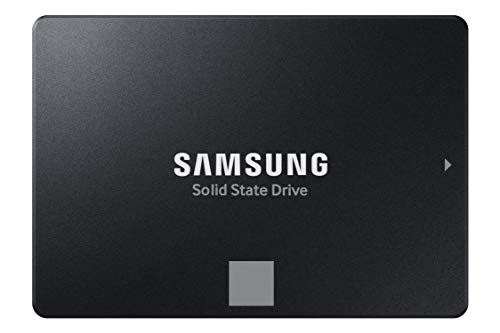
Samsung SSD 870 EVO 1TB — Best SATA all-rounder
The 870 EVO is what the SATA era looks like when a manufacturer keeps refining it long after the spotlight moved elsewhere. Its listing title promises read speeds up to 560MB/s, which is effectively the SATA III ceiling, and the drive’s reputation rests less on that number than on how consistently it behaves underneath it: this is the drive technicians reach for when a client’s five-year-old laptop needs to feel new again without drama. Firmware maturity, predictable sustained behaviour and an enormous installed base all count for more, in a budget upgrade, than a few benchmark points either way.
Consider where it lands in practice. A family laptop that spends its life on school documents, photo libraries and browser tabs will never stress this drive’s ceiling, yet it will benefit every day from the EVO’s composed random performance — the unglamorous work of opening applications and juggling small files. In a desktop, it doubles comfortably as a game library drive, where its steady sequential reads keep loading screens short.
There is also a longevity argument that rarely appears in budget discussions. Samsung’s EVO line has historically been the drive other SATA models are measured against partly because its behaviour in year three resembles its behaviour in week one: no sudden cliff in responsiveness, no firmware surprises, no shrinking usable space beyond the usual. For a machine you intend to keep — a parent’s desktop, a small business’s reception PC — that predictability is a feature with real cash value, because the cheapest drive is the one you never have to replace early. The EVO also tends to hold its appeal on the used market, a small but real consideration for upgraders who rotate hardware. None of this makes it exciting. Budget storage is not supposed to be exciting; it is supposed to disappear into the machine and stay disappeared, and on that criterion the 870 EVO has few peers at any point in the SATA catalogue.
Installation holds no surprises worth fearing: it is a standard 7mm 2.5-inch unit, so it slides into laptop bays designed for spinning drives and desktop brackets alike, and Samsung’s own migration software has a long history of moving an existing Windows installation across without tears. If this roundup has a default recommendation for a stranger — no knowledge of their workload, no follow-up questions allowed — it is this drive, because the circumstances under which it disappoints are genuinely hard to construct. It is also the natural boot drive for a revived office machine, precisely because nothing about it requires explanation or special handling.
- Capacity: 1TB
- Form factor: 2.5-inch, SATA III
- Read speed: up to 560MB/s, per the listing title
- Write speed: Not stated in the listing title — verify with Samsung documentation
- NAND type: Not stated in the listing title — verify with Samsung documentation
- Endurance (TBW): Not stated in the listing title — verify with Samsung documentation
Strengths
- Sits at the practical ceiling of the SATA interface, so no older machine leaves performance unused.
- A long production history means firmware, compatibility and behaviour are thoroughly understood quantities.
- Equally at home as a boot drive, a photo vault or a game library — one purchase covers several roles.
Trade-offs
- SATA itself is the limit: a modern M.2 slot would leave this drive’s interface far behind.
- It usually anchors the upper edge of this budget segment, so the saving versus rivals is small or absent.
- Desktop installs may need a mounting bracket or free 2.5-inch bay that very old cases lack.
Best for: a buyer seeking the safest possible SATA terabyte for a laptop or desktop that must simply work for years. Not suited for: a build with a free M.2 slot and a workload built on moving very large files daily.

Crucial MX500 1TB — Best SATA value
The MX500 has spent years as the default answer to a simple question: what is the sensible SATA drive? Its title pairs 3D NAND with speeds up to 560MB/s — the same headline ceiling as the Samsung above — and the design beneath that headline is deliberately conservative. Crucial built this family for the enormous middle of the market, the laptops and desktops that need a trustworthy terabyte rather than a conversation piece, and that focus shows in how unremarkable the ownership experience is meant to be.
Its natural habitat is the machine that does a bit of everything. In a home office desktop it holds the operating system, a working set of documents and a modest game library without ever becoming the bottleneck a user notices. In a laptop it replaces a spinning disk and transforms the two moments owners actually judge: the morning boot and the afternoon resume from sleep. Because the MX500 line has been installed in such volume, guides, cloning walkthroughs and troubleshooting threads exist for nearly every machine it might enter — a quiet advantage that matters when an upgrade is someone’s first.
Worth stating plainly is what the MX500’s 3D NAND designation does and does not promise. It tells you the flash is stacked in the modern manner rather than laid out flat, which is simply how competent drives are built now; it is not, by itself, a performance guarantee. The guarantee, such as it exists, comes from the whole design — controller, firmware and flash chosen to behave predictably under the messy mixture of reads and writes a home machine produces. That is why this drive’s owners so often report the same unglamorous verdict years later: it is still there, still quick, still unmentioned. In a segment where the failure mode of a bad purchase is a drive that slows to a crawl once it fills, boring consistency is the specification that matters, and the MX500’s career has been one long demonstration of it.
It is also the pick most likely to be found inside machines that were upgraded years ago and simply never thought about again — a small-business fleet here, a row of school laptops there. That installed base has a practical consequence for a new buyer: whatever your machine is, someone has almost certainly fitted this exact drive to one before, and written about it. Few budget purchases come with that depth of collective experience attached, and for a first-time upgrader it is worth real money.
- Capacity: 1TB
- Form factor: 2.5-inch, SATA
- Read speed: up to 560MB/s, per the listing title
- NAND: 3D NAND, per the listing title
- Write speed: Not stated in the listing title — verify with Crucial documentation
- Endurance (TBW): Not stated in the listing title — verify with Crucial documentation
Strengths
- Matches the segment’s best SATA headline speed while historically sitting at its friendlier end.
- Years of production make it one of the most thoroughly documented upgrades in its class.
- Behaviour under mixed everyday loads is steady rather than peaky, which suits boot-drive duty.
Trade-offs
- Like every SATA pick here, it cannot use an M.2 slot’s far higher ceiling.
- The design is mature rather than fresh; nothing about it chases current-generation features.
- Heavy sustained writing, such as daily video ingest, is outside the role this budget design targets.
Best for: a buyer seeking a proven SATA terabyte with the widest base of community knowledge behind it. Not suited for: sustained-write production work or a motherboard whose M.2 slot sits empty.

Crucial BX500 1TB — Simplest terabyte upgrade
The BX500 is Crucial’s stripped-back sibling: 3D NAND, a 2.5-inch SATA shell, and a title that promises up to 540MB/s — a whisker below the MX500’s ceiling, in exchange for the most direct possible route to a terabyte. Everything about this pick is aimed at the machine whose owner asks only that it stop feeling slow. There is no performance theatre here, and that is the point: the gap between a hard drive and this SSD is enormous, while the gap between this SSD and its dearer sibling is something most owners will never perceive.
Picture the second laptop in a household — the one passed to a teenager, kept for travel, or reserved for the accounts and email a main machine should not touch. A BX500 turns that machine from an apology into a tool. It also suits the desktop pressed into service as a media box or a child’s first computer, where capacity and responsiveness matter and sustained-write heroics do not. Buying the simpler drive for a simpler job is not settling; it is matching the spend to the actual work.
One honest caution belongs with this pick, and it applies across the budget tier: drives positioned here are happiest when they are not kept permanently brim-full. Leave the BX500 a sensible margin of free space and it will reward you with the snappy behaviour you bought it for; fill it to the last gigabyte and ask it to also absorb a huge download, and you will meet the limits of its design. That is not a defect — it is the physics of the class — but it does mean the terabyte should be treated as roughly nine hundred gigabytes of working room. For the secondary machines this pick targets, that arithmetic is painless, because their libraries are documents, photographs and a handful of games rather than a production archive.
There is a small philosophical point buried in this pick, and budget buyers benefit from hearing it. The difference between a good-enough drive and a great one is only worth paying for when the machine’s other parts can express it. A decade-old laptop with a modest processor will feel reborn behind a BX500 and would feel no different behind a drive costing noticeably more. Spending the difference on memory, or on the backup drive every household should own, produces a better computer than gold-plating the storage of a machine with other limits.
- Capacity: 1TB
- Form factor: 2.5-inch, SATA
- Read speed: up to 540MB/s, per the listing title
- NAND: 3D NAND, per the listing title
- Write speed: Not stated in the listing title — verify with Crucial documentation
- Endurance (TBW): Not stated in the listing title — verify with Crucial documentation
Strengths
- The most straightforward path in this list from a tired hard drive to a responsive terabyte.
- Its slightly lower ceiling is invisible in the boot, browsing and office work it is bought for.
- Shares Crucial’s broad compatibility footprint, so odd older machines rarely object to it.
Trade-offs
- Long, heavy write sessions are where its simpler design shows its limits first.
- The 20MB/s headline gap to the MX500 is trivial, but the MX500 remains the better long-term boot drive.
- As with all 2.5-inch picks, laptops with only an M.2 slot cannot use it at all.
Best for: a buyer seeking a honest, inexpensive-feeling revival of a secondary or ageing machine. Not suited for: a primary workstation drive or any role involving constant large writes.

WD Blue SN580 1TB — Fastest pick here
The SN580 is where this roundup crosses into a different performance world. Western Digital’s title describes a Gen4 x4 NVMe drive in M.2 2280 form rated up to 4,150 MB/s — roughly seven times the sequential ceiling of the SATA picks — and that headroom changes what a budget terabyte is for. Instead of merely reviving a machine, it accelerates the transfers modern work is made of: duplicating a game install, scrubbing through footage, unpacking a dataset, copying a virtual machine. The WD Blue line is the company’s mainstream tier, and the SN580 carries that brief into the Gen4 era without pretending to be a flagship.
Its best home is a recent laptop or desktop with a spare M.2 slot and an owner whose patience is spent on file operations rather than boot times. A creator moving camera cards onto a laptop each evening will feel this drive every single day. So will a gamer whose library rotates through a single terabyte, installing and deleting large titles monthly. In an older Gen3-only slot it still works, capped by the slot rather than the drive — worth knowing before paying for Gen4 headroom your board cannot release.
The SN580 also illustrates how the budget conversation has changed. A few years ago, Gen4 speed at this end of the market meant accepting an obscure brand and a prayer. A mainstream Western Digital line offering it means the technology has finished its descent into ordinary hardware, with ordinary expectations attached: it should install without fuss, run cool enough for a sealed laptop, and be supported by a proper toolbox utility. Judge it by those ordinary standards and it holds up well. Where it should not be oversold is endurance: the listing title offers no TBW figure, so a buyer planning to write enormous volumes daily — a video ingest station, a build server — should confirm the rating in Western Digital’s documentation and compare it against drives that publish theirs in the title itself.
Thermals deserve one sentence, because Gen4 drives in sealed ultrabooks can run warm under sustained transfers. The SN580’s mainstream tuning is an asset here: it was designed for exactly the thin machines that cannot spare a heatsink, and its behaviour under a long copy is correspondingly civilised. Desktop owners with airflow to spare will never think about the question at all. Either way, this is the pick that makes the strongest case that the budget segment, chosen carefully, no longer requires apologising for performance.
- Capacity: 1TB
- Form factor: M.2 2280, NVMe
- Interface: PCIe Gen4 x4, per the listing title
- Read speed: up to 4,150 MB/s, per the listing title
- NAND type: Not stated in the listing title — verify with Western Digital documentation
- Endurance (TBW): Not stated in the listing title — verify with Western Digital documentation
Strengths
- By far the highest transfer ceiling in this list, at a mainstream rather than flagship position.
- M.2 2280 is the most widely supported NVMe size across laptops and desktops.
- Mainstream tuning favours cool, quiet operation in thin laptops over benchmark theatrics.
Trade-offs
- Requires an M.2 slot; owners of SATA-only machines cannot consider it.
- On a Gen3 motherboard its advantage shrinks to whatever the older slot allows.
- Its listing title states no endurance figure, so heavy-write buyers must check documentation first.
Best for: a buyer seeking genuine Gen4 transfer speed inside the budget segment for a modern machine. Not suited for: SATA-era hardware, or a purchase justified by endurance figures the listing never states.

Kingston NV2 1TB — Budget Gen4 entry
Kingston’s NV2 exists to answer a narrow question: how cheaply can a terabyte of PCIe 4.0 be had without leaving the reputable brands? Its title promises up to 3,500 MB/s from a Gen 4×4 controller in the standard M.2 2280 shape, and the positioning is candid — this is an entry-level NVMe drive, built for machines that shipped with a small SSD or a hard drive and need capacity and modern speed more than they need records. For a first NVMe upgrade, that candour is refreshing.
The NV2 makes particular sense in the budget desktop build, where the parts list is a negotiation and storage is often where money gets recovered. It also suits the student laptop whose original 256GB drive filled up within a year: cloning onto the NV2 restores breathing room and adds speed the original drive never had. What it is not built for is the sustained-write grind of constant large-file production, where drives positioned a tier up earn their keep. Judged on the job it claims — affordable, roomy, modern — it is a coherent pick.
A word about expectations for entry-level NVMe in general, because the NV2 is where many first-time NVMe owners form them. The jump from SATA to this drive will show up most clearly in large transfers and in how a crowded system feels when several programs compete for the disk at once; it will not make an old processor young again, and it will not fix a machine whose real problem is too little memory. Set the expectation correctly and the NV2 satisfies it completely. Kingston’s long presence in memory and storage also means the drive is sold, stocked and supported almost everywhere, which matters at this end of the market more than at the top: when a budget part needs replacing under warranty, a mainstream brand’s machinery is simply easier to deal with.
Compatibility is the other quiet strength. The NV2 speaks the standard NVMe language in the standard 2280 size, so it drops into the same slots in laptops, desktops and many enclosures without negotiation. Pair it with a modest enclosure later in its life and it becomes a fast portable drive — a second career that SATA-era budget drives, tied to their bays, rarely get. For a student or a first-time builder, a part that can be reused in the next machine is worth more than a part that merely wins a benchmark in this one.
- Capacity: 1TB
- Form factor: M.2 2280, NVMe
- Interface: PCIe 4.0 Gen 4×4, per the listing title
- Read speed: up to 3,500 MB/s, per the listing title
- NAND type: Not stated in the listing title — verify with Kingston documentation
- Endurance (TBW): Not stated in the listing title — verify with Kingston documentation
Strengths
- Brings PCIe 4.0 to the entry tier, so budget builds need not settle for yesterday’s interface.
- Standard 2280 dimensions fit the overwhelming majority of NVMe slots.
- A sensible capacity-first choice for machines outgrowing a small original drive.
Trade-offs
- Its ceiling is the lowest of the two NVMe picks here; the SN580 is faster on paper.
- Entry-level positioning means sustained heavy writes are not its intended party trick.
- The title leaves NAND and endurance unstated, so specification-led buyers face homework.
Best for: a buyer seeking the most accessible route into Gen4 NVMe capacity for a mainstream machine. Not suited for: write-heavy production roles or a spec sheet comparison decided on endurance data.

PNY CS900 1TB — Straightforward SATA spare
The CS900 is the quiet utility player of this group: a 2.5-inch SATA III drive whose title states up to 535/515MB/s read/write and nothing more exotic. PNY positions it for everyday users, creators and gamers upgrading from a hard drive, and that plain pitch matches the hardware. It will not win a specification argument against the 870 EVO or MX500, whose ceilings sit slightly higher, but a terabyte that behaves itself in an old machine is worth more than a spec sheet — and the CS900’s whole career has been spent doing exactly that in budget builds and refurbished systems.
Think of the roles where a second-string drive shines. The family desktop that stores photos and homework. The refurbished office tower bought for a home business. The old gaming PC demoted to the living room, where its hard drive is the only part still making noise. In each case the CS900 delivers the transformation the owner actually wants — silence, speed of response, a terabyte of room — at the uncomplicated end of the segment. It is also a reasonable spare to keep in a drawer for the day a relative’s laptop drive begins to fail.
The CS900’s stated write figure deserves a small note, because it is the only SATA title here that commits to one. A maker willing to print 515MB/s writes alongside the read number is describing the drive it actually sells rather than the drive it wishes it sold, and in the budget tier that kind of plain dealing is worth rewarding. Practically, the CS900 also travels well between roles: the same unit can start as a boot drive in a refurbished tower, later become a game library when a bigger SSD arrives, and end its career in an external enclosure as a backup target. Drives that can be demoted gracefully are the ones that repay their cost several times over, and nothing in this pick’s simple specification prevents any of those second acts.
Finally, a note on who should walk past this pick without guilt. If the machine in question is your livelihood — the laptop your business runs on, the desktop holding a thesis — the mature end of this list, the 870 EVO or MX500, is the calmer choice, and the difference inside this budget segment is small. The CS900’s virtue is not that it beats those drives; it is that for the enormous number of machines whose needs are simpler, it delivers the same daily transformation and leaves the decision mercifully uncomplicated.
- Capacity: 1TB
- Form factor: 2.5-inch, SATA III
- Read speed: up to 535MB/s, per the listing title
- Write speed: up to 515MB/s, per the listing title
- NAND type: Not stated in the listing title — verify with PNY documentation
- Endurance (TBW): Not stated in the listing title — verify with PNY documentation
Strengths
- One of the few titles here stating both read and write figures, which keeps expectations honest.
- A long-running budget design with a simple job description and few surprises in service.
- Well matched to secondary machines where the alternative is an ageing, noisy hard drive.
Trade-offs
- Its headline speeds sit a step below the two leading SATA picks in this list.
- The title is silent on NAND type and endurance, limiting its appeal to specification-led buyers.
- Nothing about it targets sustained professional workloads, and it should not be bought for one.
Best for: a buyer seeking an uncomplicated SATA terabyte for a secondary, family or refurbished machine. Not suited for: a flagship boot drive role where the MX500 or 870 EVO’s maturity tells.
How Do the Six Compare Side by Side?
| Drive | Interface | Title-stated speed | Best-matched machine |
|---|---|---|---|
| Samsung 870 EVO 1TB | 2.5-inch SATA III | Read up to 560MB/s | Older laptops and desktops needing the polished SATA option |
| Crucial MX500 1TB | 2.5-inch SATA | Up to 560MB/s | Everyday machines wanting the proven SATA terabyte |
| Crucial BX500 1TB | 2.5-inch SATA | Up to 540MB/s | Secondary and hand-me-down machines |
| WD Blue SN580 1TB | M.2 2280 NVMe Gen4 | Up to 4,150 MB/s | Modern machines with heavy file-transfer habits |
| Kingston NV2 1TB | M.2 2280 NVMe Gen4 | Up to 3,500 MB/s | Budget builds and outgrown student laptops |
| PNY CS900 1TB | 2.5-inch SATA III | 535/515MB/s read/write | Family, refurbished and spare-drive roles |
Read the table by rows of reality, not rows of speed. The four SATA drives cluster within 25MB/s of each other at the interface’s ceiling, which means the choice among them is about maturity, role and the details each listing states — not about a meaningful performance gap. The two NVMe drives live in a different column of the world entirely, and between them the SN580’s higher ceiling suits transfer-heavy work while the NV2’s entry positioning suits capacity-first upgrades. A terabyte is the shared ground; everything else is fit.
How Much Speed Will You Actually Feel?
Specification sheets measure drives in isolation; owners experience them inside a whole machine. The honest hierarchy of what you will feel runs like this. Moving from a hard drive to any SSD on this page is a transformation — boots shrink from minutes to seconds, and applications stop arriving in instalments. Moving from a SATA SSD to one of the NVMe picks is an improvement concentrated in specific moments: large copies, game installs, project loads, and the general smoothness of a system doing several things at once. Moving between two drives in the same interface class is, for most owners, undetectable outside a benchmark. That hierarchy should discipline your spending. It says the interface question deserves an evening of thought, the within-class question deserves about ten minutes, and no amount of agonising will make a BX500 feel different from an MX500 in a web browser.
There is one more variable owners consistently underestimate: how full the drive is. Every SSD, from the humblest SATA unit to a flagship NVMe stick, manages its flash better with free space available, because empty blocks are the raw material of fast writes and healthy housekeeping. A terabyte treated as a terabyte — filled to the edge and kept there — will feel slower in its second year than the same drive treated as nine hundred gigabytes. Budget buyers, who by definition are stretching capacity furthest, benefit most from this habit. Buy the terabyte, use most of it, respect the margin, and the drive you chose will keep the behaviour you paid for.
What Should You Check Before Ordering?
Four checks, ten minutes, no tools required beyond a browser. First, your machine’s storage interface: find the exact model number and read its specification, looking for the words SATA, M.2, NVMe or PCIe next to the storage line. Second, the physical space: a laptop with a 2.5-inch bay needs a 2.5-inch drive, and some slim machines accept only an M.2 stick; a desktop needs a free bay or bracket and, for M.2, a free slot of the right length. Third, the mounting details — a spare SATA data cable for a desktop that has never held a second drive, the M.2 screw that should be waiting on the standoff, the bracket a 2.5-inch drive needs in a 3.5-inch bay. Fourth, your migration plan: decide now whether you will clone or install cleanly, and make sure your backup exists before the parcel arrives, not after.
None of these checks is glamorous, and together they prevent essentially every failed upgrade story in this segment. The drives themselves have become the reliable part of the process; it is the assumptions around them that fail. Spend ten minutes on the machine and an hour on this page, and you will end up with the right drive. Reverse that ratio, and you may end up with a very good drive for a computer you do not own.
What Mistakes Do Budget SSD Buyers Keep Making?
The first is buying the interface from the advertisement rather than from the machine. Every month, SATA-only laptops receive NVMe drives that cannot be installed, and M.2 machines receive 2.5-inch drives bought because the headline price looked kind. Ten minutes with the machine’s manual — or a photograph of its open bay — prevents the entire category of error. The second mistake is treating the budget in a search phrase as a guaranteed price. Segment pricing moves; a drive inside this class last month may sit outside it during a shortage, and a dearer model may dip into it during a sale. Judge the drive, then check the day’s figure, in that order.
There is a sixth mistake, quieter than the rest: judging the new drive during its first hour. Cloning, indexing, updates and the operating system’s own housekeeping all crowd the first day of an SSD’s life, and a machine can feel oddly ordinary until that backlog clears. Give the upgrade a week of normal use before deciding whether it worked. Owners who do usually stop thinking about storage entirely — which is, in the end, the outcome every pick on this page is selling.
The third mistake is filling a new terabyte and stopping there. A single drive holding the only copy of a family’s photographs is a risk regardless of brand or budget, and the money saved in this segment should partly fund a basic backup habit — an external drive, a cloud tier, anything with a second copy. The fourth is cloning a failing hard drive and blaming the SSD for the corruption it inherited; when the old drive is dying, a clean installation is often the wiser path. Finally, buyers forget the small hardware: a desktop may need a 2.5-inch bracket or a spare SATA cable, and an M.2 install needs its tiny screw, which is far easier to have ready than to improvise.
How Should You Install and Move Your Data?
Begin by backing up anything irreplaceable to somewhere that is not the machine you are about to open. Then decide between cloning and a clean install. Cloning preserves your exact environment and suits a healthy old drive; a clean install suits a machine that was already misbehaving, and it gives the new drive a tidy start. For a 2.5-inch SATA swap, the physical work is usually two cables and a handful of screws. For M.2, the stick slides into the slot at an angle, presses flat, and is held by a single small screw — snug, never forced.
After the hardware is in, boot from the old drive or installation media and confirm the new drive appears before closing the case for good. Run the manufacturer’s toolbox once to check for firmware updates, enable TRIM if your operating system has not already, and only then migrate or install. When everything works, keep the old drive untouched for a week as an accidental backup before repurposing it. That cooling-off week has rescued more upgrades than any utility ever written. Treat it as part of the installation, not as an optional extra, and the whole upgrade becomes very hard to regret.
Which of the Six Should You Actually Buy?
Decisions get easier when they are sequenced, so here is the sequence this roundup was built around. Question one: does your machine have an M.2 slot that takes NVMe drives? If the answer is no — and for the ageing laptops that dominate upgrade season it usually is — your list is the four SATA drives, and you can stop thinking about speed entirely, because all four live at the same interface ceiling. Question two, for SATA owners: is this your main machine? If yes, the MX500 is the balanced choice and the 870 EVO the belt-and-braces one; if the machine is a secondary, family or refurbished unit, the BX500 and CS900 do the same daily work for a simpler brief, and the money difference is better spent on the backup drive discussed above.
If your machine does have an M.2 slot, the sequence shortens. Question one becomes: how do you use the drive? Owners whose days involve large, frequent transfers — footage, game libraries, datasets — should take the SN580 and its higher ceiling. Owners whose problem is simply that a small original drive filled up should take the NV2, bank the simplicity, and enjoy the fact that even the entry point of Gen4 is several times faster than what they had. The only wrong answer in this branch is buying either drive for a machine whose slot turns out to be SATA-only M.2, a rare but real configuration in older laptops — one more reason the manual check comes before the order, every time.
Notice what this sequence never asks: which drive is fastest in a benchmark chart, and which one a forum thread is loudest about this month. Those questions feel rigorous and decide almost nothing at this level of the market, because the drives here are separated by role and interface far more than by merit. The sequence above asks about your machine and your habits, which are the only two things that will still matter once the drive is installed and the receipt is forgotten.
What About the Spec-Sheet Worries — Endurance, Caches and Brand Loyalty?
Three anxieties follow budget SSDs around the internet, and each deserves a calm answer. The first is endurance: will a cheaper drive wear out? For the workloads this segment serves — operating systems, applications, documents, games, photo libraries — the honest answer is that the machine will usually be retired before the drive’s flash is exhausted, because everyday writing is measured in small daily amounts. Endurance becomes a genuine deciding factor only when a drive is written hard every day, which is a different purchase with a different roundup; note that several titles here state no endurance figure at all, and this article has flagged each of those silences rather than papering over them.
The second anxiety is the cache question — whether a drive’s burst speed collapses during very long writes. It can, in this class, during transfers far larger than most owners ever attempt in one sitting: a single copy of hundreds of gigabytes. If your routine genuinely includes moves of that scale, the NVMe picks, and particularly the SN580, are the safer habitat. If your largest regular transfer is a game download handled by a launcher, the question is academic and should not steer the purchase.
The third is brand loyalty, which cuts both ways. Every maker on this page — Samsung, Crucial, Western Digital, Kingston, PNY — is an established name with real support machinery, and that establishment is itself part of what you are buying in a segment where unknown labels also compete. Within this company, loyalty is a tiebreaker, not a strategy: the owner of a Kingston-equipped laptop gains nothing mystical from a Kingston SSD, and the Samsung loyalist loses nothing by choosing the MX500. Buy the fit, keep the receipt, back up the data.
Final Recommendation
If your machine takes SATA, start with the Crucial MX500 for its balance of maturity and segment positioning, and step up to the Samsung 870 EVO when the machine is your main one and the small premium buys peace of mind. The BX500 and CS900 serve second machines honestly. If your machine has an M.2 slot, the WD Blue SN580 is the performance answer and the Kingston NV2 the capacity-first one. One last thought for the undecided: the cost of waiting for a perfect answer in this segment is usually higher than the cost of choosing between two good ones, because the machine you are upgrading is slow today, every day, while the decision waits. Any of these six, correctly matched to its machine, removes that daily tax.
A terabyte in this segment is no longer a luxury purchase; choose the interface first, the role second, and the badge last — and the drive you pick will still feel like money well spent when the machine around it is replaced.
Frequently Asked Questions
Is a SATA SSD still worth buying in a budget upgrade?
Yes, whenever the machine in question has no M.2 slot. The transformation from a spinning disk to any of the four SATA picks here — silent operation, fast boots, responsive applications — is the largest single improvement an older computer can receive, and it does not require the newest interface to deliver it.
Will an NVMe drive work in a SATA-only laptop?
No. The connectors are physically and electrically different, and no adapter makes an internal M.2 NVMe stick function in a 2.5-inch SATA bay. Check the machine’s specification or open the bay before ordering; the four SATA picks in this roundup exist precisely for those machines.
Does the Gen4 speed of the SN580 and NV2 matter for everyday use?
For booting and opening applications, modestly; for moving large files, substantially. Copying a 60GB game folder or a card full of footage is where the Gen4 ceiling earns its place. Everyday responsiveness improves over SATA too, but by a margin most people describe as polish rather than transformation.
Why do some spec boxes above say a figure is not stated?
Because this article only prints specifications the listing title itself provides. Where a title omits a write speed, a NAND type or an endurance figure, inventing one from a sibling model would mislead. The manufacturer’s documentation for the exact model code is the correct place to confirm those details before a demanding purchase.
How much of the 1TB will I actually be able to use?
Operating systems report capacity in a way that makes a 1TB drive appear somewhat smaller, and you should keep a working margin free rather than filling any SSD to its last gigabyte. As a habit, treat roughly the final tenth of any drive as breathing room the controller uses to stay fast and healthy.
Should I clone my old drive or install Windows fresh?
Clone when the old installation is healthy and your time matters; install fresh when the machine was already unstable, bloated or infected, because cloning faithfully copies problems along with data. Either path benefits from the same preparation: a current backup, your software keys gathered, and an evening set aside rather than twenty minutes before you need the machine.
Related Guides
Storage upgrades rarely stop at one drive. For endurance-first picks, see our guide to long-lasting SSDs built around rated endurance, and for machines with the smallest slots, our roundup of small M.2 2230 SSDs for handhelds and ultrabooks covers the compact end of the market. If capacity per drive is your next question, our TLC SSD guide explains the NAND most modern drives share.