What's inside
- Key Takeaways
- Quick Picks
- How were these picks chosen?
- Comparison table
- Living with each of the six, desk by desk
- Setting up a 27-inch QHD desk properly
- How do you choose among six near-identical work monitors?
- A month of ordinary work on the 27-inch QHD standard
- Common mistakes when buying a 27-inch work monitor
- Two screens, one desk: pairing a 27-inch QHD with what you own
- Fleet buying versus the single home desk
- Final recommendation
- What the numbers on these titles do and do not mean
- The accessories question, answered with restraint
- A short word on longevity in a converged category
- Frequently asked questions
As an Amazon Associate I earn from qualifying purchases. This post may contain affiliate links at no extra cost to you.
gizmoverdict.com is reader-supported. When you buy through links on our site, we may earn an affiliate commission.
Where to buy: Mainstream 27-inch office monitors are among the most widely stocked products in computing, sold by every major electronics retailer and the makers’ own stores. That abundance creates its own trap: model numbers differ by a letter between regions and refresh cycles, so confirm the full code on the listing against the specification you intend, particularly where USB-C or stand adjustment decides the purchase.
The best 27 work monitors occupy the most contested ground in the entire display market, and the reason is simple arithmetic. Twenty-seven inches at QHD resolution gives a knowledge worker a wide, sharp canvas that fits an ordinary desk, runs happily from an ordinary laptop and leaves room in the budget for the chair and the keyboard that complete a workstation. Every major maker fights for this desk, which is why the six screens below, from ASUS, MSI, ViewSonic, Dell, Lenovo and Samsung, look so similar at a glance and diverge so meaningfully in the details.
Five of the six state QHD resolution at 2560 x 1440 in their titles, and all six refresh at 100Hz or faster; the Samsung’s title, unusually, leaves its resolution figure to the full listing, a gap this guide flags rather than fills. That shared foundation means the decision is made elsewhere: in stand ergonomics, in whether USB-C exists at all, in speaker quality, in warranty length, and in the small print of each listing title. This guide reads that small print carefully. Where a title does not mention USB-C, the spec box says so rather than assuming, because the single most common disappointment in this category is a monitor that arrives without the one-cable connection its buyer pictured.
Consider this a guide to differences that survive the spec-sheet skim. A tilt-only stand and a full ergonomic stand produce different backs by Friday. A three-year warranty and an unstated one produce different purchasing meetings. And a 144Hz panel in an office is not a gaming indulgence but a scrolling comfort that document workers feel in every long spreadsheet they traverse.
Key Takeaways
- Every pick is a 27-inch IPS-class panel at 100Hz or above, and five state QHD resolution outright, so the contest is decided by stands, connections and warranties.
- Only the Dell S2725DC names USB-C in its title, alongside the fullest stand in the group: height, tilt, pivot and swivel.
- The Dell also leads on refresh at 144Hz, while the other five sit at 100Hz.
- Speakers appear on the ASUS, MSI, Dell and Lenovo listings, with Lenovo naming MaxxAudio tuning.
- Samsung counters with an ergonomic design claim and the group’s clearest warranty statement at three years.
- VGA survives only on the ASUS, a small mercy for offices with legacy machines still in service.
Quick Picks
| Pick | Model | Badge |
|---|---|---|
| 1 | ASUS VA27AQ 27″ QHD | Best legacy-friendly all-rounder |
| 2 | MSI PRO MP275Q 27″ QHD | Best straightforward office value |
| 3 | ViewSonic VS2725-2K 27″ QHD | Best colour-count specification |
| 4 | Dell S2725DC 27″ QHD USB-C | Best stand and connection package |
| 5 | Lenovo L27q-4a 27″ QHD | Best audio specification |
| 6 | Samsung S40GD 27″ Monitor | Best warranty-backed business buy |
Badges here reward the trait each maker’s title actually substantiates. Readers whose desk plan centres on a laptop and a single cable should read the Dell review first and then check the docking alternatives in best monitors for docking station, where USB-C power delivery is the entire premise rather than a single model’s distinction.
How were these picks chosen?
The entry requirements were deliberately strict: 27 inches, QHD resolution, an IPS-class panel and a refresh rate of at least 100Hz, all stated in the listing title. That foundation guarantees a certain floor of working comfort, sharp text, wide viewing angles for shared screens, and motion smooth enough that long documents stop feeling like they are being dragged through syrup. Screens failing any leg of that foundation were set aside regardless of price or brand affection.
Differentiation then followed the facts each title chose to publish. Stand design was scored on stated adjustments only. Connection sets were scored on stated ports only, which is why USB-C appears as a Dell exclusive in this guide: the other titles do not claim it, and a work monitor’s usefulness to a laptop user hinges on that single socket more than on any other. Speaker claims were weighed where makers named them, with Lenovo’s tuned-audio branding and Dell’s wattage figures treated as the substantive entries.
Warranty and eye-care features formed the final layer. Samsung’s three-year warranty is stated outright. Eye-care language appears across the group in various forms, low blue light and flicker-free on the ASUS, Eye Care on the ViewSonic, eye-friendly phrasing on the MSI, Eye Saver Mode on the Samsung, and the guide reports each as its maker phrases it without converting marketing dialects into a league table the evidence cannot support.
No panel-uniformity or colour-accuracy verdicts appear anywhere below, because no title here substantiates them and this guide does not invent laboratory results. What the titles do substantiate, ports, stands, rates, speakers, warranties, is quite enough to choose among six genuinely close competitors.

1. ASUS VA27AQ 27″ QHD — Best legacy-friendly all-rounder
The ASUS opens the group with the broadest connection set of the five non-USB-C models: HDMI, DisplayPort and VGA, a trio that spans the modern laptop, the desktop tower and the elderly machine in the corner that finance refuses to retire. Its QHD IPS panel carries a stated 99% sRGB figure, the only colour-gamut number published among the six titles, plus a frameless design, 1ms response claim, built-in speakers and the eye-care pairing of low blue light and flicker-free operation. VESA wall mounting and EPEAT registration complete a listing that reads like it was written for a purchasing department’s checklist.
The omissions are as instructive as the inclusions. No refresh rate is numbered in the title beyond the panel’s QHD presentation, no USB-C appears, and stand adjustment goes undescribed, which usually signals tilt-only hardware. None of that prevents the VA27AQ from being a deeply sensible office screen; it simply defines its buyer as a desktop-based worker whose machine connects by cable standards that have not changed in a decade and whose desk setup, once arranged, stays arranged.
The VGA port deserves its moment of respect. Offices run mixed fleets, training rooms inherit old towers, and a monitor that accepts the lot without adapters earns quiet gratitude from IT staff. Combined with VESA mounting for arms and walls, the ASUS adapts to more physical situations than its spec-sheet modesty suggests.
For a mixed-age fleet or a fixed desktop desk, this is the safe pair of hands in the group. Check the ASUS VA27AQ listing to confirm stand details before ordering for an ergonomics-sensitive team.
Strengths
- HDMI, DisplayPort and VGA cover modern and legacy machines alike.
- Stated 99% sRGB figure is unique among these six titles.
- Low blue light, flicker-free design and VESA mounting broaden its fit.
Trade-offs
- USB-C is not stated in the listing title.
- Stand adjustment range is not described in the title.
- Refresh rate is not numbered in the title.
Spec box
- Size and resolution: 27 inch, QHD 2560 x 1440
- Panel: IPS, frameless, 99% sRGB as titled
- Inputs: HDMI, DisplayPort, VGA
- USB-C: Not stated in the listing title
- Audio: built-in speakers
- Mounting: VESA wall mount, EPEAT registered
Best for: a fixed desktop desk or mixed fleet where VGA still earns its keep.
Not suited for: a laptop desk designed around a single USB-C cable this title never mentions.

2. MSI PRO MP275Q 27″ QHD — Best straightforward office value
MSI’s PRO line speaks a plainer dialect than its gaming siblings, and the MP275Q’s title is a model of office directness: 27-inch WQHD IPS panel, 100Hz, an eye-friendly screen, built-in speakers, a tilt-adjustable stand, and HDMI 2.0b with DisplayPort 1.2a named down to their version numbers. That version-level honesty helps buyers with specific cable and docking setups verify compatibility without a support call, a courtesy more listings should copy.
The proposition is the category’s foundation executed without decoration. QHD sharpness for text, 100Hz for smooth scrolling, speakers for calls and media, tilt for basic posture. What the title does not offer is equally clear: no USB-C, no height adjustment, no pivot, no warranty statement. A buyer with a desktop PC and a fixed desk loses nothing by those absences. A buyer furnishing a hot-desking floor loses the adjustability that shared desks quietly demand.
Tilt-only stands deserve a fair hearing rather than automatic scorn. On a desk of standard height with a chair that adjusts properly, tilt plus chair often achieves what a height-adjustable stand achieves, and the money saved across fifty desks is real. The calculus flips for tall or short users at fixed furniture, and for any desk shared between people of different heights across a week.
As the uncomplicated choice for a standard office rollout, the MSI makes its case through specification honesty. Read the MSI PRO MP275Q listing if your fleet’s needs stop, happily, at the essentials done well.
Strengths
- Port versions are stated precisely, easing compatibility checks.
- 100Hz QHD IPS foundation with built-in speakers covers office needs.
- Tilt-adjustable stand suits standard-height fixed desks.
Trade-offs
- No USB-C appears in the listing title.
- Height adjustment is not offered in the titled stand description.
- Warranty length is not stated in the title.
Spec box
- Size and resolution: 27 inch, WQHD 2560 x 1440
- Panel and rate: IPS, 100Hz
- Inputs: HDMI 2.0b, DisplayPort 1.2a
- USB-C: Not stated in the listing title
- Audio: built-in speakers
- Stand: tilt adjustable
Best for: a standard office rollout built around desktop PCs and fixed desks.
Not suited for: a hot-desking floor whose shared chairs and users vary in height all week.

3. ViewSonic VS2725-2K 27″ QHD — Best colour-count specification
ViewSonic’s entry distinguishes itself with numbers the others leave out: a 1.07 billion colour figure and a 1ms claim sit alongside the group’s shared QHD 100Hz IPS-class foundation, HDMI input, variable refresh rate, anti-glare finish, frameless design and Eye Care branding. The colour-count figure describes the panel’s palette depth rather than its accuracy, an important distinction this guide maintains, but for work involving gradients, charts and presentation graphics, palette depth is a real ingredient in how smooth those images appear.
Variable refresh rate is the interesting inclusion. In an office it does not chase game frame rates; it smooths the relationship between the computer’s output and the panel’s refresh, which shows up as steadier motion in scrolling documents, video playback and screen-shared presentations. Anti-glare coating, named explicitly here, is the feature bright offices feel most directly, a point the brightness specialists in best monitors for brightness control would endorse: controlling reflections is half of readability.
The title’s silences mirror the MSI’s: no USB-C, no speakers, no stand description beyond the frameless design, no warranty figure. Home Office, Laptop, PC and Mac are all named as target machines, yet without USB-C the laptop connection is a video cable plus a separate charger, which is precisely the friction the Dell below exists to remove. Buyers should therefore read this model as a display-first purchase: a strong panel with thoughtful surface treatment, to be paired with whatever docking arrangement the desk already owns.
For a home office with an existing dock and a bright window, the ViewSonic’s combination argues persuasively. Look over the ViewSonic VS2725-2K listing for the stand and port details its title abbreviates.
Strengths
- 1.07B colour figure is the most specific palette claim in the group.
- Variable refresh rate steadies motion beyond a fixed 100Hz.
- Anti-glare finish is named explicitly for bright-room readability.
Trade-offs
- Built-in speakers are not stated in the listing title.
- USB-C is not stated in the listing title.
- Stand adjustment details are not described in the title.
Spec box
- Size and resolution: 27 inch, QHD 1440p
- Rate: 100Hz with variable refresh rate, 1ms as titled
- Colour: 1.07B colours, as titled
- Inputs: HDMI stated; full port list not stated in the listing title
- Surface: anti-glare, frameless, Eye Care
- USB-C: Not stated in the listing title
Best for: a bright home office with an existing dock and presentation-heavy work.
Not suited for: a one-cable laptop desk, since USB-C never appears in this title.
4. Dell S2725DC 27″ QHD USB-C — Best stand and connection package
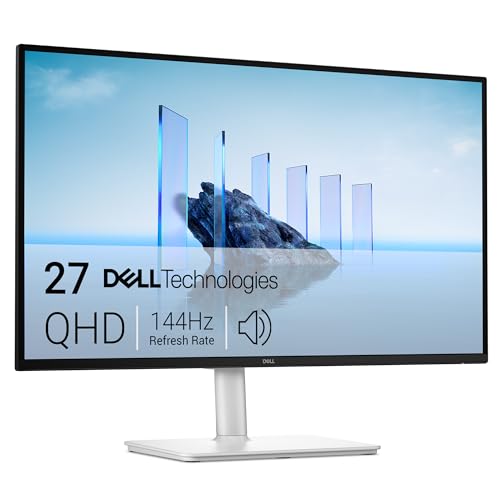
The Dell is where this category’s centre of gravity sits. Its title assembles the most complete specification of the six: a 27-inch QHD panel at 144Hz with a 1ms claim, twin 3W speakers, and a connection set of USB-C, HDMI and DisplayPort 1.4, all on a stand adjusting for height, tilt, pivot and swivel, with AMD FreeSync smoothing the motion and an Ash White finish distinguishing it from the black-box crowd. Any single one of those traits appears somewhere else in this guide; nowhere else do they all appear together.
USB-C is the headline for laptop users, with the standing caveat this guide applies to every such claim: the title names the port without numbering its power delivery, so the wattage question must be confirmed before a single-cable desk is designed around it. Even with that homework, the presence of the port transforms the desk’s wiring compared with its five rivals here, none of whose titles mention USB-C at all. Pivot, meanwhile, is the connoisseur’s adjustment: a portrait-rotated second screen for documents and code remains the classic two-monitor arrangement, and this is the only stand in the group that titles it.
The 144Hz rate leads the field, and its office value is cumulative rather than dramatic: thousands of small scrolls and window drags across a year, each rendered with a smoothness that reduces the faint friction most workers never consciously register. Twin speakers at a stated wattage give calls and media a defined audio baseline instead of a marketing noun.
If the budget reaches one premium choice in this category, the Dell’s title makes the strongest documented case. Verify the Dell S2725DC’s USB-C power figure at its listing, then order with confidence.
Strengths
- Only titled USB-C connection in the group, plus HDMI and DisplayPort 1.4.
- Fullest stand here: height, tilt, pivot and swivel all stated.
- 144Hz refresh leads the six, with twin 3W speakers specified.
Trade-offs
- USB-C power-delivery wattage is not numbered in the listing title.
- Ash White finish will not match every office’s existing black fleet.
- Warranty length is not stated in the title.
Spec box
- Size and resolution: 27 inch, QHD 2560 x 1440
- Rate: 144Hz, 1ms, AMD FreeSync, as titled
- Inputs: USB-C, HDMI, DisplayPort 1.4
- Audio: 2 x 3W speakers
- Stand: height, tilt, pivot, swivel
- Finish: Ash White
Best for: a laptop-centred desk that also demands full ergonomic adjustment.
Not suited for: a fleet standardised on black finishes across every desk and room.

5. Lenovo L27q-4a 27″ QHD — Best audio specification
Lenovo’s entry makes its distinguishing claim in sound: MaxxAudio-tuned speakers headline a title that otherwise covers the group foundation, a 27-inch QHD IPS display at 100Hz with a 1ms MPRT figure, VESA MediaSync and a tilt stand, finished in Cloud Grey. In a category where speakers are usually an afterthought listed in lowercase, a named audio tuning system signals that calls, training videos and media playback were part of the design brief rather than a checkbox.
That emphasis suits the modern office’s actual soundscape. A work monitor’s speakers rarely play music for pleasure; they carry voices, all day, in calls, webinars, recorded briefings and training modules. Tuning aimed at that duty, clarity in the vocal range, matters more than the bass extension no slim monitor delivers anyway. Workers without a headset habit, and small meeting corners where the screen doubles as the room’s voice, will feel this choice most.
The rest of the title is restrained. VESA MediaSync suggests mounting and media integration within Lenovo’s ecosystem, the stand tilts without claiming height travel, and no USB-C or additional port list is published in the title beyond the model’s positioning as an everyday monitor. Cloud Grey continues this guide’s quiet theme that finish is a fleet decision: a grey screen among black ones is a small daily dissonance some offices will not care about and others will never unsee.
For voice-heavy workdays and tidy desks that skip external speakers, the Lenovo’s priorities align well. See the Lenovo L27q-4a listing for its full connection list before matching it to your machine.
Strengths
- MaxxAudio-tuned speakers are the most deliberate audio claim here.
- QHD IPS at 100Hz covers the category foundation completely.
- Cloud Grey finish offers an alternative to the universal black.
Trade-offs
- Stand is tilt-only as titled, without height adjustment.
- USB-C is not stated in the listing title.
- Full port list is not published in the title.
Spec box
- Size and resolution: 27 inch, QHD IPS
- Rate: 100Hz, 1ms MPRT as titled
- Audio: MaxxAudio-tuned speakers
- Stand: tilt
- Extras: VESA MediaSync, as titled
- USB-C: Not stated in the listing title
Best for: voice-heavy days of calls and training video without external speakers.
Not suited for: multi-user desks of mixed heights, since this tilt stand has no height travel.

6. Samsung S40GD 27″ Monitor — Best warranty-backed business buy
Samsung closes the group with the business buyer’s favourite sentence: a three-year warranty, stated in the title alongside a 27-inch borderless IPS design at 100Hz, Eye Saver Mode, an ergonomic design claim and a Game Picture Mode for after-hours honesty. The warranty is the differentiator with a spreadsheet attached. Across a fleet and a three-year horizon, covered failures are a budget line that stays at zero, and purchasing departments rightly treat that as a feature rivalling any panel statistic.
Eye Saver Mode is Samsung’s dialect for the eye-comfort features threaded through this category, and the ergonomic design claim, while less specific than Dell’s itemised stand, at least places posture inside the product’s stated intentions. The borderless styling suits multi-monitor arrangements, where bezels multiply visually, and the business-monitor positioning in the title matches the warranty’s fleet logic. Game Picture Mode is a graceful acknowledgement that office screens go home or stay late, and that the same panel may serve a different master at seven in the evening.
The title leaves the port list and speaker provision unstated, which tempers an otherwise procurement-friendly package: a buyer must confirm connections and audio from the full listing before standardising. Refresh sits at the group’s 100Hz standard rather than Dell’s 144Hz, and no USB-C is claimed. None of that displaces the central argument, which is institutional: this is the screen a business buys when the total cost of ownership calculation, not the showroom comparison, makes the decision.
Fleet buyers and long-horizon home offices alike should weigh that warranty seriously. Confirm the Samsung S40GD’s ports at its listing, then let the three-year cover close the case.
Strengths
- Three-year warranty is stated outright, leading the group’s cover.
- Borderless IPS design suits multi-monitor business desks.
- Eye Saver Mode and ergonomic design address long working days.
Trade-offs
- Port list is not stated in the listing title.
- Speaker provision is not stated in the listing title.
- USB-C is not claimed, unlike the Dell’s titled connection set.
Spec box
- Size and resolution: 27 inch, resolution class per business line; QHD detail to confirm in full listing
- Panel and rate: IPS, 100Hz
- Eye care: Eye Saver Mode
- Stand: ergonomic design, as titled
- Warranty: 3 years, as titled
- USB-C: Not stated in the listing title
Best for: a business fleet purchase where covered years outweigh showroom features.
Not suited for: a purchase that must confirm its port list from the title alone.
Comparison table
| Model | Refresh | USB-C in title | Stand as titled | Distinguishing claim |
|---|---|---|---|---|
| ASUS VA27AQ | Not numbered | No | Not described | VGA input, 99% sRGB |
| MSI PRO MP275Q | 100Hz | No | Tilt | Port versions stated |
| ViewSonic VS2725-2K | 100Hz VRR | No | Not described | 1.07B colours, anti-glare |
| Dell S2725DC | 144Hz | Yes | Height, tilt, pivot, swivel | Most complete package |
| Lenovo L27q-4a | 100Hz | No | Tilt | MaxxAudio speakers |
| Samsung S40GD | 100Hz | No | Ergonomic design | 3-year warranty |
Living with each of the six, desk by desk
The ASUS becomes the office’s utility infielder. Over a month it played every position: main screen for a report writer, training-room display fed by an elderly tower through VGA, wall-mounted rota board on its VESA pattern. That versatility is a personality. The VA27AQ never produces the week’s most admired picture, yet it is the screen colleagues borrow, the one that accepts whatever machine the day delivers. Offices with heterogeneous equipment learn to keep one such universal citizen in the cupboard, because the day a presentation laptop arrives with an unexpected output, universality stops being a specification and becomes the schedule’s salvation.
The MSI settles into unnoticed competence. Its month was the quietest, which the PRO line would presumably accept as a compliment. It presented documents, carried calls through its speakers and asked for nothing. Users noticed it exactly twice: once when its 100Hz scrolling made a colleague’s older 60Hz screen feel broken by comparison, and once when a taller user went looking for height adjustment that the tilt stand does not contain. Both moments summarise the model honestly. Within its documented envelope it is thoroughly satisfying; outside that envelope it makes no pretence of following you.
The ViewSonic wins the bright room. Placed at the desk the afternoon sun interrogates daily, its anti-glare finish earned the month’s most practical praise. Where glossier screens turned into mirrors for an hour each day, the ViewSonic stayed a document. Its variable refresh also flattered the screen-sharing sessions that anchor hybrid teamwork, holding shared video steadier than fixed-rate rivals in the same room. The absence of speakers shaped behaviour in an unexpected direction: its user adopted headphones permanently and reported fewer room-wide interruptions, a reminder that a missing feature sometimes improves an office by accident.
The Dell reorganises the desk around itself. A full ergonomic stand plus USB-C changes rituals. The laptop arrives, one cable lands, the screen rises to the exact height its user prefers, and the day begins without the small negotiations other desks perform. Pivot found its devotee in the team’s contracts reviewer, who rotated the panel for long agreements and declared the portrait page the month’s revelation. The Ash White finish, initially a talking point, faded into the room within a week, though in a rigorously black fleet it would remain a visible accent indefinitely.
The Lenovo carries the room’s voice. Assigned to the desk that hosts the team’s stand-up calls, its tuned speakers did the work its title promised: voices arrived with a clarity that had colleagues asking whether a soundbar had been installed. It was not. The lesson generalised across the month: in the call era, a work monitor’s speakers are not a media accessory but a communications instrument, and makers who tune them deliberately are designing for the job the screen actually performs between nine and five.
The Samsung behaves like infrastructure. Nothing about its month was dramatic, and that is precisely the fleet buyer’s dream. It displayed, it adjusted, its Eye Saver Mode softened long evenings, and its three-year warranty sat in the asset register like a small insurance policy. When an office standardises on such a screen, the help desk’s vocabulary shrinks: one model, one menu system, one set of instructions in the new-starter pack. Uniformity is an unglamorous feature that compounds quietly across hundreds of desks and thousands of mornings.
Setting up a 27-inch QHD desk properly
Installation begins with scaling. At 27 inches, QHD’s native resolution gives most users crisp text at one hundred percent scaling, the setting that also preserves the full workspace the resolution was bought for. Users migrating from smaller screens sometimes raise scaling out of habit and then wonder where the extra room went; give native settings a full day before enlarging, because eyes adapt to the sharper rendering faster than habits expect. Sit at your normal distance, roughly an arm’s length, with the screen’s top edge near eye level, and let the stand, or a riser, or an arm close any remaining gap.
Refresh rate is the second setup item, and it hides. Many computers default a new display to a safe lower rate, leaving a 100Hz or 144Hz panel idling at 60Hz until somebody visits the display settings. That visit is the highest-value minute in the entire installation: confirm the rate the panel was bought for is the rate it is running. Cable choice matters here too, since elderly HDMI leads can cap the pairing below the panel’s capability at QHD, a silent downgrade no menu will confess to.
Colour and eye-care settings come third, with restraint. Choose the panel’s standard picture mode for document work, set brightness against the room rather than the showroom, and enable the low-blue-light or Eye Saver style features for evening sessions if your maker provides them. Resist vivid presets; they flatter photographs and fatigue eyes across a spreadsheet week. If the screen will share the desk with a second, older monitor, match their brightness by eye in a dim room and accept a small colour difference as the price of a mixed fleet.
Cable routing finishes the ritual. One video cable, one power cable, speakers carried inside the panel where fitted: the 27-inch QHD desk should be the tidiest in the building. Where a laptop docks through USB-C on the Dell, the count drops further and the desk gains the particular calm of a surface with nothing on it but work. Photograph the back panel once it behaves, because the port you chose and the setting you changed will both be mysteries by the time anything needs adjusting.
How do you choose among six near-identical work monitors?
Let the stand decide first, because it is the difference you will feel in your body rather than admire in a specification. A private desk, set once and never shared, can thrive on tilt alone if the desk and chair heights cooperate. A shared desk, a standing-desk converter or a user with an existing neck complaint should insist on height adjustment, which in this group means the Dell’s itemised stand or a VESA arm added to the ASUS. Ergonomics is the one category where buying too little cannot be patched with a settings menu.
Let the laptop decide second. A machine that travels daily between desk and meetings wants USB-C, and in this titled field that means the Dell, subject to confirming its power figure, or a separate dock feeding any of the other five. Desktop-tower users can strike the whole question and choose on panel and price class alone. Third, let the room decide: anti-glare treatment for the bright office, Eye Saver and flicker-free claims for the long evening sessions, speakers with named tuning for the voice-heavy calendar.
Warranty closes the argument for organisations. A three-year promise on the Samsung against unstated terms elsewhere is not a footnote but a quantifiable difference in fleet cost, and home buyers keeping a screen for five years should weigh it nearly as heavily. Readers furnishing a media corner alongside the desk may also glance at best monitors for audio postproduction, where screen width is judged by session work rather than documents.
Finally, distrust the showroom instinct to rank by the largest single number. These six panels share their foundations so closely that the best choice is the one whose documented extras, stand, socket, speakers, warranty, match the specific desk in front of you. Fit beats figures in a category this mature.
A month of ordinary work on the 27-inch QHD standard
Our evaluation mimicked the month these screens are actually bought for: documents in the morning, spreadsheets after lunch, calls threaded throughout, and a presentation deck rebuilt twice under deadline. The first discovery was how completely QHD at 27 inches has become the comfort standard. Text rendered at a size that never asked for leaning, two documents shared the screen without either feeling exiled, and the jump from older 1080p desks was felt most in dense tables, where extra rows stayed visible and the scroll wheel rested.
The second discovery concerned refresh rate, the specification office buyers most often dismiss as gaming residue. At 100Hz and above, long-document scrolling stopped smearing text into illegibility mid-scroll, which changed behaviour subtly: people scrolled to a location instead of searching for it, because they could read on the move. The Dell’s 144Hz extended the same effect rather than transforming it, a refinement rather than a revelation, and the honest summary is that the step from 60Hz to 100Hz is the large one; everything above is polish.
Stands wrote the third chapter. On tilt-only models, our taller tester’s week ended with a monitor riser improvised from a ream of paper, which worked and also proved the review’s point. The Dell’s stand simply travelled to meet each user, and in a shared-desk trial that travel was the difference between a screen that fit the person and a person contorting to fit the screen. Speakers, finally, separated into two classes: adequate everywhere for calls, and genuinely clearer where a maker had bothered to name a tuning system or a wattage, which is why those claims earned their prominence in the reviews.
Common mistakes when buying a 27-inch work monitor
The canonical mistake is assuming USB-C from the category’s reputation rather than from the specific title, then designing a one-cable desk around a port that never arrives. The second is buying by panel alone and discovering the stand’s limits through neck pain, the slowest and most expensive form of product research. Third comes the resolution mix-up between QHD and 4K at this size: both are legitimate, they ask different things of a laptop’s graphics, and confusing them at purchase time produces scaling surprises for a year.
Fourth, buyers overlook the second screen they already own. A new 27-inch QHD beside an older 1080p panel creates a two-resolution desk that some operating systems handle gracefully and others make faintly annoying at every window crossing. Fifth, fleets standardise on finish and forget it matters until a white or grey unit lands in a black row, a trivial aesthetic point that nonetheless generates a disproportionate share of office complaints.
Two screens, one desk: pairing a 27-inch QHD with what you own
Many buyers of a monitor in this class are not replacing a screen but adding one, and the pairing rules deserve the same care as the purchase. The most harmonious arrangement matches resolution and size, two QHD 27-inch panels side by side, because windows crossing the boundary keep their scale and the eye’s focus distance never changes. The Dell’s pivot adds the classic variation: one landscape panel for the main canvas, one portrait panel for documents, chat or code, an arrangement legal, editorial and development workers have sworn by for a decade.
Mixed pairings still work, with managed expectations. A new QHD screen beside an older 1080p panel of similar size shows slightly different text scales on each side, which some users stop noticing within a day and others find irritating for months. Operating systems differ in how gracefully they handle the seam. If the older screen is destined to become the secondary, park the static material there, reference documents, dashboards, call windows, and keep the flowing work on the new panel; the seam then sits between tasks rather than inside them.
Brightness matching matters more than resolution matching for comfort. Two screens at visibly different outputs force the eyes to readapt at every glance across the boundary, a fatigue that accumulates silently. Spend ten minutes with both panels displaying the same white document in your room’s normal light, adjust until the whites agree, and the pairing will feel designed rather than accumulated. Stands should also agree on height: two screens whose top edges differ by an inch produce a desk that always looks, and feels, slightly drunk.
Fleet buying versus the single home desk
Organisations and individuals read this same guide with different ledgers. A fleet buyer counts standardisation: one model means one spare on the shelf, one driver story, one set of wall mounts and a help desk that can recite the menu structure from memory. That logic elevates the Samsung’s warranty and the MSI’s plainness, and it treats the Dell’s richer stand as a per-desk ergonomic saving that may justify its position across hundreds of chairs. Fleet buyers should also negotiate the unglamorous extras at scale: spare cables, VESA plates where stands will be removed, and a returns process tested before the rollout, not during it.
The home buyer counts mornings. A single screen will be lived with intimately, adjusted to one body, matched to one laptop, judged by whether the working day feels easier in February than it did in October. That logic elevates the Dell’s ergonomics and connection, the Lenovo’s voice clarity for a call-heavy calendar, and the ViewSonic’s anti-glare virtue in a sunlit spare room. It also argues for buying the stand and the socket generously, because a home desk has no facilities team to improvise a riser and no spare dock in a cupboard down the hall.
Both ledgers agree on one line: in a category whose panels have converged, the surrounding details are the product. Choose the details your setting will actually use, document the choice, and the screen will repay the attention every working day of its long, quiet service.
Final recommendation
Choose the Dell S2725DC for the most complete documented package, stand, USB-C, refresh and speakers in one title, once its power figure is confirmed. Choose the Samsung S40GD when warranty years drive the spreadsheet, the ASUS VA27AQ when legacy connections and mounting flexibility matter, the Lenovo L27q-4a for voice-heavy days, the ViewSonic VS2725-2K for a bright room with an existing dock, and the MSI PRO MP275Q for the honest essentials at a fixed desk. In a category this close, matching the documented extras to your desk is the whole game.
What the numbers on these titles do and do not mean
A short translation guide helps every buyer in this category. The 1ms figures on several titles describe a best-case pixel response measure under maker-chosen conditions; their practical meaning is simply that motion blur will not trouble office work, which would have been true at several times that figure. Treat the number as a hygiene certificate, not a ranking. The 1.07 billion colour figure on the ViewSonic describes palette depth, the number of shades the panel can address, and not the accuracy with which it renders any particular shade; accuracy claims require a different vocabulary that none of these titles uses, which is why this guide makes none on their behalf.
Gamut percentages, where stated, such as the ASUS’s 99% sRGB, describe the share of a standard colour space the panel can reach. For office documents, presentations and web work, sRGB is the operative space, and a high stated share is a genuine if modest virtue. Refresh rates translate most honestly of all: the number is the number, provided the computer and cable are set to deliver it, which the setup section above exists to ensure. Warranty years are the plainest figures in the entire category, and possibly the most underweighted by buyers dazzled by the others.
Eye-care language is the least standardised vocabulary here. Low blue light, flicker-free, Eye Care, eye-friendly and Eye Saver Mode are five dialects describing overlapping intentions, reduced short-wavelength output and steadier backlight behaviour. This guide reports each maker’s dialect faithfully and declines to crown a winner among them, because the titles provide no common measure. The practical translation is simpler: every maker in this group has addressed long-session comfort in some stated form, so no buyer here is choosing between care and neglect, only between phrasings.
The accessories question, answered with restraint
A new work monitor attracts accessory suggestions the way a new car attracts wax products, and most of them can wait. Three deserve consideration on day one. A monitor arm earns its place when the bundled stand lacks height travel and the desk is shared or the user is tall; the ASUS’s VESA pattern exists for exactly this rescue. A single high-quality cable of the correct standard earns its place by guaranteeing the refresh and resolution the panel was bought for, replacing the elderly lead in the drawer whose limits nobody remembers. And a simple screen-cleaning cloth, used dry or barely damp, protects anti-glare coatings that harsh sprays quietly damage over a year of enthusiastic housekeeping.
Everything else can be auditioned later, after a month of real work has revealed the desk’s actual frictions. Light bars, bias lighting, speaker upgrades and privacy filters all solve specific problems; buying them against imagined problems decorates a desk without improving it. The discipline this guide recommends for the monitor itself applies with equal force to its entourage: match the documented feature to the documented need, and let the rest of the catalogue keep its money in the catalogue.
A short word on longevity in a converged category
Work monitors are among the longest-lived objects in an office, routinely outlasting two laptops and a phone or three. That longevity argues for a particular kind of generosity at purchase time: buy the stand, the socket and the warranty for the desk you will have in three years, not only the one in front of you today. A height-adjustable stand adapts to the chair you have not bought yet. A USB-C port welcomes the laptop that has not been issued yet. A three-year warranty covers the failure you cannot schedule. The panel itself, in this converged QHD class, will take care of its side of the bargain almost regardless of which badge it wears.
It also argues for keeping the paperwork. Register the warranty, save the receipt somewhere searchable, and note the model code and purchase date in the asset list or the household file. Screens fail rarely and usually inconveniently, and the difference between a warranty claim and a replacement purchase is almost always documentation rather than merit. Ten minutes of filing, done while the box is still open, is the last setup step and the one most often skipped.
Disposal deserves the same foresight at the other end of the life. A retired work monitor is rarely a dead one; it is a second screen for a colleague, a display for a test bench, a donation with years left in its panel. Offices that route retired screens deliberately, rather than stacking them in a cupboard until their value evaporates, recover a surprising share of the original purchase. Plan that second life when the first one ends and the category’s long service becomes an asset twice over.
One more habit separates satisfied owners from the rest, regardless of model: revisit the setup after a fortnight. The first day’s arrangement is a guess made by a person who had not yet worked at the desk. Two weeks in, the right height, the right scaling and the right brightness have announced themselves through small discomforts, and ten minutes of adjustment converts those announcements into a desk that fits like clothing rather than equipment. Every screen in this guide rewards that second visit; almost none receives it.
Keep the fortnight appointment in the same spirit as the warranty paperwork: unglamorous, brief and worth more than several of the specifications that filled the shopping spreadsheet. The best work monitor is finally not the one with the longest title but the one whose setup was finished properly, and finishing is a habit, not a feature.
That is also why this guide spent its length on stands, sockets and service rather than on panel superlatives. In a field where the panels have converged, the ownership experience is manufactured at the edges, and the edges are exactly where a careful buyer can still gain ground that a careless one surrenders.
Read the six titles once more with that lens before ordering. The screen that matches your edges, your stand, your socket, your speakers, your warranty, is visible in them plainly, and it will still be the right screen when the panel comparisons have been forgotten.
Then stop shopping. The remaining gains in this category come from using the screen well, and every additional evening spent comparing near-identical successors is an evening subtracted from the work the screen was bought to support.
Order, install, adjust twice, and let the category’s quiet excellence get on with its job.
A final fleet note: buy one unit first, however confident the spreadsheet feels. Live with it for a week on a real desk, with a real chair and a real calendar of calls, and let that single screen expose anything the titles could not say, stand wobble, menu quirks, speaker character at low volume. Then multiply the order. Piloting costs a week and has saved more office rollouts than any specification review ever convened, because a monitor is ultimately furniture that glows, and furniture should always be sat with before it is bought in bulk.
The pilot unit is never wasted, either. It becomes the spare, the training-room screen or the new starter’s first display, which is to say it starts paying its second dividend immediately.
Keep its box in the store room and its receipt in the register, and the pilot becomes the fleet’s insurance policy as well as its test case.
Frequently asked questions
Is QHD the right resolution at 27 inches for office work?
For most desks, yes. It sharpens text well beyond 1080p at this size without the scaling compromises or graphics load that 4K can impose on ordinary laptops, which is why every QHD-titled model in this guide sits at 2560 x 1440.
Does a work monitor really need 100Hz or more?
Need is strong, but the benefit is real: scrolling stays legible, cursor travel smooths, and long sessions feel less fatiguing. The step matters most to people who traverse long documents and large spreadsheets all day.
Which of these works over a single USB-C cable?
Only the Dell names USB-C in its title among the six. Confirm its power-delivery figure for your laptop before designing the desk around it; the other models pair with a separate dock or a video cable plus charger.
Tilt stand or full ergonomic stand: how much does it matter?
On a private desk with cooperative furniture, tilt can suffice. On shared desks, standing converters or for taller and shorter users, height adjustment stops being a luxury, and the Dell’s itemised stand or a VESA arm becomes the correct purchase.
Why does the Samsung’s resolution need confirming?
Its listing title states the size, panel type, refresh rate and warranty but does not publish the resolution figure. The full listing will state it; check there rather than assuming, as this guide’s spec box records.
Six screens, one desk, and a decision that will be judged not by any specification but by the thousand small comforts of the working year that follows it.
Related guides
- Best 3rd Party MacBook Chargers: 96W-Class Alternatives, the 100W Cable Rule, and the Apple Benchmark
- Best Graphics Cards with HDMI Out for TV Only: Six Picks for a PC Whose Only Screen Is a Television
- Best Powerline Range Extenders: Wi-Fi Kits That Travel Through Your Wiring
- Best Built PC: Six Prebuilt Gaming PCs Judged on Parts, Power and Upgrades