What's inside
- Where to buy
- Key Takeaways
- Quick Picks
- How did we choose motherboards for a two-HDMI shortlist?
- Which boards actually give you two HDMI ports?
- How do the six boards compare on the only question this keyword asks?
- How do you verify a motherboard’s HDMI count without guessing?
- When should you solve two HDMI screens with a graphics card instead?
- How do you set up two HDMI displays on integrated graphics?
- What mistakes send two-HDMI shoppers home with the wrong board?
- Final Recommendation
- Frequently Asked Questions
- Why did dual HDMI become so scarce on desktop boards?
- What does a two-HDMI desk actually feel like to run?
- How should the second-hand and spare-parts route be judged for this feature?
- Which screens pair most happily with a dual-HDMI board?
- What should a buyer do when no suitable board offers two HDMI ports?
- How do firmware and drivers treat a second HDMI screen?
- Why does this guide link only one board, and should that worry a reader?
- Related Guides
As an Amazon Associate I earn from qualifying purchases. This post may contain affiliate links at no extra cost to you.
gizmoverdict.com is reader-supported. When you buy through links on our site, we may earn an affiliate commission.
Where to buy
Honesty has to lead this particular guide, because the best motherboards with 2 HDMI ports are far rarer than search results pretend. Most desktop boards carry one HDMI output beside a DisplayPort, and many listings blur that distinction behind photographs of a sibling model. In our verified pool, exactly one board states its dual-HDMI layout in plain words: the ASUS PRIME B760M-A AX D4, whose listing title says Dual HDMI outright. It is the only linked pick below. The other five positions are prose-only, covering boards from the same verified pool whose listings describe a single HDMI beside DisplayPort, or stay silent about port counts, each presented with the checking method its buyer must apply before trusting it with a two-screen desk.
Why would anyone insist on two HDMI ports specifically, when DisplayPort exists and adapters are cheap? Because the second screen in a real home is so often a television, a capture device or an older monitor that speaks HDMI and nothing else. A desk pairing a modern monitor with a TV for presentations, a console-recording setup, or a work screen beside a family screen all run into the same wall: one native HDMI output, two HDMI mouths to feed. Adapters solve it imperfectly, introducing handshake quirks and one more object to lose. A board with two genuine HDMI outputs deletes that entire category of small friction, which is why the hunt for one is worthwhile despite the thin field.
That thinness shapes the advice throughout. We will not inflate a single-HDMI board into a dual-HDMI board by wishful reading, and we will not borrow port counts from a manufacturer’s other models. Where a board below is prose-only, its section explains what its verified listing actually establishes, what remains unproven, and exactly how to prove it on the maker’s own specification page before money moves. A guide that teaches that verification is worth more than a guide that guesses six times confidently, because the guessing kind is how buyers end up owning an adapter collection instead of a second port.
Key Takeaways
- Only one board in the verified pool, the ASUS PRIME B760M-A AX D4, confirms two HDMI outputs in its listing title, so it stands as the sole linked recommendation here.
- HDMI/DP in a title means one port of each kind, a pairing that serves two monitors but not two HDMI-only screens without conversion.
- Port counts must be verified on the maker’s specification page for the exact model and revision, never from marketplace photographs.
- Integrated graphics are mandatory for rear-panel video to matter at all; a processor with an F suffix leaves every one of these ports dark.
- Where a second HDMI truly cannot be found in a suitable board, a graphics card with two HDMI outputs is the honest alternative route.
Quick Picks
| Pick | Badge | Why it earns its place |
|---|---|---|
| ASUS PRIME B760M-A AX D4 | The verified dual-HDMI board | Its listing title states Dual HDMI in plain language, alongside DDR4 support, Wi-Fi 6 and two M.2 slots in micro-ATX form. |
| MSI PRO B760-P WiFi DDR4 | The HDMI-plus-DisplayPort realist | Prose-only for this keyword: its verified title reads HDMI/DP, meaning one of each, ideal when the second screen accepts DisplayPort. |
| ASRock B660M-HDV | The count-it-yourself budget board | Prose-only: its plain verified title omits port detail, so its rear panel must be counted on ASRock’s own page before purchase. |
| MSI PRO Z690-A WIFI | The silent flagship | Prose-only: its shortened verified title confirms chipset and Wi-Fi but no display layout, leaving verification to the buyer. |
| ASUS ROG Strix B550-F Gaming WiFi II | The single-HDMI AM4 lesson | Prose-only: its verified title names one HDMI 2.1 output, a clear example of a strong board that fails this specific keyword honestly. |
| Gigabyte B550 AORUS Elite AX V2 | The unlabelled AM4 option | Prose-only: its shortened title states platform and size only, so its display outputs remain a research task, not an assumption. |
How did we choose motherboards for a two-HDMI shortlist?
The method here inverted the usual ranking process. Instead of scoring boards and then checking ports, we checked ports first and let the count decide who could be recommended with a link at all. Every candidate came from the verified pool assembled for this batch, and each one’s listing title was read as a legal document: the words Dual HDMI, or an explicit pair of HDMI entries, were the only evidence accepted for a linked recommendation. That standard eliminated five of six candidates immediately, which is not a failure of the method but an accurate measurement of how uncommon this feature genuinely is on current desktop boards.
Photographs were deliberately excluded as evidence. Marketplace images routinely show a regional variant or a near-identical sibling, and a rear-panel photograph of the wrong revision has launched a thousand disappointed builds. Manufacturer specification pages carry the authority here, because they are maintained per model and revised when hardware changes. The prose sections below therefore name what each listing title proves, flag what it leaves open, and describe the exact verification step remaining. Readers who follow those steps on any board, including boards outside this guide entirely, will never buy a port count on faith again.
Platform balance still mattered after the port gate. The six positions span Intel LGA1700 and AMD AM4, full ATX and micro-ATX, DDR4 throughout, because a two-HDMI requirement arises on family desks, office machines and small media PCs built on both ecosystems. A shortlist drawn from one socket would abandon half the readers who arrive with a processor already owned. The result is admittedly an unusual ranking: one recommendation and five carefully labelled near-misses. We consider that shape a feature. It mirrors the market a real shopper faces, and it refuses to counterfeit certainty the listings do not contain.
One more criterion deserves naming: the processor dependency. Rear display outputs are driven by integrated graphics, so every board here presumes a chip that has some. Intel processors with an F suffix and many AMD Ryzen models without a G suffix offer no display output at all, rendering the entire port debate moot until a graphics card is installed. Sections below repeat that warning where it bites hardest, because a buyer can follow every port instruction perfectly and still face two dark screens if the processor choice quietly removed the graphics the ports were waiting for.
Which boards actually give you two HDMI ports?

ASUS PRIME B760M-A AX D4 — The verified dual-HDMI board
Here is the board this keyword exists for. Its verified listing title walks through the specification with unusual completeness: Intel B760 chipset on LGA1700 for 13th and 12th Gen processors, micro-ATX size, PCIe 4.0, two M.2 slots, 2.5 gigabit networking, Wi-Fi 6, DisplayPort, and then the two words that matter most here, Dual HDMI. That phrasing is a manufacturer’s own description of its rear panel, not a reviewer’s inference from a photograph, which is exactly the grade of evidence a port-count purchase demands. An Alder Lake or Raptor Lake processor with integrated graphics can drive two HDMI screens from this board the day it is installed, no graphics card, no dongles, no prayers offered to adapter firmware.
The rest of the board suits the desks that need those ports. DDR4 support, flagged by the D4 suffix, lets an upgrader keep an existing memory kit, and micro-ATX dimensions fit the compact cases that office and living-room builds favour. Two M.2 slots cover a system drive plus a later storage addition, and networking arrives in both wired and wireless forms at current standards. Its limits are the familiar micro-ATX ones: expansion slots are few, and B760 withholds processor overclocking. Neither limit touches the dual-screen office, media or family workload this board was clearly arranged around, which is why it stands alone here without embarrassment.
- Display outputs: Dual HDMI plus DisplayPort, stated in the verified title
- Chipset and socket: Intel B760, LGA1700, micro-ATX
- Memory: DDR4, per the D4 designation
- Storage and networking: two M.2 slots, Wi-Fi 6, 2.5 gigabit Ethernet
Strengths
- Two genuine HDMI outputs, confirmed by the maker’s own listing language rather than inferred from imagery.
- DDR4 support keeps the platform cost down for upgraders carrying a kit from a previous machine.
- Wi-Fi 6 and fast wired networking both included, rounding out a complete small-desk specification.
Trade-offs
- Micro-ATX expansion leaves little room for capture cards or extra controllers later.
- B760 offers no processor multiplier overclocking for K-series chip owners.
- Both HDMI screens depend on integrated graphics, so an F-suffix processor defeats the entire premise.
Best for: dual-HDMI desks on Intel integrated graphics, especially where one screen is a television or an HDMI-only monitor. Not suited for: expansion-heavy builds, overclockers, or any system whose processor lacks integrated graphics.
MSI PRO B760-P WiFi DDR4 — The HDMI-plus-DisplayPort realist
This board earns its prose position by being the most common honest answer to a loosely asked question. Its verified title specifies HDMI/DP among its connections, which decodes to one HDMI output and one DisplayPort output. For a desk whose two monitors both accept DisplayPort, or where one screen takes HDMI and the other takes DisplayPort, that pairing is completely sufficient and this board becomes a genuinely strong buy: DDR4 support stated outright, Wi-Fi 6E aboard, 2.5 gigabit wired networking, full ATX room. It fails only the strict version of the keyword, where both receiving devices demand HDMI specifically and no conversion is welcome.
The conversion question deserves precision rather than dogma. A DisplayPort output can feed an HDMI screen through a suitable cable or adapter in many ordinary cases, and plenty of desks run exactly that arrangement happily. The frictions appear at the edges: refresh and resolution ceilings on passive conversions, handshake oddities with some televisions, and capture hardware that insists on native signals. A buyer whose second screen is a normal monitor will likely never meet those edges. A buyer whose second screen is a TV across the room, or a recorder, is shopping for native ports for sound reasons, and for that buyer this board is a near-miss rather than a solution.
- Display outputs: one HDMI and one DisplayPort, per the verified title’s HDMI/DP wording
- Chipset and socket: Intel B760, LGA1700, ATX
- Memory: DDR4, stated in the title
- Networking: Wi-Fi 6E and 2.5 gigabit Ethernet, per the title
Strengths
- Full ATX B760 specification with current networking in both forms and DDR4 reuse.
- Two display outputs in total, enough for most dual-monitor desks whose screens are flexible about inputs.
- Generation-spanning processor support stated in its title gives the board a long useful life.
Trade-offs
- Only one native HDMI output, so it cannot satisfy the strict two-HDMI requirement unaided.
- Reaching a second HDMI-only screen means a conversion cable and its occasional quirks.
- Prose-only status in this guide reflects the keyword’s strictness, not the board’s general quality.
Best for: dual-screen Intel builders whose monitors accept a DisplayPort feed for one side. Not suited for: two HDMI-only devices, particularly televisions or capture hardware that dislike converted signals.
ASRock B660M-HDV — The count-it-yourself budget board
ASRock’s budget board illustrates the verification problem in its purest form. Its verified listing title is almost ostentatiously plain, confirming a B660 chipset, micro-ATX size and LGA1700 compatibility, and saying nothing whatsoever about display outputs. HDV boards historically carry a modest rear panel where an HDMI port commonly appears beside older display connections, but historically and commonly are not evidence, and revisions of value boards change port layouts with little ceremony. Anyone considering this board for a two-screen desk must open ASRock’s specification page for the exact model, find the graphics output line, and count what is printed there before ordering.
That homework may still end in a purchase, because the board’s virtues are real for the right machine. It is among the cheapest honest ways into an LGA1700 system, its DDR4 platform keeps memory costs down, and a Core i3 or i5 with integrated graphics on this board makes a perfectly serviceable office or family computer driving one screen immediately and possibly two, subject to that count. What it cannot be is a confident two-HDMI answer, and this guide will not pretend otherwise. Treat it as a budget candidate whose port layout is a research task with a definite answer available, rather than a gamble.
- Display outputs: not stated in the verified title — count them on the maker’s specification page
- Chipset and socket: Intel B660, LGA1700, micro-ATX
- Memory: DDR4 platform
- Networking: wired Ethernet; no Wi-Fi in the board’s name
Strengths
- Very low platform cost leaves budget for the monitors this keyword is ultimately about.
- Compact size and DDR4 support suit simple integrated-graphics desks and family machines.
- The verification it demands is quick, free and conclusive on the manufacturer’s own page.
Trade-offs
- No port promise can be made from its listing, so it cannot be recommended for two HDMI screens.
- Value-tier power delivery and connectivity suit modest processors, not flagship ambitions.
- No built-in wireless networking, which matters in rooms without a cable route.
Best for: single-screen budget builds, or patient buyers willing to verify a possible second output themselves. Not suited for: anyone needing a guaranteed pair of HDMI ports confirmed before purchase.
MSI PRO Z690-A WIFI — The silent flagship
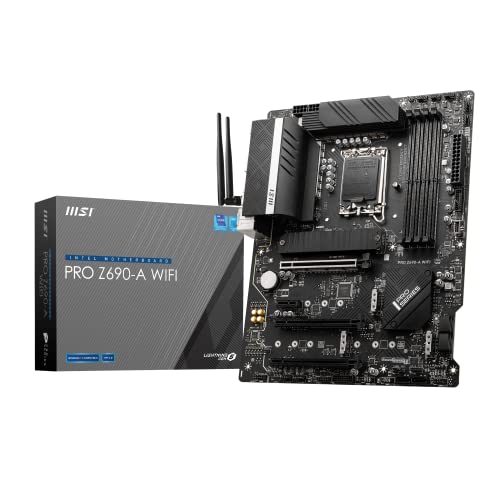
Flagship chipsets attract an assumption that everything is included in abundance, and display outputs expose that assumption neatly. The verified title held for this board confirms the Z690 chipset, LGA1700 socket, ATX size and Wi-Fi, then stops; the shortened listing gives no display information at all. Working PRO boards of this class commonly provide one HDMI beside one DisplayPort, aimed at diagnostics and office fallback rather than multi-screen desks, but commonly is again doing heavy lifting in that sentence. The honest status is unverified, and a two-HDMI shopper should read MSI’s specification page for this exact model before letting its overclocking credentials seduce the purchase.
Consider what that means practically. A builder choosing this board for a K-series processor and a graphics card will never use its rear display outputs beyond a troubleshooting afternoon, so their count is trivia. A builder choosing it for an integrated-graphics workstation with two HDMI screens is making the board’s least-documented feature carry the entire build, which inverts sensible priorities. The dual-HDMI requirement should select the board, as it did with the ASUS pick above, and only then should chipset ambitions be consulted. This board is an excellent answer to a different question, and its presence here marks the boundary of this keyword’s territory.
- Display outputs: not stated in the shortened verified title — verify on MSI’s specification page
- Chipset and socket: Intel Z690, LGA1700, ATX
- Wireless: Wi-Fi included, per the board’s name
- Overclocking: supported by the Z690 chipset
Strengths
- Full Z690 capability for unlocked Alder Lake and Raptor Lake processors, with room to expand.
- Wi-Fi included and a full ATX layout suited to larger, longer-lived systems.
- PRO-series value discipline keeps flagship chipset pricing comparatively restrained.
Trade-offs
- Its display layout cannot be confirmed from the listing held, so the two-HDMI case is unproven.
- Most of its cost buys tuning and expansion features an integrated-graphics desk never touches.
- Memory variant also needs confirming in the listing, compounding the pre-purchase reading required.
Best for: K-series builders with a graphics card, for whom rear display outputs are a fallback. Not suited for: shoppers whose entire requirement is two verified HDMI ports on integrated graphics.
ASUS ROG Strix B550-F Gaming WiFi II — The single-HDMI AM4 lesson
Crossing to AMD’s AM4 platform sharpens the lesson. This ROG Strix board’s verified title is admirably specific, listing PCIe 4.0, WiFi 6E, 2.5 gigabit networking, BIOS Flashback and, among its display details, HDMI 2.1, in the singular. One HDMI output, even a modern full-bandwidth one, is one output. It will drive a single high-resolution screen beautifully from a Ryzen processor with integrated graphics, and it will not drive a second HDMI screen at all. The board is strong, popular and well specified, and for this exact keyword it is simply disqualified, which is precisely why it belongs in the guide as a labelled example.
There is a wider AM4 subtlety worth absorbing here. Most Ryzen processors sold for gaming lack integrated graphics entirely, so on a board like this the HDMI port serves only the G-series chips that include a GPU. A buyer pairing a Ryzen 5 5600 with this board gets no rear display output of any count, because the processor brings none. The two-HDMI hunt on AM4 therefore narrows twice: first to boards whose panels genuinely carry two HDMI ports, which are rare, and then to processors that can light them. Shoppers who need that combination on AMD should expect a short list and a verification-heavy afternoon, and should consider whether a small graphics card with dual HDMI outputs solves their desk more simply.
- Display outputs: one HDMI 2.1, as named in the verified title
- Chipset and socket: AMD B550, AM4, ATX
- Memory: DDR4
- Networking: WiFi 6E and 2.5 gigabit Ethernet, per the title
Strengths
- Excellent B550 specification with modern networking and a high-bandwidth single HDMI output.
- BIOS Flashback eases processor pairing across the AM4 generations this board supports.
- ROG Strix finish and audio suit gaming builds that use a graphics card for their screens.
Trade-offs
- One HDMI port fails the keyword’s requirement outright, regardless of its version or quality.
- Rear display output works only with G-series Ryzen processors that include integrated graphics.
- Gaming trim pricing buys features a dual-screen office desk will never exercise.
Best for: AM4 gaming builds with a graphics card, or single-screen G-series systems wanting a premium board. Not suited for: two HDMI screens on integrated graphics, in any configuration.
Gigabyte B550 AORUS Elite AX V2 — The unlabelled AM4 option
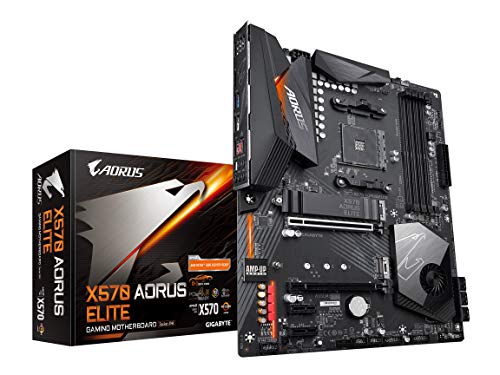
The final position belongs to a board whose shortened verified title tells a shopper almost nothing beyond platform, chipset family and size: Gigabyte B550 AORUS Elite AX V2, AM4, ATX. The AX in its name signals wireless networking in Gigabyte’s naming practice, and the AORUS Elite line is a known mid-tier gaming family, but display outputs go entirely unmentioned. Boards of this class and era typically pair one HDMI with one DisplayPort, yet typically has misled more buyers than any other adverb in hardware shopping. Its status here is therefore identical to the ASRock board’s: a legitimate candidate for many builds, an unverified one for this keyword, pending a count on Gigabyte’s own specification page.
Including two unverified boards in one guide is deliberate. Real shopping for this feature is mostly this: a field of plausible boards, a minority with documented dual HDMI, and a majority whose documentation must be opened and read. A buyer who internalises that pattern stops asking which board a headline recommends and starts asking which board’s specification page answers the question in writing. That shift, more than any single product, is what this guide exists to cause. If the count on Gigabyte’s page surprises pleasantly, this board’s solid B550 foundation, wireless networking and ATX room make it a respectable home for a G-series Ryzen dual-screen system.
- Display outputs: not stated in the shortened verified title — count them on Gigabyte’s specification page
- Chipset and socket: AMD B550, AM4, ATX
- Memory: DDR4 platform
- Networking: wireless indicated by the AX designation in the model name
Strengths
- Mid-tier AORUS specification with wireless networking and full ATX expansion for AM4 builds.
- B550 brings PCIe 4.0 for the primary graphics slot and fast storage with Ryzen 5000 processors.
- A plausible dual-screen candidate if the maker’s page confirms a friendlier port layout.
Trade-offs
- No display promise exists in the listing held, so the keyword’s requirement stays unproven.
- AM4 integrated graphics still demand a G-series processor before any rear port matters.
- Revision differences across the V2 line make exact-model verification doubly important.
Best for: AM4 builders who will verify the rear panel in writing before committing. Not suited for: anyone who needs the two-HDMI answer settled by the recommendation itself.
How do the six boards compare on the only question this keyword asks?
| Board | Platform | HDMI evidence | Status here |
|---|---|---|---|
| ASUS PRIME B760M-A AX D4 | LGA1700, B760 | Dual HDMI stated in title | Linked pick |
| MSI PRO B760-P WiFi DDR4 | LGA1700, B760 | HDMI/DP: one of each | Prose-only |
| ASRock B660M-HDV | LGA1700, B660 | Not stated in title | Prose-only, verify |
| MSI PRO Z690-A WIFI | LGA1700, Z690 | Not stated in shortened title | Prose-only, verify |
| ASUS ROG Strix B550-F Gaming WiFi II | AM4, B550 | One HDMI 2.1 named | Prose-only |
| Gigabyte B550 AORUS Elite AX V2 | AM4, B550 | Not stated in shortened title | Prose-only, verify |
Tables usually rank; this one confesses. One row carries the evidence the keyword demands, two rows carry evidence of a different arrangement, and three rows carry an absence that a buyer must resolve personally. That distribution is the honest state of the market for this feature in this pool, and publishing it plainly serves readers better than a padded ranking of guesses. If your requirement is strict, the first row is your shortlist and the remaining rows are context. If your requirement is flexible, the second row may quietly be the best board on the page for your desk.
How do you verify a motherboard’s HDMI count without guessing?
Start at the manufacturer’s website, not the marketplace. Search the exact model name including every suffix, open the specification tab, and find the graphics or display output line, which responsible makers state as a simple inventory. Write down what it says verbatim. Then cross-check that inventory against the rear-panel diagram in the board’s manual, which is published on the same site and drawn per revision. When specification and diagram agree, the count is settled with the strongest evidence available short of holding the board. When they disagree, believe the diagram for your revision and ask the maker’s support line, because a purchase this specific deserves a written answer.
Marketplace material can then be used for what it is good at: price, stock and seller quality. Read the listing’s own specification block as a third source, and treat any conflict with the maker’s page as a reason to choose another seller rather than another interpretation. Buyer photographs in reviews, showing the actual rear panel of a delivered board, are surprisingly valuable evidence for the revision being shipped, provided the review is recent. What should never settle the question is a render, a sibling model’s page, or a forum answer describing a board with a similar name bought in a different year.
While verifying, check the fine print that travels with multiple outputs. Some boards share bandwidth or impose resolution ceilings when two displays run together, and integrated graphics generations differ in the maximum resolution each port can drive. A pair of modest office monitors will never meet those ceilings; a 4K television beside a high-refresh monitor might. The specification page that answered the count usually answers these limits a few lines further down, so the same visit settles both questions for a reader patient enough to finish the page.
When should you solve two HDMI screens with a graphics card instead?
More often than board marketing admits. A modest graphics card carrying two HDMI outputs liberates the board choice entirely, letting a builder select for chipset, power delivery and price while the card handles the screens. This route also survives processor changes, since the outputs no longer depend on integrated graphics being present. For a gaming or creative machine that will contain a card anyway, insisting on dual HDMI from the board is a constraint without a benefit, and the wiser purchase is the board that suits the system with the card’s ports counted as the display solution from the start.
The board route wins in the opposite household: the quiet office PC, the family desk, the media machine in a small case where a graphics card adds cost, heat, noise and a fan that can fail. Integrated graphics driving two screens from a board like the ASUS pick above is an elegant, silent answer for those desks. The decision is therefore not about which solution is better in the abstract. It is about whether a graphics card already lives in the machine’s future. If one does, stop filtering boards by ports. If none ever will, filter ruthlessly and verify in writing.
How do you set up two HDMI displays on integrated graphics?
Connect both screens before the first boot if possible, using two known-good HDMI cables of adequate length, and seat the processor and memory first with the patience any new build deserves. On first start, enter the firmware setup and confirm that integrated graphics are enabled rather than set to defer to an absent card, a setting that occasionally defaults unhelpfully on boards expecting a discrete GPU. Save, install the operating system, then install the processor maker’s current graphics driver before judging colours or resolutions, because a fresh system on a fallback driver misrepresents what the ports can do.
Arrange the screens inside the operating system’s display settings next: which one stands left, which one is primary, whether the desktop extends or mirrors. Mirroring suits presentations; extending suits work. Set each screen to its native resolution individually, since a shared compromise resolution flatters neither. If one screen stays dark, swap cables before suspecting ports, because cables fail more often than boards and the swap takes twenty seconds. Test the television input labels too, since many TVs number their HDMI sockets in an order that defies the remote’s confidence.
What mistakes send two-HDMI shoppers home with the wrong board?
Reading HDMI/DP as two HDMI ports is the founding error, and it is an easy one because the eye slides over the slash. The second error is counting ports on a photograph of a sibling model, particularly within families where a Wi-Fi and non-Wi-Fi variant wear different rear panels. The third is forgetting the processor entirely and discovering, after a flawless board purchase, that an F-suffix or non-G chip provides no graphics for any port to carry. Each of these mistakes is a reading mistake before it is a buying mistake, which is good news: all three are prevented by the same unhurried ten minutes with the right documents.
A subtler error is assuming that two ports guarantee two happy screens at any specification. Resolution and refresh ceilings per port, shared bandwidth limits and television handshake behaviour all live downstream of the count. Shoppers driving two ordinary monitors can ignore most of that paragraph; shoppers driving a 4K TV and a high-refresh display should read the integrated graphics limits for their exact processor as carefully as the board’s panel inventory. The count gets a board onto the shortlist. The ceilings decide whether the shortlist survives contact with the actual screens.
Final Recommendation
Buy the ASUS PRIME B760M-A AX D4 if your requirement is genuinely two HDMI screens on Intel integrated graphics, because it is the one board here whose own listing language confirms the pair, and its DDR4 micro-ATX specification fits the desks that need it. Choose the MSI PRO B760-P WiFi DDR4 instead when one screen can accept DisplayPort, and treat the remaining boards as capable hardware whose port layouts you must settle on their makers’ pages before trusting them with this job. However the search ends, let it end with a specification page rather than a photograph, and the two screens glowing on the first evening will owe their calm to that single habit more than to any badge on any box.
Frequently Asked Questions
Do most motherboards have two HDMI ports?
No. One HDMI beside one DisplayPort is the common arrangement on current desktop boards, and genuinely dual-HDMI rear panels are a minority feature concentrated in boards aimed at office and integrated-graphics use. That scarcity is why this guide verifies so aggressively and links so sparingly.
What does HDMI/DP mean in a motherboard listing?
It means the board provides one HDMI output and one DisplayPort output. Two monitors can be driven, but only one of them receives a native HDMI connection. Buyers with two HDMI-only devices need a board whose specification states two HDMI outputs explicitly, or a conversion cable for the DisplayPort side.
Can a DisplayPort output feed an HDMI monitor?
Usually, through an appropriate cable or adapter, and for ordinary monitors the arrangement works uneventfully. Limits can appear with high resolutions, high refresh rates, some televisions and capture hardware, so a desk built around those devices should prefer native HDMI connections where the signal matters most.
Will any processor work with a motherboard’s HDMI ports?
No. Rear display outputs are driven by the processor’s integrated graphics. Intel chips with an F suffix have none, and on AMD’s AM4 platform only G-series Ryzen processors include them. A processor without integrated graphics leaves every rear video port inactive until a graphics card is installed.
How can I be certain about a board whose listing omits port counts?
Open the manufacturer’s specification page for the exact model and revision, read the display output inventory, and confirm it against the rear-panel diagram in the manual from the same site. If those two documents agree, the count is as certain as pre-purchase evidence gets. If they disagree, ask the maker’s support channel in writing.
Is a graphics card with two HDMI ports a better solution?
For a machine that will contain a graphics card regardless, yes: the card’s outputs free the board choice completely. For a quiet integrated-graphics desk with no card planned, a verified dual-HDMI board like the ASUS pick is simpler, cooler and cheaper to live with.
Why did dual HDMI become so scarce on desktop boards?
The answer sits in how the desktop market divided its labour over the past decade. As graphics cards absorbed responsibility for serious display output, board makers began treating rear-panel video as a fallback for troubleshooting and basic office duty, and one HDMI beside one DisplayPort covered both courtesies cheaply. DisplayPort earned the second slot because it serves high-refresh monitors, daisy-chaining and the professional screens that board designers imagined at the other end of the cable. HDMI, meanwhile, was increasingly associated with the living room, a room the average ATX board does not expect to visit. The result is a landscape where a feature that sounds elementary, two copies of the world’s most common display connector, became a speciality item.
Licensing and space play smaller parts. Each rear output costs panel area on a crowded I/O strip already contested by USB ports, networking sockets, audio jacks and Wi-Fi antenna mounts, and a micro-ATX board’s strip is narrower still. A designer adding a second HDMI must evict something, and the evicted feature usually has more vocal defenders than the second HDMI does. Boards aimed squarely at offices and signage keep both HDMI ports because their buyers ask by name; boards aimed at gamers sacrifice the second port to USB count without hearing a complaint. Scarcity, in other words, is not an oversight. It is the visible residue of other customers’ priorities outvoting yours, which is why finding the exception requires documentation rather than browsing.
The integrated-graphics renaissance may yet reverse the trend. As processor graphics grow capable enough to run several high-resolution screens for ordinary work, the audience for port-rich boards widens beyond the office niche, and makers have begun answering with panels that treat display output as a headline again. The ASUS board linked in this guide belongs to that newer thinking. Until the trend generalises, though, the shopper’s position remains the one this guide assumes: the feature exists, it is findable, and it hides behind specification pages rather than marketing banners.
What does a two-HDMI desk actually feel like to run?
The daily texture is mostly the absence of small negotiations. A work monitor and a television share the machine without a cable ever changing hands, so a spreadsheet can occupy one screen while a presentation rehearses on the other, and a parent can check a document while a child’s programme plays from the same quiet box. In a recording corner, the second HDMI feed can carry a clean signal to capture hardware while the first carries the working display, an arrangement streamers usually buy a graphics card to achieve. None of these moments is dramatic, and that is the feature’s real value: it removes a recurring thirty-second friction from days that contain enough friction already.
There are textures on the debit side. Two screens double the window management in a household, and a television used as a second monitor brings its own habits, including overscan settings, input labels and a remote that migrates. Integrated graphics driving two displays also share their memory bandwidth with the processor, so a DDR4 kit of modest speed quietly becomes part of the display system’s performance, one more reason the memory conversation in the linked board’s section matters. Owners who anticipate these realities arrange their desks once and enjoy them for years; owners who expected magic occasionally blame the board for the television’s menu design.
Sound follows the screens in an HDMI household, and that deserves a sentence of planning. Each HDMI output can carry audio, and operating systems occasionally reroute sound to whichever screen woke last, producing the familiar mystery of a silent desk. Naming the preferred output device once, inside the sound settings, ends the mystery permanently. It is the kind of detail no specification page will mention and every dual-HDMI owner eventually learns, usually during a video call, in front of an audience.
How should the second-hand and spare-parts route be judged for this feature?
Older business boards are a legitimate hunting ground for dual display outputs, because office machines of earlier generations were often specified with richer rear panels than today’s gaming boards. A retired corporate desktop’s board, or the complete machine itself, can deliver two digital outputs at a fraction of a new build’s cost, and for a homework desk or a workshop screen that arithmetic is hard to argue with. The cautions are the standard used-market ones, sharpened by this feature: photograph-verified rear panels matter even more when revisions multiplied across corporate orders, and a board’s age brings capacitor years and obsolete sockets along with its generous ports.
Spares thinking applies inside a new build too. A buyer who settles for one HDMI today, planning an adapter tomorrow, should price the whole path honestly: the adapter, the possible second adapter when the first misbehaves with the television, and the small but real chance that a modest graphics card ends the experiment. Against that path, paying slightly more for the board that simply has the ports often wins on total cost and always wins on elegance. The reverse also occurs, where a dual-HDMI board’s premium exceeds a card’s price, and then the card route deserves its victory. Arithmetic, applied to the specific desk, beats loyalty to either doctrine.
Whichever route is chosen, keep the evidence. Save the specification page as a document, keep the manual with the board’s box, and note which cable feeds which screen on a label inside the case if the machine serves a family. Two-HDMI setups tend to be rebuilt rarely and troubleshot urgently, usually when a screen is needed for something time-sensitive. The household that can answer its own port questions from a drawer, rather than from memory, gets its screens back in minutes.
Which screens pair most happily with a dual-HDMI board?
The classic pairing is one honest monitor and one television, and it works because their jobs differ. The monitor handles text at a desk distance, where its pixel density and matte surface earn their keep across a working day. The television handles size: films, presentations to a room, games played from a chair several feet back, photographs shown to people standing behind the sofa. A dual-HDMI board feeds both from integrated graphics without asking either device to accept a converted signal, and the household gains a computer that behaves like an appliance in two rooms’ worth of scenarios while physically occupying one shelf.
Two matched monitors form the second classic, beloved of traders, writers and anyone whose work spreads across documents. Here the board’s two identical outputs simplify colour and brightness matching, because both screens receive the same signal type from the same graphics engine. A third pattern is emerging in small studios: one monitor for the work and one HDMI feed permanently wired to a capture or streaming device, so recording a screen never begins with re-plumbing. Each pattern shares a moral, which is that the second port’s value is set by the second device’s nature. An HDMI-only second device makes the feature essential; a flexible second device makes it merely pleasant.
Cable length quietly governs all three patterns. HDMI signals tolerate ordinary desk distances gracefully and grow temperamental across a room, especially at higher resolutions, so a board feeding a distant television deserves a cable chosen for that run rather than the shortest spare in a drawer. Planning the route, along a skirting board rather than across a doorway, belongs to the same afternoon as the board purchase. Owners who treat cabling as part of the specification, not an afterthought, are the ones whose second screen simply works every time it is asked.
What should a buyer do when no suitable board offers two HDMI ports?
First, widen the search by chipset rather than by hope. Office-oriented lines from every major maker occasionally carry the feature on chipsets a gaming-focused search never surfaces, and mini-PC or thin-client platforms sometimes provide two HDMI outputs as a matter of course for signage work. A buyer whose processor is not yet purchased holds the strongest hand here, since platform choice can follow the ports. A buyer with a processor already owned should search that socket’s office boards specifically, using the verification method this guide describes, and accept that the answer may arrive on a board with a plainer name than expected.
Second, reconsider the shape of the machine. A small graphics card remains the universal solvent, and for desks that also game or edit video it is barely a compromise at all. A USB-C output with display capability, present on some boards and many laptops, can feed a second screen through a dock, though that path belongs more to laptops than to the desktop boards in this guide. What should be avoided is the slow accumulation of anonymous adapters bought one frustration at a time; that path costs card money eventually while delivering adapter reliability throughout.
Finally, question the requirement once, respectfully. Some two-HDMI hunts begin because a second screen exists, not because it is needed, and a single larger or wider monitor occasionally serves the underlying work better than two mismatched ones. The requirement survives that questioning in most households, since televisions and capture devices are genuinely HDMI-bound, but the buyers who asked themselves the question own their eventual setup with clearer eyes. A requirement that has been examined is a specification; one that has merely been inherited is a habit wearing a specification’s clothes.
How do firmware and drivers treat a second HDMI screen?
A second display is partly a software citizen, and its manners depend on drivers more than on the port that carries it. Integrated graphics drivers decide how resolutions are offered, how screens are arranged after sleep, and whether a television’s quirks are remembered or renegotiated at every wake. Keeping the graphics driver current, from the processor maker’s site rather than a driver aggregator, is the single maintenance habit that most improves a dual-screen desk’s temperament. Firmware updates for the board itself occasionally refine display initialisation as well, particularly on young platforms, so a board that wakes its second screen slowly in its first month may behave better after one deliberate update.
Sleep and wake behaviour deserves its own sentence because it generates a disproportionate share of dual-screen complaints. Two displays rarely wake in the same order twice, and an operating system that finds its primary screen late may rearrange windows onto the survivor. Owners bothered by migrating windows can usually stabilise matters by setting the desk monitor as primary, using identical cables of decent quality, and disabling any television feature that puts its inputs into deep sleep. None of these adjustments appears in a board’s marketing, yet together they decide whether a two-HDMI setup feels like furniture or like a negotiation.
There is a diagnostic order worth memorising for the evening a screen stays dark. Cable first, because cables fail and cost nothing to test by swapping. Input selection second, because televisions in particular hide the right socket behind confident menus. Driver third, reinstalled cleanly if an update coincided with the trouble. Board and port last, because they fail least often and cost most to replace. Following that order has rescued more dual-screen evenings than any specification ever printed, and it works identically on every board in this guide.
Why does this guide link only one board, and should that worry a reader?
It should reassure rather than worry, once the alternative is imagined. The alternative guide links six boards confidently, having read port counts off photographs and sibling models, and it sends a measurable fraction of its readers home with one HDMI port and an adapter errand. A buying guide’s scarcest asset is the reader’s justified trust that a linked claim was checked against evidence the reader can inspect. Spending that trust to make a table look complete is poor economics for everyone except the table. One verified link, five honestly labelled discussions and a verification method the reader keeps for life is the better bargain, and it is the bargain this page intends.
Readers who need more linked choice have a constructive path rather than a dead end. Take the method to the wider market: search the office lines of the major makers for this socket, open each candidate’s specification page, and collect the boards whose display inventory states two HDMI outputs in so many words. That personal shortlist, built in an hour, will be smaller than any headline promises and more reliable than any of them. Bring the same scepticism to prices and sellers as to ports, and the resulting purchase tends to be the last one the desk requires for years.
A final practical note belongs to anyone wiring the second screen through a wall or across a room to a projector. Longer HDMI runs benefit from cables rated for the distance and resolution involved, and from a test on the floor before any cable disappears into trunking. Projectors add their own handshake patience, so allow the setup a few extra seconds at each power-on before diagnosing failure. These are humble details, and dual-display satisfaction is built from exactly such humble details stacked carefully.
When the two screens finally light together for the first time, spend one minute photographing the working arrangement of cables behind the machine. Months later, when something is unplugged for cleaning, that photograph is worth more than any manual, because it records your desk’s reality rather than a manufacturer’s diagram of a stranger’s.
Label the two cables at both ends while that photograph is being taken. Future you, crouched behind a desk with a torch, will be quietly grateful.
Keep one spare HDMI cable of known quality in the same drawer as the board’s manual, because the first suspect in every future dark-screen evening deserves a thirty-second test.
Related Guides
The ASUS board above also anchors our guide to motherboards for 12th Gen Intel processors, and readers cross-shopping AMD’s value platform will find the port discussion continued in our guide to B550 motherboards.