What's inside
- Where Linux developers can actually order these machines
- Key Takeaways
- Quick Picks
- How did we choose the best laptops for developers linux?
- Why is preinstalled Linux so rare, and does it matter?
- What should a developer check before installing Linux on a Windows laptop?
- How much memory and storage does Linux development really consume?
- How should a developer set up a new Linux laptop in the first week?
- What is the honest state of gaming, fingerprint readers and other edge features on Linux?
- How do distributions differ in what they ask of the hardware?
- What does a developer desk look like when the laptop is the whole office?
- How do the six compare side by side?
- What mistakes do developers make when buying a Linux laptop?
- Final Recommendation
- Frequently Asked Questions
- Related Guides
As an Amazon Associate I earn from qualifying purchases. This post may contain affiliate links at no extra cost to you.
gizmoverdict.com is reader-supported. When you buy through links on our site, we may earn an affiliate commission.
Where Linux developers can actually order these machines
Ordering the best laptops for developers linux splits two ways in this guide: four of the machines below are sold through Amazon’s US store and were verified against this round’s listing pool before a link was attached; the final two are sold directly by their makers and are covered in prose, with that fact stated wherever it matters. Check the exact configuration on any listing page before ordering, because the ThinkPad and Dell families in particular are sold with different memory and storage under near-identical model names, and a development workload notices those differences every compile.
Start with the uncomfortable truth that shapes this entire guide to the best laptops for developers linux: preinstalled Linux has nearly vanished from mainstream retail. Walk the Amazon shelves for a laptop that arrives with a Linux distribution already on the drive and you will find almost nothing — in this guide’s verified pool, exactly one machine, a Lenovo IdeaPad that ships with Ubuntu installed. Everything else requires a decision: either buy a Windows laptop whose hardware is known to run Linux well and install your distribution yourself, or buy directly from the specialist makers — System76 and TUXEDO — who build for Linux first and do not sell through Amazon at all.
That is not a counsel of despair. It is the actual map of the territory in 2026, and a developer is better served by an honest map than by a guide pretending the shelves look different. The Windows machines chosen here were not picked at random from the business-laptop pile. They are the models with the strongest Linux hardware support in practice: Intel-based platforms whose graphics, Wi-Fi and power management are handled by drivers that live in the kernel itself, from product lines with long histories of running distributions cleanly, in chassis that developers have documented exhaustively.
What makes a laptop good for Linux development, once the installation question is settled? A keyboard you can type on for ten hours, because code is still typed. Memory headroom for containers, virtual machines and an IDE that indexes like it means it. A screen that shows eighty columns of code beside a terminal beside documentation without shuffling. Suspend and resume that simply work, because a laptop that wakes badly will be left at home. And hardware whose every component — fingerprint reader, webcam, function keys, sleep states — behaves under Linux rather than merely under the operating system it shipped with.
This guide therefore does two jobs at once. It recommends machines, and it teaches the judgement behind the recommendations, so that a developer whose exact model is out of stock can evaluate the substitute with the same criteria instead of starting the research again from a blank terminal.
Key Takeaways
- Only one linked pick — the Lenovo IdeaPad Slim 3 — ships with Linux preinstalled; retail preinstalled Linux is nearly absent, and this guide says so rather than dressing Windows laptops up as something else.
- The other linked machines earn their place through Linux hardware support: Intel platforms, kernel-native drivers and product lines with long, documented distribution histories.
- System76 and TUXEDO build the purest Linux laptops in this guide and sell them directly, not on Amazon — they are covered in prose with that stated plainly.
- Memory is the developer’s real currency: the picks span sixteen to thirty-two gigabytes, and container-heavy work should aim at the top of that range.
- Thunderbolt 4 docks, fingerprint readers and webcams all need checking under Linux; the listings name these parts, and the guide flags where verification is the buyer’s job.
Quick Picks
| Pick | Badge | Why it earns its place |
|---|---|---|
| Lenovo IdeaPad Slim 3 Linux (Ryzen 7) | Only preinstalled pick | Ubuntu already on the drive, a Ryzen 7 under the keys and an SD reader in the side. |
| Dell XPS 13 (Core 5, 16GB) | Premium compact | A 2.5K 120Hz touchscreen in an ultralight chassis for developers who carry their desk daily. |
| Lenovo ThinkPad T14 Gen 6 (32GB) | Workhorse standard | Thirty-two gigabytes, dual Thunderbolt 4 and the ThinkPad keyboard — the fleet developer laptop. |
| Lenovo ThinkPad X1 Carbon (Ultra 7 165U) | Executive lightweight | The flagship thin ThinkPad with 32GB, a terabyte of storage and vPro management. |
| System76 Lemur Pro | Direct-sale purist | A Linux-first ultraportable sold by System76 itself — covered in prose, by design. |
| TUXEDO InfinityBook | Direct-sale configurable | TUXEDO’s Linux-built line, sold direct from Germany — covered in prose, by design. |
How did we choose the best laptops for developers linux?
Selection applied a Linux filter before any other. A machine had to offer a realistic, well-trodden path to running a mainstream distribution properly: graphics handled by in-kernel drivers, wireless chipsets with mainline support, standard UEFI behaviour, and a user community that has already documented the quirks. Intel-platform business machines dominate that landscape for structural reasons — their components are the ones kernel developers own — and this guide reflects the landscape rather than apologising for it.
Within the filter we weighed what development actually consumes. Memory first, because containers and language servers eat it in silence. Then the keyboard and screen, because those are the interfaces a developer touches for a working lifetime. Then storage speed and size for checkouts, build caches and container images; then ports and docking, because a developer’s desk is a small data centre; then the camera, microphone and sign-in hardware that remote work has made non-optional. Figures in the spec boxes come from the listing titles in this round’s pool, and where a title is silent the box says so.
Why is preinstalled Linux so rare, and does it matter?
The economics are dull and decisive. Retail laptop volume runs on Windows licences negotiated at scale, shelf space follows volume, and the makers who do build Linux-first machines — System76, TUXEDO and a handful of others — sell directly to an audience that knows its own mind and does not need a retail intermediary. The result is the split this guide is built on: one preinstalled machine in the retail pool, a set of excellent install-it-yourself candidates beside it, and the purist options a click away on the makers’ own stores.
Whether it matters depends on what you value. Installing a mainstream distribution on well-supported hardware is, for a developer, a half-hour task performed with tools they already own, and many prefer their own partitioning, encryption and package choices to any factory image. What preinstalled buys is certainty and support: the maker has tested that exact unit with that exact software, and a support channel exists that will not ask you to reinstall Windows before helping. For a first Linux laptop, or for a machine bought by an employer, that certainty has real weight — which is why the IdeaPad’s Ubuntu installation and the two direct-sale picks are treated in this guide as features, not footnotes.
What should a developer check before installing Linux on a Windows laptop?
Check the wireless chipset and the graphics first, because those two decide whether the first evening is pleasant. Intel wireless and Intel integrated graphics are the calm path — support lives in the kernel and improves with it. Then confirm the basics in the machine’s documentation and community reports: that secure boot can coexist with your distribution or be disabled, that suspend and resume behave, that the function keys and webcam work, and that any fingerprint reader is among the models with Linux driver support rather than the larger set without it.
Then plan the transition like an engineer. Back up the Windows installation or keep its recovery path intact until the Linux system has survived a month of real work, especially where an employer’s IT policy or a warranty conversation might one day ask for the original state. Partition deliberately — a generous root for container images and build caches, home separate if your habits favour reinstalls — and set up full-disk encryption from the start, because retrofitting it is the kind of job that waits forever. The machines in this guide were chosen so that this checklist is short; on poorly supported hardware it becomes a research project, and your evenings deserve better.
How much memory and storage does Linux development really consume?
Count honestly. A modern IDE with language servers, a browser carrying documentation and issue trackers, a chat client, and a terminal or six will occupy a third of sixteen gigabytes before a single container starts. Add a Docker stack for the project — database, cache, queue, the application itself — and a virtual machine for testing, and sixteen gigabytes becomes a negotiation conducted in swap. Thirty-two gigabytes, offered by both ThinkPads here, is where the negotiation ends and the machine disappears from your attention, which remains the highest state a work tool can achieve.
Storage fills with equal stealth. Container images accumulate like sediment; every experiment keeps its layers, every project keeps its node modules or its build tree, and a five-hundred-twelve-gigabyte drive that felt generous in January is being pruned by June. The X1 Carbon’s terabyte is the comfortable figure in this guide for a machine expected to serve for years. Whichever pick you choose, learn the housekeeping commands — image pruning, cache clearing, the archaeology of old checkouts — because the discipline matters as much as the drive.
How should a developer set up a new Linux laptop in the first week?
Resist installing everything at once. Get the base system updated, encrypted and backed up; restore your dotfiles from version control, because you do keep them in version control; install the shell, editor and toolchain you use daily; and then work a real day before adding anything else. Tools installed speculatively become clutter with update notifications. Tools installed because Tuesday hurt are solutions. A week of that discipline produces a machine shaped like your work instead of like a blog post’s idea of your work.
Two configurations deserve attention while the machine is new. Set up the backup system — snapshots or an off-machine routine — and test a restore before the machine holds anything irreplaceable, because the first month of a laptop’s life is statistically adventurous. And configure suspend, lid and power behaviour deliberately, then test them by actually closing the lid and leaving for lunch. A developer’s laptop that sleeps and wakes like a light switch gets carried everywhere; one that occasionally wakes in the bag, hot and drained, starts being left behind, and a laptop left behind is furniture.

Lenovo IdeaPad Slim 3 Linux (Ryzen 7) — Only preinstalled pick
The IdeaPad Slim 3 Linux holds a distinction no other linked machine in this guide can claim: it arrives with Linux already installed — Ubuntu, named in the listing title — on a fifteen-point-six-inch full-HD touchscreen driven by an AMD Ryzen 7 5825U processor with eight cores running up to four point five gigahertz, sixteen gigabytes of RAM and a five-hundred-twelve-gigabyte SSD. For the developer who wants to open the box, create an account and start working in the operating system they actually use, this is the only retail route in the pool that does not pass through an installer they run themselves.
That pre-installation is worth more than convenience. It is a statement by the seller that this hardware combination runs this software — the Radeon graphics, the wireless, the touchpad and touchscreen have been stood up together — and it gives a first-time Linux buyer something no forum thread can: a machine whose starting state is known-good. Developers switching from Windows, students entering a computer science programme, or anyone whose employer buys through ordinary retail channels will feel the value of that certainty in the first week.
The specification around the operating system is sensibly mainstream. The Ryzen 7’s eight cores handle compilation and container work with the ease expected of the class; sixteen gigabytes is the working floor this guide described, adequate for a focused stack and tight for a sprawling one; the half-terabyte drive asks for the housekeeping discipline covered earlier. The details in the title read like a checklist of small mercies: a numeric keypad for the data-adjacent developer, an SD card reader that embedded and Raspberry Pi workflows will use weekly, and a privacy camera for the calls where the office is a kitchen table.
Position it honestly. This is not the most powerful or most premium machine in the guide, and its AMD platform asks the usual question about peripheral quirks that the Intel business machines answer more boringly. But it is the pick that respects the search that brought you here — a laptop for Linux, sold with Linux — and for many developers that alignment of product and intent will outweigh a spec-sheet deficit they would only meet in benchmarks.
At a glance:
- Display: 15.6-inch FHD touchscreen
- Processor: AMD Ryzen 7 5825U, 8-core, up to 4.5 GHz
- Graphics: AMD Radeon graphics
- Memory: 16GB RAM
- Storage: 512GB SSD
- Operating system: Linux Ubuntu, preinstalled as stated in the listing title
- Details named in the title: numeric keypad, SD card reader, privacy camera
- Battery capacity: Not stated in the listing title — verify with the maker’s documentation
Strengths
- The only linked pick that arrives running Linux — Ubuntu installed before the box opens
- Eight-core Ryzen processor covers compilation and container duties credibly
- SD card reader and keypad serve embedded, Pi and data-flavoured workflows directly
Trade-offs
- Sixteen gigabytes is the floor for container-heavy stacks, with no higher tier in this listing
- Five hundred twelve gigabytes asks for active pruning of images and build caches
- IdeaPad build is a consumer chassis beside the ThinkPads’ business construction
If arriving to a working Ubuntu desktop is the whole point, start at the source: check the IdeaPad Slim 3 Linux price on Amazon and confirm the Ubuntu configuration is the one listed.
Best for: Developers who want Linux from the first boot, switchers from Windows, and students buying through ordinary retail.
Not suited for: A container-farm workflow needing thirty-two gigabytes from day one — the ThinkPads below are built for that.

Dell XPS 13 (Core 5, 16GB) — Premium compact
The XPS 13 is the machine for the developer whose office is a rotation of cafés, client sites and a desk at home, and who refuses to carry a gramme of laptop that is not earning it. Dell’s listing describes a thirteen-point-four-inch 2.5K touchscreen running at one hundred twenty hertz, an Intel Core 5 processor, sixteen gigabytes of LPDDR5 memory and five hundred twelve gigabytes of storage in an ultralight chassis finished in Sky, with Wi-Fi 7 and a backlit keyboard. Under Linux, that Intel platform is the story: integrated graphics and Intel wireless are the components the kernel knows best, and the XPS line has a long, documented history as a developer machine — Dell itself has sold this family with Linux preinstalled in other channels for years, which tells you how the hardware behaves.
The screen deserves the developer’s specific attention. Code is text, and text at 2.5K on thirteen point four inches is crisp in the way that reduces eye fatigue across a long session; the one-hundred-twenty-hertz refresh makes scrolling through a large file feel like turning pages rather than dragging them. Touch is the feature developers claim not to want until a design review or a whiteboard-adjacent conversation makes reaching out and moving a window the natural gesture — after which its absence on other machines registers as a small, recurring poverty.
Sixteen gigabytes of LPDDR5 is this configuration’s honest ceiling to plan around. It runs a focused development stack — editor, language servers, a modest container set, the browser — with grace, and it will not pretend to host a small data centre. Developers whose daily work is exactly that focused stack, and who value the carry above all, will find the trade correctly priced. Those running heavy virtualisation should read the ThinkPad sections next with their workloads in mind.
Windows 11 Pro is what the listing ships, so the Linux installation is yours to perform — on this hardware, a well-trodden path with abundant documentation. AI Copilot branding in the title belongs to the shipped software story, not the one you will build. Buy the XPS for its screen, its platform and its disappearing act in a bag; it is the premium compact route into Linux development, and it knows it.
At a glance:
- Display: 13.4-inch 2.5K touchscreen, 120Hz
- Processor: Intel Core 5
- Memory: 16GB LPDDR5
- Storage: 512GB, as stated in the listing title
- Keyboard: backlit
- Wireless: Wi-Fi 7
- Operating system as listed: Windows 11 Pro — Linux installation is the buyer’s project
- Port selection: Not stated in the listing title — verify with the maker’s documentation — plan the dock or hub accordingly
Strengths
- Intel platform with the kernel’s best-understood graphics and wireless support
- 2.5K 120Hz screen makes long code-reading sessions measurably kinder
- Ultralight chassis suits developers whose desk changes daily
Trade-offs
- Sixteen gigabytes is a ceiling that heavy container stacks will find
- Compact premium machines concentrate ports — a hub becomes part of the kit
- You perform the Linux installation yourself; no factory Linux support attaches to this listing
For the compact route, confirm the Sky finish and storage on the listing page, then see the XPS 13’s current price on Amazon before the dock shopping begins.
Best for: Mobile developers and consultants running a focused stack who value screen quality and minimal carry.
Not suited for: A virtualisation-heavy workload — its memory ceiling is a design decision, not an oversight to discover later.
Lenovo ThinkPad T14 Gen 6 (32GB) — Workhorse standard
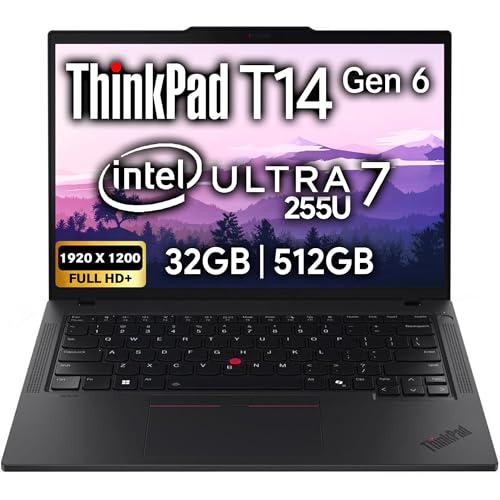
If a thousand engineering managers were asked to name the default developer laptop, the ThinkPad T-series would collect most of the votes, and the T14 Gen 6 shows the pattern at its current best. An Intel Ultra 7 255U processor, thirty-two gigabytes of DDR5 memory, a five-hundred-twelve-gigabyte SSD, a fourteen-inch FHD+ IPS display, a five-megapixel webcam, fingerprint reader, backlit keyboard, Wi-Fi 6E and two Thunderbolt 4 ports — every line of that listing answers a line in a developer’s daily reality. This is the machine fleets are made of, and Linux runs on the T-series with the kind of community documentation that turns any question into a search result.
Thirty-two gigabytes is the specification that changes the working day. The full container stack runs. The test VM runs beside it. The IDE indexes a monorepo without the machine developing a personality. Developers underestimate how much of their friction is memory friction until a machine removes it, after which going back feels like typing through gloves. Paired with the Ultra 7’s efficiency, the T14 is specced like a tool that expects to be used hard for years rather than admired for a quarter.
Two Thunderbolt 4 ports build the desk. One cable to a dock drives the monitors, the wired network, the mechanical keyboard and the backup drive, and the morning routine becomes: sit, plug, work. The five-megapixel webcam and fingerprint reader handle the remote-work layer — stand-ups where your face is legible, sign-ins that take a touch — and the backlit ThinkPad keyboard remains the one laptop typists defend in arguments. Under Linux, the T-series’ popularity means its quirks are known, small and documented; surprises are for hobbies, not for the machine that pays the mortgage.
Windows 11 Pro ships on it, as the listing states, so the distribution installation is the buyer’s half-hour. Everything about the hardware suggests it will be an uneventful half-hour. For a developer buying one machine to carry a whole career chapter — employment, side projects, the open-source habit — the T14 Gen 6 is this guide’s centre of gravity: not the lightest, not the flashiest, and the one against which the others must argue.
At a glance:
- Display: 14-inch FHD+ IPS
- Processor: Intel Ultra 7 255U
- Memory: 32GB DDR5 RAM
- Storage: 512GB SSD
- Camera: 5MP webcam
- Sign-in: fingerprint reader
- Keyboard: backlit
- Ports named in the title: 2x Thunderbolt 4
- Wireless: Wi-Fi 6E
- Operating system as listed: Windows 11 Pro
Strengths
- Thirty-two gigabytes ends the container-and-VM memory negotiation
- ThinkPad keyboard and dual Thunderbolt 4 build a proper one-cable desk
- The T-series’ Linux community documentation is the deepest of any line here
Trade-offs
- Half-terabyte storage will need the pruning discipline this guide describes
- FHD+ resolution is workmanlike beside the XPS’s 2.5K panel
- Business styling prioritises durability over café admiration
Fleet-minded developers can spec it straight from the listing — check the T14 Gen 6’s price on Amazon and match the thirty-two-gigabyte configuration before ordering.
Best for: Professional developers running containers, test VMs and a serious IDE as one daily stack.
Not suited for: A minimal-carry traveller — the X1 Carbon below trades a little of this toughness for weight.

Lenovo ThinkPad X1 Carbon (Ultra 7 165U) — Executive lightweight
The X1 Carbon is the ThinkPad idea taken to its lightest serious form, and this configuration pairs that chassis with specifications a developer need not apologise for: an Intel Ultra 7 165U processor with vPro, a fourteen-inch FHD+ touchscreen, thirty-two gigabytes of DDR5 at sixty-four hundred megatransfers per second, a one-terabyte SSD, two Thunderbolt 4 ports, a fingerprint reader, a backlit keyboard and an infrared webcam, with the listing calling out long battery life. It is the machine for the developer who also presents, leads, travels and occasionally runs the company — the staff engineer, the founder who still ships, the consultant whose laptop appears in boardrooms.
The terabyte drive distinguishes it within this guide. A developer’s storage is an archaeological site — current work, last year’s work kept for reference, container images, datasets, the VM collection — and the X1 is the only linked pick here that gives that site a full terabyte to spread into without per-project evictions. Combined with thirty-two gigabytes of memory, the configuration says: this machine intends to be your only machine, carried everywhere, for years.
Linux on the X1 Carbon line is a mature story. The platform is Intel throughout, the line has an enormous installed base among developers, and the components that usually cause trouble — suspend, wireless, the webcam, the fingerprint hardware — are the ones with the most community attention. The vPro in the processor speaks to managed fleets; the infrared webcam to sign-in that works in a dark room at midnight before a release. None of these are headline features, and together they are the difference between a laptop that is impressive and one that is dependable.
Windows 11 Pro is the shipped system; your distribution goes on with the confidence that thousands have done it on this line before you. The price class is the flagship class, and the guide’s advice is the usual flagship advice: buy it if the carry and the storage will be used daily for years, because that is where its premium is repaid — in the bag you stop noticing and the drive you stop pruning.
At a glance:
- Display: 14-inch FHD+ touchscreen
- Processor: Intel Ultra 7 165U vPro
- Memory: 32GB DDR5, 6400 MT/s as stated in the listing title
- Storage: 1TB SSD
- Ports named in the title: 2x Thunderbolt 4
- Sign-in: fingerprint reader
- Camera: IR webcam
- Keyboard: backlit
- Operating system as listed: Windows 11 Pro
Strengths
- One terabyte of storage — the roomiest linked pick for project archaeology
- Thirty-two gigabytes in the lightest serious chassis in this guide
- Infrared webcam and fingerprint cover sign-in in every lighting condition
Trade-offs
- Flagship pricing buys carry and polish that a desk-bound developer will not feel
- Touchscreen finish needs a cloth habit in bright rooms
- FHD+ resolution again trails the XPS for pure text crispness
Executives who code can go straight to the source listing: view the X1 Carbon’s current Amazon price and confirm the terabyte configuration.
Best for: Senior developers, founders and consultants who carry one machine everywhere and keep years of work on it.
Not suited for: A desk-bound developer paying flagship prices for lightness that never leaves the office.
System76 Lemur Pro — Direct-sale purist
The Lemur Pro is what happens when a company starts from Linux and designs the laptop around it, and it is sold directly by System76 rather than through Amazon — stated here at the top, because that fact shapes how you buy it and what support means afterwards. System76 builds its machines for its own distribution, Pop!_OS, and for Ubuntu, tests the combination it ships, and staffs support with people for whom Linux is the product rather than an accommodation. For a developer, buying a Lemur Pro is buying that alignment: firmware, drivers and software chosen by a maker who will never ask you to reinstall another operating system to begin a support conversation.
Qualitatively — this guide prints no figures for it, having no verified retail listing in this round’s pool — the Lemur line is System76’s ultraportable: the light machine in a range that also includes workstations, aimed at developers who travel between desks and want the Linux experience to be factory-finished. Its role in a shortlist is to ask the retail picks a pointed question: if Linux is the whole point of the purchase, why is the operating system an afterthought in the buying process? The IdeaPad answers with a preinstalled Ubuntu at a mainstream price; the Lemur answers with an entire company.
The trade-offs of the direct route deserve the same honesty. You buy from System76’s store, on its timelines, with its configuration choices; there is no Amazon listing to check in this guide and no retail shelf to handle the machine on a Saturday. In exchange, the documentation, the firmware openness story and the community around the brand are all Linux-native. Developers who have spent years translating their needs into Windows-laptop compromises tend to find that exchange rate attractive.
Treat this pick as the guide’s standing reminder that the Linux laptop market’s centre of gravity sits outside the big retail platforms. If the Lemur’s approach appeals, its maker’s own store is the next step — this guide’s job is to make sure the option is on your map with its nature described accurately, not to invent a specification sheet for it.
At a glance:
- Configuration: prose-only in this guide — no figures are stated because System76 sells directly and no retail listing was in this round’s pool
- Maker’s own distribution: Pop!_OS, with Ubuntu support — check System76’s site for the current offering
- Class: Linux-first ultraportable
- Sales channel: direct from System76 only
- Support model: maker support for the Linux system it ships
Strengths
- Linux is the factory state and the support assumption, not a user modification
- A maker whose firmware and documentation culture is open-source native
- Removes the install-it-yourself step and its warranty ambiguities entirely
Trade-offs
- No Amazon listing exists in this guide’s pool, so no price can be checked from here
- Buying direct means the maker’s timelines and configuration menu, not retail convenience
- Exact specifications must be taken from System76’s current documents
Best for: Developers who want Linux to be the supported factory condition and value a maker’s alignment over retail convenience.
Not suited for: Anyone who needs the machine from a retail shelf this weekend — the direct route runs on its own clock.
TUXEDO InfinityBook — Direct-sale configurable
TUXEDO Computers, based in Germany, occupies the same philosophical ground as System76 from the other side of the Atlantic: laptops designed for Linux, sold directly by their maker, and absent from Amazon’s shelves — which is why this pick, like the Lemur, is prose-only in this guide. The InfinityBook is TUXEDO’s versatile line within that range, the name under which the company sells its all-round developer machines, configurable on its own store with its own Linux support behind the result.
The word configurable is the one to hold onto. TUXEDO’s direct model lets a buyer shape the machine — within the menus its store offers — around a workload rather than accepting a retailer’s chosen balance, and the company’s own tooling and documentation are written for Linux users as the primary audience. For European developers there is an additional practicality: a maker in their region, with its support, its keyboard layouts and its warranty handling native to how they buy everything else. Geography is not a specification, but anyone who has shipped a laptop abroad for repair knows it behaves like one.
This guide states no figures for the InfinityBook, deliberately: configurations shift, the maker’s store is the authoritative source, and a number printed here from memory of a different model year would mislead exactly the careful buyer this pick attracts. What can be said qualitatively is that the InfinityBook line exists to be a developer’s main machine — the configurable centre of a range that stretches from ultraportables to workstations — and that its Linux support story is the product’s foundation rather than its bonus feature.
Place it on the shortlist beside the Lemur Pro as the direct-sale pair, and let the choice between them turn on configuration taste, region and the details each maker’s store presents today. The retail picks above win on immediacy and on the checkable listings this guide can verify; the direct picks win on alignment. A developer who understands that sentence understands the Linux laptop market as it actually is.
At a glance:
- Configuration: prose-only in this guide — no figures are stated because TUXEDO sells directly and no retail listing was in this round’s pool
- Class: configurable Linux-first laptop line
- Sales channel: direct from TUXEDO Computers (Germany)
- Maker’s Linux tooling and support: check TUXEDO’s site for the current offering
- Keyboard layouts and regional options: check the maker’s store
Strengths
- Configuration menus let the machine be shaped to a workload at purchase
- Linux support is the maker’s foundation, including its own software tooling
- A European maker simplifies support and layouts for European developers
Trade-offs
- No retail listing in this guide’s pool — nothing here can be price-checked from this page
- Direct purchase follows the maker’s production and delivery timelines
- Specifications must be confirmed on the maker’s store for the exact build
Best for: Developers — especially in Europe — who want a Linux-first machine configured around their stack.
Not suited for: A buyer who wants to handle the machine in a shop first; the direct model does not offer that.
What is the honest state of gaming, fingerprint readers and other edge features on Linux?
A developer’s laptop is rarely only a developer’s laptop, so the edge features deserve a paragraph of daylight. Fingerprint sign-in works on Linux for a specific set of reader models with maintained drivers, and not for others that are equally common — which is why this guide lists the readers these machines carry without promising their behaviour under your distribution. The check takes five minutes against the community’s supported-device lists, and it belongs in the pre-purchase routine beside the wireless chipset, because a reader that never works is worse than none: it sits in the spec sheet, silently unfulfilled, for the machine’s whole life.
Webcams and microphones have become the reliable layer — the standard USB video class means the cameras named in these listings generally present themselves to Linux without drama — while the exotic layer remains exotic. Neural processing units, vendor AI dashboards and proprietary performance overlays are Windows stories for now; a developer buying for Linux should value them at exactly nothing in the comparison, however large they loom in a listing title. The same discount applies to bundled software suites whose licences live in the shipped operating system you are about to replace.
Gaming, for the developer who plays, is in better shape than its reputation: compatibility layers run a large share of Windows titles respectably on Intel and AMD graphics alike. But it remains a bonus, not a buying pillar, and the integrated graphics in these business machines set their own ceiling. Buy the laptop for the work; let the play be whatever it turns out to be.
How do distributions differ in what they ask of the hardware?
Less than they used to, and the convergence is the good news buried in this guide. Mainstream distributions share the same kernel lineage, the same graphics stack and the same driver pool, so a machine that runs one of them well — as the Intel business laptops here do — generally runs the others well too. The differences that remain are matters of freshness and philosophy: how quickly new kernel versions arrive, how the installer treats encryption and partitioning, how much configuration the distribution assumes you enjoy. A developer’s distribution loyalty is usually a workflow loyalty, and the hardware in this guide was chosen to stay out of that argument entirely.
Where hardware choice does interact with distribution choice is at the edges: the newest hardware sometimes needs the newest kernel, which favours distributions with faster release cadences or available mainline kernels, and the specialist makers sidestep the question altogether by testing their own software on their own machines. The practical advice is boring and sound — pick the distribution you want to live in, confirm its current release supports your shortlisted machine’s platform generation, and let that confirmation, rather than a forum argument from three versions ago, close the question.
One more convergence worth naming: container and virtualisation tooling has flattened the cost of a wrong guess. A developer whose project needs a different environment can run it in a container or a VM on any of these machines with memory to spare, which is another reason this guide ranks memory above marginal processor differences. The host system becomes the calm foundation; the experiments happen upstairs.
What does a developer desk look like when the laptop is the whole office?
The mature Linux developer desk is an argument for the dock. Laptop in the morning, one Thunderbolt cable, and the full apparatus wakes: two monitors, the wired connection, the good keyboard and mouse, the backup drive that makes the laptop’s contents survivable. Both ThinkPads in this guide carry dual Thunderbolt 4 in their listings, the XPS concentrates its connectivity into the same modern pattern, and the IdeaPad covers the essentials in a more conventional layout. When you compare picks, you are really comparing desks: how many cables, how many adapters, how much of the morning is ritual and how much is friction.
That desk view also explains the guide’s indifference to some fashionable specifications. A laptop screen’s brilliance matters enormously to the café developer and rather less to the docked one, whose money might be better spent on memory. A chassis’s thinness matters to the traveller and barely at all to the desk that never moves. None of the six picks is the answer; each is an answer to a differently shaped working life, and the desk you actually sit at — including the sofa, the train table and the client office — is the context that turns a specification into a recommendation.
Build the desk deliberately in the first month, while the machine is new and the habits are forming: the dock placed once, the cable runs settled, the backup drive connected often enough to matter. Developers automate everything except, often, their own physical workflow — and the ones who automate that too stop thinking about their laptop entirely, which is the destination every pick in this guide is ultimately selling.
There is also the question of the machine’s afterlife, which developers think about more honestly than most buyers. A well-supported laptop does not end when its owner upgrades: it becomes the home server, the child’s first Linux machine, the test box for the distribution you are curious about, the loaner that saves a colleague’s deadline. Intel business machines are disproportionately good at this second career precisely because their support in the kernel deepens with age rather than expiring — the drivers are maintained by a community that still owns the hardware. Buying a machine with a long documented future is, in that light, the environmentally and financially literate choice as well as the convenient one.
A word, finally, on buying for the second machine’s sake. Developers rarely own one computer for long; the laptop joins a small society of desktops, servers, cloud instances and the previous laptop demoted to test duty. The picks here were judged partly on how gracefully they enter that society — standard ports, standard behaviour, an operating system story that syncs dotfiles and keys without ceremony. A machine that cooperates with the rest of your fleet saves its owner a hundred small frictions a year, and those frictions, unlike a benchmark deficit, are paid in the currency of attention on days when attention was already fully subscribed.
How do the six compare side by side?
| Pick | Operating system story | Memory | Storage | Form |
|---|---|---|---|---|
| IdeaPad Slim 3 Linux | Ubuntu preinstalled | 16GB | 512GB SSD | Linked — 15.6″ mainstream |
| Dell XPS 13 | Windows 11 Pro listed; install Linux | 16GB LPDDR5 | 512GB | Linked — ultralight premium |
| ThinkPad T14 Gen 6 | Windows 11 Pro listed; install Linux | 32GB DDR5 | 512GB SSD | Linked — fleet workhorse |
| ThinkPad X1 Carbon | Windows 11 Pro listed; install Linux | 32GB DDR5 | 1TB SSD | Linked — flagship lightweight |
| System76 Lemur Pro | Linux-first from the maker (prose-only) | Not stated in the listing title | Not stated in the listing title | Prose-only — direct sale |
| TUXEDO InfinityBook | Linux-first from the maker (prose-only) | Not stated in the listing title | Not stated in the listing title | Prose-only — direct sale |
The table states the category’s truth in one view: one preinstalled retail machine, three excellent install-yourself platforms at three weights of ambition, and two maker-direct machines whose specifications live on their own stores. A developer’s shortlist is complete when it contains at least one machine from each row-group they are genuinely willing to buy from.
What mistakes do developers make when buying a Linux laptop?
The expensive mistake is buying hardware for its Windows reviews. A laptop can be a superb Windows machine and a mediocre Linux one — an exotic wireless chipset here, a fingerprint reader with no driver there, a graphics arrangement that fights the open stack — and none of that appears in reviews written under the shipped system. The developer’s defence is the pre-purchase checklist this guide described: chipset, graphics, suspend, reader, in that order, checked against current community knowledge rather than launch-era forum posts.
A second mistake is underbuying memory in the name of the processor. Developers feel a faster CPU in benchmarks and feel memory in their actual day — in the container stack that fits, the VM that runs beside the IDE, the browser that stops reloading documentation tabs. Of the two, buy the one you feel hourly. In this guide that logic is the T14’s and X1’s shared headline, and it is deliberate.
Third: treating the installation as the finish line. The developers who love their Linux laptops did the unglamorous second hour — encryption verified, backups tested, suspend trusted, updates routinised — while the ones who merely installed spend a year in low-grade negotiation with their own machine. The hardware choices here minimise the negotiation; the discipline is still yours to supply.
Fourth, there is the mistake of the orphaned accessory: the dock, reader or monitor bought for a previous machine’s ports and prayed over with adapters. A laptop change is the moment to rationalise the desk’s connections around the new machine’s actual ports — Thunderbolt where it is offered — rather than preserving a museum of dongles out of thrift.
Finally, developers forget the support question until they need it. A retail Windows laptop running Linux lives in a support gap: the maker’s channel supports the shipped system. The direct-sale picks exist precisely to close that gap, and a developer whose machine is bought by an employer, or whose temperament runs to supported things, should weigh that closure at its true value rather than discovering it during the first hardware fault.
Final Recommendation
For most developers the ThinkPad T14 Gen 6 is the centre of this guide for a reason: thirty-two gigabytes, a documented Linux path, a proper keyboard and a one-cable desk, in the line fleets trust. Step down in weight to the X1 Carbon if the machine travels daily and its terabyte will be used; step sideways to the XPS 13 for the screen and the carry; and choose the IdeaPad when arriving at a working Ubuntu desktop matters more than any specification. Keep the Lemur Pro and the InfinityBook on the map as the aligned alternatives — the machines whose makers start where you start.
The best Linux laptop is the one that disappears — into the desk, into the bag, into the background of a working day spent thinking about code rather than about the machine running it — and every pick here was chosen for its ability to vanish in exactly that way.
Frequently Asked Questions
Which of these laptops actually comes with Linux installed?
Only the Lenovo IdeaPad Slim 3 among the linked picks — its listing names Linux Ubuntu as the installed system. The Dell and ThinkPad listings ship with Windows 11 Pro, and the guide recommends them for the strength of their Linux hardware support once you install a distribution yourself. System76 and TUXEDO machines ship with Linux from their makers and are sold directly, not through Amazon.
Is installing Linux on the ThinkPad or XPS difficult?
On these Intel platforms it is among the most documented installations in the laptop world. The work is the standard sequence — back up, create installation media, partition with encryption, install, update — and the community knowledge for the T-series, X1 line and XPS line is deep. Budget an unhurried hour, follow the checklist in this guide, and test suspend and backups before the machine becomes essential.
Why does this guide favour Intel machines for Linux?
Because support follows the kernel, and Intel’s integrated graphics and wireless have mainline, in-kernel drivers maintained by Intel and the community together. That produces the boring virtues developers actually need: suspend that works, updates that do not break the display, wireless that survives a kernel upgrade. AMD platforms like the IdeaPad’s are well supported too — the guide includes one — but the business Intel lines carry the longest documented track record.
Should I buy from System76 or TUXEDO instead of a retail laptop?
If Linux support as a factory condition matters to you — a maker who tests, ships and supports the system you run — the direct makers offer something retail cannot. The costs are retail’s conveniences: no shelf to handle the machine on, the maker’s own timelines, and specifications that must be read on their stores. Many developers find that trade obviously worth it; this guide presents it as a genuine fork, not a footnote.
How much storage do container images and projects really need?
More than the first month suggests. A five-hundred-twelve-gigabyte drive serves a disciplined developer who prunes images and archives old projects; a terabyte — the X1 Carbon’s figure here — serves the developer who would rather work than prune. Either way, learn the housekeeping commands early, because image sediment is the one storage consumer that grows while you sleep.
Related Guides
All-day battery and a hinge that survives a backpack are developer virtues too, and our guide to the best laptops for nursing school students judges student machines by them.
The database laptop and the development laptop are cousins — memory first, everything else second — and our guide to the best laptops for database admistrators takes the development side of that family.
Plenty of rendering workstations dual-boot their way to a Linux toolchain, and our guide to the best laptops for architecture rendering starts from the machines that make that switch painless.
Best Laptops for Machine Learning and Coding
Best Laptops with Upgradeable RAM


