What's inside
- Where to buy
- Key Takeaways
- Quick Picks
- What made a hybrid earn a place in this guide?
- What does a second screen actually change for pen work?
- How should you arrange a dual-screen hybrid on a real desk?
- Which hybrid shape suits students best?
- How do you keep a folding screen healthy for years?
- How do hybrid pens differ from drawing-tablet pens?
- What should you do in the first weekend with a new hybrid?
- How much should the pen influence a hybrid purchase, really?
- Can a hybrid be your only computer?
- Where do the best hybrid laptops with stylus support differ when placed side by side?
- Which buying errors follow hybrid shoppers home?
- Final Recommendation
- Frequently Asked Questions
- Related Guides
As an Amazon Associate I earn from qualifying purchases. This post may contain affiliate links at no extra cost to you.
gizmoverdict.com is reader-supported. When you buy through links on our site, we may earn an affiliate commission.
Where to buy
Hybrid is the honest word for what has happened to the pen laptop. The best hybrid laptops with stylus support no longer agree on a single shape: two of the machines below unfold into a pair of full OLED screens, four fold their keyboards away in the classic convertible manner, and each arrangement changes what a stylus is for. On a dual-screen hybrid the pen becomes a second-workspace instrument, inking on the lower display while references live above. On a folding hybrid it remains a page instrument, turning the whole machine into one large sheet.
That split runs through this entire guide. ASUS’s Zenbook Duo and Lenovo’s Yoga Book 9i ask you to rethink your desk as two stacked or side-by-side canvases, stylus and Yoga Pen included in their stories respectively. Samsung, Dell, Lenovo’s Flex line and HP answer with refined single-screen convertibles at descending price classes, from a 15.6-inch AMOLED business machine down to an approachable Pavilion x360 that puts pen computing within reach of a first-buyer budget.
Choosing between them is really choosing a workflow geometry. Read the dual-screen picks as workstations that happen to fold, and the convertibles as notebooks that happen to flatten. Your pen will be busy either way, but it will be doing different work, and this guide keeps that distinction in front of every specification that follows.
Key Takeaways
- Two picks carry twin OLED touchscreens — the Zenbook Duo and Yoga Book 9i — turning the lower deck into a dedicated inking and palette surface.
- The Zenbook Duo’s listing names a stylus in the package, and the Yoga Book 9i names the Lenovo Yoga Pen, so both dual-screen kits arrive pen-ready.
- Samsung’s Galaxy Book5 360 is the largest single-screen hybrid here at 15.6 inches with an AMOLED panel.
- Dell’s 14 2-in-1 brings the strongest conventional processor story among the folding picks, a Ryzen 7 8840HS with a terabyte of storage.
- The IdeaPad Flex 5 is the creator-leaning value hinge of the group, with a Ryzen AI chip and WUXGA touch panel.
- HP’s Pavilion x360 is the entry point: modest memory, honest screen, and the lowest commitment for testing hybrid life.
Quick Picks
| Pick | Badge | Why it earns its place |
|---|---|---|
| ASUS Zenbook Duo (2026) | Dual-screen flagship | Two 14-inch 3K OLED touch panels at 144 Hz, an Ultra 9 inside and a stylus in the box. |
| Lenovo Yoga Book 9i | The original book of screens | Twin 2.8K OLED displays and the Yoga Pen make it a portable studio shaped like an open book. |
| Samsung Galaxy Book5 360 | Big folding canvas | A 15.6-inch AMOLED convertible for pen users who think in full pages, not panels. |
| Dell 14 2-in-1 | Power-first convertible | Ryzen 7 muscle and 1 TB of storage for hybrids that must work before they sketch. |
| Lenovo IdeaPad Flex 5 | Creator value hinge | Ryzen AI silicon and a WUXGA touch screen aimed at designers and students on a budget. |
| HP Pavilion x360 14 | The gentle entry | An approachable 2-in-1 for discovering whether pen-first computing suits your life. |
What made a hybrid earn a place in this guide?
Every candidate had to satisfy two tests at once. As a hybrid, it needed a transformation that changes real work — a second screen, a full fold, a posture you would actually use weekly rather than demonstrate once. As a pen machine, it needed an active stylus story: a pen in the listing, a named pen in the configuration, or an established pen ecosystem behind the model. Machines that bent without purpose or touched without pen intent were set aside.
We also weighted the screens heavily, because in a hybrid the display is both monitor and paper. OLED panels dominate this list for a reason: when a machine spends half its life as a writing surface, contrast and colour depth stop being luxuries. Processor tiers were then spread deliberately, from an Ultra 9 flagship to an entry Pavilion, so the guide answers at several budgets instead of preaching one.

ASUS Zenbook Duo (2026) Dual OLED — Dual-screen flagship
Open the Zenbook Duo and the hybrid idea stops being a hinge trick. Two 14-inch OLED touchscreens, each 3K and refreshing at 144 Hz, stack into a double-height workspace or spread side by side like an open ledger, powered by an Intel Core Ultra 9 386H with 32 GB of memory and a 1 TB drive. A stylus is included in the package, and on this machine the pen has a dedicated homeland: the lower screen, lying flatter and closer, becomes the inking surface while the upper screen holds the brief, the reference photograph or the call.
That division of labour changes creative sessions in ways a single screen cannot imitate. An illustrator keeps reference pinned above and draws below without shrinking either. A data journalist charts on the lower panel while the spreadsheet stays full-size above. A lecturer annotates slides on the bottom display while students see only the clean top one. Each scenario replaces the window-juggling that defines ordinary laptop pen work, and the replacement feels less like a feature than like a correction.
The Duo also works as an entirely conventional clamshell when the day demands it — one screen, keyboard deck attached, nothing to explain to a client across the table. That normality is strategically important: exotic machines fail when they punish ordinary days, and ASUS has been careful to make the Duo’s ordinary mode excellent rather than apologetic. Battery expectations should stay realistic for a twin-OLED workstation; this is a desk-anchored hybrid that travels between desks, not an all-day field notebook.
Price class follows the concept: this is the flagship of the guide, bought by people whose second screen currently travels as a separate portable monitor. For them the Duo consolidates two devices, two cables and one stylus workflow into a single folding object, and the consolidation is the value.
Working sessions on the Duo develop a rhythm owners describe with surprising affection. Morning email and planning occupy the stacked pair like a control tower; the afternoon’s drawing claims the lower panel while the morning’s brief watches from above; a call moves to the top screen while notes accumulate below it, in handwriting, at conversational speed. No single-screen machine choreographs a day that way, and the choreography — not the novelty — is what survives the first month.
A word for spreadsheet people, who rarely appear in stylus reviews: two full screens transform reconciliation work. The ledger lives above at full width, the source statements below where the pen ticks off matched lines one by one, a centuries-old bookkeeping gesture restored by very new hardware. Accountants and auditors who try the arrangement tend to become its loudest advocates, precisely because nobody designed it for them.
Ownership planning should include the sleeve ASUS bundles and a desk position with depth for the stacked posture. The Duo folded is an ordinary premium laptop in footprint; opened tall, it claims vertical rather than horizontal territory, which suits narrow desks and shared tables better than a widescreen monitor arrangement would. Small desks, it turns out, are a natural habitat for this supposedly extravagant machine.
Consider the Duo as a meeting instrument and its value sharpens further. In a hybrid meeting — some colleagues in the room, some on a screen — the upper display can carry the call while the lower holds your private annotated agenda, marks appearing in your notebook rather than on the shared screen. Executives have paid consultants good money for less elegant separations of public and private information than this machine achieves by simply having two faces.
Key specifications
- Dual 14-inch OLED 3K touch displays, 144 Hz
- Intel Core Ultra 9 386H processor
- 32 GB memory and 1 TB SSD storage
- Stylus and sleeve included per the listing
- Wi-Fi 7 and Windows 11, Moher Gray finish
Strengths
- Two full canvases end the reference-versus-canvas compromise for pen work
- The included stylus has a natural home on the lower, flatter screen
- Flagship memory, storage and processor leave no performance excuses
Trade-offs
- Twin OLED panels ask realistic, desk-centred battery expectations
- The dual-screen habit takes a week of workflow redesign to pay off
- Its price class sits above every folding rival in this guide
Best for: illustrators, analysts and presenters who currently travel with a portable monitor and want the second screen and the pen in one machine.
Not suited for: buyers who mostly type in transit and would experience the second screen as luggage rather than leverage.

Lenovo Yoga Book 9i Dual Screen — The original book of screens
Lenovo’s Yoga Book 9i commits to the book metaphor completely: two 14-inch 2.8K OLED touchscreens joined by a hinge, opening flat like a lectern Bible or standing in twin portrait like a pair of framed pages. An Intel Core Ultra 7 255H, 32 GB of memory and a 1 TB drive keep the concept honest as a computer, three Thunderbolt 4 ports and Wi-Fi 7 keep it connected, and the configuration names the Lenovo Yoga Pen, so the inking half of the proposition is settled inside the purchase.
The portrait pairing is this machine’s private magic. Documents, code, sheet music and long-form reading all prefer height, and two tall pages side by side recreate the open-book desk that scholars and editors have used for centuries — now with a pen that annotates either page and a search function no paper book offers. Writers drafting against their own notes, translators working source against target, and musicians marking scores all recognise the posture instantly.
In landscape the Book becomes a drawing board with a reference screen, and folded fully it is a thick, luxurious tablet for reading in an armchair. Lenovo supplies the stand and keyboard accessories that make these postures practical rather than theatrical, and the learning curve is mostly about deciding which of your tasks deserves which arrangement — a pleasant problem, but a real one that takes most owners a fortnight to settle.
Choose it as a deliberate workstation philosophy rather than a novelty. Owners who assign each screen a permanent role — canvas below, library above, for instance — report the machine disappearing into their process. Owners who improvise daily keep rediscovering it. Either way, as a statement of where hybrid pen computing can go, nothing else in this guide is quite like it.
Music teachers find a particular joy in the Yoga Book: a score stands on the upper screen in portrait while exercises and fingering notes fill the lower, and the pen moves between them like a conductor’s pencil. The same posture serves language tutors holding a text above and a student’s annotated attempt below. Whenever a discipline already works in pairs — original and commentary, question and working — the Book simply digitises the desk those disciplines evolved on.
Travel with the Book is a study in flatness. Two screens sound bulky until you watch it slide into a bag at the thickness of a hardback novel, both panels protected by facing inward. The accessories that enable its standing postures add some organisation to the packing, but the total system still travels lighter than a laptop plus the portable monitor its owners would otherwise carry for two-page work abroad.
There is a social dimension, too: the Book in twin-portrait on a café table signals serious reading in a way that starts conversations. Whether that delights or wearies you depends on temperament, but buyers should know the machine has a presence. It is not the hybrid for someone who wants their technology invisible; it is for someone who enjoys a tool with a point of view.
Battery honesty belongs in any Yoga Book conversation: two OLED screens drink more than one, and Lenovo’s answer is a machine designed for desk-to-desk days with charging in between rather than field marathons. Owners who plan around that rhythm — charger at the desk, top-ups during lunch — find it entirely workable. Owners expecting tablet-like endurance from a twin-screen laptop will be disappointed by physics, not by Lenovo.
Key specifications
- Twin 14-inch 2.8K OLED touchscreens
- Intel Core Ultra 7 255H processor
- 32 GB memory and 1 TB SSD storage
- Lenovo Yoga Pen named in the configuration
- Three Thunderbolt 4 ports and Wi-Fi 7
Strengths
- Portrait dual-page mode recreates the scholar’s open book with a working pen
- Generous ports make it a genuine desk hub, not a sealed concept piece
- Both screens are OLED, so annotation colour stays true on either page
Trade-offs
- The two-screen workflow demands a settling-in period and desk space
- Folded tablet mode is a two-handed, settle-in reading experience
- Accessory-dependent postures mean the full kit should travel together
Best for: translators, editors, musicians and researchers whose work is naturally two documents wide and who annotate both.
Not suited for: minimalist travellers who want one screen, one cable and no decisions at the desk.

Samsung Galaxy Book5 360 15.6-inch — Big folding canvas
Samsung’s Galaxy Book5 360 is the traditionalist’s answer in a guide full of experiments: one large screen, one excellent hinge, no second display asking for a workflow manifesto. The 15.6-inch FHD AMOLED touchscreen folds fully back, an Intel Core Ultra 7 256V drives it with 16 GB of memory and 512 GB of storage, and Windows 11 Pro marks its business intent. For pen users, that big AMOLED is a full sheet of paper with Samsung’s pen heritage behind it.
Page-scale writing is this machine’s argument. A form, a contract or a lesson worksheet appears at something close to real-world size, so your handwriting keeps its natural dimensions instead of being trained smaller by a cramped panel. Teachers marking worksheets and professionals reviewing agreements feel that difference immediately: annotation becomes transcription-speed work rather than a zoom-and-pan exercise repeated forty times a document.
The Galaxy ecosystem context matters here too. Samsung’s S Pen approach — a pen that asks little ceremony of its owner — suits people who annotate in bursts between typing tasks, picking the pen up for a signature, a sketch, a marginal objection, then returning to the keyboard. The 360’s size makes it a desk-and-lap hybrid rather than a held tablet, and its Pro operating system and sober gray finish let it pass in corporate settings where the dual-screen machines would draw questions.
Storage is the figure to plan: 512 GB is comfortable for document-centred work with cloud support, tight for large media archives. Within its intended life — big-page annotation inside a business week — the Galaxy Book5 360 is the least complicated recommendation in this guide, and uncomplicated is a genuine virtue in a category drunk on novelty.
A semester of teaching on the Galaxy Book5 360 reveals its patience. Worksheets photographed by students arrive crooked and dim; the big AMOLED lets you straighten, brighten and annotate them without importing them into heavier software, and the pen’s quick availability keeps feedback flowing while the lesson is still warm. Multiply that by thirty students and a term, and the seconds saved per page become evenings returned — the arithmetic that makes teachers loyal to a machine.
Home life suits it as well. Folded into tent mode on a kitchen counter it is a recipe screen that accepts a floury finger or a quick pen note about substitutions; folded flat on a sofa arm it is a newspaper with margins you can actually use. Large convertibles earn criticism as tablets, but as household shared screens they are quietly superb, because nobody reads a 15.6-inch page and wishes it were smaller.
For buyers choosing between this Samsung and its 16-inch sibling in the wider stylus guide, the distinction is generational freshness and size class rather than philosophy: both believe in one big honest page. Pick the posture and panel you prefer, confirm the pen arrangement, and either machine will serve a document-heavy life without demanding you reorganise it.
There is a quiet accessibility argument for the big Samsung as well. Larger screens allow larger text without pagination penalties, and pen annotation at natural size is kinder to hands that find small, precise movements tiring. For older professionals, or anyone whose eyes negotiate with fine print, a 15.6-inch writing page is not indulgence; it is the difference between a tool that gets used daily and one that migrates to a drawer.
Key specifications
- 15.6-inch FHD AMOLED touchscreen
- Intel Core Ultra 7 256V processor
- 16 GB memory and 512 GB storage
- Windows 11 Pro, 2025 model in Gray
- Full 360-degree convertible hinge
Strengths
- True page-scale annotation without zooming through documents
- AMOLED contrast keeps ink and colour coding clearly separated
- Business-ready operating system and understated professional styling
Trade-offs
- Its size belongs on desks and laps, not in a raised hand
- 512 GB asks media-heavy owners to lean on cloud or external storage
- Single-screen design offers no second-canvas tricks for reference work
Best for: teachers, reviewers and business annotators who want the biggest simple page and Samsung’s pen habits in a work-issued form.
Not suited for: creators who specifically want a second screen for references while they ink.

Dell 14 2-in-1 Ryzen 7 8840HS — Power-first convertible
Dell’s 14 2-in-1 reverses the usual convertible compromise. Most folding laptops start from efficiency chips and add a hinge; this one starts from an AMD Ryzen 7 8840HS — a processor with genuine multi-core appetite — adds 16 GB of DDR5 memory and a full terabyte of storage, and then folds. The FHD+ touchscreen and Radeon graphics complete a machine that treats pen mode as one posture of a serious work laptop rather than as its entire personality.
That ordering suits engineers, analysts and power users whose days are compute first and ink second: models compile, datasets crunch, virtual machines run, and then the screen folds so a colleague can sketch a correction directly onto the output. The pen in such a workflow is a review instrument, and review instruments must never be the reason a machine feels slow. Dell’s productivity framing in the listing is accurate — this is a hybrid for people with deadlines measured in deliverables.
The Indigo finish gives it a touch more character than the average corporate convertible, and Wi-Fi 6E keeps it current on office networks. Fourteen inches is the travel-friendly size in this guide’s folding contingent, small enough for tray tables and site visits while still offering a workable annotation page when folded on a desk.
Pen specifics deserve the usual verification for the exact configuration, since Dell sells this line in many arrangements. Confirmed and paired, though, the package is compelling: the strongest conventional engine among the single-screen picks, storage that ends file anxiety, and a hinge that turns review sessions into conversations around one shared, writable screen.
Field engineers sketch the Dell’s virtues most clearly. On site, the machine runs the model or the dataset; back at the site office, folded flat, it becomes the drawing the team gathers around, pen passing hand to hand as corrections accumulate directly on the plan. That loop — compute, gather, mark, recompute — is where hybrid money is earned in technical industries, and a processor that never stalls the loop is worth more than a prettier screen inside it.
The terabyte drive plays a supporting role that deserves its billing: project archives, offline documentation and large model files all live locally, because site connectivity is a rumour until proven otherwise. A hybrid that depends on the cloud is a hybrid that fails in basements, plants and rural facilities. Dell’s specification reads like it was written by people who have worked in those places.
Home evenings are not forgotten either. The Ryzen 7 handles family photo libraries, light video projects and the general accumulation of a household’s digital life without the hesitations that make shared computers unpopular. It is a work machine first, but work machines with this much headroom tend to become the house’s favourite computer anyway.
Dell’s support ecosystem is the final, unglamorous point in this machine’s favour. Business-grade lines attract business-grade documentation, parts availability and IT familiarity, so a department deploying several of these hybrids inherits an easier decade than one deploying exotic hardware. The pen workflow may be the reason for purchase, but support reality is often the reason a second order gets placed.
Key specifications
- 14-inch FHD+ touchscreen display
- AMD Ryzen 7 8840HS processor with Radeon graphics
- 16 GB DDR5 memory and 1 TB SSD storage
- Wi-Fi 6E and Windows 11 Home
- Indigo finish, productivity-focused design
Strengths
- Processor headroom keeps heavy workloads smooth before the screen ever folds
- A terabyte of storage matches the work-first brief exactly
- Fourteen-inch footprint travels better than the larger folding picks
Trade-offs
- Confirm the pen arrangement for your configuration before ordering
- FHD+ resolution trails the OLED panels for fine annotation detail
- Windows 11 Home rather than Pro in this configuration
Best for: engineers, analysts and consultants whose pen work is reviewing serious computed output rather than creating artwork.
Not suited for: illustrators who rank display colour and resolution above all other considerations.
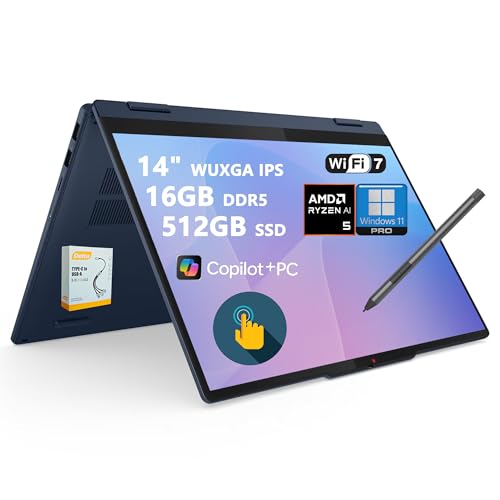
Lenovo IdeaPad Flex 5 Ryzen AI — Creator value hinge
The IdeaPad Flex 5 occupies the guide’s most contested ground: the machine a student or early-career creator buys when the budget is real but the ambitions are not small. Its 14-inch WUXGA IPS touchscreen, AMD Ryzen AI 5 340 processor with up to 50 TOPS of AI capacity, 16 GB of memory and 512 GB of storage form a specification with no embarrassing line, and the listing’s own framing — creator, designer, business professional — tells you Lenovo knows exactly who is shopping here.
WUXGA’s extra vertical pixels over plain FHD quietly serve pen work: a document page shows more lines before scrolling, and a drawing canvas wastes less of itself on toolbars. The Flex hinge folds through tent and tablet postures for the dorm-desk, library-table, café-counter rotation of student life, and the Ryzen AI silicon positions it for the transcription, summarisation and image tools now woven through ordinary coursework and freelance design alike.
Lenovo’s pen ecosystem is the natural partner, and as with several picks here the wise move is confirming what the specific configuration includes before assuming a pen is in the box. That single check separates a complete kit from a follow-up order. Everything else about the Flex 5 is forgiving: standard ports, sensible weight class for its size, and a design that survives being opened one-handed over a bag in a corridor.
Against the flagships it concedes screen glamour — IPS rather than OLED — and some processor altitude. What it returns is the ratio that matters at this level: nearly all of the hybrid pen experience, including a genuinely pleasant writing page, at a commitment a student loan or a first freelance year can absorb without drama.
Freelance designers working from the Flex 5 describe a specific confidence: the machine never embarrasses them in front of a client. It opens the files, drives the presentation, folds to accept the client’s own sketch over a layout, and does it all on hardware whose cost their rates can justify in the first month. Professionalism at this level is not about flagship logos; it is about never saying wait while software catches up, and the Flex’s balanced specification protects that impression.
The WUXGA screen’s extra height also serves the least glamorous student task: the PDF textbook. More lines per view means fewer scrolls per chapter, and annotation in the margin stays beside the paragraph it discusses instead of drifting a page away. Small ergonomic mercies like that, repeated across a degree, shape whether digital textbooks feel like a compromise or an upgrade over paper.
Upgrade thinking is refreshingly absent here. With 16 GB of memory and current AI-capable silicon, the Flex 5 is not a machine bought with one eye on its replacement. Students can reasonably expect it to see out a degree; freelancers, to see out the awkward first years. Longevity at a mid price is the Flex line’s whole argument, and this configuration makes it well.
One more Flex 5 constituency deserves naming: teachers assembling their own classroom technology on personal budgets. The fold-flat screen turns any desk into a document camera substitute for handwritten worked examples, the pen handles marking after hours, and the price leaves room in the same budget for the classroom’s other needs. Versatility purchased once, used in three roles daily, is the definition of value in a school.
Key specifications
- 14-inch WUXGA IPS touchscreen
- AMD Ryzen AI 5 340 processor, up to 50 TOPS
- 16 GB DDR5 memory and 512 GB SSD storage
- Windows 11 Pro in this configuration
- Positioned for creators, designers and professionals
Strengths
- Balanced specification with no weak line for coursework or freelance design
- Extra vertical resolution shows more of every page and canvas
- AI-capable silicon suits the transcription and assist tools students now use daily
Trade-offs
- IPS panel cannot match the OLED picks for ink contrast and colour pop
- Pen inclusion should be verified for the exact configuration ordered
- 512 GB is adequate rather than generous for growing media libraries
Best for: students and early-career creators who need one folding pen machine for study, design work and everything between.
Not suited for: professionals whose annotation happens on OLED-critical colour work all day.

HP Pavilion x360 14 — The gentle entry
Every category needs an honest doorway, and the Pavilion x360 is this guide’s. An Intel Core i5-1235U, 8 GB of memory, a 512 GB PCIe SSD and a 14-inch Full HD IPS touchscreen will not win a specification argument against anything else here — and that is not its job. Its job is to let a first-time hybrid buyer discover, at an approachable commitment, whether pen-first computing changes their days, while still being a perfectly serviceable everyday laptop if the answer is complicated.
The discovery it offers is genuine. The hinge folds fully, so handwritten notes in a lecture, a sketch over a photograph, a signed form and a tent-mode video call are all real experiences rather than brochure claims. Students testing whether digital handwriting suits their memory, families sharing one flexible machine, and home users whose pen needs are signatures and occasional annotation will learn everything they need from living with this HP.
Set its limits plainly. Eight gigabytes of memory asks for tidy habits — a reasonable number of tabs, one heavy application at a time — and the processor belongs to an earlier generation that handles office and study work willingly and creative suites patiently rather than eagerly. The screen is honest Full HD without OLED drama. None of this prevents excellent note-taking; all of it should prevent expecting flagship behaviour.
Viewed as tuition rather than compromise, the Pavilion x360 may be the smartest money in the guide for the undecided. A year with it teaches you your own pen habits — how much you write, where you write, what you wish were better — and that self-knowledge makes any later upgrade precise instead of speculative.
The Pavilion’s finest hour is the family homework table. A parent signs a form with the pen, a child folds it flat to practise handwriting, someone tents it for a video call with grandparents, and nobody books time on it or treats it as precious. Expensive flagships change household behaviour — they get guarded. An approachable hybrid gets used, and used machines teach their owners far more about pen computing than guarded ones ever do.
Schools and community programmes reach the same conclusion at scale: a fleet of Pavilions puts genuine pen computing in front of every student rather than a showcase few in front of some. For handwriting practice, diagram labelling and annotated reading, its specification is not a limitation at all. The constraint only appears with heavy multitasking or creative suites, which are simply not the assignment it was bought for.
Resale and hand-me-down logic flatters it too. When its first owner graduates to a flagship, the Pavilion remains an excellent kitchen, homework or spare-room computer for years, because notes, browsing and media age slowly. Buying the doorway machine is rarely wasted money; it is money that keeps working in a second life after the upgrade arrives.
The Pavilion also makes an unusually good gift machine, for a practical reason: its recipient does not need to know in advance how they will use it. A grandparent discovers video calls in tent mode; a teenager discovers note-taking folded flat; a parent discovers the signature that ends the paper-form era. Machines that forgive uncertainty are rare at any price, and at this one the forgiveness is the entire proposition.
Key specifications
- 14-inch Full HD IPS touchscreen, 1920 x 1080
- Intel Core i5-1235U with Intel Iris Xe graphics
- 8 GB memory and 512 GB PCIe SSD storage
- Windows 11 Home
- Full convertible x360 hinge
Strengths
- The most approachable route into genuine pen-and-fold computing
- Storage is generous for its class, so notes and media fit easily
- A real convertible experience for learning your own hybrid habits
Trade-offs
- 8 GB of memory rewards tidy, one-task-at-a-time working
- Earlier-generation processor is patient rather than eager in heavy apps
- Full HD IPS screen lacks the contrast of the OLED contingent
Best for: first-time hybrid buyers, students testing digital handwriting, and households wanting one flexible shared laptop.
Not suited for: power users who multitask heavily or creators with demanding software suites.
What does a second screen actually change for pen work?
It removes the oldest compromise in digital inking: the reference and the canvas fighting for the same glass. On a single screen, every glance at a source means shrinking your drawing, covering it, or flipping windows — small taxes that accumulate into a reluctance to check sources at all. A dual-screen hybrid abolishes the tax. The brief stays open. The photograph stays open. Your page remains entirely yours, and the pen stops being a window-management tool and returns to being a drawing instrument.
The change is largest for translators, editors, illustrators working from reference, analysts charting from data and teachers preparing annotated materials. It is smallest for pure journaling and freehand sketching, where one uninterrupted canvas was never the problem. That is why this guide refuses to declare the dual-screen machines simply better: they are better at a specific, common, expensive frustration, and merely equal at everything else.
How should you arrange a dual-screen hybrid on a real desk?
Give the lower screen the pen and the upper screen the truth. Canvas, document or score goes below at the flatter angle your wrist prefers; references, communication and tool palettes live above, out of the pen’s way. Resist splitting single applications across both panels — the seam will annoy you within the hour — and instead let each screen hold one complete thing. Within a week the arrangement becomes invisible, which is the sign it is correct.
Lighting deserves one adjustment: two OLED panels angled differently will catch reflections differently, so a small desk repositioning — turning the whole setup a few degrees away from a window — often fixes glare that no brightness setting can. Cable discipline helps too. These machines reward a single dock cable and a tidy run to power, keeping the folding, standing and flattening choreography free of snags.
Which hybrid shape suits students best?
For most students, the folding single-screen convertible remains the sweet shape: it is a normal laptop in a lecture row, a tablet for annotating readings in the library, and a tent for group work, all without accessories to lose. The Flex 5 and Pavilion x360 serve that life at two commitment levels, and both leave budget for the pen, the sleeve and the software that complete a study kit.
The exception is the student whose subject is inherently two-page: languages, law, music and research-heavy humanities, where source and commentary live side by side all term. For them a Yoga Book 9i’s twin portrait pages can be a genuine academic instrument rather than an indulgence — but it should be bought for that named reason, not for novelty, because novelty is the first thing a busy term wears away.
How do you keep a folding screen healthy for years?
Hinges forgive a lot but remember patterns. Open from the centre of the lid rather than one corner, so torque spreads evenly; fold on a clear desk, because a pen or coin trapped between screen and keyboard as you close is the classic hybrid heartbreak; and keep the folded tablet mode off abrasive surfaces, since the screen becomes the machine’s outer skin in that posture. A microfibre habit — one wipe when you notice grit, before you write — protects the surface your pen glides on.
Software care matters equally. Pen calibration drifts subtly after major updates, so re-run the calibration page whenever strokes start landing a breath away from the nib, and keep one known-good note file as a test page. Owners who do these small things report hinges and digitisers outlasting the battery — the correct order of events for a machine bought to be written on daily.
How do hybrid pens differ from drawing-tablet pens?
A hybrid’s pen writes on the computer itself, so the drawing application, the files and the export tools all live under the glass. A separate drawing tablet splits those jobs: the pen surface sits on the desk while the image appears on a monitor, a hand-eye separation that takes days to learn and that some artists never love. Hybrids remove that learning curve entirely — what your hand touches is what changes — at the cost of screen sizes smaller than studio pen displays. For illustration, design review, annotation and teaching, the directness usually wins. For very large-format artwork, the studio tools keep their crown, and this guide’s drawing companion explores that boundary in full.
Pressure behaviour has converged more than marketing admits. Every serious pen ecosystem represented here distinguishes a light annotation stroke from a deliberate one, supports palm rejection so a resting hand does not scribble, and offers an eraser gesture or button. The differences that remain are about feel — nib friction, pen weight, hover distance — which is why hands-on testing, even ten minutes in a store, outranks any specification comparison for pen choice.
What should you do in the first weekend with a new hybrid?
Spend it assigning postures to tasks before habits assign them for you. Write a page folded flat. Read an article standing in tent mode. If you bought a dual-screen machine, declare each screen’s permanent job and arrange your applications around the declaration. Then set up the unglamorous systems: pen pairing and charging routine, cloud sync for notes, a backup export, and the sleeve or case the machine will actually live in. A hybrid’s flexibility is only an asset once your own defaults are decided; otherwise the machine offers you a small decision every time you open it, and decision fatigue is how clever hardware becomes ordinary hardware.
How much should the pen influence a hybrid purchase, really?
More than the processor, for a simple actuarial reason: you will touch the pen’s consequences every day and the processor’s only on heavy days. A pen that lives in a drawer because pairing annoys you converts a hybrid into an ordinary laptop with a flexible hinge — the transformation unused, the premium wasted. So interrogate the pen logistics of any candidate as if they were the product itself: Is one included or named? Where does it rest? How does it charge? What does a replacement cost, and can you buy one today rather than from a discontinued listing? The machines in this guide were chosen partly because their answers are knowable; a hybrid whose pen story is vague is asking you to gamble the entire point of the purchase.
Then weigh the screen with the same seriousness, because in a hybrid the screen is keyboard, paper and cinema in rotation. OLED’s contrast serves the paper role; high refresh serves the pen’s immediacy; size serves your posture. The flagships here combine several of those virtues, the value picks choose one and honour it, and the honest failure mode — a dull, dim screen under a good pen — is absent from this list by design.
Can a hybrid be your only computer?
For the workloads these six target — documents, design, teaching, analysis, media — yes, and the dual-screen machines make the strongest case because they answer the most common objection, screen space, inside the device itself. The conditions are mundane rather than technical: a dock or hub where you settle, a backup routine that treats handwritten work as irreplaceable, and enough storage for your archive’s next three years. Meet those, and the second device most hybrid buyers imagine needing becomes a preference rather than a necessity. Gamers and heavy video editors remain the standing exceptions, as they are for almost every thin computer category.
Where do the best hybrid laptops with stylus support differ when placed side by side?
Hybrids resist a single ranking because they transform in different directions. This comparison therefore sorts them by shape and consequence — what each becomes, what that becoming is good for, and what it quietly costs.
| Pick | Screen | Standout trait | Watch out for |
|---|---|---|---|
| ASUS Zenbook Duo (2026) | Dual 14-inch OLED 3K, 144 Hz | Two canvases end the reference-versus-drawing fight | Desk-centred battery expectations |
| Lenovo Yoga Book 9i | Twin 14-inch 2.8K OLED | Portrait two-page reading with the Yoga Pen | A workflow that takes a fortnight to settle |
| Samsung Galaxy Book5 360 | 15.6-inch AMOLED | Page-scale annotation in a sober business form | Too large for handheld tablet use |
| Dell 14 2-in-1 | 14-inch FHD+ touch | Ryzen 7 power for compute-first pen review | Pen arrangement needs confirming per configuration |
| Lenovo IdeaPad Flex 5 | 14-inch WUXGA touch | Creator value with AI-capable silicon | IPS panel rather than OLED |
| HP Pavilion x360 14 | 14-inch Full HD touch | The gentle, affordable doorway into hybrid life | 8 GB of memory rewards tidy habits |
Which buying errors follow hybrid shoppers home?
The signature error is buying a shape for the life you photograph rather than the week you live. A dual-screen workstation admired in a review may spend your real life folded shut on trains. Walk your actual week — desk, commute, sofa, meeting room — and assign each posture a frequency before choosing. The second error is forgetting that a hybrid’s pen, stand, keyboard accessories and sleeve are a system: price the system, or the flagship’s bargain quietly evaporates at the accessories page.
Third, do not let a beautiful OLED talk you out of needed memory or storage; screens impress in the shop, limits annoy at home. Fourth, verify pen inclusion per configuration with the same suspicion you would apply to any bundle claim. The listings in this guide that include a stylus or name a pen say so in words — hold every other listing to that standard of evidence.
One more distinction is worth drawing before you decide, because it decides which half of this guide deserves your closest reading. Hybrid shoppers divide into people replacing a laptop and people replacing a desk. Laptop replacers travel, commute and work from varied chairs; the folding convertibles serve them, and the lightest adequate one is usually the right one. Desk replacers are consolidating — a monitor, a tablet and a laptop collapsing into a single folding object that anchors a workspace; the dual-screen machines were invented for them, and their owners measure value in devices retired rather than in grams saved. Knowing which replacement you are performing turns a six-way comparison into a two-way one, and two-way comparisons are the kind people actually get right.
Final Recommendation
Let geometry decide. If your pen work constantly argues with your references for screen space, the Zenbook Duo and Yoga Book 9i end the argument in two different dialects, ASUS the stacked workstation and Lenovo the open book. If your days are simpler — annotate, type, present, repeat — Samsung’s broad page, Dell’s work-first fold, Lenovo’s Flex value and HP’s gentle Pavilion cover that life at four honest commitment levels. The best hybrid laptops with stylus support are the ones whose transformation you will still be using in month six, so choose the shape your calendar keeps asking for.
And if the choice still feels balanced on a knife edge, let the pen break the tie in person. Retailers stock several of these families, and ten minutes of handwriting on each — your name, a paragraph, one quick sketch — will produce a preference your hands trust and your head cannot argue with. Specifications start arguments; handwriting ends them.
Bring a notebook to that test, literally: write the same sentence on paper first, then on each screen, and compare sizes. The machine that lets you write at your paper size without conscious adjustment is the machine whose display scale suits your hand — a test no review, including this one, can perform on your behalf.
Small as it sounds, that sixty-second comparison has settled more hybrid purchases than any benchmark chart we know of.
Frequently Asked Questions
Are dual-screen hybrids fragile compared with ordinary convertibles?
They have more glass and more hinge engineering, so they deserve more deliberate handling, but both dual-screen picks here are flagship-built machines designed for daily folding. The realistic risks are desk accidents — trapped objects, grit on the surface — rather than the hinge concept itself.
Do both dual-screen picks include a pen?
The Zenbook Duo’s listing names a stylus among its included items, and the Yoga Book 9i configuration names the Lenovo Yoga Pen. That is the standard of wording to look for on any hybrid listing before assuming a pen is in the box.
Can a hybrid replace a laptop plus a separate tablet?
For pen-centred work, largely yes: the folding and dual-screen machines here run full Windows and full applications, which a companion tablet cannot. What you give up is the tablet’s featherweight, instant-on simplicity for pure reading — a trade most professionals accept gladly.
Which pick suits gaming after work?
None of these is a gaming laptop in disguise, and the guide will not pretend otherwise. The Dell’s Ryzen 7 and the flagships’ modern processors handle lighter and older titles respectably, but buyers whose evenings centre on demanding games should shop a gaming line and add pen work there.
Is 8 GB of memory enough on the Pavilion x360?
For notes, documents, browsing and media — the workload it is recommended for — yes, with tidy habits. If your ordinary day already strains a current machine, treat the Pavilion as the doorway it is and step up to a 16 GB pick instead.
Do hybrid pens work across these brands?
No. Each maker builds around its own pen technology and pairing, so a pen bought for one of these machines should be expected to serve that machine only. Factor pen loyalty into a household or studio that already owns one family’s pens.
Does a hybrid’s hinge wear out from daily folding?
Hinges in this class are engineered for tens of thousands of cycles — years of multiple daily folds — and the failures that do occur usually trace to grit in the mechanism or a trapped object during closing rather than honest cycling. Fold on clear desks, open from the lid’s centre, and the hinge should outlast your interest in the machine.
Should I buy last year’s hybrid configuration to save money?
Often, yes, with one condition: the pen arrangement must be as clear on the older configuration as on the new one. Processors age gracefully for pen work, screens age slowly, and a previous-generation folding machine with a confirmed pen is a better purchase than a current one whose pen story is vague. Memory is the exception — buy the configuration whose memory you will still respect in three years.
A final thought for the undecided: hybrids reward commitment in a way ordinary laptops do not. The first week feels like learning an instrument — postures, pen habits, screen roles all unfamiliar. By the second month the choreography is muscle memory, and going back to a rigid laptop feels like typing with one hand tied. Every owner quoted in the research behind this guide crossed that valley; the ones who crossed it fastest were the ones who chose a shape matched to a named task rather than to a vague hope. Name your task, and the right hybrid in this list names itself.
Related Guides
Keep exploring the pen shelf: our wider stylus laptop roundup ranks single-screen convertibles by pen quality alone, the drawing guide weighs these hybrids against pen displays and standalone tablets for artists, and our note-taking selection focuses on lectures and meetings rather than maximum flexibility.
Related guides
- Best Printers for Watercolor: Pigment and Fine-Art Machines for Reproducing Paintings
- Best Direct Thermal Printers: Shipping-Label Machines and Professional Label Systems
- Best 4K UHD HDR HDMI Extenders: 4K60, Long-Run and 4K120 Kits Compared
- Best Color Product Label Printers: Six Desktop Machines for Short-Run Product Labels


