What's inside
- Where to buy
- Key Takeaways
- Quick Picks
- How Did We Decide What Counts as Inexpensive Without Being Cheap?
- What Can a Budget Windows Tablet Actually Do Well?
- How Do You Keep a 64GB or 128GB Windows Tablet From Filling Up?
- Which Budget Pick Suits a Student, a Shopkeeper and a Home Office?
- Budget Class at a Glance: Where Each Pick Puts Its Money
- What Are the Classic Budget Windows Tablet Mistakes?
- How Long Should an Inexpensive Windows Tablet Last?
- Why Not Just Buy a Chromebook or a Cheap Android Tablet Instead?
- How Do You Set Up a Budget Windows Tablet So It Stays Fast?
- What Peripherals Make Sense at This Price Level?
- What Should You Expect From Media, Games and Cameras in This Class?
- A Short History of the Cheap Windows Tablet — and Why It Is Better Now
- How Does the Buying Decision Change When the Tablet Is for a Child?
- What About Battery Life and Charging in the Budget Class?
- How Do These Tablets Handle the Household’s Shared Life?
- When Should You Step Up a Class Instead?
- What Does the First Month With a Budget Windows Tablet Teach You?
- A Note on Buying These Machines as Gifts
- Final Recommendation
- Frequently Asked Questions
- Related Guides
As an Amazon Associate I earn from qualifying purchases. This post may contain affiliate links at no extra cost to you.
gizmoverdict.com is reader-supported. When you buy through links on our site, we may earn an affiliate commission.
Where to buy
The best inexpensive windows tablets ask you to redefine inexpensive before you spend anything. A cheap Android tablet is a media screen with apps; a cheap Windows tablet is a real personal computer — full desktop programs, real file management, a browser with no mobile compromises — squeezed into a modest budget. That difference is why this category survives at all, and it shapes every pick below: these are machines for people who need actual Windows, for coursework, small-business software, a family PC, a workshop terminal, and who need it without flagship money.
The field divides into two honest families. Microsoft’s Surface Go line and an older Surface Pro bring the badge, the build quality and the accessory ecosystem down to earth, with specifications trimmed in visible places — storage especially. CHUWI brings the challenger formula: Intel processors, surprisingly generous storage for the class and cases or keyboards in the box, balanced against a smaller brand’s support network. Neither family is pretending to be a flagship, and this guide will not pretend on their behalf: every pick’s ceiling is named as plainly as its virtues.
One respected name is handled differently. The HP Elite x2 1012 G2 was a fine business detachable in its day, but the verified listing for it is renewed and the line is long discontinued, so it appears below as a prose-only pick — a used-market route for a particular kind of buyer, described with its caveats attached rather than linked as if it were current retail stock.
Key Takeaways
- Storage is the sharpest dividing line in this class: the CHUWI picks carry 256GB while the entry Surface Go 4 configuration carries 64GB — plan your files accordingly.
- The Surface Pro 9 in this guide is the previous flagship generation at a value position, not a budget-native design.
- Both CHUWI picks include something in the box — a case on one, a magnetic keyboard on the other — which changes the true system price.
- The Surface Go 3 with a Core i3 remains a sensible buy for light work, provided its age is understood rather than discovered.
- The HP Elite x2 is a used-market story only: renewed listing, discontinued line, homework required.
Quick Picks
| Pick | Badge | Why it earns its place |
|---|---|---|
| CHUWI Hi10 X2 10.1-inch | Storage-rich budget slate | An Intel Windows tablet with 256GB of storage and a case included — the specification sheet the class usually refuses to offer. |
| Microsoft Surface Go 4 64GB | Smallest genuine Surface | The current small Surface at its entry configuration, for buyers whose files live in the cloud and whose bag is small. |
| Microsoft Surface Go 3 Core i3 | Older Go, stronger chip | The previous Go generation with a Core i3 and 128GB — a combination that still handles a student’s or a home office’s day. |
| CHUWI 2-in-1 Tablet 6500Y with Magnetic Keyboard | Keyboard in the box | A complete little Windows laptop-tablet system on delivery day, keyboard included, with 256GB of storage behind it. |
| Microsoft Surface Pro 9 Core i5 | Previous flagship value | A 13-inch Pro with a Core i5 and Windows 11 Pro — the big-screen, big-keyboard experience at a generation-old position. |
| HP Elite x2 1012 G2 (prose-only) | Used-market business route | A discontinued business detachable whose verified listing is renewed; for confident used buyers only, eyes open. |
How Did We Decide What Counts as Inexpensive Without Being Cheap?
The filter was usefulness over a plausible ownership, not the lowest number on a search page. Each linked pick had to run full Windows 11, carry at least 8GB of memory — the practical floor for a comfortable Windows day — and come from a listing verified for this guide with its configuration stated plainly. Machines below that memory line exist in this market and were excluded deliberately: a Windows tablet that stumbles over its own operating system is not inexpensive, it is a postponed replacement.
We also priced systems rather than tablets. A pick whose keyboard and case are included competes against a pick whose are not, and the Quick Picks and reviews keep that arithmetic visible. The Surface badge earns its place through build, support and accessories; the CHUWI machines earn theirs through specification per unit of money. Both are legitimate currencies in this class, and pretending only one matters would make the guide simpler and worse.
Finally, age was treated as information rather than disqualification. The Go 3 and the Pro 9 are older designs sold at value positions, and the HP is older still and renewed besides. Each is labelled with its generation and its status, because an inexpensive guide’s first duty is that nobody discovers a compromise after the box opens.
What Can a Budget Windows Tablet Actually Do Well?
More than its reputation suggests, provided the work is matched to the machine. Documents, spreadsheets of ordinary size, email, browser-based tools, video calls, streaming, e-reading, light photo organisation and the long tail of Windows utilities — printer software, banking tools, exam and coursework platforms that demand a real PC — all run happily in this class. For a student, a home office or a small shop, that list is not a subset of computing; it is most of computing.
The strain shows in predictable places. Dozens of browser tabs alongside a video call will test 8GB of memory. Large photo libraries will test 64GB of storage far sooner. Video editing beyond trims, modern games beyond the classics, and heavy multitasking belong to other guides. The inexpensive Windows tablet’s bargain is honest: it trades the extremes for a price, and buyers who know their extremes are rare get the better end of it.
There is one more duty this class performs quietly well — the second-computer role. A kitchen machine for recipes and homework supervision, a workshop terminal for manuals and parts catalogues, a travel machine whose loss would sting less than a flagship’s: in those posts, a modest Windows tablet’s ability to run the household’s real software makes it more useful than a prettier media slate.

CHUWI Hi10 X2 10.1-inch — Storage-rich budget slate
The Hi10 X2 leads this guide because it solves the budget class’s most common regret before it happens. Behind its 10.1-inch screen sit an Intel 6500Y processor, 8GB of memory and — the headline — 256GB of storage, four times the entry Surface Go’s capacity in this same list. Budget Windows machines die of full drives more often than of slow processors; Windows updates, a couple of large applications and a photo library will strangle a small SSD within a year. The CHUWI simply refuses that story, and a case in the box sweetens the arithmetic further.
Temper the enthusiasm with the processor’s biography. The 6500Y is a low-power Intel chip designed for fanless slates; it handles documents, browsing and calls with composure and asks not to be mistaken for a desktop i5. That is the correct trade at this level — endurance and silence over burst speed — provided the buyer knows it was made. Connectivity is modern where it counts: WiFi 6, Bluetooth 5.3, USB 3.2 and a Type-C port, plus a 4K Micro-HDMI output that turns a television into its second screen. Dual cameras cover calls and document snaps without ceremony.
Support is the smaller brand’s standing caveat: warranty journeys run through CHUWI rather than a high-street name, and the accessory world is thinner than Surface’s. For a buyer comfortable with that — and the storage and specification argue many should be — this is the budget Windows tablet with the fewest built-in regrets.
- Screen: 10.1-inch touchscreen
- Processor: Intel 6500Y, up to 3.4GHz
- RAM / storage: 8GB / 256GB SSD
- Ports and radios: USB 3.2, Type-C, 4K Micro-HDMI, WiFi 6, Bluetooth 5.3
- Included: case
Strengths
- Storage that will not become the machine’s first crisis — the class’s most practical specification.
- A proper port selection, including direct video output, that pricier slates often omit.
- Fanless, light and simple — a slate that behaves like a slate while running real Windows.
Trade-offs
- The low-power processor sets a clear ceiling for heavy multitasking and demanding software.
- Brand support and accessories cannot match the Surface ecosystem’s depth.
- Keyboard is a separate decision; the included case protects but does not type.
Best for: a student, home user or small business whose files need room and whose software is mainstream. Not suited for: a power user, or a buyer who wants a flagship-grade keyboard ecosystem.

Microsoft Surface Go 4 64GB — Smallest genuine Surface
This is the current small Surface in its entry configuration, and it should be bought with both eyes on one number: 64GB. The machine itself is everything the Go line promises — a 10.5-inch Full HD touchscreen in a Platinum body that vanishes into small bags, 8GB of memory, Windows 11 in its business-capable form, and access to the Surface keyboard and pen ecosystem that makes the format sing. For a cloud-living owner, the storage is a footnote; for a file-keeping owner, it is the whole review.
So let the configuration choose its buyer. If your documents live in OneDrive or Google Drive, your photos stream rather than sit, and your applications are a browser, Office and a calls app, this Go 4 is a delightful, well-made little computer that will feel premium every time it is picked up. If your life involves local media libraries, offline archives or large application installs, the same machine becomes a weekly storage negotiation — and the 128GB configuration, or the CHUWI picks with 256GB, exist precisely for you.
Within its intended life, the Go 4’s virtues compound. It is the note-taker in the meeting, the second screen of homework at the kitchen table, the travel computer that fits the seat pocket. Buy it as that machine — deliberately, for a cloud-first person — and it is one of the most satisfying small computers in this guide. Buy it as a cheap main PC for a file hoarder and it will educate you.
- Screen: 10.5-inch Full HD touchscreen
- Memory: 8GB RAM
- Storage: 64GB
- System: Windows 11
- Finish: Platinum
Strengths
- The genuine Surface experience — build, screen, accessories — at the line’s most accessible configuration.
- Small and light enough to be carried on speculation and used in the day’s gaps.
- Memory matches the class standard, so everyday Windows work stays composed.
Trade-offs
- 64GB of storage is a commitment to cloud living that not every buyer can keep.
- Keyboard and pen are separate purchases that the format really wants you to make.
- Its processor class suits light duties; it is not a shrunken Pro.
Best for: a cloud-first student, traveller or note-taker who values the Surface feel in the smallest body. Not suited for: a local-file keeper, or anyone buying a sole family PC with a growing photo library.
Microsoft Surface Go 3 Core i3 — Older Go, stronger chip
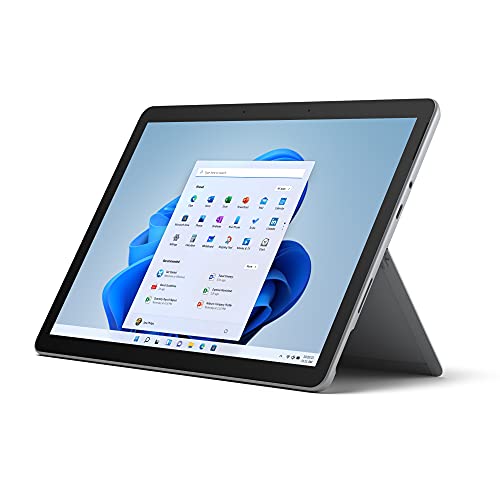
The Go 3 is the previous generation of Microsoft’s small tablet, and this configuration carries the specification that made it the connoisseur’s Go: a Core i3 processor rather than the entry Pentium chips the line launched with, 8GB of memory and a 128GB SSD. Age has moved it into the value tier, where it competes not on novelty but on a simple proposition — a well-built small Windows tablet with a proper Intel processor and enough storage to live locally, at money the current generation does not ask.
What does the generation gap actually cost? Refinements rather than foundations: the newer Go polishes efficiency and details, while the i3 Go 3 answers with processor headroom that light-but-real work appreciates — a classroom of tabs, a chunky spreadsheet, a calls app sharing the screen with a document. It remains a 10.5-inch touchscreen in the familiar Platinum, sold here as device only, so the keyboard budget must be added for the full detachable experience.
The honest caveats are about time. An older model has fewer years of platform novelty ahead of it, and its battery was designed to the standards of its launch year. Neither matters much for the duties this class performs — homework, home office, travel, tills and checklists — and for those duties the Go 3 i3 remains a quietly excellent buy, provided the price reflects its age. Check that it does, and the machine will not embarrass the decision.
- Screen: 10.5-inch touchscreen
- Processor: Intel Core i3
- RAM / storage: 8GB / 128GB SSD
- Configuration: device only
- Finish: Platinum
Strengths
- The i3 configuration gives the small Go real working headroom, not just browsing pace.
- Storage doubles the entry Go 4 in this guide, easing local-file life considerably.
- Surface build and accessory compatibility at a previous-generation position.
Trade-offs
- An older design, with the shorter runway of platform freshness that implies.
- Device-only listing — the keyboard that completes the format is an extra purchase.
- Efficiency refinements of the newer generation are absent.
Best for: a home-office or student buyer who wants a small Surface with a real processor and local storage. Not suited for: a novelty-first buyer, or someone who needs the newest platform’s refinements.

CHUWI 2-in-1 Tablet 6500Y with Magnetic Keyboard — Keyboard in the box
Where its CHUWI sibling leads on storage, this one leads on completeness: the magnetic keyboard is in the box. That single inclusion changes the product’s nature. It arrives as a small Windows laptop that can shed its keys and become a tablet, rather than as a tablet awaiting accessories — and for a budget buyer, the absence of a second purchase is not a detail, it is the point. The specification behind the keyboard matches the Hi10 X2’s sensible core: the Intel 6500Y, 8GB of memory and 256GB of storage.
The screen is a 10.1-inch HD panel, a step down in resolution from the class’s Full HD Surfaces, and text purists will notice on long reading days. Against that, the machine offers WiFi 6, Bluetooth 5.3 and a 5MP camera for calls and document capture, in a package aimed at the everyday centre of computing: coursework, correspondence, browsing, streaming and light office work. The magnetic keyboard will not match a Surface Type Cover for typing feel — few things in this class do — but it arrives, it works, and it costs nothing further.
Consider this the first-computer or the household-computer pick of the guide: the one to hand a student, a parent setting up a home office, or a small shop needing a counter machine, without a follow-up shopping list. Its ceiling is the same low-power ceiling as its sibling’s, stated just as plainly; within that ceiling, few budget Windows machines arrive this ready.
- Screen: 10.1-inch HD touchscreen
- Processor: Intel 6500Y, up to 3.4GHz
- RAM / storage: 8GB / 256GB SSD
- Radios: WiFi 6, Bluetooth 5.3
- Included: magnetic keyboard
Strengths
- A complete typing system on day one — no accessory arithmetic, no second order.
- The same generous 256GB storage that makes its sibling so easy to recommend.
- An honest all-rounder for coursework, home office and household duty.
Trade-offs
- The HD screen is the visible compromise beside Full HD rivals.
- Keyboard feel is functional rather than delightful, as the class dictates.
- Low-power silicon caps demanding software and heavy multitasking.
Best for: a first Windows tablet, a student, or a household that wants one box and no follow-up purchases. Not suited for: a text-sharpness devotee, or a professional typist covering long daily miles.

Microsoft Surface Pro 9 Core i5 — Previous flagship value
The Pro 9 is the pick for the buyer who sat in a shop two years ago, loved the big Surface, and declined its flagship price. Time has renegotiated. This configuration pairs the 13-inch Pro body with a 12th-generation Core i5-1245U, 8GB of memory, a 128GB SSD and Windows 11 Pro — the full-size detachable experience, the full-size keyboard, the big canvas for documents, at a value position created purely by the arrival of its successors.
Intel power brings the old reassurance: every desktop program, driver and peripheral in the Windows world treats this machine as home. For a buyer whose software drawer includes anything elderly or specialised, that compatibility is worth more than a newer chip’s efficiency. The i5 itself remains a thoroughly capable mainstream processor for office work, study and creative dabbling, and the Pro 9’s screen and build were flagship-grade when new and remain handsome now.
The compromises are the configuration’s, not the concept’s. Memory at 8GB suits the centre of professional work but not its heavy edge, and 128GB of storage asks for either cloud habits or an external drive for media. Buyers who accept those two disciplines get the big-Surface life — desk presence, meeting-room polish, a keyboard worth writing a thesis on — at the friendliest terms the Pro line offers in this guide.
- Screen: 13-inch touchscreen
- Processor: Intel Core i5-1245U, 12th generation
- RAM / storage: 8GB / 128GB SSD
- System: Windows 11 Pro
- Finish: Platinum
Strengths
- The full-size Surface Pro experience — screen, keyboard, presence — at a generation-old position.
- Intel compatibility removes every software question mark in one stroke.
- Windows 11 Pro suits work and managed use without an upgrade conversation.
Trade-offs
- Storage and memory are the trimmed lines; heavy local libraries will feel both.
- Its generation’s efficiency trails the Snapdragon Surfaces in unplugged endurance.
- Keyboard remains a separate purchase unless a bundle listing says otherwise.
Best for: a professional or student who wants the big Surface and Intel certainty at a softened price. Not suited for: a media hoarder, or a traveller chasing the longest possible day away from sockets.
HP Elite x2 1012 G2 (prose-only) — Used-market business route
The Elite x2 was HP’s answer to the first Surfaces: a business detachable with enterprise manners, a proper keyboard and a design aimed at travelling professionals. It earns its paragraph in this guide because budget hunters will meet it constantly on the used market — and it is presented without a link because the verified listing for it is renewed stock and the line itself is long discontinued. This is not current retail hardware wearing a disguise; it is a used machine, and it should be bought as one.
Bought knowingly, it can still make sense. A warranted renewed unit from a refurbisher who guarantees the battery can serve as a workshop terminal, a spare machine, a Linux experiment or a child’s supervised first PC at very little money. The business build was designed to be opened and serviced, which ages more gracefully than sealed consumer slates. What it cannot offer is a modern ownership story: no current platform freshness, a battery with a past, and support that lives in forums rather than in HP’s current channels.
Our line is the same one this guide draws everywhere. If the Elite x2’s price tempts you, spend the saved money’s worth of attention on the seller — battery guarantee, grading, returns — and let the CHUWI and Surface picks above be the benchmark for what a little more buys in certainty. For most readers, that benchmark is where the decision will land.
- Format: business detachable, discontinued line
- Status: verified listing is renewed stock
- Channel: refurbishers and the used market
- Homework: battery health, warranty, returns
- Link status: prose-only, deliberately unlinked
Strengths
- Business-grade build designed for service, at used-market money.
- A genuine Windows detachable for posts where a new machine is hard to justify.
- Abundant used supply keeps the route open and comparable.
Trade-offs
- Renewed and discontinued — battery history and support are the buyer’s problem.
- Platform age shows against every other pick in this guide.
- Unit quality varies; the seller matters more than the model name.
Best for: a confident used-market buyer furnishing a workshop, a spare desk or an experiment. Not suited for: a main family computer, a gift, or anyone who needs a warranty with a household name on it.
How Do You Keep a 64GB or 128GB Windows Tablet From Filling Up?
Storage discipline is a skill this class teaches quickly, and it is learnable in an afternoon. Start by pointing the big, lazy libraries at the cloud: photos and documents sync upward, with local copies kept only for favourites and current projects. Windows’ own storage tools will show you the quiet accumulations — update caches, temporary files, the downloads folder’s archaeology — and a monthly five-minute clear-out keeps a small drive breathing. Applications deserve the same scrutiny; the game installed for one holiday and the trial suite from a year ago are tenants who stopped paying rent.
External storage is the pressure valve, and this class is better equipped for it than its price suggests. A modest USB drive or a microSD card, where a slot exists, holds the media library that does not need SSD speed — films for a trip, an archive of PDFs, the family photo history. The CHUWI picks’ video output even lets that library live on a television. The principle is simple: the internal drive is for the system and the current work; everything else can visit from outside.
Which Budget Pick Suits a Student, a Shopkeeper and a Home Office?
The student’s day is reading, notes, essays and a learning platform that insists on a real browser — all four corners of this class’s competence. A student with reliable Wi-Fi and cloud habits is well served by the Go 4; one whose halls have patchy connectivity and a local library of texts should look at the Go 3 i3’s storage or the Hi10 X2’s roomier drive. The keyboard-included CHUWI removes the accessory errand from a busy first term, which is worth more than it sounds in September.
The shopkeeper’s tablet is a tool with a till’s temperament: it must run the point-of-sale or stock software the business already uses — often the very reason Windows is non-negotiable — and survive being handled all day by several people. The Pro 9’s size suits a counter; the Hi10 X2’s ports suit a back office with a printer and a big screen. Either way, buy the machine the existing software blesses, because retraining a business around a tablet is the most expensive saving in retail.
The home office is the easiest brief and the easiest to overspend on. Correspondence, accounts, video calls and the household’s paperwork sit squarely in every pick’s ability, so the decision collapses to size and storage honesty. A desk-bound home office should take the Pro 9’s big screen; a kitchen-table office that must clear away at dinner should take a 10-inch machine and enjoy the tidiness.
Budget Class at a Glance: Where Each Pick Puts Its Money
| Pick | Screen | Processor | RAM / Storage | Money spent on |
|---|---|---|---|---|
| CHUWI Hi10 X2 | 10.1-inch | Intel 6500Y | 8GB / 256GB | Storage and ports, case included |
| Surface Go 4 64GB | 10.5-inch Full HD | Surface Go class | 8GB / 64GB | Build, size and the current badge |
| Surface Go 3 Core i3 | 10.5-inch | Intel Core i3 | 8GB / 128GB | Processor headroom, previous generation |
| CHUWI 2-in-1 with Keyboard | 10.1-inch HD | Intel 6500Y | 8GB / 256GB | Completeness — keyboard included |
| Surface Pro 9 Core i5 | 13-inch | Intel Core i5-1245U | 8GB / 128GB | Size, Intel certainty, Pro system |
| HP Elite x2 1012 G2 (prose-only) | Business detachable class | Intel business class | Varies by unit | Used-market price, buyer homework |
The rightmost column is the one to shop by. Every machine in this class is a compromise with a thesis; buy the thesis that matches your life and the compromise will rarely be visited.
What Are the Classic Budget Windows Tablet Mistakes?
Buying storage by optimism is the first. A 64GB drive is a plan, not a number, and buyers without the plan meet the wall during a Windows update in month four. The second is judging by the tablet price while the system price — keyboard, case, hub — waits offstage; the keyboard-included CHUWI exists to expose exactly that arithmetic. Third is processor confusion in both directions: expecting a low-power 6500Y to edit video happily, or dismissing it for coursework it handles with ease.
Fourth is treating an older generation as a defective one. The Go 3 and Pro 9 are not broken flagships; they are finished designs at kinder prices, and their reviews above judge them as such. Fifth is the mirror error — buying the discontinued HP as if it were a current product because the listing’s photographs are glossy. Read status labels, in this guide and everywhere: new, older, renewed and discontinued are four different purchases wearing similar pictures.
How Long Should an Inexpensive Windows Tablet Last?
Set the expectation honestly and this class satisfies it: three to five years of the duties it was bought for. The battery will soften, the storage will need its housekeeping, and the platform will age — but coursework, correspondence and household administration do not escalate their demands the way games do. The machines most likely to be retired early are the ones bought against their nature: the 64GB drive asked to be an archive, the low-power chip asked to be a workstation. Match the machine to the life at purchase and the inexpensive tablet stops being a compromise and becomes simply the right-sized tool — the one that gets picked up without a thought, opened without a wait, and trusted with the household’s ordinary business for years.
Care habits extend the story cheaply. A case on a machine that travels, a charger that matches the specification, updates applied rather than deferred forever, and a drive kept below the panic line — these unglamorous disciplines are worth a year of life in this class, where the hardware has less headroom to forgive neglect.
Why Not Just Buy a Chromebook or a Cheap Android Tablet Instead?
Because the reason you are reading a Windows guide is probably a specific piece of software, and that reason deserves respect. A Chromebook is a fine, simple machine until the coursework platform, the accounts package, the label printer or the exam tool demands Windows — at which point its simplicity becomes a wall. A cheap Android tablet streams beautifully and then cannot run the desktop program the household actually needs. The inexpensive Windows tablet exists for the gap between those two frustrations: it is the cheapest honest way to own the real Windows world, with its real file system, real drivers and real desktop applications.
That said, the alternatives win their own cases and a good guide should say so. A household whose computing is entirely browser and streaming will be served as well by a cheaper Android slate, and a school-managed child may be better inside a Chromebook’s supervision. The Windows premium — modest in this class — buys compatibility, and compatibility is only worth buying when something you own requires it. Name that something before you shop; if you cannot name anything, the cheaper platforms are allowed to win.
How Do You Set Up a Budget Windows Tablet So It Stays Fast?
Begin by resisting the bundleware instinct — your own. Install the applications the machine was bought for, and no speculative extras; every background updater and helper is a small tax on a modest processor, and in this class the taxes are visible. Run the full round of Windows and firmware updates on the first day, while the machine is empty and patient, then set updates to a schedule that suits your week rather than interrupting it. A budget tablet that is current is a safer and usually a smoother machine than one frozen at its factory state.
Next, tune the startup list without mercy. The programs that launch at boot should be the ones you would launch yourself within the hour; everything else can wait to be asked. Choose the browser deliberately — all the major browsers run here, but tab discipline matters more than brand at 8GB of memory — and turn on the storage sense tools so temporary files clear themselves. Finally, set up the backup story while there is nothing to lose: cloud sync for documents, so that the machine’s modest drive is a workspace rather than an archive, and its eventual replacement becomes a sign-in rather than a rescue mission.
What Peripherals Make Sense at This Price Level?
The discipline is proportionality. A hub that costs a fifth of the tablet should be interrogated; a simple USB-C hub with power pass-through and an HDMI output covers presentations, hotel desks and wired accessories for every pick here. A basic wireless mouse transforms desk sessions on the small Go models, whose keyboards carry small trackpads, and a sleeve matters more than a hard case for machines that live in school bags and toolboxes.
Printers and scanners deserve a sentence of their own, because they are so often the reason for buying Windows at all. Every pick here runs the standard Windows driver world, which is the entire point — the elderly printer that no tablet platform will talk to will usually converse happily with these. Test the pairing in the first week, while returns are painless, and the household’s oldest peripheral becomes the new machine’s oldest friend rather than its first crisis.
What Should You Expect From Media, Games and Cameras in This Class?
Streaming is the easy victory: every pick here is a perfectly good film and series screen for one or two viewers, with the Pro 9’s larger canvas the natural choice for a shared evening. Music, podcasts, video calls and casual photography from the built-in cameras are all handled without drama — the CHUWI’s 5MP camera and the Surfaces’ call-ready lenses are tools for documents and faces, not for replacing a phone’s camera, and should be judged as such.
Games need the honest sentence. This class plays the classics, the indies, the browser games and the cloud-streamed titles happily; it does not play current blockbuster releases locally, and no settings menu will change that. Buyers for whom gaming is a headline should be reading the detachable guide’s Flow Z13 review instead. For everyone else, the media story of the budget Windows tablet is simple: it is a competent screen attached to a real computer, and that combination covers most households’ evenings entirely.
A Short History of the Cheap Windows Tablet — and Why It Is Better Now
Older readers may carry a justified suspicion of this category, because its ancestors earned it. The cheap Windows tablets of a decade ago paired the operating system with memory and storage figures that embarrassed it, and many were bought once and regretted at leisure. Three things changed. Solid-state storage became cheap enough that even budget machines carry real SSD room — the 256GB CHUWI drives in this guide would have been flagship figures not long ago. Low-power Intel chips grew from apologetic to adequate for the mainstream workload. And Microsoft’s own Go line proved a small Windows tablet could be a designed object rather than a parts-bin accident, which forced the whole class upward.
The lesson for today’s buyer is to judge the current machines by their own specifications rather than by the category’s reputation. The floor of this guide — 8GB of memory, a real SSD, a touchscreen designed for the pen as well as the finger — describes a computer that would have been unremarkable at three times the money a few years ago. Reputation lags reality in both directions, and in this class it currently lags behind.
How Does the Buying Decision Change When the Tablet Is for a Child?
A child’s first real computer is a common reason this guide gets read, and it changes the weighting. Durability and replaceability rise; raw speed falls. A case becomes close to mandatory, the keyboard’s survival matters, and the machine’s price should be one the household can contemplate replacing without a family summit. Windows brings a genuine advantage here — the parental controls and account structure are the full desktop versions, and the machine can grow from supervised homework tool to the computer that writes the first serious essays, running the same software the school expects.
Between the picks, the keyboard-included CHUWI suits a younger student who needs a complete, forgiving system, the Go models suit an older child whose school life is cloud-based and whose bag is already heavy, and the renewed HP should stay an adult’s calculated purchase rather than a child’s gift — its homework burden belongs on the buyer’s shoulders, not under the tree. Whatever is chosen, set up the child’s account, the content settings and the backup before the machine is handed over; retrofitting supervision is a worse conversation than installing it.
What About Battery Life and Charging in the Budget Class?
Expect a school or office day of light work from the small machines, less from the Pro 9 under load, and plan the charger as part of the furniture rather than as an emergency guest. The low-power CHUWI chips sip politely; the Go models are built for the gaps of a day rather than its marathon; all of them charge over modern connections that make a shared household charger realistic. The honest framing is that this class trades the flagship Snapdragon machines’ remarkable standby for price, and the trade is fair — provided the buyer knows a charger belongs in the bag on long days.
Battery care at this level is simple and worth it, because replacement is rarely economical. Keep the machine out of heat, avoid leaving it discharged for weeks in a drawer, and let it live in the middle of its charge range when it sits docked for long periods. A budget tablet’s battery treated kindly will outlast the household’s need for the machine; treated as an afterthought, it becomes the reason a still-capable computer retires early.
How Do These Tablets Handle the Household’s Shared Life?
Most budget Windows tablets are not bought for one person; they are bought for a household, and Windows is unusually good at being shared. Separate accounts keep a parent’s documents, a teenager’s coursework and a grandparent’s email in their own worlds on one machine, with the full account controls of desktop Windows rather than a tablet platform’s simplified version. The kitchen-table machine that supervises homework at four, runs the household accounts at seven and streams a film at nine is a real and honourable post, and every pick in this guide can hold it.
Sharing argues for two specification choices. Storage should be the household’s, not the individual’s — another point for the 256GB CHUWI machines or the Pro 9’s external-drive habits over a 64GB drive divided three ways. And the keyboard should be treated as household infrastructure rather than one person’s accessory, which again flatters the bundle that includes it. A shared machine also deserves a shared rule: nobody’s account stores the only copy of anything, because the tablet that everyone uses is the tablet that eventually gets dropped by someone.
When Should You Step Up a Class Instead?
This guide believes in its category, and part of that belief is naming its border. Step up when the work involves large spreadsheets that recalculate for a living, photo libraries edited rather than merely organised, any video editing beyond the ceremonial, or a professional software load that already strains a mid-range laptop. Step up, too, when the tablet will be a professional’s only machine for years — the mid-range guide’s memory and storage headroom is cheaper bought at the start than apologised for monthly.
Stay, confidently, when the list of duties reads like the ones woven through this article: coursework, correspondence, accounts, calls, browsing, streaming, supervision and the long tail of household Windows software. For that list, the machines above are not the cheap version of the right computer. They are the right computer, priced where the work actually lives.
What Does the First Month With a Budget Windows Tablet Teach You?
Week one teaches the keyboard truth: owners either attach the keyboard daily, in which case the detachable was the right purchase, or leave it in a drawer, in which case a simpler slate would have done — and budget buyers learn this faster because the accessory was a deliberate line in a tight budget. Week two teaches the storage truth, as the first updates, applications and downloads arrange themselves on the drive and the owner discovers whether the plan made at purchase was honest. Week three teaches the posture truth — where the machine actually lives, on which table, in whose hands — and week four, if the first three lessons were kind, teaches nothing at all, which is the sound of a well-matched computer disappearing into a household’s routine.
That disappearance is the real success criterion in this class. A flagship should occasionally delight; a budget machine should reliably vanish. When readers write to say they stopped thinking about their inexpensive tablet months ago and simply use it — for the accounts, the homework, the calls, the recipes — the category has done its work, and the specification debates that filled the buying week have been replaced by the only verdict that matters, delivered not in a review but in the plain fact of daily use.
A Note on Buying These Machines as Gifts
An inexpensive Windows tablet is a genuinely good gift — a real computer, not a toy — with one condition: the giver should configure it. Set up the recipient’s account, run the updates, install the two or three applications the machine was bought for, and include the keyboard if the format needs one, because a gift that requires a second purchase and an evening of setup is a project wearing a ribbon. The Go models make the most polished presents; the keyboard-included CHUWI makes the most complete one. The renewed HP, for the reasons its own review gives, should never be a gift at all — its homework is a buyer’s, not a recipient’s.
Final Recommendation
Let storage make the first cut. If your files are many and local, the CHUWI Hi10 X2 is the budget Windows tablet with the fewest regrets built in, and its keyboard-included sibling is the one to hand anyone who needs a complete system from a single box. If your life is cloud-shaped and your bag is small, the Go 4’s polish earns its place, while the Go 3 i3 is the quiet bargain for buyers who prefer processor headroom and local room over newness. Take the Pro 9 when the big screen and Intel certainty matter more than either — it is the closest this class comes to a flagship life. And leave the HP to the used-market confident, where it belongs. Inexpensive Windows is not about finding the cheapest tablet; it is about finding the one whose compromises you will never personally meet. Read the five reviews above once more with your own week in mind — the files you keep, the programs you open, the rooms you work in — and notice which machine’s trade-offs all land on duties you do not have. That machine, whichever badge it wears, is the inexpensive tablet that will feel, a year from now, like anything but a compromise. Buy it, set it up properly on the first evening, keep its drive breathing and its updates current, and then do the hardest thing in consumer technology: stop shopping, and let the little computer get on with the work it was bought to do.
Frequently Asked Questions
Is 8GB of memory enough for Windows 11 in daily use?
For the work this class is bought for — documents, browsing, calls, coursework, streaming — yes, comfortably, provided the tab count stays human. Memory pressure appears when many heavy applications and dozens of tabs compete at once; buyers who live that way should step up a class rather than blame the machine. Every pick in this guide carries 8GB deliberately, as the floor of a pleasant Windows day.
Can these tablets run Microsoft Office and my coursework platform?
Yes — that is precisely their home ground. Full desktop Office, browser-based learning platforms, exam software that demands a real PC, printers and scanners with Windows drivers: this is the ordinary Windows world, running at modest pace rather than flagship speed. If a platform’s requirement is simply “a Windows computer”, every linked pick here qualifies.
Should I choose the Go 4 or the Go 3?
Choose by configuration rather than by generation loyalty. The Go 4 in this guide is the newer machine with the smaller 64GB drive; the Go 3 counters with a Core i3 and 128GB. Cloud-first buyers should take the newer machine; file-keeping buyers will be happier with the older one’s storage and processor. Either is a genuine Surface — the question is which compromise fits your habits.
Are CHUWI tablets reliable enough for a main computer?
For mainstream duties, the hardware in this guide is honestly specified and widely used, and the storage and port choices are genuinely thoughtful. The differences from a Surface live in the support journey and the accessory ecosystem rather than in daily function. A buyer who values a high-street warranty story above specification may still choose Microsoft; a buyer who values room to store files will find the CHUWI case persuasive.
What should I check before buying the renewed HP Elite x2?
The refurbisher’s battery guarantee first, then the cosmetic grading of the screen, the warranty period, the returns window and whether the keyboard and a correct charger are included. A seller who answers all five plainly is selling a considered used machine; a seller who answers none is selling a photograph. Price the homework into the bargain and the route can serve a workshop or a spare desk well. One more test costs nothing and reveals much: ask the seller a direct question about the unit’s battery before buying, and read the answer’s specificity. A refurbisher who can talk about that individual machine’s health is a refurbisher who has actually handled it.
Can a budget Windows tablet replace a broken laptop in an emergency?
For a week of documents, email, calls and browser work, yes — and households discover this gratefully whenever a main laptop goes in for repair. The small screens and modest memory make the arrangement a plaster rather than a cure, and anyone whose work is heavy will feel the difference by day three. But as an emergency computer that runs the real software and opens the real files, a budget Windows tablet is worth more than a media slate costing the same, which is one of the quieter arguments for owning one.
Is it worth paying extra for the Surface name in this class?
It buys three concrete things: build quality you can feel, an accessory ecosystem that will still exist in three years, and a support and resale story with a household name attached. Whether those are worth the specification difference — the CHUWI picks’ storage advantage is the standing counter-argument — depends on whether the machine is a three-year companion or a one-year post. Long ownership flatters the badge; short, specific duties flatter the specification sheet.
How do I know whether 64GB, 128GB or 256GB is right for me?
Add up what you can name. The operating system and a normal application set take a substantial share before your first personal file; a photo library, a music collection kept offline and a handful of large programs decide the rest. If your named files are few and mostly live in cloud accounts already, 64GB works with discipline and 128GB works without it. If you can name local libraries without thinking hard, 256GB is not a luxury in this class — it is the specification that lets the machine be forgotten, which is what an inexpensive computer is for.
Related Guides
Buyers whose budget stretches a little further should compare this class with our mid range Windows tablets selection, while anyone still deciding on the format itself will find the best detachable Windows tablets guide useful. For the complete Microsoft picture, see our round-up of the best Microsoft Windows tablets across every tier.
Related guides
- Best Canon Point and Shoot Digital Cameras: PowerShot Picks From Pocket Compacts to Travel Zooms
- Best Balancing Stabilizers for Mirrorless Cameras: Payload, Balancing and Native Vertical Shooting
- Best Basic Phones Camera Buyers Can Trust: Flip Phones and Simple Handsets That Still Take a Photograph
- Best Sony Full Frame Cameras for Astrophotography: Sensitivity vs Resolution