What's inside
- Where to buy
- Key Takeaways
- Quick Picks
- How Did We Judge Screens That Are Also Drawing Surfaces?
- How Do You Set Up a Pen Display So Your Neck Survives It?
- What Should You Know About Colour Before Trusting a Drawing Screen?
- How Does Drawing Software Change What a Display Feels Like?
- What Happens to Nibs, Glass and Cables After a Year of Daily Drawing?
- How Do the Six Divide a Studio’s Actual Jobs Between Them?
- Which Pen Display Suits Which Drawing Discipline?
- Side by Side: Reading the Six Screens as a Working Artist
- Which Mistakes Do Pen Display Buyers Keep Making?
- Final Recommendation
- Frequently Asked Questions
- Related Guides
As an Amazon Associate I earn from qualifying purchases. This post may contain affiliate links at no extra cost to you.
gizmoverdict.com is reader-supported. When you buy through links on our site, we may earn an affiliate commission.
Where to buy
The best display graphic tablets solve the oldest awkwardness in digital art: drawing on one surface while watching another. A pen display puts the picture directly under your nib, so a line appears where your hand expects it to appear, and the eye-hand translation that screen-less tablets demand simply never has to be learned. That distinction matters enough to state before anything else in this guide — every pick below is a screen you draw on. None of them is a plain graphics tablet of the kind that sits blank beside a monitor, however good those devices are at their own job, and beginners comparing across the two families should know they are pricing different instruments, not different trim levels of one instrument.
Within the pen-display family, the arguments are about size, colour and pen technology. Size decides posture: a 13-inch display travels and perches, a 16-inch display anchors a normal desk, and anything past 20 inches becomes furniture that reorganises the room around it. Colour decides honesty, because a drawing tablet that misrepresents red will betray its owner at print time no matter how lovely the drawing felt. Pen technology decides feel — pressure levels now reach 16,384 on several picks here, tilt is universal at this level, and the real differences have moved to nib texture, initial activation force and how the pen behaves at the shallow angles illustrators actually use.
The six chairs below are filled by two Wacom machines at the ends of the experience ladder and four challengers from Huion and XPPen in between, which is an accurate map of where this market now lives. Wacom’s pen heritage still sets the reference feel, while the challengers have closed the specification gap and compete on panel size, colour coverage and the shortcut hardware bundled in the box. Every model is a check-price proposition on its listing; this guide quotes no figures, because display pricing moves with seasons and bundles shift faster than any article can responsibly chase.
Key Takeaways
- Every pick here is a true pen display — a screen you draw on — not a screen-less tablet that watches a separate monitor.
- The Wacom Cintiq 16 pairs a QHD panel with the Pro Pen 3 and remains the reference point for pen feel in this class.
- Huion’s Kamvas Pro 19 is the only 4K chair, with dual 16,384-level styluses and a colour claim aimed at professional proofing.
- XPPen’s Artist Pro 22 Gen 2 shows how far the value end has travelled: 2.5K, Calman-verified colour and a wireless shortcut remote in the box.
- Compact 13 and 14-inch displays suit small desks and second-screen setups; past 20 inches the display becomes the desk’s centre of gravity.
- Cable discipline is a hidden specification — single-cable USB-C models keep a desk sane in a way three-cable models never quite do.
Quick Picks
| Pick | Badge | Why it earns its place |
|---|---|---|
| Wacom Cintiq 16 (QHD, Pro Pen 3) | Best overall | The benchmark pairing of a sharp QHD screen and Wacom’s best pen, sized for an ordinary desk. |
| Huion Kamvas Pro 19 | Best 4K pick | An 18.4-inch 4K touchscreen with two 16K-pressure pens and colour credentials aimed at working professionals. |
| XPPen Artist Pro 22 Gen 2 | Best large display | A 22-inch 2.5K canvas with verified colour, a stand and a shortcut remote, for artists who draw with their whole arm. |
| XPPen Artist 15.6 Pro V2 | Best mid-size value | The 16-inch class with 16K pressure levels, laminated anti-glare glass and a stand included rather than upsold. |
| Huion Kamvas 13 (Gen 3) | Best compact display | A 13.3-inch laminated display with dual dials that fits student desks, laps and second-monitor corners. |
| Wacom One 14 | Best for beginners | Wacom’s simplest route onto a screen: Full HD, one friendly pen and compatibility that includes Chromebooks. |
How Did We Judge Screens That Are Also Drawing Surfaces?
The first test was the pen’s behaviour at the edges of honesty: slow diagonal lines, which expose jitter; light strokes, which expose how little pressure wakes the sensor; and tilted shading strokes, which expose whether tilt is a specification or a sensation. Pressure numbers have inflated across the industry — 8,192 levels was flagship territory recently and 16,384 now appears on mid-priced challengers — but the lived difference sits in the first gram of pressure and the smoothness of the ramp, not in the headline count. Picks earned their chairs by behaving well at those edges, in the drawing situations their listings describe.
The second test was the panel as a panel. Resolution was weighed against size, because QHD on 16 inches is crisp while the same count stretched over 22 inches asks the artist to sit at drawing distance and judge again. Colour coverage claims were read against the work each display targets: illustration for screens forgives a narrower gamut that print preparation does not, and two picks here carry calibration-verification claims aimed squarely at the print-minded. Lamination mattered throughout, since a fully laminated stack keeps the nib visually glued to the line, while an air gap makes the pen appear to hover above its own drawing.
The third test was the desk itself. Stands included or absent, cables single or triple, shortcut keys on the bezel or exiled to a remote, VESA mounts for arm users — these unglamorous facts decide whether a display integrates into a working studio or colonises it. A pen display is furniture with a screen, and furniture is judged over months, not unboxings.

Wacom Cintiq 16 (QHD, Pro Pen 3) — Best overall
The Cintiq name carries thirty years of studio habit, and this 16-inch model is its current mainstream expression: a QHD screen under the Pro Pen 3, the same pen technology that serves Wacom’s professional line. The pairing produces the drawing feel by which the rest of this guide is quietly calibrated — pressure that begins at a whisper, tilt that shades predictably, and a nib texture that whispers against the surface rather than clicking across it. Illustrators raised on Wacom describe the sensation as unremarkable, which is the highest compliment a tool can earn; the pen disappears and the drawing remains.
QHD at this size is a considered choice rather than a compromise. At drawing distance the pixel density keeps fine linework clean, while the rendering load stays gentle enough that modest computers drive the display without complaint — a real consideration for students and laptop-based studios. The panel targets the illustration, comics and animation work its listing names, and its colour behaviour suits screen-first production, with print professionals advised to proof carefully or look at the verified-colour chairs below. The build follows Wacom’s studio pattern: substantial, fanless-quiet in ordinary use, and designed to live on a desk rather than commute.
What the Cintiq asks in return is ecosystem loyalty. Accessory pens, nibs and stands orbit Wacom’s own catalogue, shortcut hardware is less generously bundled than the challengers manage, and the price class reflects the badge’s history. Buyers cross-shopping the Kamvas and Artist lines will find longer specification lists elsewhere in this guide for similar money, and should read those lists honestly. What they will not find elsewhere is this exact pen feel with this exact driver maturity, which is why so many studios standardise on the Cintiq and stop comparison-shopping altogether.
For a first serious pen display that will not be outgrown in a year, or a studio seat that must match the seats around it, the Cintiq 16 is the calm answer. It is neither the largest, the sharpest nor the most colourful screen here. It is the one whose drawing experience the fewest professionals ever feel the need to apologise for, and in a tool used six hours a day, that quality compounds.
- Display: 16-inch QHD pen display
- Pen: Wacom Pro Pen 3, battery-free
- Work aimed at: illustration, comics, animation, digital art
- Connection: to a computer running your art software
- Character: studio desk anchor, mainstream Cintiq size
Strengths
- Pro Pen 3 feel remains the reference other pens are compared against
- QHD resolution suits drawing distance and modest computer hardware alike
- Driver maturity and studio standardisation make it the low-drama purchase
Trade-offs
- Shortcut hardware and extras are leaner than challenger bundles at this level
- Colour targets screen work first; print proofing needs extra care
- Premium pricing buys feel and ecosystem rather than headline specifications
Best for: Illustrators and studios wanting the benchmark pen experience on a normal desk.
Not suited for: Bargain hunters counting bundled extras per dollar spent.

Huion Kamvas Pro 19 — Best 4K pick
The Kamvas Pro 19 is Huion’s flagship argument, an 18.4-inch 4K touchscreen that treats the pen display as a professional instrument rather than an accessory. The resolution is the headline for good reason: at this size, 4K keeps individual pixels beneath notice even when the artist leans in over detail work, and interface text in drawing software stays crisp instead of dissolving into the softness lesser panels impose. Canvas Glass 2.0 provides the etched, paper-adjacent surface, and the colour story — a wide gamut with a tight accuracy claim in its listing — addresses the print-and-proofing audience that most pen displays politely avoid.
Two pens ship in the box, both built on Huion’s PenTech 4.0 with 16,384 pressure levels, in different barrel shapes for different grips. That second pen sounds like a luxury until a nib wears mid-deadline or a slimmer barrel suits a smaller hand, at which point it becomes the kind of foresight professionals recognise from other tool trades. The Keydial Mini accessory adds a physical dial and shortcut cluster that can sit wherever the artist’s free hand prefers, answering the oldest ergonomic complaint about bezel buttons: they are always on the wrong side for somebody.
Touch input separates this chair from several rivals. Fingers can pan, zoom and rotate the canvas while the pen draws, a two-handed rhythm that tablet-native artists bring with them from iPad habits and miss painfully when it is absent. The software side remains computer-dependent — this is a display for a workstation, and its 4K appetite deserves a machine with a graphics card that will not stutter while pushing both pixels and brushes. Fed properly, it behaves like the centre of a studio rather than a peripheral attached to one.
Against the Cintiq above, the Kamvas Pro 19 trades Wacom’s heritage feel for resolution, touch, colour ambition and a fuller box. Against the 22-inch XPPen below, it trades raw canvas acreage for pixel density. Professionals whose work is judged on screens and in print, and who draw detail-dense images at close range, will find this the most complete specification in the guide — provided their desk and their computer are both ready for an 18.4-inch 4K resident.
- Display: 18.4-inch 4K UHD touchscreen, Canvas Glass 2.0
- Pens: two PenTech 4.0 styluses, 16,384 pressure levels
- Colour: wide gamut with tight accuracy claim as listed
- Extras: Keydial Mini shortcut controller included
- Use: workstation pen display for detailed professional work
Strengths
- 4K at this size keeps detail work and software interfaces genuinely sharp
- Two pens plus a dial controller make the bundle feel professionally complete
- Touch gestures support the two-handed pan, zoom and rotate drawing rhythm
Trade-offs
- Needs a computer with the graphics headroom to drive 4K brushes smoothly
- Largest appetite for desk depth among the mid-size chairs here
- Touch and resolution place it at the premium end of the challenger range
Best for: Professional illustrators and photo artists who draw fine detail at close range.
Not suited for: Laptop-minimalist setups with modest graphics power or shallow desks.
XPPen Artist Pro 22 Gen 2 — Best large display
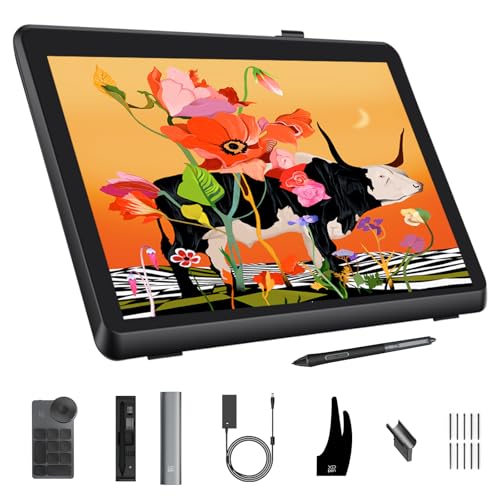
Some drawings are made with fingers and wrist; others need the elbow and shoulder, and the Artist Pro 22 Gen 2 exists for the second kind. Its 22-inch, 2.5K canvas is large enough that a storyboard panel, a character sheet or a landscape composition occupies real physical territory, letting the artist step the work up to a scale where gesture reads honestly. XPPen pairs the acreage with a Calman Verified colour claim covering 99% of Adobe RGB as listed, an adjustable stand in the box, and the ACK05 wireless shortcut remote, so the big desk does not also become a keyboard-reaching desk.
The pen carries the line’s 16K pressure specification, and on a panel this size the relevant pen virtues shift: tracking must stay honest at the far corners, lines must hold together during long fast strokes, and the surface must give consistent drag across a wide sweep of arm movement. The Artist Pro’s etched glass and pen behaviour handle that brief credibly, which is why large-format XPPen displays have accumulated a following among comic and concept artists whose pages are physically big even when their budgets are not.
Ownership, though, is a furniture decision before it is an art decision. Twenty-two inches of display plus its stand claims the centre of a desk and keeps it; monitors retreat to the sides or onto arms, keyboards find a tray or a corner, and the room’s lighting must be arranged so the big matte canvas stays readable. Artists who have worked on large Cintiqs will recognise the arrangement fondly. Artists upgrading from a 13-inch display should measure the desk, then measure it again, because the specification that ends this honeymoon is never the pen — it is the tape measure nobody consulted.
Within those honest limits, this is the guide’s expansive bargain: professional colour verification, a stand and a wireless remote included, and a canvas that changes how large work feels to produce. Concept artists, comic artists working at print scale, and animators who think in wide frames will understand the appeal immediately. Everyone else should read the size as the feature and the warning in the same breath.
- Display: 22-inch 2.5K pen display
- Pen: 16K pressure levels as listed
- Colour: Calman Verified, 99% Adobe RGB claim as listed
- Extras: ACK05 shortcut remote and adjustable stand included
- Compatibility: Mac and PC art software
Strengths
- Huge working canvas suits arm-driven drawing and print-scale pages
- Verified wide-gamut colour supports design and photo-editing work
- Stand and wireless remote included, so the big-desk setup is complete
Trade-offs
- Consumes a desk’s centre permanently; small rooms need not apply
- 2.5K spread over 22 inches is less dense than the 4K chair above
- Too large to travel, ever, under any interpretation of the word
Best for: Comic, concept and design artists who draw big and proof in wide colour.
Not suited for: Shared desks, small flats, or anyone who packs their studio away nightly.

XPPen Artist 15.6 Pro V2 — Best mid-size value
The 15.6-inch class is where most pen displays are actually bought, and the Artist 15.6 Pro V2 shows why the challengers own it. The specification reads like a flagship’s from two seasons ago: 16K pressure levels, a fully laminated anti-glare screen that keeps the nib visually attached to its line, eight shortcut keys on the frame, an adjustable stand in the box, and compatibility spanning PC, Mac, Linux and Android. Assembled in one listing at a mid-size value position, it makes the category’s older pricing look like a historical artefact.
Lamination deserves its sentence of emphasis because it changes drawing more than resolution does at this size. On a non-laminated display a visible gap separates nib from pixel, and the eye learns to compensate with a small constant parallax error. The V2’s laminated stack removes the gap, so what the hand does and what the eye sees coincide — the same directness that makes the Cintiq feel right, delivered here in a challenger chassis. The anti-glare treatment similarly earns its place in studios with windows, where a glossy pen display becomes a mirror with drawing features.
The compromises are the honest kind. Colour coverage targets the sRGB world of screen illustration rather than the Adobe RGB print territory claimed by its bigger sibling; the body and stand feel functional rather than hewn; and XPPen’s driver software, while capable, asks new owners for the usual week of shortcut configuration before it disappears into habit. None of these points touches the core act of drawing, which is precisely the judgement a value pick should force its rivals to argue against.
For students graduating from a screen-less tablet, hobbyists whose art has outgrown a small display, and professionals equipping a second seat, the Artist 15.6 Pro V2 is the guide’s easiest recommendation to defend line by line. It lacks the Kamvas Pro’s 4K density and the Cintiq’s heritage pen, and it answers both absences with the same question: how much drawing do you get for the difference? Measured in finished pages, the answer is a great deal.
- Display: 15.6-inch fully laminated anti-glare pen display
- Pen: 16K pressure levels as listed, battery-free
- Keys: 8 shortcut keys on the frame
- Extras: adjustable stand included
- Compatibility: PC, Mac, Linux and Android as listed
Strengths
- Laminated screen delivers the direct nib-to-line feel of pricier displays
- Stand, shortcut keys and wide compatibility complete the kit in the box
- 16-inch class balances canvas room against ordinary desk footprints
Trade-offs
- Colour story centres on screen work rather than wide-gamut print proofing
- Build and stand feel workmanlike beside the flagship chairs
- Driver setup rewards an evening of configuration before it settles
Best for: Students and advancing hobbyists wanting flagship drawing feel at mid-size cost class.
Not suited for: Print colourists who need verified wide-gamut proofing from the display.

Huion Kamvas 13 (Gen 3) — Best compact display
The Kamvas 13 has been the compact recommendation in this category for so long that its third generation reads like a refinement letter to its own installed base. The 13.3-inch screen is fully laminated under Canvas Glass 2.0, the colour claim covers 99% of sRGB as listed, and the pen runs PenTech 4.0 at 16,384 pressure levels — flagship pen numbers in a machine that fits in a laptop sleeve. The Gen 3’s signature hardware is its dual dials, physical wheels on the frame that fall under the free hand for brush size, zoom and scrolling, which many artists end up using more than every shortcut key combined.
Compactness reframes what a pen display is for. At this size the Kamvas is a second screen as much as a drawing surface: it props beside a laptop on a café table, serves as the reference-and-sketch display in a dual-monitor desk, and travels to life-drawing sessions and client offices without a packing ritual. Students in shared housing, where a desk is also a dining table, can draw seriously and still clear the surface for dinner. The panel’s resolution and size will not host a sprawling comic page comfortably, but they host learning, sketching and finished illustration at social-media and page scale without complaint.
Huion’s pen feel has matured into a genuine house style — light activation, tidy line behaviour, a nib with a whisper of paper drag — and the Gen 3 carries it confidently. The kit expects a computer with a suitable port or the multi-cable arrangement common to the class, and buyers should confirm their laptop’s outputs before ordering rather than after unboxing. Stand arrangements at this size vary by bundle, so the listing deserves a careful read on that point too.
As the compact chair, its honest rivals are the beginner Wacom below and the 15.6 XPPen above. The Wacom One answers with simplicity and pen heritage; the Artist 15.6 answers with room. The Kamvas 13 answers with the best balance of pen specification, dials and portability in a small footprint, and for artists whose studios are wherever their laptop opens, that balance is the entire purchase.
- Display: 13.3-inch fully laminated screen, Canvas Glass 2.0
- Pen: PenTech 4.0, 16,384 pressure levels as listed
- Colour: 99% sRGB claim as listed
- Controls: dual dials plus shortcut keys
- Compatibility: PC, Mac and Android as listed
Strengths
- Flagship-class pen specification in a genuinely portable body
- Dual dials give the free hand continuous control over brush and zoom
- Doubles as a second monitor, earning its desk space twice
Trade-offs
- Canvas size cramps large-format and multi-panel page work
- Port and cable requirements need checking against your exact laptop
- Stand inclusion varies by bundle, so read the listing closely
Best for: Students and mobile artists drawing at page scale on small or shared desks.
Not suited for: Artists whose compositions need a wide physical canvas to breathe.
Wacom One 14 — Best for beginners
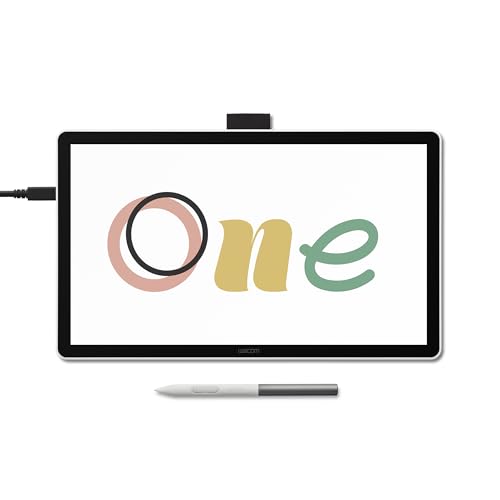
The Wacom One 14 exists to remove excuses. It is a 14-inch Full HD pen display with a laminated IPS screen and a single uncomplicated pen, compatible with Windows, Mac and Chromebook, aimed explicitly at beginners and students learning digital art, animation and design. Where the Cintiq speaks the language of studios, the One speaks the language of first semesters: plug in, draw on the screen, discover whether this medium is yours, with Wacom’s pen behaviour and driver polish underneath the simplicity so the discovery is not sabotaged by the tool.
Chromebook compatibility is the quietly radical line in its specification. School-issued Chromebooks dominate classrooms, and a pen display that welcomes them opens tutored digital art to students whose households will never contain a studio workstation. The 14-inch size suits school bags and bedroom desks, Full HD at this diagonal keeps lines respectable, and the laminated screen preserves the direct nib-to-line relationship that makes learning on a display kinder than learning on a screen-less tablet, where the hand and the eye must first negotiate their famous divorce.
What the One omits defines its price class honestly: no shortcut keys crowd its frame, the pen is the line’s simpler standard model rather than the Pro Pen 3, and colour and resolution both aim at learning and screen work rather than proofing. An advancing student will eventually feel each of those ceilings. The correct frame for that moment is gratitude rather than betrayal — a beginner tool that lasts exactly until its owner has outgrown it has done its job completely, and usually passes to a sibling, a friend or a second desk on its way out.
Beginners comparing this chair against the Kamvas 13 above face the category’s friendliest dilemma. Huion offers more hardware per unit of money; Wacom offers the gentler on-ramp and the pen ecosystem the student will meet again in every studio. Either answer is defensible, which is more than can be said for the truly cheap no-name displays whose pens jitter and drivers crumble — the one purchase this guide exists to talk beginners out of.
- Display: 14-inch IPS Full HD laminated pen display
- Pen: battery-free Wacom pen included
- Compatibility: Windows, Mac and Chromebook as listed
- Aimed at: beginners and students in art, animation and design
- Character: simple single-pen setup, minimal controls
Strengths
- Gentlest learning curve in the guide, with Wacom pen behaviour underneath
- Chromebook support opens school and classroom use other displays exclude
- Laminated screen keeps the beginner’s nib honest from the first lesson
Trade-offs
- No frame shortcut keys, so the keyboard stays within reach
- Pen is the simpler model, not the Pro Pen 3 of the Cintiq chair
- Advancing artists will outgrow its resolution and colour ceilings
Best for: Beginners, students and classrooms starting digital art on real pen hardware.
Not suited for: Working professionals who need shortcut hardware and proofing colour.
How Do You Set Up a Pen Display So Your Neck Survives It?
Every pen display ships with an ergonomic problem disguised as a product: a screen lying nearly flat invites its owner to hunch over it for six hours, and the neck pays the invoice. The fix begins with angle. A stand that lifts the display toward the posture of a drafting table — steeper for drawing, shallower for painting broad strokes — turns the device from a back complaint into furniture. The Artist Pro 22 and Artist 15.6 include stands for exactly this reason; owners of the chairs without one should budget for a stand or a monitor arm as part of the purchase, not as an accessory to consider someday.
Calibration is the second setup ritual, performed once and trusted for months. Run the pen calibration your driver offers, at the angle you actually draw at, because parallax correction is posture-dependent. Then set the display’s brightness to match the room rather than the showroom: a pen display glowing far brighter than its surroundings tires eyes and lies about colour values, while one matched to ambient light lets a drawing’s tones be judged as they will appear elsewhere. Artists working for print should add a proper colorimeter calibration when the budget allows; the verified-colour picks reduce the urgency without abolishing it.
Shortcuts complete the posture. Every action that requires reaching for the keyboard is a small break in drawing flow, multiplied by hundreds per session. Map the half-dozen commands you actually use — brush size, undo, eyedropper, canvas flip, zoom, eraser — onto the display’s keys, dials or remote during the first week, while habits are still liquid. The Kamvas Pro’s Keydial, the Kamvas 13’s twin dials and the Artist Pro’s wireless remote all exist because manufacturers have watched artists work; take the hint their hardware is offering.
What Should You Know About Colour Before Trusting a Drawing Screen?
A pen display is a witness that testifies about your artwork to everyone who later sees it, and a witness with a narrow gamut commits perjury by omission: colours outside its range are silently remapped, and the artist discovers the substitution at the printer. This is why the colour claims in this guide are attached to specific chairs rather than spread evenly. The Kamvas Pro 19 and the Artist Pro 22 Gen 2 speak the Adobe RGB language that print and design work requires, with accuracy claims in their listings to match. The sRGB-centred picks — the Kamvas 13, the Artist 15.6 and both Wacoms in their respective classes — testify faithfully about screen-bound work, which describes the majority of digital art actually produced.
The practical test for buyers is to name the artwork’s destination. Illustrations bound for feeds, games, webcomics and video live and die in sRGB, and any chair here serves them honestly. Work bound for paper — picture books, packaging, fine-art prints, client branding — deserves the wide-gamut chairs and a calibration habit to keep them truthful. Mixed practices should buy for the print work and forgive the extra capability on screen days, because the reverse forgiveness is not available: a narrow screen cannot show a colour it cannot produce.
One more colour fact hides in the glass. Matte etched surfaces, which every serious pick here uses in some form, scatter a little light and soften perceived contrast compared with glossy panels. That softness is the price of drawing without reflections and of a nib that grips, and generations of artists have paid it gladly. Judge a pen display’s colour with the room lights in their working state, never under the flattering darkness of a showroom demo.
How Does Drawing Software Change What a Display Feels Like?
A pen display is only ever as good as the conversation between its driver and the application in front of it, and that conversation differs more than newcomers expect. In one program the pen’s pressure curve may feel buttery, every increment of force thickening the line in proportion; in another, the same hand produces a line that jumps from hairline to full weight with little in between, until the artist opens the application’s own brush settings and discovers the curve was living there all along. The lesson generalises: before blaming hardware for a strange stroke, check whether the software is interpreting the pen with its own smoothing, stabilisation and pressure mapping stacked on top of the driver’s. Two stabilisers fighting each other is the most common cause of the wobbly, lagging line that sends new owners to forums convinced their display is defective.
Stabilisation deserves its own honest paragraph because it divides artists by discipline. Line-art and comic inking benefit enormously from a whisper of smoothing, which irons hand tremor out of long contours and lets a confident stroke land where it was aimed. Painting, by contrast, often wants the raw signal, because texture brushes translate micro-variations of pressure and direction into the broken, organic edges that make digital paint stop looking digital. A good pen display serves both temperaments identically — it reports the hand faithfully — and the software decides the philosophy. This is another reason the guide weighed pen behaviour at light pressure so heavily: the rawer the application’s settings, the more the hardware’s low-end manners are exposed.
Canvas rotation and touch gestures form the third software-hardware junction. Artists arriving from standalone tablets expect to spin the canvas with two fingers as naturally as turning a sketchbook, and the Kamvas Pro 19’s touch layer answers that expectation directly. On non-touch displays the same rotation lives on a dial, a shortcut or a navigator panel, which works perfectly well once mapped and feels like a tax until it is. Neither route is superior in finished output; they differ in how often the artist’s drawing hand must stop drawing, and across a thousand small interruptions a week, that difference is the one the body remembers.
What Happens to Nibs, Glass and Cables After a Year of Daily Drawing?
The etched glass that gives these displays their paper-like drag is in a slow negotiation with the nib, and both sides lose material gracefully. Nibs wear fastest — a heavy-handed inker can round a tip in weeks, a painter may stretch one across a season — and the symptom of a worn nib is subtle: lines feel scratchier, light strokes skip, and the artist unconsciously presses harder, which wears the next nib faster and tires the hand into the bargain. Every manufacturer here sells replacement nibs cheaply in multipacks, and the professional habit is boring and total: inspect the tip monthly, swap at the first sign of a chisel edge, and keep the spares in the same drawer as the pen so the swap takes a minute rather than a delivery wait.
The glass itself ages more kindly. quality etched surfaces hold their texture for years, though the centre of the screen — where a right-handed artist’s strokes concentrate — can polish fractionally smoother than the corners, a change most owners notice only when drawing an unusually long diagonal. Screen protectors made for pen displays exist for the anxious, with the honest trade that a film changes the nib feel it was bought to protect. The wiser protection is behavioural: no jewellery against the glass, no pen left nib-down in a mug of metal tools, and a microfibre cloth that lives on the desk rather than in a cupboard, because dust ground under a nib is the one common scratch mechanism in an otherwise gentle technology.
Cables, finally, are the component most likely to end a working day early. A pen display’s cable bends at the same two points thousands of times — where it leaves the display and where it meets the computer — and intermittent connection faults almost always trace to that flexing rather than to the panel. Route cables with a gentle service loop, avoid letting the display’s weight hang from its own connector when the desk is rearranged, and know which cable your model uses before you need one on a Sunday. Artists who depend on a display for income treat a spare cable the way photographers treat a spare battery: as the cheapest insurance in the entire studio.
How Do the Six Divide a Studio’s Actual Jobs Between Them?
Imagine a small studio’s week distributed across these six screens and their specialisations sharpen. The Cintiq 16 takes the lead illustrator’s chair, because its pen feel and driver calm suit the person whose output everyone else waits on. The Kamvas Pro 19 sits with the artist finishing colour work, its 4K detail and wide colour testimony trusted for the pages that will be judged in print and on retina screens alike. The Artist Pro 22 becomes the layout and storyboarding surface, its acreage hosting thumbnails, page plans and the wide establishing frames that cramped displays discourage artists from attempting.
The second row of the studio runs on the remaining three. The Artist 15.6 Pro V2 is the colourist’s or assistant’s seat, fully capable of finished work and priced so a studio can equip two of them for the cost class of one flagship. The Kamvas 13 travels — client presentations, on-site sketching, the senior artist’s home desk for evening corrections — because a studio’s work no longer happens in one room. The Wacom One 14 trains the intern, whose learning curve it was designed around, and graduates to a reference-and-notes display when the intern does. No chair is redundant and none is a consolation prize; that is what a healthy category looks like when its price ladder has finished maturing.
A solo artist reading that studio week should translate rather than envy. Your lead chair is the work you sell; your second display is the work you support it with; your portable is the work you do away from the desk. Buying in that order — best tool for the income work first — produces a setup that grows by addition instead of replacement, which is the only economical way a studio of one has ever been built.
Which Pen Display Suits Which Drawing Discipline?
Comic artists should shop by page before anything else. A page of panels is a physical object with margins, gutters and lettering that must remain legible at final size, and drawing it at a cramped scale invites proportions that only reveal their wrongness in print. The Artist Pro 22 and the Cintiq 16 give a page honest room; the Kamvas Pro 19 gives it detail; the compact pair ask the artist to zoom constantly, which many digital-native comic artists do happily and traditionalists find maddening. Lettering deserves a specific mention, because text drawn too small on a low-density panel turns to soup at export — one more argument for matching resolution to the finest element in the work, not the average one.
Concept artists and illustrators working for games and film live at the opposite tempo: speed, iteration and volume. Their displays earn their keep through shortcut hardware and canvas-flipping convenience, because a concept sheet may pass through fifty variations in a day and every variation begins with the same half-dozen commands. The dials on the Kamvas 13, the Keydial beside the Kamvas Pro 19 and the wireless remote in the Artist Pro’s box are not decorations to this discipline; they are the difference between a tool that keeps up with ideation and one that files a small administrative charge on every thought. Pen feel matters here as responsiveness rather than delicacy — the sketch must land at the speed of the idea.
Photo retouchers are the discipline most guides forget, and pen displays serve them quietly brilliantly. Masking, dodging and burning, and frequency-separation work all reward pressure-sensitive precision applied directly onto the image, and the retoucher’s colour demands match the print artist’s: the verified and wide-gamut chairs testify most honestly about skin tones and product colours. A retoucher’s ideal from this guide is the Kamvas Pro 19, with the Artist Pro 22 as the large-canvas alternative, and their testimony about nib control at feathered brush edges is the most demanding any of these pens will ever face.
Animators, finally, should weigh drawing volume above spectacle. Frame-by-frame work multiplies every small friction by thousands of drawings, so the winning traits are a pen that never tires the hand, a surface whose drag stays consistent across the whole panel, and drivers that have never once lost a stroke to a software hiccup. That arithmetic is why animation studios remain the Cintiq’s most loyal constituency, and why an animator choosing a challenger should test it with an afternoon of rough keys rather than a single beautiful drawing — the tool that survives repetition is the tool the discipline actually needs.
Side by Side: Reading the Six Screens as a Working Artist
| Model | Size and resolution | Pen system | Colour emphasis | Notable hardware |
|---|---|---|---|---|
| Wacom Cintiq 16 | 16 inch, QHD | Pro Pen 3 | Screen illustration first | Studio-standard build |
| Huion Kamvas Pro 19 | 18.4 inch, 4K | PenTech 4.0, two pens | Wide gamut, accuracy claim | Touch, Keydial Mini |
| XPPen Artist Pro 22 Gen 2 | 22 inch, 2.5K | 16K levels | Calman Verified 99% Adobe RGB claim | Stand, ACK05 remote |
| XPPen Artist 15.6 Pro V2 | 15.6 inch, laminated | 16K levels | Screen work | 8 keys, stand included |
| Huion Kamvas 13 (Gen 3) | 13.3 inch, laminated | PenTech 4.0, 16,384 levels | 99% sRGB claim | Dual dials |
| Wacom One 14 | 14 inch, Full HD | Wacom pen | Learning and screen work | Chromebook support |
The table’s most honest column is the first: three distinct size philosophies — portable, desk and furniture — wearing similar pen specifications. Notice how pressure levels, once a flagship boast, now appear across the challenger rows almost as a commodity, which is why this guide judged pens by behaviour rather than by counting. The colour column is where money should follow destination, and the hardware column is where daily comfort hides: dials, remotes and stands are unglamorous until the first full working week has been spent without them. If the table leaves you torn between two adjacent chairs, choose by the desk you own today rather than the studio you describe in grant applications, because the display will meet the real desk on its first morning and every morning after.
Which Mistakes Do Pen Display Buyers Keep Making?
Buying by diagonal alone leads the list. A 22-inch display purchased for a desk that fits 16 inches does not become a bargain; it becomes a renovation. Measure the desk’s depth as well as its width, because pen displays are used at an angle, and an angled large display reaches further into the room than its specification drawing suggests.
The second mistake is starving the display of computer. A 4K pen display driven by an ageing laptop with integrated graphics will stutter through large brushes, and the artist will blame the pen for the computer’s arithmetic. Match the display’s appetite to the machine feeding it, or choose a gentler resolution and enjoy the smoothness.
Third comes skipping the stand and shortcut setup, then concluding that pen displays are uncomfortable. The discomfort is real and entirely optional: it belongs to the flat-on-desk, keyboard-reaching arrangement, not to the device. A weekend of ergonomic arrangement outperforms any specification upgrade in felt quality, and it costs less than any of them.
Finally, beginners sometimes buy a pen display expecting the screen to supply the skill a screen-less tablet was withholding. The directness genuinely helps — most learners progress faster when the line appears under the nib — but drawing remains drawing. Budget for the display, then invest the hours; the tool’s job is to stop obstructing them. A useful discipline for the first month is to finish one modest piece per week rather than sketching endlessly, because finished work exposes the display’s real behaviour — exporting, colour shifting, printing — in a way that a folder of beginnings never will, and each finished piece recalibrates what the next purchase, if any, actually needs to be.
Final Recommendation
Most artists reading this guide should start at the Cintiq 16 and argue themselves away from it only with specific reasons: a need for 4K detail and touch, which the Kamvas Pro 19 answers; a need for a genuinely large canvas and verified print colour, which the Artist Pro 22 Gen 2 answers; or a budget that the Artist 15.6 Pro V2 respects without surrendering the laminated, direct drawing feel. Small desks and travelling artists belong with the Kamvas 13, and genuine beginners — especially students on Chromebooks — belong with the Wacom One 14. Whichever screen you choose, give it a stand, an evening of calibration and a week of shortcut mapping, and it will repay the courtesy every working day it sits in front of you, quietly converting a peripheral you bought into the surface your working life actually happens on.
Frequently Asked Questions
Is a pen display better than a screen-less drawing tablet?
For most beginners and for detail work, yes, because the line appears directly beneath the nib and the eye-hand coordination is natural from the first session. Screen-less tablets remain lighter, cheaper per inch and kinder to posture for some long-session artists who have already internalised the indirect coordination. This guide covers displays only; artists who already draw happily on a plain tablet gain comfort, not capability, by switching.
How much do pressure levels actually matter?
Less than the marketing suggests and more than sceptics admit. Beyond a few thousand levels, the felt differences live in initial activation force and the smoothness of light strokes, which is why a 16,384-level challenger and Wacom’s Pro Pen 3 can both feel excellent while a poorly tuned pen with a huge number feels coarse. Judge by slow, light, tilted strokes if you can test in person.
Do I need 4K on a pen display?
Only at larger sizes or for close detail work. At 13 to 16 inches, QHD and even good Full HD panels keep lines clean at drawing distance, and the lower rendering load keeps brushes responsive on modest computers. At 18 inches and beyond, higher resolutions stop being luxury and become the difference between seeing your line and seeing the pixels that compose it.
Can a pen display serve as my only monitor?
It can, and many small-desk artists run exactly that arrangement, with the display angled for drawing and raised for ordinary work. The cautions are ergonomic and chromatic: an angled screen is a poor long-term word-processing monitor, and colour-critical judgement should happen with the panel in its calibrated working position. A second inexpensive monitor remains the comfort upgrade most single-display artists eventually make.
Should I buy a larger mid-range display or a smaller premium one?
Decide by the work’s physical habits rather than by prestige. Illustration and painting that live at one desk reward size until the panel outgrows the furniture, because canvas room changes how the arm draws. Detail finishing, retouching and colour judgement reward the premium panel’s density and gamut at whatever size carries them. Artists who split time between desk and travel should take the smaller premium machine and keep the option of a plain second monitor at home; a large display that cannot travel quietly taxes every trip until it is resented.
How long should a pen display last?
Panels and pens in this class are built for years of daily studio use, and the realistic lifespan limits are consumables and software rather than the screen itself: nibs by the month, cables by the year, and driver support across computer upgrades as the long horizon. The established makers in this guide have supported older models through many operating-system generations, which is a genuine ownership argument for the name brands over anonymous alternatives whose drivers may simply stop arriving.
What software do these displays work with?
Effectively all mainstream drawing, painting, photo and design applications on the platforms each listing names, since a pen display presents itself to the computer as a monitor plus a pressure-sensitive pen. The practical differences are driver quality and shortcut integration, which is why this guide weighed driver maturity alongside hardware. Confirm your main application’s pen settings during the first setup evening, not during a deadline.
Related Guides
Round out the studio with our guides to screen-less drawing tablets for artists who prefer a plain desk pad monitor arms and stands that fix drawing posture colour-accurate monitors for print proofing beside a pen display
Related guides
- Best Balancing Stabilizers for Mirrorless Cameras: Payload, Balancing and Native Vertical Shooting
- Best Basic Phones Camera Buyers Can Trust: Flip Phones and Simple Handsets That Still Take a Photograph
- Best Sony Full Frame Cameras for Astrophotography: Sensitivity vs Resolution
- Best Affordable Android Tablets: Five True Android Slates and One Fire OS Specialist, Clearly Labelled
[…] comparing paper-feel screens with our guides to colour e-ink notebooks for annotating research papers large-screen e-readers for textbooks and sheet music distraction-free writing devices for drafting […]