What's inside
- Key Takeaways
- Quick Picks
- How Did We Choose These Creation Laptops?
- Which Matters More for Creation: the Graphics Card or the Screen?
- How Do the Six Creator Machines Compare?
- How Should a Creator Budget Storage, Drives and Backup Around the Laptop?
- What Should a Creator’s First Week With a New Machine Include?
- Which Pick Suits Which Kind of Creator?
- How Do You Keep Colour Honest Across Laptop, Monitor and Client Screens?
- How Long Does a Creator Laptop Stay Competitive, and When Should You Replace It?
- What About Streamers, Podcasters and Creators Who Record?
- Which Ports and Desk Connections Should a Creator Check Before Buying?
- How Should Your Software Ecosystem Steer the Platform Choice?
- What Changes When the Creator Is a Small Studio Buying More Than One Machine?
- How Do Creator Laptops Behave During the Longest Jobs?
- What Are the Common Mistakes When Buying a Laptop for Creative Work?
- Final Recommendation
- Frequently Asked Questions
- Related Guides
As an Amazon Associate I earn from qualifying purchases. This post may contain affiliate links at no extra cost to you.
gizmoverdict.com is reader-supported. When you buy through links on our site, we may earn an affiliate commission.
Where to buy: The six machines below link to the exact Amazon listings we verified, and the configuration in each section is the one named in that listing’s title — processor, graphics card, memory and storage included. Creator laptops are sold in wide configuration ladders, and the difference between the cheapest and the listed version of the same model can be the difference between a hobby machine and a workstation, so land on the linked configuration first and only then consider stepping sideways.
Content creation is not one workload, and a guide that treats it as one will mislead somebody. The video editor lives on timelines, effects and export queues. The photographer lives on enormous RAW files, catalogue software and a screen they must be able to trust. The 3D artist and motion designer live on graphics power. The streamer and podcaster live on fast turnaround and quiet rooms. The best content creation laptops are the machines that serve these lives without the two failures creators fear most: a screen that lies about colour, and a specification that turns an export into an overnight wait.
Three specifications do most of the deciding. The first is the graphics card, because modern creative software — video effects, 3D rendering, AI-assisted photo tools, noise reduction — increasingly runs on the GPU rather than the processor, and four of the six machines here carry NVIDIA RTX graphics for exactly that reason. The second is the display, where OLED panels dominate this guide because creators judge shadows, gradients and colour on the same screens their audiences increasingly own. The third is storage, stated bluntly: creative work manufactures data. A single video project can outweigh a year of office documents, and the listings below run from 1TB to 2TB because anything smaller becomes a juggling exercise within months.
Memory sits underneath all three as the quiet enabler. Every pick in this guide carries 24GB or 32GB in its listed configuration, because creative applications hold entire projects in memory while they work, and the multitasking pattern of a creator — editor, browser, asset manager, chat with the client — is as heavy as any developer’s. Buyers coming from a general laptop guide should notice the pattern: this category does not offer a 16GB seat at all, deliberately.
Key Takeaways
- Four of the six picks carry NVIDIA RTX discrete graphics; the MacBook Pro 16 relies on its integrated M5 Pro GPU cores instead.
- Every screen in this guide is OLED except the MSI’s QHD+ high-refresh panel — choose by whether colour trust or refresh speed rules your work.
- Storage runs 1TB to 2TB across the listings, because creative projects outgrow small drives within a single busy season.
- The ProArt PX13 is the only convertible here, folding for pen work at 13.3 inches; its listing offers several storage sizes, so confirm yours at checkout.
- The MacBook Pro 16 in this guide is the M5 Pro model; an M4 Pro listing was excluded from our pool, so do not substitute it assuming equivalence.
- All six listings state 24GB or 32GB of memory — this category has no low-memory option worth a creator’s money.
Quick Picks
| Pick | Badge | Why it is here |
|---|---|---|
| Apple MacBook Pro 16 (M5 Pro) | Best for video editors in Apple’s ecosystem | An 18-core CPU and 20-core GPU configuration with a 16.2-inch XDR display and a terabyte of storage. |
| ASUS ProArt P16 | Most complete Windows creator specification | Ryzen AI 9 power, RTX 5070 graphics, 32GB of memory and 2TB of storage behind a 3K OLED touch screen. |
| Dell XPS 16 Premium | Premium build, 4K OLED canvas | RTX 5060 graphics and an Ultra 9 processor behind a 16.3-inch 4K OLED touch display. |
| Lenovo Yoga Pro 9i | Brightest creator panel in the guide | A 3.2K tandem OLED with RTX 5060 graphics and a full 32GB/1TB specification. |
| MSI Creator A16 AI+ | High-refresh creator workhorse | RTX 4060 graphics and a QHD+ 240Hz screen for creators whose work also moves fast. |
| ASUS ProArt PX13 | Convertible creator for pen work | A 13.3-inch OLED 2-in-1 with Ryzen AI Max+ power for illustrators who travel. |
How Did We Choose These Creation Laptops?
We filtered for the three specifications creators actually exhaust: a graphics solution capable of accelerating modern creative software, a display whose colour and contrast can be trusted for judged work, and storage that survives a season of projects. Machines that met the brief only in a configuration nobody lists were excluded; every specification quoted below appears in the title of the listing we link, so the machine described is the machine the link buys. That discipline removed some famous names and kept some quieter ones, which is usually a sign a filter is working.
We also insisted on covering the category’s real shapes rather than six copies of one idea. There is a 16-inch Apple flagship for the macOS creative world, two 16-inch Windows flagships with different display philosophies, a high-refresh MSI for creators whose work overlaps with motion and gaming, and a 13.3-inch convertible for the pen-first illustrator. A creator reading this guide should be able to find the machine shaped like their working day, not merely the machine with the largest numbers.
One exclusion deserves a sentence of its own. An earlier MacBook Pro 16 configuration built on the M4 Pro chip surfaced during our checks in a renewed listing and was removed from the pool on that basis; the Apple seat in this guide is the current M5 Pro model only. Creator buyers comparing prices elsewhere should apply the same scepticism to unusually cheap flagship listings of any brand.
Which Matters More for Creation: the Graphics Card or the Screen?
It depends on which side of the export button your frustration lives. If your pain is waiting — renders crawling, exports queueing, effects previewing at a stutter — the graphics card is your answer, because modern creative software hands exactly those jobs to the GPU. The RTX 5070 in the ProArt P16 and the RTX 5060 pair in the Dell and Lenovo exist for that pain. If your pain is doubt — colours that shift between your screen and the client’s, shadows that crush unpredictably, gradients that band — the screen is your answer, and the OLED panels across this guide exist for that one.
Photographers should weight the screen first and the GPU second, because their software’s heavy moments are brief and their colour judgements are constant. Video editors should weight both and refuse to starve either, which is why the 16-inch flagships dominate this guide. Illustrators should start from the pen: the PX13’s convertible OLED is a different category of tool from everything else here, and no amount of graphics power substitutes for a screen you can draw on. Buyers who do a bit of everything should take the balanced flagships — the ProArt P16 or the MacBook Pro 16 according to their platform — and stop trying to optimise for a speciality they do not have.

Apple MacBook Pro 16 (M5 Pro) — Best for video editors in Apple’s ecosystem
The 16-inch MacBook Pro is the machine professional video work quietly standardised on, and the M5 Pro configuration listed here shows the current shape of that standard: an 18-core CPU with a 20-core GPU, 24GB of unified memory, a 1TB SSD and the 16.2-inch Liquid Retina XDR display, with Wi-Fi 7 in the listing. The XDR panel is the editor’s argument — a large, colour-serious canvas for judging footage — and the unified architecture is the export argument, because the whole memory pool is available to the GPU-accelerated work that modern editing software does constantly.
Ownership of this machine is a platform decision as much as a hardware one. Final Cut Pro exists only here; the broader Adobe and DaVinci ecosystems run superbly here too; and the Apple silicon efficiency story means heavy editing happens at noise levels that keep a shared studio habitable, with strong performance continuing away from the charger on location shoots. The conditions are the familiar Apple ones: memory is fixed at purchase, so the 24GB of this configuration is a decision to make with your project sizes in mind, and expansion happens through fast external drives rather than internal upgrades.
Creators whose work is Windows-shaped, or whose software list includes tools that live only there, should take the ProArt P16 below as their flagship instead and lose nothing by it. Creators already inside Apple’s world — iPhone footage, Final Cut timelines, an iPad in the kit bag — will find this machine the natural centre of that world, and the guide’s recommendation for them.
- Chip: Apple M5 Pro, 18-core CPU and 20-core GPU as listed
- Memory and storage: 24GB unified memory, 1TB SSD
- Display: 16.2-inch Liquid Retina XDR
- Wireless: Wi-Fi 7 as listed
- Finish: Space Black as listed
Strengths
- The editor’s complete package: serious screen, serious acceleration, serious storage.
- Quiet, efficient power that suits studios and location work alike.
- The only route to Final Cut Pro, and a first-class citizen for Adobe and DaVinci tools.
Trade-offs
- 24GB is fixed forever; enormous projects should be planned against it.
- No NVIDIA GPU, which matters to the minority of tools built specifically around CUDA.
- The flagship price reflects the flagship position.
Best for: video editors and photographers inside Apple’s ecosystem who want one machine for years of project work. Not suited for: creators whose essential software is Windows-only or CUDA-specific.
ASUS ProArt P16 — Most complete Windows creator specification
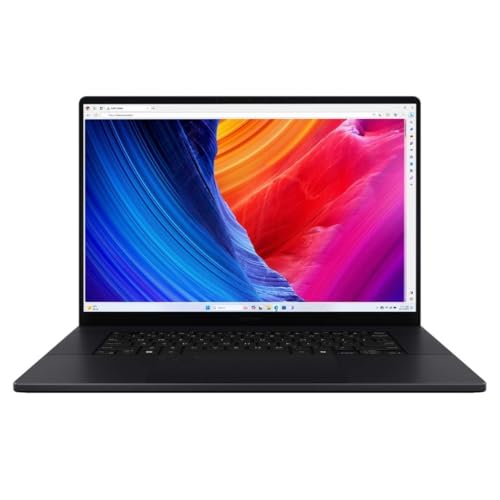
Read the ProArt P16’s listing as a creator would write a wish list, because that appears to be what ASUS did. The configuration pairs a Ryzen AI 9 HX 370 with NVIDIA RTX 5070 graphics, 32GB of LPDDR5X memory and a 2TB PCIe SSD, behind a 16-inch 3K OLED touch display running at 120Hz. Every line answers a known creator complaint: the GPU for effects and AI-assisted tools, the memory for layered projects, the storage for a season of footage without an external drive dangling from the machine, and an OLED panel whose touch layer suits the pen-and-timeline hybrid workflows modern editors drift into.
The 2TB drive deserves emphasis, because it is the specification buyers most often undervalue at purchase and most often curse by month six. Video projects, RAW catalogues, asset libraries and cached renders accumulate at a rate office work never approaches, and a machine that holds them all internally is a machine that can be picked up and taken to a client, a location or a café without a packing ritual. Combined with the RTX 5070 — the strongest graphics card in this guide — the P16 is the Windows pick for creators who would rather over-buy once than upgrade anxiously forever.
This particular listing is sold through a specialist configurator, so check the stated configuration on the page against the title quoted in our sources file before paying; the specification above is the one in that title. Buyers who find the same model elsewhere should match every line — chip, GPU, memory, storage, panel — rather than assuming the badge guarantees the build.
- Processor: AMD Ryzen AI 9 HX 370
- Graphics: NVIDIA GeForce RTX 5070 class as listed
- Memory and storage: 32GB LPDDR5X, 2TB PCIe SSD
- Display: 16-inch 3K OLED touch, 120Hz as listed
- Operating system: Windows 11 Home as listed
Strengths
- The strongest graphics card and the largest storage in this guide, in one machine.
- A 120Hz OLED touch panel serves both judgement and navigation.
- 32GB of memory matches the specification to real project sizes.
Trade-offs
- A specialist-seller listing demands the configuration check described above.
- Windows 11 Home rather than Pro in this configuration.
- Flagship weight and price; this is a workstation that travels, not a travel laptop.
Best for: Windows video editors, 3D artists and photographers who want the fullest specification in one purchase. Not suited for: creators who prize lightness over power, or workplaces that require Windows Pro as listed.

Dell XPS 16 Premium — Premium build, 4K OLED canvas
The XPS 16 Premium is the creator laptop for buyers who want workstation power wearing a tailored suit. Its listing combines an Intel Core Ultra 9 285H with NVIDIA RTX 5060 graphics, 32GB of memory and a 1TB SSD, behind a 16.3-inch OLED touchscreen at 4K resolution and 120Hz. That panel is the largest and highest-resolution in this guide, and for creators whose work is judged at full screen — photographers reviewing at pixel level, editors presenting to clients across a desk — the extra canvas and the OLED contrast together make the machine feel less like a laptop and more like a portable grading suite.
The specification behind the glass is balanced rather than extreme. The RTX 5060 sits one tier below the ProArt’s 5070, which shows in heavy effects and 3D work as a difference of degree rather than kind, and the terabyte of storage is the guide’s standard flagship figure rather than the ASUS’s generous two. What the Dell adds is finish: three Thunderbolt 4 ports as listed, Wi-Fi 7, an infrared webcam and the most polished chassis in this company. Studios and freelancers who present in client spaces will feel that polish working for them in rooms where the laptop itself is part of the pitch.
Choose the XPS 16 when the screen and the presentation matter as much as the render queue. Choose the ProArt P16 when raw specification per purchase matters more. Both are defensible flagship decisions; they simply spend the same seriousness in different places.
- Processor: Intel Core Ultra 9 285H
- Graphics: NVIDIA GeForce RTX 5060 as listed
- Memory and storage: 32GB, 1TB SSD
- Display: 16.3-inch OLED 4K touch, 120Hz as listed
- Connections: three Thunderbolt 4 ports, Wi-Fi 7, infrared webcam as listed
Strengths
- The biggest, sharpest OLED canvas in the guide.
- Client-facing polish that suits freelancers and studios who present.
- Thunderbolt 4 in triplicate makes dock and drive life simple.
Trade-offs
- RTX 5060 rather than 5070 for the heaviest effects work.
- 1TB will ask active video creators for an external drive plan.
- Premium pricing follows the premium finish.
Best for: photographers and editors who present work to clients and want the finest large OLED in a Windows flagship. Not suited for: buyers chasing maximum GPU per purchase, who should take the ProArt P16.

Lenovo Yoga Pro 9i — Brightest creator panel in the guide
The Yoga Pro 9i’s listing leads with its screen, and the screen justifies the emphasis: a 16-inch 3.2K tandem OLED at 120Hz with a 1000-nit brightness figure stated in the title — the tandem structure stacking two OLED layers is how this panel reaches brightness territory OLED laptops historically could not. For creators who work in bright studios, near windows, or who simply grade HDR content and need highlights to genuinely shine, that stated figure is the headline specification of this entire guide. Behind the panel sit an Intel Ultra 9 285H, RTX 5060 graphics, 32GB of RAM and a 1TB SSD, which is to say a flagship specification with no apologetic line in it.
The comparison that matters is with the Dell above, since the two share a processor class, a graphics tier, memory and storage. The Dell counters with a slightly larger 4K panel and its finish; the Lenovo counters with the tandem OLED’s brightness and Lenovo’s own keyboard and support heritage. Creators working in controlled, dimmer studio light may never use the Lenovo’s brightness advantage; creators working wherever the day puts them will use it weekly. Know your rooms, and the choice between these two flagships makes itself.
Windows 11 Pro in this listing suits creators working inside managed or client environments, a small line in the title that freelancers with corporate clients will appreciate more than home users will notice.
- Processor: Intel Core Ultra 9 285H, 16-core as listed
- Graphics: NVIDIA GeForce RTX 5060
- Memory and storage: 32GB RAM, 1TB SSD
- Display: 16-inch 3.2K tandem OLED, 120Hz, 1000-nit figure as listed
- Operating system: Windows 11 Pro as listed
Strengths
- The tandem OLED’s stated brightness suits bright rooms and HDR grading.
- A full flagship specification with no weak line.
- Windows 11 Pro fits client and studio environments.
Trade-offs
- Brightness you may rarely need if your studio is light-controlled.
- Shares the RTX 5060 tier rather than the guide’s top GPU.
- A substantial machine to carry daily.
Best for: creators grading HDR work or working in bright, uncontrolled light. Not suited for: dim-studio specialists, whose money the Dell’s larger 4K panel may serve better.

MSI Creator A16 AI+ — High-refresh creator workhorse
The MSI Creator A16 occupies the seat where creation meets motion. Its listing pairs an AMD Ryzen AI 9-365 with NVIDIA RTX 4060 graphics, 32GB of LPDDR5X memory and a 1TB NVMe SSD, behind a 16-inch QHD+ display running at 240Hz. That refresh figure is the outlier in this guide — the OLED picks top out at 120Hz — and it serves the creators whose work moves: motion designers previewing fast animation, video editors scrubbing dense timelines, and the large overlap of creators who also game seriously on the same machine. Motion clarity is a creative specification for those buyers, not a gaming garnish.
The panel trade must be stated as plainly as the refresh advantage. This is the one pick whose display is not OLED, so its blacks and contrast sit in LCD territory while its speed leads the guide. A photographer grading shadow detail should take one of the OLED flagships; a motion designer whose previews stutter on lesser screens will not miss OLED’s blacks as much as they would miss this panel’s fluidity. The RTX 4060 is likewise a tier below the flagships’ cards — capable for editing, effects and 3D at sensible scales, and honest about not being the guide’s maximum.
What the MSI offers, assembled, is balance for the hybrid creator: strong memory and storage figures, a modern AMD AI processor with Wi-Fi 7 as listed, and a screen optimised for the moving image rather than the still one. In a guide of specialists, it is the specialist for speed.
- Processor: AMD Ryzen AI 9-365
- Graphics: NVIDIA GeForce RTX 4060
- Memory and storage: 32GB LPDDR5x, 1TB NVMe SSD
- Display: 16-inch QHD+ at 240Hz as listed — not an OLED panel
- Wireless: Wi-Fi 7 as listed
Strengths
- 240Hz motion clarity no other pick here approaches.
- Full 32GB and 1TB figures keep it honest as a work machine.
- Suits the creator-gamer overlap better than any rival in the guide.
Trade-offs
- The non-OLED panel trails the guide on blacks and contrast.
- RTX 4060 is a tier below the flagship cards for heavy 3D.
- Photographers judging shadows should look at the OLED picks instead.
Best for: motion designers, fast-timeline editors and creator-gamers who feel refresh rate in their work. Not suited for: stills photographers whose first requirement is OLED shadow trust.

ASUS ProArt PX13 — Convertible creator for pen work
Every other machine in this guide assumes your hands live on a keyboard and a mouse or trackpad. The ProArt PX13 assumes one of them holds a pen. It is a 13.3-inch 2-in-1 with a 2.8K OLED touchscreen that folds for drawing, powered in this listing by a Ryzen AI Max+ 388 processor with 32GB of LPDDR5X memory and Radeon integrated graphics, in a customised configuration whose storage options run across 512GB, 1TB and 2TB — confirm the exact drive size on the listing before paying, because this configurator sells more than one. For illustrators, storyboard artists, photo retouchers and designers who annotate by hand, the folding OLED is not a feature; it is the entire reason the machine exists.
The size is the second half of the proposition. At 13.3 inches the PX13 travels like a sketchbook, slipping into the bag that already holds the camera, and its integrated Radeon graphics — fed by that generous 32GB of shared memory — handle illustration, photo work and light video with a competence that would have required a discrete card not long ago. Heavy 3D and long video exports remain the flagships’ territory; the PX13’s territory is the hand, the pen and the road.
Buyers should go in clear-eyed about the configurator nature of the listing, as with the P16 above: verify processor, memory and especially storage on the page, since those options are the listing’s own variables. Verified, the PX13 is the most distinctive machine in this guide — the one a certain kind of creator will choose instantly and everyone else should admire from a respectful distance.
- Processor: AMD Ryzen AI Max+ 388 as listed
- Graphics: AMD Radeon integrated, sharing the 32GB memory pool
- Memory: 32GB LPDDR5X as listed
- Storage: options from 512GB to 2TB in this listing — confirm at checkout
- Display: 13.3-inch OLED 2.8K touchscreen, 2-in-1 folding design
Strengths
- The only pen-first, folding OLED in the guide, built for illustrators.
- Travels at sketchbook size without surrendering memory headroom.
- OLED colour trust in a drawing surface is a rare combination.
Trade-offs
- Integrated graphics cap heavy 3D and long export work.
- Storage varies within the listing and must be confirmed before paying.
- The 13.3-inch canvas is small for timeline-heavy video editing.
Best for: illustrators, retouchers and travelling designers who draw on their laptop. Not suited for: video editors and 3D artists, whose work needs the flagships’ discrete graphics and larger screens.
How Do the Six Creator Machines Compare?
| Pick | Graphics | Display as listed | Memory / Storage | Shape of its day |
|---|---|---|---|---|
| MacBook Pro 16 (M5 Pro) | M5 Pro 20-core GPU | 16.2-inch Liquid Retina XDR | 24GB / 1TB | Apple-ecosystem flagship |
| ASUS ProArt P16 | RTX 5070 | 16-inch 3K OLED touch, 120Hz | 32GB / 2TB | Fullest Windows specification |
| Dell XPS 16 Premium | RTX 5060 | 16.3-inch OLED 4K touch, 120Hz | 32GB / 1TB | Client-facing polish |
| Lenovo Yoga Pro 9i | RTX 5060 | 16-inch 3.2K tandem OLED, 120Hz | 32GB / 1TB | Bright-room and HDR work |
| MSI Creator A16 AI+ | RTX 4060 | 16-inch QHD+, 240Hz | 32GB / 1TB | Motion and hybrid gaming |
| ASUS ProArt PX13 | Radeon integrated | 13.3-inch OLED 2.8K touch | 32GB / varies by option | Pen work that travels |
The table separates cleanly into three decisions. Platform first: Apple or Windows, which is really a question about your software and your other devices. Speciality second: pen, motion, brightness or presentation, each of which names its machine. Specification last: among the remaining flagships, the differences are of degree — a GPU tier here, a terabyte there — and any of them will serve a working creator for years.
How Should a Creator Budget Storage, Drives and Backup Around the Laptop?
The laptop’s internal drive is the working surface, not the archive, and planning the difference at purchase time prevents the mid-project panic of a full disk. A workable creator pattern looks like this: current projects live on the internal SSD — which is why the 1TB and 2TB listings in this guide matter — finished projects move to an external drive or network storage at delivery, and a backup copy of everything irreplaceable exists somewhere that is not the same bag as the laptop. Client work is, by definition, work you cannot recreate by reshooting your own afternoon; treat its storage accordingly.
External drives deserve the same configuration discipline as the laptop itself. Buy speed appropriate to the work: a fast external SSD for active overflow projects you still open weekly, cheaper capacious storage for the archive you open rarely. Use the Thunderbolt and USB-C connections these machines provide rather than bottlenecking a flagship laptop through an ancient hub. And label drives with the same seriousness you label project folders, because the creator with six identical black drives and no labels has built a lottery, not an archive.
What Should a Creator’s First Week With a New Machine Include?
Calibrate and configure before the first paying project touches the machine. Set the display to the colour profile your workflow assumes, install and licence your core applications, and run one representative project — a real edit, a real RAW batch, a real render — from import to export, noting where the machine spends its time. That single rehearsal reveals whether your storage plan, your plugin licences and your peripheral drivers survived the move, at a moment when no client deadline is attached to the discovery.
Then set the unglamorous foundations: backup running automatically, scratch and cache locations pointed at the internal drive where they belong, cloud sync configured for the client-facing folders, and the old machine kept intact and un-wiped until the new one has delivered a real project end to end. Creators migrate under deadline pressure more often than any other laptop buyers; the discipline of a rehearsal week is what separates a migration story told with pride from the other kind.
Which Pick Suits Which Kind of Creator?
The wedding and event photographer should start at the Dell XPS 16 or the Lenovo Yoga Pro 9i: huge same-day catalogues, judgement calls made on the laptop screen in uncontrolled light, and clients who see the machine as part of the professional presentation. The Dell’s 4K canvas flatters pixel-level inspection; the Lenovo’s stated tandem-OLED brightness flatters the bright venues where these photographers actually work. The commercial retoucher and illustrator should start at the ProArt PX13 if the pen leads, or the ProArt P16 if layered files lead, and the difference between those two starting points is simply whether the hand or the file size runs the day.
The independent filmmaker should start at the MacBook Pro 16 or the ProArt P16 according to platform, because both pair a trustworthy large screen with the strongest acceleration their ecosystems offer in this guide, and both carry the storage to hold a project’s active life internally. The YouTuber and streamer should weigh turnaround and noise: fast exports and a machine that does not intrude on a recording argue for the Apple flagship’s efficiency or, on Windows, the P16’s graphics headroom, while the MSI’s high-refresh panel suits the creator whose content and whose gaming share one desk and one audience. The 3D artist and motion designer should read the graphics column of the comparison table first and forgive everything else second, which in practice means the P16, with the 5060 flagships as the considered alternatives.
Students of creative disciplines occupy the hardest seat, because their budgets argue down while their coursework argues up. The honest route is the specification floor of this guide — discrete graphics where the subject demands it, 32GB, a terabyte — reached at the lowest price that genuinely meets it, rather than a cheaper machine that will be replaced before the course ends. Among these six, that usually means watching the MSI and the PX13 according to subject, and treating the flagships as the machines to grow toward in the first professional year.
How Do You Keep Colour Honest Across Laptop, Monitor and Client Screens?
A trustworthy panel is the beginning of colour honesty, not the end of it. The working creator’s routine includes a hardware calibration check on a schedule, a consistent viewing environment for judgement calls — the same room light, the same screen brightness — and a soft-proofing habit for the destination that matters, whether that is a client’s phone, a cinema screen or a printer’s gamut. The OLED machines in this guide reward that routine because their blacks and gradients do not hide the file’s problems behind a backlight’s grey floor; what you see is close to what the file contains, which is the entire point of judging on screen.
Delivery adds one more discipline: export a test, view it on the ordinary screens your audience owns, and adjust your trust accordingly. A creator who grades only on a flagship OLED can produce work that looks muted on the average viewer’s LCD, and the professional habit is to check the translation rather than to grade down to the lowest screen. Keep the flagship for judgement, keep a mundane screen for verification, and the two together cover the audience you actually serve.
How Long Does a Creator Laptop Stay Competitive, and When Should You Replace It?
Creative software raises its expectations on a predictable rhythm: new effects lean on newer graphics features, AI-assisted tools assume newer accelerators, and file sizes from newer cameras swell every line of the specification. A flagship bought from this guide should serve four to five years of professional work before those pressures accumulate into daily friction, and the specification choices that buy those years are the unglamorous ones already emphasised — memory headroom, storage headroom, and a graphics tier bought one step above today’s need rather than exactly at it.
The replacement signal is rarely a dramatic failure. It is the export that now overlaps the next task instead of finishing during a coffee, the plugin update that lists your GPU as legacy, the project whose files no longer fit the internal drive alongside the current one. Creators who track those signals replace on their own schedule, mid-season and calmly. Creators who ignore them replace under deadline, at flagship prices, with whatever is in stock — the most expensive way to buy the same machine this guide describes.
What About Streamers, Podcasters and Creators Who Record?
Recording creators judge a laptop by two measures the editing crowd can ignore: what it sounds like in the room, and how fast a finished piece can be turned around while an audience waits. Fan noise that an editor never notices becomes part of a streamer’s broadcast and a podcaster’s master recording, which pulls the efficient, quiet-running machines in this guide — above all the MacBook Pro 16 — up the ranking for anyone whose microphone shares a desk with their computer. Turnaround pulls the other way, toward graphics headroom for fast exports and hardware-accelerated encoding, which is the ProArt P16’s home ground. The recording creator’s ideal is both at once, and the flagships here are the machines that come closest to offering it.
There is also a working-pattern point. Recording creators often run capture, chat, overlays and a browser on the same machine at the same time as their creative software, a multitasking stack that eats memory exactly the way a developer’s does. The 32GB configurations dominating this guide were chosen with editors in mind, but they serve this stack just as directly. A streamer shopping below this guide’s floor to save money is usually buying a second machine sooner than planned, having first bought a frustrating one.
Which Ports and Desk Connections Should a Creator Check Before Buying?
Creative desks accumulate hardware faster than office desks: card readers for camera media, audio interfaces, control surfaces, external drives, a second monitor, a drawing display. The laptop’s port selection decides whether that desk assembles itself through one dock or sprawls across a nest of adapters, and it deserves a deliberate check rather than an assumption. The Dell XPS 16’s three Thunderbolt 4 ports, stated in its listing, represent the generous end of this guide; other picks rely on the modern creator’s standard pattern of USB-C class connections plus a dock for the permanent desk.
Camera media deserves its specific question. Photographers and videographers move files from cards daily, and the route — a built-in reader where a model offers one, a fast USB-C reader where it does not — should be settled at purchase, because the slow-reader tax is paid on every single shoot day. Pair that with a dock that stays on the desk, drives that stay labelled, and a cable for the road, and any machine in this guide becomes the centre of a tidy creative workstation rather than the hub of a cable emergency.
How Should Your Software Ecosystem Steer the Platform Choice?
Creator platforms are stickier than office platforms because the work itself accumulates inside them: project files, plugin libraries, presets, LUTs, brush collections and years of muscle memory. A video editor with a decade of Final Cut projects does not have a platform choice in any meaningful sense, and neither does a studio whose pipeline is built on Windows-only tools. This guide’s platform split — one Apple flagship, five Windows machines in several shapes — reflects that reality: most creators should buy the flagship of the platform they already live on, and only the genuinely platform-free buyer, usually a photographer working in cross-platform tools, gets to choose on hardware alone.
For that free buyer, the honest comparison runs like this. The MacBook Pro 16 offers the most integrated experience: a superb screen, quiet efficiency and an operating system whose creative tooling is deep and mature. The Windows flagships offer choice and graphics tiers: the RTX 5070’s headroom, the tandem OLED’s brightness, the 240Hz panel, the folding pen machine — a variety Apple’s single-shape line does not attempt. Neither answer embarrasses the other, and the creator who agonises longest over this decision is usually the one whose work would flourish identically on both, which is itself the answer: buy either flagship, and spend the saved deliberation on the work.
One practical check outranks the philosophy. List your three indispensable applications and your two indispensable plugins or peripherals, and confirm each one on the platform you are about to buy, in its current version. That ten-minute audit has saved more creator purchases than any benchmark ever published, because the machine that cannot run your one essential tool is not a bargain at any specification.
What Changes When the Creator Is a Small Studio Buying More Than One Machine?
A studio buying three or five laptops faces a different optimisation from a freelancer buying one, and this guide’s picks rearrange themselves under that light. Consistency becomes a feature in its own right: identical machines mean identical colour behaviour to calibrate, one set of docks and chargers, spare parts that fit every desk, and an editor who can sit at any workstation and find the same performance waiting. Under that logic, a studio often standardises on one flagship — the ProArt P16 or the MacBook Pro 16 according to its platform — and adds the PX13 as the shared illustration and travel machine, rather than buying six different laptops for six different tastes.
The support conversation also changes scale. A freelancer’s dead laptop is a crisis; a studio’s dead laptop is a logistics problem with a rota attached, provided the fleet is uniform enough for a spare to substitute. Business-channel purchasing, extended warranties and a relationship with the manufacturer’s support stop being luxuries and become the arithmetic of billable days protected. None of that alters which machines belong on the shortlist — the same six, for the same reasons — but it alters the order in which a studio should read this guide: fleet fit first, individual preference second, and the comparison table as a standardisation tool rather than a menu.
Finally, studios should buy the archive before they buy the second laptop. Shared storage, a backup discipline and a naming convention for projects return more creative time than any specification difference in this guide, and they are cheapest to establish while the fleet is small. The laptops make the work; the system around them is what makes the work findable in year three, when a client returns asking for the project everyone half-remembers.
How Do Creator Laptops Behave During the Longest Jobs?
A creator laptop earns its money in the jobs that take an hour, not the ones that take a second, so its behaviour under sustained load deserves plain words. The flagship machines in this guide are built to hold their performance through long exports and renders, with cooling systems designed for exactly that duty — which also means they will be audible while doing it, and a studio that records in the same room should schedule renders and recordings as neighbours rather than roommates. Heat leaves through vents that should be given air and a hard surface; a flagship rendering on a sofa is a flagship being slowly argued out of its own specification.
The practical habit is batching. Queue the exports for the lunch hour, the call, the errand; let the machine do its loud, hot, fastest work while the room’s other purposes are elsewhere. Creators who organise their day this way find the performance they bought waiting for them at full strength, and the ones who demand silent, instant, sustained everything from one chassis discover that physics grades all laptops on the same curve, flagships included.
What Are the Common Mistakes When Buying a Laptop for Creative Work?
Buying the screen last is the mistake this category punishes most reliably. A creator stares at the panel for every judgement they make, yet buyers routinely spend on processor tiers they cannot feel while accepting a display they will doubt daily; the OLED concentration in this guide is the corrective. The second mistake is starving storage: a 512GB creator laptop is a machine with a scheduled crisis, and the listings here start at a terabyte for that reason. The third is buying a gaming laptop by specification alone and discovering that its screen, its noise and its battery behaviour were all tuned for a different life than a studio’s.
Two quieter errors complete the list. Creators forget to check their one indispensable application against a platform change — the plugin that only exists on Windows, the tool that only exists on macOS — until after the machine arrives. And they forget the pen question until an illustration job lands: if there is any chance your work goes hand-drawn, the convertible conversation belongs at purchase time, not in a later accessory hunt. Every mistake on this list is cheap to avoid at the ordering stage and expensive afterwards, which is the definition of a buying guide’s job.
Final Recommendation
Windows creators who want one machine with nothing left to upgrade should buy the ASUS ProArt P16: the strongest graphics in this guide, 32GB of memory, two terabytes of storage and a 120Hz OLED touch panel amount to the complete specification. Apple-ecosystem creators should buy the MacBook Pro 16 with the M5 Pro and let its XDR screen and quiet power carry years of project work. Between the remaining flagships, choose the Dell XPS 16 for client-facing polish and the largest 4K canvas, or the Lenovo Yoga Pro 9i if your rooms are bright and your grading is HDR. Motion-led creators and creator-gamers should take the MSI’s 240Hz panel seriously, and illustrators should stop reading comparisons altogether — the folding OLED of the ProArt PX13 was drawn for their hands. Buy the screen you can trust, the storage your projects will actually fill, and the graphics your software actually uses, and the machine will disappear into the work, which is the highest compliment a creator’s laptop can earn.
Frequently Asked Questions
How much RAM does a creator laptop really need?
For photo work and moderate video editing, 32GB is the comfortable professional figure, and it is what five of the six listings here carry. The MacBook Pro’s 24GB of unified memory serves its platform’s workflow well, but buyers planning enormous layered files or many simultaneous applications should think in terms of project size rather than platform loyalty. Below this guide’s floor, creative software spends its time swapping instead of working.
Is an RTX 4060 enough, or should I insist on the 5060 or 5070?
Enough depends on the weight of your effects and 3D work. The RTX 4060 in the MSI handles editing, moderate effects and mid-scale 3D honestly. Step to the 5060 machines for heavier timelines and faster turnaround, and to the ProArt P16’s 5070 when rendering and AI-assisted tools are a daily bottleneck rather than an occasional wait. All three tiers are represented here precisely because the honest answer varies by studio.
Why is there no 512GB option recommended for creators?
Because creative data grows at a rate that makes 512GB a temporary condition rather than a specification. One season of video projects or RAW catalogues fills it, and the machine then spends its life attached to external drives. The listings in this guide start at 1TB, with the ProArt P16 at 2TB, because internal space is the storage a creator actually feels.
Can the ProArt PX13 replace a drawing tablet?
For many illustrators, yes: the folding 2.8K OLED touchscreen is the drawing surface, the display and the computer in one object, which simplifies travel and desk setups alike. Artists with an established large-format tablet workflow may still prefer their dedicated surface at the desk and use the PX13 as the mobile half of the same practice. What it replaces completely is the need to carry a separate laptop and tablet on the road.
Should photographers choose OLED or the MSI’s 240Hz panel?
OLED, and it is not close for stills work. Photographers judge shadow detail, gradients and colour — exactly OLED’s strengths — and rarely benefit from a 240Hz refresh rate. The MSI’s panel serves motion-led creators and hybrid gamers. A photographer who also edits fast-moving video can weigh the trade personally, but the default advice stands: buy the panel that flatters your main medium.
Is the MacBook Pro 16 worth it if my software is cross-platform?
It can be, on the strength of its screen, its quiet efficiency and its performance away from the charger, all of which serve location and studio work. The decision should turn on your wider ecosystem — phone footage, tablet, existing licences — rather than on any single benchmark. Windows-shaped studios lose nothing by taking the ProArt P16 instead; the flagships in this guide were chosen so that neither platform’s buyer is making a compromise.
What should a travelling creator carry alongside the laptop?
Build the kit around the failure you cannot afford. A fast external SSD for same-day backup of irreplaceable footage or photographs comes first, because the laptop and its only copy of a shoot should never be the whole plan. A compact card reader matched to your camera’s media comes second, a charger and a long cable third, and a small hub fourth if your machine’s ports need help with hotel televisions and client projectors. Creators who present should add the exact adapter their last venue demanded, bought calmly at home rather than desperately at an airport. The laptop choices in this guide all travel well enough; the kit is what turns travel from a risk to the work into a routine that produces it.
Are these laptops overkill for social media content?
For a creator whose entire output is short phone-shot clips edited in a mobile application, yes, honestly — a general laptop serves that workflow, and this guide’s flagships would be money spent on capacity never opened. The moment the workflow grows — a real camera, a desktop editor, colour judgement, client deliverables, an archive that matters — the calculus inverts, and the machines here become the appropriate tools rather than indulgences. Buy for the workflow you actually have this year, with one eye on the one you are visibly growing into, and neither this guide nor your accountant will have cause to complain.
Should a creator buy the extended warranty?
Price it against the cost of a dead machine in your busiest month. A freelancer whose income stops when the laptop stops, and who owns no spare, is buying back their own schedule with an extended warranty and next-day service options, and for that buyer the arithmetic usually favours the cover. A creator with a backup machine and a forgiving calendar can reasonably decline it. Decide at purchase, while the options are open, rather than during the failure itself, when every option has become expensive and slow.
How important is the webcam on a creator laptop?
More important than its position in most buying guides suggests. Creators sell trust at a distance now — client calls, remote reviews, livestreamed work sessions — and the camera is the lens the client sees the studio through. Several listings in this guide state their camera specifications outright, including the Dell’s infrared webcam, because buyers have learned to ask. If your practice involves presenting work live to people who pay you, weigh the camera and the microphone path as working tools rather than specifications, and test them in the first week while the return window can still act on the answer.
Related Guides
Creators refining the rest of the desk can compare screens in depth in the best laptops with OLED display, find the developer-grade machines in the best laptops for programming and web development, and consider the silent option for studio work in the best fanless laptops.



[…] weighing these machines from other angles will find the Zenbook A14 examined for its screen in the best laptops with OLED display, heavier silent-adjacent workloads covered by the best laptops for programming and web development, […]