What's inside
- Key Takeaways
- Quick Picks
- How Did We Choose These Picks?
- What Does “Cheap” Actually Buy You in a Portable Drive?
- Which Capacity Is Actually the Cheapest per Terabyte?
- How Do You Set Up a Cheap External Drive Properly?
- How Do the Six Cheapest Picks Stack Up Against Each Other?
- What Mistakes Do Buyers of Cheap Drives Keep Making?
- Can a Cheap Drive Handle Media Playback and TV Duty?
- Final Recommendation
- What Should You Know About Cables, Ports and File Systems?
- How Long Will a Big First Copy Actually Take?
- When Is a Cheap Drive Too Cheap?
- Frequently Asked Questions
- Related Guides
As an Amazon Associate I earn from qualifying purchases. This post may contain affiliate links at no extra cost to you.
gizmoverdict.com is reader-supported. When you buy through links on our site, we may earn an affiliate commission.
Where to buy: All six drives below are portable models verified in this site’s product pool, and each pick links to its checked listing. Nothing here needs a power brick, a dock or a subscription; every drive runs off the USB cable in its own box.
Looking for the best cheapest external hard drives usually means one thing: you need somewhere to put files today, and you would rather not pay for features you will never open. A laptop drive filled to the last few gigabytes, a folder of phone photos with no second home, a game library that no longer fits — the problem is capacity, not speed records. The honest answer is that the cheapest external hard drives worth buying are ordinary spinning portable drives from the big storage brands, bought at the capacity where the cost per terabyte bottoms out, and this guide ranks six of them by exactly that logic.
One warning belongs at the top, because it shapes everything after it. A cheap external drive is a place to keep a copy of your files, not the only place those files exist. Spinning drives are mechanical. They dislike drops, they dislike being unplugged mid-write, and any single drive can fail without asking permission. If the folder you are moving matters, it should live in two places when you finish. Several picks below are cheap enough that buying two smaller drives can be a smarter plan than one large one, and the buying guide further down explains how to think about that trade.
The six picks share a shape: a 2.5-inch drive inside a slim plastic case, powered entirely over USB, small enough for a jacket pocket or the front pouch of a laptop bag. Where they differ is capacity, bundled software, connector style and the small print of the warranty. Those differences are worth a few dollars in either direction, but none of them changes what the drive fundamentally is, and this guide will not pretend otherwise.
Key Takeaways
- The sweet spot for cheap portable storage is usually 2TB or 4TB; the smallest capacities cost the most per terabyte.
- Every drive here is bus-powered over USB, so there is no power brick to lose and nothing to configure.
- Plain drives with no bundled software, like the WD Elements and Toshiba Canvio Basics lines, are often the cheapest honest option.
- A bundled backup app or a data-rescue plan is worth a small premium only if you will actually use it.
- Buy the capacity you need for the next two years; filling a drive past about eighty percent makes the next purchase arrive sooner than planned.
- Keep a second copy of anything irreplaceable somewhere else — cheap storage is not the same thing as safe storage.
Quick Picks
| Pick | Badge | Why it earns its place |
|---|---|---|
| Toshiba Canvio Basics 2TB | Cheapest sensible start | The classic low-cost portable: plain, slim and usually the lowest entry price of any drive in this guide. |
| WD Elements Portable 4TB | Best value per terabyte | Four terabytes with no software layer at all, which keeps both the price and the behaviour simple. |
| Toshiba Canvio Basics 4TB | Most room on a budget | The same no-frills Basics formula stretched to 4TB for photo libraries and media folders. |
| Seagate Portable 2TB | Simple cross-platform pick | Plug-and-play storage that works across Windows and macOS, with a trial of Adobe software in the box. |
| Seagate Expansion Portable 4TB | Newer connector, rescue cover | A Micro-B to USB-C cable arrangement and a year of Rescue data-recovery services in the listing. |
| WD My Passport 2TB | Cheap with protection extras | Password protection and WD backup software for buyers who want a little structure without paying much more. |
How Did We Choose These Picks?
The first filter was form: portable, bus-powered, spinning drives only. Desktop drives that need a wall adapter can be cheaper per terabyte, but they belong in a different guide, because the person searching this keyword usually wants something that travels between a desk, a laptop bag and a relative’s house without a second cable. Solid-state portables were excluded for the opposite reason — they are lovely, and they cost several times more per terabyte, which defeats the entire point of the word cheapest.
The second filter was honesty of specification. Each pick is a known model from Toshiba, Western Digital or Seagate with a stated capacity, a stated interface and a warranty in its listing. No unbranded drives, no marketplace listings with capacities that sound too good for the money, and no models whose listings hide which drive is inside. With cheap storage, the brand on the case is effectively your warranty path, so it matters more here than it does with premium gear.
A note on what was deliberately left out: portable SSDs appear in many rival round-ups of this keyword, usually to make the page look modern. They are excellent devices and terrible answers to this question, typically costing in a single purchase what two or three of the spinning picks here cost together, for a fraction of the capacity. Likewise, a handful of older portable models still circulate at discount through third-party sellers with unclear warranty standing; a cheap drive whose warranty cannot be honoured is not cheap, so they were set aside in favour of current listings with model numbers that check out.
Within that shortlist, ranking came down to cost per terabyte at the capacities people actually buy, then to the small extras: whether backup software is included or merely available, whether password protection exists, whether the cable ends in USB-C or in the older Micro-B connector, and how the drive behaves when a Mac enters the picture. None of the six is dramatically faster than another — they all share the same physical limits — so this guide spends its words on the differences that survive contact with real life.
What Does “Cheap” Actually Buy You in a Portable Drive?
Every portable hard drive in this price class is built around the same idea: a 2.5-inch spinning platter, a USB bridge board, and a case that exists mostly to keep dust and fingers away from both. Transfer speeds in real use land in a familiar band — large files such as video or disk images move at a pace set by the platter, and folders full of tiny files move far more slowly because the drive spends its time seeking rather than streaming. If your workload is thousands of small documents, no drive in this guide will feel quick, and that is a property of the technology rather than a flaw in any pick.
What the lowest prices remove is everything around the platter. There is no shock mounting worth the name, no metal shell, no hardware encryption on the plainest models, and the bundled software on the cheapest lines is either absent or a download link. The warranty is the real product differentiation at this end of the market, together with the maker’s data-recovery offerings. Read the listing for the drive you choose, because the warranty term and any rescue plan are part of what your money buys.
Capacity deserves a paragraph of its own. A 1TB portable drive looks cheap on the shelf and is usually the worst value in the cabinet, because the case, cable, packaging and shipping cost nearly the same as the 2TB version while the platter inside holds half as much. The 4TB models ask for a modest step up and return double the room, which is why this guide leans toward 2TB as a floor and 4TB as the value pick. Beyond portable sizes, prices climb again and the drives grow thicker, so the curve has a genuine bottom and it sits in this range.

Toshiba Canvio Basics 2TB — Cheapest sensible start
The Canvio Basics line has occupied the bottom rung of the portable-drive ladder for years, and the 2TB version shows why the formula works. Toshiba strips away everything that is not storage: no backup suite installed out of the box, no encryption layer, no decorative lighting, just a matte black case, a USB 3.0 connection and a drive that reports for duty the moment it is plugged in. For a buyer whose entire plan is “drag the folder onto the drive,” that absence of ceremony is the feature.
In daily use the Basics behaves like the reference implementation of a cheap portable drive. It is slim enough to disappear into a laptop sleeve, light enough to forget in a bag, and quiet in the way small spinning drives are quiet — a faint whir on spin-up, then nothing you would notice over a room’s ordinary noise. Large transfers settle into the steady rhythm common to every 2.5-inch drive in this guide. The case will scuff if it lives loose in a bag with keys, so a cheap pouch is a sensible companion purchase, but the drive itself asks for nothing else.
Who should start here? The student archiving coursework, the parent copying a phone’s camera roll before a handset upgrade, the home user whose laptop drive is full of installers and old downloads. Two terabytes holds a great deal of ordinary life. Buyers with growing video libraries should look at the 4TB version of this same drive further down the page instead, because outgrowing a drive is the most expensive way to save money.
There is also a deployment pattern this little drive suits unusually well: the drawer backup. Buy it, copy the household’s documents and photographs onto it, verify the copy, label the drive with the date, and put it somewhere that is not the desk — a drawer in another room, a relative’s house, anywhere that a single accident cannot reach both the computer and the copy. Rotate it back every few months for a fresh copy. The Basics makes this pattern affordable enough to actually happen, and a backup pattern that happens beats an elegant one that stays theoretical. Few drives at any price can claim a more useful talent than being cheap enough to be bought twice.
- Capacity: 2TB
- Interface: USB 3.0, Micro-B connection on the drive
- Power: Bus-powered, no adapter
- Software: None bundled as a headline feature
- Form: Slim 2.5-inch portable, black finish
Strengths
- Usually the lowest entry price of any reputable portable drive
- Nothing to install or configure before the first copy
- Slim, light case travels easily in a laptop bag
Trade-offs
- No password protection or bundled backup software
- Plastic case scuffs and offers little drop protection
- 2TB fills quickly if you archive video
Best for: A first external drive bought purely to free up space at the lowest sensible cost.
Not suited for: Anyone who needs encryption on the drive itself, or who expects to archive years of video.
WD Elements Portable 4TB — Best value per terabyte
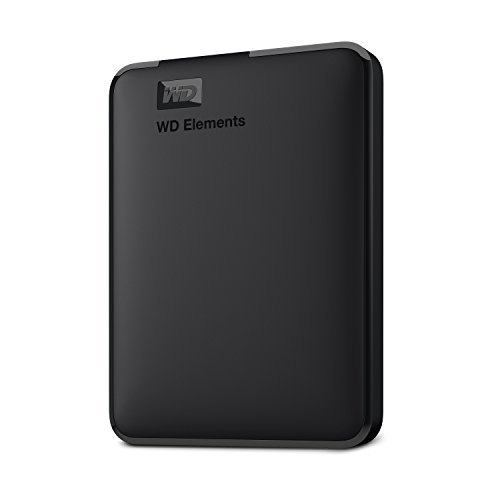
Western Digital’s Elements line is the company’s plain-label range, and that plainness is precisely its appeal. Where the My Passport line further down this page adds software and password protection, the Elements portable simply presents 4TB of formatted space and gets out of the way. There is no WD utility waiting to be installed, no account to create, and nothing about the drive that behaves differently on a borrowed computer than on your own.
The 4TB capacity is where this drive makes its argument. At this size, a family photo archive, a music collection and a couple of years of documents coexist without housekeeping, and the cost per terabyte typically undercuts every smaller portable in this guide. The case is a fraction thicker than the 2TB models to accommodate the platter stack inside, though it remains a one-hand, pocket-adjacent object rather than a desk fixture. Its listing describes it as plug and play ready for Windows and usable with Mac, which in practice means Mac buyers should expect to reformat it for Time Machine or use a cross-platform file system, a five-minute job covered in the how-to section below.
Consider also how this drive behaves as a household’s shared overflow. Because there is no account, no licence and no software handshake, the Elements can be plugged into a teenager’s laptop in the morning, a parent’s desktop in the afternoon and a smart television in the evening, and it is the same drive in all three places. Shared family storage is where bundled ecosystems quietly become friction; the Elements avoids the entire category of problem by having no ecosystem. Its enclosure is a sober dark shell that looks at home in an office, and the activity light is small and unobtrusive — a trivial point until a drive with a searchlight-bright LED lives beside a television.
There is a quiet reliability argument for this pick too. The Elements line has been sold in enormous numbers for office and home overflow storage, so its behaviour is well understood: it spins up quickly, sleeps when idle, and does not impose any software layer between you and your files. If your backup strategy is a scheduled copy run by your operating system or a simple sync tool you already trust, this is the drive that fits that strategy without argument.
- Capacity: 4TB
- Interface: USB 3.2 Gen 1 / USB 3.0
- Power: Bus-powered over the included cable
- Software: None bundled; works with your own backup tools
- Compatibility note: Formatted for Windows out of the box; reformat for Mac use
Strengths
- Excellent cost per terabyte at the 4TB size
- No software layer between you and the files
- Works happily with operating-system backup tools
Trade-offs
- No hardware password protection
- Slightly thicker than the 2TB portables
- Mac buyers need to reformat before Time Machine use
Best for: Home archives and media folders where 4TB of plain space is the whole requirement.
Not suited for: Carrying sensitive documents that need encryption at rest on the drive.
Toshiba Canvio Basics 4TB — Most room on a budget
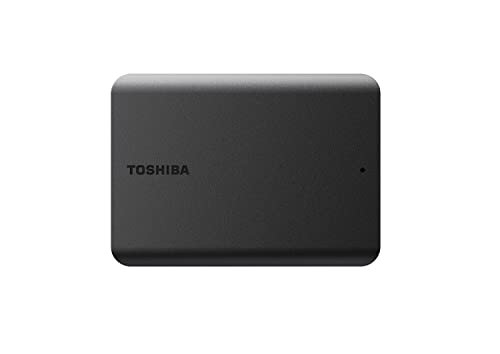
If the 2TB Basics is the cheapest sensible start, this 4TB version is the cheapest sensible finish for buyers who already know their archive is large. Toshiba keeps the same recipe — matte case, USB 3.0, no software theatre — and doubles the platter space. Photo libraries are the natural home for this drive: a decade of phone pictures and camera RAW files accumulates faster than most people expect, and the jump from 2TB to 4TB is the difference between archiving everything and curating what survives.
Physically, the larger Basics is a little thicker and heavier than its 2TB sibling, which is the standard trade across every brand in this guide; the platters have to live somewhere. It remains a genuinely portable object, and it draws all its power from the USB port, so it works with the same laptops and games consoles as the smaller model. Transfer behaviour is the familiar portable-drive pattern: brisk with large sequential files, unhurried with sprawling folders of small ones.
Archiving photographs deserves one specific habit, whichever cheap drive holds them: organise by year and month at the folder level before the archive grows teeth. A 4TB drive filled with unsorted camera dumps becomes a place photographs go to be lost slowly; the same drive with a dated folder tree is a family asset that anyone can navigate. The Basics will not organise anything for you — that is the honest cost of the low price — but ten seconds of folder discipline per import keeps 4TB navigable for a decade. Buyers migrating from a smaller drive should also keep the old drive as the second copy rather than wiping it in celebration; this 4TB model plus its predecessor in a drawer is a genuinely sound archive.
One honest note about buying at this end of the range: the Basics line competes on price, so small things like the included cable are functional rather than luxurious, and the case is plastic rather than the metal shells found on premium portables. None of that affects the data on the platters. Treat the drive as what it is — inexpensive bulk that asks to be handled like a mechanical device — and it returns exactly what it promises.
- Capacity: 4TB
- Interface: USB 3.0
- Power: Bus-powered, single cable
- Software: None bundled as a headline feature
- Form: 2.5-inch portable, thicker than the 2TB Basics
Strengths
- 4TB of space at a budget-line price
- Same simple plug-in behaviour as the 2TB model
- Good fit for photo and media archives
Trade-offs
- No encryption or bundled backup tools
- Plastic shell gives minimal physical protection
- Thicker and heavier than 2TB portables
Best for: Photographers and families whose archive has already outgrown a 2TB drive.
Not suited for: Rough travel without a padded case, or encrypted document storage.

Seagate Portable 2TB — Simple cross-platform pick
Seagate’s Portable line answers the same brief as the Toshiba Basics — inexpensive space, nothing extraneous — with two small differences in flavour. The listing presents the drive as everyday storage for both Windows and macOS, and Seagate includes a trial of Adobe’s Creative Cloud photography offering in the box, which will matter to a narrow slice of buyers and can be ignored by everyone else. The drive underneath is a conventional 2TB USB 3.0 portable, model STGX2000400, with a clean, rounded case that slides into bags without snagging.
The cross-platform point deserves a sentence of explanation, because it confuses many first-time buyers. Portable drives ship formatted in ways that favour one operating system; a drive that both systems can read and write without a reformat is convenient for households that mix a Windows desktop with a Mac laptop. That convenience comes from the file system chosen, and the how-to section below explains the trade involved. The Seagate Portable leans into that mixed-household role more openly than the WD Elements, which ships firmly Windows-first.
One scenario flatters this drive in particular: the household that serves as its extended family’s informal IT department. The Seagate Portable is the drive you hand to a parent or sibling with the words “plug this in and copy your Pictures folder onto it,” because there is nothing to install, nothing to activate and no follow-up phone call about a password prompt. Its rounded shell survives being posted back in a padded envelope, and 2TB is the size that covers an ordinary relative’s entire digital life with room to spare. Drives bought to be lent, gifted or deployed across a family’s worth of machines earn their keep on exactly this absence of complications.
Otherwise this is a drive that succeeds by being unremarkable in the right ways. It is light, it is quiet, it draws power from the port, and its two terabytes swallow an ordinary document-and-photo life whole. Buyers choosing between this and the Canvio Basics 2TB are mostly choosing between two badges on equivalent hardware; warranty terms in your region and which listing is cheaper on the day are legitimate deciding factors.
- Capacity: 2TB
- Interface: USB 3.0
- Model: STGX2000400
- Extras in listing: Adobe Creative Cloud trial included
- Compatibility: Presented for Windows and macOS everyday storage
Strengths
- Friendly to mixed Windows and Mac households
- Clean case design that travels well
- Adobe trial adds value for photo hobbyists
Trade-offs
- No bundled Seagate backup suite as a headline feature
- 2TB ceiling for this model in the pool
- No password protection on the drive
Best for: Mixed-OS households that want one inexpensive drive both computers can use.
Not suited for: archives already past 2TB, or files that must sit encrypted on the drive itself.

Seagate Expansion Portable 4TB — Newer connector, rescue cover
The Expansion Portable 4TB is the newest design in this guide, and its listing highlights the detail that dates the other picks: the cable. This model pairs a Micro-B socket on the drive with a USB-C end for the computer, which suits current laptops that have largely abandoned USB-A ports. If your machine is a recent thin laptop, that single detail can be the difference between using the drive and hunting for an adapter that lives in a different drawer.
Seagate also bundles a year of its Rescue data-recovery services with this listing. Rescue is a lab service: if a drive fails mechanically, you send it in and specialists attempt to recover the data. It is not a guarantee and it is not a substitute for a second copy, but as an inclusion on an inexpensive drive it is a genuine point of difference, and for a drive holding a family archive it has real value. The listing describes the drive as lightweight and travel-ready, formatted for straightforward use with Windows and macOS.
The rescue inclusion deserves one more moment of precision, because it is easy to over-read. A recovery service attempts to extract data from a failed drive in a laboratory; success depends on how the drive failed, and the service returns recovered data on replacement media rather than resurrecting your original drive as it was. For a wedding archive or a decade of family photographs, that attempt is worth a great deal on the worst day. For ordinary replaceable downloads it is worth little. Judge the inclusion by what you intend to store, and remember that it expires — the listing states one year — while a second copy sitting in a drawer never does.
Underneath the newer cable and the rescue cover sits the same class of 4TB portable mechanism as the WD Elements and the Canvio Basics 4TB, with the same transfer character and the same need for gentle handling. The choice between them is therefore about the extras: choose this one for the USB-C cable and the recovery plan, choose the others when their simpler packages come out cheaper on the day. That is a perfectly rational way to shop this category, and this guide will not invent a larger difference than exists.
- Capacity: 4TB
- Interface: Micro-B on drive to USB-C cable
- Model: STNN4000400
- Extras in listing: 1-year Rescue data-recovery services
- Compatibility: Windows and macOS everyday storage
Strengths
- USB-C computer end suits modern laptops without adapters
- Rescue recovery cover included for a year
- 4TB capacity at portable-drive pricing
Trade-offs
- Drive end is still Micro-B, so the cable is model-specific
- Rescue is a recovery attempt, not a data guarantee
- No bundled backup software headline feature
Best for: Owners of USB-C-only laptops who want 4TB and a recovery safety net.
Not suited for: Anyone treating the rescue plan as a replacement for keeping a second copy.

WD My Passport 2TB — Cheap with protection extras
The My Passport is the pick for the buyer who reads “cheapest” as “cheapest that still looks after me.” Western Digital’s mainstream portable adds two things the plain drives omit: backup software with a stated defence against ransomware, and password protection that locks the drive’s contents behind a prompt. Neither feature turns it into a premium product, but together they make it the most structured of the inexpensive drives, at a price that usually sits only slightly above the bare-bones models.
The software matters most for set-and-forget people. Rather than remembering to drag folders across, you point the WD backup tool at the folders that matter and let scheduled copies happen while the drive is attached. The ransomware-defence wording in the listing refers to the backup software’s behaviour — keeping backup copies in a form designed to resist tampering — and it is best understood as a sensible extra layer, not as immunity. Password protection, meanwhile, is the feature frequent travellers actually use: a lost My Passport does not hand its contents to whoever finds it.
The password feature changes how this drive should be handled day to day, in one good way: it encourages carrying it. An unencrypted cheap drive tends to stay home because its owner vaguely knows losing it means losing privacy; a locked My Passport can live in the work bag, which means the backup is present at the moment a laptop drive fills up in a hotel room or a presentation file needs a second home before a flight. Set the password somewhere you will genuinely remember, and store a hint in your password manager rather than on a sticky note attached to the drive itself — the small operational details are what separate a security feature from a locked box of your own photographs.
Capacity is the honest limitation. This pool listing is the 2TB model, and buyers with media-heavy archives should weigh the 4TB plain drives above before choosing features over space. But for a documents-and-photos life, 2TB with working backup software protects more real data than 4TB of space that only ever receives copies when its owner remembers. That is the quiet argument for this drive, and for the right buyer it wins.
- Capacity: 2TB
- Interface: USB 3.1 / USB 3.0 compatible
- Software: WD backup software with ransomware defence, per listing
- Security: Password protection
- Model: WDBYVG0020BBK-WESN
Strengths
- Scheduled backup software included
- Password protection for a drive that travels
- Slim, established design with broad compatibility
Trade-offs
- Costs a little more than the plainest 2TB drives
- 2TB fills up for video-heavy users
- Getting full value requires actually setting the software up
Best for: Buyers who want cheap storage that also runs their backups and locks with a password.
Not suited for: Anyone who will never install the software — the plain drives serve that buyer for less.
Which Capacity Is Actually the Cheapest per Terabyte?
Work the arithmetic before you buy, because the shelf order is designed to hide it. Take the price of each capacity and divide by the terabytes; the smallest drive almost always produces the ugliest number, the 2TB and 4TB models cluster at the bottom, and the largest portable capacities drift upward again as the cases grow thicker and the market thins. That curve is stable across Toshiba, WD and Seagate, which is why this guide’s picks concentrate where they do.
Then sanity-check the result against your actual archive. Measure the folders you intend to move, double the figure to allow for growth and for keeping more than one generation of important files, and buy the capacity that covers it. A drive bought too small is not a saving; it is the first instalment on two drives. Conversely, capacity far beyond your archive buys nothing but a larger loss if the drive is dropped, which is another argument for the two-smaller-drives pattern when the material is precious.
One more capacity consideration is specific to households that shoot video on phones. A single holiday can produce tens of gigabytes of 4K footage, and a family that films school concerts, matches and birthdays accumulates a terabyte faster than any other kind of user. If that description fits, treat 4TB as your floor rather than your stretch goal, and look hard at the two-drive rotation described earlier, because phone video is almost never backed up anywhere else by default — the cheap drive you are buying may be the only copy that ever exists, which raises the stakes on handling it gently.
Finally, consider what the drive will hold in year two. Photo libraries grow by accumulation, game libraries grow by release schedules, and video grows by simply existing. The buyers who regret cheap drives rarely regret the brand; they regret the capacity. If your honest projection lands between sizes, take the larger one and enjoy the empty space — empty space on a hard drive is not waste, it is the headroom that keeps the drive quick to defragment, easy to reorganise and ready for the next camera, console or laptop that enters the house.
How Do You Set Up a Cheap External Drive Properly?
Setup takes ten minutes and pays for itself the first time anything goes wrong. First, plug the drive in and let the operating system mount it, then check the capacity it reports against the box; a mismatch at this stage is far easier to resolve than after a terabyte of copying. Second, decide the file system deliberately. A drive that will live with one Windows PC can stay as it ships. A drive destined for a Mac should be reformatted for that machine’s backup tool. A drive that must be written by both systems needs the cross-platform format, accepting its file-size limits, or a small utility on one side.
Third, create the folder structure before the first big copy: one folder for the archive, one for working overflow, one for backup output if the drive will serve both roles. Copy in stages rather than in one heroic overnight transfer, verifying that the largest and most important folders open correctly from the drive before deleting anything from the source. Only when the copies are confirmed should the originals be moved or removed — and for anything irreplaceable, the original should remain somewhere else permanently, because the whole point of the exercise is that copies exist in more than one place.
Finally, label the drive — physically, with a sticker or a marker on the case — with its role and the date of its last full copy. Cheap drives multiply in a household; within two years there will be three anonymous black rectangles in a drawer, and the label is the only thing separating the current archive from a stale one. A dated label also enforces the rotation habit: when the label’s date embarrasses you, the drive is due for a refresh copy. It is the lowest-technology step in this entire guide and, in practice, one of the most protective.
Fourth, build the habit that makes cheap storage safe: eject the drive through the operating system before unplugging, every time. A spinning drive interrupted mid-write can corrupt the very directory that indexes your files, and the safe-eject click is the cheapest insurance in computing. Store the drive flat, away from heat and magnets and the edge of the desk, and if it travels, give it a pouch. None of this is glamorous. All of it is the difference between a cheap drive that serves for years and one that becomes a cautionary tale.
How Do the Six Cheapest Picks Stack Up Against Each Other?
| Pick | Capacity | Connector story | Software / extras | Choose it when |
|---|---|---|---|---|
| Toshiba Canvio Basics 2TB | 2TB | USB 3.0 Micro-B | None bundled | Lowest entry cost is the priority |
| WD Elements Portable 4TB | 4TB | USB 3.2 Gen 1 | None bundled | You already have backup tools you trust |
| Toshiba Canvio Basics 4TB | 4TB | USB 3.0 Micro-B | None bundled | A large photo archive needs cheap room |
| Seagate Portable 2TB | 2TB | USB 3.0 | Adobe trial in box | The household mixes Windows and Mac |
| Seagate Expansion Portable 4TB | 4TB | Micro-B to USB-C cable | 1-year Rescue services | Your laptop is USB-C only |
| WD My Passport 2TB | 2TB | USB 3.1 / 3.0 | Backup software, password protection | You want the drive to run scheduled backups |
Read the table as a map of small decisions rather than a league ladder. All six drives move data at the pace their shared technology allows; the rows differ in capacity, in the cable in the box, and in what surrounds the platter. A buyer who picks any row for the reason printed in its last column has bought well. A buyer who picks a row at random has still bought a competent drive — which is the real story of this category at its current maturity.
What Mistakes Do Buyers of Cheap Drives Keep Making?
The classic error is treating the new drive as a move rather than a copy. The folder leaves the laptop, the laptop feels wonderfully empty, and the only copy of five years of photographs now lives on a single mechanical device in a desk drawer. Cheap drives fail at roughly the rate all drives fail; the price was never the risk. The fix costs nothing but discipline: copy first, verify, and keep the second copy somewhere.
A sixth mistake is subtler: storing the drive and its computer in the same bag, the same drawer or the same room corner for years, so that the “backup” shares every fate the original meets — the spilled drink, the burglary, the house fire. Distance is a backup feature, and it costs nothing. The relative’s house, the office drawer, the safe-deposit approach for the truly precious archive: any separation at all converts a copy into protection. Several picks in this guide are cheap enough that the two-drive, two-location pattern is realistic on a modest budget, which is precisely why this category matters more than its price suggests.
The second error is buying capacity by the shelf label instead of by the division sum described above, ending with a 1TB drive that cost nearly as much per terabyte as the family car does per mile. The third is unplugging without ejecting, repeatedly, until the file system gives up. The fourth is leaving the drive permanently attached to a laptop that travels, so the “backup” is stolen or dropped in the same incident as the original. And the fifth is forgetting the drive exists — backups that depend on memory decay within a month, which is why the My Passport’s scheduled software, or an operating-system tool pointed at any of these drives, earns its keep.
Can a Cheap Drive Handle Media Playback and TV Duty?
One of the most common second careers for a cheap portable is living behind a television, holding a library of films and recorded programmes that the TV plays directly over USB. Spinning portables are well suited to this: playback needs only a modest, steady stream of data, far below what these drives sustain, and the drive can stay attached for months without attention. Check two things before assigning the job. The television’s USB port must supply enough power for a bus-powered drive — most do, but very old sets can be marginal — and the TV will usually want its own formatting or a specific file system, which means the media drive should be dedicated to the TV rather than shared with the household archive.
The same logic covers music libraries for a hi-fi streamer, photo frames that read from USB, and the family video collection handed to relatives on visits. In each case the workload is reading, sequentially, at modest rates — the gentlest life a spinning drive can lead. If a drive in this guide retires from front-line duty because you bought a larger one, media duty is the honourable second career that keeps it useful instead of e-waste, provided anything precious on it also lives somewhere else.
Final Recommendation
For the lowest sensible spend, the Toshiba Canvio Basics 2TB remains the drive to beat: reputable, plain and cheap in the way this category should be. For the best value in the guide, step to a 4TB model — the WD Elements Portable if you bring your own backup tools, the Toshiba Canvio Basics 4TB for a big photo archive, or the Seagate Expansion Portable 4TB if your laptop speaks only USB-C and you value the year of Rescue cover. Choose the Seagate Portable 2TB for a mixed Windows-and-Mac household, and the WD My Passport 2TB when password protection and scheduled backup software matter more than raw space.
A last word on timing: storage in this class is a commodity whose shelf prices drift with sales cycles, so if your laptop still has breathing room, buying during a promotion is rational; if the drive is full today, the correct day to buy is today, at whichever of these six listings is keenest. The differences between them are small enough that a modest saving on any row beats a perfect choice made a month after a failure.
Whichever row you land on, spend the ten setup minutes, keep a second copy of what matters, and eject before you unplug. A cheap drive chosen with open eyes is not a compromise — it is simply storage bought at the point where the curve bottoms out, and for the overflowing laptop that started this search, that is exactly the purchase that needed making.
What Should You Know About Cables, Ports and File Systems?
Most portables in this guide connect with a cable that is Micro-B at the drive end — a wide, flat connector inherited from the USB 3.0 era — and USB-A or USB-C at the computer end. The connector at the computer end is the one that decides convenience: older desktops and laptops offer USB-A everywhere, current thin laptops may offer only USB-C, and the Seagate Expansion Portable’s USB-C computer end exists precisely for those machines. Adapters work, but every adapter is one more small object to lose, so matching the cable to your newest computer is worth a moment’s thought before ordering.
Speed expectations should be set by the platter, not the port. USB 3.0 and its renamed successors all offer far more bandwidth than a 2.5-inch spinning drive can use for its sustained transfers, which is why no pick in this guide is meaningfully faster than another on a modern port. Where an old USB 2.0 port enters the picture, transfers slow dramatically regardless of the drive — if a copy is crawling, check which port the drive is plugged into before blaming the drive.
The file system is the invisible decision. Drives shipping formatted for Windows use a format Macs can read but not always write without help; Mac backup tools want their own format; the cross-platform format both systems accept imposes a maximum size on individual files that modern video recordings can exceed. None of this is a defect in any pick. It is a five-minute formatting choice made once, at setup, with the trade-offs understood — and the wrong default discovered six months later, mid-copy, is the version of this story everyone tells. Decide on day one.
How Long Will a Big First Copy Actually Take?
Set expectations with arithmetic rather than hope. A portable spinning drive moving large files sustains a transfer pace that fills roughly a hundred gigabytes in something under half an hour on a healthy USB 3 connection; a full 2TB first copy is therefore an evening’s background task, not a coffee break, and a 4TB archive migration is best started before dinner and checked in the morning. Folders of small files run far slower than the headline pace, because the drive’s heads spend their time travelling between files rather than streaming. A documents folder of the same total size can take several times longer than a video folder, and this surprises every first-time buyer exactly once.
Plan the first copy accordingly. Run it on mains power rather than battery, disable sleep on the computer for the duration, and copy in verified stages — the irreplaceable folders first, checked by opening a sample of files from the drive, then the bulk material. If a stage fails or is interrupted, only that stage needs repeating. Resist the temptation to use the computer heavily during the first migration; the drive you are filling is also the drive being asked to read verification samples, and patience during the inaugural copy is repaid by never having to wonder whether it completed cleanly.
After the first copy, life gets easier. Routine backups move only what changed, so the weekly or monthly top-up that keeps an archive current takes minutes rather than hours. This is the rhythm cheap drives are built for: one long evening of migration, then a quiet life of small, frequent copies. Buyers who understand that rhythm stop resenting the first evening; buyers who expect instant migration from a spinning platter are the ones who leave angry reviews about a drive doing exactly what physics allows.
When Is a Cheap Drive Too Cheap?
There is a floor below which “cheap” stops meaning value and starts meaning risk, and it is worth naming because this keyword attracts exactly those listings. Unknown-brand drives advertising enormous capacities at prices the big makers cannot approach are a known hazard of the category: some contain small flash storage dressed in firmware that lies about its size, accepting writes past its real capacity and silently destroying earlier files. The defence is boring and total — buy known models from Toshiba, WD or Seagate, from reputable sellers, and test any new drive by filling a meaningful portion of it and reading the data back before trusting it with the only copy of anything.
The same caution applies to capacities that make no sense for the form. A slim portable claiming far more space than the largest models in this guide, at a lower price, is not a discovery; it is a warning. Every pick here was verified against a real listing with a real model number — the Seagate Portable’s STGX2000400, the My Passport’s WDBYVG0020BBK-WESN — and that verifiability, more than any single specification, is what separates the cheapest drives worth buying from the cheapest drives full stop.
Frequently Asked Questions
Is a cheap external hard drive reliable enough for important files?
It is reliable enough to be one copy, never the only copy. Drives in this class come from the same makers and factories as pricier models, and most serve for years, but any single mechanical drive can fail. Important files deserve two homes regardless of what either home cost.
Why is 2TB or 4TB better value than 1TB?
Because the case, cable, packaging and shipping cost nearly the same at every capacity, the smallest drives carry the highest cost per terabyte. The curve bottoms out around 2TB to 4TB, which is why every pick in this guide sits in that band.
Can these drives work with a games console?
Portable USB drives are commonly used to hold game libraries on consoles, subject to each console’s own formatting and rules for playing from external storage. The drive will be reformatted by the console in most cases, so do not share one drive between a console and your photo archive.
Do I need to install anything to use the plain drives?
No. The WD Elements and Toshiba Canvio Basics models work the moment they are plugged in. Mac users may need to reformat for Time Machine, and that is a formatting step, not an installation. Reformatting erases the drive, so make the decision before the first big copy rather than after it; if a drive already holds files and needs a new format, copy everything off first, reformat, and copy back, verifying the returning folders before you trust the round trip.
What is the difference between the Elements and the My Passport?
The Elements is plain storage with no bundled software. The My Passport adds WD backup software and password protection. The underlying job — holding your files on a portable platter — is the same, so you are paying the small difference for structure and security features.
Should I buy one large drive or two smaller ones?
If the material is irreplaceable, two smaller drives holding the same copy beat one large drive holding the only copy, because the failure that matters is never about capacity. If the material is replaceable overflow — game installs, downloads, working files — one larger drive is simpler and cheaper per terabyte. Many households end up with both patterns: one big drive for overflow, two modest drives rotating as the archive.
Can I leave a portable drive plugged in all the time?
You can, and many people use one as permanent overflow storage on a desktop. Two cautions follow: a permanently attached backup is exposed to the same accidents and malware as the computer itself, so it should not be the only copy of anything precious; and a drive that never spins down still ages, so check its health occasionally and keep the dated-label habit.
How long will a cheap portable drive last?
Years of ordinary use is the normal expectation, with luck and handling as the variables. Heat, drops and rough travel shorten mechanical lives; a drive that lives on a desk, is ejected properly and is kept as one of two copies has every chance of outlasting the computer it serves.
Related Guides
Storage needs rarely stop at one drive, so these companion guides cover the faster and larger next steps: Best 2 TB SSDs: NVMe Flagships, Honest Value Picks and the SATA Drive That Still Matters and Best 2.5 SSDs: Six SATA Drives to Wake Up an Old Laptop or Desktop. If the overflow problem is really a whole computer that needs rebuilding, see also Best Affordable Gaming PC Cases.


