What's inside
- Where to buy
- Key Takeaways
- Quick Picks
- How did we choose the best laptops for accountants?
- Why does memory matter more than processor speed for spreadsheet work?
- How do the best accountants laptops compare at a glance?
- How should an accountant set up a laptop for busy season?
- Which security habits matter most on a laptop holding client data?
- What mistakes do buyers make when choosing a laptop for accounting?
- What does a proper accountant’s desk setup look like?
- How should you handle backups and client files on the laptop itself?
- Which ports and connections does accounting work actually need?
- Which software will you actually run, and how should it steer the choice?
- How can you test a laptop for accounting work before committing?
- What about support, warranty, and the life of the machine?
- How do you stay comfortable through ten-hour spreadsheet days?
- Should a small firm standardise on one model for everyone?
- How does working with two screens change the laptop you need?
- How should you move from your old laptop to the new one?
- How much battery life does client-site work really demand?
- Final Recommendation
- Frequently Asked Questions
- Related Guides
As an Amazon Associate I earn from qualifying purchases. This post may contain affiliate links at no extra cost to you.
gizmoverdict.com is reader-supported. When you buy through links on our site, we may earn an affiliate commission.
Where to buy
Follow the link on any model name to reach its Amazon listing, and confirm the memory, storage, and keyboard layout shown there before you order, because several of these machines exist in multiple configurations. The best accountants laptops are not the fastest laptops in any catalogue; they are the ones that survive January. Picture the real workload: a payroll workbook with forty tabs open beside a tax package, a browser full of banking portals, a PDF viewer holding last year’s return, and a video call with a client who has questions about all of it — simultaneously, for ten hours, while the deadline does not move. A laptop for accounting is judged in that week, not in a benchmark chart.
That reality dictates the priorities in this guide. Memory comes first, because spreadsheets hoard it. A numeric keypad matters more than thinness, because entering figures on a number row is slower and more error-prone than on a proper pad. Screen space matters because two documents side by side end the alt-tab shuffle that eats an afternoon in small bites. Security matters because the machine holds other people’s financial lives: fingerprint sign-in, drive encryption, and a camera shutter are professional equipment, not luxuries. And battery life matters because the laptop that dies at 4 p.m. during close week becomes the office’s least favourite object.
Six machines made the cut, spanning a deliberate range: a Mac for those whose firms run on Apple, three business-grade Windows machines built for all-day typing, and two larger models whose full-width keyboards and number pads suit heavy data entry at a desk. Every one of them can drive an external monitor, every one can be encrypted, and every one has the memory headroom to keep a monster workbook responsive while everything else stays open.
Key Takeaways
- Memory is the specification that decides your busy season: 16GB is the sensible floor for serious spreadsheet work, and the 32GB configuration in this roundup is aimed squarely at giant linked workbooks.
- A true numeric keypad appears on the Pavilion 15, Inspiron 15, and Vivobook 16; the 14-inch picks trade it away for portability, so decide which you value before choosing.
- The ThinkPad T14 is the pick for accountants who travel to clients, pairing the best keyboard here with business-grade security and a matte screen.
- The MacBook Pro 14 is the strongest performer in the group and the right answer only if your accounting software stack genuinely runs on macOS.
- Whichever model you choose, plan on an external monitor for desk work; no laptop screen, however good, matches a large second display for reconciliations.
Quick Picks
| Pick | Badge | Why it earns its place |
|---|---|---|
| Lenovo ThinkPad T14 Gen 4 | Best for travelling accountants | Superb keyboard, strong security, and a light, tough body built for client-site work and long days. |
| Apple MacBook Pro 14 M3 Pro | Most powerful | Serious processing muscle and a brilliant display for the Mac-based practice with huge models to recalculate. |
| HP Pavilion 15 | Most memory in the group | The listed configuration pairs a numeric keypad with unusually generous memory and storage for workbook-heavy work. |
| Dell Inspiron 15 3530 | Data-entry all-rounder | Touchscreen, number pad, and modern Intel hardware in a straightforward 15.6-inch package for the home office. |
| Microsoft Surface Laptop 5 | Slimmest client-meeting machine | A polished, quiet laptop with a tall screen that presents beautifully and travels without complaint. |
| ASUS Vivobook 16 | Biggest desk canvas | Sixteen inches of screen and a full keyboard with pad, plus cool, quiet running for long sedentary sessions. |
How did we choose the best laptops for accountants?
We weighted the criteria the way a practitioner would. Memory and storage came first: every pick carries at least 16GB of RAM in its listed configuration and a solid-state drive large enough for years of client files, because a full drive and a swapping system are how a responsive machine turns sluggish mid-season. Processor generations are all modern enough that recalculating a large workbook is a pause, not a coffee break.
Keyboards were scored on extended use, not first impressions. Accountants type figures for hours, so key travel, layout sanity, and the presence of a numeric keypad all counted, as did backlighting for the early starts and late finishes that busy season imposes. We also valued screens that reduce fatigue — matte finishes, decent brightness, and resolutions that keep small figures crisp when two windows share the display.
Security features were treated as requirements to verify rather than bonuses to admire. Each pick supports full-drive encryption and biometric or otherwise hardened sign-in, because client data protection is a professional obligation with real consequences. Finally, we considered the ownership experience: ports for the printers, scanners, and monitors of a real office, and build quality that tolerates being opened and closed thousands of times. Where a listing describes renewed stock, we evaluated the model on its merits and left the individual unit’s condition to the listing’s own grading.
Why does memory matter more than processor speed for spreadsheet work?
Open a realistic accounting desktop and count the tenants: Excel or a tax suite holding several workbooks, each with its own calculation chain; a browser with a dozen tabs of portals and guidance; Outlook or a mail app; a PDF reader; a chat client; and the practice management tool ticking along behind everything. Each tenant rents memory, and when the building fills, the operating system starts evicting — swapping data to disk — which is why a machine can feel fine at 9 a.m. and sticky by lunch. Sixteen gigabytes houses that crowd comfortably; the Pavilion’s listed 32GB houses it with room for the year-end workbook that made last year’s laptop weep.
Processor speed, by contrast, mostly governs bursts: the recalculation, the export, the report generation. Modern chips across this whole roundup handle those bursts well. The exception is genuinely large financial modelling — tens of thousands of formula rows recalculated constantly — where the MacBook Pro’s stronger silicon or a higher-tier Windows chip earns its keep. For the mainstream of bookkeeping, payroll, and tax preparation, buy memory first and let the processor be merely modern.

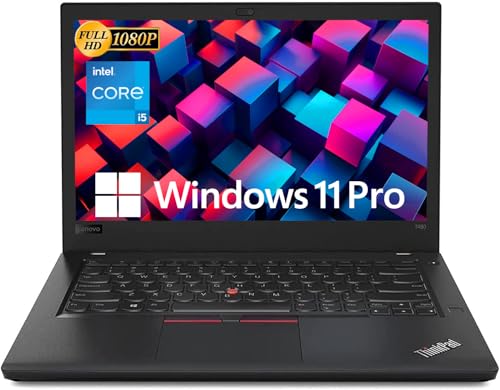
Lenovo ThinkPad T14 Gen 4 — Best for travelling accountants
Ask accountants who visit client premises what they want and the answer is boring in the best way: a keyboard they can trust, a battery that finishes the day, and a machine that does not embarrass them when it comes out of the bag. The T14 Gen 4 is that laptop. Its keyboard remains the benchmark for figure work among portable machines — deep, sculpted keys with a positive action that lets you type amounts by feel while looking at the source documents, which is how experienced bookkeepers actually work. The 14-inch matte screen keeps reflections out of unfamiliar offices and bright meeting rooms alike.
The professional details stack up. Windows Pro in the listed configuration supports BitLocker encryption and domain joining for firm IT policies; the fingerprint reader makes sign-in a touch rather than a typed password in front of a client; and the port selection — USB-C, USB-A, HDMI, and Ethernet options — means the client’s printer, the spare monitor in the spare office, and the wired network all connect without a dongle hunt. It is not the lightest ultraportable ever made, but it is light enough to carry daily and tough enough to survive doing so for years. The listing for this model describes renewed stock, so review its condition notes for the specific unit.
There is a rhythm to client-site accounting that this machine fits neatly. It wakes instantly in a borrowed office, joins whatever network is offered, runs the practice’s software from an encrypted drive, and presents figures on a screen that stays legible under fluorescent tubes and window glare alike. The TrackPoint gives a pointing option on cramped desks where a mouse has nowhere to travel, and the keyboard’s backlight earns its keep in the dim back offices where year-end work so often happens. None of these virtues photographs well; all of them compound across a working year.
- Display: 14-inch 1920×1200 matte
- Processor and memory: Intel Core i5-1345U, 16GB RAM, 512GB SSD as listed
- Keyboard: backlit, sculpted keys; no numeric keypad
- Security: fingerprint reader, Windows Pro, encryption-ready
Strengths
- Keyboard accuracy and feel lead the portable field
- Business security and ports suit firm and client-site work
- Durable build with serviceable internals
Trade-offs
- No built-in numeric keypad; heavy data entry wants an external pad
- Design is functional rather than glamorous
- Speakers are voiced for calls, not presentations to a room
Best for: accountants who split their week between the office, home, and client sites. Not suited for: desk-bound data-entry specialists who live on a number pad.

Apple MacBook Pro 14 M3 Pro — Most powerful
The MacBook Pro 14 is the outlier in this guide and knows it. It is here for the practices that run on macOS — they exist, particularly among boutique firms and finance-adjacent consultancies — and for them it is a superb tool: the M3 Pro chip recalculates enormous models without drama, the 18GB of memory in the listed configuration keeps a sprawling desktop of apps fluid, and the Liquid Retina XDR display renders dense spreadsheets with a clarity that makes long review sessions measurably less tiring. The keyboard is precise, the trackpad is the best in this roundup, and the battery endurance is in a class of its own.
The caveats are about ecosystem, not quality. Much mainstream accounting and tax software is Windows-first; some of it runs on Mac only through the web versions, and some not at all. Before choosing this machine, list every application your practice depends on — tax preparation, payroll, practice management, the scanner software in the corner — and verify each one has a Mac or full-featured web path. If the list checks out, the Pro rewards you with silence under load, a superb screen for client presentations, and Touch ID sign-in. Listings for this model may describe renewed units; check the condition grading attached to the machine you are considering.
Performance, for the modelling end of the profession, deserves a concrete picture. A valuation workbook carrying years of monthly data, scenario switches, and charts that redraw on every change is the kind of file that makes lesser machines hesitate between keystrokes. On the M3 Pro that hesitation largely disappears, and the effect on the work is subtle but real: you test one more scenario, you check one more sensitivity, because checking costs seconds instead of minutes. Paired with the machine’s endurance, it suits the accountant who does deep analytical work away from a desk — on trains, in boardrooms, in the long quiet of an audit room.
- Display: 14.2-inch Liquid Retina XDR, high brightness
- Chip and memory: Apple M3 Pro, 18GB RAM, 512GB SSD as listed
- Keyboard: backlit with Touch ID; no numeric keypad
- Ports: HDMI, SD card reader, MagSafe, Thunderbolt
Strengths
- Strongest performance here for huge, formula-dense workbooks
- Outstanding screen and battery life for marathon sessions
- HDMI and SD reader built in for office peripherals
Trade-offs
- Windows-only accounting software may not run natively
- No numeric keypad, and no touchscreen
- Premium tier pricing relative to the Windows picks
Best for: Mac-based practices and heavy financial modellers who have verified their software stack. Not suited for: firms standardised on Windows tax and practice software.

HP Pavilion 15 — Most memory in the group
The Pavilion 15’s listed configuration reads like it was specified by someone who has survived a year-end close: a Core i7 processor, memory in the 32GB class, and a terabyte of solid-state storage. That memory figure is the headline. It means the consolidated group workbook, the tax suite, the browser farm of banking portals, and the PDF archive can all stay open through the entire close without the machine quietly paging to disk, and the terabyte drive swallows years of scanned client documents without housekeeping. For a small practice that keeps everything on one machine, that headroom is the difference between a tool and a bottleneck.
Around those internals sits a practical 15.6-inch body with a full keyboard including the numeric keypad that high-volume figure entry demands, a fingerprint reader for quick secure sign-in, and a Full HD screen sized for side-by-side windows. It is a mainstream consumer chassis rather than a business tank — treat it with ordinary care, and expect it to live mostly on one desk, where its weight stops mattering. Windows Pro in this configuration supports drive encryption out of the box, which any machine holding client financial data should have switched on from day one.
Think of the Pavilion as the practice’s filing cabinet and engine room combined. The terabyte drive invites a sane archive: client folders by year, scanned source documents, prior-year returns, all local and instantly searchable rather than exiled to an external drive that is never plugged in when needed. The memory invites a sane desktop: nothing needs closing before the video call, the export, or the surprise workbook a client emails at the worst moment. Machines shape habits, and this one’s habits are the generous kind.
- Display: 15.6-inch Full HD
- Processor and memory: Intel Core i7-1255U, 32GB RAM, 1TB SSD as listed
- Keyboard: full-size with numeric keypad, backlit
- Security: fingerprint reader, Windows Pro
Strengths
- Memory and storage headroom lead this roundup
- Numeric keypad built in for fast figure entry
- Large screen suits two-document working
Trade-offs
- Consumer build is less rugged than the ThinkPad
- Best treated as a desk machine rather than a traveller
- Screen brightness is ordinary for bright rooms
Best for: small practices and bookkeepers whose workbooks and archives keep growing. Not suited for: accountants who carry their laptop to clients daily.

Dell Inspiron 15 3530 — Data-entry all-rounder
The Inspiron 15 3530 is the straightforward answer for the home-office accountant: a 15.6-inch touchscreen, a full keyboard with numeric keypad, a modern Core i7 with 16GB of memory and a terabyte of storage in the listed configuration, and Windows Pro underneath. Nothing about it is exotic, and that is the appeal. It opens, it keeps up with a heavy spreadsheet day, it drives a monitor for reconciliation work, and its touchscreen proves quietly useful for scrolling long statements and tapping through banking portals during reviews.
Dell’s mainstream line also brings a ownership advantage: parts, chargers, and service knowledge for Inspirons are everywhere, which matters when the machine is the practice. The keyboard is comfortable for extended typing, the keypad is properly spaced rather than cramped into the corner, and the chassis includes the HDMI and USB ports a desk setup expects. It will not win design awards and its screen is a workmanlike Full HD panel rather than a showpiece, but for ledger work at a sensible tier, the specification lands exactly where the workload lives.
The Inspiron’s touchscreen earns a more specific mention than these features usually get. Review work — scrolling a long bank statement, expanding a transaction list, flipping between a PDF invoice and the ledger entry it should match — is reading work, and reading on a touchscreen, with a finger dragging the page, is faster than the same task with a touchpad. Combined with the keypad for the entry work, the Inspiron covers both halves of the bookkeeping day, reading and writing, without asking you to change machines or posture.
- Display: 15.6-inch Full HD touchscreen
- Processor and memory: Intel Core i7-1355U, 16GB RAM, 1TB SSD as listed
- Keyboard: full-size with numeric keypad
- System: Windows Pro, encryption-ready
Strengths
- Balanced specification matched to real bookkeeping loads
- Touchscreen helps with statement review and scrolling
- Generous storage for document archives
Trade-offs
- Display is functional rather than exceptional
- Plastic chassis prefers a settled desk life
- No fingerprint reader headline feature in this class
Best for: home-based accountants and bookkeepers wanting one honest machine that does everything adequately. Not suited for: buyers wanting premium build or maximum portability.

Microsoft Surface Laptop 5 — Slimmest client-meeting machine
Some accounting work is theatre as much as arithmetic: the quarterly review where the numbers need to look as composed as the person presenting them. The Surface Laptop 5 is built for that room. It is slim, quiet, and impeccably finished, with a tall 3:2 touchscreen that shows more rows of a statement at once than widescreen rivals and responds to a fingertip when you want to point at a figure rather than circle it with a cursor. Windows Hello face sign-in opens it instantly, and the listed configuration’s 16GB of memory and Core i5 keep everyday practice software moving.
Be clear-eyed about its compromises. There is no numeric keypad — the 13.5-inch body has no room for one — so high-volume entry belongs on an external pad at your desk. Port selection is lean, centred on USB-C, so a dock becomes part of the desk setup. And the glossy screen, while beautiful in controlled light, reflects more than a matte panel in a sunlit office. None of that stops it being the right machine for the partner whose laptop travels between meetings and whose heavy data entry happens elsewhere. Some listings describe renewed units; read the condition notes for the individual machine.
There is also the question of what a client concludes from your equipment. It is not the most important question in this guide, but it is not nothing: a slim, immaculate laptop that opens instantly and shows a clean, tall spreadsheet supports the story every accountant wants to tell, which is that the details are handled. The Surface’s quiet keyboard and silent manner under ordinary loads suit shared rooms, and its modest footprint leaves space on a client’s table for the papers that inevitably join the meeting.
- Display: 13.5-inch PixelSense touchscreen, 3:2
- Processor and memory: 12th-generation Intel Core i5, 16GB RAM, 512GB SSD as listed
- Sign-in: Windows Hello facial recognition
- Keyboard: backlit; no numeric keypad
Strengths
- Tall, sharp touchscreen excels at review and presentation
- Slim, quiet, premium feel for client-facing work
- Instant face sign-in keeps meetings moving
Trade-offs
- No number pad for heavy figure entry
- Few ports; a desk dock is practically required
- Glossy panel reflects strong light
Best for: partners and client-facing accountants who present as much as they process. Not suited for: full-time data entry at a fixed desk.

ASUS Vivobook 16 — Biggest desk canvas
The Vivobook 16 approaches accounting from the direction of eyesight and endurance. Its 16-inch WUXGA screen, in the taller 16:10 shape, displays a long ledger without endless scrolling and holds a workbook and its source document side by side at readable sizes. The full-width keyboard includes a numeric keypad, and the Snapdragon X platform runs cool and nearly silent through long sedentary sessions, with battery endurance that shrugs off a day of meetings away from the charger. For the accountant whose laptop is really a desk fixture with occasional field trips, that combination is well judged.
The platform caveat deserves plain statement. Windows on ARM runs mainstream software — browsers, Office, and the web-based accounting platforms that now dominate small-practice work — very well, and the listed 16GB of memory keeps it fluid. But some traditional desktop tax packages, older printer and scanner drivers, and niche practice tools still assume Intel or AMD hardware. If your practice depends on a specific legacy application, verify its ARM status before committing; if your stack is web-first, the Vivobook’s quiet efficiency and big screen make it a genuinely pleasant place to close the books.
Endurance shapes the Vivobook’s working day in a way worth picturing. Because the Snapdragon platform sips power, the machine can spend a morning in a meeting room, an afternoon at the desk, and an evening finishing a return at home without the charger becoming an agenda item. Its large screen also doubles comfortably as a second display’s partner: place the workbook on the external monitor and correspondence on the Vivobook, or the reverse, and the 16:10 shape keeps both views tall enough for documents rather than ribbons.
- Display: 16-inch WUXGA, 16:10
- Processor and memory: Qualcomm Snapdragon X, 16GB RAM, 512GB SSD
- Keyboard: full-size with numeric keypad
- Character: cool, quiet, long-running
Strengths
- Largest screen here for ledgers and side-by-side work
- Number pad included for figure entry
- Quiet, cool running suits long desk sessions
Trade-offs
- Some legacy Windows software lacks ARM support
- Size limits its travel appeal
- Mainstream rather than business-grade build
Best for: desk-based accountants on web-first software who want maximum screen. Not suited for: practices tied to legacy Windows-only tax applications.
How do the best accountants laptops compare at a glance?
| Model | Screen | Numeric keypad | Memory as listed | Natural habitat |
|---|---|---|---|---|
| Lenovo ThinkPad T14 Gen 4 | 14-inch matte | No | 16GB | Client sites and travel |
| Apple MacBook Pro 14 M3 Pro | 14.2-inch XDR | No | 18GB | Mac practices, heavy models |
| HP Pavilion 15 | 15.6-inch FHD | Yes | 32GB | Workbook-heavy desk work |
| Dell Inspiron 15 3530 | 15.6-inch touch | Yes | 16GB | Home office all-round use |
| Microsoft Surface Laptop 5 | 13.5-inch touch | No | 16GB | Meetings and presentation |
| ASUS Vivobook 16 | 16-inch WUXGA | Yes | 16GB | Big-screen desk fixture |
The table reduces to one question: where do the figures get typed? If they are typed at one desk all day, the three keypad machines compete, and the choice among them is memory (Pavilion), balance (Inspiron), or screen (Vivobook). If the typing happens wherever the client is, the T14’s keyboard and toughness lead, the Surface presents best, and the MacBook Pro serves the Apple-standardised practice. Accountants who split the difference often buy the portable machine and add an inexpensive external number pad for desk days — a compromise this guide endorses without hesitation.
One more number deserves respect in the specification list: storage speed and capacity together decide how the machine ages. Client archives grow monotonically — nobody deletes last year’s working papers — so a drive that feels roomy today should be judged against three seasons of accumulation, not against this month’s usage. The terabyte configurations in this roundup exist for exactly that arithmetic. If you choose a 512GB model, pair it from the start with the practice’s archive storage and a tidy filing habit, so the drive’s free space — which the whole system uses as working room — never dwindles into the zone where everything slows down at once.
How should an accountant set up a laptop for busy season?
Preparation beats horsepower. Two weeks before the rush, turn on full-drive encryption and confirm your backups actually restore — an untested backup is a hope, not a backup. Update the operating system and your accounting applications while the diary is calm, because mid-season update prompts arrive at the worst moments. Set up the second monitor, test the printer and scanner, and replace the mouse batteries; busy season punishes every deferred chore simultaneously.
Then organise the machine itself. Pin your five daily applications to the taskbar in a fixed order so muscle memory can find them at midnight. Create the folder structure for the new season before the first client file lands. Learn the spreadsheet shortcuts that repay learning — jumping to the edge of a data region, filling a formula down a column, switching between open workbooks — because across thousands of repetitions they return whole hours. Finally, set the laptop’s power plan to favour performance while plugged in, and disable sleep during long exports; a machine that naps through a report run helps nobody.
Which security habits matter most on a laptop holding client data?
Encryption first: BitLocker on Windows Pro machines and FileVault on the Mac should be on from the first day, with recovery keys stored somewhere separate from the laptop itself. Sign-in should be biometric or a strong PIN, never a password a client can watch you type. Turn on automatic updates and let them run; the unpatched machine is the exposed machine. A physical camera shutter or a habit of disabling the camera matters less than the basics, but in client meetings it signals a professionalism clients notice.
Behaviour completes what settings start. Lock the screen every time you stand up — make it a reflex, ideally automatic after a short timeout. Keep client files in the practice’s managed storage rather than scattered across the desktop, so a lost laptop is an insurance claim rather than a data breach. And be suspicious of email during busy season in particular: invoice-themed phishing spikes exactly when accountants are busiest, and the laptop’s security ultimately includes the judgement of the person typing on it.
What mistakes do buyers make when choosing a laptop for accounting?
The classic error is buying the processor and starving the memory. An accountant who chooses a faster chip with 8GB of RAM over a modest chip with 16GB will feel that decision every afternoon, in every sticky window switch, for the life of the machine. The second error is forgetting the keypad question until the first bank reconciliation: if your work is figure entry, a machine without a numeric keypad needs an external pad from day one, not as an afterthought in week three.
A third mistake is ignoring the desk. Buyers compare laptops as if they will be used on laps, then spend ninety percent of their hours at a desk where a monitor, a dock, and a full-size keyboard would have transformed the work for less than the price difference between models. Budget for the setup, not just the machine. Finally, Mac buyers in Windows-standardised firms sometimes skip the software audit; verify every application your practice runs before falling for the hardware, however lovely it is.
What does a proper accountant’s desk setup look like?
The laptop is the engine, but the desk is the workplace, and small practices often underinvest in it. Start with the monitor: one large external display, positioned straight ahead at arm’s length, transforms reconciliation work by letting the ledger and the statement sit side by side at full size. Add a dock or hub so the laptop connects to that monitor, the printer, and the backup drive with a single cable — the setup takes an afternoon and pays it back weekly. Every pick in this guide supports that arrangement.
Input devices come next. If your laptop lacks a numeric keypad, an external pad is a trivially cheap fix; if it has one, a full-size external keyboard still earns its place for the longest entry sessions, because it can be positioned independently of the screen. A wireless mouse you actually like, a document holder that stands source papers at screen height, and a desk lamp that lights paper without glaring into the display complete a setup that respects the hours you will spend in it. Accountants optimise clients’ processes for a living; the home desk deserves the same attention.
How should you handle backups and client files on the laptop itself?
Adopt a rule simple enough to survive a tired Friday: no client file exists in only one place. The laptop’s drive is one place. The second should be automatic — a cloud practice platform, a synced firm server, or an encrypted external drive that the backup software writes to without asking. Test the restore path once a quarter by actually recovering a file; backups that have never been restored are unverified assumptions, and accounting is a profession that verifies.
Organisation is the other half of safety. A consistent folder structure — client, year, document type — makes files findable under deadline pressure and makes the eventual handover to a colleague or a successor painless. Keep the laptop’s desktop nearly empty; it should be a worktop, not a storage unit. And when a machine is retired, treat its drive as the confidential object it is: wipe it properly or remove and destroy it, because it holds the financial biographies of everyone who trusted you with them.
Which ports and connections does accounting work actually need?
Fewer than gadget marketing suggests, but specific ones. HDMI earns its place because every office and meeting room display expects it, and presenting figures on a large screen is a weekly event in practice life. USB-A refuses to die because scanners, printers, hardware security keys, and clients’ memory sticks still use it; a machine with only USB-C will live with adapters, which is survivable but worth knowing in advance. An SD card reader, as on the MacBook Pro, helps practices that photograph receipts and documents with a dedicated camera.
Ethernet is the quiet professional’s favourite: a wired connection does not drop during a large upload to a tax portal, does not need a password from the client’s wall, and does not share bandwidth with the whole office’s phones. Only the business-oriented picks here make wired networking straightforward, via built-in ports or simple adapters. None of this is glamorous, and all of it decides whether the machine disappears into your workflow or keeps interrupting it.
Which software will you actually run, and how should it steer the choice?
Make the list before you make the purchase. For most small practices it reads: a spreadsheet application, one or two accounting platforms (increasingly web-based), a tax preparation suite, payroll software, a document scanner pipeline, email, and a browser that spends its life logged into banking and government portals. Sort that list into three columns — runs natively on Windows, runs natively on macOS, runs fully in the browser — and the platform question usually answers itself. Windows columns are longest for traditional tax practices; browser columns dominate for bookkeeping firms built on cloud platforms.
Within Windows, the remaining choice is configuration rather than brand. Cloud bookkeeping with modest spreadsheets thrives on any 16GB pick here. Desktop tax suites with large client databases reward the Pavilion’s memory and storage. Analysis-heavy work in Excel — Power Query models, big pivot caches — rewards both memory and a stronger processor, which is the Pavilion’s and the MacBook Pro’s shared territory, divided by platform. Let the heaviest application you run weekly, not the average one, set the specification; laptops are remembered by their worst afternoon, not their typical morning.
How can you test a laptop for accounting work before committing?
If you can spend hands-on time with a candidate machine, simulate the real load rather than admiring the desktop. Open your largest workbook and time a full recalculation. Open the tax suite, a browser with your usual portals, and a long PDF simultaneously, then switch between them repeatedly and honestly judge the responsiveness. Type a column of figures from a printed statement without looking at the keyboard, and count your errors; then do the same on the number row if the machine lacks a pad. That five-minute exercise predicts your busy season more accurately than any specification sheet.
Check the unglamorous things too. Read a dense spreadsheet in the brightest room where you will work, and look for reflections. Plug in your printer, your scanner, and your monitor, because a port problem discovered in January is a crisis and the same problem discovered in October is a returned laptop unit. Confirm the return window in writing, keep the packaging, and treat the first fortnight as the trial it legally is in many places. A machine that serves accounting well announces itself through absence — of waiting, of squinting, of workarounds — and absence takes a few days to notice.
What about support, warranty, and the life of the machine?
A practice laptop is infrastructure, and downtime during filing season costs more than hardware. Business lines like the ThinkPad exist partly for their service networks and parts availability; consumer lines answer with lower prices and retail convenience. Neither is automatically right, but choose consciously: know who repairs your machine, how long it takes, and what you will work on meanwhile. Keeping the previous laptop, wiped and updated, as a warm spare is a strategy many solo practitioners adopt, and it converts most hardware failures from emergencies into inconveniences.
Plan the economics across the machine’s life. A laptop bought with adequate memory and storage serves longer than a cheaper one replaced early, and the per-season cost of the better machine is often lower. When replacement time comes, migrate deliberately: a quiet month, both machines side by side, every application and printer tested on the new one before the old one is retired. The accountants in this guide’s audience reconcile other people’s transitions for a living; their own deserves the same care.
How do you stay comfortable through ten-hour spreadsheet days?
Busy season is an endurance event conducted in a chair, and the laptop’s contribution to comfort is mostly about what surrounds it. Raise the screen so its top sits near eye level — a stand, a dock, and an external keyboard turn any pick in this guide into a posture-friendly workstation, and the transformation costs less than the difference between two models. Set text scaling so you are reading at arm’s length rather than leaning in; every screen here is sharp enough to stay crisp at generous scaling. Take the micro-breaks the work naturally offers — exports, recalculations, print runs — as moments to stand, because the machine’s pauses can be the body’s too.
Eye strain deserves a practical word. Matte screens like the ThinkPad’s help under mixed lighting; brightness matched to the room helps everywhere; and the twenty-minute habit of looking at something distant is older advice than any laptop in this guide and still the most effective. None of this is medical counsel, just the accumulated craft of people who read small numbers for a living — arrange the desk so the numbers come to you, instead of spending the season travelling to meet them.
Should a small firm standardise on one model for everyone?
There is a real case for it. Identical machines mean identical chargers, one set of setup instructions, spare parts that fit everything, and the ability to swap a failed laptop for a colleague’s spare without a day of reconfiguration. The ThinkPad T14 and the Inspiron 15 are the natural fleet candidates here — one for a travelling team, one for a desk-based one — while the Pavilion suits the power user whose workbooks outgrow the standard specification. Standardising on a configuration rather than a badge is the flexible version of the same idea: fixed memory and storage floors, one operating system edition, one encryption policy.
The counterargument is that accounting roles genuinely differ. The partner presenting to boards, the bookkeeper entering figures eight hours a day, and the analyst modelling acquisitions do not need the same machine, and forcing one model on all three optimises for the IT drawer rather than the work. A two-model standard — a traveller and a desk machine, as this guide’s picks naturally divide — captures most of the fleet benefit while respecting the difference between a keyboard that travels and a keypad that earns.
How does working with two screens change the laptop you need?
Once an accountant has reconciled a bank account with the statement on one screen and the ledger on another, going back to a single display feels like working through a keyhole. The practical consequence for laptop choice is that ports and graphics support matter more than panel size for desk-based staff: any pick here can drive a large external monitor, but the experience is cleanest where a single USB-C cable to a dock carries video, power, and peripherals together. If your desk will be dual-screen, buy the laptop for its keyboard, memory, and dock manners, and let the monitors — which you will keep through two or three laptop generations — carry the visual side of the job.
It also reframes the size question for hybrid workers. A 14-inch traveller like the ThinkPad or the Surface stops feeling small the moment it docks into a proper desk, which is why so many firms pair compact laptops with generous desks rather than buying large laptops that are mediocre at both jobs. The exceptions are the true single-machine practitioners — home-based, no fixed desk, laptop screen only — and for them the 15.6 and 16-inch picks in this guide are not indulgences but the whole workstation, screen, keypad, and all.
A final practical note on seasons: set the dual-screen arrangement up and test it in a quiet month. Cables, docks, and display settings have a talent for misbehaving on first installation, and the time to discover that a particular dock and laptop disagree about resolution is October, not the first morning of the January rush. The same applies to every recommendation in this guide — the best accountants laptop is the one that has already survived a rehearsal of your busiest week before the real one begins.
How should you move from your old laptop to the new one?
Treat the migration like a mini year-end: scheduled, documented, and verified. Begin with an inventory on the old machine — every application, every licence key, every browser profile full of saved portal logins, every folder that holds client work. Export what can be exported, note what must be reinstalled, and photograph the old desktop and taskbar so the new machine can be arranged to feel familiar; in deadline season, familiarity is speed. Move data through your practice’s managed storage or an encrypted drive, never through a personal email account.
Run both machines in parallel for at least one full work cycle — a payroll run, a month-end close, a client meeting — before retiring the old one. The parallel week surfaces the forgotten dependencies: the scanner driver, the macro-enabled template, the one client whose portal dislikes the new browser. Only when the new laptop has survived that week untouched by rescue trips to its predecessor should the old machine be wiped, and even then, keep the wiped spare somewhere safe. Accountants understand closing entries; a laptop migration is one, and it deserves the same discipline of checking that nothing was left behind in the old books.
Weight, finally, is a specification accountants underestimate until they carry it. A laptop, its charger, a folder of client papers, and a day of travelling between premises add up; the difference between the slimmest picks here and the largest is the difference between forgetting the bag is on your shoulder and remembering it all afternoon. If your practice is genuinely mobile, let that arithmetic speak. If it is not, spend the weight budget on screen and keyboard instead, and enjoy them every hour.
How much battery life does client-site work really demand?
More than office workers need, because client sites are uncontrolled environments: the spare socket is behind a filing cabinet, the meeting runs long, and the day’s second visit starts before you return to base. Every pick in this guide covers a normal working day of mixed use, and the efficiency-led machines — the MacBook Pro and the Vivobook in particular — stretch well beyond it. The practical habits matter as much as the headline figure: charge overnight as a ritual, keep a second charger in the work bag so the desk setup never gets dismantled, and learn your machine’s low-battery behaviour so a warning at twenty percent is information rather than alarm. An accountant’s laptop that dies during a client meeting does not just stop the work; it interrupts the confidence the meeting was building, which is why this guide weighted endurance as a professional feature rather than a traveller’s luxury.
Final Recommendation
If we had to equip a typical small practice tomorrow, the ThinkPad T14 would go in the bags of anyone who visits clients, and the Pavilion 15 — in its generously specified listed configuration — would anchor the desk of whoever owns the year-end close. The Inspiron 15 remains the sensible single-machine compromise for a home-based bookkeeper, the Vivobook 16 the quiet big-screen alternative for web-first workflows, the Surface Laptop 5 the presenter’s choice, and the MacBook Pro 14 the powerhouse for practices that have confirmed their software runs on macOS. Match the machine to where your figures actually get typed, give it memory before speed, encrypt it before the first client file lands, and it will still be serving you calmly several busy seasons from now.
Frequently Asked Questions
Is 16GB of RAM enough for accounting work, or should I insist on more?
Sixteen gigabytes handles the mainstream load — several workbooks, a tax suite, a browser full of portals, mail, and PDFs — without strain, and it is the configuration most of this roundup ships in. Step up toward the Pavilion’s class of specification if you consolidate large group workbooks, run virtual machines, or simply keep everything open all season as a matter of habit. What you should not do is drop below 16GB to save money; that economy is repaid in daily friction, in every season, for years.
Do I really need a numeric keypad?
If entering figures is a major part of your day, yes — a keypad is measurably faster and less error-prone than the number row once it becomes habit, because your hand stays in one place and your eyes stay on the source document. If your work is mostly review, analysis, and communication, a keypad matters little, and an external USB or wireless pad can cover the occasional data-entry day on a smaller laptop.
Can a Mac run my accounting and tax software?
Sometimes, and the only safe answer comes from your own software list. Web-based platforms run identically on macOS, and mainstream bookkeeping tools generally support Mac well. Traditional desktop tax preparation and some practice-management suites remain Windows-only or offer reduced Mac paths. Audit every application you depend on, including the unglamorous ones like scanner drivers, before choosing the MacBook Pro.
How large a screen should an accountant choose?
On the laptop itself, 14 inches is the travel sweet spot and 15.6 to 16 inches the desk sweet spot; both sizes in this guide render spreadsheets crisply. The more important decision is the external monitor for your main desk, where a large second display transforms reconciliation and review work. Every pick here can drive one, so choose the laptop for its keyboard, memory, and portability, and let the monitor provide the acreage.
What should I check on a renewed business laptop listing?
Confirm the exact processor, memory, and storage of the unit, read the seller’s condition grading for screen and battery, and check the return terms before ordering. Business models like the ThinkPad were built in many configurations under one name, so the listing’s specification — not the model badge — is what you are buying. A clearly graded unit from a transparent listing is a rational way to get business-grade hardware at a mainstream tier.
How often should an accountant replace a work laptop?
Plan around the workload rather than the calendar, and around your firm’s busiest season rather than its quietest month, because a replacement forced on you mid-deadline costs more in stress and errors than it ever saves in money. A machine with 16GB or more of memory and a solid-state drive typically serves four to five busy seasons before software growth makes it feel slow; the warning signs are a drive perpetually near full, updates that no longer support your operating system version, and recalculations you have started timing. Replace on your schedule in a quiet month, never reactively in the middle of a filing deadline.
Related Guides
Continue with our guides to the best laptops for bookkeepers working from home, the best business laptops for small firms, and the best laptops for spreadsheet-heavy work.
Related guides
- Best Acer Chromebook Laptops: 6 Picks for School, Work and Home
- Best 8th Generation Laptops: Renewed Business Machines That Still Earn Their Desk Space
- Best Acer Laptops: Aspire, Swift and Chromebook Picks for Work, Study and Travel
- Best Accessible Laptops: Easy-to-Read Screens, Forgiving Keyboards and Built-In Assistive Tools
[…] exploring with our guides to the best laptops for seniors, the best large-screen laptops for home use, and the best lightweight laptops for everyday […]