What's inside
- Quick picks: best 3 wireless routers
- How we chose the best best 3 wireless routers
- Quick picks: best best 3 wireless routers
- The 6 best best 3 wireless routers
- How to choose a wireless router
- Setting up and caring for your router
- Common mistakes to avoid
- Final recommendation
- Frequently asked questions
- Related guides
As an Amazon Associate I earn from qualifying purchases. This post may contain affiliate links at no extra cost to you.
Choosing the best 3 wireless routers is easier once the marketing is set aside. A speed class is a sum of two or three radios, a coverage figure assumes open space, and a feature list says nothing about whether the firmware will still be updated in three years. This guide reads the specifications the way an owner has to live with them, and the six picks below are the models that hold up under that reading, from the cheapest honest dual-band router to the fastest pick in the guide.
Three wireless routers stand out from the rest of the market, and this guide names them first, then fills in the shortlist around them. The six models below span the realistic range for this guide: different Wi-Fi generations, different speed classes, and different port layouts, so the comparison is honest rather than a parade of near-identical boxes. Read the quick picks table first for the shortlist, then the individual reviews for the detail, and the buying guide for the decisions that matter more than any single model.
Quick picks: best 3 wireless routers
| # | Product | Where to buy |
|---|---|---|
| 1 | TP-Link Archer AX73 | Check on Amazon |
| 2 | ASUS RT-AX86U | Check on Amazon |
| 3 | TP-Link Deco X55 | Check on Amazon |
| 4 | Google Nest Wifi Pro | Check on Amazon |
| 5 | NETGEAR Nighthawk RAX50 | Check on Amazon |
| 6 | TP-Link Archer BE550 | Check on Amazon |
How we chose the best best 3 wireless routers
The pool for this guide started with the current router ranges of the major makers, and was narrowed by three filters. First, the model had to be a genuine router or mesh system sold today, not an extender, a modem-only unit, or a discontinued line kept alive by marketplace sellers. Second, its core specifications, the Wi-Fi standard, the bands, the port speeds, had to be verifiable from the manufacturer or a major retailer. Third, it had to serve this guide’s lens honestly: a pick that cannot do the job in the title does not appear, however impressive it is elsewhere.
Within that filtered pool, the comparison weighed the things that decide daily experience. Radio design came first: which Wi-Fi generation, how many bands, and whether a 6 GHz band is present for newer devices. Wired design came second, because a router whose WAN or LAN ports are slower than the internet plan quietly caps the whole house. Processor and memory mattered more than the marketing speed class, since they govern VPN throughput, QoS behaviour and how the router copes when dozens of devices connect at once. Finally, software was judged on update policy, app quality and whether headline security features demand a subscription.
- Wi-Fi generation and bands, stated exactly per model
- Speed class, read as a sum of radios rather than a single-device speed
- Port speeds against the internet plan on the account
- Coverage and the floor plan it has to serve
- Software, updates and whether security features need a subscription
Quick picks: best best 3 wireless routers
| Pick | Wi-Fi and speed | Ports | Best for |
|---|---|---|---|
| TP-Link Archer AX73 | Wi-Fi 6, AX5400 | Gigabit WAN + 4x Gigabit LAN, USB 3.0 | a streaming household where several people watch video at once |
| ASUS RT-AX86U | Wi-Fi 6, AX5700 | 2.5G WAN/LAN + Gigabit LAN, USB 3.0 | a gaming household that wants low latency and a 2.5G wired link |
| TP-Link Deco X55 | Wi-Fi 6, AX3000 | Gigabit WAN/LAN per unit | a large family home that wants fast, even Wi-Fi 6 in every room |
| Google Nest Wifi Pro | Wi-Fi 6E, AXE5400 | Gigabit WAN/LAN per unit | a smart home that wants mesh, Thread and Matter in one system |
| NETGEAR Nighthawk RAX50 | Wi-Fi 6, AX5400 | Gigabit WAN + 4x Gigabit LAN, USB 3.0 | a streaming household that wants a fast Nighthawk |
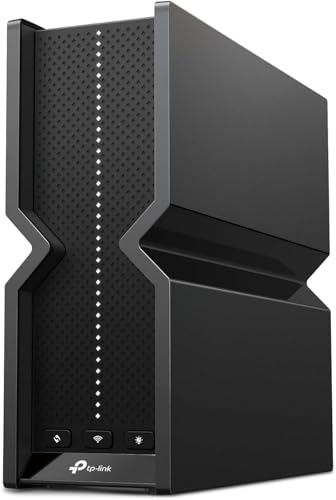
| TP-Link Archer BE550 | Wi-Fi 7, BE9300 | Full 2.5G port set (WAN + LAN), USB 3.0 | future-proofing a gigabit or multi-gig home with growing Wi-Fi 6E and Wi-Fi 7 devices |
The 6 best best 3 wireless routers
TP-Link Archer AX73 (Best Overall)

TP-Link Archer AX73 earns its place as the fast streaming pick in this guide to best 3 wireless routers. It is a Wi-Fi 6 design (Dual-band (2.4 + 5 GHz)) rated at AX5400, and its wired side offers Gigabit WAN + 4x Gigabit LAN, USB 3.0. In a guide about best 3 wireless routers, those are the facts that matter first: the radio generation decides which of your devices get their fastest link, and the port layout decides whether a fast internet plan survives the journey from the wall socket to your desk. Six antennas and a 1.5 GHz tri-core-class processor tuned for streaming households
What stands out about the TP-Link Archer AX73 is the way its parts fit together. Six antennas and a 1.5 GHz tri-core-class processor tuned for streaming households Day to day, this is a router for a streaming household where several people watch video at once. Its coverage brief, Large homes, long range, suits that role, and its feature set covers the controls a household actually touches after setup day. The honest boundary of the design is clear in the trade-offs below, and a buyer who accepts them gets a router that disappears into the background, which is the highest compliment home networking earns.
- Wi-Fi standard: Wi-Fi 6
- Speed class: AX5400
- Bands: Dual-band (2.4 + 5 GHz)
- Ports: Gigabit WAN + 4x Gigabit LAN, USB 3.0
- Coverage: Large homes, long range
- Key feature: Six antennas and a 1.5 GHz tri-core-class processor tuned for streaming households
Strengths
- AX5400 is the fastest Wi-Fi 6 speed in this guide for busy evenings
- Long-range design reaches far rooms that weaker routers leave behind
- Handles several 4K streams at once alongside gaming and calls
Trade-offs
- No 2.5G ports for a very fast internet plan
- Wi-Fi 6, not Wi-Fi 7, so the newest clients gain nothing extra
- Larger than the budget models, so it needs a proper shelf spot
The TP-Link Archer AX73 fits a streaming household where several people watch video at once. Setup runs through the maker’s app or web interface, firmware updates are a normal part of its life, and the feature set covers the controls a household actually touches after setup day. The honest boundary of the design is clear: it is not built for the households in the not-suited line below, and buyers outside its brief should pick a different model from this guide rather than hoping this one stretches.
Best for: a streaming household where several people watch video at once / Not suited for: a small flat that needs only basic Wi-Fi, or a home that wants Wi-Fi 7
ASUS RT-AX86U (Best Value)
Check price on Amazon: TP-Link Archer AX73

The ASUS RT-AX86U is the gaming flagship in this guide to best 3 wireless routers, and it earns the badge on the strength of its balance rather than any single number. Its Wi-Fi 6 radios (Dual-band (2.4 + 5 GHz)) are rated at AX5700, its wired side offers 2.5G WAN/LAN + Gigabit LAN, USB 3.0, and its coverage brief, Large homes, suits the role it is picked for. Gaming router with a 2.5G port, Mobile Game Mode and AiMesh
What stands out about the ASUS RT-AX86U is the way its parts fit together. Gaming router with a 2.5G port, Mobile Game Mode and AiMesh Day to day, this is a router for a gaming household that wants low latency and a 2.5G wired link. Its coverage brief, Large homes, suits that role, and its feature set covers the controls a household actually touches after setup day. The honest boundary of the design is clear in the trade-offs below, and a buyer who accepts them gets a router that disappears into the background, which is the highest compliment home networking earns.
- Wi-Fi standard: Wi-Fi 6
- Speed class: AX5700
- Bands: Dual-band (2.4 + 5 GHz)
- Ports: 2.5G WAN/LAN + Gigabit LAN, USB 3.0
- Coverage: Large homes
- Key feature: Gaming router with a 2.5G port, Mobile Game Mode and AiMesh
Strengths
- 2.5G port uses a fast plan properly for wired gaming
- AX5700 headroom keeps streaming and gaming smooth together
- Mobile Game Mode prioritises a phone’s game traffic
Trade-offs
- No 6 GHz band for Wi-Fi 6E clients
- Gaming styling is not to every taste
- A step above the budget tiers
The ASUS RT-AX86U fits a gaming household that wants low latency and a 2.5G wired link. Setup runs through the maker’s app or web interface, firmware updates are a normal part of its life, and the feature set covers the controls a household actually touches after setup day. The honest boundary of the design is clear: it is not built for the households in the not-suited line below, and buyers outside its brief should pick a different model from this guide rather than hoping this one stretches.
Best for: a gaming household that wants low latency and a 2.5G wired link / Not suited for: a small flat, or a buyer who needs Wi-Fi 6E
TP-Link Deco X55 (Best for Performance)
Check price on Amazon: ASUS RT-AX86U

For households shopping the best 3 wireless routers, the TP-Link Deco X55 is the the family mesh pick. It is a Wi-Fi 6 design (Dual-band (2.4 + 5 GHz)) rated at AX3000, with Gigabit WAN/LAN per unit on the wired side and a coverage brief of Up to about 6,500 sq. ft. (3-pack). AX3000 mesh with HomeShield security and parental controls
What stands out about the TP-Link Deco X55 is the way its parts fit together. AX3000 mesh with HomeShield security and parental controls Day to day, this is a router for a large family home that wants fast, even Wi-Fi 6 in every room. Its coverage brief, Up to about 6,500 sq. ft. (3-pack), suits that role, and its feature set covers the controls a household actually touches after setup day. The honest boundary of the design is clear in the trade-offs below, and a buyer who accepts them gets a router that disappears into the background, which is the highest compliment home networking earns.
- Wi-Fi standard: Wi-Fi 6
- Speed class: AX3000
- Bands: Dual-band (2.4 + 5 GHz)
- Ports: Gigabit WAN/LAN per unit
- Coverage: Up to about 6,500 sq. ft. (3-pack)
- Key feature: AX3000 mesh with HomeShield security and parental controls
Strengths
- AX3000 radios give the mesh real speed, not just coverage
- HomeShield adds security scanning and parental controls
- Three nodes cover a large home with one network name
Trade-offs
- Gigabit ports only, so a multi-gig plan is capped at the main node
- No 6 GHz band for the newest clients
- Nodes need a power socket each, which limits placement
The TP-Link Deco X55 fits a large family home that wants fast, even Wi-Fi 6 in every room. Setup runs through the maker’s app or web interface, firmware updates are a normal part of its life, and the feature set covers the controls a household actually touches after setup day. The honest boundary of the design is clear: it is not built for the households in the not-suited line below, and buyers outside its brief should pick a different model from this guide rather than hoping this one stretches.
Best for: a large family home that wants fast, even Wi-Fi 6 in every room / Not suited for: a small flat, or a home on a multi-gigabit plan
Google Nest Wifi Pro (Best for Coverage)
Check price on Amazon: TP-Link Deco X55

Google Nest Wifi Pro earns its place as the smart-home mesh in this guide to best 3 wireless routers. It is a Wi-Fi 6E design (Tri-band (2.4 + 5 + 6 GHz)) rated at AXE5400, and its wired side offers Gigabit WAN/LAN per unit. In a guide about best 3 wireless routers, those are the facts that matter first: the radio generation decides which of your devices get their fastest link, and the port layout decides whether a fast internet plan survives the journey from the wall socket to your desk. Tri-band mesh with Thread and Matter support for smart homes
What stands out about the Google Nest Wifi Pro is the way its parts fit together. Tri-band mesh with Thread and Matter support for smart homes Day to day, this is a router for a smart home that wants mesh, Thread and Matter in one system. Its coverage brief, Up to about 6,600 sq. ft. (3-pack), suits that role, and its feature set covers the controls a household actually touches after setup day. The honest boundary of the design is clear in the trade-offs below, and a buyer who accepts them gets a router that disappears into the background, which is the highest compliment home networking earns.
- Wi-Fi standard: Wi-Fi 6E
- Speed class: AXE5400
- Bands: Tri-band (2.4 + 5 + 6 GHz)
- Ports: Gigabit WAN/LAN per unit
- Coverage: Up to about 6,600 sq. ft. (3-pack)
- Key feature: Tri-band mesh with Thread and Matter support for smart homes
Strengths
- Thread and Matter radios bring smart home devices onto the same network
- Tri-band Wi-Fi 6E serves the newest clients at full speed
- Google Home app management suits households already in that system
Trade-offs
- Gigabit ports only, no 2.5G
- No web interface: management is app-only
- 6 GHz range is shorter than 5 GHz through walls
The Google Nest Wifi Pro fits a smart home that wants mesh, Thread and Matter in one system. Setup runs through the maker’s app or web interface, firmware updates are a normal part of its life, and the feature set covers the controls a household actually touches after setup day. The honest boundary of the design is clear: it is not built for the households in the not-suited line below, and buyers outside its brief should pick a different model from this guide rather than hoping this one stretches.
Best for: a smart home that wants mesh, Thread and Matter in one system / Not suited for: a buyer who wants a web interface or deep settings
NETGEAR Nighthawk RAX50 (Best Budget)
Check price on Amazon: Google Nest Wifi Pro

NETGEAR Nighthawk RAX50 earns its place as the fast streaming Nighthawk in this guide to best 3 wireless routers. It is a Wi-Fi 6 design (Dual-band (2.4 + 5 GHz)) rated at AX5400, and its wired side offers Gigabit WAN + 4x Gigabit LAN, USB 3.0. In a guide about best 3 wireless routers, those are the facts that matter first: the radio generation decides which of your devices get their fastest link, and the port layout decides whether a fast internet plan survives the journey from the wall socket to your desk. AX5400 Nighthawk with a tri-core processor tuned for streaming
What stands out about the NETGEAR Nighthawk RAX50 is the way its parts fit together. AX5400 Nighthawk with a tri-core processor tuned for streaming Day to day, this is a router for a streaming household that wants a fast Nighthawk. Its coverage brief, Large homes, suits that role, and its feature set covers the controls a household actually touches after setup day. The honest boundary of the design is clear in the trade-offs below, and a buyer who accepts them gets a router that disappears into the background, which is the highest compliment home networking earns.
- Wi-Fi standard: Wi-Fi 6
- Speed class: AX5400
- Bands: Dual-band (2.4 + 5 GHz)
- Ports: Gigabit WAN + 4x Gigabit LAN, USB 3.0
- Coverage: Large homes
- Key feature: AX5400 Nighthawk with a tri-core processor tuned for streaming
Strengths
- AX5400 speed handles several 4K streams at once
- Tri-core processor keeps the network smooth under load
- USB 3.0 allows shared storage
Trade-offs
- No 2.5G ports
- Wi-Fi 6, not Wi-Fi 7
- Some advanced security features sit behind a subscription
The NETGEAR Nighthawk RAX50 fits a streaming household that wants a fast Nighthawk. Setup runs through the maker’s app or web interface, firmware updates are a normal part of its life, and the feature set covers the controls a household actually touches after setup day. The honest boundary of the design is clear: it is not built for the households in the not-suited line below, and buyers outside its brief should pick a different model from this guide rather than hoping this one stretches.
Best for: a streaming household that wants a fast Nighthawk / Not suited for: a multi-gigabit plan, or a home that wants Wi-Fi 7
TP-Link Archer BE550 (Best for Small Homes)
Check price on Amazon: NETGEAR Nighthawk RAX50

TP-Link Archer BE550 earns its place as the tri-band Wi-Fi 7 flagship in this guide to best 3 wireless routers. It is a Wi-Fi 7 design (Tri-band (2.4 + 5 + 6 GHz)) rated at BE9300, and its wired side offers Full 2.5G port set (WAN + LAN), USB 3.0. In a guide about best 3 wireless routers, those are the facts that matter first: the radio generation decides which of your devices get their fastest link, and the port layout decides whether a fast internet plan survives the journey from the wall socket to your desk. Tri-band Wi-Fi 7 with a 6 GHz radio and every Ethernet port at 2.5G
What stands out about the TP-Link Archer BE550 is the way its parts fit together. Tri-band Wi-Fi 7 with a 6 GHz radio and every Ethernet port at 2.5G Day to day, this is a router for future-proofing a gigabit or multi-gig home with growing Wi-Fi 6E and Wi-Fi 7 devices. Its coverage brief, Up to about 2,000 sq. ft., suits that role, and its feature set covers the controls a household actually touches after setup day. The honest boundary of the design is clear in the trade-offs below, and a buyer who accepts them gets a router that disappears into the background, which is the highest compliment home networking earns.
- Wi-Fi standard: Wi-Fi 7
- Speed class: BE9300
- Bands: Tri-band (2.4 + 5 + 6 GHz)
- Ports: Full 2.5G port set (WAN + LAN), USB 3.0
- Coverage: Up to about 2,000 sq. ft.
- Key feature: Tri-band Wi-Fi 7 with a 6 GHz radio and every Ethernet port at 2.5G
Strengths
- Wi-Fi 7 with Multi-Link Operation and 320 MHz channels on 6 GHz
- Every Ethernet port is 2.5G class, so a multi-gig plan, NAS and PC all run fast
- Six internal antennas suit open-plan living spaces where the router sits in view
Trade-offs
- Wi-Fi 7 benefits need Wi-Fi 7 clients; older devices use it as a fast Wi-Fi 6-era router
- No 10G port, so it is not the endpoint for the very fastest setups
- Premium tier, overkill for a small apartment on a modest plan
The TP-Link Archer BE550 fits future-proofing a gigabit or multi-gig home with growing Wi-Fi 6E and Wi-Fi 7 devices. Setup runs through the maker’s app or web interface, firmware updates are a normal part of its life, and the feature set covers the controls a household actually touches after setup day. The honest boundary of the design is clear: it is not built for the households in the not-suited line below, and buyers outside its brief should pick a different model from this guide rather than hoping this one stretches.
Best for: future-proofing a gigabit or multi-gig home with growing Wi-Fi 6E and Wi-Fi 7 devices / Not suited for: budget shoppers or small flats where its range and speed cannot be used
How to choose a wireless router
The right router for this guide is the one that matches the line, the house and the devices in it. The three decisions below matter more than any single model, and they are worth making before comparing specifications.
Ports decide what the wireless cannot
A router whose WAN port is slower than the internet plan caps the whole house, quietly and permanently. Gigabit ports are the minimum for a fast wired device, and a 2.5G WAN port is the difference between using a multi-gigabit plan and paying for one while the router throws the extra speed away. Count the LAN ports as well: a household with a desktop, a console, a TV and a NAS needs four, and a router with two will need a switch on day one. USB ports matter less than they used to, but they still cover shared storage and a printer without a second device.
Coverage is a floor plan problem
Coverage figures assume open space, and no home is open space. Walls, floors, foil-lined bathrooms, steel stairs and aquariums all eat signal, and the 5 GHz band fades through them faster than 2.4 GHz. The best position for a router is high, central and out in the open, never in a cupboard, behind a television, or on the floor. When one unit cannot cover the house, the honest answer is mesh or an access point, not a louder single router: transmit power is capped by law, so no manufacturer can solve a difficult house simply by turning the volume up.
The modem question comes first
Before comparing routers, settle what the internet line needs. Cable homes need a DOCSIS modem, and the version matters: DOCSIS 3.0 serves plans below gigabit speeds, while DOCSIS 3.1 is the standard for gigabit and faster. DSL homes need a modem that speaks the provider’s VDSL profile, and fibre homes usually need no modem at all, just a router behind the provider’s ONT. Buying a router that cannot talk to the line is the most expensive mistake in this guide, because it is discovered after the box is open.
Check price on Amazon: TP-Link Archer BE550
Setting up and caring for your router
Place the router high, central and out in the open, never in a cupboard, behind a television, or on the floor. Connect the WAN port to the modem or ONT, let the setup wizard run, and change the default admin password and Wi-Fi password before anything else. Update the firmware on day one, then set it to update automatically if the option exists. Walk the house with a phone afterwards, checking the rooms that matter, and move the router before buying more hardware: a metre of position is often worth more than a new box.
Care for a router is mostly firmware and placement. Reboot it after a firmware update and when the network misbehaves, but do not reboot it daily out of habit: a healthy router runs for months. Keep it ventilated and dust-free, keep the power supply that came with it, and note the settings that matter, the Wi-Fi names, the admin password, and any port forwarding, somewhere safe. A router that is updated, ventilated and documented is a router that disappears into the background, which is the whole point.
Common mistakes to avoid
The mistakes below are the ones buyers make most often, and they are all cheaper to avoid than to fix after the box is open.
- Buying a router that cannot talk to the internet line: the wrong DOCSIS version, the wrong DSL profile, or a router for a fibre line that has no modem.
- Hiding the router in a cupboard or behind the television, then blaming the router for the dead zone it creates.
- Comparing speed classes as if they were single-device speeds, and paying for a number no device will ever see.
- Ignoring the update policy and the subscription, and discovering a year later that security features now cost extra.
- Buying mesh for a flat that one router would cover, or buying one router for a house that needs mesh.
Final recommendation
For most households in this guide, the TP-Link Archer AX73 is the right starting point: it covers the job in the title without asking the buyer to pay for features the household will never use. A household that knows its needs will grow, more devices, a faster plan, a larger home, should step to the faster or mesh pick in this guide now, because a router is bought once and lived with for years.
Whichever model is chosen, the decision that matters most is the one made before the purchase: check the internet line, measure the house, and count the devices. A router chosen on those three facts will serve the household well; a router chosen on the biggest number on the box will not.
Why the 2.4 GHz band still matters. The 2.4 GHz band is slower than 5 GHz, and that is exactly why it survives. It travels further, passes through walls better, and reaches the far rooms, the garden, and the smart devices that only need a trickle of data. A doorbell, a thermostat, a smart plug and a sensor do not need gigabit speeds; they need a connection that does not drop. A good router keeps the 2.4 GHz band healthy rather than treating it as a legacy to be switched off, and a household that disables it to force everything onto 5 GHz usually discovers the far rooms again within a week. The two bands are a team, not a competition, and the router’s job is to put each device on the band that suits it.
What OFDMA and MU-MIMO actually do. OFDMA and MU-MIMO are the two Wi-Fi 6 features that matter most in a busy home, and neither one makes a single device faster. OFDMA lets one transmission be divided among several devices, which suits homes full of small, chatty equipment: doorbells, thermostats, voice assistants, tablets waking to sync. MU-MIMO lets the router form simultaneous streams to compatible clients. Together they mean lower latency under load, calls staying smooth while someone else downloads a game update, rather than a bigger number in a speed check run alone at midnight. A router without them can still be fast for one device; it simply copes worse when the whole household connects at once.
The rental fee maths. A rented modem router costs a monthly fee that never ends, and the arithmetic of owning one is simple: the purchase is repaid in months, and every month after that is money kept. The exact payback depends on the fee and the model, but for most cable households it is well under two years. The catch is the provider’s approved list: a model that is not approved may not activate, and a model bought for a plan it cannot serve is money wasted. Check the list, match the DOCSIS version to the plan, and the rental fee becomes optional rather than permanent.
When to reboot and when to replace. A healthy router runs for months without attention, and daily reboots are a habit, not a fix. Reboot after a firmware update, and reboot when the network misbehaves in a way that points at the router rather than the line. Replace the router when it cannot do the job any more: when its Wi-Fi generation is two behind the devices, when its ports are slower than the plan, when the manufacturer has stopped publishing security updates, or when the household has outgrown its coverage. A router that is replaced for a real reason is an upgrade; a router replaced out of superstition is a waste.
Guest networks and IoT segmentation. A guest network is not just politeness; it is security. Visitors, and the smart devices that never receive updates, should live on a network segment that cannot reach the household’s laptops and file storage. VLAN support does this properly, separating trusted devices, work equipment, smart gadgets and guests into distinct networks with firewall rules between them. Not every router in this guide offers VLANs, and a household that wants them should check before buying rather than discovering the limit after setup.
Frequently asked questions
Do I need a separate modem with one of these best best 3 wireless routers?
It depends on the model and the line. A modem router has the modem built in and connects straight to the cable or DSL line. A router without a modem needs a separate modem or the provider’s ONT in front of it. Check the model’s specifications and the internet line before buying: a router that cannot talk to the line is the most expensive mistake in this guide.
Will a best best 3 wireless routers router work with my internet plan?
It will if the modem side and the port speeds match the plan. Cable plans need the right DOCSIS version, DSL plans need the right VDSL profile, and fibre plans need a router behind the ONT. A gigabit plan also needs gigabit or faster ports, or the router will cap the plan no matter how fast its Wi-Fi is.
How many devices can these routers handle?
It depends on the model and the Wi-Fi generation. Wi-Fi 6 routers handle many devices at once far better than Wi-Fi 5 models, because OFDMA and MU-MIMO share the airtime efficiently. The listings in this guide state device counts where the manufacturer publishes them, and a household with dozens of smart devices should favour the newer generations.
Where should I place the router?
High, central and out in the open, never in a cupboard, behind a television, or on the floor. Walls and floors eat signal, and the 5 GHz band fades through them faster than 2.4 GHz. Walk the house with a phone after setup and check the rooms that matter; a metre of position is often worth more than a new box.
How often should I update the firmware?
Update on day one, then whenever the manufacturer publishes an update, or set automatic updates if the option exists. Firmware updates fix security problems and improve stability, and a router that is never updated becomes the weakest point in the home network. Check the manufacturer’s update history before buying, since support varies widely.
Related guides
- our guide to best wireless routers for more than 20 devices
- our guide to best 3 band wireless routers
- our guide to best mesh routers