What's inside
- Key Takeaways
- Quick Picks
- How Did We Judge Reliability Without a Lab Full of Dead Drives?
- Best and Most Reliable SSDs in Detail: The Six Picks Examined Closely
- What Actually Makes an SSD Reliable Over Five Years?
- How Do You Move to a New SSD Without Losing Anything?
- How Long Should a Good SSD Actually Last in Real Life?
- What Should You Do in the First Week With a New Drive?
- Which Reliable SSD Fits Which Kind of Machine?
- What Does a Warranty Actually Promise, and What Does It Not?
- A Short Word on Second-Hand and Spare Drives
- How Do These Six Reliability-First SSDs Differ When Placed Alongside One Another?
- Which Mistakes Shorten an SSD’s Life the Most?
- Final Recommendation
- Frequently Asked Questions
- Related Guides
As an Amazon Associate I earn from qualifying purchases. This post may contain affiliate links at no extra cost to you.
gizmoverdict.com is reader-supported. When you buy through links on our site, we may earn an affiliate commission.
Where to buy: every drive below is sold through Amazon, and each name in the Quick Picks table links straight to its listing so you can confirm capacity and fit before ordering. Stock on older SATA models moves around, so if a capacity shows as unavailable, check the same model one size up or down rather than switching to an unfamiliar brand.
People searching for the best and most reliable ssds usually are not chasing benchmark trophies. They want a drive that boots every morning for years, survives a laptop bag, a dusty desktop case and a few thousand photo imports, and never turns a routine Tuesday into a data-recovery project. Reliability is a boring quality right up until the moment it becomes the only quality that matters, which is why this list leans on mature controllers, conservative firmware and product lines that have been shipping in huge numbers long enough for their failure patterns to be well understood.
Five of the six picks here are 2.5-inch SATA drives, and that is deliberate. SATA models from Samsung, Crucial, Western Digital, SanDisk and Kingston have been installed in millions of machines, their quirks are documented in forums everywhere, and their endurance ratings are honest rather than heroic. The final pick, a Samsung NVMe flagship, covers newer machines with an M.2 slot that still want a reliability-first drive rather than a speed-first one. Across the six, the pattern is the same: proven NAND, a real DRAM cache where the design calls for it, and manufacturers that publish firmware updates instead of abandoning a model after launch.
One honesty note before the picks. No consumer drive is immortal, and a famous logo does not rescue data from a drive that was never backed up. What separates the drives below from the bargain bin is narrower and more useful: predictable behaviour under sustained writes, graceful handling of power loss, cloning and health software that actually works, and warranty support from companies that will still exist when you need it. Buy the drive that fits your machine, then pair it with a backup habit, and you have done almost everything within your control.
Key Takeaways
- Mature SATA drives from Samsung, Crucial, WD, SanDisk and Kingston carry the longest real-world track records in this roundup.
- A DRAM cache and a published endurance rating are the two spec-sheet clues that separate durable drives from disposable ones.
- The 870 EVO and MX500 are the safest default upgrades for older laptops and desktops with a 2.5-inch bay.
- Capacity headroom extends life: a half-empty drive spreads writes across more cells than one kept nearly full.
- The 990 PRO is the pick when the machine has an M.2 slot and the same dependability matters more than saving money.
- Reliability still ends with backups, because even the best drive cannot protect files that exist in only one place.
Quick Picks
| Pick | Badge | Why it made the list |
|---|---|---|
| Samsung SSD 870 EVO 1TB | Safest SATA bet | The default answer for a dependable 2.5-inch upgrade, with Samsung’s V-NAND, DRAM cache and Magician software behind it. |
| Crucial MX500 1TB | Proven value anchor | A long-running favourite that pairs Micron NAND and a DRAM cache with pricing that undercuts the Samsung. |
| WD Blue SA510 1TB | Quiet mainstream dependability | Western Digital’s mainstream SATA drive for owners who value a calm, well-supported product over headline speed. |
| SanDisk Ultra 3D 2TB | Roomy SATA workhorse | The capacity pick among the SATA drives, doubling room to 2TB while keeping SanDisk’s mainstream 3D NAND design. |
| Kingston KC600 512GB | Self-encrypting boot drive | A business-minded SATA drive with hardware encryption and Kingston’s long enterprise pedigree behind a modest capacity. |
| Samsung 990 PRO 2TB | NVMe flagship, reliability first | Samsung’s PCIe 4.0 flagship for machines with an M.2 slot, bringing the same in-house NAND and software to far higher speeds. |
How Did We Judge Reliability Without a Lab Full of Dead Drives?
We started by throwing out any model too new to have a history. A drive launched last quarter may turn out to be excellent, but nobody can honestly call it proven, so this list favours lines with several years of shipments behind them and firmware that has already survived a few update cycles. We then checked what each maker publishes about endurance, because a company willing to print a terabytes-written figure and stand behind a multi-year warranty is signalling something real about its own confidence.
Next we looked at the supporting cast around the hardware. Samsung Magician, Crucial Storage Executive, WD Dashboard and Kingston SSD Manager all report health, temperature and firmware status, and that visibility matters for long-term ownership: a drive that warns you early is more reliable in practice than a slightly tougher drive that fails silently. Cloning tools mattered too, since most of these drives will be bought as upgrades, and a clean migration keeps the old drive intact as an emergency fallback.
Finally we weighed how each drive behaves when conditions are imperfect. Laptops lose power mid-write, desktops collect heat, and external enclosures get unplugged at the worst moment. Drives with power-loss protection for in-flight data, conservative thermal behaviour and controllers that throttle gracefully instead of corrupting files earned their places here. Speed was the last criterion, not the first, which is why several picks top out at ordinary SATA pace and still rank ahead of faster strangers.
Best and Most Reliable SSDs in Detail: The Six Picks Examined Closely
The six drives below are ordered from the safest all-round SATA upgrade to the NVMe flagship, so the right choice mostly depends on which connector your machine offers and how much capacity the next five years will need.
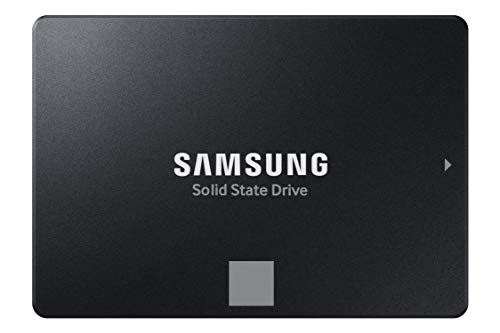
Samsung SSD 870 EVO 1TB — Safest SATA bet
The 870 EVO is the drive technicians reach for when a client says the words ‘just make it dependable’ and means them. Samsung builds its own NAND, its own controller and its own firmware, and that vertical control shows up in the details: consistent behaviour across capacities, firmware updates that arrive through Magician without drama, and an endurance rating that Samsung publishes plainly instead of hiding behind marketing language. Installed in an ageing laptop, it delivers the familiar transformation — cold boots in seconds, updates that stop taking all afternoon — but the reason it leads this list is what happens in year three and four, when cheaper drives start showing relocated sectors and this one simply keeps reporting healthy.
In daily use the 870 EVO feels unremarkable in the best possible way. Large file copies hold their pace instead of collapsing once a small cache fills, because the design pairs its V-NAND with a proper DRAM cache and well-tuned garbage collection. It runs cool in cramped laptop bays, sips power at idle, and Magician’s health screen gives a plain-language percentage of remaining life that even a cautious owner can check monthly. For a family PC, a work laptop or a small-office machine that cannot afford surprises, this is the drive against which the rest of the list is measured.
Ownership details round out the EVO’s case. Samsung has kept the model line stable across years of production, which means replacement knowledge, forum wisdom and spare-part familiarity all compound in the owner’s favour, and the drive behaves identically whether it lands in a Windows tower, a Linux box or a games console that accepts 2.5-inch storage. Its idle behaviour is well mannered, waking instantly without the lag some controllers show after sleep, and its warranty terms are written in plain language with a terabytes-written alternative that Samsung states openly. None of these are headline features, yet together they describe the ownership texture that reliability actually consists of: no surprises, in any direction, for a very long time. That steadiness is why so many of these drives end their first career as a boot disk and begin a second one as the family backup, still reporting health figures that embarrass younger hardware.
- Capacity: 1TB in this listing, with smaller and larger sizes in the same family
- Form factor: 2.5-inch, 7mm height, fits most laptop bays and desktop sleds
- Interface: SATA III, reads up to 560MB/s as printed in the listing title
- NAND and cache: Samsung V-NAND with a DRAM cache
- Software: Samsung Magician health monitoring and Data Migration cloning
Strengths
- Years of high-volume shipments give it the deepest track record here
- Magician reports remaining life clearly and handles firmware painlessly
- Steady sustained-write behaviour instead of a fast start and a collapse
Trade-offs
- Costs more per terabyte than the Crucial and WD rivals below
- SATA ceiling means no benefit in a machine built for NVMe speed
- The 1TB size fills quickly once a big game or video library moves in
Best for: a main laptop or desktop upgrade where the drive simply must not become a problem
Not suited for: a new performance build with a free M.2 slot and a need for multi-gigabyte transfers

Crucial MX500 1TB — Proven value anchor
The MX500 has been the sensible person’s SSD for so long that its reputation is practically a spec of its own. Crucial is Micron’s consumer brand, so the NAND inside comes from one of the three big memory makers, and the drive includes the features that bargain models quietly delete: a DRAM cache for consistent everyday responsiveness, hardware encryption support, and power-loss immunity for data already in flight when the lights go out. Owners who installed these in office fleets years ago report the same story as home users — the drives fade into the background and stay there, which is exactly the personality a reliability list is hunting for.
Living with the MX500 means Storage Executive checks every so often, a firmware update once in a long while, and otherwise silence. It clones easily with the bundled Acronis offer, behaves well in USB enclosures when the old drive gets demoted to backup duty, and its endurance rating, while lower than the 870 EVO’s, remains far beyond what a typical home workload writes in a decade. If the Samsung is the belt-and-braces choice, the MX500 is the same outfit bought on sale, and for many machines that difference in price buys a larger capacity instead — which, as the buying guide below explains, can itself be a reliability feature.
One practical MX500 habit worth copying is its behaviour in mixed company: it coexists happily with older chipsets, picky laptop BIOS revisions and USB enclosures that confuse fussier drives, which lowers the friction of both the initial clone and any later rescue attempt. Crucial’s firmware cadence for the line has been conservative — updates when needed, silence otherwise — and conservative firmware is a reliability feature in itself, since every update is also a small risk. Owners running the drive in a home server or a parent’s PC, machines that may go a year between anyone looking at them, benefit most from that temperament. The drive asks for almost no attention, gives clear warnings on the rare occasions it wants some, and otherwise converts electricity into dependable storage with a minimum of theatre.
- Capacity: 1TB in this listing, part of a long-running MX500 family
- Form factor: 2.5-inch 7mm SATA, with M.2 versions sold separately
- Interface: SATA III, up to 560MB/s reads as printed in the listing title
- NAND and cache: Micron 3D NAND with a DRAM cache
- Extras: hardware encryption support and Acronis cloning offer
Strengths
- Micron NAND and DRAM cache at a friendlier price than the leader
- Power-loss protection for in-flight data is rare at this price
- Huge installed base means every problem it has is already documented
Trade-offs
- Endurance rating sits a step below the 870 EVO at equal capacity
- Storage Executive software feels dated beside Samsung Magician
- Sustained writes slow sooner on very large single transfers
Best for: office fleets and home machines that need proven hardware without the Samsung premium
Not suited for: a write-heavy workstation role where the highest endurance rating matters most

WD Blue SA510 1TB — Quiet mainstream dependability
The WD Blue line has lived in the middle of Western Digital’s range for years, and the SA510 continues that role for SATA machines: not the fastest drive in the building, not the cheapest either, but a carefully supported product from a company whose Dashboard software makes health checks genuinely easy. For an older desktop that runs a household’s accounts, photos and schoolwork, that support structure matters. When a question arises, there is a real knowledge base, a real warranty process and a downloadable tool that shows drive health in plain terms rather than raw attributes alone.
On the road, or rather on the desk, the SA510 delivers exactly the responsiveness its class promises. Windows feels freshly installed again, application launches stop being coffee breaks, and the drive’s modest power draw suits small-form-factor machines that recycle warm air. Its endurance rating is honest mid-pack rather than class-leading, so we would not choose it for a machine that records security video all day, but for the ordinary rhythm of documents, browsing, streaming and occasional photo edits it has headroom to spare. Think of it as the reliable sedan of this roundup: unexciting on paper, exactly right in the driveway.
The SA510 also deserves credit for how it handles the unglamorous middle of its life. Its performance curve stays close to its day-one character as the drive fills, provided the owner leaves the customary headroom, and its temperature under ordinary desktop workloads stays modest enough for fanless small-form-factor cases. Western Digital’s retail presence helps in a way spec sheets ignore: if a unit ever does misbehave, the replacement conversation happens with a company that has a local process and a long memory for the model. For a machine that runs a household’s finances or a shop’s till software, that administrative reliability is part of the product. It is not the drive for a benchmark screenshot; it is the drive for a machine whose owner intends to think about storage roughly never.
- Capacity: 1TB in this listing, model WDS100T3B0A
- Form factor: 2.5-inch, 7mm, SATA mounting for laptops and desktops
- Interface: SATA III 6 Gb/s, up to 560 MB/s reads per the listing title
- Software: WD Dashboard for health, temperature and firmware checks
- Role: mainstream boot and storage drive for everyday computing
Strengths
- WD Dashboard makes long-term health monitoring approachable
- Backed by one of the largest storage support organisations anywhere
- Cool, frugal running suits compact and older machines
Trade-offs
- Mid-pack endurance rating rather than a class-leading figure
- No bundled cloning software in the box, unlike some rivals
- Performance is ordinary SATA pace with no surprises either way
Best for: a household or small-office desktop that needs a calm, well-supported boot drive
Not suited for: constant-recording or cache duties that write heavily every single day

SanDisk Ultra 3D 2TB — Roomy SATA workhorse
Reliability conversations often fixate on the drive and forget the fill level, yet a solid-state drive kept at ninety-five percent full wears faster and slows sooner than the same drive given breathing room. That is the quiet argument for the SanDisk Ultra 3D in this 2TB size: it lets a photo library, a game collection and a documents archive live together without the constant deletion shuffle that keeps a smaller drive permanently near the red line. SanDisk, part of the Western Digital family, builds this line on its 3D NAND with a cache design intended to keep everyday responsiveness steady as the drive fills.
In practice the Ultra 3D behaves like the mainstream drive it is, which counts as praise here. Boots are quick, game levels load without the texture pop-in of a spinning disk, and the SanDisk dashboard software reports health and firmware in a layout a non-specialist can follow. The larger capacity also changes backup maths: a 2TB internal drive can mirror a whole working life onto an external disk in one overnight job, instead of the selective copying that always seems to skip the folder that mattered. Choose it when the machine’s bay is SATA-only but the library has already outgrown one terabyte.
A note on how the Ultra 3D ages: its cache design favours the bursty rhythm of ordinary computing, so an owner whose days are documents, browsing and photo management will find it feeling fresh far longer than its price suggests, while a would-be video editor pushing hour-long writes should look at the NVMe pick instead. SanDisk’s dashboard keeps a friendly eye on remaining life, and the drive’s mainstream tuning means it plays well with older SATA controllers that can be temperamental with exotic hardware. There is also a simple psychological dividend to the capacity: when the drive is nowhere near full, the owner stops performing the weekly deletion ritual, and a computer that is not constantly being tidied is a computer that gets backed up calmly and used happily. Room, in storage, is a feature that quietly improves every other feature.
- Capacity: 2TB in this listing, model SDSSDH3-2T00-G26
- Form factor: 2.5-inch, 7mm, for standard laptop and desktop bays
- Interface: SATA III 6 Gb/s, up to 560 MB/s reads per the listing title
- NAND: SanDisk 3D NAND with cache acceleration for everyday loads
- Software: SanDisk Dashboard health and firmware utility
Strengths
- Double capacity relieves the near-full wear and slowdowns smaller drives suffer
- Mainstream NAND and controller from a major storage house
- Dashboard software keeps health checks simple for non-experts
Trade-offs
- Still bound by the SATA speed ceiling despite the larger size
- Costs more upfront than any 1TB drive in this list
- No DRAM cache headline feature like the Samsung and Crucial carry
Best for: a SATA-only machine whose photo, game or media library already crowds one terabyte
Not suited for: a compact laptop that only accepts M.2 sticks and has no 2.5-inch bay

Kingston KC600 512GB — Self-encrypting boot drive
The KC600 comes from the part of Kingston that sells to IT departments, and it shows in the feature list: self-encrypting hardware based on the TCG Opal standard, support for security suites that larger organisations already run, and firmware tuned for predictable behaviour rather than benchmark fireworks. At 512GB it is the smallest drive in this roundup, which frames its role precisely — a boot and applications drive for a machine whose files live on a server, a NAS or a larger secondary disk. In that role its dependability story is strong, because a drive that mostly reads and only lightly writes ages slowly.
Kingston’s SSD Manager keeps an eye on health and firmware, and the company’s support operation has handled enterprise volumes for decades, so warranty conversations tend to be short and factual. Where the KC600 earns its place over cheaper 512GB drives is consistency: it does not chase a headline speed with a tiny cache and then fall off a cliff during a Windows feature update. For a reception desk PC, a bookkeeping machine or a laptop carrying client data that should stay encrypted at rest, those grown-up manners outweigh the modest capacity. Just plan storage honestly, because half a terabyte disappears quickly once a few virtual machines or media projects move in.
The KC600’s second career is worth picturing before dismissing its size. Retired from boot duty in a few years, a self-encrypting 512GB drive becomes the perfect travelling vault for a consultant or the off-site backup that lives in a drawer at a relative’s house, encrypted by hardware and useless to anyone who finds it. Kingston’s enterprise packaging shows in small ways — the drive reports its attributes in the standard terms that monitoring tools across the industry understand, so it slots into managed environments without translation. For a sole home machine the capacity warning in its trade-offs stands, and we repeat it deliberately. For the business-shaped roles it was designed for, the KC600 is the most grown-up drive in this article, and grown-up is a compliment this category should use more often.
- Capacity: 512GB in this listing, model SKC600/512G
- Form factor: 2.5-inch SATA3 drive for standard bays
- Security: self-encrypting drive with TCG Opal based hardware encryption
- Software: Kingston SSD Manager for health and firmware status
- Role: business boot drive where data mostly lives elsewhere
Strengths
- Hardware self-encryption suits machines carrying client or patient data
- Enterprise-line tuning favours predictable behaviour over peaks
- Kingston’s support scale makes warranty handling straightforward
Trade-offs
- 512GB is tight for a sole drive in a modern machine
- Encryption features go unused in most home setups
- Per-terabyte cost runs high against the 1TB and 2TB picks
Best for: a work machine carrying sensitive files that needs encryption plus a calm boot drive
Not suited for: a single-drive gaming or media PC that will swallow half a terabyte quickly

Samsung 990 PRO 2TB — NVMe flagship, reliability first
The 990 PRO is what the 870 EVO’s philosophy looks like when the SATA ceiling disappears. Samsung again controls the full stack — its own V-NAND, its own controller, its own firmware — and pairs that with an endurance rating and warranty stance aimed at people who keep drives for a long time. The headline speed in the listing, up to 7,450 MB/s, is roughly thirteen times the SATA pace, yet the reason it belongs in a reliability roundup is not the sprint; it is that Samsung’s flagship line has a long record of stable firmware, honest thermals and Magician support that continues years after launch, which is precisely when dependability questions get asked.
Living with the 990 PRO means direct-storage games loading in a blink, video timelines scrubbing like they are made of stills, and a drive that still reports its health in the same friendly Magician screen as its SATA sibling. It does ask for a little respect in return: a motherboard heatsink or the model’s own thermal solution, a free PCIe 4.0 M.2 slot to reach full pace, and a backup routine worthy of the 2TB of life you will park on it. For a newer desktop or laptop that will serve half a decade, it is the pick that refuses to make you choose between fast and trustworthy.
Thermals deserve a final word on the 990 PRO, because its pace generates heat that a reliability-minded owner must plan for rather than discover. Under a motherboard heatsink or a laptop’s graphite spreader it sustains its work calmly; sealed against a hot graphics card with no airflow, it will throttle to protect itself, which is correct behaviour misread by owners as failure. Give it air and it gives back years of flagship service, with Magician tracking the health percentage all the way. It is also the only pick here that improves a machine’s capabilities rather than merely preserving them — direct-storage gaming, instant timeline scrubbing, virtual machines that snapshot in seconds — which makes it the right recommendation when the reliable drive and the exciting drive are allowed to be the same purchase.
- Capacity: 2TB in this listing, model MZ-V9P2T0B/AM
- Form factor: M.2 2280 stick for modern desktops and laptops
- Interface: PCIe 4.0 NVMe, up to 7,450 MB/s reads per the listing title
- NAND and software: Samsung V-NAND with Magician monitoring and cloning
- Cooling: plan on a motherboard heatsink for sustained heavy work
Strengths
- Flagship endurance and warranty backing from Samsung’s own stack
- Magician gives the same clear health reporting as the SATA leader
- Enormous speed headroom keeps it relevant across a long ownership span
Trade-offs
- Needs an M.2 slot, so older SATA-only machines cannot use it
- Runs warm under long transfers without a heatsink
- Premium pricing buys speed that office workloads never touch
Best for: a newer M.2 machine meant to serve for years without storage anxiety
Not suited for: an older laptop with only a 2.5-inch bay and no M.2 connector
What Actually Makes an SSD Reliable Over Five Years?
Endurance ratings are the closest thing the industry has to an honesty test. The terabytes-written figure estimates how much data a drive can absorb before its NAND wears out, and for context a heavy home user might write twenty to forty terabytes a year, which means a mid-range rating already covers a decade of ordinary life. Problems start when a workload is not ordinary: video surveillance recording, a busy cache drive, or a machine used as a scratch disk for editing can multiply those writes tenfold, and that is when stepping up a tier stops being paranoia and starts being arithmetic.
Heat is the slow enemy nobody watches. A drive tucked against a laptop battery or under a graphics card ages faster than the same drive in open air, and modern controllers protect themselves by throttling, which owners misread as the drive dying when it is really asking for airflow. Leave a slot of space where you can, use the heatsink the motherboard provides for NVMe sticks, and check temperatures in the maker’s software twice a year alongside the health percentage. A drive that runs ten degrees cooler for five years will usually outlive a theoretically tougher drive that baked.
Fill level quietly decides how hard the drive works. Flash memory needs empty blocks to write into, and when a drive is nearly full the controller shuffles data constantly to make room, multiplying wear in a process called write amplification. Keeping fifteen to twenty percent of capacity free is the cheapest reliability upgrade available, and it is the practical reason the 2TB SanDisk above can be the safer buy than a technically fancier 1TB drive that would live permanently at ninety percent full.
Firmware deserves one paragraph of respect. Every pick in this list comes from a maker that publishes updates, and those updates occasionally fix real longevity bugs, not just speed. Install the vendor’s utility on day one, let it check for updates, and then leave the drive alone — the owners who get into trouble are usually the ones flashing third-party firmware or ignoring a health warning for a year. Steady, boring maintenance is the whole secret, and it is available to anyone willing to spend ten minutes twice a year.
How Do You Move to a New SSD Without Losing Anything?
Start by backing up the irreplaceable files to somewhere that is not the old drive or the new one — an external disk, a NAS or a cloud folder — because cloning is reliable but not magic, and the one time it hiccups will be the time there was no backup. Then connect the new drive, internally if a slot is free or in a USB enclosure if not, and open the cloning tool from the drive maker where one is offered. Samsung Data Migration and Crucial’s Acronis offer handle the partition copying and alignment automatically, which removes the two mistakes manual copying makes most often.
Clone, shut down fully, and swap the drives before booting again, keeping the old drive untouched on a shelf for at least a few weeks. That untouched old drive is your undo button: if the new one misbehaves, the machine returns to its previous life in minutes. Once the new drive has booted cleanly several times, check that TRIM is enabled, confirm the health utility sees the drive and reports full health, and only then repurpose the old drive as the backup target it was always destined to become.
Finish with the small rituals that extend the new drive’s life. Point big, churn-heavy folders such as downloads and screen recordings at a secondary disk if the machine has one, leave that fifteen percent of free space alone, and set a calendar reminder to glance at the health percentage when you change the clocks. None of this is technical; it is housekeeping, and housekeeping is what separates the owners who replace drives on schedule from the owners who replace them in a panic.
How Long Should a Good SSD Actually Last in Real Life?
Translate ratings into calendars and the picture clears. A household machine that writes thirty gigabytes on a busy day — updates, photos, a game install — accumulates roughly ten terabytes a year, which means even a modest endurance rating covers decades of that rhythm, and the drives in this article will almost certainly be retired by a new computer rather than by worn NAND. The owners who genuinely consume ratings are the exceptions with a pattern: the home server recording cameras, the creator ingesting cards daily, the developer whose build tree lives and dies a hundred times a week. If you recognise your pattern in that list, buy endurance deliberately; if you do not, buy the proven model and stop worrying.
What actually ends most SSDs’ service is not wear but circumstance: a laptop replaced, a board that dies and takes confidence with it, a capacity that no longer fits a growing library. That is why this article weights track record and support so heavily — the drive most likely to serve you longest is the one whose maker will still publish its firmware and honour its paperwork in five years, in a machine whose other parts may have changed around it. Longevity, in practice, is an ecosystem property as much as a silicon property.
There is also a quiet statistical comfort in buying the popular drive. Models that ship in the millions surface their rare defects early and publicly, and the survivors on sale today embody the fixes. An obscure drive may be perfectly good, but its failure modes are undiscovered country. The six names here have each had their weaknesses found, documented and largely engineered away across production runs — which is the closest thing consumer electronics offers to a guarantee.
What Should You Do in the First Week With a New Drive?
Day one is for verification, not celebration. Install the maker’s utility, confirm the health reads at full, check that the firmware is current, and run one large copy of real files while watching the temperature the utility reports. A drive that survives its first week of honest work without a whisper of trouble has passed the infant-mortality window that catches most defective electronics, and after that window the odds tilt heavily toward a long, dull career. This is also the moment to register the warranty if the maker offers it, while the receipt is still findable.
The first week is also when the backup arrangement should become real rather than intended. Decide what copies what, on what schedule, and test a restore of one unimportant folder to prove the chain works end to end. Owners routinely discover their backup was a shortcut to nowhere at the exact moment they need it; a five-minute test on a calm afternoon converts that future ambush into a fixed setting. The new drive’s speed makes this painless — a full first backup that once took a night now takes an hour.
Finally, set the two recurring habits that carry the next five years: a twice-yearly glance at the health percentage, and a standing rule that the drive never sits above eighty-five percent full for long. Neither habit requires skill, software or money. Together they catch the slow failures early and prevent the self-inflicted ones entirely, which between them account for nearly every sad storage story ever told.
Which Reliable SSD Fits Which Kind of Machine?
For the ageing family laptop with a spinning disk and a 2.5-inch bay, the answer is whichever of the 870 EVO or MX500 is better priced on the day, at the largest capacity the budget allows, because either will outlast the laptop around it and the capacity will be thanked weekly. These machines gain the most from the swap in absolute terms — boot times collapse, updates stop being events — and their owners gain the most from the proven pair’s refusal to generate support calls. Buy once, clone carefully, and the laptop’s remaining years become a storage non-issue.
For the small-office desktop that holds accounts, records or a till, weight the support ecosystem higher than the spec sheet: the WD Blue’s dashboard and Western Digital’s replacement process, or the KC600 where the files themselves demand encryption at rest. These machines are infrastructure, and their storage should be bought the way infrastructure is bought — boring, documented, warrantied, with a named human able to check its health in thirty seconds. Speed beyond SATA’s honest pace buys such a machine nothing it will ever notice.
For the newer performance machine with an M.2 slot, the 990 PRO is the only pick that belongs, and the SATA five should be admired and skipped. Its owner gets the reliability programme — in-house NAND, published endurance, Magician’s supervision — at a pace that makes the machine feel new for years rather than months. The one discipline that purchase demands is thermal: seat it under the board’s heatsink, confirm its temperature under a long copy in the first week, and then let Samsung’s flagship do the quiet, decade-scale work it was built for.
What Does a Warranty Actually Promise, and What Does It Not?
A warranty promises a replacement drive, not your data, and that distinction should shape how much comfort the paperwork gives you. When a maker honours a five-year term with an endurance alternative, it is stating the period over which it expects the hardware to function and will stand behind that expectation with new hardware — a meaningful signal about the model’s engineering, and the reason this article treats warranty terms as evidence. It is not insurance, it does not recover a single photograph, and the owner who reads it as protection for their files has misunderstood the document in the most expensive way available.
Read the endurance clause with the same care. Many warranties end at whichever comes first — the years or the terabytes written — which means a heavy writer can exhaust a warranty’s coverage while the calendar still shows time remaining. That is not a trap; it is the rating doing its job as a measurable promise, and it is why matching the rating to your real writing, as the workstation-minded sections of this site keep insisting, matters even for home machines. A drive whose warranty you out-write in two years was the wrong drive, however famous its logo.
Keep the proof of purchase somewhere that is not the computer the drive lives in, and note the serial and install date in the same place. Warranty claims fail on missing paperwork more often than on disputed engineering, and the owners who sail through replacements are the ones who treat the administrative half of reliability as part of the purchase. It takes four minutes, once, and it converts the warranty from a marketing line into an actual asset.
None of this paperwork, of course, substitutes for the drive simply working — which returns the argument to where this article began. The six drives here were chosen because their combination of engineering, track record and support makes the warranty the least likely part of the product you will ever use. Buy the drive that makes the paperwork boring, keep the paperwork anyway, and back up like the paperwork does not exist. That trio of habits is the whole doctrine of reliable storage, and everything else in these pages is commentary.
A Short Word on Second-Hand and Spare Drives
A reliable drive’s story often continues after its first machine retires, and planning that second act is part of buying well. The SATA picks here slide naturally into enclosures as backup drives, into a relative’s older laptop as its second revival, or into the drawer as the known-good spare that turns a future failure into a ten-minute swap. When you choose a model with a deep track record, you are also choosing a drive whose health you can read confidently in five years, whose quirks are documented, and whose remaining life can be judged at a glance — qualities that matter as much in the spare as in the star.
If you buy a second-hand example of any drive in this list, interrogate its health before trusting it: ask for the utility’s health percentage and total writes, favour sellers who publish both unprompted, and run the first week as a probation with nothing irreplaceable aboard. A lightly used 870 EVO or MX500 at eighty-plus percent health is a rational bargain for a secondary role. A drive with no health information available is not a bargain at any price, because in storage the unknown is the one specification that never improves with optimism.
Keep one more distinction straight in the spares drawer: a backup drive and a spare drive are different jobs. The backup holds copies of your files on a schedule; the spare is empty, healthy and ready to become a boot drive the day one is needed. Conflating them means the day you need the spare, it is full of last year’s backup and half as healthy as you remembered. Label both, store them apart from the machine they serve, and let each do its single job well.
That drawer, properly kept, is the final form of the reliability this article has been describing all along: not a single heroic drive, but a small, understood system in which every component’s condition is known and every failure has a rehearsed answer. The famous names in this roundup earn their places inside that system. The system itself is built by the owner’s habits, and it is available at any budget that starts with one proven drive and a plan.
How Do These Six Reliability-First SSDs Differ When Placed Alongside One Another?
| Pick | Form and interface | Standout trait | Watch out for |
|---|---|---|---|
| Samsung SSD 870 EVO 1TB | 2.5-inch SATA | Deep track record and Magician software | Premium pricing for the class |
| Crucial MX500 1TB | 2.5-inch SATA | DRAM cache and power-loss care at mid pricing | Lower endurance rating than the EVO |
| WD Blue SA510 1TB | 2.5-inch SATA | Friendly Dashboard software and WD support | Ordinary endurance and pace |
| SanDisk Ultra 3D 2TB | 2.5-inch SATA, 2TB | Capacity headroom as a reliability strategy | SATA pace at a bigger-drive price |
| Kingston KC600 512GB | 2.5-inch SATA, 512GB | Hardware self-encryption, business tuning | Small capacity for the money |
| Samsung 990 PRO 2TB | M.2 NVMe PCIe 4.0, 2TB | Flagship speed with flagship backing | Needs M.2 slot and heatsink care |
Read the table as a map of trade-offs rather than a ranking. The SATA five differ mainly in capacity, encryption and software polish, while the 990 PRO changes the interface entirely, so the honest first question is always which connector your machine actually offers.
Which Mistakes Shorten an SSD’s Life the Most?
The classic error is buying on price alone from a brand with no published endurance rating, no health software and no visible support operation. Such drives often work for a year, which is long enough to collect a family’s photos and short enough to fail before the machine around them does. Every pick here costs more than the bargain bin, and the difference buys exactly the things that matter in year four: rated NAND, a real controller and a company that answers.
Filling a drive to the brim runs a close second. Owners treat a 1TB drive as a 1TB filing cabinet, then wonder why it crawls and wears. Leave headroom, archive finished projects to external storage, and let the controller breathe. A related mistake is defragmenting an SSD out of spinning-disk habit; the operating system already handles flash correctly with TRIM, and manual defragmentation only adds pointless writes.
Finally, people skip the backup because the new drive feels trustworthy. Feelings are not a strategy. Any single drive — including every excellent one in this article — can be lost to theft, a spill, a power surge or plain bad luck, and the owners who sleep well are the ones whose files exist twice. Buy the reliable drive, then make it boring by backing it up.
Final Recommendation
If the machine on your desk has a 2.5-inch bay, the 870 EVO is the recommendation we would give family, with the MX500 a breath behind for anyone watching the budget and the 2TB SanDisk the smarter call when a growing library is the real risk. The WD Blue suits households that value friendly software, and the KC600 covers the encryption-minded corner of the office world. Machines with an M.2 slot should skip the debate and take the 990 PRO’s combination of pace and pedigree.
Whichever name ends up in the cart, treat the purchase as the start of a habit rather than the end of a worry: clone carefully, keep the old drive as a fallback for a while, leave breathing room on the new one, and glance at its health twice a year. Do those small things and the drive you choose today is very likely to be retired by a faster computer, years from now, still reporting healthy — which is the most reliable ending any storage story can have.
Frequently Asked Questions
Do SATA SSDs last longer than NVMe SSDs?
Neither interface wears out meaningfully faster by itself; lifespan tracks NAND quality, endurance rating, heat and how full the drive is kept. A flagship NVMe drive with a strong rating, like the 990 PRO above, should outlast a bargain SATA model, while a proven SATA drive such as the 870 EVO will outlive a no-name NVMe stick. Judge the specific model and its published endurance, not the connector.
How can I check the health of a drive I already own?
Install the manufacturer’s utility — Samsung Magician, WD Dashboard, Kingston SSD Manager or Crucial Storage Executive — and look at the health percentage and temperature it reports. A drive above ninety percent health with no error warnings is ageing normally. Back up promptly if the figure drops quickly between checks or the utility flags relocated sectors, because those trends matter more than any single reading.
Is a DRAM cache important for reliability?
A DRAM cache mainly protects consistency and responsiveness, since the drive can track its data map properly instead of improvising under load. That steadiness reduces the stutters and write pile-ups that stress a controller, so drives with DRAM, like the 870 EVO and MX500 here, tend to feel calmer for longer. It is a supporting actor rather than the star, but its absence in bargain drives is a telling omission.
When should I replace a drive that still works?
Replace on evidence, not birthdays. A falling health percentage, growing error counts, unexplained slowdowns during simple copies, or a workload change — such as the machine becoming a recording or editing box — are all fair triggers. Many owners also retire a boot drive when the machine itself is replaced, moving the old SSD to backup duty where its remaining life is spent gently.
Can an SSD fail without any warning?
Yes, and honesty requires saying so plainly. Controllers can die suddenly even when the NAND is healthy, which is why this article keeps returning to backups. Warning signs catch the slow failures, which are the majority, but the sudden kind is defeated only by having your files in two places. A reliable drive plus a backup is a system; either one alone is a hope.
Should I buy a larger drive than I need today?
Usually yes, within reason, and reliability is the reason as much as convenience. A drive with generous free space spreads its writes across more cells, keeps its pace as it fills, and postpones the day it becomes the machine’s bottleneck. Libraries grow in one direction only, so the capacity that feels excessive this year tends to feel merely adequate in year three. If the budget forces a choice between a fancier model at a tight size and a proven model one size up, this article chooses the room every time.
Related Guides
Keep reading with our companion storage guides: best ssds for gaming load times best nvme ssds for laptops best external ssds for backup


