What's inside
- Where to buy
- Key Takeaways
- Quick Picks
- How did we choose these USB-C monitors?
- What should you check before a USB-C monitor replaces your charger?
- How do you set up a one-cable USB-C desk that actually charges?
- What mistakes do USB-C monitor buyers keep making?
- How do the six compare side by side?
- Which laptop pairings work best with each class of USB-C monitor?
- Why does the cable in the box matter more than the port on the screen?
- What does a working day actually look like on each kind of pick?
- How long should a USB-C monitor serve before it feels dated?
- How should you position a 27-inch or ultrawide screen once it arrives?
- What should you do in the first week if the setup misbehaves?
- Should you buy one strong screen now or two modest screens over time?
- Final Recommendation
- Frequently Asked Questions
- Related Guides
As an Amazon Associate I earn from qualifying purchases. This post may contain affiliate links at no extra cost to you.
gizmoverdict.com is reader-supported. When you buy through links on our site, we may earn an affiliate commission.
Where to buy
Every linked screen in this roundup is sold through Amazon’s US store, and each listing is the manufacturer’s own product page for that exact model, so the panel, stand and port selection you read about here is the hardware that arrives in the box. Stock on current-generation Dell and ASUS lines moves in waves, so if a listing shows a marketplace seller instead of the brand storefront, pause and confirm the model code in the title matches the one in our tables before you pay.
Shoppers hunting for the best usb c monitors usually want one cable to do three jobs at once: carry the picture from a laptop, send power back into that laptop, and turn the monitor into a small docking station for a mouse, a keyboard and maybe a webcam. That wish is reasonable, but the six screens below deliver it to very different degrees, and the differences hide in a single number that many listings bury: USB-C power delivery wattage. A monitor that pushes a healthy charge can replace your laptop brick on the desk. A monitor that trickles out a token amount of power — and one pick here is rated at just 15 watts over USB-C, according to its own listing — will watch your battery drain while you work, cable connected or not. Reading this guide with that one distinction in mind will save you from the most common disappointment in the whole category.
The spread itself is wide. Two Dell 27-inch panels anchor the mainstream, one QHD and fast, one 4K and colour-steady. An ASUS ProArt brings verified colour accuracy and daisy chaining for creators. A BenQ keeps Full HD and a high refresh rate for buyers whose laptops or budgets do not stretch to QHD. An LG offers QHD and HDR10 at an approachable tier but carries that 15-watt caveat in plain print. And a curved 34-inch Philips stretches the format into ultrawide territory with a USB hub and height adjustment for people who live inside spreadsheets and timelines. If your desk also hosts a smaller portable screen for travel days, our best 4k hdr monitors roundup covers that different, battery-friendly class separately.
Key Takeaways
- Power delivery is the dividing line in this category: check the wattage figure on the listing itself, because the LG in this guide is rated at 15W over USB-C, which cannot keep a working laptop charged under load.
- QHD at 27 inches is the sweet spot for most laptop desks, giving you visibly sharper text than Full HD without the scaling compromises that 4K sometimes forces on older software.
- Only the ASUS ProArt in this set advertises daisy chaining in its listing, so a second screen from a single laptop port is a ProArt-specific plan, not a category-wide assumption.
- Stand adjustment varies more than panel quality does here: the Dell QHD and the Philips adjust for height, pivot and swivel, while the LG tilts only, which pushes an arm or a riser into your real budget.
- A USB-C port on the spec sheet guarantees a picture from a compatible laptop, not a charge, not a hub, and not a second display — each of those is a separate feature to confirm.
Quick Picks
| Pick | Badge | Why it earns its place |
|---|---|---|
| Dell 27 Plus QHD USB-C Monitor S2725DC | Best all-round USB-C desk screen | QHD sharpness, a 144Hz panel and a fully adjustable stand make it the easiest single-cable upgrade for a mixed work-and-play desk. |
| Dell 27 Monitor S2725QC | Best 4K option | A 3840×2160 IPS panel at 120Hz with 99% sRGB coverage suits readers who want retina-class text and smoother motion in one screen. |
| ASUS ProArt PA278CV | Best for colour-critical work | Calman Verified accuracy with Delta E under 2, a built-in USB hub and daisy chain support make it the creator’s tool of the six. |
| BenQ GW2790C | Best eye-care value | Full HD keeps the price of entry down while BenQ’s flicker-free, low-blue-light tuning and a 144Hz refresh keep long office days comfortable. |
| LG 27U631A-B | Best QHD picture per tier | QHD resolution, HDR10 and 99% sRGB colour look strong on paper, but its 15W USB-C output means your laptop charger stays plugged in beside it. |
| Philips 34 Inch Curved USB-C Monitor 346E2CUAE | Best ultrawide | The 3440×1440 curved VA panel, USB 3.2 hub and height-adjustable stand replace a dual-monitor rig with one wide, tidy screen. |
How did we choose these USB-C monitors?
We started from a simple desk test in our heads: a modern laptop, one cable, and a working day that mixes documents, browser tabs, a video call and a spreadsheet. Any screen that could not plausibly anchor that day did not make the list. From there we sorted by the four things that actually separate USB-C monitors from one another in daily use. First, what the USB-C connection genuinely does on that model — picture only, picture plus meaningful charging, or picture plus charging plus hub duty. Second, panel resolution against screen size, because pixel density decides whether text looks printed or merely adequate. Third, the stand, since a screen you cannot raise to eye level will tax your neck long before its panel ages. Fourth, the honesty of the listing: where a manufacturer states a modest figure, such as the LG’s 15W, we treat that candour as useful information rather than a reason to drop the product, and we flag it loudly instead.
Colour claims were handled with the same discipline. Where a listing states a gamut figure — 99% sRGB on the Dell 4K and the LG, 100% sRGB and Rec.709 on the ProArt — we report it as the manufacturer’s figure and lean on it only for relative sorting. Where a listing is silent about charging wattage, we do not guess a number; we tell you exactly where on the product page to look for it, because that single check decides whether a one-cable desk is real or theatre. Refresh rates, response figures and HDR badges are likewise quoted from the listings and weighed against what a laptop can actually feed the panel over one cable.
What should you check before a USB-C monitor replaces your charger?
Begin with the power budget of your own laptop. Most thin-and-light machines ship with chargers in the mid range of the USB-C spectrum, and they will accept a slower charge gracefully while you browse, then lose ground the moment you export video, compile code or join a call with the camera on. A monitor whose USB-C output meets or beats your laptop’s usual draw turns the screen into the charger. One that falls far short turns the screen into a display that happens to share a cable shape with a charger. The gap between those two experiences is the entire product category in miniature, and it is why the wattage line deserves more of your attention than the HDR badge beside it.
Next, confirm that your laptop’s USB-C port carries a video signal at all. Ports that support DisplayPort Alt Mode or Thunderbolt send a picture; a charging-only port does not, and no monitor can fix that from its end. Then think about what else you plug in. A monitor with a built-in USB hub lets the keyboard and mouse live on the desk permanently, connected to whichever laptop you dock that morning. Without a hub, every device needs its own cable or a separate dock, and the one-cable dream quietly becomes a four-cable reality with better marketing. Finally, measure your desk depth and your chair height. A 27-inch screen on a tilt-only stand can be raised with books for a week; by the second month you will want the arm you should have budgeted for on day one.
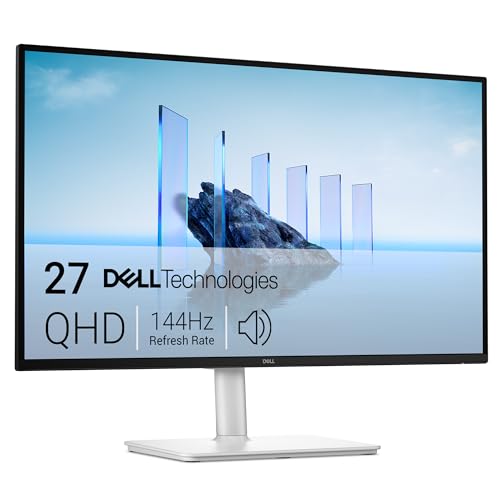
Dell 27 Plus QHD USB-C Monitor S2725DC — Best all-round USB-C desk screen
Dell’s S2725DC is the monitor we would hand to a colleague who asked for one recommendation and no homework. The listing describes a 27-inch QHD panel at 2560×1440 running up to 144Hz with a 1ms response figure, AMD FreeSync support, and connectivity that spans USB-C, HDMI and DisplayPort 1.4. That combination covers the two lives most desks now lead: documents and calls by day, and a game or a film in the evening, without asking you to swap cables or apologise for the panel’s motion handling. The Ash White finish also matters more than spec sheets admit, because a light-coloured bezel and stand change how a small home office feels at 8 a.m. in a way a black slab does not.
What lifts this Dell above its own siblings is the stand. Height, tilt, pivot and swivel are all present, which means the screen rises to meet your eyes, rotates for a long contract or a portrait-mode document, and swings toward a colleague without you dragging the whole unit across the desk. Pair that with the pair of 3W speakers the listing includes — adequate for calls and casual video, which is exactly the job built-in speakers should be judged on — and you have the most complete single purchase in this guide. A buyer moving from a 1080p laptop screen will feel the QHD jump in every spreadsheet column; a buyer moving from an older QHD monitor will feel it in the refresh rate instead.
- Panel: 27-inch QHD, 2560×1440, listed at 144Hz with a 1ms response figure
- Sync: AMD FreeSync support for tear-free motion from compatible graphics hardware
- Connections named in the listing: USB-C, HDMI and DisplayPort 1.4
- Audio: two integrated 3W speakers for calls and casual viewing
- Stand: height, tilt, pivot and swivel adjustment in an Ash White finish
Strengths
- The fully adjustable stand removes the hidden second purchase that tilt-only rivals quietly demand.
- A 144Hz QHD panel gives office work a smoothness that 60Hz screens cannot match when scrolling long documents.
- Three named video inputs mean a laptop, a desktop and a console can all live on this screen without a cable swap ritual.
Trade-offs
- The listing does not headline a USB-C charging wattage, so confirm the figure on the product page if one-cable charging is your main reason to buy.
- Built-in 3W speakers handle voices well but will not carry music or film the way even a modest desk speaker set can.
- FreeSync is an AMD-ecosystem feature; NVIDIA owners get the refresh rate but should check the listing for the sync behaviour they expect.
Best for: laptop owners who want one 27-inch screen that handles workdays and evenings equally well, with a stand that fits their posture from day one.
Not suited for: shoppers whose top priority is a certified colour pipeline for print work — the ProArt below is built for that job instead.

Dell 27 Monitor S2725QC — Best 4K option
The S2725QC takes the same 27-inch footprint as its QHD sibling and quadruples the pixel count behind the glass. Dell’s listing states a 4K UHD IPS panel at 3840×2160 with 163 pixels per inch, a 120Hz refresh rate, 99% sRGB coverage, a 4ms response figure and FreeSync Premium. In practice that pixel density is the headline: text on this screen looks typeset rather than rendered, code editors stop showing jagged letterforms, and photo work gains the fine detail that a QHD panel smooths away. Readers who spend their day inside documents will notice the upgrade within the first hour and then stop noticing, which is the highest compliment a monitor can earn.
The 120Hz refresh deserves a word of context, because 4K screens were stuck at 60Hz for years and many buyers still assume that ceiling. Doubling it makes window dragging, scrolling and casual gaming feel fluid in a way that has nothing to do with frame rates in a benchmark chart; it is the difference between a desktop that feels responsive and one that feels sedate. Dell also lists anti-glare treatment and its Eye Comfort Technology, a sensible pairing for a screen this sharp, since a glossy 4K panel under office lighting turns into a mirror with excellent resolution. USB-C, HDMI and DisplayPort connectivity are all named, so the docking story matches the QHD model.
- Panel: 27-inch IPS at 3840×2160, listed at 163 PPI and 120Hz
- Colour: 99% sRGB coverage stated in the listing
- Response and sync: 4ms figure with FreeSync Premium support
- Surface: anti-glare coating with Dell Eye Comfort Technology
- Connections named in the listing: USB-C, HDMI and DisplayPort on an LED edgelight design
Strengths
- 163 PPI density makes long reading and detailed editing noticeably easier on the eyes than any QHD panel here.
- 120Hz at 4K removes the old compromise between sharpness and smoothness.
- Anti-glare treatment suits bright rooms where a glossy screen would fight the windows all afternoon.
Trade-offs
- Your laptop’s graphics hardware works harder to drive 8.3 million pixels, and older machines may cap the refresh rate over a single cable.
- At 27 inches, some users will run interface scaling, which trades away part of the raw workspace the resolution promises.
- As with its sibling, the listing does not foreground a USB-C wattage, so verify charging strength on the product page before retiring your laptop brick.
Best for: writers, editors and detail workers who read on screen all day and want the sharpest text this guide offers.
Not suited for: owners of older laptops with modest graphics, who will get more usable workspace and motion from the QHD Dell above.

ASUS ProArt PA278CV — Best for colour-critical work
The ProArt PA278CV is the professional in the room, and its listing reads like a checklist written by someone who bills clients for colour. ASUS describes a 27-inch 1440p QHD IPS monitor that is Calman Verified with Delta E under 2, covering 100% of sRGB and Rec.709, with a USB hub, an ergonomic stand and Eye Care features. Delta E under 2 means the panel’s colour errors sit below the threshold most viewers can perceive, which is the difference between editing a product photo with confidence and editing it with a nagging doubt that the reds will shift when the client opens the file. For photographers, illustrators and video editors who deliver work rather than merely view it, that verification is the product.
Two practical features widen the ProArt’s lead for desk-bound creators. Daisy chaining, named directly in the listing, lets a second compatible display hang off this monitor’s chain rather than demanding another port from a laptop that may only have two. That is how a one-cable desk becomes a two-screen studio without a separate dock. The integrated USB hub plays the same trick for peripherals: drives, card readers and a drawing tablet can stay plugged into the monitor while laptops come and go. Add the fully ergonomic stand and you have a screen designed to be the permanent centre of a working desk, with everything else orbiting it.
- Panel: 27-inch IPS at 1440p QHD resolution
- Accuracy: Calman Verified, Delta E under 2 per the listing
- Colour: 100% sRGB and Rec.709 coverage stated by ASUS
- Expansion: daisy chain support and a built-in USB hub
- Stand and comfort: ergonomic stand with ASUS Eye Care features
Strengths
- Verified colour accuracy removes guesswork for anyone delivering photos, illustrations or graded video to clients.
- Daisy chaining is unique in this guide and turns one laptop port into a genuine dual-screen setup.
- The USB hub makes the monitor a true docking point, not just a display with a modern port shape.
Trade-offs
- QHD resolution gives editors less pixel-level room than the 4K Dell, even though its colour discipline is stronger.
- The listing does not emphasise gaming figures, and fast-paced players will prefer the 144Hz Dell for motion.
- Daisy chaining depends on compatible hardware at both ends, so check your laptop and second screen before planning around it.
Best for: photographers, designers and video editors whose income depends on colours arriving as intended.
Not suited for: players chasing the highest refresh rate in this guide, or buyers who will never open a colour-managed application.

BenQ GW2790C — Best eye-care value
BenQ’s GW2790C makes a deliberate trade and makes it openly: it keeps resolution at 1080p Full HD on its 27-inch IPS panel, then spends the savings on comfort and speed. The listing pairs that panel with a 144Hz refresh rate, USB-C connectivity, an ultra-slim bezel design and a stack of eye-care technology — Flicker-Free operation, Low Blue Light modes, a Visual Optimizer and TUV certification, gathered under BenQ’s Eye-CareU banner. For a buyer whose laptop is a few years old, whose eyes ache by mid-afternoon, or whose budget simply has a ceiling, this is the honest configuration: fewer pixels, treated kindly, refreshed quickly.
The 144Hz figure surprises people at this tier, and it changes the feel of ordinary work more than of games. Text stays legible a fraction longer while scrolling, the mouse pointer tracks without the faint smear of a 60Hz panel, and a lunch-break game runs at the speed the hardware intended. The slim bezels also suit a two-screen arrangement, where the GW2790C can serve as the secondary display beside a sharper main panel — a role in which Full HD stops being a compromise and becomes sensible allocation of money. Just keep expectations calibrated: at 27 inches, 1080p text is visibly softer than QHD, and no eye-care mode can sharpen letterforms the pixels never drew.
- Panel: 27-inch IPS at 1080p Full HD, listed at 144Hz
- Comfort: Flicker-Free and Low Blue Light technology with TUV certification
- Tools: Visual Optimizer and BenQ Eye-CareU features named in the listing
- Connection: USB-C listed alongside the home-office positioning
- Design: ultra-slim bezel suited to multi-monitor desks
Strengths
- The eye-care stack is the most developed in this guide, and it addresses the fatigue that actually ends office workers’ days.
- A 144Hz refresh at Full HD is easy for modest laptop graphics to drive at full speed.
- Slim bezels make it the natural second screen in a mixed-resolution desk setup.
Trade-offs
- Full HD at 27 inches shows its pixel structure in text; writers who read all day should weigh the QHD models first.
- The listing does not state a USB-C charging wattage, so one-cable charging needs confirming on the product page.
- Colour coverage figures are not headlined, which makes it a weaker candidate for photo delivery work.
Best for: home-office buyers with tired eyes, older laptops or a firm budget who still want a fast, gentle panel.
Not suited for: anyone who edits fine detail or reads dense text for a living and would feel the Full HD softness within a week.

LG 27U631A-B — Best QHD picture per tier
Let us deal with the LG 27U631A-B the way its own listing does: honestly, and with the caveat first. LG states USB Type-C at 15W on this monitor. Fifteen watts will slow a phone’s discharge and might hold a very light laptop at idle, but it will not charge a working laptop — under any real load, a machine plugged into this screen alone will lose battery through the day and eventually ask for its own charger. So buy this monitor as a display that accepts a USB-C picture, not as a docking station. Judged on those terms, it has real merit; judged as a one-cable solution, it will disappoint you, and we would rather say that here than let you discover it at 4 p.m. with a deadline open.
As a display, the package is coherent. The listing describes a 27-inch IPS QHD panel at 2560×1440 running 100Hz with a 5ms response figure, HDR10 support, sRGB 99% colour (Typ), Dynamic Action Sync, Reader Mode and Flicker Safe technology, with HDMI alongside the USB-C input. That is a pleasant specification for mixed office and media use: QHD clarity, a refresh rate a step above the old 60Hz standard, and colour coverage that keeps photos and design drafts looking faithful. The limitation is physical rather than electronic — the stand tilts only. On a desk at the wrong height, you will be adding a riser or an arm, and that addition belongs in your price comparison from the start.
- Panel: 27-inch IPS QHD, 2560×1440, listed at 100Hz with 5ms response
- USB-C: rated at 15W in the listing — display input, not laptop charging
- Colour and HDR: sRGB 99% (Typ) with HDR10 support
- Modes: Reader Mode, Flicker Safe and Dynamic Action Sync
- Stand: tilt adjustment only; plan a riser or arm if your desk sits low
Strengths
- QHD resolution with 99% sRGB coverage gives it a picture that punches at the stronger end of its tier.
- 100Hz refresh and Dynamic Action Sync keep motion cleaner than a basic 60Hz office panel.
- LG states the modest 15W figure openly, which makes planning around it straightforward.
Trade-offs
- The 15W USB-C output cannot charge a working laptop; your existing charger remains part of the desk.
- A tilt-only stand almost guarantees a second purchase for anyone whose screen height is not already right.
- HDR10 here is a compatibility badge on an office-class panel, not the highlight performance of a true HDR display.
Best for: buyers who already keep a laptop charger at the desk and simply want a good QHD picture fed by one USB-C video cable.
Not suited for: anyone whose entire reason for shopping is retiring the laptop brick — look at the hub-and-charge models above instead.

Philips 34 Inch Curved USB-C Monitor 346E2CUAE — Best ultrawide
The Philips 346E2CUAE answers a different question from the five 27-inch screens above: not how sharp one window can be, but how many windows can share one horizon. Its listing describes a 34-inch curved VA panel at UWQHD 3440×1440, running 100Hz, with USB-C power delivery, a USB 3.2 hub, built-in speakers, height adjustment, Adaptive Sync and a four-year advance replacement warranty. Spread a spreadsheet across that width and the columns stop feeling rationed; park a document beside a browser beside a chat window and none of them has to shrink into uselessness. The curve is not decoration at this size — it keeps the far edges at a more even distance from your eyes than a flat 34-inch panel can.
Working life on an ultrawide has a rhythm worth describing. Video calls sit in the centre while notes live to one side, timelines in editing software unspool without constant zooming, and the bezel that used to split your attention between two monitors disappears entirely. Philips supports that life with the details that matter: the hub keeps peripherals resident on the monitor, height adjustment sets the wide panel at a sane eye line, and the warranty term suggests the company expects the screen to stay on desks for years. VA panel traits apply — viewing angles and contrast behaviour differ from the IPS screens above — but for a single viewer centred on a wide canvas, that trade is usually the right one.
- Panel: 34-inch curved VA at UWQHD 3440×1440, listed at 100Hz
- Docking: USB-C with power delivery plus a USB 3.2 hub
- Audio: built-in speakers for calls and casual media
- Stand: height adjustment included in the listing
- Coverage: Adaptive Sync support and a four-year advance replacement warranty
Strengths
- One wide screen replaces a dual-monitor rig and deletes the centre bezel from your working day.
- The USB 3.2 hub and USB-C power delivery make it a genuine docking point for a laptop desk.
- A four-year advance replacement warranty is unusually reassuring backing for a screen this size.
Trade-offs
- VA contrast and viewing behaviour differ from IPS; colour-critical delivery work belongs on the ProArt.
- The listing does not headline the exact USB-C wattage, so confirm the figure if your laptop is power-hungry.
- A 34-inch curved panel needs real desk depth and width — measure before you fall for the format.
Best for: spreadsheet keepers, editors and multitaskers who want dual-screen width without dual-screen clutter.
Not suited for: small desks, or colour graders who need verified IPS accuracy more than horizontal room.
How do you set up a one-cable USB-C desk that actually charges?
Start at the wall, not at the screen. Plug the monitor into mains power first, because a USB-C monitor can only pass along charging power it receives itself; a screen running on a forgotten, unplugged power lead is the most common reason a new docking setup appears broken. Next, use the cable that came with the monitor or a cable rated for both video and the wattage involved. Charging cables and data cables share a connector shape but not a capability, and a cable that carries power without DisplayPort Alt Mode will charge your laptop while showing you a black screen — a combination that has generated a great deal of confused support traffic across the industry.
With picture and charge both alive, open your laptop’s battery readout and watch it under a real task, not at idle. Join a call, open your heaviest document, and confirm the percentage climbs or at least holds. If it falls, your monitor’s delivery is below your machine’s working draw, and the honest fix is to keep the laptop’s own charger attached and treat the monitor cable as video plus convenience. Then arrange the software side: set the external screen as your main display if you work with the laptop lid closed, check that your operating system’s scaling suits the panel’s resolution, and only then tidy the cables. A setup verified in that order rarely surprises you later.
What mistakes do USB-C monitor buyers keep making?
The costliest mistake is treating the port shape as a promise. USB-C describes a connector, not a capability list, and two monitors with identical-looking ports can differ by a factor of four in charging power, include or omit a hub, and support or refuse a daisy chain. Read the wattage and the feature list for the exact model, every time. A close second is buying resolution without checking the machine that must feed it: a 4K panel behind an elderly laptop that caps external displays at a low refresh rate delivers neither the sharpness experience nor the smoothness you paid for. Check your laptop’s external display specification before you fall in love with a panel.
Stand neglect runs third. Buyers compare panels for an hour and stands for zero seconds, then spend months with a screen four centimetres too low and a stiff neck as the receipt. If the stand lacks height adjustment, price a VESA arm into the purchase honestly — and confirm the monitor actually carries a VESA mount before assuming one. Finally, do not let an HDR badge steer a USB-C purchase. On office-class panels it signals compatibility with HDR content, not the dramatic highlights of a true HDR display, and it should never outrank charging power, resolution or ergonomics in your decision.
How do the six compare side by side?
| Monitor | Size and resolution | Refresh | Defining feature | Stand |
|---|---|---|---|---|
| Dell S2725DC | 27-inch QHD 2560×1440 | 144Hz | All-round balance with integrated speakers | Height, tilt, pivot, swivel |
| Dell S2725QC | 27-inch 4K 3840×2160 | 120Hz | 163 PPI text density with FreeSync Premium | Adjustable Dell stand |
| ASUS ProArt PA278CV | 27-inch QHD 1440p | Standard office class | Calman Verified accuracy, daisy chain, USB hub | Ergonomic stand |
| BenQ GW2790C | 27-inch Full HD 1080p | 144Hz | Eye-CareU flicker-free comfort stack | Slim-bezel home office design |
| LG 27U631A-B | 27-inch QHD 2560×1440 | 100Hz | HDR10 and 99% sRGB, but USB-C limited to 15W | Tilt only |
| Philips 346E2CUAE | 34-inch UWQHD 3440×1440 curved | 100Hz | USB 3.2 hub and four-year warranty | Height adjustable |
Read the table from left to right and a pattern emerges: resolution and refresh stop being the argument quite quickly, because five of the six panels are genuinely pleasant to look at, and the argument becomes about infrastructure. The two Dells ask you to trust a mainstream formula executed well. The ProArt asks whether your work is judged by other people’s eyes. The BenQ asks how your own eyes feel at the end of the day. The LG asks whether a charger already lives on your desk. The Philips asks how wide your work truly is. None of those questions appears on a spec sheet, yet each one predicts your satisfaction six months from now far better than a response-time figure ever will.
Notice, too, what the table cannot show: the wattage column we deliberately left out for models whose listings do not headline the number. That absence is itself information. Brands that deliver strong charging tend to print the figure in large type, because it sells the monitor. When the number is missing from the title and the feature bullets, assume the product page’s fine specifications hold the answer and go and read them before you buy. A monitor is a five-to-eight-year purchase for most households; twenty minutes spent confirming its charging behaviour is the cheapest insurance in this entire guide.
Which laptop pairings work best with each class of USB-C monitor?
Thin-and-light ultrabooks are the natural partners for this category, because their owners already live on one or two USB-C ports and feel every missing socket. With a hub-equipped monitor such as the ProArt or the Philips, an ultrabook gains a desk identity: arrive, plug one cable, and the screen, keyboard, mouse and storage all wake together. The discipline required is wattage arithmetic. Ultrabooks sip power compared with gaming laptops, so a mid-range delivery figure that would starve a workstation keeps an ultrabook at a full battery through a day of documents and calls. If your machine’s own charger carries a modest rating, a monitor in the same neighbourhood is a true replacement, not a compromise.
Gaming and workstation laptops invert the calculation. Their chargers are often large bricks rated far beyond what any monitor in this guide claims, because their processors and graphics hardware can draw heavily under load. For those machines, treat every USB-C monitor here as a display first: connect it for the picture, keep the original brick attached for power, and do not interpret a slowly falling battery during a rendering job as a fault. The monitor is doing its job; the physics of your laptop simply outrun what a display can feed it. Owners of such machines should weight panel quality, refresh rate and stand ergonomics — the Dell QHD’s motion handling or the Philips’ width — and let charging drop out of the decision entirely.
Mac laptops sit comfortably in this category, with one habit worth forming: macOS remembers display arrangements per setup, so the first docking deserves a minute in the display settings to set arrangement, scaling and which screen hosts the menu bar. Do that once and subsequent dockings are uneventful. Chromebooks, finally, are the quiet overachievers of USB-C docking — most support external displays over the port without fuss, and a QHD screen transforms a modest Chromebook into a credible desktop for writing and research. Whichever machine you own, the pairing rule is constant: the monitor’s stated capabilities and the laptop’s stated external-display limits must overlap, and the overlap is where your experience will live.
Why does the cable in the box matter more than the port on the screen?
USB-C’s great strength — one connector for everything — is also its great trap, because cables that look identical carry wildly different capabilities. A cable intended only for charging may move power beautifully while carrying no video signal at all. A short, thick cable bundled with a monitor is usually rated for the full job, which is why the dull advice to try the included cable first resolves so many apparently broken setups. Length matters as well: the highest-bandwidth signals degrade over distance, so a long bargain cable can quietly cap your refresh rate or resolution even when both the laptop and the monitor support more. If your 144Hz screen insists on running at 60Hz, suspect the cable before you suspect the panel.
There is a housekeeping habit that pays for itself here: label your cables. A small tag on the one cable proven to carry video, power and data turns a drawer of identical black cords into a toolkit. When you travel, take the labelled cable; when a colleague’s setup misbehaves, lend it as a diagnostic. And when you buy a spare, buy it against a specification — video support and a wattage rating at or above your laptop’s needs — rather than against a photograph of a connector. The port on the screen gets the attention in every advertisement, but in daily use it is the humble cable that decides whether the promise of USB-C survives contact with your desk.
What does a working day actually look like on each kind of pick?
Picture a Monday that begins with email triage and ends with a client presentation, and walk it across three of these screens to feel where the differences bite. On the BenQ, the morning is gentle: the flicker-free panel and low-blue-light tuning make two hours of inbox work feel shorter than they are, and the 144Hz refresh keeps the scroll through a long thread fluid. By the afternoon spreadsheet session, though, the Full HD ceiling shows itself — columns are a touch soft, and you find yourself zooming the sheet a notch larger than you would on a QHD panel, which quietly eats the workspace the zoom was meant to protect. The BenQ’s day is comfortable but slightly blurred at the edges, which is precisely the trade its buyer accepted.
On the Dell S2725QC, the same day runs in higher definition. The presentation deck’s fine print stays legible when you preview it at full size, the spreadsheet’s gridlines are crisp at a smaller zoom, and the extra clarity compounds across hundreds of small glances. The cost appears only if your laptop is older: fans spin a little harder pushing four times the pixels, and a machine that caps external output at a lower refresh makes the desktop feel less fluid than the panel allows. On the Philips ultrawide, the day reorganises itself entirely — the deck on the left, the notes in the middle, the call window on the right — and the mental tax of window shuffling, which you never noticed paying, simply stops being charged. Each screen wins a different part of the day, which is why the right question is never which monitor is best, but which hours of your day matter most.
How long should a USB-C monitor serve before it feels dated?
Monitors age more slowly than the laptops feeding them, and a well-chosen screen from this guide should comfortably outlast two laptops. Panels do not slow down; what dates a monitor is its connections and its resolution. USB-C with video support is now the settled standard on new laptops, which protects every pick here, and QHD or 4K resolution will remain comfortable long after today’s laptop is retired. The features most likely to feel old first are the convenience layers — a hub whose port selection no longer matches your peripherals, or a stand you have been meaning to replace with an arm since the second month. That is another argument for buying the stand and the hub properly the first time: they are the parts of the purchase you will interact with daily for the better part of a decade.
There is also a resale and hand-me-down logic to consider. A 27-inch QHD USB-C screen makes an excellent second household monitor when your main desk upgrades, and a screen with standard HDMI and DisplayPort inputs — which every pick here carries alongside USB-C — can migrate to a desktop, a console corner or a family member’s study without adapters or apology. Buy the panel you need now, confirm the inputs give it a second life later, and the purchase stops being a gadget expense and becomes household infrastructure. That framing, more than any single specification, is how the best monitors in this category justify themselves over the years they will spend on your desk.
How should you position a 27-inch or ultrawide screen once it arrives?
Unboxing day enthusiasm usually puts the screen wherever it fits, and posture pays for that haste for months. Begin with height: the top of the visible panel should sit at or slightly below your eye level when you are seated upright, so your gaze falls a few degrees downward across the screen rather than craning up at it. On the fully adjustable Dells this is a thirty-second task. On the tilt-only LG it is the moment of truth — set the screen on its stand, sit in your real chair, and measure the gap honestly. A riser that lifts the panel cleanly is a fine solution; a stack of books works for a week and then becomes permanent in the way temporary things do, so order the riser the same day if you need one.
Distance is the second setting buyers skip. A 27-inch QHD or 4K panel wants roughly an arm’s length between your eyes and the glass, close enough that text is effortless, far enough that the whole width sits inside a comfortable glance. The 34-inch Philips asks for a little more depth again, and its curve rewards being centred precisely: sit off to one side and the far edge’s geometry feels subtly wrong in a way you will notice every day without ever naming. Finally, light the desk, not the screen. A lamp behind or beside the monitor that lifts the room’s ambient level reduces the contrast between a bright panel and a dark room, and that contrast — not the panel itself — is what leaves many office workers rubbing their eyes at six in the evening. Ten minutes of positioning on the first day is the highest-value setup work in this entire purchase.
Cable dressing deserves the same ten minutes. Route the USB-C lead so it reaches the laptop without tension at either end, because a cable under constant sideways pull worries the port on your laptop over months of docking. Leave a gentle loop of slack for the days the laptop moves to the other side of the desk, and keep the monitor’s power lead on the same tidy path so the whole installation can be lifted, cleaned under and reseated without a knot forming. None of this appears in a review score, yet it decides whether your one-cable desk still feels like a pleasure in year two.
What should you do in the first week if the setup misbehaves?
Most USB-C desk problems announce themselves in the first week and nearly all of them have mundane causes. If the screen wakes at a lower resolution or refresh rate than its listing promises, work through the chain in order: the cable first, since it is the cheapest link and the most common culprit; then the specific port on your laptop, because machines often reserve full display capability for one or two of their USB-C sockets; then the laptop’s own display settings, where an inherited profile from a previous monitor can quietly cap the new one. Change one link at a time and retest, or you will fix the problem without learning which fix mattered — knowledge you will want the day a second screen joins the desk.
If charging falters, repeat the same discipline with the power path. Confirm the monitor’s own mains lead is seated and its outlet live, watch the battery percentage under a genuine workload rather than at idle, and compare what you see against the wattage expectations this guide set for your model. A screen that holds a light laptop steady through a browsing morning is behaving correctly even if a video export later outruns it. And if peripherals attached to a hub-equipped monitor vanish after sleep, that is usually a power-management setting in the operating system rather than a hardware fault; the fix lives in the USB power options, not in a return label. A week of small, methodical adjustments is normal for a docking desk, and it ends with a setup that simply works every morning thereafter.
Should you buy one strong screen now or two modest screens over time?
Budget pressure tempts many buyers toward a cheaper screen today and a second one later, and sometimes that is the right sequence — a BenQ now and a QHD partner next year is a perfectly respectable desk. But weigh the hidden arithmetic. Two modest screens mean two stands competing for the same desk depth, two power leads, and a bezel down the middle of your attention, while one strong screen such as the QHD Dell or the Philips ultrawide concentrates the money on panel quality, stand engineering and a hub you will use every day. If your work is mostly one document at a time with references at the edges, the single strong screen usually serves better. If your work is genuinely parallel — a call, a codebase and a dashboard all live at once — the pair earns its clutter. Decide from your actual windows, not from the romance of a battlestation photograph.
Final Recommendation
For most laptop owners, the Dell S2725DC is the purchase we would make first: QHD clarity, a 144Hz panel and a stand that adjusts every way that matters, wrapped around the USB-C connection that brought you here. Choose the Dell S2725QC instead if your day is made of text and fine detail and your laptop can drive 4K properly. Creators who deliver colour to clients should step to the ASUS ProArt PA278CV and its verified accuracy and daisy chaining, while budget-minded home offices will find the BenQ GW2790C’s comfort-first trade genuinely kind. The LG earns its place as a picture, never as a charger, and the Philips is the wide open horizon for people whose work sprawls. Match the monitor to the job your desk actually does, and the single cable will feel like the upgrade it was supposed to be.
Frequently Asked Questions
Will any USB-C monitor charge my laptop?
No. Charging depends on the power delivery wattage the monitor offers and the draw your laptop needs. The LG in this guide is rated at 15W in its listing, which cannot sustain a working laptop, while hub-class models are built to deliver far more. Always compare the monitor’s stated wattage with your laptop’s charger rating before assuming the brick can retire.
Why does my laptop charge through the monitor but show no picture?
The cable or the port is carrying power without video. A picture requires DisplayPort Alt Mode or Thunderbolt support at the laptop’s port and a cable rated for video. Try the cable supplied with the monitor first, and check your laptop’s specification for the port you are using — on many machines only some USB-C ports carry a display signal.
Is QHD or 4K better at 27 inches?
4K is sharper, and readers and detail editors feel the difference in text. QHD is easier for older graphics hardware to drive at high refresh rates and needs no interface scaling for most users. Pick 4K for reading density, QHD for simplicity and motion, and check your laptop’s external display limits either way.
What does daisy chaining actually let me do?
It lets a second compatible monitor connect through the first monitor instead of directly to your laptop, so one laptop port drives two screens. In this guide only the ASUS ProArt lists daisy chain support, and both your laptop and the second display must support the chain for it to work.
Does a USB-C monitor work with the laptop lid closed?
Generally yes, provided the laptop stays connected to power — which, on a docking desk, the monitor itself may be supplying. Both major laptop platforms support closed-lid operation with an external display, keyboard and mouse attached, though the setting lives in the power options and may need enabling once. Keep ventilation in mind: a closed laptop under a stack of papers will run warm, so give the machine air while it works as your desktop.
Can I use one of these monitors with a desktop PC as well?
Yes. Every pick here also lists conventional inputs such as HDMI or DisplayPort alongside USB-C, so a desktop can connect the ordinary way while a laptop docks over USB-C. That dual life is part of the appeal for households sharing one desk between machines: the family desktop keeps its permanent cable, the work laptop comes and goes on a single lead, and the screen’s input button mediates between the two without any replugging at the back panel, which is where cables go to be forgotten.
Related Guides
If your desk grows beyond a single screen, our best office monitors guide sorts the wider field by stand quality and panel size, and the best super ultrawide monitors roundup goes deeper on high-resolution picks for readers and editors. Both stay within the same verified-listing approach used here, so the specs you read are the specs the manufacturers state.



[…] is gentler on desks and budgets, and sim racers speccing a complete cockpit should continue to our best usb c monitors guide, where curve radius and field of view get the full […]