What's inside
- Key Takeaways
- Quick Picks
- How Were These Machines Chosen for Electrical Engineering?
- Why Does EE Software Care About CPU and RAM More Than Graphics?
- What Does ISV Certification Mean, and Should You Care?
- What About Linux, Virtual Machines and Remote Lab Machines?
- How Should a Student Spend Differently from a Working Engineer?
- Which Laptop Matches Your Stage of Electrical Engineering?
- How Do the Six Compare on the Specs Engineers Check?
- Why Do Sustained Loads Separate Workstations from Everything Else?
- What About Screens, Keyboards and the Bench Itself?
- How Do You Set Up an EE Laptop for Toolchain Work?
- How Do You Prove an EE Laptop in Its First Week?
- What Mistakes Do EE Students and Engineers Make When Buying?
- How Does Teamwork Change What an EE Laptop Needs?
- Final Recommendation
- Frequently Asked Questions
- Related Guides
As an Amazon Associate I earn from qualifying purchases. This post may contain affiliate links at no extra cost to you.
gizmoverdict.com is reader-supported. When you buy through links on our site, we may earn an affiliate commission.
Where to buy: The six listings linked below are the current Amazon pages for these machines. Workstation families are sold in many configurations under one name, so read the full listing title before ordering and confirm the processor, memory, storage and graphics fitted to the exact unit you are buying.
Choosing among the best electrical engineering laptops starts with a fact that surprises people raised on gaming-laptop marketing: most of the software that defines an EE degree or an EE job does not care much about your graphics card. MATLAB and Simulink grind through processor cores and memory. SPICE simulations are famously single-threaded slogs. FPGA toolchains — the Vivado and Quartus builds that turn HDL into bitstreams — eat RAM and single-core speed for hours at a time. PCB layout tools want a responsive machine with plenty of memory and a screen you can stare at. The glamorous gaming GPU, the one with the biggest number in the advertisement, is mostly a bystander in this discipline.
That does not mean any laptop will do. It means the buying logic inverts. The machines that serve electrical engineers best are, in order of honesty: certified mobile workstations with professional graphics and 32GB of memory; strong mainstream laptops whose processors and memory outrun their modest graphics; and — clearly labelled as such in this guide — light ultraportables that handle lectures, notes and gentle simulation but must not be asked to compile an FPGA design the night before a deadline. This guide contains all three kinds, because EE students and engineers live at all three budgets, but it labels them without flinching, including the popular ultraportable whose 8GB of memory makes it a companion machine rather than a toolchain machine.
A note on specification honesty before the picks. Workstation listings are dense with model codes, and some retail titles carry seller comparison claims dressed up as specifications. This guide ignores those strings entirely and builds only on the hardware actually named: processors, graphics, memory, storage, displays and ports as stated in each listing. Where a buying decision depends on certified drivers for a specific professional application, we tell you how to check the software vendor’s certified-hardware list yourself, because that list — not a retail page — is the document that counts.
Key Takeaways
- EE software is mostly processor- and memory-bound: MATLAB, SPICE, FPGA synthesis and PCB CAD reward strong single-core performance and 32GB of RAM far more than a gaming graphics card.
- The three workstation picks — two HP ZBooks and a ThinkPad P14s — carry professional RTX graphics whose certified drivers matter for CAD and simulation packages, plus the memory this discipline actually consumes.
- The ASUS Vivobook 15 is the mainstream shortcut: a Core i9-13900H and 32GB of memory handle coursework and mid-size professional projects without workstation pricing logic.
- The Dell XPS 13 in this guide is an 8GB ultraportable. It is a lecture-and-notes machine with light simulation ability, and this guide will not pretend otherwise.
- The HP 15.6 is the budget route: 16GB of memory and a Ryzen 7 cover coursework fundamentals, with clear ceilings stated in its review.
Quick Picks
| Pick | Badge | Why it earns its place |
|---|---|---|
| HP ZBook Power G11 A | Best workstation value | RTX 1000 Ada professional graphics, a Ryzen 7 PRO processor, 32GB of DDR5 and dual Thunderbolt 4 in HP’s entry workstation line. |
| HP ZBook Studio G11 | Best premium workstation | The Studio pairs an Intel Ultra 7 165H and RTX 1000 Ada graphics with 32GB of memory in the sleeker 16-inch chassis. |
| Lenovo ThinkPad P14s Gen 6 | Best portable workstation | RTX PRO 500 Blackwell graphics and 32GB of memory in a 14.5-inch touchscreen body that still travels to lectures and labs. |
| ASUS Vivobook 15 i9-13900H | Best mainstream power | A Core i9-13900H with 32GB of memory and a 1TB drive — coursework muscle without a workstation badge. |
| Dell XPS 13 | Best light-duty companion | A 13.4-inch 2.5K touchscreen ultraportable for notes, lectures and light simulation — with only 8GB of memory, stated plainly. |
| HP 15.6 Ryzen 7 7730U | Best budget route | Sixteen gigabytes of memory, a Ryzen 7 and a numeric keypad at the accessible end of the EE shelf. |
How Were These Machines Chosen for Electrical Engineering?
We weighted the criteria the way the software does. Single-core processor performance came first, because SPICE runs, MATLAB scripts that refuse to parallelise and long stretches of FPGA synthesis all queue up behind one busy core. Memory came a close second — 32GB wherever the budget allowed — because an FPGA build or a large Simulink model that starts swapping to disk does not slow down gracefully; it falls off a cliff, usually at the worst hour of the project. Professional graphics came third, valued not for frame rates but for driver certification: workstation RTX cards are validated against the professional applications engineers actually open, and that validation is a feature you can verify on the software vendor’s own certified-hardware list before buying.
Ports and practicalities filled the remaining weight. Dual Thunderbolt 4 on the workstations matters because EE life is dongle life: oscilloscopes, programmers, dev boards, external drives and lab monitors all want connections, and a machine that docks cleanly at a bench saves daily friction. Screens were judged for long-session comfort rather than entertainment flash — the FHD+ panels on the workstations are workhorse resolutions that keep interface text crisp without taxing the graphics. We deliberately included two non-workstations with their ceilings labelled, because a first-year student whose heaviest task this semester is circuit homework in a browser-based simulator does not need to spend like a design engineer, and a guide that only lists flagships fails that reader. What we refused to include is any machine whose marketing leans on gaming graphics as its EE credential. If a laptop’s pitch is frame rates, it is answering a question this discipline did not ask.
Why Does EE Software Care About CPU and RAM More Than Graphics?
Walk through the toolchain and the pattern explains itself. Circuit simulation with SPICE solves systems of equations iteratively, and classic SPICE engines do that work overwhelmingly on one core; a faster single core finishes your transient analysis sooner, while a second graphics card watches. MATLAB is a more varied case — some toolboxes parallelise beautifully, some functions use the GPU when offered — but the everyday reality of scripts, Simulink models and signal-processing coursework is processor throughput plus memory capacity, because models and datasets live in RAM and the interpreter’s speed sets the pace. When a student says MATLAB feels slow, the cause is usually an elderly processor or memory pressure, not the absence of a gaming GPU.
FPGA work is the discipline’s memory hog and its patience test. Synthesis and place-and-route for a mid-size design can occupy gigabytes of memory and run for tens of minutes to hours, largely bound by processor speed and RAM headroom. This is the workload that turns 8GB from a specification into a wall, and 32GB from a luxury into a working requirement for anyone whose course or job includes real FPGA projects. PCB CAD sits at the friendlier end: layout tools are interactive rather than batch-bound, rewarding a responsive processor, enough memory for large boards with many layers, and a screen that keeps traces and silkscreen legible at working zoom. Professional graphics drivers earn their place here and in 3D-adjacent tools — enclosure modelling, some simulation front-ends — where certification against the application is a stated, checkable thing.
One more workload deserves a sentence of its own, because it ambushes students every year: the group project build. When four laptops must each compile the same design and three finish in minutes while one takes the length of the meeting, the slow machine’s owner becomes the team’s bottleneck and its most motivated upgrader. Team projects also expose memory differences brutally, since the shared design is sized by the course, not by your laptop. If your programme is project-heavy, weight memory and sustained processor performance even higher than this section already does — your teammates’ deadlines are riding on your specification too.
The practical translation is a buying order.
Spend first on the processor tier, second on reaching 32GB of memory if any FPGA or heavy simulation work is in your future, third on storage that will not fill with toolchains — these suites are enormous — and only then on graphics beyond the professional baseline. The six picks below are arranged so that each budget lands on that order rather than against it.
What Does ISV Certification Mean, and Should You Care?
Independent software vendor certification is the workstation world’s least glamorous and most practical idea: the maker of a professional application tests specific hardware and driver combinations and publishes a list of what it stands behind. For an engineer, the value is not a logo. It is that when a CAD package glitches on a certified configuration, the vendor’s support treats it as their problem too, and the driver you install is the driver they tested. Professional RTX graphics — the RTX 1000 Ada cards in the two ZBooks, the RTX PRO 500 Blackwell in the ThinkPad — exist in this ecosystem; consumer graphics generally do not, however fast they are at other things.
Check it the way professionals do: go to your application’s vendor, find their certified-hardware or system-requirements page, and look for the machine or graphics family you are considering. While you are on that page, read the rest of the requirements with the same care — the memory floor the vendor states, the operating system editions supported, the storage the suite expects. Vendors publish these pages because support calls taught them to; the buyer who reads them before purchasing is simply accepting free tuition from other people’s support calls, and there is no cheaper education in this entire guide.
Do that before purchase if your employer or university names a specific package as the standard. Students should care proportionally less — coursework rarely hinges on certified configurations, and university labs exist partly to absorb that risk — but a student buying one machine to carry into a first job does well to buy inside the certified world when the budget reaches it, which is precisely where the ZBook Power positions itself.
What About Linux, Virtual Machines and Remote Lab Machines?
A significant slice of engineering computing lives outside Windows. Embedded development, many EDA flows and most serious scripting cultures assume a Linux environment, and the EE laptop buyer should decide how that need will be met before choosing hardware. The common routes are a native dual-boot installation, a Linux subsystem or virtual machine inside Windows, or remote access to a lab or university server that runs the tools natively. Each route taxes the laptop differently. A virtual machine wants memory above all — it is a second computer living inside the first — which is another concrete reason the 32GB machines in this guide serve engineers well and the 8GB ultraportable serves them narrowly. Remote access, by contrast, taxes the network and the screen, and asks almost nothing of local muscle, which is how a light companion machine can remain viable for a student whose institution runs serious servers.
All six picks here ship with Windows — the workstations and the Vivobook and HP with Windows 11 Pro, the XPS 13 with Home — and Windows 11 Pro’s broader virtualisation and remote-desktop support is a quiet argument for the Pro machines if your workflow leans on virtual machines or managed networks. Whatever route you choose, test it in your first weeks with a real project rather than a toy example: compile something, simulate something, connect the actual dev board you will use this semester. Driver and cable gremlins for programmers and debug probes are a rite of passage, and they are far better met in week two than in the lab session where the work is graded.
How Should a Student Spend Differently from a Working Engineer?
The same budget argues differently depending on whose money it is and what failure costs. A working engineer’s laptop failing or crawling costs billable hours and professional credibility, which is why the certified workstation, bought once and expensed sensibly, dominates professional logic: the ZBook Power’s premium over a mainstream machine is small against a single deadline saved. A student’s failure costs a stressful night and possibly a lab session spent on a department machine — real costs, but survivable ones — while the student’s budget competes with rent, books and food. That asymmetry is why this guide refuses to declare the workstation the only respectable choice. For a student, the Vivobook’s specification or even the HP 15.6’s honest floor, combined with knowledge of where the lab machines live, is a rational plan rather than a compromise to apologise for.
Timing sharpens the argument. A first-year student buying the maximum machine is buying for modules they have not met, on syllabuses that may change; a final-year student or a new graduate knows their specialisation and can buy precisely for it. If you are early in the degree and uncertain, the middle of this guide — strong processor, 32GB if reachable, no certification premium — is the position that wastes least in either direction. If you are late in the degree and headed for FPGA or power or RF work with named professional tools, the workstation premium stops being a premium and becomes the price of the correct tool. Either way, spend a small part of the budget on the unglamorous companions: a decent mouse for layout work, a hub for the bench, and backup storage for design files. Engineers lose more work to missing backups than to slow processors.
Which Laptop Matches Your Stage of Electrical Engineering?

HP ZBook Power G11 A — Best workstation value
The ZBook Power is the entry door to the certified workstation world, and for most electrical engineers it is the smartest money in this guide. The listing specifies an AMD Ryzen 7 PRO 8845HS processor, NVIDIA RTX 1000 Ada professional graphics, 32GB of DDR5 memory and a 1TB SSD behind a 16-inch FHD+ display — which is to say, every element of the EE buying order satisfied at once: strong cores for SPICE and synthesis, the memory ceiling this discipline respects, professional graphics for certified-driver applications, and storage sized for toolchains that install like small operating systems. Two Thunderbolt 4 ports anchor the bench-docking life.
Consider how it behaves across an ordinary professional week, because that is the test its price asks to pass. Monday is a Simulink model that needs its parameters swept; the Ryzen cores and the memory headroom turn the sweep into a coffee break rather than an afternoon. Wednesday is a board review, where the RTX card’s certified drivers open the layout and the enclosure views without the graphical quirks that uncertified combinations occasionally produce. Friday is an FPGA build that runs while documentation gets written in parallel — the exact multitasking-under-load scenario where 32GB stops being a number and becomes the difference between working and waiting. A machine that makes all three days unremarkable has done its job.
What the Power line trades away, relative to its Studio sibling, is sleekness rather than capability.
This is a working chassis, built for labs and offices rather than for admiration, and its 16-inch FHD+ panel is a productivity resolution rather than a showcase. For the engineer whose days are Simulink models, PCB layouts and the occasional FPGA build, those trades are invisible by the second week, while the savings against the premium tier remain real. It runs Windows 11 Pro, which matters in managed environments and for some toolchain installers that assume it. If you are a final-year student buying into your first job, or a working engineer equipping yourself, this is the guide’s default answer — the machine against which the others must argue.
- Display: 16-inch FHD+
- Processor and graphics: AMD Ryzen 7 PRO 8845HS with NVIDIA RTX 1000 Ada
- Memory and storage: 32GB DDR5, 1TB SSD
- Ports: 2x Thunderbolt 4
- Operating system: Windows 11 Pro
Strengths
- Certified-class professional graphics and 32GB of memory at the workstation range’s entry point.
- Ryzen 7 PRO silicon gives synthesis and simulation the single-core pace they queue behind.
- Dual Thunderbolt 4 makes one-cable bench docking a daily reality.
Trade-offs
- The FHD+ panel is a workhorse, not a showcase — media-first buyers will find it plain.
- Workstation build means workstation presence; it is not the lightest 16-inch option.
- Buyers who never open certified applications pay for a driver ecosystem they will not use.
Best for: working engineers and final-year students who need one certified, memory-rich machine for the full toolchain.
Not suited for: students in their first semesters whose workloads are still browser-light and budget-bound.

HP ZBook Studio G11 — Best premium workstation
The Studio G11 takes the same professional formula and wraps it in HP’s sleeker flagship chassis. Its listing names an Intel Core Ultra 7 165H processor, NVIDIA RTX 1000 Ada graphics with 6GB of dedicated memory, 32GB of DDR5 and a 1TB SSD, behind a 16-inch FHD+ display, with two Thunderbolt 4 ports, an IR camera and Wi-Fi 7 completing a specification that reads like the Power’s, refined. The engineering substance — certified drivers, memory headroom, toolchain stamina — is shared with its sibling; what the Studio adds is the thinner, more polished machine around that substance, for engineers whose laptop also sits in client meetings and design reviews.
Choose between the two ZBooks by environment rather than by power. If the laptop lives on a bench and in a lab, the Power’s value logic wins. If it travels between sites, presents to customers and doubles as your only computer at home, the Studio’s finish and newer wireless earn their place. One caution applies to both and is worth stating here: workstation lines are configuration mazes, and the Studio name covers lesser builds than the one listed. The listing in this guide specifies the 32GB, RTX 1000 Ada configuration; if a price elsewhere looks surprisingly gentle, check which configuration it attaches to before concluding anything about value.
- Display: 16-inch FHD+
- Processor and graphics: Intel Core Ultra 7 165H with NVIDIA RTX 1000 Ada, 6GB
- Memory and storage: 32GB DDR5, 1TB SSD
- Ports and wireless: 2x Thunderbolt 4, Wi-Fi 7, IR camera
- Operating system: Windows 11 Pro
Strengths
- Full workstation credentials — certified graphics, 32GB, pro operating system — in the refined chassis.
- Wi-Fi 7 and an IR camera suit the engineer who moves between lab, office and client sites.
- Intel Ultra silicon keeps heavy simulation sessions responsive across a long day.
Trade-offs
- You pay a premium for finish over the Power while the core engineering specification stays close.
- The FHD+ resolution is again productivity-first rather than pixel-dense.
- Lesser configurations share the Studio name — verify the exact build when comparing listings.
Best for: engineers who want certified workstation substance in a machine that also presents well to clients.
Not suited for: bench-bound users who would rather the budget went to the Power and a second monitor.

Lenovo ThinkPad P14s Gen 6 — Best portable workstation
The P14s answers the question the two 16-inch HPs cannot: what if the workstation has to commute? Lenovo fits an Intel Core Ultra 7 255H, NVIDIA RTX PRO 500 Blackwell graphics with 6GB, 32GB of DDR5 memory and a 1TB SSD into a 14.5-inch FHD+ touchscreen body with Thunderbolt 4 and a backlit keyboard — the full EE formula, professional graphics included, in a machine that fits a lecture-hall desk and a train tray. The ThinkPad line’s keyboard reputation is earned over decades of engineers typing on them, and long report-writing sessions are where that reputation cashes out.
The Blackwell-generation professional graphics are the specification to notice: this is the newest GPU architecture in the guide, in its professional tier, which positions the P14s well for the driver-certification cycles of the next several years. The compromises are the portable ones. A 14.5-inch screen shows less of a dense PCB layout at once than the 16-inch panels, so a bench monitor becomes a more valuable companion; and a compact workstation chassis works harder to cool itself under an hours-long synthesis run than a larger one does. For the engineer or postgraduate whose work genuinely moves — between lab, office, site and home — those are the right compromises, and this is the only pick here that makes them without surrendering memory or professional graphics.
- Display: 14.5-inch FHD+ touchscreen
- Processor and graphics: Intel Core Ultra 7 255H with NVIDIA RTX PRO 500 Blackwell, 6GB
- Memory and storage: 32GB DDR5, 1TB SSD
- Ports and input: Thunderbolt 4, backlit keyboard
- Operating system: Windows 11 Pro
Strengths
- The complete workstation formula — 32GB, professional graphics, pro OS — in a genuinely portable body.
- Newest-generation professional GPU positions it well for coming driver and application cycles.
- ThinkPad keyboard quality pays off across years of reports, code and documentation.
Trade-offs
- The smaller screen shows less of a complex board layout; a bench monitor is a wise companion.
- Compact cooling works harder under sustained synthesis loads than the 16-inch machines.
- Touch input is a convenience here, not a layout tool — PCB work still belongs to mouse and keyboard.
Best for: mobile engineers and postgraduates who need certified power that travels daily.
Not suited for: desk-anchored designers who would rather have the 16-inch canvas built in.
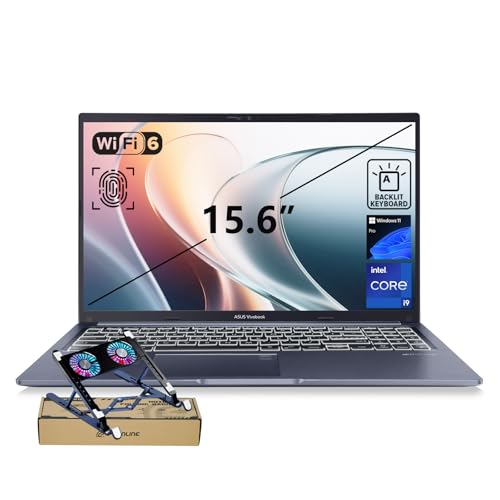
ASUS Vivobook 15 i9-13900H — Best mainstream power
The Vivobook 15 is the guide’s argument that coursework does not check your laptop’s badge. ASUS fits an Intel Core i9-13900H — a genuinely powerful processor tier — with 32GB of memory and a 1TB SSD behind a 15.6-inch FHD display, running Windows 11 Pro, with a physical webcam shield, backlit keyboard and fingerprint reader among its practical touches. For MATLAB coursework, SPICE assignments, programming, report writing and mid-size projects, that specification is not a compromise at all; it is simply a fast computer. The i9’s core count also flatters the parts of engineering computing that do parallelise, from batch simulations to compiling large codebases.
There is a student-specific pleasure to this machine worth naming: it boots, loads and compiles like a computer that respects your time, and in shared flats and libraries that responsiveness reads as quality every single day. Coursework is a thousand small waits — opening the IDE, loading the model, rendering the plot — and a strong processor with memory to spare deletes most of them. Students consistently underestimate how much of their frustration with engineering software is actually waiting, and how much of that waiting a specification like this one removes.
Its boundary is equally clear, and it is the boundary of its class: integrated graphics and no workstation certification story.
The student whose programme centres on a certified CAD or simulation package, or the professional whose employer standardises on certified configurations, should be in the ZBook and ThinkPad sections of this guide. The student whose heaviest verified loads are coursework-scale — which describes a large share of EE undergraduates — gets more usable speed here per unit of budget than anywhere else in the guide, plus consumer-machine conveniences the workstations skip. It is sold with a bundle per the listing, so confirm exactly what the listing includes before comparing it against bare-machine prices elsewhere.
- Display: 15.6-inch FHD
- Processor and graphics: Intel Core i9-13900H with integrated graphics
- Memory and storage: 32GB RAM, 1TB SSD
- Practical touches: physical webcam shield, backlit keyboard, fingerprint reader
- Wireless and operating system: Wi-Fi 6, Windows 11 Pro
Strengths
- Core i9 power and 32GB of memory deliver coursework and mid-size project speed without workstation pricing.
- A 1TB drive swallows the EE toolchain’s famously large installations.
- Privacy shield, fingerprint reader and Pro Windows are grown-up touches at a mainstream position.
Trade-offs
- No professional graphics or certification story — certified-application users belong with the workstations.
- Integrated graphics cap 3D-adjacent work at modest levels.
- Wi-Fi 6 trails the newest picks by a generation.
Best for: undergraduates and self-funded engineers whose verified workloads are coursework and mid-size projects.
Not suited for: professionals whose employer or clients require certified workstation configurations.

Dell XPS 13 — Best light-duty companion
Now the guide’s most important act of labelling. This XPS 13 listing specifies a beautiful ultraportable — a 13.4-inch 2.5K touchscreen at 120Hz, an Intel Core 5 320 processor, Wi-Fi 7, a backlit keyboard, 512GB of storage — and 8GB of LPDDR5 memory. Eight. For lectures, notes, reading, writing, browser-based simulators, light MATLAB sessions and the administrative half of an engineering life, that is a delightful machine: sharp screen, tiny footprint, modern wireless. For FPGA synthesis, large Simulink models or a desktop’s worth of toolchains open at once, 8GB is not a limitation to manage but a wall to hit, and no elegance of design changes the arithmetic.
So buy it, if you buy it, as what it is: the companion. It is the laptop of the engineer who has access to a lab workstation or a desktop for heavy builds and wants a superb machine for everything else — the lectures, the site visits, the report written in a café, the simulation checked quickly rather than run fully. Bought with that understanding, it will be loved. Bought as a sole machine for a degree with an FPGA module in year three, it will be replaced in year three, at the exact moment money is tightest. The guide includes it because the search that led you here surfaces it constantly, and you deserve the honest paragraph rather than a silent omission or, worse, an unqualified recommendation.
- Display: 13.4-inch 2.5K touchscreen, 120Hz
- Processor: Intel Core 5 320
- Memory and storage: 8GB LPDDR5, 512GB SSD — read the framing above before buying
- Wireless: Wi-Fi 7
- Operating system: Windows 11 Home
Strengths
- A superb 2.5K touchscreen and ultraportable build make lectures, notes and travel genuinely pleasant.
- Wi-Fi 7 and a sharp, fast panel put it a generation ahead of most companion machines.
- Handles browser simulators, documents and light coding without any fuss.
Trade-offs
- 8GB of memory rules out heavy FPGA builds, large simulations and serious multitasking with toolchains.
- Windows 11 Home rather than Pro, which some managed environments and tools prefer.
- Its price buys elegance and portability, not engineering headroom.
Best for: engineers and students with lab or desktop access who want a premium light-duty companion.
Not suited for: anyone needing a sole machine for FPGA toolchains or heavy simulation — choose the Vivobook or a workstation.

HP 15.6 Ryzen 7 7730U — Best budget route
The HP 15.6 closes the guide at the price of admission. Its listing specifies an AMD Ryzen 7 7730U processor, 16GB of memory, a 512GB SSD and a 15.6-inch FHD touchscreen with a numeric keypad, running Windows 11 Pro with Wi-Fi 6 and fast charging among its features. Sixteen gigabytes is the specification that keeps this machine honest: unlike the 8GB ultraportable above, it can hold a real coursework session — MATLAB open beside a browser full of datasheets, a SPICE window, lecture slides and a report — without the constant swapping that makes budget laptops feel broken. The numeric keypad, an unglamorous feature, is one engineers and students entering data actually use weekly.
Its ceilings are straightforward. The Ryzen 7 7730U is an efficient mainstream processor, not a synthesis sprinter; large FPGA builds are lab-machine work on this budget, and integrated Radeon graphics keep it out of certified-application territory entirely. The 512GB drive asks for tidiness with toolchain installations. But judged as the floor of respectability for an EE student — the machine that does the coursework, survives the degree’s first two years without complaint, and costs what a careful budget can reach — it earns its place without apology. Students who later specialise into FPGA-heavy or simulation-heavy work will upgrade with knowledge of exactly why, which is the best reason to upgrade there is.
- Display: 15.6-inch FHD touchscreen
- Processor and graphics: AMD Ryzen 7 7730U with Radeon graphics
- Memory and storage: 16GB RAM, 512GB SSD
- Keyboard and charging: numeric keypad, fast charge support
- Wireless and operating system: Wi-Fi 6, Windows 11 Pro
Strengths
- 16GB of memory keeps real coursework multitasking smooth at the budget end.
- The numeric keypad is a small feature engineering students genuinely use.
- Windows 11 Pro and a touchscreen exceed what this price tier usually offers.
Trade-offs
- Mainstream processor: heavy synthesis and big simulations belong on lab machines.
- 512GB demands discipline with the toolchain’s large installations.
- Integrated graphics only — no certified-application path.
Best for: budget-conscious students covering coursework fundamentals with a machine that respects the work.
Not suited for: FPGA-heavy specialisations or professional certified workflows, which need the workstations above.
How Do the Six Compare on the Specs Engineers Check?
| Machine | Processor | Graphics | Memory | Class |
|---|---|---|---|---|
| HP ZBook Power G11 A | Ryzen 7 PRO 8845HS | RTX 1000 Ada | 32GB | Workstation |
| HP ZBook Studio G11 | Intel Ultra 7 165H | RTX 1000 Ada 6GB | 32GB | Workstation |
| ThinkPad P14s Gen 6 | Intel Ultra 7 255H | RTX PRO 500 Blackwell 6GB | 32GB | Portable workstation |
| ASUS Vivobook 15 | Intel Core i9-13900H | Integrated | 32GB | Mainstream power |
| Dell XPS 13 | Intel Core 5 320 | Integrated | 8GB | Light-duty ultraportable |
| HP 15.6 | Ryzen 7 7730U | Radeon integrated | 16GB | Budget coursework |
Storage, the column this table leaves out, divides the guide more gently: 1TB in the four upper machines, 512GB in the XPS 13 and the budget HP. Half a terabyte is workable for EE use if the toolchain list is kept deliberate and project archives live elsewhere; a terabyte is the comfortable figure for anyone installing several major suites at once. Check your own software list’s installation sizes before deciding that either figure is obviously enough — the suites’ combined appetite surprises almost everyone the first time.
The memory column is the honest summary of this guide.
Four machines sit at or above the level EE toolchains respect, one sits at the coursework floor, and one sits below it with its role renamed accordingly. Graphics divides the guide differently — professional, certified-ecosystem cards in the three workstations; integrated graphics elsewhere — and which division matters to you depends entirely on whether certified applications appear in your present or near future.
Why Do Sustained Loads Separate Workstations from Everything Else?
There is a difference between a fast sprint and a fast afternoon, and engineering computing is an afternoon discipline. A synthesis run, a Monte Carlo sweep or a long simulation holds a processor near its limits for tens of minutes, and the machine’s cooling decides how much of its headline speed survives the hour. Workstation chassis — the ZBooks and the ThinkPad here — are engineered around that reality: their thermal designs, fan curves and power delivery assume sustained professional loads as the normal case. Thin mainstream and ultraportable designs assume bursts, and they manage long loads by slowing down, which is a legitimate engineering choice that simply belongs to a different job description.
You can feel this distinction without any benchmarking theatre. Run the same realistic build twice, once on a cold machine and once immediately after, and compare times; a workstation’s two numbers sit close together, while a burst-optimised machine’s second run drifts. For coursework, where builds are small, the distinction rarely matters — which is why the Vivobook and HP picks are recommended without thermal anxiety. For the professional whose compiles are measured in fractions of an hour, it matters weekly, and it is part of what the workstation premium actually buys, alongside certification and memory. Judge any laptop for EE work by the second run, not the first, and you will judge it the way your deadlines will.
What About Screens, Keyboards and the Bench Itself?
Engineering screens are read, not watched. The FHD+ panels across the workstation picks trade cinematic flair for text clarity at native scaling, long-session comfort and graphics headroom left over for the work itself — a trade most engineers endorse by November of any year. What matters more than resolution at this level is the practical trio: a matte or low-glare surface for labs with overhead lighting, brightness enough for a bright bench, and physical size matched to how much schematic or layout you keep in view. The 14.5-inch ThinkPad trades some of that view for portability; the 16-inch machines trade the reverse. Neither is wrong; they are answers to different commutes.
Keyboards, meanwhile, are where engineers actually live. Code, HDL, documentation and lab reports pour through those keys for years, which is why the ThinkPad line’s keyboard reputation keeps appearing in this guide’s reasoning and why a backlit keyboard — fitted across these picks — is a working feature in dim labs rather than a decoration. The bench itself completes the system: a hub or dock that turns arrival into one connection, an external monitor for layout weeks, and a mouse with a proper scroll wheel for schematic navigation. Budget a little for that ecosystem when you buy the laptop, because the machine plus its bench is the tool you actually use, and the engineers who plan the whole tool are the ones still happy with it in year three.
How Do You Set Up an EE Laptop for Toolchain Work?
Install in dependency order, and keep a record. Begin with the operating system updates and the manufacturer’s driver package, then your version-control tools, then the big suites — MATLAB, your FPGA toolchain, your PCB package — one at a time, restarting and confirming each works before the next lands. Toolchains are notoriously territorial about paths and licences; a machine built patiently in an afternoon saves the frantic forum archaeology of a deadline night. Create a system restore point or image once the stack works, because the cheapest insurance in engineering computing is a known-good state you can return to.
Licences deserve a paragraph of their own, because they expire, move and occasionally vanish at the worst times. Record where each licence lives — node-locked to this machine, floating from a university server, tied to an account — and what happens to your work if the laptop is replaced mid-project. Students should check whether their institution’s licences cover personal machines at all before assuming the home workflow mirrors the lab. Professionals moving between employers will find that a personal workstation’s value includes the ability to keep a personal, licensed toolchain alive between contracts. None of this is in the listing title, and all of it decides whether the machine you bought can actually run the software you bought it for.
Then organise the machine the way the work organises itself.
A folder per project, with the design files, the simulation outputs and the documentation inside it, keeps both your future self and any collaborator oriented. Put the toolchain’s scratch and build directories on the internal SSD — builds are I/O-hungry, and an external drive in the path turns synthesis into a waiting exercise. If your university or employer offers lab machines or remote servers for heavy builds, set up that access early and test it with a small project; the night a big build is due is the wrong night to discover a VPN setting. Finally, back up design files with the same seriousness as photographs: version control for code and HDL, dated archives for board files, because the design you cannot reproduce is the design you do not own.
How Do You Prove an EE Laptop in Its First Week?
Do not judge the machine by how fast it opens a browser. Judge it by rehearsing your worst week. Install the full toolchain stack in the order described earlier, then run four tests that map to real pain. First, open your largest existing project — or the largest sample project your software ships — in every relevant application at once, and work in it for an hour; memory pressure announces itself as hesitation exactly here. Second, run a full build or simulation of realistic size and time it, so future projects have a baseline and a slow machine is discovered while returns are still possible. Third, connect every peripheral you actually own: the dev board, the programmer, the USB instruments, the external monitor, and confirm the machine sees them all without a driver fight. Fourth, unplug it and take it to a lecture or a meeting; a laptop that only works at its desk has told you something important about its battery and its weight.
Keep notes during that week the way you would for a lab practical: what was installed, in what order, what complained, what the build time was. Those notes become the machine’s service record, and they turn a future problem from archaeology into lookup. If the rehearsal exposes a genuine shortfall — memory exhausted by your real projects, a toolchain that refuses the graphics driver — the return window is the professional tool for fixing a purchasing mistake, and using it is not an admission of failure but the final step of buying well.
What Mistakes Do EE Students and Engineers Make When Buying?
The signature mistake is buying the gaming laptop: seduced by a graphics card whose talents the discipline barely uses, while accepting 16GB of memory, a screen tuned for frame rates and a chassis that sounds like a hairdryer in the library. The second mistake is the mirror image — buying the thinnest ultraportable for its beauty and discovering, in the FPGA module, that 8GB of memory is a hard wall; this guide’s XPS 13 review exists to prevent exactly that purchase made in innocence. The third is ignoring the certification question until an employer or a final-year project answers it for you, at which point the mainstream machine that served coursework so well becomes the wrong machine overnight.
There is also the mistake of buying in a vacuum — choosing a machine without asking the department, the lab demonstrators or the employer what the standard stack is. Ten minutes of questions can reveal that the university provides remote build servers (softening the memory requirement), that a course’s FPGA board needs a specific toolchain version (sharpening it), or that an employer’s IT will only support certified configurations (settling the question entirely). The laptop is a node in an existing system of software and support; buy it as one.
A fourth mistake is underbuying storage.
Engineering toolchains are among the largest installations in consumer computing, and several of them together will humble a small drive; every pick here carries at least 512GB for a reason. A fifth is forgetting the bench: ports, docking and a keyboard you can type code on for six hours are engineering features, and the student who checks them buys once. And a sixth, quieter mistake is assuming the laptop must do everything — many departments provide lab workstations and remote build servers precisely because student laptops vary, and a buyer who checks what their institution provides can spend accurately instead of fearfully.
How Does Teamwork Change What an EE Laptop Needs?
Engineering is done in groups more often than buying guides admit, and group work quietly rewrites the laptop brief in ways that only become visible once the semester is underway and the shared deadlines begin to bite in earnest. Shared projects mean shared file formats and shared tool versions: a team whose members run three different releases of the same toolchain spends its meetings debugging compatibility instead of circuits. Before buying, a student team or a small design group does well to agree on the software stack first and let the hardware follow — which is another reason the institution’s or employer’s standard configuration carries weight beyond its specifications. It also means your laptop will open other people’s files, run other people’s scripts and present the group’s work on rooms’ worth of unfamiliar projectors and docks. Compatibility and ports, unglamorous as they are, become social features.
Version control is the teamwork habit that most rewards a capable machine. Keeping HDL, code, schematics and documentation in a repository — with the laptop able to build the project from a clean checkout — is the difference between a team that collaborates and a team that emails zip files named “final_v3”. None of that demands a workstation by itself; it demands memory enough to run the stack, storage enough to hold the repository’s history, and a screen and keyboard you can review a colleague’s layout on without fatigue. Read the picks in this guide through that lens and the ordering stays the same, but the reasons deepen: the workstations serve the professional team’s standards, the mainstream picks serve the student team’s reality, and the companion machines serve the member whose heavy lifting happens on shared infrastructure.
Final Recommendation
Match the machine to the heaviest software you will personally run this year, on your own desk, under your own deadlines, rather than to the most impressive specification a listing can wave at you in passing.
If that is the full professional toolchain, the ZBook Power G11 A is this guide’s default — certified graphics, 32GB of memory, dual Thunderbolt — with the Studio refining the same formula and the ThinkPad P14s carrying it into a portable body. If your verified loads are coursework and mid-size projects, the Vivobook 15’s i9 and 32GB are the smart spend, and the HP 15.6 covers the fundamentals on a tight budget without insulting them. Buy the XPS 13 only with its role understood: a superb companion, not a toolchain machine. Check your application’s certified-hardware list if certification touches your work, confirm the exact configuration on the listing, and your laptop will stop being a variable in your engineering.
Frequently Asked Questions
Do I need a workstation, or will a mainstream laptop survive an EE degree?
Most coursework survives happily on a strong mainstream machine like the Vivobook 15 here — the degree’s daily loads are MATLAB, SPICE, coding and documents. A workstation earns its premium when certified applications, heavy FPGA work or professional employment enter the picture. Buy for the heaviest load you will run personally, and use lab machines for the rest.
Why does this guide keep returning to 32GB of memory?
Because EE toolchains are memory-hungry in a way office software is not. FPGA synthesis, large Simulink models and several suites open together can push past 16GB, and when memory runs out the slowdown is a cliff, not a slope. Thirty-two gigabytes is where that cliff moves beyond a typical project’s reach.
Is the Dell XPS 13 a bad laptop?
No — it is a lovely ultraportable with a superb screen, mis-sold by silence if presented as an engineering machine. With 8GB of memory it suits lectures, notes and light work, and this guide recommends it for exactly that role beside a lab or desktop. The failure would be buying it as a sole toolchain machine.
What should I check on a software vendor’s certified-hardware list?
Find your application’s page, note the graphics families and driver versions it certifies, and compare them with the machine you are considering — the workstation picks here carry professional RTX graphics precisely because they live on such lists. Recheck when you change application versions, since certification follows versions.
Can I upgrade memory later instead of buying 32GB now?
Sometimes, on some models — but many modern laptops, ultraportables especially, solder memory permanently, and workstation configurations vary. Treat upgradeability as a listing detail to verify for the exact model, never as an assumption, and when in doubt buy the memory you need fitted from the start.
How long should an EE laptop last before it needs replacing?
A workstation bought with 32GB of memory should serve a full degree or a solid professional stretch, because its limits sit in the right places. Mainstream machines typically serve until the toolchain’s appetite outgrows their memory or their processor’s patience. Replace on evidence — your real projects rehearsing badly — rather than on age or on a new model’s announcement.
Does an EE laptop need a touchscreen or pen?
Rarely for the engineering itself: schematics and layouts are mouse-and-keyboard crafts. Touch earns its place for annotating PDFs, marking up lecture slides and reviewing documentation, which is why it appears on several picks here as a convenience. Buy it if your note-taking life wants it; do not buy it expecting it to accelerate design work.
Related Guides
Engineering computing borders several neighbouring needs. Postgraduates who present their work live may find the encoding-focused machines in best laptops for live streaming video worth comparing, while the high-end professional shelf is examined from the CAD angle in best high end cad laptops. If your engineering life is mostly writing — theses, papers, documentation — the keyboard-first perspective of best laptops for novel writing translates surprisingly well to technical authorship.


[…] professional end of several neighbouring categories. The broader workstation logic is continued in best electrical engineering laptops, where certification and memory arguments serve the EE toolchain. Creators who render and present […]