What's inside
- Key Takeaways
- Quick Picks: External Webcams for Desktops at a Glance
- How Did We Choose Webcams for Machines That Have None?
- How Do You Mount a Webcam on a Modern Thin Monitor?
- Why Does Cable Length Matter More on a Desktop?
- Is 720p Ever Enough in the 1080p Era?
- What Does a Desktop Give a Webcam That a Laptop Never Can?
- How Do Multi-Monitor Desktops Change the Camera Question?
- The Six External Webcams for Desktops, Reviewed in Detail
- What Does a Desktop Room Do to a Webcam’s Microphone?
- Fixed Focus or Autofocus: Which Serves a Desktop Better?
- When One Desktop Serves Work, Family and Games in Rotation
- How Long Should an External Webcam Serve a Desktop?
- How Do the Six Desktop Picks Compare Side by Side?
- Which External Webcam Fits Which Desktop?
- How Should You Set Up a Desktop Webcam Once and Forget It?
- How Do You Shake Down a New Desktop Camera in One Evening?
- What Mistakes Do Desktop Webcam Buyers Make?
- Final Recommendation
- Frequently Asked Questions
- Related Guides
As an Amazon Associate I earn from qualifying purchases. This post may contain affiliate links at no extra cost to you.
gizmoverdict.com is reader-supported. When you buy through links on our site, we may earn an affiliate commission.
Where to buy: follow each pick to its Amazon listing to confirm the cable, mount and any adapter in the box — desktop setups vary more than any other kind — and check price on Amazon once you know the model fits your machine.
A desktop computer is the last machine in the house with no camera at all. Laptops have them, tablets have them, phones have two — but the tower under your desk, for all its power, is blind and deaf until you bolt something onto its monitor. The best external webcams for desktops are therefore bought against a different checklist from every other webcam guide: not just picture and sound, but mounting onto screens of every thickness, cables long enough to reach a PC that lives on the floor, and setup that needs no drivers because a desktop’s owner should never have to nurse a peripheral into existence.
The six cameras below span that checklist honestly. At one end sits the Logitech C270, a design so old it has become a piece of computing furniture, still working, still 720p, still enough for a certain kind of call. At the other end are current 1080p models with autofocus, bundled light and noise-cancelling microphones. Between them lies the real question of this category: how much camera does a desktop actually need, given that the desktop itself — its monitor, its position, its room — does half the work?
Measure two things before you read on: the thickness of your monitor’s top edge, where a clip must grip, and the distance from that spot down to the USB ports on your tower. Those two unglamorous numbers eliminate more wrong purchases in this category than any resolution figure ever printed.
Key Takeaways
- Desktops ship with no camera, so mounting and cable reach are first-order buying criteria here, ahead of resolution.
- Every pick in this guide is driver-free UVC in practice: plug it into the tower and the operating system already knows what it is.
- The C270 is the working floor — 720p, a noise-reducing microphone, and a design that has outlived several generations of desktops.
- The C920e is the business variant of the famous 920 line, with certification for Zoom stated in its listing.
- NexiGo’s N930AF bundles a ring light, which solves the dark-room problem at the camera instead of asking your desk to.
- Fixed-focus models like the Acer A610 and EMEET C950 trade adaptability for simplicity and a physical privacy cover.
Quick Picks: External Webcams for Desktops at a Glance
| Pick | Badge | Why it made the cut |
|---|---|---|
| Logitech C270 HD | The ancient floor | 720p with light correction and a noise-reducing mic — the minimum viable camera, proven over a very long life. |
| Logitech C920e | The business 920 | The enterprise sibling of the famous line, mic enabled, with Zoom certification stated in its listing. |
| NexiGo N930AF with ring light | Light included | Autofocus 1080p plus a built-in ring light for desktops that live in dim rooms and basement offices. |
| Acer A610 | Adapter in the plan | Noise-cancelling microphones, fixed focus, a privacy cover and an A-to-C adapter for modern ports. |
| EMEET C950 | Physical cover, fixed focus | A 70-degree view and a real privacy cover on a simple plug-and-play 1080p camera. |
| NIVEOLI 1080P webcam | Straightforward value | 1080p, microphone, privacy cover and light correction with no specification theatre attached. |
How Did We Choose Webcams for Machines That Have None?
We started at the monitor, not the sensor. A desktop webcam must clip onto screens that range from chunky older panels to modern displays thin enough to make a clip designer weep, or offer an alternative — a tripod thread, a stable base — when the clip cannot grip. Then we followed the cable: from the top of the monitor, down behind the desk, to a tower that might sit on the floor a metre and a half away. Cameras whose arrangements ignored that journey scored down, however good their pictures.
Only after the physical audit did we judge the familiar virtues — resolution, focus behaviour, microphones, light correction — and we judged them by desktop standards, which are forgiving in one specific way: a desktop user sits in one place, at one distance, in one room, so a camera can be set up once and expected to stay correct for months. That is why fixed-focus models hold their heads up in this guide, and why the oldest design here, the C270, is assessed as working equipment rather than as a museum piece.
As throughout this batch, every claim in the reviews traces to the product’s own listing — its resolution as printed there, its microphone arrangement, its cover and adapter arrangements — and where a product’s marketing name and its listing title disagree, the review follows the listing title and says so.
How Do You Mount a Webcam on a Modern Thin Monitor?
The standard webcam clip is a small folding jaw designed for the bezels of an earlier era, and most of the time it still works: the front lip rests against the screen’s face, the rear foot braces against the back, and gravity plus friction do the rest. The failures happen at the extremes — the nearly edgeless display where the lip covers a sliver of picture, the curved ultrawide whose back bows away from the foot, the monitor on a spring arm that nods every time the desk is bumped. Before ordering, look at your screen’s top edge and be honest about which extreme, if any, you own.
When the clip loses, the tripod thread wins. Several cameras in this class carry a standard thread in their base, and a small desktop tripod or a monitor-shelf mount puts the lens exactly at eye level regardless of what the screen is doing — often a better position than the clip ever offered, because it frees the camera from the monitor’s tilt and height entirely. Desktop users have room for this solution in a way laptop users never will; the desk is your studio, and a tripod on it is furniture, not clutter.
Why Does Cable Length Matter More on a Desktop?
Because the computer is in the wrong place. A laptop’s ports sit centimetres from its camera; a desktop’s ports sit on a tower that good desk hygiene banishes to the floor, the far end of a cable tray, or a cabinet. The run from monitor-top to tower can quietly exceed the cable in the box, and the discovery is always made at the worst moment — camera in hand, call in twenty minutes. Measure the route the cable will actually take, including the drop behind the desk and the slack a monitor arm needs to move, and if the total is long, plan a quality extension or a powered hub at the same time as the camera.
Extensions deserve one honest paragraph. A passive USB extension of sensible length is a legitimate tool for the tower-on-the-floor problem, and at 1080p data rates it is normally untroubled; what causes grief is chaining — hub into extension into dock — until the camera is negotiating with three intermediaries. Keep the path from camera to computer as short and as simple as your furniture allows, and test the full run before the first important call rather than during it.
The connection itself, by contrast, is the easy part of desktop life. These are standard USB cameras: the operating system recognises the class of device without drivers, and every major meeting platform finds it immediately. That driver-free behaviour — UVC, in the jargon — is worth valuing explicitly when you compare models, because it is what makes a camera a permanent fixture rather than a small ongoing IT project.
Is 720p Ever Enough in the 1080p Era?
For a specific and common kind of call, yes — and the C270’s endless working life is the evidence. A one-to-one video call with family, a check-in where the content is a conversation rather than a presentation, a spare machine’s occasional meeting: at the small sizes and compressed bitrates of ordinary calls, a well-lit 720p picture with a decent microphone reads as perfectly clear, and the C270’s light correction and noise-reducing mic are aimed squarely at that reality. The camera is not pretending to be more than it is, which is why it has outlived so many models that pretended harder.
There is a generational honesty to add here. Many desktops still in daily service were bought in the years when 720p was the camera standard, and their owners’ expectations were set then; a household upgrading from that era should know that the jump to any 1080p pick in this guide is the single largest picture improvement available to them, larger than any step within the 1080p tier itself. Floors matter because most people are standing on one.
Where 720p stops being enough is equally definable: group calls where your window is scrutinised, client-facing work, recording of any kind, and large modern monitors where a soft picture sits at a size that exposes it. The honest way to use this guide is to locate your own calls on that line. Buyers below it save money with a clear conscience; buyers above it should not let nostalgia or thrift talk them into the floor model.
What Does a Desktop Give a Webcam That a Laptop Never Can?
Stability, and it is worth more than it sounds. A desktop camera is aimed once at a chair that does not move, in a room whose light follows a daily pattern, powered by a machine that is always plugged in and connected by cables that never travel. Every weakness of the webcam species — hunting focus, drifting exposure, mounts that creep — is softened by that stability, which is why modest cameras perform above their station on desktops and why the setup advice in this guide keeps returning to permanence: the desktop is the one habitat where “set it up properly once” is a complete maintenance plan.
The desktop also gives the camera a better perch. A monitor on a desk or an arm can put a lens at true eye level, centred on the screen you actually read, with the meeting window directly beneath it — the geometry of eye contact that laptop users approximate with stands and stacks of books. If you are choosing between spending on a camera and spending on its position, the desktop owner’s answer is usually position first: a mid-range camera at eye level beats a flagship at knee height every working day of the year.
How Do Multi-Monitor Desktops Change the Camera Question?
They add a decision laptop users never face: which screen gets the camera. The answer is the screen that hosts your meeting window, because the camera and the faces you are talking to need to share an axis, or you will spend every call apparently addressing someone standing just beside your colleagues. On a two- or three-monitor desk that may mean the camera lives on a side display during work hours — a tripod mount earns its keep here — or that the meeting window migrates to the camera’s screen when a call begins. Either discipline works; what fails is the camera on the centre monitor and the call on the left one, a small wrongness every participant can feel and nobody mentions.
Ultrawide owners have a version of the same problem at larger scale: a camera centred on a very wide screen can sit far from the window you are actually reading. The cure is the same — bring the call window under the lens, shrink it if necessary, and let the rest of the screen be workspace. Geometry first, hardware second, is this category’s whole philosophy in one sentence.
The Six External Webcams for Desktops, Reviewed in Detail
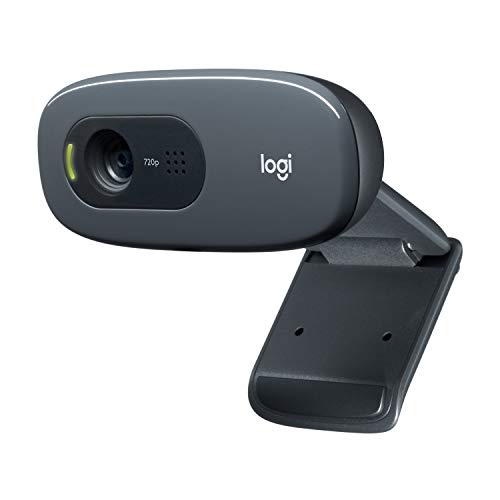
Logitech C270 HD — The ancient floor
There are products that survive because they are excellent, and products that survive because they are adequate in a way that never quite becomes a problem. The C270 is the second kind raised to an art form: a 720p widescreen camera with auto light correction and a noise-reducing microphone, plug-and-play across PC and Mac, that has been the emergency answer to “this desktop needs a camera today” for longer than many of its users have owned their desks. Its listing still bothers to name its platforms — Zoom, Teams, Skype and even the Switch 2’s GameChat mode — because people keep buying it for new machines.
On a desktop it asks for nothing: the clip fits the older, thicker monitors it grew up with, the cable reaches a tower in the normal way, and the picture it makes of a well-lit face on an ordinary call is — this is the whole secret — fine. Not rich, not sharp at the edges, fine. Its microphone’s noise reduction covers the fan hum and room tone of a typical study. A buyer furnishing a spare desktop, a parent’s machine or a workshop PC should read the C270’s Amazon listing as the definition of enough, and spend the difference on the chair.
The limits deserve the same plainness. On a large modern monitor its softness is visible; in a group call its window will be the least detailed on the screen; and anyone recording themselves should not start here. The C270 is a floor, and floors are not insults — every other pick in this guide is measured by how much more than this a desktop actually needs.
There is a tenderness in the market for this camera that is worth understanding rather than mocking: for thousands of households, the C270 was the device that put grandparents on screens during the years when that mattered most, and it earned a trust that specifications cannot argue with. A buyer replacing a dead C270 with another C270 is not behind the times; they are renewing a tool that never once let the family down, at a size of picture their calls genuinely use.
- Video: 720p widescreen capture, per the listing
- Exposure help: auto light correction
- Audio: noise-reducing microphone
- Setup: plug and play for PC and Mac
- Platforms named in the listing: Zoom, Teams, Skype and Switch 2 GameChat
Strengths
- The longest-proven design in the guide; every quirk is documented.
- Light correction and noise reduction cover the ordinary room.
- Fits the thicker monitors of older desktops without fuss.
Trade-offs
- 720p softness shows on large, modern displays.
- No autofocus or modern extras of any kind.
- Unsuitable for recording or client-facing presentation.
Best for: spare desktops, family machines and emergency camera duty. Not suited for: professionals, recorders or anyone with a big new monitor.

Logitech C920e — The business 920
The C920e is the 920 family’s working clothes. Where the consumer models chase streamers and home users, the e variant is the mic-enabled business edition — 1080p HD, certified for Zoom and compatible with Microsoft Teams according to its listing, and TAA compliant, a procurement detail that tells you exactly which buyers Logitech built it for: organisations that equip desktops in offices, schools and public institutions, where a camera is specified, purchased in quantity and expected to behave identically on every desk.
For the individual desktop buyer, that institutional character translates into predictability. The picture is the proven 920-family picture — clean 1080p with the line’s well-known light handling — and the microphone is enabled and ready rather than an afterthought, which has not always been true of business variants in this market. A home worker whose employer reimburses approved models, or who simply wants the version of a famous camera that was built for meetings rather than content, should compare the C920e’s listing on Amazon against the consumer siblings and notice how little drama it contains. That absence is the product.
One check matters before ordering: business variants are sometimes sold in bulk or OEM-style packaging through marketplace sellers, so confirm what the specific listing includes — retail box or not, cable, mount — rather than assuming the consumer version’s bundle. The camera itself will be the same dependable instrument either way; the surprise, if any, will be in the box.
Consider also what the e variant says about a desktop’s working life inside a company: it can be enrolled, standardised and supported. An IT department can hand a new starter the same camera as everyone else, with the same settings document and the same known behaviour in the company’s meeting platform of choice. Solo buyers inherit that same boring reliability second-hand, and in equipment that must work at nine on a Monday, boring is a compliment of the highest available order.
- Video: HD 1080p capture, per the listing
- Audio: microphone enabled, per the listing’s positioning
- Certification: listed as certified for Zoom, with Teams compatibility and TAA compliance
- Lineage: business variant of the C920 family
- Setting: managed desktops in offices and institutions
Strengths
- Proven 920-family picture in a meeting-first specification.
- Certification and compliance claims suit employer purchasing.
- Behaviour is identical across units — the fleet buyer’s whole point.
Trade-offs
- Packaging varies by seller; check the listing’s bundle carefully.
- No consumer extras aimed at streamers or creators.
- Its appeal is lost on buyers who want features over sameness.
Best for: office desktops, employer-approved purchases and 920 loyalists. Not suited for: creators, or bargain hunters chasing the cheapest 1080p.
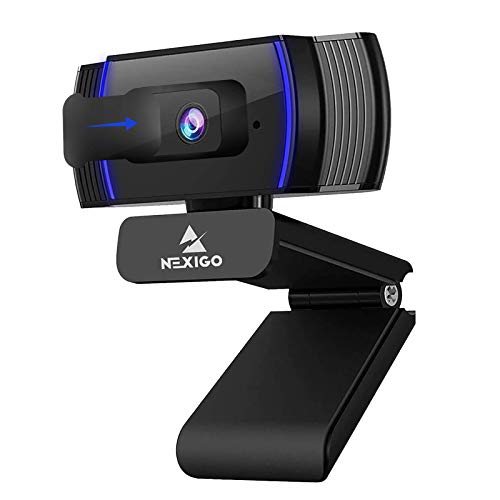
NexiGo N930AF with ring light — Light included
Most webcams assume your room is lit and leave the consequences to you. The N930AF is the pick in this guide that brings its own light: it bundles a ring light with a 1080p autofocus camera, which makes it the natural answer for the desktops that live in the worst light — the basement office, the north-facing spare room, the gaming den that only wakes up after dark. Its listing specifies autofocus and a built-in microphone, with compatibility across Zoom, Teams, Webex and the Switch 2 named outright.
The ring light changes the daily experience in a way a specification cannot quite convey: your face is lit evenly, from the camera’s own position, every time, regardless of what the room is doing. Paired with autofocus — which matters here, because a lit presenter leans and moves — the N930AF produces the most controlled picture in this guide for a desktop in a difficult room. Buyers whose space cannot be relit should start their shopping with the N930AF’s Amazon listing; it is the only pick that treats darkness as its home turf rather than its weakness.
Two honest caveats keep the recommendation clean. A ring light at the camera flatters faces but can reflect in glasses, so spectacle-wearers should angle it or themselves slightly. And a bundled light is one more thing to position: the camera wants to sit where the light helps, which may not be where the clip first lands. Give it ten minutes of arrangement and it repays the effort every evening thereafter.
Gamers should note the secondary use: a lit, autofocus facecam is precisely what a stream overlay wants, and the N930AF’s listing names gaming-adjacent platforms among its habitats. A desktop that works by day and streams by night gets both duties from this one device, with the ring light doing in the evening stream exactly what it did in the afternoon call — making a dim room look deliberate. Few picks in this guide double up so naturally.
- Video: 1080p HD capture, per the listing
- Focus: autofocus for a presenter who moves
- Light: bundled ring light for dim rooms
- Audio: built-in microphone
- Platforms named in the listing: Zoom, Teams, Webex and Switch 2
Strengths
- Built-in light solves the dark desktop room at the source.
- Autofocus keeps a lit, moving presenter properly sharp.
- Even, frontal light is flattering for long evening calls.
Trade-offs
- Ring lights can reflect in glasses without a slight angle.
- The light makes placement a decision, not an afterthought.
- Overkill in a bright, window-lit office.
Best for: basement offices, evening workers and dim gaming rooms. Not suited for: bright rooms, or glasses-wearers unwilling to adjust an angle.

Acer A610 — Adapter in the plan
Read this camera by its listing title, which describes a 1080p webcam with noise-cancelling microphones, fixed focus, a privacy cover and an A-to-C adapter in the arrangement — a specification aimed with unusual precision at the modern desktop’s actual problems. The adapter matters more than it might appear: newer desktops and the docks attached to them increasingly offer USB-C first, and a camera that arrives ready for both port generations saves the small, annoying second purchase that so often follows the first.
Fixed focus, here, is a deliberate fit for the desktop’s geometry: the user sits at a known distance, the lens is set for it, and nothing hunts or drifts across a working day. The noise-cancelling microphones address the desktop’s other constant — fan noise from the tower itself, the mechanical keyboard, the room’s hum — and the privacy cover closes the lens when the machine becomes a home computer again in the evening. Buyers with a modern, port-mixed setup should examine the A610’s listing on Amazon for the adapter and cover details, because its whole pitch is the absence of small frictions.
What it does not offer is adaptability: no autofocus for the user who presents objects, no resolution above the 1080p its title states, and no light for dark rooms. Within a normal desk in a normal room — which is, after all, most desktops — those absences are invisible, and the A610’s completeness about ports, cover and microphones makes it one of the most thoughtfully specified cameras in this guide.
Acer’s presence in this category is itself a signal worth reading: a company that sells the desktops and monitors has an interest in the camera that completes them, and the A610’s specification — cover, cancelling microphones, both port generations catered for — reads like it was written by someone who had watched customers struggle with exactly those three things. Whether or not your tower wears the same badge, a camera designed from the computer outward rather than from the lens inward has a logic desktop buyers will recognise.
- Video: 1080p capture, per the listing title
- Focus: fixed focus, set for desk distance
- Audio: noise-cancelling microphones
- Privacy: privacy cover included
- Connection: A-to-C adapter included, per the listing
Strengths
- Adapter inclusion ends the modern port lottery in the box.
- Noise-cancelling microphones suit fan-and-keyboard rooms.
- Fixed focus is honestly matched to desktop geometry.
Trade-offs
- No autofocus for presenters of objects or leaners.
- No bundled light for genuinely dark rooms.
- Its name invites resolution assumptions its title does not make.
Best for: modern desktops with mixed ports and ordinary rooms. Not suited for: demonstrators, or buyers needing light assistance.
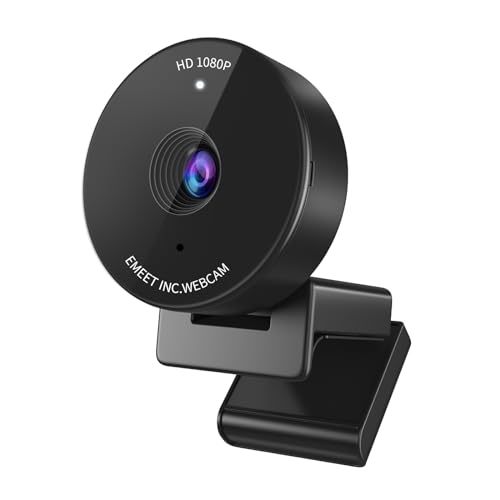
EMEET C950 — Physical cover, fixed focus
The C950’s listing describes a 1080p USB webcam with a microphone, a physical privacy cover, auto light correction, fixed focus and a 70-degree field of view — and that combination, read carefully, is a small manifesto for simplicity. The physical cover is the detail to linger on: not a software promise or a detachable cap but a cover that is part of the camera, there every evening, for a desktop that lives in a family room and points at a sofa as readily as at a desk chair.
Its 70-degree view is the other considered choice — narrower than the wide-angle fashion, framing a desktop user and their immediate surroundings without inviting the entire room into every meeting, class and call the listing names. Fixed focus keeps the seated range sharp without a motor’s opinions. For a shared household desktop, where the camera serves a parent’s meetings, a student’s classes and a grandparent’s video calls in rotation, the C950’s blend of cover, simplicity and sane framing is difficult to argue with; its Amazon listing confirms the current version and bundle.
The ceiling is the familiar one for fixed-focus simplicity: lean far out of the designed range and the picture softens, and there is no autofocus to forgive an unusual setup. Desktops, fortunately, are the most predictable camera habitat ever built — same chair, same desk, same distance — and the C950 is engineered for exactly that predictability rather than despite it.
The cover deserves a final word, because it changes the social contract of a shared machine. A camera that can be seen to be closed — by a partner crossing the room, a child at the desk, a guest in the spare room — removes a low-level vigilance that households otherwise carry without noticing. Several cameras in this guide offer covers of one kind or another; the C950’s physical, built-in arrangement is the one most likely to actually be used every day, and a privacy feature that gets used is the only kind that counts.
- Video: 1080p capture with a 70-degree view, per the listing
- Focus: fixed focus for the seated range
- Privacy: physical privacy cover built in
- Exposure help: auto light correction
- Setup: USB plug and play
Strengths
- A real physical cover suits shared household desktops perfectly.
- The 70-degree framing keeps the room out of the call.
- Simplicity that every member of a household can operate.
Trade-offs
- Fixed focus softens outside the normal sitting range.
- No presenter features, light or autofocus to grow into.
- Its restraint will bore a buyer shopping for specifications.
Best for: shared family desktops and privacy-minded solo desks. Not suited for: presenters, demonstrators or dark-room setups.

NIVEOLI 1080P webcam — Straightforward value
The NIVEOLI entry closes this guide the way the C270 opened it — with the virtues of plainness, one generation newer. Its listing offers 1080p with a microphone, a privacy cover and auto light correction, in a plug-and-play USB camera aimed at video calls, live streaming, gaming and online meetings. There is no focus technology to decode, no certification to verify and no ecosystem to join; the camera is the camera, and for a great many desktops that is the entire requirement, honestly met.
Where it earns its place over the anonymous crowd at its level is completeness: the cover is included rather than sold separately, the light correction is present rather than aspirational, and the resolution is a genuine 1080p rather than an interpolated claim. A buyer equipping a second desktop, a teenager’s first tower or a small office’s spare machine gets a camera that covers the checklist without a research project. The NIVEOLI’s listing on Amazon is the whole story — short, specific and sufficient.
Set expectations at the door, as with any value model: build feel and microphone polish sit a tier below the famous names, and the public knowledge base for quirks is thinner because the installed base is smaller. For a desktop whose calls are ordinary and whose owner is practical, those are fair trades, made openly, in exchange for a modern specification at the friendly end of the market.
Its presence in this guide also serves as a measuring stick for the buyer’s own honesty. If the NIVEOLI’s specification — real 1080p, a microphone, a cover, light correction — covers everything your desktop will ever be asked to do, then the correct purchase is this one, and the money saved belongs to the rest of the setup: the lamp, the chair, the second monitor. Knowing when a checklist is complete is a buying skill, and this camera is where the skill gets exercised.
- Video: 1080p capture, per the listing
- Audio: built-in microphone for calls
- Privacy: privacy cover included
- Exposure help: auto light correction
- Setup: USB plug and play
Strengths
- Complete checklist — cover, correction, real 1080p — at value level.
- No ecosystem or software commitment required of the owner.
- Sensible specification for second machines and spare desks.
Trade-offs
- Finish and microphone polish trail the established brands.
- Smaller installed base means fewer public answers to quirks.
- No autofocus or extras for growing ambitions.
Best for: second desktops, first towers and practical small offices. Not suited for: client-facing professionals or feature hunters.
What Does a Desktop Room Do to a Webcam’s Microphone?
Desktops live in acoustically honest rooms: hard floors, a tower’s fans breathing under the desk, a mechanical keyboard at exactly microphone distance, and walls that have never heard of soft furnishings. A camera’s microphone hears all of it from the top of the monitor, which is why the noise-reducing and noise-cancelling designs in this guide — the C270’s reducing mic, the A610’s cancelling pair — are not decoration. Steady noises like fans are the easy kind for such systems to suppress; sharp, irregular noises like keystrokes are harder, and no camera fully erases a loud keyboard directly beneath it.
The desktop owner has one advantage here that laptop users lack: distance is adjustable. Moving the tower off the desk, or the camera’s monitor away from the keyboard’s clatter path, changes the microphone’s world more than any processing can. And the test is free — record your voice at your real distance, with the tower under load, and listen on headphones. If the fans sit politely behind your voice, your setup is done; if they compete, rearrange the furniture before you rearrange your budget.
Fixed Focus or Autofocus: Which Serves a Desktop Better?
The desktop is fixed focus’s best argument in the entire webcam market. Autofocus exists to chase a moving subject across changing distances; a desktop user occupies one chair at one distance for years, which is precisely the problem a fixed lens is pre-solved for at the factory. The A610 and C950 bet on that geometry openly, and for the classic desk they win the bet daily — no hunting when you lean for your coffee, no refocus when a colleague’s face appears beside yours, no motor to wear. The bet only loses when the desktop’s user is not classic: the presenter who stands, the maker who holds work toward the lens, the teacher who moves between desk and board.
Those users exist in large numbers, and for them the autofocus models — the N930AF above all, the C920e in its family manner — earn their mechanism honestly. So the choice is not a hierarchy but a portrait: buy the focus that matches the body you bring to the desk. Still body, fixed lens, money saved and nothing missed. Moving body, autofocus, and the small premium is repaid in every demonstration you ever give.
When One Desktop Serves Work, Family and Games in Rotation
The modern tower is a shift worker: office by day, family terminal at six, gaming rig at nine. A camera serving all three shifts needs a particular blend — a cover for the hours when the machine is a household object in a shared room, painless behaviour in both meeting platforms and game-adjacent apps, and a microphone that can handle a standup meeting and a grandparent call with the same settings. Read back through the picks with that rotation in mind and the shortlist reshapes itself: covers and simplicity rise, specialisation falls, and the C950 and C920e start to look less like two categories and more like two answers to the same long day.
The practical tip for rotation households is profiles, not purchases. Set the camera correctly once, save the framing, and teach every user the cover habit; the machine’s three lives can share one camera happily when the setup is treated as household infrastructure rather than as one person’s gadget.
How Long Should an External Webcam Serve a Desktop?
Realistically, longer than the monitor it clips to. The camera’s job changes slowly, its connection standard changes slower, and a desktop’s stable geometry spares it the knocks and travel that kill laptop accessories. The realistic failure points are humble: a cable fatigued by years of monitor-arm movement, a clip spring finally tired, software support quietly ending. Buying from lines with long public lives — the pattern this guide rewards from the C270 upward — is how owners insure against the third of those, and keeping the cable run slack and secured insures against the first.
That longevity reframes the price question desktop buyers ask. A camera amortised over six years of daily calls costs less per meeting than the coffee beside it; the expensive purchase is the one replaced twice because its mount failed or its maker vanished. In this category, durability and support are not premium features. They are the product, and the picture is how the product introduces itself.
How Do the Six Desktop Picks Compare Side by Side?
| Pick | Capture | Focus | Light help | Desktop it suits |
|---|---|---|---|---|
| Logitech C270 | 720p | Fixed working range | Auto light correction | Spare and family machines |
| Logitech C920e | 1080p | Autofocus class | 920-family light handling | Office and institutional desks |
| NexiGo N930AF | 1080p | Autofocus | Bundled ring light | Dim rooms, evening desks |
| Acer A610 | 1080p | Fixed focus | Standard correction | Modern port-mixed setups |
| EMEET C950 | 1080p, 70-degree view | Fixed focus | Auto light correction | Shared household desktops |
| NIVEOLI 1080P | 1080p | Basic | Auto light correction | Second machines, first towers |
Notice what the table cannot show: every one of these cameras becomes dramatically better or worse with its room, which is why the two sections surrounding this table — on microphones and on longevity — are not filler around a verdict but the conditions the verdict depends on. A comparison is a map; the room is the territory.
The column that separates these cameras in daily life is not capture — five of the six share 1080p — but the light column and the focus column, because a desktop’s room and its user’s habits are the variables that never change.
Which External Webcam Fits Which Desktop?
Walk the room. The tower in the study of a house built before webcams, thick monitor, tower on the floor, family calls on Sundays: the C270 was quite literally designed in that room’s era and fits it still. The professional’s dual-monitor desk, employer-issued and client-facing, belongs to the C920e, whose certifications and sameness are the point. The basement battlestation, glorious and sunless, is the N930AF’s natural habitat, ring light and all.
The new-build PC with a USB-C dock and a minimalist owner maps to the A610; the household’s shared machine in the corner of the living room, cover closed between users, maps to the C950; and the second tower — the teenager’s, the spare room’s, the workshop’s — maps to the NIVEOLI, complete and unpretentious. Six desktops, six answers, and in every case the room and the machine chose the camera before the specification table was consulted. That is the correct order of operations for this category, and it is why this guide spends so many words on desks and so few on megapixels.
How Should You Set Up a Desktop Webcam Once and Forget It?
Mount it where it will live permanently: clipped firmly to the monitor you face, or on a small tripod at eye level if the screen is thin, curved or mounted on an arm. Route the cable once, properly — down the monitor’s back, along the desk’s rear edge, to the tower or a hub with slack for the monitor to move — and secure it so a foot, a vacuum or a curious pet cannot unplug your face mid-call. A desktop setup done once, with cable ties and intent, outlasts a dozen laptop improvisations.
Then do the two tests that finish the job. Open your meeting app and set this camera and its microphone as the explicit devices, not the system default, so a headset plugged in later cannot silently reroute your calls. And record a short test — your voice, your room, your evening light as well as your morning light — because a desktop lives through both every day. When both tests pass, close the settings and enjoy the defining pleasure of desktop equipment: it stays set up.
How Do You Shake Down a New Desktop Camera in One Evening?
Run it through the desktop’s whole day in one sitting. Make a test call in daylight and note the framing; make another under your evening lighting and watch what the light correction — or, for the N930AF, the ring light — does with the change. Lean in, lean back, hold a notebook toward the lens, and learn whether your focus type forgives your habits. Speak at your real volume from your real chair and play the recording back on headphones, with the tower’s fans spinning as they do under work. Close the cover, open it, and set the camera as the explicit device in every app you use.
Twenty minutes of this converts a purchase into knowledge: you will know your camera’s honest range, your room’s honest light and your microphone’s honest distance before any of them can surprise you in front of colleagues. Desktop owners skip this ritual more than anyone, because the equipment feels too simple to need it — and then meet its limits live, on a Tuesday, in front of the whole department.
What Mistakes Do Desktop Webcam Buyers Make?
The first is forgetting the tower. Buyers measure nothing, order happily, and discover the cable cannot reach the computer that lives under the desk — the only category of webcam purchase that can fail before the box is fully open. The second is assuming a clip fits every screen, in the era of the thinnest monitors ever sold; check your bezel, or buy a camera with a tripod thread as your insurance policy.
There is also the quiet mistake of buying for the monitor you plan to replace. A camera chosen around an ancient screen’s thick bezel may meet a thin, curved successor next year; models with a tripod thread or a flexible base survive that upgrade gracefully, while a clip-only design may not. Since desktops outlive their displays, a mount with a plan B is a small, wise insurance.
Third, buyers import laptop thinking: they shop for the smallest, cleverest camera, when a desktop rewards the opposite virtues — a stable mount, a generous cable, a cover for the family room, a design that can sit untouched for a year. And fourth, they leave the camera at factory framing forever, broadcasting the whole room from a low angle, when ten minutes of placement would have made the same camera look like a professional installation. Desktops reward setup effort more than any other platform; spend the ten minutes.
Final Recommendation
For most desktops, the C920e is the complete answer: proven 1080p, a ready microphone and business manners in a camera that will outlast the monitor it clips to. Dark rooms should take the N930AF and its ring light, shared household machines should take the C950 and its physical cover, and modern port-mixed setups will appreciate the A610’s adapter. The C270 and the NIVEOLI hold the floor honourably at either end of the value scale — one by longevity, one by completeness. Measure your monitor, measure your cable run, and the desktop that arrived blind will start every call looking like it was designed for them.
Frequently Asked Questions
Does an external webcam slow a desktop down?
No. At the resolutions in this guide a webcam’s data is a rounding error beside what a desktop moves in a minute of ordinary use, and the processing happens in the camera and the app rather than on your processor in any way you could feel. A struggling call is a network or settings story, essentially never a webcam-bandwidth story on a desktop.
Will any of these webcams work without installing drivers?
Yes — standard USB cameras are recognised by current operating systems as a device class, which is what plug-and-play means in every listing here. Your meeting apps will offer the camera as a video and audio source immediately. Maker software, where it exists, adds settings control; it is not required for the camera to function.
What if my monitor is too thin for a webcam clip?
Use the tripod thread that many models carry, with a small desktop tripod or a monitor-top shelf, and place the camera at eye level beside or below the screen’s centre. It is often a better position than the clip offered. Before buying, check the listing for a thread or an alternative mount if your screen is an ultrathin or curved model.
Is a ring light webcam too much for office calls?
No — used at a modest brightness, a ring light like the N930AF’s simply looks like good room lighting, and colleagues will read it as a clear, well-lit face rather than as studio equipment. Angle it slightly if you wear glasses, and lower the brightness for daytime calls in a lit room.
Can I leave an external webcam plugged in permanently?
That is what it is designed for. Use the privacy cover or shutter when the machine is off duty — several picks here include one — and set the camera as the explicit device in your meeting apps so it is always the one that answers. Permanent, covered and correctly defaulted is the professional desktop arrangement.
Why does my desktop webcam picture look soft on my big monitor?
Either the camera is a lower-resolution model being shown at a large size — the 720p case — or the app is running it below its capability, or the lens is simply dirty from months above a desk. Check the app’s video settings first, clean the lens with a soft cloth second, and only then conclude the hardware is the limit.
Can I use one external webcam with two computers?
Yes, with a small discipline: a USB switch or a dock that changes hosts will hand the camera to whichever machine is active, and both computers will recognise it without drivers. Set the device preferences on both machines once, expect a few seconds of renegotiation at each swap, and the arrangement settles into routine — a common trick where a work laptop docks at the same desk as a personal tower.
My desktop has no spare USB ports — what then?
Use a powered hub near the monitor, and give the camera a port on it permanently. Webcams draw modest power and bandwidth compared with drives, so a decent hub carries one happily; what they dislike is being swapped between ports weekly, which resets device preferences in your apps. Permanent port, explicit device settings, and the camera becomes part of the desk rather than a visitor to it.
Do I need a separate microphone for a desktop setup?
For ordinary calls in a quiet room, the microphones in this guide suffice, and the noise-cancelling and noise-reducing designs handle typical fan and keyboard sound. For recording, presenting to large groups or a genuinely noisy room, a dedicated microphone near your mouth remains the upgrade that matters most.
Related Guides
Desktop owners comparing the wider PC market should read Best HD Webcams for PC next, where the same questions are asked without the desktop’s mounting and cable constraints. If your tower desk is your workplace, Best Home Office Webcams judges cameras by working-week manners, and rooms that host several people at one desktop belong in Best Conference Webcams.


