What's inside
- Key Takeaways
- Quick Picks: HD Webcams for PC at a Glance
- How Did We Sort the HD Claims From the HD Facts?
- What Does the Frame Rate at Each Resolution Really Mean for You?
- Fixed Focus, Autofocus and PDAF: What Is the Practical Difference?
- Why Does a Second Lens Change What a Webcam Can Do?
- What Is a Sensor, and Why Do Listings Talk About It So Little?
- How Does Your PC Itself Limit a Webcam?
- The Six HD Webcams for PC, Reviewed in Detail
- Wide View or Narrow View: Which Framing Suits a PC Desk?
- Could Your Phone or Laptop Camera Do This Job Instead?
- How Long Does an HD Webcam Stay Current?
- What Should You Check in the First Ten Minutes With a New Camera?
- How Do the Six HD Picks Compare Side by Side?
- Which HD Webcam Fits Which PC User?
- How Should You Set Up an HD Webcam on a PC?
- How Do You Read a Webcam Listing Like an Engineer?
- What Mistakes Do HD Webcam Buyers Make?
- Final Recommendation
- Frequently Asked Questions
- Related Guides
As an Amazon Associate I earn from qualifying purchases. This post may contain affiliate links at no extra cost to you.
gizmoverdict.com is reader-supported. When you buy through links on our site, we may earn an affiliate commission.
Where to buy: the listings linked below are the authority on what each of these cameras actually is, so verify the model code and resolution class on Amazon and check price on Amazon there — this corner of the market reuses similar names across very different hardware.
“HD” is the most elastic word in the webcam aisle. The best hd webcams for pc include cameras that capture honest 1080p, cameras that capture 4K and call the whole range high definition, and cameras whose relationship with the term is mostly aspirational — so this guide exists to translate the label into the things that actually decide your picture: the sensor behind the lens, the frame rate at the resolution you will really use, and whether focus is a motor, a fixed setting or a software promise. Six cameras survived that translation, spanning the sensible floor to a pair of 4K models that earn the badge.
Here is the uncomfortable fact that organises everything below: your meetings and streams will almost certainly be seen at 1080p or less, whatever your camera captures. That does not make the 4K models pointless — their extra pixels buy cleaner downscaling and cropping room, and their frame rates at 1080p are where they quietly shine — but it does mean a well-made 1080p camera is not a compromise purchase. It is the resolution your audience actually receives, delivered natively.
So read this guide as a label-decoding exercise with six good answers attached. By the end you will know what each camera’s “HD” really consists of, which specifications are load-bearing and which are paint, and which of the six matches a PC used for calls, classes, streams or all three at once.
Key Takeaways
- “HD” on a webcam box spans everything from basic 1080p to full 4K; the sensor, frame rate and focus type behind the label are what you are actually buying.
- The EMEET 4K models matter to callers mostly for their behaviour at 1080p, where their autofocus and light correction do the daily work.
- NexiGo’s N660P hides a second lens for desk and document views — a genuinely different tool from every other pick here.
- The N60 is the software-controlled 1080p all-rounder that built NexiGo’s name in this market.
- Logitech’s Brio 301 is the certified, USB-C, shuttered option for buyers who want the established brand at this level.
- The Amazon Basics camera is the honest floor of the category: real 1080p, light correction, no theatre.
Quick Picks: HD Webcams for PC at a Glance
| Pick | Badge | Why it made the cut |
|---|---|---|
| NexiGo N60 1080P | The all-rounder | Software control, a privacy cover and plug-and-play manners in the 1080p camera this market segment runs on. |
| NexiGo N660P dual-lens | Two cameras in one | A second lens aimed at your desk makes documents, sketches and products part of the call without acrobatics. |
| EMEET C960 4K | 4K with real autofocus | PDAF autofocus and dual microphones in a 4K camera that still behaves like a simple plug-and-play device. |
| EMEET NOVA 4K | The business 4K | The NOVA pairs the same 4K formula with positioning aimed at serious meetings and streaming. |
| Logitech Brio 301 | Certified and shuttered | USB-C connection, a privacy shutter and platform certifications stated in its own listing. |
| Amazon Basics 1080P webcam | The honest floor | Full HD with auto light correction for the PC that simply needs a working camera by Friday. |
How Did We Sort the HD Claims From the HD Facts?
We refused to rank by the number on the box, and instead interrogated each camera with the same four questions. What resolution does it truly capture, and at what frame rate — including, for the 4K models, what it does at the 1080p your calls will use? How does it focus: a phase-detection motor, a conventional autofocus, or a fixed lens betting on depth of field? What does it do about light, since a PC desk is rarely lit like a studio? And what arrives in the box — cover, cable, adapters — versus what the photograph implies?
That interrogation rearranged the market in instructive ways. Some famous-name 1080p cameras turned out to be exactly what a PC needs and nothing more, which is praise. Some 4K badges concealed the more interesting truth that their makers had fitted genuinely better autofocus and microphones, which is also praise, of a different kind. And one camera, the dual-lens N660P, answered a question nobody else was asking, which earned it a place no specification table would have predicted.
All specifications in the reviews are drawn from the products’ own listings. Where a listing does not state a figure — a sensor size, a frame rate at a given resolution — the review does not invent one, and flags the omission when it matters to a buying decision.
What Does the Frame Rate at Each Resolution Really Mean for You?
A camera’s headline resolution is a still photograph’s specification; video lives or dies by the pairing of resolution and frame rate. Thirty frames per second is the broadcast standard your eyes grew up with and remains perfectly serviceable for a seated call, where the fastest thing moving is a nod. Sixty frames per second — the N660P’s party piece at 1080p — buys smoothness: gestures look natural, a quick demonstration does not smear, and anything you record for later editing holds up better when slowed or clipped.
There is a recording corollary worth knowing. If you capture lessons, briefings or clips locally, the frame rate you record at is the frame rate your edit is stuck with, and material shot at the smoother rate gives an editor room to slow a moment, crop a vertical version or stabilise a gesture. Callers can live happily at the standard rate forever; recorders should read the pairing of resolution and frame rate as the first line of any listing they consider.
The trap to avoid is assuming the headline resolution and the headline frame rate coexist. Many cameras quote their best resolution and their best frame rate in the same breath while delivering them in different modes, so the question to ask of any listing — the 4K EMEET models included — is what the camera does at the setting you will actually run. For calls, that setting is 1080p, and a camera that is excellent there, with autofocus that keeps up and light correction that behaves, is worth more than a mode you will open twice a year to admire.
Fixed Focus, Autofocus and PDAF: What Is the Practical Difference?
Fixed focus is a lens set once, at the factory, to a distance band that covers the typical desk. It cannot hunt, hesitate or fail, and within its band — roughly arm’s length to a couple of metres — it is honestly sharp. Its weakness appears at the edges of life: lean far in, hold an object close, or sit unusually far away, and the picture softens in a way no setting can cure. Conventional autofocus adds a motor that continually judges distance; good implementations are invisible, poor ones visibly breathe in and out as they search.
PDAF — phase-detection autofocus, named in both EMEET 4K listings — is the faster, more decisive technology borrowed from dedicated cameras: it measures focus rather than hunting for it, so it locks on quickly and holds steady. For a PC camera, the practical translation is simple. A presenter who moves, demonstrates and leans will feel PDAF working for them in every call; a still, seated caller will never know which technology they own. Buy the focus your posture needs, not the acronym that sounds most advanced.
Why Does a Second Lens Change What a Webcam Can Do?
Because the hardest shot in remote work is not your face — it is your desk. Showing a sketch, a document, a circuit board, a knitting pattern or a product sample through a normal webcam means holding it up to the lens at a guessed distance while watching yourself reversed on screen, a small humiliation every teacher and demonstrator knows. The N660P’s answer is a second lens aimed downward at the desk surface, turning the camera into a two-view system: face for the conversation, desk for the evidence, switched in software.
That design reframes who a webcam is for. Tutors working through maths on paper, engineers reviewing a prototype, sellers showing detail, crafters teaching a stitch — for all of them the desk view is not a gimmick but the main content, with the face as commentary. If your PC work includes showing physical things to people who are not in the room, weigh that second lens heavily; if it never does, the feature is a party trick and the simpler picks below will serve you better for the same desk.
What Is a Sensor, and Why Do Listings Talk About It So Little?
Behind every lens in this guide sits a sensor — the chip that turns light into the picture — and its physical size quietly governs how a camera behaves when your room is not bright. A larger sensor gathers more light, which means cleaner images in dim rooms and less of the grainy noise that budget cameras smear across a face at dusk. The puzzle for buyers is that webcam listings trumpet resolution, which is a property of how many points the sensor reports, while often omitting the sensor’s size, which is a property of how well it sees. A modest resolution spread across a healthy sensor will out-picture a huge resolution squeezed onto a tiny one in any room that is not lit like a shop.
This is why the reviews below resist inventing sensor figures the listings do not state, and why they keep returning to behaviour — focus, correction, microphones — that can be verified. It is also the practical reason to be suspicious of any camera, at any price, whose listing is long on megapixels and silent on everything else. The makers in this guide talk about focus systems, microphones and light correction because those are the specifications that survive contact with a real desk, and their willingness to be specific is itself a buying signal.
How Does Your PC Itself Limit a Webcam?
A webcam is only the front end of a pipeline that runs through your computer, and two bottlenecks in that pipeline explain many disappointed first impressions. The first is the port: a 4K camera asks more of a USB connection than a 1080p one, and a camera threaded through an elderly hub, sharing bandwidth with drives and docks, may deliver less than its listing promises — not from dishonesty but from congestion. Give the higher models here a direct port where you can, and treat the Brio 301’s USB-C and the EMEET models’ USB-A as facts to match against the machine you actually own.
The second bottleneck is the software stack. Your meeting platform receives the camera’s feed and then compresses it to travel; your recording software may handle the same feed entirely differently, which is why a camera can look ordinary on a call and impressive in a local recording. Judge a new camera in both places before concluding anything about it, because the call is judging your platform’s compression as much as your hardware. The camera you bought is the ceiling; the apps decide how close to the ceiling anyone gets.
The Six HD Webcams for PC, Reviewed in Detail

NexiGo N60 1080P — The all-rounder
The N60 is the camera that taught a generation of remote workers that a good webcam did not need a famous logo. Its formula is completeness at 1080p: a built-in microphone, software control over the picture rather than a take-it-or-leave-it feed, a privacy cover in the package, and genuine plug-and-play behaviour across the platforms its listing names — Zoom, Skype and Teams among them. Nothing about it is exotic, and that is precisely its standing in this guide: it is the reference all-rounder against which fancier claims are checked.
Software control is the feature owners mention most. Being able to adjust the picture — zoom the framing, tune the image to your room — turns a generic camera into your camera, set for your desk and your light. The privacy cover, a simple fitted piece rather than a built-in shutter, does its job without ceremony. For a PC that needs one camera to handle work calls, family video and the occasional class, the N60 remains the name to beat at its level; start with its Amazon listing and make every rival justify costing more of your budget.
Its limits are the honest limits of its class: 1080p is the ceiling, the frame rate is the standard one for calls rather than the smoother sixty, and the microphone is a convenience rather than a performance. None of those will trouble a mainstream PC user, which is the entire point — the N60 is what “good enough, properly done” looks like, and for most desks that is the correct purchase wearing no disguise.
There is a social proof argument for the N60 that buyers should feel free to use unashamedly: it is the camera a very large number of home workers already own, which means its behaviour on every common platform, in every common room, is documented somewhere by someone with your exact problem. When a piece of equipment becomes a small standard, troubleshooting stops being research and becomes recognition — and for a device whose whole job is to not be thought about, that may be the most valuable specification of all.
- Video: 1080p HD capture, per the listing
- Controls: software control over the picture settings
- Audio: built-in microphone for calls
- Privacy: privacy cover included
- Setup: USB plug and play, with Zoom, Skype and Teams named in the listing
Strengths
- Software control lets the picture be tuned to your room once, properly.
- Complete package — cover, mic, compatibility — with nothing missing.
- A long-selling design with answers available for every common question.
Trade-offs
- 1080p ceiling, with no higher mode for recording headroom.
- Standard call frame rate rather than the smoother 60 fps tier.
- The separate cover is easier to misplace than a built-in shutter.
Best for: the mainstream PC needing one dependable camera for everything. Not suited for: creators recording content, or demonstrators who need a desk view.
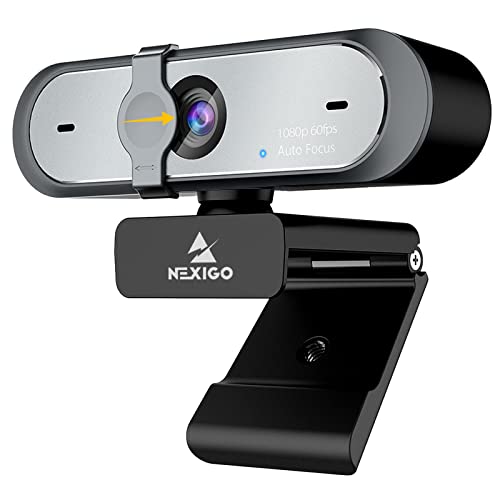
NexiGo N660P dual-lens — Two cameras in one
Start with the specification that is not the lens trick: the N660P shoots 1080p at 60 frames per second, the smooth tier, with autofocus and dual microphones, which already makes it a strong conventional webcam. Then add the second lens — the downward view of your desk — and the camera becomes a small presentation system. The listing names OBS, gaming, Zoom, Skype, FaceTime, Teams and Twitch among its habitats, and that breadth makes sense once you see the design’s logic: it serves anyone whose screen time mixes talking with showing.
In practice the dual view changes lessons and demonstrations completely. A tutor writes the working out on paper, in full view, instead of describing it; a hobbyist streamer shows the model kit, the keyboard build, the card being graded, without standing up or re-aiming anything. Software control and a privacy cover round out a package that treats its user as a presenter rather than a portrait. If your PC life includes showing your hands’ work to anyone, the N660P’s listing on Amazon describes a tool with no direct rival in this guide.
Do interrogate your own habits before buying, because the second lens is a commitment to a format. Mounted and angled correctly it is effortless; bought on speculation and never switched to, it is complexity you carry for nothing. The camera is also at its best in the hands of someone willing to spend fifteen minutes arranging the desk view properly — the lighting on your paper matters as much as the lens that watches it.
Teachers who adopted this format early report a side benefit nobody advertises: students and clients pay better attention. A lesson that cuts between a face and a worked example has the rhythm of a classroom rather than a phone call, and the presenter’s hands — underlining, pointing, turning a page — carry emphasis that a cursor on a shared screen never quite achieves. If your work is explanation, the dual lens is not a feature to weigh; it is the medium your explanation has been missing.
- Video: 1080p at 60 frames per second, per the listing
- Lenses: dual-lens design with a desk-facing second view
- Focus: autofocus on the main camera
- Audio: dual microphones, with privacy cover included
- Controls: software control, per the listing
Strengths
- The desk view solves the hold-it-up-to-the-lens problem permanently.
- 60 fps motion and autofocus make it a strong ordinary webcam too.
- Dual microphones suit a presenter who moves around the desk.
Trade-offs
- The second lens is wasted on talk-only callers.
- Desk view needs deliberate setup and light to look its best.
- More camera to mount and aim than a simple single-lens unit.
Best for: tutors, demonstrators, makers and sellers who show physical work. Not suited for: seated talkers, who should save the complexity and buy the N60.

EMEET C960 4K — 4K with real autofocus
Do not confuse this camera with the 1080p C960 in our home office guide — EMEET reuses the family name for a substantially different machine, and this one captures 4K. The specification that should actually drive your decision, though, is in the middle of its listing: PDAF autofocus, the phase-detection kind that locks on decisively instead of hunting, supported by dual omni-directional microphones, a 73-degree field of view and auto light correction, all over a simple USB-A plug-and-play connection with a privacy cover included.
That combination makes the C960 4K the thinking person’s route into 4K on a PC: the resolution is there for recording and cropping, while the daily call experience is carried by the autofocus quality and the light correction, which are the parts you will actually feel. The 73-degree view is a sensible middle framing — one person with a little context, no fisheye theatrics. Buyers stepping up from a basic 1080p camera will notice the focus behaviour before they notice the pixels; examine the C960 4K’s Amazon listing with that order of priorities in mind.
A word of calibration about its 4K: as this guide’s introduction insists, your calls will mostly travel at 1080p, so judge this camera as a superb 1080p performer with a 4K recording mode in reserve, and you will judge it exactly right. Buyers who need the 4K itself — for tutorials, product video or an archive — should confirm the frame rate at 4K from the listing’s specifications before ordering, because that pairing is where honest listings and hopeful readings diverge.
Notice, too, what the 73-degree field of view does for a PC user specifically. Gaming and creator cameras often shoot wider, to take in a room and its decorations; a PC camera’s context is an office, and seventy-three degrees frames a person, a chair and a hint of the space without inviting the whole room into every call. It is a grown-up framing choice, and paired with the decisive autofocus it gives this camera a composed, meeting-ready character that its resolution figure alone would never tell you about.
- Video: 4K capture, per the listing
- Focus: PDAF autofocus, named in the listing
- Audio: dual omni-directional microphones
- Field of view: 73 degrees, per the listing
- Extras: auto light correction, privacy cover, USB-A plug and play
Strengths
- PDAF autofocus is a genuine step above the hunting kind.
- 4K headroom serves recording and cropping without hurting calls.
- Dual microphones and light correction complete the daily package.
Trade-offs
- The shared C960 name invites ordering the wrong model — check carefully.
- 4K frame rate must be verified in the listing for recording plans.
- USB-A connection may need an adapter on the newest laptops.
Best for: PC users stepping up to 4K who care about focus quality daily. Not suited for: buyers who want the absolute simplest camera and will never record.

EMEET NOVA 4K — The business 4K
The NOVA takes the same technical recipe as its C960 sibling — Ultra 4K HD capture, PDAF autofocus, dual omni microphones, a 73-degree field of view, auto light correction, USB-A connection and a privacy cover — and aims it, in its listing’s own words, at high-end business meetings and live streaming. That positioning is the difference: where the C960 4K is the all-purpose step-up, the NOVA is the one EMEET dresses for the boardroom side of your PC’s life.
For a professional whose PC hosts client presentations, webinars and recorded briefings, that aim matters in the details of ownership: a camera bought as business equipment, expected to look the part on the monitor and behave predictably under presentation conditions — leaning in to emphasise, stepping through slides, sharing the frame with a colleague who joins for one agenda item. The PDAF focus earns its keep in exactly those movements. Professionals weighing the pair should read the NOVA’s listing on Amazon alongside its sibling’s and choose by setting rather than by specification, because the specifications are close cousins.
One honest note applies to both EMEET 4K models: their virtues are refinement virtues. Nothing about them reinvents the webcam; they simply execute the current formula — resolution, decisive autofocus, dual microphones, sane field of view, a cover — with unusual completeness at their level. Buyers who value that completeness over a famous badge will find the NOVA the most grown-up camera in this guide.
The streaming half of its brief deserves its due as well. A creator who records talking-head segments at a PC — course material, product briefings, a professional channel’s weekly update — gets from the NOVA a 4K frame to crop in editing, autofocus that survives walking to a whiteboard and back, and microphones adequate for a quiet room’s voice work. It will not replace a dedicated streaming rig, and does not pretend to; it occupies the increasingly common middle ground where one PC must do business and content with the same camera, and it occupies that ground completely.
- Video: Ultra 4K HD capture, per the listing
- Focus: PDAF autofocus, named in the listing
- Audio: dual omni-directional microphones
- Field of view: 73 degrees, per the listing
- Positioning: business meetings and live streaming, per the listing
Strengths
- Business-grade completeness: focus, mics, cover and correction together.
- PDAF keeps a presenting, moving speaker reliably sharp.
- 4K reserve for webinars and recordings that outlive the call.
Trade-offs
- Closely related to its C960 sibling; the choice is about positioning.
- Its polish is wasted on purely internal, camera-optional calls.
- As with all 4K here, verify the top-mode frame rate in the listing.
Best for: professionals whose PC hosts client-facing meetings and webinars. Not suited for: casual users, for whom the N60 covers the same calls with less ceremony.

Logitech Brio 301 — Certified and shuttered
The Brio 301 is Logitech’s answer at the level where most PCs actually live: Full HD 1080p, a noise-reduction microphone, auto light correction and a privacy shutter, connected by USB-C. Its listing adds the credential that matters in managed environments — certified for Zoom, Microsoft Teams and Google Meet — stated by Logitech itself, which makes this the easiest camera in the guide for an IT-minded buyer to approve and the easiest for a home buyer to trust.
Living with it is the Logitech experience in miniature: the picture is honest, the light correction is well-mannered, the shutter is there when the workday ends, and the software ecosystem behind it is maintained by a company that treats webcams as a core business rather than a sideline. It does not chase the EMEET models up the resolution ladder, and for call purposes it does not need to. Buyers who want the established brand, the modern connector and the certified paperwork in one modest package will find the Brio 301’s Amazon listing admirably free of asterisks.
Its black finish and recycled-plastics-era design language also make it the discreet choice — a camera that looks like office equipment rather than a gadget. On a tidy PC desk, in a household where the computer is shared, that discretion is a feature with daily value, and it is delivered without sacrificing the shutter or the certification that justify choosing Logitech at this tier at all.
It is worth saying plainly who should walk past this camera, because its virtues are institutional ones. A buyer chasing the sharpest possible picture for recordings will find the EMEET models’ 4K ceiling more interesting, and a buyer chasing features will find the N660P’s second lens more fun. The Brio 301 is for the person who reads a listing the way an IT department does — for the shutter, the connector, the certification and the company standing behind all three — and that person is not settling; they are buying exactly what they value.
- Video: Full HD 1080p capture, per the listing
- Audio: noise-reduction microphone
- Privacy: privacy shutter built in
- Connection: USB-C
- Certification: listed as certified for Zoom, Microsoft Teams and Google Meet
Strengths
- Certifications printed in the listing make approval effortless.
- USB-C suits modern PCs and laptops without adapters.
- Shutter and light correction cover the daily essentials completely.
Trade-offs
- 1080p only, in a guide where two rivals offer 4K headroom.
- Single noise-reduction mic rather than a dual arrangement.
- Conservative design offers no presenter or desk-view tricks.
Best for: brand-trusting buyers, managed desks and tidy modern setups. Not suited for: recorders and demonstrators, who need the EMEET or NexiGo talents.

Amazon Basics 1080P webcam — The honest floor
Every category needs a floor — the product below which quality stops being acceptable — and for PC webcams this is it, which is a compliment. The Amazon Basics camera offers Full HD 1080p, a built-in microphone and auto light correction, aimed in its listing at streaming and meetings. No acronyms are harmed in its description; it does not promise a sensor story, a focus technology or a certification, and what it delivers is the thing itself: a working, honest camera for a PC that currently has none.
The buyers for this camera are easy to picture and easy to respect. A family PC that suddenly needs to do school calls. A second machine pressed into service. A small business equipping a spare desk by Friday. A grandparent’s computer, where simplicity is the entire specification. In each case the Basics camera’s virtues — it plugs in, it works, its light correction handles a normal room — are the whole requirement, and its limitations, in focus sophistication and audio polish, will simply never be encountered. Its Amazon listing is short because the product is; read it, order it, and get on with the things the camera was bought to enable.
One caution, offered so the floor stays honest: a basic camera exposes a bad room mercilessly. If the PC sits in a dark corner facing a wall of shadow, this camera will show exactly that, where a stronger model’s correction might have flattered you. Spend the savings on the lamp the setup section recommends, and the floor rises to meet the middle of the market surprisingly closely.
There is one more honourable use for this camera: the experiment. A buyer unsure whether a webcam will change their working life at all — the sceptic, the occasional caller, the household testing remote school — can answer the question with the Basics model and lose nothing if the answer is no. And if the answer is yes, daily use of the floor model teaches precisely which upgrade matters to them, turning a guess into a diagnosis before any serious money moves.
- Video: Full HD 1080p capture, per the listing
- Audio: built-in microphone for calls and meetings
- Exposure help: auto light correction
- Positioning: streaming and meetings for a general PC
- Extras: none claimed — the listing’s brevity is the point
Strengths
- Real 1080p with light correction at the category’s entry point.
- Simplicity that suits shared and family PCs perfectly.
- No specification theatre to decode before buying.
Trade-offs
- Basic focus and audio compared with the dual-mic picks above.
- No privacy cover story or certification to lean on.
- Difficult rooms reveal its simpler correction quickly.
Best for: family PCs, spare desks and anyone who needs a camera, not a hobby. Not suited for: professionals whose calls or content are their livelihood.
Wide View or Narrow View: Which Framing Suits a PC Desk?
Field of view is the specification that decides what else is in your picture besides you, and PC desks reward restraint. A narrow-to-moderate view — the low seventies in degrees, as both EMEET models here choose — frames a person and their immediate context, keeps the room’s private corners out of the call, and flatters by leaving things out. A wide view earns its place only when the room itself is content: a second person joining, a whiteboard in play, a workspace worth showing. Buyers seduced by the widest number often spend their ownership cropping it back down in software, which is a tax paid daily for a feature used never.
There is a subtle quality angle as well. On a fixed-resolution sensor, a narrower view puts more of those pixels on your face, where they matter, and fewer on the bookshelf, where they do not. The wide camera and the narrow camera may share a resolution figure while delivering noticeably different sharpness on the only subject anyone is looking at. When a listing states its field of view — as the honest ones in this guide do — read it as a sharpness specification in disguise.
Could Your Phone or Laptop Camera Do This Job Instead?
Fair question, and the honest answers differ. A laptop’s built-in camera loses on geometry before quality enters it: it sits low, aims up, hears you from beside a fan, and travels with a lid that closes. Any pick in this guide, mounted at eye level on the monitor, beats it on posture alone, which is why external cameras exist as a category at all. A modern phone, used as a camera through continuity features, is a stronger rival — its sensor and processing are genuinely excellent — but it borrows your phone for the duration of every call, heats, interrupts and complicates, and it cannot be the permanent, always-ready fixture a PC desk needs.
So the dedicated webcam’s case is not that it out-cameras a phone in a duel; it is that it is there, aimed, connected and forgotten, at nine in the morning and at six in the evening, asking nothing. Permanence is a feature. For a PC that makes calls every week, permanence is most of the product, and it is why even the floor model in this guide earns its small place on the monitor.
How Long Does an HD Webcam Stay Current?
Longer than almost any other device on your desk, and the reason is that its job changes slowly. Calls looked like calls five years ago and will look like calls in five more; the platforms set the terms, and they move at the pace of office software, not of gaming hardware. A well-bought 1080p camera from this guide can reasonably serve a whole job, a whole degree or a whole childhood of school calls. What dates a webcam is rarely its resolution — it is a dead software ecosystem, a connector the new laptop no longer carries, or a mount that no longer grips a thinner screen.
That longevity argues for two buying habits. Prefer the standard connection your next computer will also have, and prefer makers with a demonstrated habit of maintaining their software, because the camera you buy this year will be judged by the support it receives in year three. It also argues against agonising: in a category this stable, the cost of a sensible decision made today is far lower than the cost of a perfect decision researched for a month while the laptop camera does its worst.
What Should You Check in the First Ten Minutes With a New Camera?
Four things, in order. The picture at your platform’s actual settings — not the camera app’s flattering preview — with your room in its normal state. The microphone, recorded and played back, at your real distance. The framing, adjusted once and saved, so the camera stops showing the top of the bookcase. And the privacy arrangement, cover fitted or shutter tested, while your hands still remember where it is. Ten minutes spent this way converts a purchase into a setup, and most of the disappointment stories in this category are simply setups that never happened — good cameras running at wrong resolutions, in wrong light, through the wrong default microphone, blamed for a menu nobody opened.
How Do the Six HD Picks Compare Side by Side?
| Pick | True capture | Focus type | Microphones | Distinguishing feature |
|---|---|---|---|---|
| NexiGo N60 | 1080p | Standard | Built-in single | Software control and cover |
| NexiGo N660P | 1080p at 60 fps | Autofocus | Dual | Second lens for the desk view |
| EMEET C960 4K | 4K | PDAF autofocus | Dual omni | 4K plus decisive focus |
| EMEET NOVA 4K | 4K | PDAF autofocus | Dual omni | Business-meeting positioning |
| Logitech Brio 301 | 1080p | Standard | Noise-reduction single | Certifications and USB-C |
| Amazon Basics | 1080p | Basic | Built-in single | The category’s honest floor |
One row deserves a second look from value hunters: the distance between the floor and the middle of this table is smaller in daily calls than the distance between any of them and a badly set-up camera of any tier. Setup is the great equaliser in this category, which is why the following section is worth more than another model comparison.
Read the focus column before the capture column. In a month of calls you will feel your camera’s focusing behaviour every day, while its maximum resolution is a fact you will mostly know rather than see.
Which HD Webcam Fits Which PC User?
Take the student whose PC is a hand-me-down tower in a shared flat, bought a camera for seminars and family calls in the same week. Her correct answer is the N60 or the Amazon Basics — completeness and simplicity, with the choice between them made by how much she values the N60’s software control and cover. Now take the online tutor whose income arrives through a camera pointed at a worksheet: for her, the N660P is not an upgrade but the tool of the trade, and every other pick in this guide is a compromise she would feel in every lesson.
The consultant recording briefings and webinars from a home PC stands at the other end of the scale: the EMEET pair serve her, with the NOVA’s business polish against the C960 4K’s all-purpose value as a judgement call about setting rather than specification. And the worker inside a managed IT environment, whose purchases need paperwork as much as performance, belongs to the Brio 301 and its printed certifications. As in every guide in this batch, the specification table finishes the decision — but the shape of your PC’s working life is what should start it.
How Should You Set Up an HD Webcam on a PC?
Give the camera the best seat in the room: centred on the monitor you look at, at eye level, close enough that your face fills a sensible share of the frame. Then feed it light from the front — a window by day, a lamp by evening — because every light-correction system in this guide is a rescue service, and cameras, like guests, behave best when they do not need rescuing. Set the resolution in your meeting app deliberately rather than accepting a default; some apps open at a lower setting than the camera offers, and owners have blamed hardware for a menu’s modesty.
While you are in the settings, choose the camera’s own framing rather than the platform’s default crop. Several models here let you set a zoom level in their software or companion controls; a modest push-in, set once, removes the excess room that makes every new webcam owner look like they are broadcasting from the far end of a corridor. Save it, and check that your meeting apps are using the camera you think they are — the “default device” trap, in which calls silently open on a laptop’s camera and microphone, has embarrassed more professionals than any sensor ever made.
Do the microphone test nobody does. Record thirty seconds of your normal speaking voice, at your normal distance, in your normal room, and play it back on headphones. That half-minute tells you whether your camera’s microphone suffices or a headset joins the desk — a decision worth making from evidence rather than from a colleague’s tactful silence. Finish by fitting the privacy cover or closing the shutter, once, so the habit exists before the day you need it in a hurry.
How Do You Read a Webcam Listing Like an Engineer?
Slowly, and in a fixed order. Find the capture resolution first and write it down; then find the frame rate attached to that resolution, not the frame rate quoted elsewhere on the page; then the focus type, in words — fixed, autofocus, or a named system like PDAF. After those three, look for the field of view, the microphone arrangement and the contents of the box, and treat everything else — the lifestyle photographs, the adjectives, the comparison charts against unnamed rivals — as weather. A listing that states its three core facts plainly, as the six in this guide do, is telling you something about the maker as well as the camera: specificity is a habit, and it tends to extend to the product itself.
What Mistakes Do HD Webcam Buyers Make?
The signature mistake of this category is reading “HD” as a promise instead of a range — buying the badge and discovering the band. Read listings for the capture resolution, the frame rate at that resolution and the focus type, in that order, and the badge can say whatever it likes. The second mistake is model-name roulette: the C960 name alone covers two very different cameras in this guide’s wider family, and the N60 and N660P differ by far more than a digit. The exact listing, read slowly, is the only reliable narrator in this market.
There is a fifth, modern mistake: assuming the newest model name means the newest hardware, in a market where names are recycled across generations and regions. The cure is unfashionable and total — read the full listing title of the exact item in your basket, compare it against the specification you intended, and only then pay. Two of the cameras in this guide share a family name with cheaper siblings, and the difference between delight and disappointment is one careful minute on the product page.
Third, buyers over-invest in resolution and under-invest in the room. A 4K camera in a dark corner produces a beautifully detailed picture of a badly lit person, while the floor model here, facing a window at eye level, looks like the professional. And fourth, they forget the audio half of the purchase until the first important call — the thirty-second test in the section above exists to prevent exactly that small, avoidable regret.
Final Recommendation
For the typical PC, the NexiGo N60 is the answer this guide keeps returning to: complete, controllable 1080p with nothing important missing. Demonstrators and tutors should take the N660P and its second lens without a second thought, professionals ready for 4K should choose between the EMEET pair by setting — the C960 4K for the all-purpose step-up, the NOVA for the boardroom — and buyers who want the certified, shuttered, name-brand route have the Brio 301. The Amazon Basics camera closes the list honourably for every PC that simply needs to join the video age by Friday. Decode the label, buy the behaviour, and your PC will show you to the world the way you intended.
Frequently Asked Questions
Is a 4K webcam wasted if my calls are 1080p?
Not wasted, but reframe what you are buying: the 4K models here earn their place through autofocus quality, microphones and recording headroom, with the resolution as a reserve for cropped clips and captured content. If none of that applies, a strong 1080p camera like the N60 serves the same calls for less of your budget.
What frame rate do I need for video calls?
Thirty frames per second is entirely adequate for seated conversation and is the long-standing standard. Sixty — offered by the N660P at 1080p — looks smoother for presenters, demonstrators and anyone recording movement, and it is a nicer-to-have than a need for ordinary meetings.
What is PDAF and should I care?
PDAF is phase-detection autofocus: it measures where focus lies instead of searching for it, so it locks on faster and holds steadier than conventional webcam autofocus. If you move, present or demonstrate, you will feel the difference daily; if you sit still, you will not, and simpler focus is fine.
Can a dual-lens webcam really replace a document camera?
For the common cases — paper working, sketches, small objects, product detail — the N660P’s desk view does the job inside the same device and the same call, which a separate document camera cannot match for convenience. Large, flat artwork and archival scanning still belong to dedicated hardware.
Why does my new HD webcam look no better than my laptop’s camera?
Usually because the app is running it at a low default resolution, or because it sits in the same bad light and low position the laptop camera suffered. Set the resolution in the app’s video settings, raise the camera to eye level, face your light, and the difference the hardware makes will finally be visible.
Should I match the webcam to my monitor size?
Only loosely. A very large monitor invites sitting further back, which argues for a narrower field of view or a camera with zoom to spend on framing; a small laptop screen used as the display argues for the opposite. The mount matters more than the match — confirm the clip suits your screen’s bezel depth, and use a small tripod if it does not, rather than choosing a lesser camera for its clip.
Does a higher resolution webcam use more of my internet?
Only if your platform chooses to send it. Meeting apps negotiate the resolution they transmit based on the call and your connection, and most will cap an outgoing feed well below a 4K camera’s ceiling regardless of what the camera captures. Your upload is spent by the app’s settings, not by the sensor — one more reason the camera’s behaviour at ordinary resolutions deserves your attention.
Is the cheapest 1080p camera a false economy?
Not when it is honest 1080p with light correction, as the Amazon Basics model here is. The false economies are the cameras below that floor — vague resolution claims, no correction, microphones that cannot cross a desk. Buy at or above the floor and a PC is properly equipped for calls.
Related Guides
PC owners whose priority is the working week rather than the label should cross-check this list against Best Home Office Webcams, where several of the same brands are judged on manners instead of numbers. Players and streamers will find the frame-rate argument continued in Best Gaming Webcams, and anyone adding a proper external camera to a monitor-and-tower setup should read Best External Webcams for Desktops.


