What's inside
- Key Takeaways
- Quick Picks
- How Did We Choose the Best 200 Dollar Laptops Upgradable?
- What Does “Upgradable” Actually Mean at This Price?
- Which of These Laptops Can You Actually Upgrade?
- Which Processor Tier Is Enough for Which Job?
- How Do You Swap the SSD in a Budget Laptop, Step by Step?
- Which One Fits Your Household? Three Honest Scenarios
- How Do the Six Compare Side by Side?
- How Do You Check a Service Manual Before You Buy?
- What Mistakes Do Buyers Make in This Price Band?
- How Should You Read a Budget Laptop Listing Without Being Fooled?
- What About the Battery and Parts Over Five Years?
- What Should You Do on the First Day You Own One?
- Final Recommendation
- Frequently Asked Questions
- Related Guides
As an Amazon Associate I earn from qualifying purchases. This post may contain affiliate links at no extra cost to you.
gizmoverdict.com is reader-supported. When you buy through links on our site, we may earn an affiliate commission.
Where to buy: Each linked model below is sold through Amazon, and the product names in this guide take you to that exact listing, where you should confirm the processor, memory and storage lines before ordering, because budget laptops are frequently sold in several configurations under one name. If a listing’s specification tab disagrees with anything written here, the listing wins.
Searching for the best 200 dollar laptops upgradable sounds like a contradiction, and in one sense it is. Two hundred dollars buys the floor of the Windows laptop market, a shelf where manufacturers save money precisely by soldering components down, sealing cases shut and treating the machine as a disposable appliance. Yet a small number of models at this level still leave a door open: a memory slot that accepts a second stick, an M.2 bay that takes a larger drive, a bottom panel held on by ordinary screws rather than glue. Finding them takes more care than finding raw speed, because the word “upgradable” is used loosely in listings and sometimes refers to nothing more than a microSD slot.
This guide treats upgradability as a claim to be verified, not a feature to be assumed. For every pick we separate three questions that listings blur together. Can the memory be changed, or is it soldered to the board? Can the storage be swapped or supplemented, or is it embedded flash that will never move? And can the case even be opened by a careful owner with a small screwdriver, or does the design punish anyone who tries? A laptop that answers yes to only one of those questions is still more upgradable than most of this shelf, but you deserve to know which one.
One more piece of honesty before the list. Nothing in this price band becomes a fast computer because you upgraded it. These are light-duty machines for browser work, documents, email, school portals and media playback. An upgrade here buys breathing room and extra years, not transformation. A model that starts with a decent processor and gains memory later will serve longer than a weak model upgraded aggressively, which is why the strongest chip on this page sits at the top even though its upgrade path needs checking like everyone else’s.
Key Takeaways
- The Lenovo IdeaPad 1 with the Ryzen 5 5500U is the performance outlier of this shelf; its six-core processor is a class above everything else here, so verify its memory layout in the service manual before assuming a slot exists.
- Any model listing LPDDR memory has that memory soldered down by definition, so treat those machines as storage-upgrade projects only, never memory projects.
- UFS and eMMC storage are embedded chips, not drives in a bay, and a laptop built around them cannot gain internal capacity later no matter what the listing implies.
- Cloud storage bundled with a cheap laptop is not a local drive; a headline figure that mixes the two is marketing arithmetic, and the honest number is the physical drive inside the case.
- Chromebooks sit outside this guide’s upgrade logic entirely: their memory and storage are fixed at purchase in effectively every case, so buy the configuration you need on day one.
Quick Picks
| Pick | Badge | Why it earns its place |
|---|---|---|
| Lenovo IdeaPad 1, Ryzen 5 5500U | Strongest processor here | A six-core Ryzen 5 with a 512GB SSD is unheard of at this level; start here if the budget stretches to it. |
| Acer Aspire 3 A315-24P | Clean FHD screen | Full HD panel and Wi-Fi 6 in a conventional chassis, with storage as the realistic upgrade path. |
| Lenovo IdeaPad 1i, Celeron N4500 | Most memory fitted | Ships with 12GB of RAM and generous combined storage, though the screen is HD rather than Full HD. |
| ASUS Vivobook Go 15, Athlon Silver | Lightest homework machine | A Full HD display in a slim shell, held back by 4GB of memory that you should treat as fixed. |
| HP 15.6, Ryzen 3 7320U, Touch | Only touchscreen here | Touch input and a 256GB SSD, paired with an HD panel that is the compromise paying for both. |
| Acer Aspire Go 15, Core 3 N355 | Newest platform | Intel’s Core 3 N355 and DDR5 in a modern shell, but its UFS storage cannot be upgraded later. |
How Did We Choose the Best 200 Dollar Laptops Upgradable?
We began by stripping the shelf down to machines that a buyer could plausibly open, service or extend, and we removed listings whose only upgrade story was a memory card slot. A microSD reader is a fine thing, but calling it upgradability is like calling a roof rack a bigger engine. What remained were conventional clamshell laptops from Lenovo, Acer, ASUS and HP, each checked against its verified listing for the processor, memory type, storage type and screen resolution it actually ships with.
Memory type turned out to be the sharpest filter. Listings that name LPDDR4 or LPDDR5 are telling you, if you know how to read them, that the memory is soldered: the LP in the name denotes a package designed to be surface-mounted, and no slot exists. Listings that name plain DDR4 in a 15.6-inch chassis deserve a closer look at the manufacturer’s service documentation, because that is where a SO-DIMM slot, if one exists, will be drawn and labelled. We have flagged, for every pick, which kind of memory story it tells, and where we could not confirm a slot we say so plainly instead of guessing in your favour.
Storage received the same treatment. An NVMe SSD lives in an M.2 slot and can usually be replaced with a larger drive by anyone willing to clone or reinstall Windows. UFS and eMMC are soldered flash chips wearing a storage costume; when a listing pairs a modest SSD with eMMC, the eMMC half is fixed forever, and when the entire storage line reads UFS, the upgrade conversation is over before it starts. Screen resolution, processor tier and the honesty of the headline storage figure decided the final ordering.
We also weighed the unglamorous evidence of ownership. A model whose manufacturer publishes a full maintenance manual, sells replacement chargers through normal channels and has a support page that still loads earns an advantage that never appears in a specification table. Conversely, we treated any listing that blurred its own specification, mixing configurations in a single title or advertising a storage figure that required fine print to decode, as a warning about the seller rather than a fact about the laptop. At this price the machine and the honesty of its listing tend to arrive together, and a guide that ignored the second would be failing at half its job.
What Does “Upgradable” Actually Mean at This Price?
On an expensive laptop, upgradable usually means two memory slots, a replaceable drive, sometimes a socketed wireless card and a battery held in by screws. At two hundred dollars you should recalibrate. A genuinely good outcome here is a single memory slot or a single M.2 bay. A mediocre outcome is a replaceable drive paired with soldered memory. A bad outcome, and the most common one on this shelf, is a machine where the only replaceable part is the charger.
The practical test is the manufacturer’s own hardware maintenance manual, which Lenovo, HP, Acer and ASUS all publish as free PDFs for most models. Search the exact model number followed by the words “hardware maintenance manual” or “service guide”, open the document, and look at the parts-removal section. If the manual shows a technician lifting a memory module out of a slot, a slot exists. If the memory appears only as part of the system board diagram, it is soldered. This ten-minute check is worth more than any badge in any listing, and it is the check we keep returning to throughout this guide because sellers at this price level use the word upgradable with remarkable creativity.
Batteries deserve a footnote of their own. Most of these machines use internal pouch batteries connected by a cable rather than the click-in packs of older laptops. That does not make them irreplaceable; it makes replacement a job involving screws, a connector and some patience. For a laptop you intend to keep for four or five years, a battery that a local shop can swap in year three is a meaningful form of upgradability, and it is one more reason to prefer the big brands on this page over unbranded machines whose parts simply do not exist.
Which of These Laptops Can You Actually Upgrade?

Lenovo IdeaPad 1, 15.6″ FHD, Ryzen 5 5500U — Strongest processor here
The IdeaPad 1 in this configuration is the machine that makes the rest of the shelf look underpowered. The Ryzen 5 5500U is a six-core processor from a genuinely higher tier than the Celerons and Athlons that dominate this price band, and it changes what the laptop feels like in daily use: browser tabs stop being a negotiation, a video call and a document can coexist, and Windows itself stops being the heaviest application you run. Paired with a 512GB SSD, which is double or quadruple the storage of most rivals here, it is the one pick we would describe as comfortable rather than adequate.
Its upgrade story needs the manual check described above, and we want to be precise about why. The listing states 8GB of RAM without advertising a slot, and IdeaPad 1 variants have shipped in more than one memory arrangement over the model’s life. The storage side is the safer bet, since a 512GB NVMe drive in this chassis sits in a standard M.2 slot that a larger drive can later occupy. Treat this laptop as the one you buy for its processor first and its upgrade potential second: even if the memory proves fixed, the combination of that chip and that drive gives it the longest useful life on this page.
Ownership details reinforce the case. The 512GB drive means the first upgrade most cheap laptops need is postponed indefinitely, the camera shutter answers the privacy question that school-issued software raises, and Lenovo’s parts and manual ecosystem for the IdeaPad line is deep enough that a replacement battery or charger in year four is a search, not a saga. If you buy one laptop from this guide and never open it, make it this one; if you do open it, you will find a conventionally built machine rather than a glued puzzle.
- Display: 15.6-inch Full HD
- Processor: AMD Ryzen 5 5500U, six cores
- Memory: 8GB RAM (confirm slot layout in the service manual)
- Storage: 512GB SSD
- Extras: 720p camera with privacy shutter, noise-cancelling microphone features
Strengths
- Six-core Ryzen 5 performance that embarrasses everything else at this level
- 512GB of storage out of the box, so no urgent drive swap is needed
- Privacy shutter on the webcam, a detail many cheap laptops omit
Trade-offs
- Memory arrangement varies by variant, so the upgrade path must be verified per unit
- The chassis is plain plastic and flexes more than a business laptop’s would
- At this configuration it sits at the very top of the budget, leaving little change
Best for: a student or home user who wants one cheap laptop to last several years and is willing to check the manual before counting on a memory upgrade. Not suited for: anyone whose plan depends on a guaranteed memory slot without doing that verification first.

Acer Aspire 3 A315-24P, Ryzen 3 7320U — Clean FHD screen
The Aspire 3 is the sensible-shoes option of this shelf, and there is no shame in that. Its Ryzen 3 7320U is a modern quad-core chip with competent integrated graphics, the 15.6-inch screen is properly Full HD rather than the stretched HD panels found elsewhere here, and Wi-Fi 6 comes standard. For the classic budget workload of coursework, spreadsheets, streaming and a dozen browser tabs, it feels composed in a way that Celeron machines never quite manage.
Now the honesty this guide exists for: the listing specifies 8GB of LPDDR5 memory, and LPDDR5 is soldered. There is no memory upgrade for this laptop, today or ever, and any buying plan that assumes one is a plan built on sand. The upgrade that does exist is storage. The fitted 128GB NVMe SSD is small enough that Windows updates alone will make it feel tight within a year, but it occupies a standard slot, and replacing it with a larger drive is the single most valuable job you can do on this machine. Buy it as a laptop with a fixed 8GB of memory and a replaceable drive, and it is a good laptop. Buy it as a memory project, and it will disappoint you.
There is a buyer’s profile this suits precisely: the person who keeps a tidy system. Eight gigabytes is enough for a browser with a sane number of tabs, an office suite and a music app, provided the machine is not also asked to be a photo archive and a game library. Acer’s build is honest plastic, the keyboard is full-size with a number pad, and the whole machine asks very little of its owner beyond that one planned drive swap. Judge it as a finished specification with a storage escape hatch, and it is one of the two easiest recommendations here.
- Display: 15.6-inch Full HD
- Processor: AMD Ryzen 3 7320U, quad-core
- Memory: 8GB LPDDR5, soldered and not upgradable
- Storage: 128GB NVMe SSD, replaceable
- Wireless: Wi-Fi 6
Strengths
- Full HD screen at a price where HD panels are common
- Modern quad-core Ryzen with respectable integrated graphics
- Standard M.2 storage that a larger drive can replace
Trade-offs
- Memory is soldered LPDDR5, closing the RAM upgrade door completely
- 128GB of storage fills quickly once Windows and a few apps settle in
- Speakers and webcam are serviceable rather than good
Best for: buyers who value the screen and the processor and are content to upgrade storage only. Not suited for: anyone specifically hunting a cheap laptop to grow from 8GB to 16GB of memory later.

Lenovo IdeaPad 1i, Celeron N4500, 12GB RAM — Most memory fitted
Here is a strange and interesting configuration. The processor, Intel’s Celeron N4500, is the weakest full Windows chip in this guide, a dual-core part built for fanless silence rather than speed. Yet Lenovo pairs it with 12GB of memory, more than any other pick here, and with storage split between a 512GB SSD and a further 128GB of eMMC. The result is a laptop that is oddly good at one specific thing: keeping many light tasks open at once. Twelve browser tabs, a mail client, a music stream and a document will sit happily side by side, because memory, not processing muscle, is what that juggling act consumes.
The catch is that the moment any single task asks for real computation, the N4500 runs out of road. Exporting a presentation, editing photos or joining a call while screen-sharing will feel slow in a way no upgrade can cure, because the bottleneck is soldered silicon, not a swappable part. The eMMC portion of the storage is likewise fixed forever. And the screen is an HD panel, visibly softer than the Full HD displays of the IdeaPad 1 and Aspire 3 above. Think of this as the multitasker’s budget special: remarkable breadth, very little depth.
The included year of Office 365 is worth noticing for the right buyer, because a family that would otherwise pay for that subscription separately is effectively recovering part of the purchase price. The numeric keypad and the big combined storage figure will also appeal to a parent equipping a child for homework across several school platforms at once, each sitting open in its own tab. Just go in understanding that this is a memory-rich, muscle-poor machine, and that its ceiling arrives the first time a genuinely heavy application does.
- Display: 15.6-inch HD (not Full HD)
- Processor: Intel Celeron N4500, dual-core
- Memory: 12GB RAM
- Storage: 512GB SSD plus 128GB eMMC (the eMMC portion is fixed)
- Extras: numeric keypad, one year of Office 365 included
Strengths
- 12GB of memory fitted as standard, unique at this price
- Generous total storage for a machine built around a Celeron
- Full-size numeric keypad suits spreadsheet-heavy schoolwork
Trade-offs
- Dual-core Celeron is the slowest processor in this guide
- HD screen resolution is a step down from the Full HD picks
- Ships in S Mode, so leaving it is a first-day chore for many users
Best for: tab hoarders and light multitaskers whose work is wide rather than heavy. Not suited for: anyone who edits media, codes, or expects a single demanding app to run quickly.

ASUS Vivobook Go 15, Athlon Silver — Lightest homework machine
The Vivobook Go 15 has the nicest silhouette on this page. ASUS gave it a slim profile and a Peacock Blue finish that looks like it wandered in from a price tier above, and the 15.6-inch Full HD screen is genuinely welcome. As a machine for carrying between classes and writing essays on, it presents itself very well indeed.
Underneath the styling, though, sits the configuration this guide most wants to warn you about: 4GB of memory. Four gigabytes is the floor below which modern Windows stops being patient, and on a machine with soldered memory in this class, it is a floor you cannot raise later. With 4GB, the discipline is one task at a time: a document, or a browser with a few tabs, or a call, and closing things becomes a habit rather than an occasional tidy-up. The Athlon Silver processor is similarly modest. None of this makes the Vivobook Go a bad purchase for a young student with genuinely light needs, but it must be bought with open eyes: what you see is permanently what you get, and the 128GB SSD is the only internal part with any realistic prospect of change.
Where it earns its keep is in the hands of a younger user whose school life lives in a browser and a word processor, and who will appreciate a machine that looks like a reward rather than a compromise. Parents should simply price in its lifespan honestly: this is a two-to-three-year laptop for light duties, not a hand-me-down candidate for a sibling’s heavier coursework later. Within that honest frame it is a likeable, undemanding computer.
- Display: 15.6-inch Full HD
- Processor: AMD Athlon Silver 10
- Memory: 4GB RAM, treat as fixed for the life of the machine
- Storage: 128GB SSD
- Colour: Peacock Blue
Strengths
- Full HD screen in one of the slimmest bodies here
- Design and finish that disguise the price completely
- Quiet, cool running suits libraries and shared rooms
Trade-offs
- 4GB of memory is the tightest allowance in this guide
- Athlon Silver performance limits it to one light task at a time
- No realistic memory upgrade path, so the specification is final
Best for: younger students and minimalists whose computing is writing, reading and streaming. Not suited for: multitaskers, or anyone hoping to extend its life later with a memory stick.

HP 15.6, Ryzen 3 7320U, HD Touchscreen — Only touchscreen here
HP spends this model’s budget in a different place than Acer does. You get the same capable Ryzen 3 7320U processor as the Aspire 3 and double its storage at 256GB, and in exchange the screen drops to HD resolution, though it gains touch. Whether that trade delights or annoys you depends on how you work. Touch on a 15.6-inch clamshell is not about turning the laptop into a tablet; it is about the small moments, tapping a link, pinching a map, scrolling a long page with a thumb while the other hand holds a coffee, signing a school form without hunting for the trackpad cursor.
The HD resolution is the honest cost. Text on a 1366 by 768 panel at this size looks grainier than on the Full HD picks, and you fit less of a spreadsheet on screen at once. On upgrades, this HP follows the pattern of its class: plan on the SSD being the part you can change, and treat the 8GB of memory as the machine’s permanent allowance unless HP’s service documentation for the exact model number says otherwise. As a family laptop that lives on a kitchen table and gets poked at by several people, its priorities make sense. As a writer’s machine stared at for six hours a day, the screen would wear out its welcome.
Consider also who else touches a shared family laptop. Grandparents on a video call benefit from tapping big on-screen buttons rather than aiming a cursor, and children doing homework apps designed for tablets feel at home immediately. The 256GB drive gives that shared machine room for several users’ files without the constant deletion rounds a 128GB model demands. It is a sociable specification, chosen for a household rather than a desk.
- Display: 15.6-inch HD touchscreen (not Full HD)
- Processor: AMD Ryzen 3 7320U, quad-core
- Memory: 8GB RAM
- Storage: 256GB SSD
- Colour: Natural Silver
Strengths
- Touch input that none of the other picks offer
- 256GB SSD, double the Aspire 3’s capacity
- Same modern Ryzen 3 chip as the best-value picks here
Trade-offs
- HD resolution shows its grain on text at this screen size
- Memory should be assumed fixed unless the manual confirms a slot
- Glossy touch surface reflects overhead lighting
Best for: families and casual users who like touching the screen and need roomier storage. Not suited for: long-form readers and writers who will feel the HD panel every day.
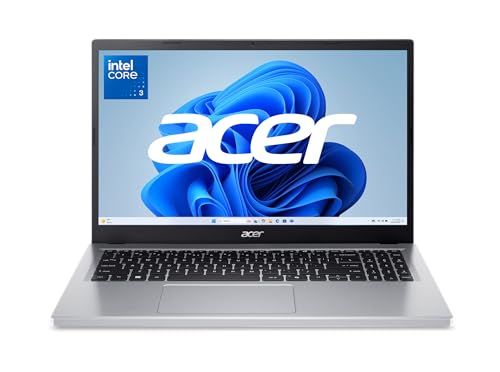
Acer Aspire Go 15, Intel Core 3 N355 — Newest platform
The Aspire Go 15 is the most modern-feeling machine here on paper. Intel’s Core 3 N355 is an eight-thread efficiency processor that sips power, the memory is DDR5 rather than DDR4, the screen is a Full HD IPS panel, and the whole design language is current. For silent, cool, all-day light work it is arguably the most pleasant pick in the guide, and its efficiency makes it a natural fit for a library, a train or a shared house where the fan noise of older budget laptops draws complaints.
It is also, in the specific sense this article cares about, the least upgradable Windows laptop on the page. Its 128GB of storage is UFS, which is phone-style flash soldered to the board. There is no M.2 bay waiting for a bigger drive, because there is no drive. When the storage fills, your options are cloud folders, an external SSD or a microSD card, full stop. We include it because a buyer deserves to see the contrast drawn sharply: the newest platform in the guide is a sealed one, and if future storage growth matters to you at all, the older Aspire 3 above, with its replaceable SSD, is the more upgradable computer despite its soldered memory.
None of that makes the Aspire Go a trap for the right owner. A writer who works in cloud documents, a student whose university provides online storage, or a traveller who wants the quietest, coolest machine here will never meet its storage ceiling, because their files were never going to live on the laptop anyway. The failure mode is only a mismatch: buying a sealed 128GB machine while imagining a future drive swap that its design forbids.
- Display: 15.6-inch Full HD IPS
- Processor: Intel Core 3 N355
- Memory: 8GB DDR5
- Storage: 128GB UFS, soldered and not replaceable
- Mode: Windows 11 Home in S Mode as shipped
Strengths
- Full HD IPS panel with better viewing angles than most here
- Efficient, quiet processor suited to long unplugged days
- Current platform with DDR5 memory and Wi-Fi 6
Trade-offs
- UFS storage is soldered, ending any internal storage upgrade
- 128GB is a small allowance for a machine that cannot grow
- S Mode needs switching out before installing non-store software
Best for: quiet, light, cloud-based work where the laptop is a window rather than a warehouse. Not suited for: anyone whose upgrade plan includes a bigger internal drive, ever.
Which Processor Tier Is Enough for Which Job?
Because the processor can never be changed in any laptop here, it deserves more of your attention than the part of the specification you can change. The six picks span four distinct tiers, and the gaps between them are larger than the price gaps suggest. At the bottom sit the dual-core Celeron N4500 and the Athlon Silver, chips designed around silence and battery life. They run one thing well. A student writing an essay with a reference page open is inside their comfort zone; a student writing an essay while sharing their screen on a call with a slideshow running is not, and no memory upgrade will move that boundary.
The middle tier is where this shelf becomes genuinely pleasant. The Ryzen 3 7320U and Intel’s Core 3 N355 are both modern efficiency designs with enough threads to keep Windows, a browser and a call moving without the pauses that make cheap laptops feel broken. If your household’s computing is email, school platforms, documents, banking, streaming and light photo sorting, a machine from this tier will not be the reason anything feels slow for several years. The difference between the two is character rather than speed: the Ryzen is the more conventional all-rounder, while the Intel part leans harder into quiet, cool running.
Then there is the IdeaPad 1’s Ryzen 5 5500U, which belongs to a different conversation entirely. Six cores and twelve threads let it chew through the jobs that stall the others: a large spreadsheet recalculating, a batch of photos converting, a code project compiling, a call running alongside everything else you own. In a guide about upgradability it is almost a cheat code, because the best upgrade is the one you never need. A buyer choosing between a weaker laptop with a confirmed memory slot and this Lenovo with an unverified one should usually take the processor, since memory pressure can be managed by closing tabs, while a missing four cores cannot be managed at all.
Integrated graphics follow the same ladder. The Ryzen chips carry Radeon graphics that can run older or lightweight games at modest settings, which matters if the laptop will double as a child’s first gaming machine. The Celeron and Athlon graphics are for video playback and desktop work only. None of these machines will ever accept a graphics card, internal or otherwise in any practical sense, so the tier you buy is the tier you keep, for graphics as much as for processing.
How Do You Swap the SSD in a Budget Laptop, Step by Step?
Since a drive replacement is the upgrade most readers of this guide will actually perform, here is the honest shape of the job. Before touching a screw, decide how Windows will survive the move. The cleanest route for a home user is to create a recovery USB from inside Windows first, or to clone the old drive to the new one using a USB-to-M.2 enclosure, which costs little and turns the swap into a ten-minute physical job followed by a reboot. Back up anything irreplaceable to somewhere that is not the laptop, because the definition of a smooth upgrade is one where a backup turns out to have been unnecessary.
Physically, the sequence on most of these 15.6-inch machines is forgiving. Shut the laptop down fully, unplug it, and remove the screws from the bottom panel, noting that budget models sometimes hide one screw under a rubber foot. Ease the panel off with a plastic pry tool rather than a knife, working around the edges where clips live. Many technicians disconnect the internal battery connector at this point, and on a machine you plan to keep for years it is a habit worth copying. The M.2 drive sits under a single small screw at one end; it lifts out at an angle, and the new drive seats the same way. Do not force anything: every connector in a laptop this thin is smaller than your impatience.
Reassembly is the reverse, with two checks before the screws go back. Confirm the new drive is fully seated and its screw snug, and confirm no ribbon cable near the panel edge has been nudged loose. Power on and enter the BIOS or simply let Windows setup from your recovery USB find the drive. If you cloned, the machine should boot as if nothing happened, only with more empty space. If anything misbehaves, the old drive is sitting in your enclosure, unchanged, which is exactly why the clone-first route is the one we recommend to first-timers.
Which One Fits Your Household? Three Honest Scenarios
Consider first a parent buying for a ten-year-old whose school has standardised on browser-based platforms. The workload is genuinely light, the machine will be carried in a backpack and occasionally dropped, and the budget is firm. For that child, the Aspire 3 is the grown-up answer and the Vivobook Go is the tempting one. We would steer the parent to the Aspire 3 anyway: its Full HD screen matches the ASUS, its processor is a clear tier stronger, and its storage can grow when the child’s projects do. The Vivobook’s 4GB of memory will start causing friction right around the age when schoolwork gets serious, which is the worst possible moment for it.
Now consider a university student with a firm ceiling on spending and a course that involves statistics software, long documents and constant reference juggling. This is the IdeaPad 1’s home ground. Its processor will run the statistics package without drama, its drive swallows a library of PDFs whole, and if its memory layout turns out to include the slot the manual check is looking for, the machine has a genuine second act available in a later year. If the manual check disappoints, the student still owns the fastest laptop in this guide, which is a fine consolation prize.
Finally, consider a household replacing a deceased kitchen-table laptop that several generations share. Email, recipes, video calls with grandchildren, a shared photo stream and the occasional form to fill in: that is the HP touchscreen’s exact brief, and its 256GB drive gives every family member room without turf wars. The Aspire Go would serve the same household if everyone already lives in cloud accounts, and its silence suits an open-plan room. What none of these households should do is buy the sealed machines while quietly planning upgrades, because the plan, not the laptop, is the defective part.
How Do the Six Compare Side by Side?
| Model | Processor | Memory | Storage | Screen | Upgrade reality |
|---|---|---|---|---|---|
| Lenovo IdeaPad 1 (Ryzen 5) | Ryzen 5 5500U | 8GB | 512GB SSD | 15.6″ FHD | Drive replaceable; verify memory layout in manual |
| Acer Aspire 3 | Ryzen 3 7320U | 8GB LPDDR5 | 128GB NVMe SSD | 15.6″ FHD | Storage yes, memory never (soldered LPDDR5) |
| Lenovo IdeaPad 1i | Celeron N4500 | 12GB | 512GB SSD + 128GB eMMC | 15.6″ HD | SSD side replaceable; eMMC fixed |
| ASUS Vivobook Go 15 | Athlon Silver 10 | 4GB | 128GB SSD | 15.6″ FHD | Treat specification as final |
| HP 15.6 Touch | Ryzen 3 7320U | 8GB | 256GB SSD | 15.6″ HD touch | Drive is the realistic project |
| Acer Aspire Go 15 | Core 3 N355 | 8GB DDR5 | 128GB UFS | 15.6″ FHD IPS | Sealed: no internal storage or memory path |
How Do You Check a Service Manual Before You Buy?
Start with the full model number, not the marketing name. “IdeaPad 1” describes dozens of configurations; the number on the listing, something like a string of letters and digits after the name, describes exactly one. Search that string together with the phrase “hardware maintenance manual” and prefer the manufacturer’s own support site over any re-upload. Inside the PDF, find the section on removing the bottom cover, then the sections that follow it. Manufacturers document every removable part with its own procedure, so a memory module with its own page and diagram is a memory module you can change. A drive documented the same way is a drive you can swap. Anything absent from that sequence lives on the main board.
While the manual is open, note the memory specification it quotes. A manual that lists a module type and a maximum capacity is describing a slot. One that lists memory only inside the system board’s specification table is describing solder. Also check the storage interface wording: M.2 2280 or 2242 means a standard stick drive, while references to embedded multimedia card or universal flash storage mean the capacity printed on the box is the capacity the machine dies with. Doing this for two or three candidate models takes less time than returning one laptop, and it converts the word upgradable from a hope into a fact.
What Mistakes Do Buyers Make in This Price Band?
The first mistake is believing a headline storage figure without asking where the storage lives. This shelf includes configurations whose marketing adds a cloud subscription allowance to a small local drive and prints the sum. One current IdeaPad Slim 3i variant is sold under a “1TB cloud” banner: the terabyte is storage on a server somewhere, reachable only while you are online and only while the subscription lasts, while the physical drive inside the laptop is far smaller. Cloud space is not worthless, but it cannot hold your Windows installation, it vanishes offline, and it is not an upgrade. Always find the line that describes the drive itself.
The second mistake is assuming that a familiar brand name guarantees a slot. Every manufacturer on this page sells both slotted and soldered machines, sometimes under the same model name in different years. The third mistake is buying 4GB of memory with a plan to fix it later; at this end of the market, later usually never comes, because there is no slot to fix it with. The fourth is paying extra for a configuration whose only advantage is a bigger number attached to slow storage, when a smaller SSD in a faster machine would feel better every single day. Finally, buyers forget the charger and the battery: a laptop kept for five years will likely need one of each, so a model from a brand with a real parts ecosystem is itself a form of future-proofing.
A subtler mistake is upgrading in the wrong order. Owners of a 128GB machine with adequate memory sometimes buy a memory stick first because it feels like the classic upgrade, then discover the drive filling with Windows updates while the extra memory sits underused. On this shelf the correct sequence is almost always storage first, memory second and only where a slot exists, and a replacement battery whenever the original’s runtime has clearly faded. Each of those jobs answers a problem the owner actually has, which is more than can be said for upgrading by habit.
How Should You Read a Budget Laptop Listing Without Being Fooled?
Listings at this level are written to make a specification sound like the tier above, and learning the dialect takes one careful read. Start with the screen line. “HD” alone means 1366 by 768, however many adjectives surround it; “Full HD” or “FHD” means 1920 by 1080, and the difference at 15.6 inches is visible in every line of text you read. Next, the storage line: look for the letters SSD followed by a capacity, and treat any additional figure described as cloud, bonus or included storage as decoration. Then the memory line, where the letters LPDDR quietly announce solder, and where a capacity printed without a type deserves a trip to the service manual before it deserves your money.
Processor names reward the same suspicion. A modern Ryzen 3 or Core 3 is a far stronger chip than an older Ryzen 5 from many generations back in some workloads, and a Celeron with a high model number is still a Celeron. When two listings look similar, the tiebreakers that actually predict your daily experience are, in order, the processor generation, whether the storage is a true SSD, the screen resolution, and only then the memory capacity. Buyers routinely reverse that order because memory and storage print the biggest numbers, which is precisely why sellers print them biggest.
Finally, read the operating system line. Several machines in this class ship with Windows in S Mode, which restricts installations to the Microsoft Store until you switch out of it, a free and one-way process that takes a few minutes. S Mode is not a defect, and for a child’s laptop it can even be a feature, but discovering it when you try to install a school-required application is an avoidable annoyance. A listing is a contract written by the seller’s marketing department; the service manual and the specification tab are the parts written by the engineers, and those are the parts to trust.
What About the Battery and Parts Over Five Years?
A laptop bought for two hundred dollars is often expected, unrealistically, to behave like a laptop bought for six hundred. The component that will test that expectation first is the battery. Expect the runtime you experience in year one to shrink noticeably by year three, and plan for the battery to be a consumable, because it is one. The good news hidden inside this cheap shelf is that the big manufacturers publish part numbers and manuals for these machines, so a competent independent shop can source and fit a replacement pack. The bad news is that on the slimmest models the battery is glued or taped in place, which raises the labour cost of that job and is one more reason the slightly thicker, conventionally built machines age more gracefully.
Other wear parts follow a similar pattern. Keyboards on these models are often integrated into the top deck, making a single failed key a bigger repair than it should be, while chargers are standard enough that a lost one is a minor expense rather than a crisis. Screens are the part you most want never to replace, because on a machine at this price the panel can approach the value of the whole laptop. None of this argues against buying cheap; it argues for buying cheap from a brand whose documentation and parts pipeline will still exist when you need them, and for handling the machine like the five-year tool you hope it becomes.
What Should You Do on the First Day You Own One?
The first hour with a budget laptop decides how the next years feel, and a short checklist pays for itself. Begin with Windows updates, all of them, including the optional driver updates hiding in the advanced section, because a machine that has sat in a warehouse may be months behind. While those install, decide the S Mode question if your model shipped in it: switching out is free and permanent, and it is the right call the moment any software you need lives outside the Microsoft Store. Then uninstall the trial software and promotional tiles the manufacturer was paid to include, since on a 128GB drive every gigabyte of bloat is a gigabyte you will miss later.
Next, set up the safety nets while nothing can be lost. Turn on File History or an equivalent backup to an external drive or cloud account, create a recovery USB while the machine is healthy rather than when it is not, and check that OneDrive or your chosen sync is actually running rather than merely installed. Finally, open the manufacturer’s support page for your exact model number and bookmark the drivers and manuals section. That page is where your service manual lives, where a BIOS update will appear, and where, in year three, you will find the battery part number. An owner who has done these six things owns a measurably better laptop than the identical machine in the hands of someone who skipped them.
Final Recommendation
Buy the Lenovo IdeaPad 1 with the Ryzen 5 5500U if your budget reaches it, because processor quality is the one thing no upgrade can retrofit, and its 512GB drive postpones every storage question for years. Choose the Acer Aspire 3 if you want the honest, well-understood project: a good screen and chip now, a bigger SSD when the 128GB drive starts to pinch. The IdeaPad 1i suits the wide-but-light multitasker, the HP suits households that will actually use its touchscreen, and the Vivobook Go and Aspire Go are sealed appliances to buy only when their specific charms, looks in one case and silence in the other, outweigh a closed upgrade path. In a tier where most laptops are glued shut in spirit, the winners are simply the ones that still let you turn a screw.
Frequently Asked Questions
Can you really upgrade a laptop that costs this little?
Sometimes, in one direction. A replaceable M.2 SSD is the most common genuine upgrade on this shelf, followed occasionally by a memory slot on certain variants. What you cannot do is transform the machine: the processor is soldered in every pick here, so the performance ceiling is set on the day you buy.
How can I tell if RAM is soldered without opening the laptop?
Read the memory type. LPDDR memory is soldered by design, so any listing naming LPDDR4 or LPDDR5 has fixed memory. For plain DDR4 listings, the manufacturer’s hardware maintenance manual settles it: if the manual documents removing a memory module, a slot exists.
Is a Chromebook a better buy at this price?
For purely browser-based schoolwork, a Chromebook can be simpler and longer-lasting on battery. But it is the opposite of upgradable: memory and storage are fixed in effectively every model, and the software is ChromeOS rather than Windows. Choose it for what it is, not as an upgrade platform.
What is the first upgrade I should plan for?
Storage, on any pick with a 128GB drive. Windows, its updates and a modest app collection will crowd that capacity quickly. A larger M.2 SSD, fitted after cloning or reinstalling, is cheap, well documented for these brands and reversible if you keep the original drive.
Does more RAM fix a slow Celeron laptop?
No. Memory relieves pressure when many tasks are open at once, but a dual-core Celeron’s limit is computation itself. That is why the 12GB IdeaPad 1i in this guide is recommended for juggling light tasks, not for making any single task faster.
Should I avoid models advertised with large cloud storage?
Avoid the arithmetic, not necessarily the model. Work out the size of the physical drive inside the machine and judge that number. Treat any cloud allowance as a temporary bonus that depends on a subscription and a connection, and never count it as storage you own.
Is it worth paying a little more for a model with a confirmed memory slot?
Usually yes, if everything else is equal, because memory is the upgrade that extends a laptop’s comfortable life the furthest once storage is adequate. But a slot attached to a much weaker processor is a poor trade: confirm the slot by all means, then still buy the stronger chip when the two pull in opposite directions.
Related Guides
If your budget can stretch a little further, our roundup of the best 250 dollar laptops shows what the next step up buys in screens and memory. Shoppers who want a screen that folds or detaches should read the best 2in 1 laptops under 250 guide, and anyone weighing older quad-core machines against these picks can compare them in the best 4 core laptops roundup.


