What's inside
- Key Takeaways
- Quick Picks
- How Did We Choose Backup Drives Differently From Library Drives?
- What Is Each Drive Like to Live With as Your Safety Net?
- How Do the Six Compare as Safety Nets?
- What Makes a Backup Strategy Actually Work?
- How Do You Set Up Your First Backup, Step by Step?
- Which Backup Mistakes Leave People Unprotected?
- Final Recommendation
- What Does the Day You Actually Need the Backup Look Like?
- Backup, Archive and Sync Are Three Different Promises — Which One Do You Need?
- How Do You Care for the Backup Drive Itself Across the Years?
- How Does the Strategy Scale to a Household Full of Devices?
- Is Cloud Backup the Rival of These Drives, or Their Partner?
- What Does the First Month of a Working Backup System Look Like?
- Should Your Backup Be Encrypted, and What Does That Decision Cost?
- Why Buy the Second Drive Later Rather Than Both at Once?
- Frequently Asked Questions
- Related Guides
As an Amazon Associate I earn from qualifying purchases. This post may contain affiliate links at no extra cost to you.
gizmoverdict.com is reader-supported. When you buy through links on our site, we may earn an affiliate commission.
Where to buy: Each drive below links to a listing checked against this site’s verified product pool, so the capacity and model described are the ones that arrive. This guide prints no prices and no star ratings; a backup drive is judged on whether the copy exists when the worst day comes, and everything else is decoration.
The best external back up hard drives usb 3.0 share a humble job description: sit quietly, accept a copy of everything that matters, and be ready on the one day the main drive is not. USB 3.0 is the connection that made this job universal — fast enough that a full backup is an evening’s errand rather than a weekend’s occupation, and present on effectively every computer of the last decade, which means the drive you buy today will still plug into the machine you own next. The six portable drives in this guide, from 2TB to 5TB, are the backup shelf of four different makers, and the choice among them is mostly about capacity, software and how the drive will live its life: in a drawer, in a bag, or attached and working every night. Choose for the life the drive will actually live, not the tidier one you imagine, and the system will fit your household instead of lecturing it.
Seagate and Western Digital split most of the shelf, as they split most shelves: Seagate with a 2TB starter and a 5TB Portable that also speaks to consoles, WD with the plain-spoken Elements Portable at 4TB and the My Passport at 5TB, whose listing promises backup software as part of the package. Toshiba’s Canvio Basics represents the virtue of doing one thing without ornament, and ADATA’s HD710 Pro closes the list as the pick for backups that travel rough. None of them requires power from the wall — the USB cable carries both data and power — which is part of why the portable backup became the default insurance of the personal-computing era. It is insurance with an unusual property, too: unlike most policies, this one can be tested completely, any calm afternoon, by restoring a single file and watching it open.
Key Takeaways
- A backup that requires willpower will eventually not happen: whichever drive you choose, pair it with scheduled, automatic copying from the first day.
- USB 3.0’s real gift is universality — the drive works with the current machine, the next machine and the emergency machine.
- Capacity should be at least twice the data being protected, so the backup can keep history instead of only yesterday’s version.
- The My Passport’s listed backup software matters if your household will actually use it; the Elements and Canvio philosophies bet instead on your operating system’s own tools.
- One backup in the same building as the computer is half a strategy. The second copy — or the rotated drive kept elsewhere — is the other half.
- Portable drives are small enough to lose. Label yours, give it a home, and let its boringness be its protection.
- Test the restore, not just the backup: a copy you have never recovered a file from is a promise the system has not yet kept.
Quick Picks
| Pick | Badge | Why it earns its place |
|---|---|---|
| Seagate Portable 5TB | The roomy all-rounder | The joint-largest capacity here, listed for PC, Mac, PS4 and Xbox — a backup that can moonlight. |
| WD 5TB My Passport | Software included | Five terabytes with backup software in the listing, for households that want the routine built in. |
| WD 4TB Elements Portable | The plain answer | Four terabytes of no-nonsense storage over USB 3.2 Gen 1/USB 3.0, and nothing to configure. |
| Seagate 2TB Portable | The starter backup | The gentlest entry into the backup habit for a single laptop’s worth of life. |
| Toshiba Canvio Basics 2TB | Basics, honestly done | A 2TB USB 3.0 drive whose name is its manifesto: the essentials, without an entourage. |
| ADATA HD710 Pro | The travelling backup | ADATA’s Pro-line portable for the copy that rides in bags and survives journeys. |
How Did We Choose Backup Drives Differently From Library Drives?
A library drive is chosen for its presence; a backup drive is chosen for its absence — it should demand nothing, remind you of nothing, and surface only in the two moments that matter: the scheduled copy and the terrible day. So this guide weighs virtues that library reviews underplay. First, connection universality: USB 3.0 in every listing here, because a backup that needs an adapter is a backup that gets postponed. Second, power simplicity: every pick runs from the cable, because a backup drive with its own power brick is a backup drive that gets left unplugged. Third, software temperament: the drive’s maker may offer backup tools, as the My Passport listing states, but the drive must also behave perfectly as a plain volume for the operating system’s own backup, because households change software more often than they change drives.
We also weighed capacity against honesty. A backup drive smaller than the data it protects is not a backup but a selection — and selections made by a progress bar at midnight are rarely the ones a grieving owner would have chosen. Every pick here holds at least a typical laptop’s entire contents with room for history, and the 4TB and 5TB models hold a household’s main machine outright. Finally, we favoured lines with long, boring service records, because the backup drive is the last place in a household’s technology where novelty has any value at all. A backup drive should be the technological equivalent of a good insurance clerk: unglamorous in every ordinary week, and flawlessly competent in the one week that defines its existence.
What Is Each Drive Like to Live With as Your Safety Net?

Seagate Portable 5TB — The roomy all-rounder
Five terabytes in a cable-powered portable is the point where a backup drive stops being a laptop accessory and becomes a household utility. This Seagate Portable holds a full machine backup with deep history, or several machines’ worth of essential copies, and its listing’s guest list — PC, Mac, PS4 and Xbox — hints at its second career: the drive that backs up the computer all week can carry the console library’s overflow on the weekend. That versatility is genuinely useful in a household with one storage budget and several machines competing for it.
As a backup specifically, its virtues are scale and silence of operation: it asks for one cable, takes the copy, and goes back in the drawer. The discipline it demands in return is the rotation discipline every large portable deserves — a 5TB drive holding the only backup of two machines is a concentration of risk dressed as convenience, so pair it with a second copy somewhere, even a smaller, older one. Bought as the main vessel of a two-copy strategy, the big Seagate is the easiest recommendation on this page: the most room, the plainest manners, the widest compatibility.
- Capacity: 5TB as listed
- Connection: USB 3.0
- Stated compatibility: PC, Mac, PS4 and Xbox, per the listing
- Power: from the USB cable
Strengths
- Joint-largest capacity in the guide, in a take-anywhere portable form.
- Cross-platform listing makes it the household’s shared storage utility.
- One-cable operation keeps the backup routine friction-free.
Trade-offs
- Its size tempts owners to make it the only copy of everything.
- No bundled backup software story in the listing — your system’s tools run the routine.
- A portable this capacious deserves a labelled home, not a life in random drawers.
Best for: households wanting one large backup vessel for a main machine, with console duties on the side. Not suited for: being the sole copy of a family’s entire digital life, because no single portable drive should carry that weight alone.

WD 5TB My Passport — Software included
The My Passport line is Western Digital’s answer to the backup problem’s human half: the copying itself is easy, but getting a household to do it forever is hard. This 5TB model’s listing leads with its backup software, and that inclusion is the pick’s whole argument. Software that schedules, remembers and quietly maintains the copy removes the backup from the list of things a person must decide to do, which is where backups go to die. For the household that has owned an unused backup drive before — most households — the software is not a bonus feature; it is the difference between a strategy and a souvenir.
The drive underneath the software is the familiar My Passport proposition: a slim portable in the line’s long-running design, cable-powered, in a capacity that holds a main machine’s life with history to spare. The honest cautions are about the software relationship rather than the hardware: bundled tools tie the routine to one maker’s ecosystem, and a household that later changes its mind must migrate the routine, not just the drive. Owners who prefer their operating system’s built-in backup should look at the Elements pick instead and let the drive be a drive. Owners who know their own follow-through, and price it honestly, will find the My Passport’s hand-holding worth more than any specification on this page.
- Capacity: 5TB as listed
- Stated inclusion: backup software, per the listing
- Line: WD My Passport portable
- Colour in listing: black
Strengths
- Backup software included, aimed squarely at making the routine automatic.
- Full 5TB capacity — the software’s history-keeping has room to work.
- A long-running line with deep community knowledge behind every question.
Trade-offs
- The routine leans on the maker’s software; changing tools later means migrating habits.
- Households loyal to their system’s built-in backup gain nothing from the bundle.
- Like every pick here, it remains one copy — the off-site twin is still on you.
Best for: households that will actually back up only if the software makes it thoughtless. Not suited for: users with an established backup routine of their own, who are paying for hand-holding they will never use.
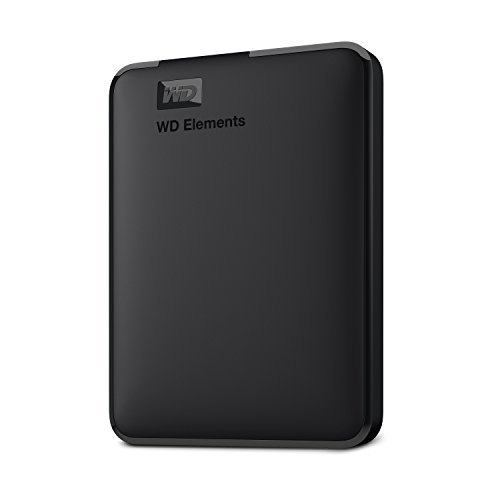
WD 4TB Elements Portable — The plain answer
The Elements Portable is the backup drive as a pure volume: 4TB, a USB connection its listing describes as USB 3.2 Gen 1/USB 3.0 — the same speed class under its newer name — and a stated intention for Windows PCs and Macs alike. There is no software bundle to evaluate, no dashboard to decline, nothing between your backup tool of choice and the platters. For the owner who already has a routine — the operating system’s built-in backup, a trusted third-party utility, a disciplined manual copy — this absence of personality is the product.
Four terabytes is the thoughtful middle of this guide: enough for a main machine’s full backup with generous history, or for the essential copies of a whole household’s laptops, at a size that keeps a full restore a practical evening rather than an expedition. The Elements Portable also ages gracefully into the rotation role — when a larger drive eventually takes over as the primary backup, this one becomes the off-site twin, small enough to live in a desk drawer at work or a relative’s house. Plainness, in backup hardware, compounds: the drive with nothing to configure is the drive still working, unconfigured and correct, five years from now.
- Capacity: 4TB as listed
- Connection: USB 3.2 Gen 1/USB 3.0, per the listing
- Stated for: Windows PC and Mac
- Line: WD Elements portable
Strengths
- The purest volume in the guide — your software, your rules, no bundle.
- 4TB holds a main machine’s backup with real history.
- Graduates perfectly into the off-site rotation role.
Trade-offs
- Brings no backup software; the routine is entirely your responsibility to arrange.
- One terabyte less than the joint-largest picks, for very large machines.
- Its plainness offers no encryption story for sensitive data in shared spaces.
Best for: owners with an existing backup routine who want a capacious, invisible vessel for it. Not suited for: a first-time backup buyer who needs the routine itself supplied, where the My Passport’s software is the actual product.
Seagate 2TB Portable — The starter backup
Every backup habit in this guide had a first evening, and this is the drive priced and sized for it. Seagate’s 2TB Portable holds a typical laptop’s complete contents — system, documents, photographs, the lot — with room for a modest history, and asks in return for one cable and one decision. For the machine whose entire digital life fits comfortably under a terabyte, which describes a large share of the laptops actually in service, 2TB is not the small option; it is the correct one, and the money it saves against its bigger siblings buys the second drive that turns a backup into a strategy.
Its starter role should not be mistaken for a temporary one. A 2TB portable that begins as a laptop’s backup becomes, when the household graduates to larger drives, the natural off-site copy, the travel copy, or the dedicated vessel for one precious subset — the photo archive, the business records — that deserves its own separate home. Small backup drives live long, useful lives precisely because the job of being a second copy never expires. Buy it to begin, keep it in service forever, and let its modesty be the reason the household actually owns two copies instead of one magnificent one.
- Capacity: 2TB as listed
- Type: portable hard drive
- Maker: Seagate
- Role: first backup, then permanent second copy
Strengths
- The gentlest price of admission to a real backup habit.
- Correctly sized for the majority of single laptops in service.
- A natural eternal second copy when larger drives arrive.
Trade-offs
- Machines with large media libraries will outgrow it as a primary backup.
- History depth is limited once the source data approaches its size.
- No bundled software story; the routine comes from your system.
Best for: a first backup for a single laptop, and as the permanent off-site twin in a grown-up strategy. Not suited for: the sole backup of a media-heavy desktop whose contents already exceed its capacity.

Toshiba Canvio Basics 2TB — Basics, honestly done
The Canvio Basics makes its pitch in its name and keeps it in its listing: a 2TB portable external hard drive, USB 3.0, black, from Toshiba. In a category that sometimes dresses simple hardware in software suites and subscription invitations, the Basics line’s refusal to ornament is a position worth respecting. It is a volume. Your backup software — the system’s own, most likely — writes to it. That is the complete user experience, and for a great many owners it is exactly the experience they wanted.
Toshiba’s long history in portable storage gives the plainness a foundation: this is not a no-name gamble but a major maker’s deliberately simple product, which matters on the day the drive is needed and support, documentation or a warranty conversation becomes real. The Canvio Basics suits the same starter and second-copy roles as the Seagate 2TB, and the choice between them is legitimately a matter of brand trust and which is on the shelf — a sentence this guide can write because at 2TB, from these makers, the products genuinely converge. Buy either, label it, schedule the copy, and spend your remaining attention on the rotation that protects you from the building itself.
- Capacity: 2TB as listed
- Connection: USB 3.0
- Colour in listing: black
- Line: Toshiba Canvio Basics
Strengths
- Deliberate simplicity from a major maker — a volume, honestly sold.
- USB 3.0 universality for current and future machines.
- Ideal starter or off-site second copy at the guide’s gentlest tier.
Trade-offs
- 2TB ceiling, like its Seagate counterpart — big machines need the larger picks.
- No included backup software; the routine is yours to arrange.
- Basics means basics: no protective or encryption extras are promised.
Best for: owners who want a major maker’s simplest possible backup volume. Not suited for: a primary backup for a large media workstation, where capacity runs out before the habit even forms.
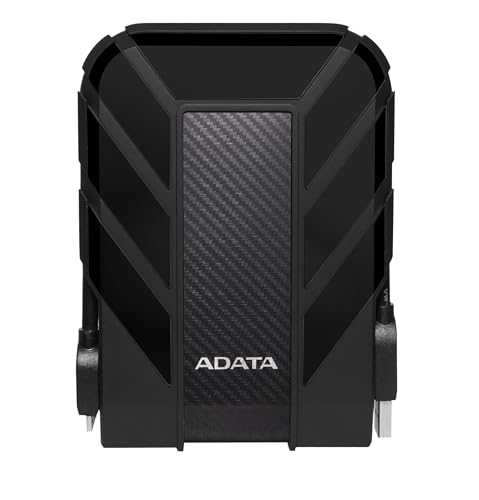
ADATA HD710 Pro — The travelling backup
The HD710 Pro closes the guide with a different silhouette: ADATA’s Pro-line portable, included for the backup whose life is not a drawer but a journey. The listing gives the model name without a specification sheet, so this guide will be precise about what it claims: this is the pick to investigate when the copy you keep off-site travels — in a commuter bag, between home and office, to the relative’s house across town — and you want the drive in that role to come from a line built and sold for rougher handling than a desk provides. Confirm the current model’s exact protective specifications against ADATA’s own documentation before relying on any particular rating; that verification is part of buying a specialist tool.
The role itself is beyond argument. The off-site copy is the half of backup strategy that protects against the events that take the computer and its desk-mate together — fire, flood, theft — and it is the half most households skip because it involves carrying something somewhere. A drive chosen for the carrying makes the strategy physical: it lives in the bag or the car or the office drawer, it gets swapped with the home copy on a rhythm, and its toughness, whatever the fine print, is aimed at the drops and knocks of that commuting life. Paired with any other pick in this guide as the home drive, the HD710 Pro completes the pattern the whole article recommends: two copies, two places, no single bad day able to take both.
- Model: ADATA HD710 Pro, as listed
- Type: portable external drive
- Specifications beyond the model name: not stated in the listing title — verify with ADATA documentation
- Role in this guide: the travelling, off-site copy
Strengths
- A Pro-line portable chosen for the travelling half of a backup strategy.
- Completes the two-places pattern that protects against building-level events.
- ADATA’s storage pedigree behind a specialist role.
Trade-offs
- The listing states no capacity in its title — confirm the size of the unit you order.
- Protective specifications must be verified with the maker, not assumed from the line’s reputation.
- A travel role means a rotation routine; an unrotated off-site copy quietly goes stale.
Best for: the off-site, travelling copy in a two-drive rotation. Not suited for: a desk-bound primary backup role, where its capacity must be confirmed from the listing before it can be weighed against the fully specified picks.
How Do the Six Compare as Safety Nets?
| Drive | Capacity | Character | Defining trait |
|---|---|---|---|
| Seagate Portable | 5TB | All-rounder | Console-friendly, joint-largest |
| WD My Passport | 5TB | Software-guided | Backup software in the listing |
| WD Elements Portable | 4TB | Plain volume | Nothing to configure |
| Seagate Portable | 2TB | Starter | The first backup |
| Toshiba Canvio Basics | 2TB | Basics | Simplicity as the feature |
| ADATA HD710 Pro | Verify listing | Traveller | The off-site copy’s drive |
The table resolves into a strategy rather than a winner. Choose the home drive by capacity and temperament — the software-guided My Passport if the routine needs supplying, the plain Seagate, WD Elements or Toshiba if it does not — and then choose the second drive by geography: whichever pick will actually live somewhere else. A household that buys one drive from the top of the table and one from the bottom owns more protection than a household that buys the flagship twice and keeps both in the same drawer.
What Makes a Backup Strategy Actually Work?
Three properties, and the drive is only one of them. The first is automation: the copy must happen on a schedule the software keeps, because a manual backup is a resolution, and resolutions have a half-life. Every pick in this guide works with the backup tools built into modern operating systems and with the My Passport’s bundled approach alike; choose whichever you will still be running in three years, and set it before the drive’s first evening ends. The second property is history: a backup that holds only the latest version of everything will faithfully preserve the corrupted file and the accidental deletion, so capacity headroom — the reason this guide keeps steering you a size up — is what buys the versions from last month, when the document was still whole.
The third property is separation, the one no drive can supply by itself. A backup beside the computer shares the computer’s fate in a fire, a flood or a theft, so the strategy needs geography: a second drive in another building, rotated on a rhythm the household can actually keep — weekly for the devoted, monthly for the realistic, termly for the honest. The rotation is also the moment to perform the strategy’s only real test, which is not “did the copy run” but “can I get a file back”. Restore one file, once, from each drive, on a calm afternoon. A backup that has never been restored from is a theory, and the terrible day is a bad time to peer-review it.
How Do You Set Up Your First Backup, Step by Step?
Begin with the drive empty and the afternoon unhurried. Connect it directly to the computer — not through a hub of uncertain parentage — and let the machine recognise it. Decide its identity now: a name that states its job and its home, so that future-you, mid-crisis, is not guessing which of three identical volumes is the backup. Then choose the tool: the operating system’s built-in backup for most households, the My Passport’s software if that is the pick you bought, and in either case accept the tool’s offer to encrypt the backup if your data is sensitive and you can keep the password somewhere survivable. Write the drive’s name and its start date on a label and put the label on the drive itself, because the system you are building will outlive your memory of which black rectangle is which.
Run the first copy manually and let it take the time it takes; a full machine’s first backup over USB 3.0 is measured in hours for large libraries, and interrupting it to “use the computer for a minute” is how first backups become third attempts. When it completes, do the restore test immediately — one photograph, one document, opened and verified — while the stakes are zero. Then set the schedule, place the drive in its permanent home, and write the rotation date for the off-site copy on whatever calendar the household actually reads. The setup is finished when the system no longer needs you, which for a backup is the only finished state that counts.
Which Backup Mistakes Leave People Unprotected?
The founding mistake is the backup that is actually a copy made once, by hand, in a burst of virtue, and never repeated — a snapshot ageing in a drawer while its owner believes themselves protected. The second is the backup that lives permanently attached and mounted, sharing every risk the computer faces, including the malicious software that specifically looks for attached drives to encrypt; a backup that is always reachable is a backup that can be reached by the disaster too. Rotate, disconnect, separate.
The third mistake is capacity optimism: a backup drive the same size as the data, which forces the software to discard history to make room, quietly converting a time machine into a mirror of the present — including the present’s mistakes. The fourth is never testing a restore. And the fifth, the saddest, is the unlabeled drive in the drawer discovered after the move, after the flood, after the new computer — its owner unable to say what it holds or when it held it. Label the drive, date the label, and let the system be boring enough to trust. Every one of these mistakes is made by intelligent people in the same way: not by choosing the wrong drive, but by treating the drive as the whole decision, when the drive was only ever the first third of it.
Final Recommendation
Buy the pair, not the drive. For the home copy, the household that needs the routine supplied should take the 5TB My Passport and let its software carry the habit; the household with a routine of its own should take the 5TB Seagate Portable for sheer room, the 4TB Elements Portable for plainness, or start honestly at 2TB with the Seagate or the Toshiba Canvio Basics if the machine being protected is small. For the travelling copy, the ADATA HD710 Pro exists to be carried, and any of the others will serve if it is the one that actually leaves the building. Then do the three things no product can do for you: automate the copy tonight, test one restore this week, and put the second drive somewhere else. A backup is not a purchase but a posture, and the drives in this guide are simply the six most sensible places to stand. Stand there long enough — through the rotations, the replacements and the one bad Tuesday that eventually comes for every machine — and the system becomes part of the household’s furniture of mind: unexamined, unthanked, and, on the only day it is ever truly examined, completely equal to the moment.
What Does the Day You Actually Need the Backup Look Like?
It rarely announces itself as a disaster. More often it is a Tuesday: the laptop that will not wake, the update that went wrong, the file whose contents were replaced by a helpful colleague’s older version. The household with a working backup experiences this Tuesday as an errand. The drive comes out of its home, the restore tool opens, and the question narrows from “is it gone” to “which version do I want” — yesterday’s, last week’s, the one from before the reorganisation. That narrowing, from catastrophe to preference, is the entire product every pick in this guide is selling, and it is delivered not by the drive’s specifications but by the routine that kept it current.
The full-machine version of the day is longer but no darker. A replacement computer, an empty afternoon, the backup attached: the restore rebuilds the machine’s life — documents in their folders, photographs in their library, the settings that took years to accumulate — at the pace of a large copy, which is to say at the pace of a long film watched in the same room. Owners who have lived this day describe a peculiar gratitude toward their past selves, and a permanent change in how they speak about backups afterwards. The drive that performed the rescue usually retires with honours to the off-site role, its replacement bought without a flicker of price resistance.
Contrast needs no embellishment: the same Tuesday without a current backup is a forensic exercise, a data-recovery quotation, a partial resurrection from email attachments and cloud scraps. The difference between the two Tuesdays is not luck. It is a portable drive, a schedule, and a rotation — the whole content of this guide — bought and begun on an ordinary day when nothing was wrong.
Backup, Archive and Sync Are Three Different Promises — Which One Do You Need?
Confusing these three is the conceptual error beneath most data loss, so the distinctions deserve plain statements. A backup is a copy kept for recovery: it answers “the original is gone or ruined — what do we do”. It keeps history, it is allowed to be slightly out of date, and its highest virtue is that it exists when everything else has failed. An archive is a copy kept for keeping: the finished project, the old photographs, moved off the working machine to free it, and expected to be read rarely and preserved long. A sync is a copy kept for convenience: the same files on every device, current everywhere — and, crucially, wrong everywhere within moments of a deletion or corruption, because sync’s whole purpose is to make every copy identical to the present.
The drives in this guide are backup drives, and they can serve as archives with honour, but no drive can turn sync into a backup by being plugged into it. The household that relies on a synced folder as its protection owns a very efficient distribution system for its mistakes. The mature household uses each promise for its purpose: sync for the convenience of the working week, a backup drive for recovery with history, and an archive habit — often the retired backup drives themselves — for the long keeping. Naming which promise you are buying is the first step of the setup section above, performed in the mind before the cable is touched.
There is a budget corollary. Because the three promises differ, the money divides naturally: the backup drive is bought for capacity and reliability, the archive can live on yesterday’s backup drive for free, and sync is a service rather than a shelf. Households that understand the taxonomy stop asking one product to be three things, and their data survives the understanding.
How Do You Care for the Backup Drive Itself Across the Years?
The backup drive’s own mortality is the strategy’s final exam, and it is passed with the same unglamorous habits as everything else in this guide. Keep the drive in its home — cool, dry, off the floor, out of the sun — and treat its cable as part of the drive, because the connector that has been bent by a hundred careless removals is the most common point of failure in the whole system. When you connect and disconnect, do it deliberately: let the system finish writing, eject through the software, and only then pull the cable. A backup drive’s life is mostly waiting, and waiting in good conditions is a skill households can give it for free.
Watch its health the way the rotation schedule invites you to: each swap is a chance to glance at the drive’s self-reported condition and to listen — actually listen, for two seconds — to a drive that should sound like it always has. A new click, a retrying spin-up, a copy that crawls where it once walked: these are the drive requesting its own succession while its contents can still be copied calmly. The succession itself is the rotation’s natural endpoint — the old backup becomes the archive, the new drive takes the duty, and the household’s copies never all share the same age, the same batch or the same fate.
Retire a backup drive the way you would want your own work retired: with its contents verified elsewhere, its label updated with its service dates, and its new role — archive, spare, the children’s machine’s copy — written on it in the household’s hand. Drives that are tracked this way almost never surprise anyone. Surprise, in storage, is the one feature nobody in this guide is selling.
How Does the Strategy Scale to a Household Full of Devices?
The single-laptop household’s system — one home drive, one travelling drive, a weekly rhythm — scales by pattern rather than by size. Each additional computer joins the same architecture: its own backup space, its own schedule, its own place in the rotation. The 5TB picks exist precisely for this growth, because a household’s fleet — two laptops, a desktop, the children’s machine — can share one large home vessel honestly if the software keeps each machine’s backup in its own named territory and the capacity arithmetic is done in aggregate, with history’s appetite included. The alternative, one modest drive per machine, has its own virtue: a failure or a loss is contained to one machine’s copy, and the drives can be labelled with the machine’s name in a way that makes the crisis-day search instantaneous.
What does not scale is informality. The one-machine household can survive on memory — the drive is in the blue drawer, the copy runs on Sundays — but the four-machine household’s memory becomes folklore, and folklore loses drives. Write the system down at the moment it gains its second machine: which drive serves which computer, where the off-site copy lives this month, when the rotation happens. The document can live on paper in the same drawer as the drives; it is not bureaucracy, it is the map that lets a different family member run the rescue on the day the usual person is travelling.
Consoles and phones deserve their sentence. The Seagate Portable’s listing names the game consoles because their libraries are data too, and a household that backs up its computers while treating a decade of game saves as invulnerable has understood the principle selectively. Phones mostly protect themselves through their own services, but the photographs that matter should land, eventually, in the same backed-up territory as everything else the household would grieve. The strategy’s unit is not the device; it is the household’s memory, and every device is just one of its doors.
Is Cloud Backup the Rival of These Drives, or Their Partner?
Partner, and the partnership has a natural division of labour. The cloud’s virtues are geography and automation perfected: the copy is elsewhere by definition, maintained by professionals, immune to your building’s fortunes. Its costs are the subscription that never ends, the restore that arrives at your internet connection’s pace — a full machine’s worth of data is a long download on the day you can least afford the wait — and the dependence on an account, a password and a company’s continued goodwill. The local drive inverts every term: bought once, restored at cable speed, entirely yours, and entirely vulnerable to the building it sits in.
The household that treats them as rivals must choose which failure it prefers. The household that treats them as partners gets both immunities: the local drive for the fast, complete, history-rich recovery of ordinary disasters, the cloud for the building-level catastrophe, each covering the other’s blind spot at a combined cost that remains modest beside the value of a family’s digital life. In that partnership the drives in this guide play the senior role for most households, because most disasters are ordinary — a dead laptop, a deleted folder, a bad update — and ordinary disasters are recovered fastest from the drawer, not the data centre.
Whichever combination you run, let the same test govern it: restore one real file from each copy, on a calm day, and watch it open. A strategy that has survived its own rehearsal is the only kind worth the name, in the cloud, on a drive, or — as this guide recommends — on both.
What Does the First Month of a Working Backup System Look Like?
Week one is the setup described earlier: the drive named, the tool chosen, the first full copy run and — the step that separates the systems that survive from the souvenirs — one file restored and opened as proof. The household’s feeling at the end of week one should be a mild anticlimax. Nothing has been rescued; nothing needed rescuing. The system has simply begun, and begun correctly, which in backup terms is a triumph disguised as a non-event.
Weeks two and three are where the schedule proves itself. The copies run without being asked, the incremental updates take their few minutes, and the owner catches the system working once — a progress bar noticed in passing — the way one catches a good lock doing its job. This is also when the rotation gets its first rehearsal: the off-site drive is swapped, carried to its other home, and the home drive takes its place in the bag-side of the pattern. A rotation performed once in calm conditions becomes a habit; a rotation first attempted during a crisis becomes a story.
By the end of the first month, the honest audit is three questions. Is the newest backup less than a week old? Can a named human in the household restore a file without instructions? Does a copy exist outside this building? Three yeses describe a system that will survive its owner’s forgetfulness, which is the true design requirement — not the disaster, but the ordinary erosion of attention across years. Every pick in this guide can anchor such a system. None of them can substitute for the month of small, correct beginnings that makes it real.
Should Your Backup Be Encrypted, and What Does That Decision Cost?
A backup drive is a copy of your digital life in a small, losable, stealable object, and that sentence argues for encryption more eloquently than any specification can. The drive that lives in a bag, rides to an office, or sits in a relative’s house carries the household’s documents, photographs and records in a form anyone with a cable can read — unless the backup itself is protected. Modern backup tools, including the operating systems’ built-in ones and the software bundled with drives like the My Passport, offer to encrypt the copy, and for any drive that leaves the building the offer should generally be accepted. The home drive, in a private house, presents a closer judgement; many households encrypt it too, on the principle that the habit is easier than the case-by-case decision.
The cost of encryption is not performance — on any modern machine the copying pace barely notices — but memory, in the human sense. An encrypted backup is exactly as accessible to its owner as the password is, and no more. The household that encrypts must therefore treat the backup password as it treats the house keys: recorded somewhere survivable, known to the one other person who would run the rescue, and never stored only on the computer the backup exists to protect. Every year, someone locks a lifetime of photographs behind a forgotten backup password, and the six drives above are honourably neutral in that tragedy — they keep the secret exactly as instructed.
Decide the policy once, at setup, for both drives in the rotation, and write it on the same household note that records which drive serves which machine. Consistency matters because the crisis day is the wrong day to discover that the off-site copy — the one that survived — is the one whose password lived in a file on the machine that did not. Encryption done calmly is invisible for years and priceless once; encryption done hastily is a second disaster wearing the first one’s coat.
Why Buy the Second Drive Later Rather Than Both at Once?
There is a respectable argument for staggering the pair, and it is not only about money. Two drives bought on the same day from the same shelf share an age, a batch and, in the long run, a retirement horizon; the household’s copies then grow old together, which is precisely the correlation a backup strategy exists to break. A second drive bought a year later — perhaps a different pick from this guide, perhaps the successor model of the first — staggers the fleet’s ages and diversifies its risks for free. The rotation described throughout this article quietly assumes that happy state: drives of different vintages, each able to cover for the other, neither indispensable.
Staggering has a discipline condition, though, and it is the same one that governs the whole strategy: the later purchase must actually happen. Put it on the calendar when the first drive is set up — an anniversary the household can keep, like the annual check of the smoke alarms it resembles in both dullness and importance. A second drive perpetually intended is the most common single point of failure in home backup, and it fails silently for years, in a drawer that contains one drive and one good intention. Buy the first drive today, by all means. Date the second one’s purchase before you sleep.
Frequently Asked Questions
Is USB 3.0 fast enough for a full-machine backup?
Yes. The first full copy of a large machine takes hours rather than minutes, but it takes them unattended, and every scheduled copy afterwards moves only what changed — typically minutes of work. USB 3.0’s decisive virtue is that it is everywhere: the drive plugs into the current machine, the replacement machine and the borrowed machine without adapters or negotiation, which is exactly what a backup needs on the worst day.
How big should my backup drive be compared with my computer’s drive?
Twice the data you actually hold is the comfortable rule, because the surplus is what stores history — the older versions that rescue you from corruption and deletion rather than only from hardware death. A drive merely equal to your data can mirror the present; a drive with room to spare can remember the past, and the past is usually what you need.
Should I use the maker’s backup software or my system’s built-in tool?
Use the one you will still be running in three years. The My Passport’s bundled software exists to make the routine effortless inside WD’s ecosystem, and for many households that guidance is the difference between a strategy and an intention. The built-in tools in modern operating systems are excellent and keep the routine independent of any maker. Both write to every drive in this guide; the unforgivable choice is neither.
Why keep a backup off-site if I already have one at home?
Because the disasters that take a computer often take its room with it — fire, flood, burglary — and a backup in the same building shares those fates completely. The off-site copy, even an older and smaller one rotated monthly, is the difference between losing a machine and losing a life’s files. Geography is the cheapest insurance in the entire strategy.
Can one of these drives back up more than one computer?
The larger picks can, and the 5TB models are sized for it — provided each machine’s backup is kept in its own clearly named space and the total, with history, still fits the twice-the-data rule per machine in aggregate. Households often find a cleaner pattern in one drive per machine plus one shared off-site copy, but a single big vessel honestly managed beats three small intentions.
What should I do with a backup drive when I replace my computer?
Keep it in service and let it meet the new machine properly: run the new computer’s first backup to the same drive if capacity allows, or promote the drive to the off-site role and give the new machine a fresh, larger vessel. Never wipe the old machine’s backup the week the new machine arrives — the migration’s mistakes surface over the following month, and the old backup is the only witness that remembers how things were. Retire the old copy when the new machine’s own backup has a month of history behind it.
Can I use a backup drive for extra storage as well?
You can, and households do, but understand the trade you are making: every gigabyte of “extra storage” parked on the backup drive is a gigabyte of history the backup cannot keep, and files stored only on the backup drive are, by definition, not backed up at all. If the drive must double, partition its life honestly — the backup’s territory is sacred, the overflow is labelled as unprotected — and plan the drive’s successor for the day the two appetites collide.
Related Guides
A backup drive is the foundation of a wider safety net. Build on it with our guide to home backup strategies that combine local and cloud copies, our roundup of the best NAS drives for household backup, and our walkthrough of recovering files from a failing drive.
Related guides
- Best 1440p 165Hz Monitors: One Native 165Hz Pick, Three 180Hz Upgrades, an Overclock Headline and a 160Hz Ultrawide
- Best 13×19 Professional Printers
- Best 3rd Party MacBook Chargers: 96W-Class Alternatives, the 100W Cable Rule, and the Apple Benchmark
- Best Built PC: Six Prebuilt Gaming PCs Judged on Parts, Power and Upgrades


