What's inside
- Where to buy
- Key Takeaways
- Quick Picks
- How did we choose these affordable business laptops?
- Which affordable business laptop fits your kind of work?
- What should you check before ordering laptops for a whole team?
- How do you set up a new business laptop properly on day one?
- How much does durability testing actually matter at this price?
- Why does the warranty conversation decide the real price?
- Which security features should a small firm actually switch on?
- What mistakes quietly make a cheap business laptop expensive?
- How should a growing firm plan its second and third laptop purchases?
- Final Recommendation
- Frequently Asked Questions
- Related Guides
As an Amazon Associate I earn from qualifying purchases. This post may contain affiliate links at no extra cost to you.
gizmoverdict.com is reader-supported. When you buy through links on our site, we may earn an affiliate commission.
Where to buy
Every laptop in this guide can be reached through the linked listing on its name, which is the quickest way to check the exact configuration on offer, because business machines are sold in dozens of memory and storage combinations under one model name. If your company buys through a reseller or a corporate portal, use the model names here as your shortlist and quote against them, since the same ThinkPad, Latitude, EliteBook or ExpertBook often appears through several channels with different warranty terms attached. Whatever route you choose, read the warranty line before the processor line. On an affordable business laptop, the difference between a one-year depot warranty and a three-year on-site agreement is worth more over the machine’s working life than a small step up in chip speed.
Ask a finance manager what an affordable business laptop really costs and you will not hear the purchase price first. You will hear about the afternoon a keyboard failed two days before a client presentation, the week a cheap consumer machine spent in a repair queue, and the imaging work your IT person repeated because a bargain model lacked proper management tools. The best affordable business laptops are not simply the cheapest Windows machines with a sober lid. They are the point where three ledgers balance at once: a modest price on day one, hardware that survives being carried, opened, docked and dropped into bags for years, and support arrangements that get a broken unit working again without drama. This guide ranks six machines and configurations on that total-cost basis rather than on sticker appeal alone.
That framing changes which specifications matter. A slightly older processor paired with generous memory will out-serve a faster chip starved of RAM, because office work is limited far more often by thirty browser tabs, a video call and a spreadsheet recalculating at the same time than by raw computing muscle. A replaceable battery and a keyboard that can be swapped in minutes quietly save more money than any launch discount. Even the humble network port earns its keep in offices, hotels and conference rooms where wireless coverage is patchy and a wired connection rescues the meeting. Throughout this guide you will see durability testing, warranty length, port selection and upgrade paths weighed as heavily as screen quality, because at this end of the business market those unglamorous traits decide whether a laptop was actually affordable or merely cheap.
Six machines follow, drawn from the four business families that dominate sensible fleet buying: Lenovo’s ThinkPad T series, Dell’s Latitude line, HP’s EliteBook range and ASUS’s ExpertBook models. Five are linked to live listings verified for this site; one widely sold value model is covered in prose only because no verified listing was available for it at the time of writing, and it is included because small firms keep asking about it by name. Prices move constantly in this segment and are deliberately not printed here — judge each pick by the ownership argument made for it, then check the current listing as the last step, not the first.
Key Takeaways
- A ThinkPad T14 in either of its two configurations here is the default recommendation for most small fleets, thanks to its port mix, repairable design and long record in corporate service.
- The ASUS ExpertBook B1 is the screen-size value play: a larger 15.6-inch panel and a wired network port at the gentle end of business pricing.
- HP’s EliteBook 840 earns its place on call quality and conferencing hardware, which matters more than benchmark gaps for hybrid staff.
- Dell’s Latitude 7450 is the pick when your office has standardised on Dell docks and support contracts and wants that ecosystem at a softer price point.
- One prose-only model, the ThinkPad E14, shows where the floor of sensible business buying sits — and which corners get cut to reach it.
- Across all six, memory you cannot upgrade later is the specification to scrutinise hardest before ordering in quantity.
Quick Picks
| Pick | Badge | Why it earns its place |
|---|---|---|
| Lenovo ThinkPad T14 (Core i7) | Best all-round value | A proven fleet chassis with a wired network port, fingerprint sign-in and enough memory headroom for years of office work. |
| Lenovo ThinkPad T14 Gen 6 | Best for long service | The newer T14 pairs a large memory allowance and a fast solid-state drive with the repairability the T series is bought for. |
| ASUS ExpertBook B1 15.6″ | Best big-screen value | A roomy display, a full-size feel and business ports including wired networking, aimed squarely at desk-based staff. |
| HP EliteBook 840 (Ultra 7) | Best for video calls | EliteBook conferencing hardware and a bright touchscreen make hybrid meetings less tiring for the person on this end. |
| Dell Latitude 7450 (Ultra 7 165H) | Best for Dell offices | Latitude build and dock compatibility with a stronger processor option for staff who keep heavier workloads open all day. |
| Lenovo ThinkPad E14 Gen 6 | Lowest sensible floor | The entry ThinkPad keeps the keyboard and business software image while trimming materials and extras to reach its price. |
How did we choose these affordable business laptops?
We started from the machines that IT departments actually reorder, then filtered for configurations a small business can buy one at a time without a volume contract. Every linked pick was checked against a live listing through this site’s verification process, so the model name, processor family, memory and storage in each mini-spec box match a configuration that exists to be bought, rather than a launch announcement. Where a listing describes a bundle or a particular regional variant, the write-up says so in plain terms and avoids promising parts that may not be in the box.
Total cost of ownership drove the ranking. We weighted, in rough order: warranty and support options, because one on-site repair can erase a purchase saving; repairability and parts availability, because keyboards, batteries and fans are wear items on a four-year machine; memory and storage headroom, because those decide whether year three feels like year one; port selection, because a laptop that needs a pocketful of adapters generates small daily costs in lost minutes; and only then processor speed and screen quality, which are genuinely good enough across this whole group for mainstream office work. A machine that won on benchmarks but lost on those ownership factors was placed below one that did the opposite, and the reasoning is stated inside each review rather than hidden.
We also drew a deliberate line under the category. Pure consumer laptops, however tempting their sale prices, were excluded: they typically lack Windows Pro licensing, business manageability, spill-resistant keyboards and the multi-year parts commitments that make fleet ownership calm. Chromebooks were left out for a different reason — many firms run them happily, but they answer a different software question and deserve their own guide. What remains is a shortlist of Windows Pro business machines that a five-person firm and a five-hundred-person firm can both buy with a straight face, differing mainly in which trade-offs each organisation prefers.

Lenovo ThinkPad T14 (Core i7) — Best all-round value
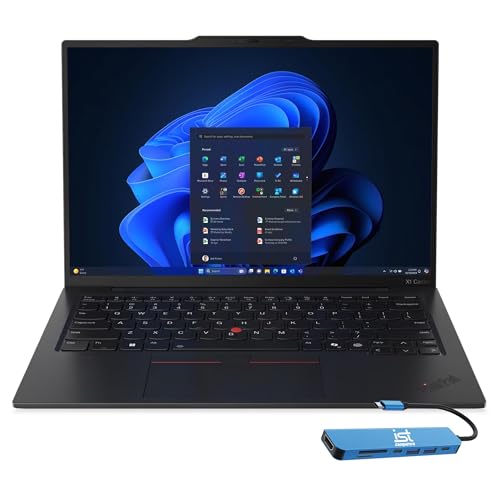
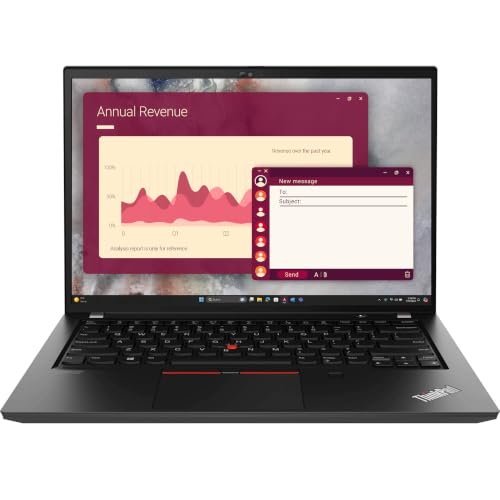
The T14 has been the answer to “just buy something sensible” for so long that its ordinariness is the point. This configuration pairs an Intel Core i7 with memory and storage sized for real office work rather than for a headline, inside the black, soft-touch chassis that facilities teams know how to service blindfolded. There is a wired network port on the side, a detail so unfashionable that many rivals deleted it, and so useful that anyone who has presented from a hotel meeting room with failing wireless will forgive the machine almost anything else. A fingerprint reader sits where your thumb expects it, the keyboard has the deep, quiet travel the ThinkPad name was built on, and the whole machine carries the faint air of equipment rather than gadget — which, for a laptop your staff will open in front of clients for four years, is exactly right.
Ownership is where this T14 quietly outplays prettier machines. The T series is designed to be opened: the battery, storage and fans are serviceable, keyboards can be replaced without discarding the deck, and Lenovo publishes maintenance documentation that independent repair shops actually use. Spread over a small fleet, that means a spilled coffee or a worn key cluster becomes an afternoon job instead of a write-off. The Core i7 configuration also leaves performance headroom for the software bloat that accumulates across a machine’s life — the security agent, the sync clients, the conferencing app that updates itself weekly. None of that is exciting, and all of it is what affordable really means once the invoice is forgotten. If your shortlist has room for only one model name to evaluate first, start here and make the others argue their way past it.
- Processor: Intel Core i7
- Memory and storage: 16GB RAM, 512GB SSD
- Display: 14-inch Full HD
- Ports and extras: Thunderbolt 4, RJ45 wired networking, fingerprint reader, backlit keyboard
- Operating system: Windows 11 Pro
Strengths
- Serviceable design with widely available parts keeps repair bills small in years three and four.
- The wired network port and full-size connectors remove daily adapter friction in older offices.
- Keyboard comfort is the best in this group for staff who type reports all day.
Trade-offs
- The display is a workmanlike panel rather than a colour showcase, so photo-critical work belongs elsewhere.
- It looks deliberately plain next to slimmer rivals, which some staff read as old-fashioned.
- Speaker quality is adequate for calls and little more; music and video sound thin.
Best for: small and mid-size firms standardising on one dependable 14-inch model for general office staff. Not suited for: buyers who want a premium metal showcase laptop or serious graphics performance.

Lenovo ThinkPad T14 Gen 6 — Best for long service
If the Core i7 T14 above is the safe pair of hands, the T14 Gen 6 is the same idea bought with a longer horizon. The verified listing describes a machine with a notably generous memory allowance and a large solid-state drive, and those two numbers matter more to a five-year ownership story than any other figures on the page. Memory is what lets a laptop absorb the next three versions of your office suite, your browser habits and your employer’s security tooling without swapping to disk; storage headroom is what stops staff hoarding files on personal drives because the company machine is full. Add a touchscreen option in this configuration, an infrared webcam for face sign-in, and fast charging for the days when the machine lives away from its desk, and you have the T14 formula updated where it counts.
The Gen 6 also shows where Lenovo has been spending its engineering effort lately: efficiency. The current Intel Ultra processor family handles the bursty rhythm of office work — idle, call, spreadsheet, idle — with less fan noise and better battery behaviour than older generations, and it brings on-device AI acceleration that mainstream buyers may not use this year but which costs nothing to have in reserve. Crucially, none of that modernity sacrifices the T-series serviceability described above; this remains a machine your repair shop can open with standard tools and a service manual. Buy the T14 Gen 6 when the plan is to keep laptops longer between refreshes, because its specification is the one in this guide least likely to feel undersized before its warranty expires.
- Processor: Intel Core Ultra 5 225U
- Memory and storage: 32GB DDR5 RAM, 1TB SSD
- Display: 14-inch FHD+ touchscreen
- Ports and extras: two Thunderbolt 4 ports, fingerprint reader, infrared webcam, fast charge
- Operating system: Windows 11 Pro
Strengths
- Memory and storage headroom are the strongest in this guide at this level, delaying the mid-life upgrade conversation.
- Face sign-in and a fingerprint reader give staff two quick, secure ways in.
- Fast charging rescues short-notice travel days when the battery starts low.
Trade-offs
- You pay for that headroom up front, so the saving versus premium models is smaller than with the older T14.
- The touchscreen adds a little weight and a glossy surface some people dislike under office lighting.
- Like its sibling, it prioritises durability over slim, eye-catching design.
Best for: firms stretching refresh cycles to four or five years and wanting one specification that survives the whole term. Not suited for: buyers minimising this quarter’s spend above all else.

ASUS ExpertBook B1 15.6″ — Best big-screen value
Plenty of business work never leaves a desk, and for the person reconciling accounts or reviewing contracts eight hours a day, a 15.6-inch screen is not a luxury — it is the difference between side-by-side documents and constant window shuffling. The ExpertBook B1 is ASUS’s straightforward answer to that worker: a large Full HD display, a current Intel Core 7 processor in the verified configuration, and a port selection that reads like a checklist from a facilities manager, including wired networking and full-size video output for the meeting-room screen. The listing pairs the machine with unusually generous memory and storage for its class and describes a bundle, so check exactly what the bundle includes before ordering; the laptop itself is the value here, and any extras should be treated as a bonus rather than the reason to buy.
ASUS supports the ExpertBook line with business durability testing and the kind of physical security touches — a fingerprint reader, a camera with infrared for face sign-in — that used to be reserved for pricier tiers. The B1’s compromises are honest ones: it is a bigger, heavier machine than the 14-inch picks, its screen is a practical panel rather than a bright premium one, and the chassis materials feel functional rather than luxurious. For a reception desk, a back-office workstation that occasionally travels to another site, or a home worker whose laptop moves between kitchen table and spare room rather than between cities, those compromises are well judged. It is the only pick here that gives you the big-screen working area without stepping up to workstation money.
- Processor: Intel Core 7 150U
- Memory and storage: 32GB RAM, 1TB SSD (per verified listing; bundle contents vary)
- Display: 15.6-inch FHD
- Ports and extras: HDMI, RJ45 wired networking, infrared camera, Wi-Fi 6
- Operating system: Windows 11 Pro
Strengths
- The larger display genuinely reduces window juggling for spreadsheet and document work.
- Memory and storage in the listed configuration are generous for the class.
- Full-size ports mean the meeting room and the wired desk both work without adapters.
Trade-offs
- Size and weight make it the least pleasant pick here for daily commuting.
- The panel prioritises size over brightness and colour range.
- Bundle listings vary, so the exact box contents need a careful read before purchase.
Best for: desk-based staff, back-office roles and home workers who want screen space at a gentle price. Not suited for: frequent flyers counting every gram in a carry-on.

HP EliteBook 840 (Ultra 7) — Best for video calls
Hybrid work quietly rewrote the business laptop brief: the webcam, microphones and speakers stopped being spec-sheet filler and became the tools your clients judge you by. The EliteBook 840 has long been HP’s answer for staff who present as often as they type, and this Ultra 7 configuration keeps that emphasis — a touchscreen WUXGA display with a taller aspect ratio than old Full HD panels, a backlit keyboard for dim home offices, and the conferencing polish that EliteBooks are bought for. The taller screen deserves a sentence of its own: those extra vertical lines show more of a document or a spreadsheet at once, and after a week of using one, returning to a shorter panel feels like working through a letterbox.
HP’s ownership story differs from Lenovo’s in flavour rather than quality. EliteBooks are built for managed fleets, with strong security firmware, good dock behaviour and a service network that suits companies standardising on HP across printers and desktops as well. This configuration’s memory and storage are sensibly mid-sized — enough for mainstream roles, less lavish than the T14 Gen 6 above — so the EliteBook argues its case on daily experience instead: the call where your voice comes through clearly in a kitchen with a kettle boiling, the sign-in that works first time, the hinge that still feels tight in year three. If your team’s work is meetings, documents and browser tools in roughly equal thirds, this is the pick tuned to that rhythm, and its touchscreen earns its keep for anyone who reviews and annotates documents with a pen-free swipe-and-tap style.
- Processor: Intel Core Ultra 7 165H
- Memory and storage: 16GB DDR5 RAM, 512GB SSD
- Display: 14-inch WUXGA touchscreen IPS
- Ports and extras: two Thunderbolt 4 ports, Wi-Fi 6E, backlit keyboard, webcam
- Operating system: Windows 11 Pro
Strengths
- Taller touchscreen suits document review and makes hybrid meetings feel less cramped.
- Conferencing hardware is a genuine step above the group average.
- Security and manageability features fit neatly into HP-managed fleets.
Trade-offs
- Memory is soldered in this class of EliteBook, so buy the capacity you need for the whole term.
- No wired network port on the chassis; wired desks need a dock or adapter.
- The stronger processor can run fans audibly under sustained heavy loads.
Best for: hybrid and client-facing staff whose day is half video calls, half documents. Not suited for: buyers who need a built-in wired network port or plan a mid-life memory upgrade.

Dell Latitude 7450 (Ultra 7 165H) — Best for Dell offices
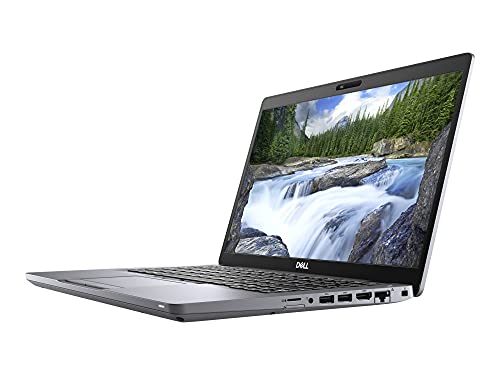
Every fleet has an incumbent, and in a great many offices the incumbent is Dell. The Latitude 7450 exists for those buildings: it docks with the same Dell docks already screwed to the desks, images with the same tools the IT person already knows, and draws on support contracts that may already be negotiated. This configuration steps up to the Ultra 7 165H processor, the stronger variant in the Latitude range, which suits staff whose “office work” quietly includes large data files, light development, or a dozen heavy browser applications held open across two external monitors. The 14-inch FHD+ display, infrared webcam and Wi-Fi 7 round out a specification that reads as deliberately current — nothing here will feel dated before the machine is.
Latitude ownership virtues are organisational as much as technical. Dell’s ProSupport culture, whatever one thinks of support contracts generally, is a known quantity for finance teams: predictable response, parts that arrive, a portal the IT lead has used before. The 7450’s aluminium build also travels better than the plastic-deck machines at the very bottom of the business market, which matters for staff who genuinely move between sites weekly. Where does it concede ground? The T14s beat it on built-in wired networking and on keyboard feel for marathon typists, and Dell’s configuration maze means you must check the exact listing specification carefully — the Latitude name covers a wide spread of memory, screens and processors, and the verified configuration described here is the one to compare against, not a cheaper namesake.
- Processor: Intel Core Ultra 7 165H
- Memory and storage: 16GB DDR5 RAM, 512GB SSD
- Display: 14-inch FHD+
- Ports and extras: Thunderbolt 4, infrared webcam, Wi-Fi 7
- Operating system: Windows 11 Pro
Strengths
- Fits existing Dell dock and support ecosystems without friction or retraining.
- The H-series processor gives the most sustained performance headroom among the 14-inch picks.
- Build quality feels a grade above the entry business tier in daily handling.
Trade-offs
- Dell’s many configurations make like-for-like price comparison genuinely confusing.
- Wired networking arrives via dock or adapter rather than a port on the machine.
- It rarely wins a pure price fight against the T14 or ExpertBook equivalents.
Best for: organisations already invested in Dell docks, imaging and support arrangements. Not suited for: first-time buyers with no Dell infrastructure, who will usually find better value in the T14.
Lenovo ThinkPad E14 Gen 6 — Lowest sensible floor
Every category needs its floor marked honestly, and in business laptops the ThinkPad E14 is that marker. It keeps the essentials that make a laptop a business tool — Windows Pro, the ThinkPad keyboard layout, a proper selection of ports, Lenovo’s business support channel — while trimming the things that push the T series upmarket: chassis materials are more workmanlike, the display options are plainer, durability testing is less extensive, and the overall feel is of a machine built to a budget rather than beyond one. We cover it in prose only because no listing for it was verified through this site’s process at the time of writing, and rather than link you somewhere unchecked we would rather describe it plainly and let you source it through your usual reseller.
None of that makes the E14 a mistake. For a startup equipping its first five hires, a training room that needs identical machines, or a role that is ninety percent browser and email, the E series spends money in the right order: processor and memory first, cosmetics last. The honest cautions are about horizon and handling. Staff who travel weekly will feel the difference in build within a year; the screen will not flatter client-facing presentations; and the resale or redeployment value at the end of term is lower than a T14’s, which slightly narrows the real price gap. Think of the E14 as the floor below which “business laptop” stops meaning anything — cheaper than this, you are buying consumer hardware and accepting consumer support, whatever the listing calls it.
- Processor: current-generation Intel or AMD business options, varying by configuration
- Memory and storage: varies by configuration; prioritise memory at purchase
- Display: 14-inch, typically Full HD class
- Ports and extras: business port selection including full-size connectors
- Operating system: Windows 11 Pro on business configurations
Strengths
- Keeps the ThinkPad keyboard and business software image at the lowest ThinkPad price.
- Sensible port selection avoids the adapter tax that ultra-slim consumer models impose.
- Easy to source through resellers in matching batches for small teams.
Trade-offs
- Build and durability testing sit a clear tier below the T series.
- Display quality is the plainest in this guide.
- Lower end-of-term value narrows its headline saving more than buyers expect.
Best for: startups, training rooms and browser-based roles equipping several seats at once. Not suited for: heavy travellers or anyone expecting T-series toughness at E-series money.
Which affordable business laptop fits your kind of work?
| Pick | Screen | Standout trait | Watch out for |
|---|---|---|---|
| Lenovo ThinkPad T14 (Core i7) | 14-inch FHD | Repairability and wired networking | Plain display and styling |
| Lenovo ThinkPad T14 Gen 6 | 14-inch FHD+ touch | Memory and storage headroom | Higher upfront cost |
| ASUS ExpertBook B1 | 15.6-inch FHD | Big-screen value with full ports | Weight for commuters |
| HP EliteBook 840 (Ultra 7) | 14-inch WUXGA touch | Conferencing quality | Soldered memory |
| Dell Latitude 7450 (165H) | 14-inch FHD+ | Dell ecosystem fit | Configuration maze |
| Lenovo ThinkPad E14 Gen 6 | 14-inch class | Lowest ThinkPad entry point | Build tier below T series |
Read the table as a map of priorities rather than a league ladder. The two T14s split on time horizon: the Core i7 machine for value now, the Gen 6 for service length. The ExpertBook trades portability for working area, the EliteBook trades upgradeability for call quality, the Latitude trades headline value for ecosystem calm, and the E14 trades toughness for the lowest entry price that still counts as business equipment. A firm that mixes roles will often buy two rows of this table rather than forcing one model onto everyone, and that is a sign of mature buying, not indecision — provided the fleet stays within one or two families so docks, chargers and spare parts remain interchangeable.
What should you check before ordering laptops for a whole team?
Start with the warranty document, not the brochure. Confirm the warranty length in years, whether service is on-site or carry-in, and what the upgrade to a longer term costs when bought with the machine — it is almost always cheaper at purchase than added later. Then confirm the operating system edition in writing: business fleets need Windows Pro for domain join, BitLocker management and remote desktop hosting, and a surprising number of cheap listings ship the Home edition under a business-sounding headline. Check memory with the same suspicion. Several modern business models solder memory to the board; if the machine you are buying cannot be upgraded, the capacity in the listing is the capacity for its whole life, and 16GB should be treated as the floor for a four-year term, with more for anyone running heavy browser or data work.
Next, walk the ports against your actual desks. Count the external monitors your staff use, whether your docks connect over USB-C, whether the meeting room screen expects HDMI, and whether anyone still needs wired networking at their seat. A laptop that fails one of those checks generates a small daily tax in adapters and fiddling that never appears in the purchase comparison. Battery expectations deserve honesty too: manufacturer hour claims are measured under gentle conditions, so treat them as a comparison between models rather than a promise about your working day, and favour machines with fast charging if your staff hot-desk. Finally, standardise the unglamorous accessories at the same time — a spare charger per floor, a dock per desk type, a sleeve per traveller — because a fleet purchase that forgets them spends the next quarter buying them one by one at retail.
Docking deserves one more practical note, because it is where affordable fleets most often trip over an invisible cost. A modern USB-C or Thunderbolt dock can drive two monitors, wired networking, and every desk peripheral through a single cable, and all the linked picks here support that pattern — but only if the dock, the cable and the laptop firmware agree with each other. Buy one dock, test it with one laptop from your chosen model for a full week including sleep, wake and a firmware update, and only then order for every desk. That week of patience has saved more fleet budgets than any negotiation, because a dock that drops a monitor every third morning generates a support ticket every third morning, forever, across every seat you equipped.
How do you set up a new business laptop properly on day one?
Begin before the user ever sees the machine. Apply system updates and firmware updates while it is still on the IT bench, because a laptop that spends its first afternoon updating teaches its owner to postpone updates forever. Turn on full-disk encryption and record the recovery key centrally; the day a laptop is left in a taxi is the wrong day to discover the key lived only on that laptop. Sign the machine into your organisation’s management or at least its update policy, install the agreed security tooling, and remove the bundled trial software that business listings sometimes include, since every unnecessary background agent is a small permanent tax on performance and battery.
Then set up the human layer. Create the user’s account with standard rather than administrator rights for daily use, register the fingerprint or face sign-in while the user is present, and walk them through the three things that prevent the most support calls: how the dock connects, where files are meant to live so they are backed up, and who to contact before a problem becomes urgent. Finish by recording the asset properly — serial number, purchase date, warranty expiry, assigned user — in whatever register your firm keeps. It sounds bureaucratic until the first insurance claim, audit or warranty dispute, when that one line of record-keeping pays for every minute it ever took. A fleet that does these six things on day one will feel, two years later, like it was bought from a more expensive catalogue.
How much does durability testing actually matter at this price?
Business laptop listings love to mention military-standard durability testing, and it is worth understanding what that claim does and does not promise. The tests behind the label involve subjecting sample machines to a battery of stresses — vibration, temperature swings, humidity, dust, drops onto hard surfaces from modest heights, pressure on the lid — and recording whether they keep working. Passing does not make a laptop indestructible, and the exact set of tests varies between brands, which is why the label should be read as evidence of engineering intent rather than as a guarantee. A manufacturer that designs hinges, keyboard decks and port reinforcement to survive that regime is telling you something real about how the machine will age in a school bag, a site cabin or the footwell of a car.
Where durability shows up in ownership is rarely dramatic. It is the lid that still closes squarely after two years of one-handed opening, the USB port that has not gone slack after thousands of dock cycles, the keyboard deck that does not flex and creak when the machine is carried by a corner. Those small stiffnesses are what separate a laptop that feels tired at eighteen months from one that still feels like equipment at four years. In this guide, the T series, Latitude and EliteBook lines carry the strongest reputations on exactly this axis, the ExpertBook sits close behind, and the E14’s lighter construction is the clearest single thing its lower price buys less of. If your staff work from desks and the laptop moves twice a day, moderate durability is fine. If the machine lives in a bag, spend on the lines built for bags.
Why does the warranty conversation decide the real price?
Consider two identical laptops bought a year apart by two identical firms. The first firm took the standard warranty and added nothing; the second paid a modest sum at purchase for a longer term with on-site service. When a motherboard fails in month twenty-six — outside the standard term, inside the extended one — the second firm’s story is a technician visit and a working machine within days, while the first firm faces a repair quote that approaches the value of a replacement, plus the imaging and setup time for whichever route it chooses. That single incident can cost more than the price difference between the two firms’ entire fleets’ warranty choices. This is why this guide keeps returning to warranty as a purchasing specification rather than an afterthought, and why comparing two listings without comparing their cover is comparing only half a product.
Practical steps follow from that. Price the warranty extension at the moment of purchase for every model on your shortlist, because the extension is usually cheapest then and sometimes only available then. Decide as a firm, in advance, what response time your work actually needs: a design studio on deadline and a back office with spare seats have different answers, and both are legitimate. Record expiry dates centrally and review them quarterly, so a machine drifting out of cover is a decision rather than a surprise. And when a listing bundles accidental-damage protection, read what it excludes before counting it as value — screens and liquids are the claims that matter, and policies differ on both. None of this is thrilling, but fleets are won and lost on exactly this paperwork.
Which security features should a small firm actually switch on?
Every pick in this guide arrives with more security hardware than most small firms ever activate: fingerprint readers or infrared cameras for sign-in, a trusted platform module for encryption keys, firmware protections against tampering, and privacy shutters or camera controls on several models. The gap between owning these features and benefiting from them is configuration. Biometric sign-in only helps if staff are enrolled, and enrolment takes two minutes per person on day one and becomes a support chore if left until later. Disk encryption only protects a lost laptop if it was enabled before the loss and its recovery key is stored somewhere the firm controls. Firmware update policies only work if someone owns the calendar reminder.
The encouraging news is that none of this requires an IT department. A one-page setup checklist — encrypt, enrol biometrics, set automatic updates, create standard user accounts, record the asset — covers the great majority of the real-world risk for a small fleet, and every machine here supports all five steps without extra software purchases. The EliteBook and the T14 Gen 6 make the biometric step especially painless with both face and fingerprint options between them, while the Latitude’s strength is how neatly it inherits whatever policy a Dell-managed office already runs. Security, like warranty, is a place where the affordable choice is not the cheapest machine but the one whose protections your firm will genuinely turn on.
What mistakes quietly make a cheap business laptop expensive?
The classic error is buying on processor headline while starving memory and storage. A fast chip with too little RAM swaps to disk constantly, feels slower than a modest chip with room to breathe, and cannot be fixed later on soldered models — the saving evaporates into years of small frustrations multiplied by every employee. The second error is ignoring the warranty tier: choosing the cheapest carry-in cover for staff who travel or work remotely converts every fault into days of lost work and a courier story. The third is mixing models freely because each was individually on offer; five different laptops means five dock types, five charger types and no interchangeable spares, and the fleet discount you chased dissolves into accessory chaos.
Two further mistakes are quieter. Buying consumer machines for business roles because the sale price undercut the business range ignores licensing, manageability and support differences that surface at the first rebuild or audit. And failing to buy a spare machine for a small fleet — one extra unit on the shelf — means a single failure idles an employee while a replacement ships; the spare costs less than the lost week. Notice that none of these mistakes is about choosing the wrong brand. They are process errors, which is good news: a one-page buying checklist prevents all five, and the shortlist above gives that checklist something solid to act on.
How should a growing firm plan its second and third laptop purchases?
The first laptop a firm buys is usually chosen in a hurry, and that is forgivable. The second and third purchases are where a fleet either becomes a system or becomes a drawer of incompatible chargers. The discipline that pays is boring: buy the same model, in the same configuration, from the same family, for as long as that model remains current. Identical machines mean one disk image, one set of drivers, one dock on every desk, chargers that wander between rooms without consequence, and a spare-parts shelf that actually matches the fleet. When a model is refreshed, move the whole purchasing line to the successor rather than mixing generations opportunistically, and keep the retired units as loaners instead of selling them for a fraction of their usefulness.
Budget rhythm matters as much as model discipline. Firms that replace laptops in one painful wave every four years tend to under-buy in the wave year and suffer ageing machines in year four. Firms that stagger purchases — a quarter of the fleet each year, on a rolling plan — spread the cost, always have some new machines for the most demanding roles, and cascade the older units toward lighter duties where they remain perfectly serviceable. The shortlist in this guide supports that approach well because all four families maintain successor models year after year; a T14 bought this year will have an obvious heir when its turn comes. Write the replacement month into the asset record at purchase, and the fleet stops being a series of emergencies and becomes what it should be: background infrastructure nobody has to think about.
One last planning habit separates calm firms from busy ones: keep a small float. A single spare laptop, imaged and ready, converts every failure, new starter and visiting contractor from a procurement event into a five-minute handover. The float machine does not need to be the newest model — last cycle’s T14 or Latitude is ideal — it needs to be charged, updated and findable. Counted honestly, that spare is the cheapest insurance in this entire guide, and it is the purchase most often skipped by firms trying to be economical.
A final word on timing, because it affects value more than most specification debates. Business laptop pricing breathes with the calendar: new generations push the previous ones into clearance, quarter-ends sharpen reseller quotes, and education and holiday seasons distort the market in predictable directions. A firm that can wait a few weeks for a refresh boundary often buys last year’s T14 or Latitude — a machine differing from the current one mainly in processor generation — for meaningfully less than launch pricing, with identical warranty and support. Conversely, a firm buying mid-cycle should not expect miracles and should negotiate on warranty and accessories instead of headline price. None of the picks above depends on a fleeting discount for its argument, which is deliberate: a recommendation that only makes sense during one sale week is not a recommendation a fleet can plan around. Check the linked listings when you are ready, compare the total with warranty included, and buy the configuration you will still be pleased with when the sale banners come down.
Insurance and asset tracking close the ownership loop. A laptop that is recorded — serial, purchase date, warranty expiry, assigned keeper — can be insured accurately, claimed for quickly, and written off cleanly at the end of its term. A laptop that exists only as a line on a card statement becomes an argument in every one of those processes. The five minutes of record-keeping per machine is, per hour of trouble avoided, the highest-return activity in this entire guide, and it costs nothing but the habit.
Keep the original box and packaging for the first month of ownership, too. Returns, exchanges and warranty shipments all move faster with the factory packaging, and a surprising share of early-life faults appear inside that first month. After that, flatten the boxes and keep one per model as the fleet’s shipping kit.
Final Recommendation
For most readers buying one model for a small team, the ThinkPad T14 (Core i7) is where we would put the money first: it is repairable, sensibly specified, properly ported and backed by the deepest service culture in this guide, and its total cost over four years is the easiest to defend to a sceptical finance eye. Stretch to the T14 Gen 6 if your refresh cycle runs long, choose the ExpertBook B1 when the work is desk-bound and screen-hungry, the EliteBook 840 when your people live on video calls, and the Latitude 7450 when your building already runs on Dell. Let the E14 mark your floor and refuse to shop beneath it. A business laptop earns the word affordable slowly, in uneventful years — buy the one whose fourth year you can already picture being boring.
Frequently Asked Questions
How much memory does an affordable business laptop actually need?
For a machine expected to serve three to four years of mainstream office work, treat 16GB as the working floor. That covers the operating system, a browser with many tabs, office applications, a video call and the security tools most firms now run, with a little room to spare. Staff who work with large datasets, development tools or virtual machines should step up to the larger configurations, such as the T14 Gen 6 in this guide. Because many current business models cannot be upgraded after purchase, the memory decision is effectively permanent, which is why this guide weights it so heavily.
Is Windows 11 Pro worth insisting on for a small firm?
Yes, for most firms, because the Pro edition adds the management and security features that business use quietly assumes: BitLocker encryption control, Remote Desktop hosting, group policy and the ability to join organisational account structures cleanly. A very small firm of one or two people working entirely in a browser can survive without it, but the moment you hire, share machines or handle client data under contract, Pro stops being a luxury. All the linked picks in this guide run Windows 11 Pro in their verified configurations.
How long should a business laptop at this level last?
A realistic planning horizon is four years, with a battery service or replacement somewhere in the middle being normal rather than a failure. Machines bought with generous memory and storage, like the T14 Gen 6 configuration here, can stretch to five years for lighter roles. Plan the budget on that cycle: a laptop that costs slightly more but serves four calm years is cheaper per year than a bargain replaced after two, and it generates far fewer support incidents along the way.
Should we buy extended warranty or just replace broken machines?
For fleets, extending warranty at purchase is usually the calmer economics, because the cost is known, the response is contracted, and staff are not left waiting while a replacement is sourced and imaged. Self-insuring by replacement can work for very small teams with a spare machine on the shelf and simple software setups. The worst option is the unplanned middle: no extended cover, no spare, and a hope that nothing breaks before a deadline — which is precisely when things break.
Are refurbished or renewed business laptops a sensible saving?
They can be, particularly previous-generation T-series, Latitude and EliteBook machines, whose build quality survives a second life well. The checks matter more than the label: confirm the battery health policy, the warranty the seller themselves provides, and that the machine ships with a legitimate Windows Pro licence. For roles where the laptop is a browser and documents terminal, a well-sourced renewed business machine often beats a new consumer one at similar money. For client-facing or travel-heavy roles, most firms still prefer new, and this guide’s picks are framed around that preference.
Does screen size change what a business laptop should cost?
It changes the working day more than the invoice. A 14-inch machine is the fleet standard because it balances a readable screen against a bag-friendly weight, and every pick at that size here will satisfy a travelling worker. The 15.6-inch ExpertBook B1 shows the other side of the trade: for staff who rarely move, the larger panel can remove the need for an external monitor entirely, which is a saving that never appears in laptop comparisons. Judge size by where the laptop will spend its hours, not by which diagonal sounds more impressive in a listing.
What about battery life claims on business listings?
Treat published battery figures as a ranking tool between models rather than a promise about your afternoon. Real office use — full brightness, video calls, cloud sync, a browser that never closes — draws far more than the gentle test conditions behind headline numbers. What matters practically is whether a machine survives a morning of meetings away from its charger and how quickly it recovers when plugged in, which is why fast charging earned mentions in the T14 Gen 6 and Latitude reviews above. If your staff routinely work whole days untethered, prioritise the efficiency-focused configurations and test one unit before committing the fleet.
Related Guides
Keep exploring the business hardware shelf with our guide to larger mobile workstations for engineering teams, compare notes in the compact business laptop round-up for frequent travellers, and round out your setup with our look at docking stations and desk accessories for hybrid offices.
Related guides
- Best 13 Inch Business Laptops: The Honest 13–14 Inch Ultraportable Shortlist
- Best 5 Windows 10 Business Laptops: Professional Machines From the Windows 10 Era, Judged for Buyers Who Still Run It
- Best Affordable Business Laptops Quadro Buyers Can Still Justify: Mobile Workstations With Professional Graphics on a Sensible Budget
- Best 17 Inch Windows Business Laptops: The Workstation Class That Replaced Them
[…] exploring small cameras with our best 10 small travel cameras survey of the wider pocket class, compare the phone alternative in the best 3 camera cell phones […]